
Sayl Mail · For administrators
Get Sayl Mail alerts in Slack or Microsoft Teams
Post security changes and new mail for shared mailboxes such as support@ into your own Slack or Microsoft Teams channel. Setup guide for administrators.
What slack and teams alerts is and why it helps
Chat alerts post important events from Sayl Mail into a Slack or Microsoft Teams channel your team already watches.
Two kinds of alerts are available: security changes (a new administrator, an API key created, two-step sign-in turned off, and more), and new email to mailboxes you choose, such as support@ or sales@, so the team sees new requests right away. Only the sender and subject are posted, never the message itself.
Where to find it
Admin console → Email flow → Chat alerts
Who can use it: Organisation administrators with full rights.
Step by step
Every screenshot is from Sayl Mail itself, using a demo company with made-up people. The button to click is outlined in orange.
- 1
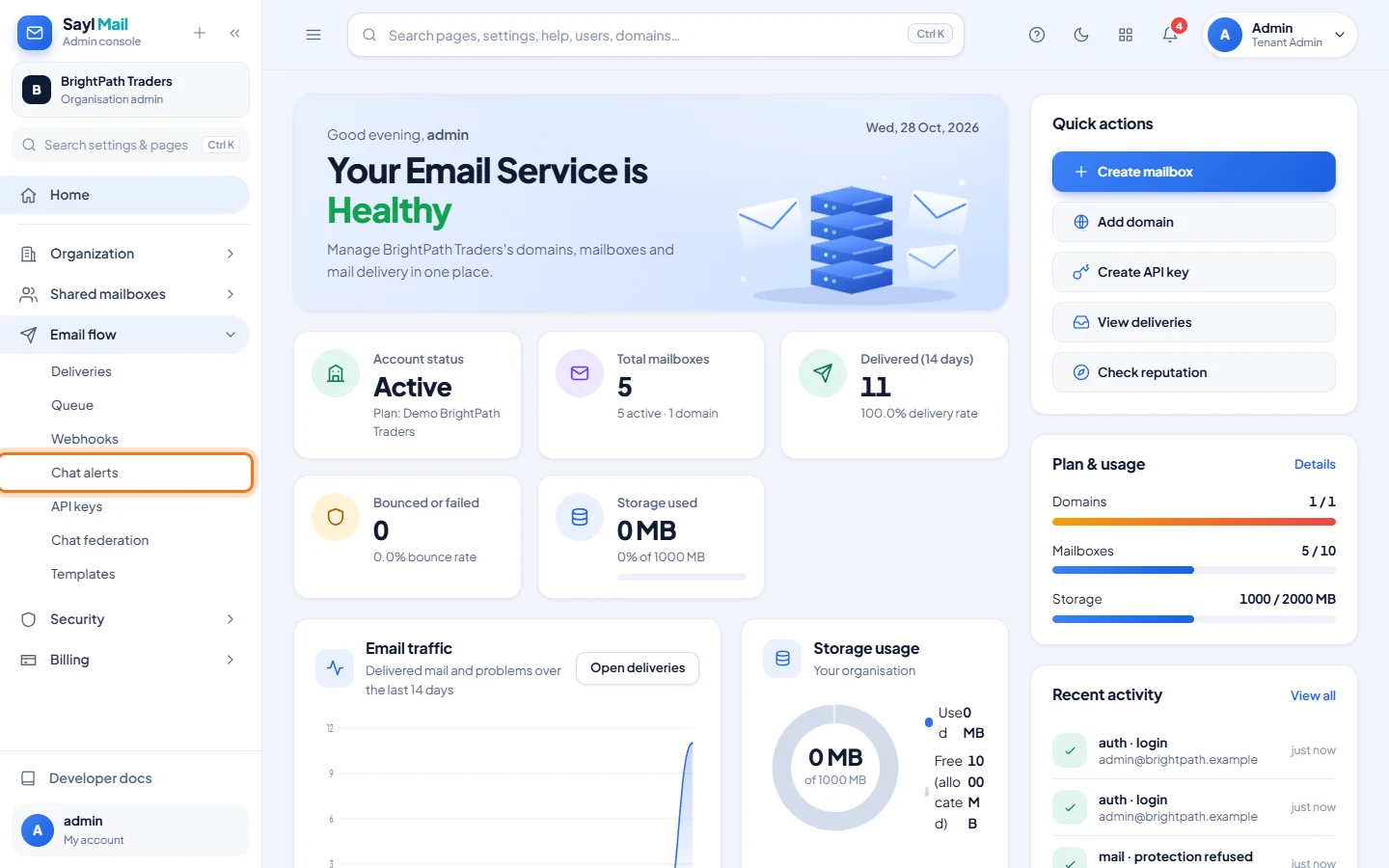
Open Email flow → Chat alerts
In the admin console menu, open Email flow and click Chat alerts.
- 2
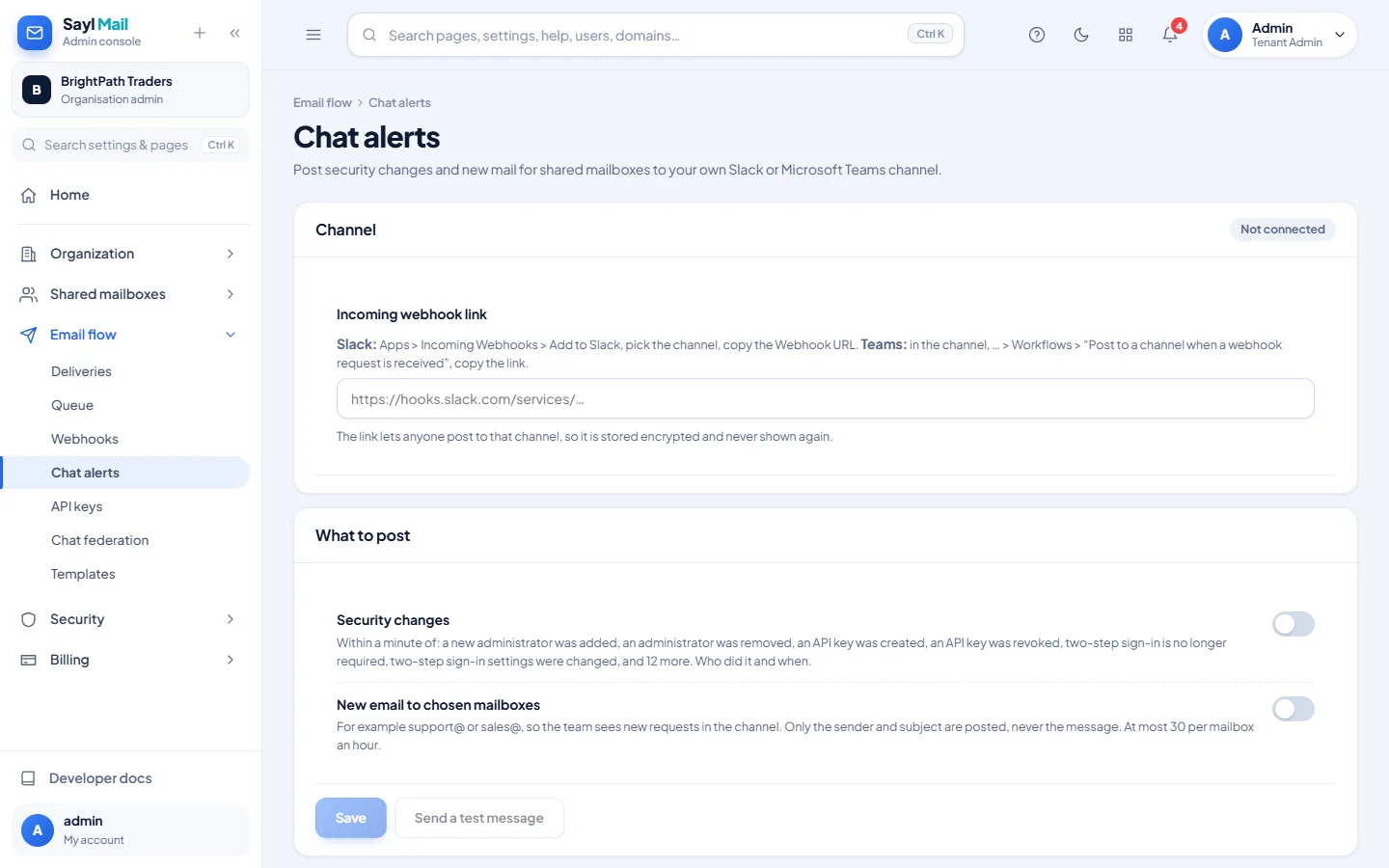
Get an incoming-webhook link from Slack or Teams
The page shows Not connected. Create the link in your chat tool. Slack: Apps → Incoming Webhooks → Add to Slack, pick the channel, copy the Webhook URL. Teams: in the channel, ⋯ → Workflows → "Post to a channel when a webhook request is received", then copy the link.
- 3
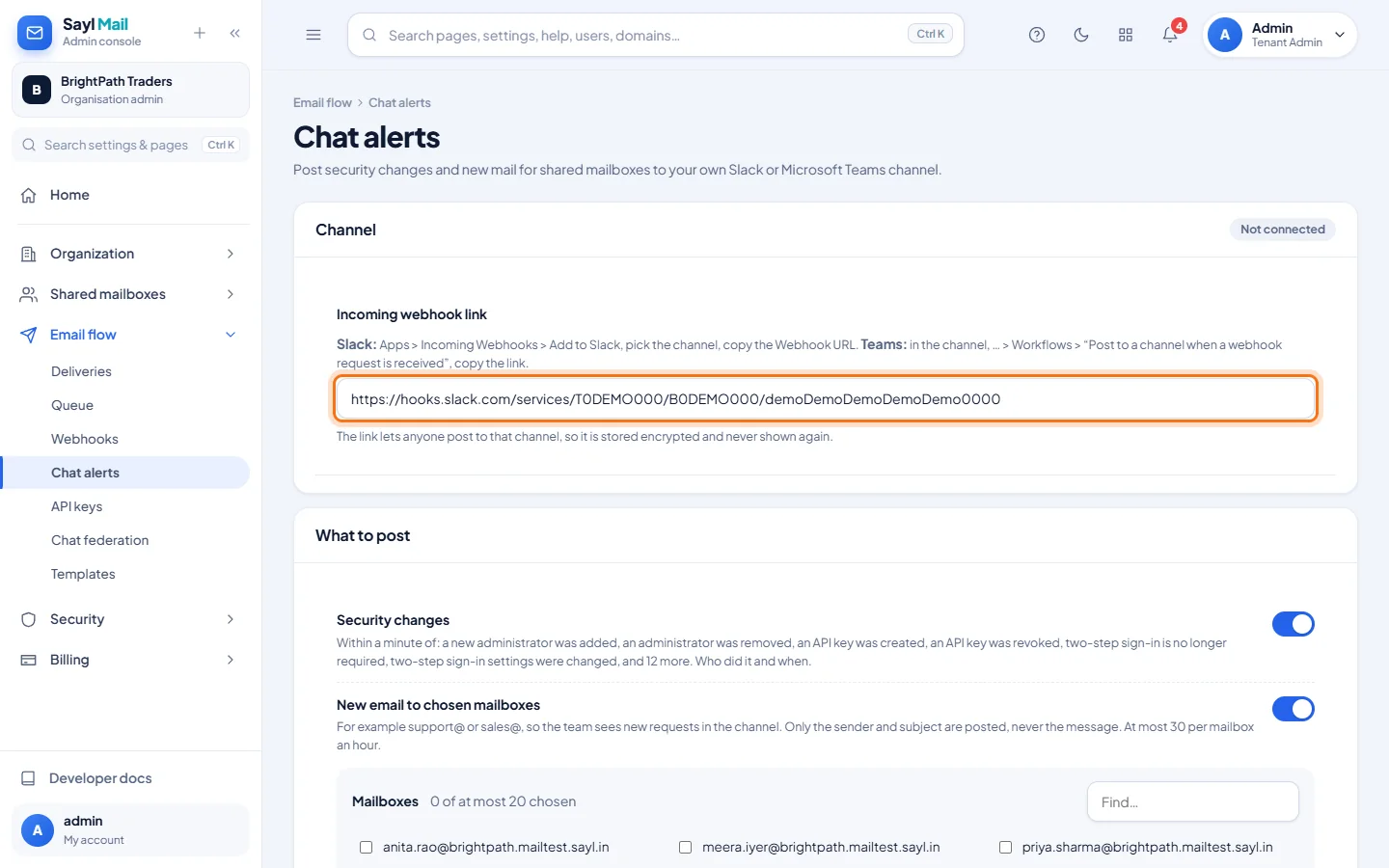
Paste the link and choose what to post
Paste the link into Incoming webhook link. Turn on Security changes and/or New email to chosen mailboxes, and tick the mailboxes to watch. Click Save.
- 4
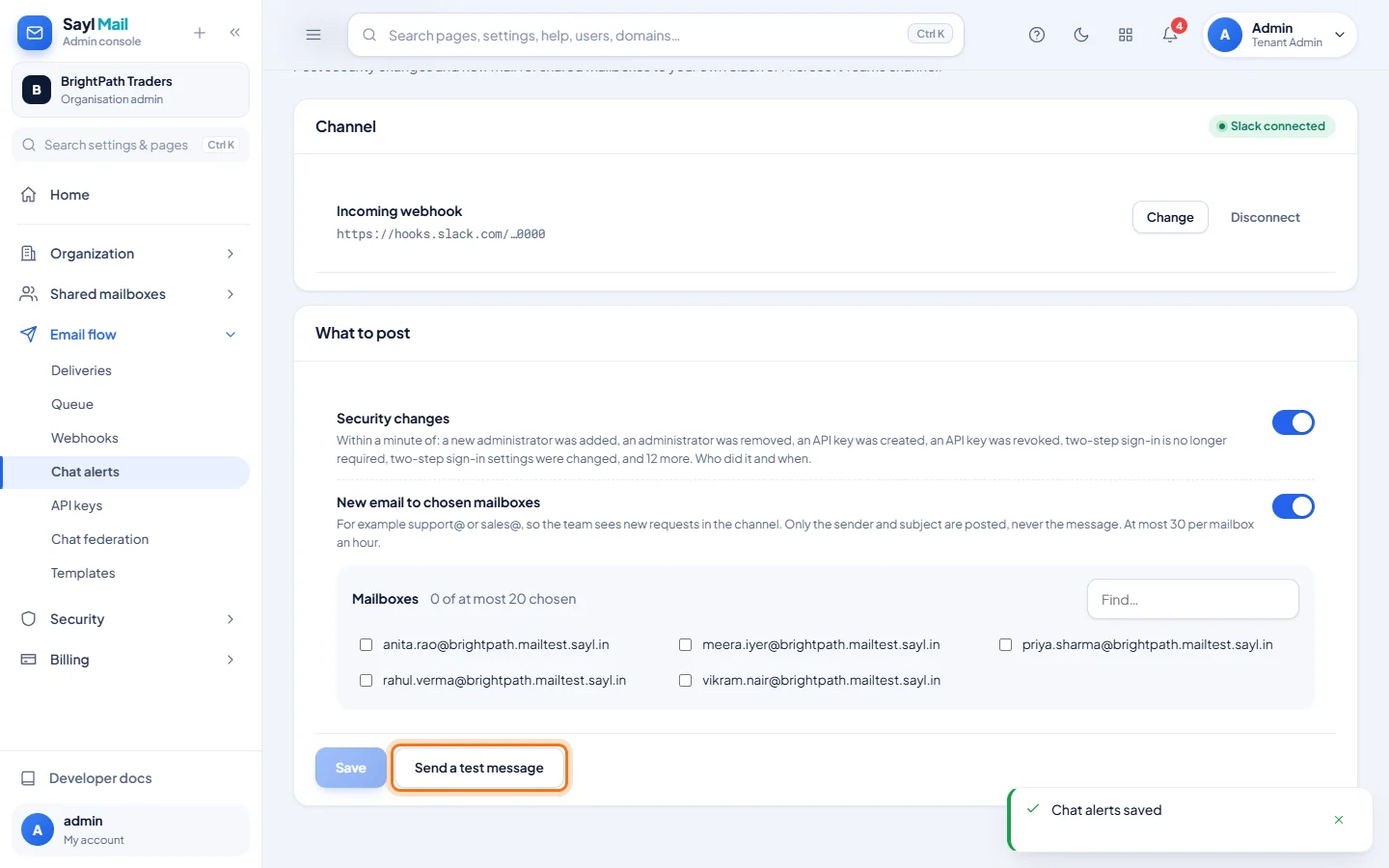
Connected: send a test message
The channel shows Slack connected (or Microsoft Teams connected). Click Send a test message and check that it appears in your channel.
Example
What the settings look like:
- Incoming webhook link
- https://hooks.slack.com/services/T0…/B0…/… (from Slack) or the link from a Teams workflow
- Security changes
- On: posted within a minute of the change
- New email to chosen mailboxes
- support@ and sales@: at most 30 posts per mailbox an hour
The result
- Your team sees security changes and new requests for shared mailboxes in the channel they already use.
Troubleshooting
- The link is not accepted when I click Save.
- Only Slack links (https://hooks.slack.com/…) and Teams workflow or connector links are accepted. Copy the whole link.
- The test message does not appear.
- Check that the link is still active in Slack or Teams (a removed webhook stops working), then paste a new one with Change.
- Who can see the link afterwards?
- Nobody. Anyone with the link can post to that channel, so it is stored encrypted and never shown again; use Change to replace it.
- How do I stop the alerts?
- Click Disconnect, or turn off the alerts you no longer want and click Save.
Still stuck? Your organisation's administrator can help first. Administrators can reach Sayl support from the admin console, or through the contact page.