
Sayl Mail · For everyone
Keep tasks and notes next to your email
Turn emails into tasks with due dates, keep a to-do list and write private notes in Sayl Mail. Each task made from an email links back to it.
What tasks and notes is and why it helps
Tasks and notes give you a simple to-do list and a place for quick notes, right inside Sayl Mail.
An email that needs action, such as "please send the signed agreement by Thursday", can become a task in one click. The task remembers the email, so you can open it again from the task. Tasks and notes are private to you.
Where to find it
Webmail → Apps (grid icon, top right) → Tasks; or open an email → ⋯ (More actions) → Add to tasks
Step by step
Every screenshot is from Sayl Mail itself, using a demo company with made-up people. The button to click is outlined in orange.
- 1
Add an email to your tasks
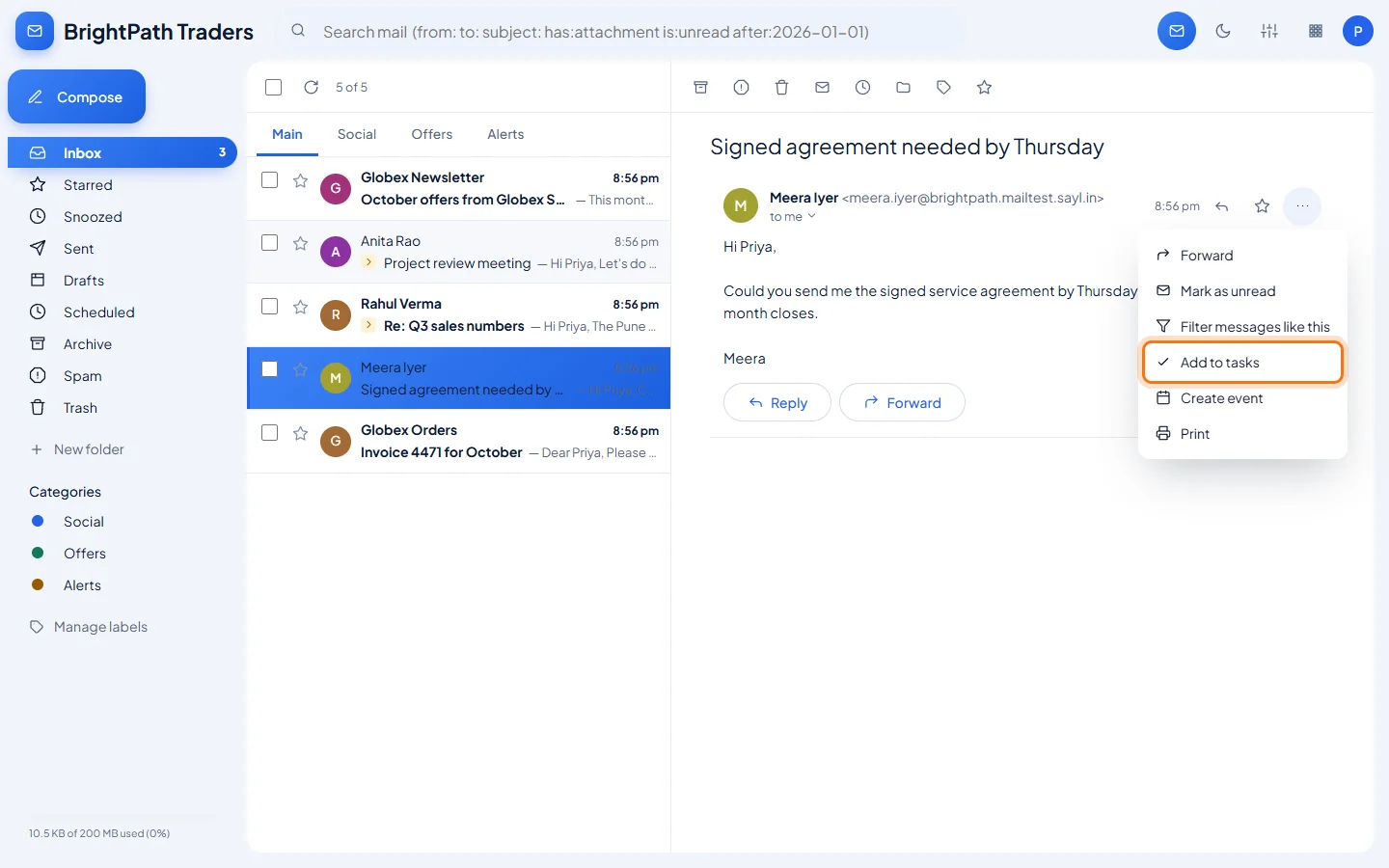
Open the email, click the three dots (More actions) and choose Add to tasks. A message confirms "Added to your tasks".
- 2
Open Tasks from the apps menu
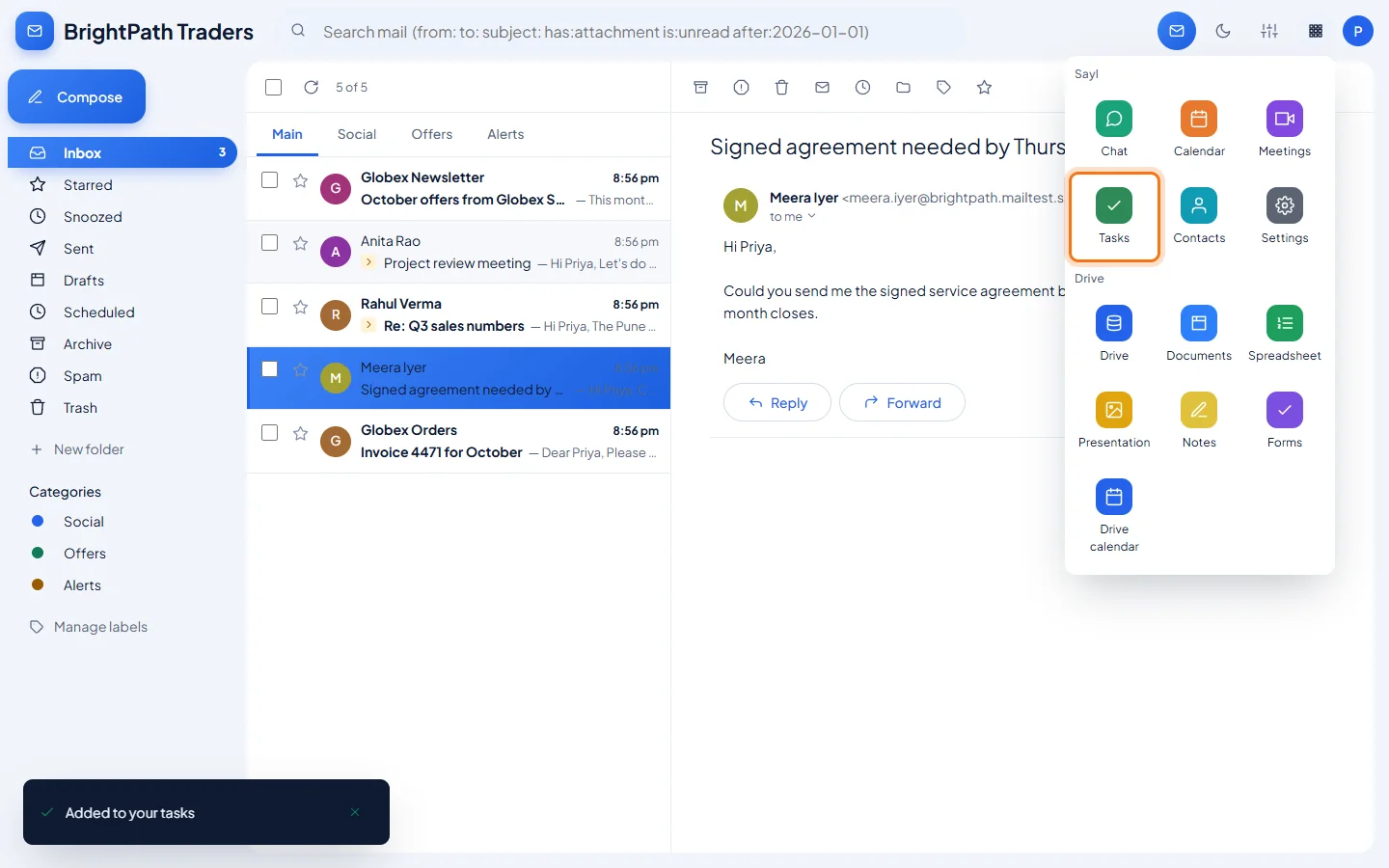
Click the grid icon (Apps) at the top right and choose Tasks.
- 3
Add a task with a due date
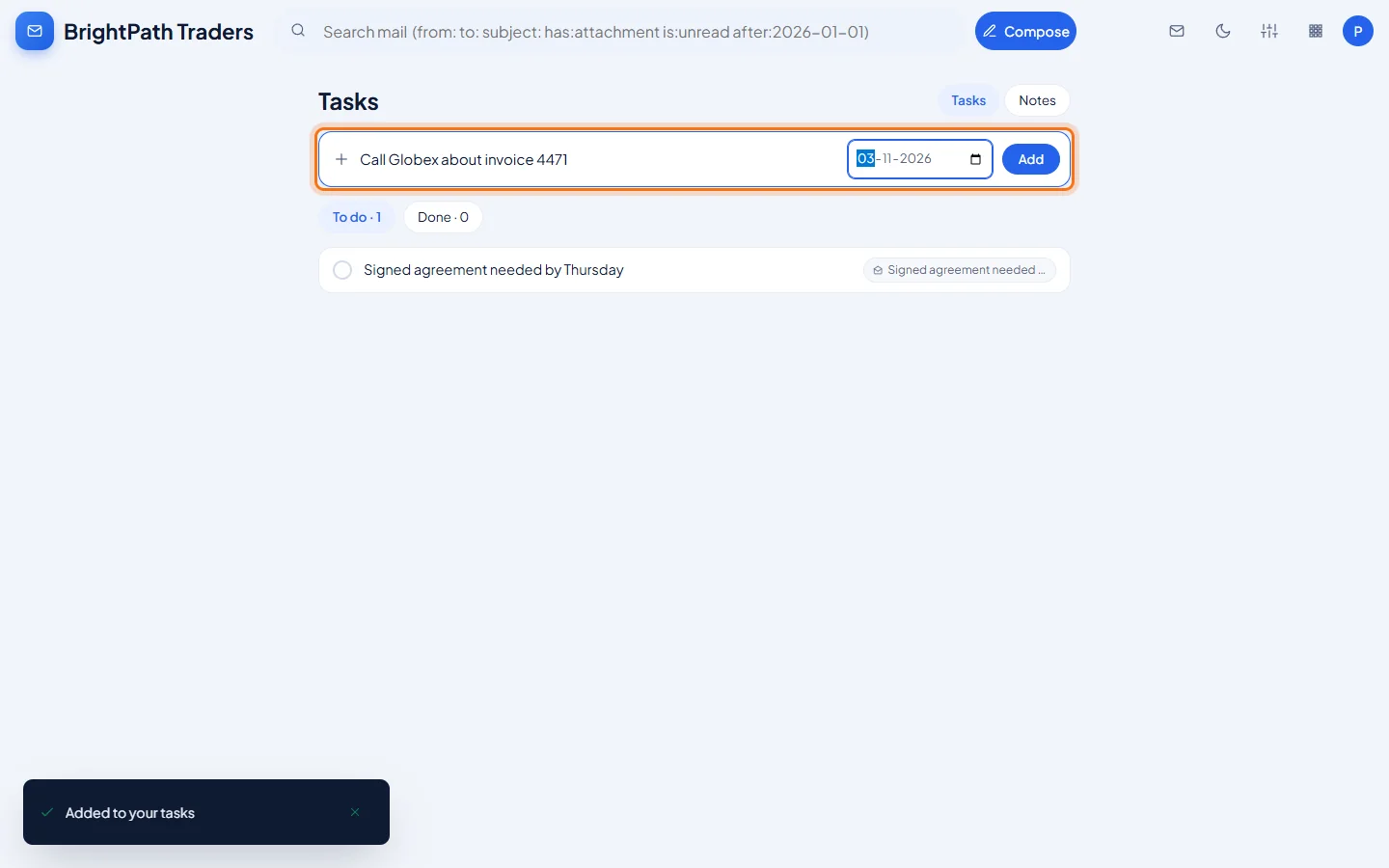
Type the task in Add a task, pick a due date if it has one, and click Add.
- 4
Your to-do list
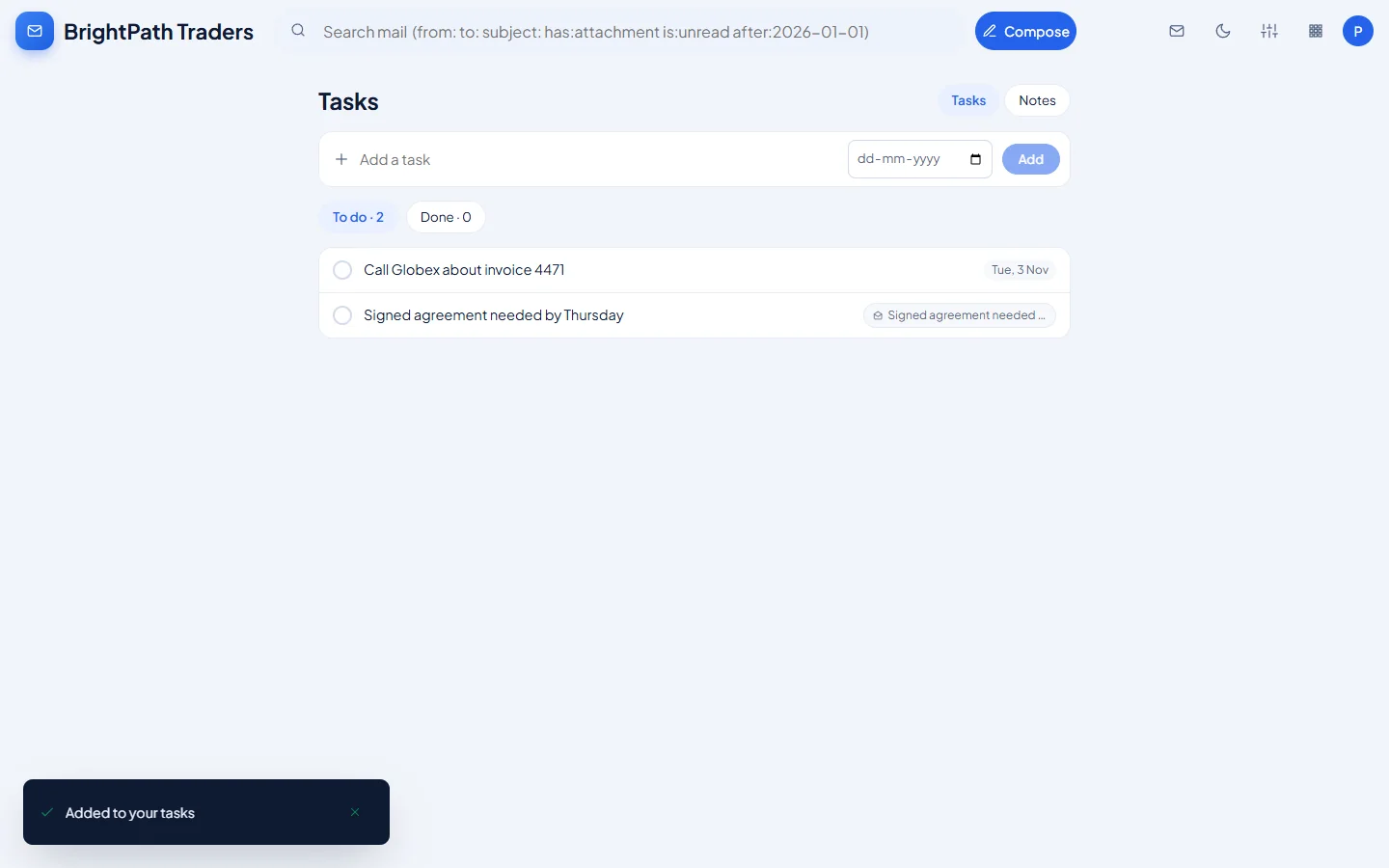
Tasks are listed under To do. Tick the circle when a task is done; it moves to Done. A task made from an email shows the email's subject, and clicking it opens that email.
- 5
Write a note
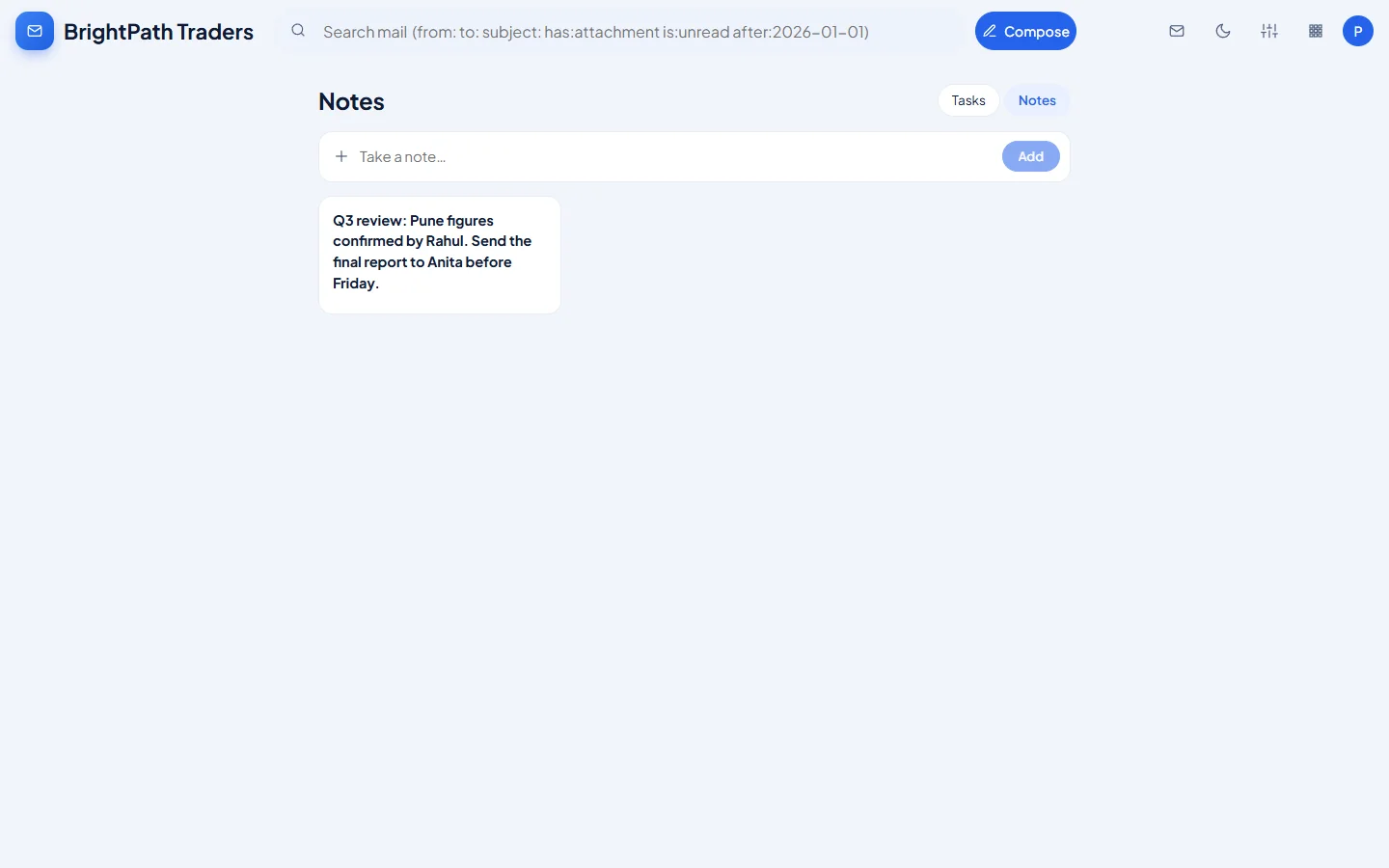
Switch to Notes at the top right, type your note in Take a note and click Add. Click a note to edit it or pin it to the top.
Example
The tasks and note used above:
- Task from an email
- Signed agreement needed by Thursday (opens Meera's email)
- Task with a due date
- Call Globex about invoice 4471, due 3 November
- Note
- Q3 review: Pune figures confirmed by Rahul. Send the final report to Anita before Friday.
The result
- A to-do list with due dates, kept next to your mail, where each task made from an email takes you straight back to it.
Troubleshooting
- I can't find Tasks.
- Click the grid icon (Apps) at the top right of webmail; Tasks is one of the app tiles.
- Can my colleagues or administrator see my tasks?
- No. Tasks and notes are private to your mailbox.
- The email behind a task was deleted.
- The task stays on your list, but its link can no longer open the email.
Still stuck? Your organisation's administrator can help first. Administrators can reach Sayl support from the admin console, or through the contact page.