
Sayl Mail · For everyone
Turn an email into a calendar event
Create a calendar event from any email in one click: Sayl fills in the title, the date and time it finds in the email, and invites the people on it.
What email to calendar event is and why it helps
When an email says "let's meet on 30 October at 3:00 pm", you no longer need to copy the details into your calendar by hand.
Create event opens a new calendar event with the email's subject as the title, the date and time found in the email, the email's text as the description, and the people on the email as guests.
Where to find it
Webmail → open an email → ⋯ (More actions) → Create event
Step by step
Every screenshot is from Sayl Mail itself, using a demo company with made-up people. The button to click is outlined in orange.
- 1
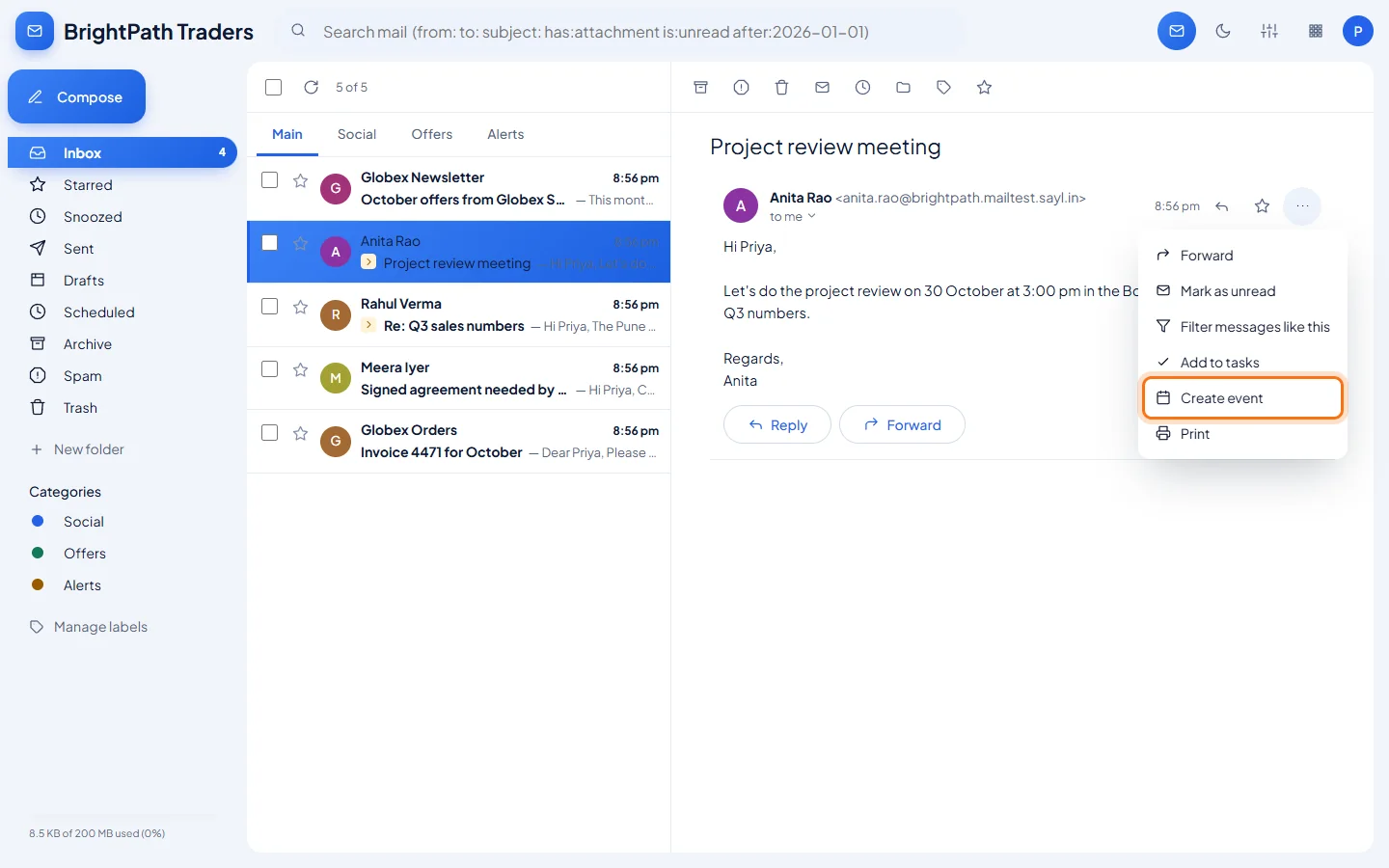
Open the email and click More actions
Open the email that mentions the meeting. Click the three dots (More actions) next to the sender and choose Create event.
- 2
Check the details and save
The calendar opens with a new event already filled in: the title, the date and time from the email, and the sender as a guest. Change anything you need, then click Save. Guests receive an email invitation.
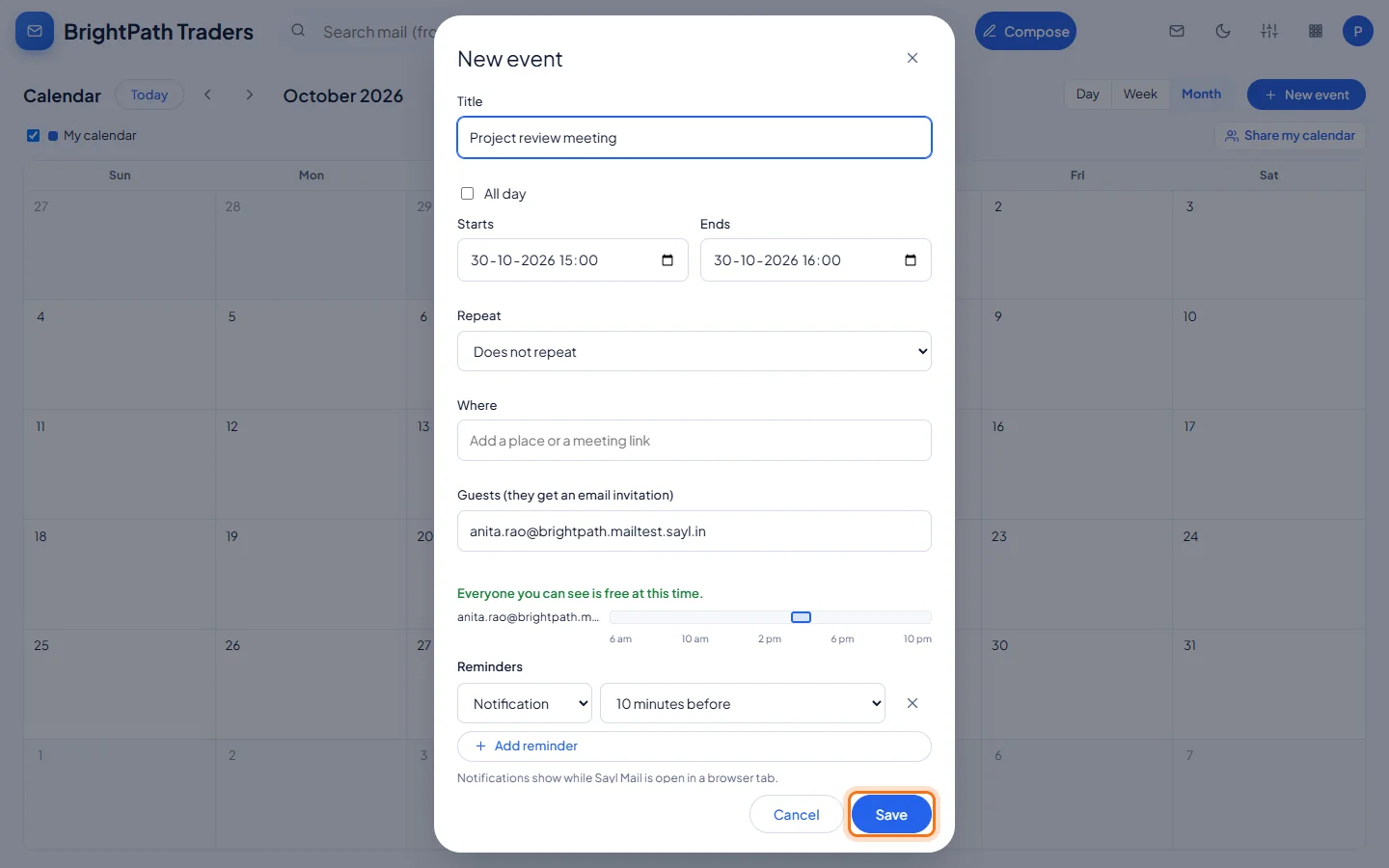
"30 October at 3:00 pm" in the email became 30-10-2026, 15:00 to 16:00. - 3
The event is in your calendar
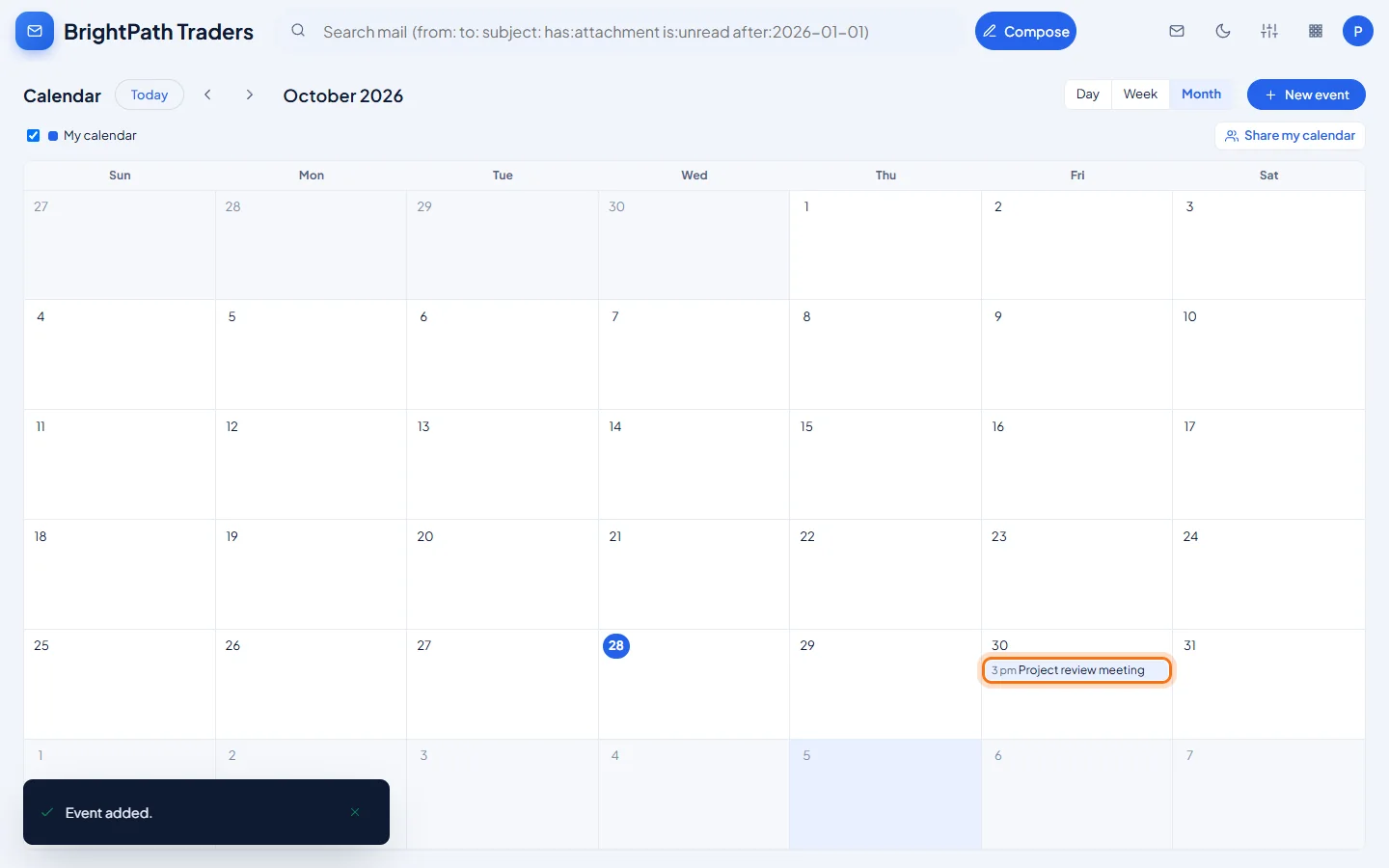
The event appears in your calendar on the right day.
Example
The email used above, and other ways of writing a date that are recognised:
- Email text
- Let's do the project review on 30 October at 3:00 pm in the Board Room.
- Also recognised
- tomorrow at 3pm · on Friday at 11:00 · next Monday 10am · 5 Nov at 10:30 · Nov 12 · 05/11/2026 at 09:15 (day/month)
The result
- A new event in your calendar with the right title, date and time, and an invitation sent to the guests you kept.
Troubleshooting
- The time was not picked up (the event starts at 10:00).
- A time is used only when it sits right after the date, such as "5 Nov at 3pm" or "tomorrow 15:30". If the email words it differently, for example a weekday written just before the date, set the time yourself before clicking Save.
- The date is wrong or missing.
- Sayl takes the first clearly written date in the email. If there is none, the event starts at the next whole hour. Always check Starts before saving.
- I don't want everyone on the email invited.
- Remove them from Guests before saving. Guests receive an invitation only when you save.
Still stuck? Your organisation's administrator can help first. Administrators can reach Sayl support from the admin console, or through the contact page.