
Sayl Mail · For everyone
Send personalised emails to many people with mail merge
Send each person on an Excel or CSV list their own copy of one email, with their name and details filled in. Sample files and step-by-step guide.
What mail merge is and why it helps
Mail merge sends one email to a list of people, but each person gets their own separate copy with their own details filled in: "Dear Rahul" for Rahul, "Dear Anita" for Anita. Nobody sees who else received it.
Use it for order summaries, event invitations, payment reminders or any message that should feel personal but goes to many people. You keep the list in Excel or as a CSV file, write the message once with blanks such as {{first_name}} or {{company}}, and Sayl fills them in for each person.
Where to find it
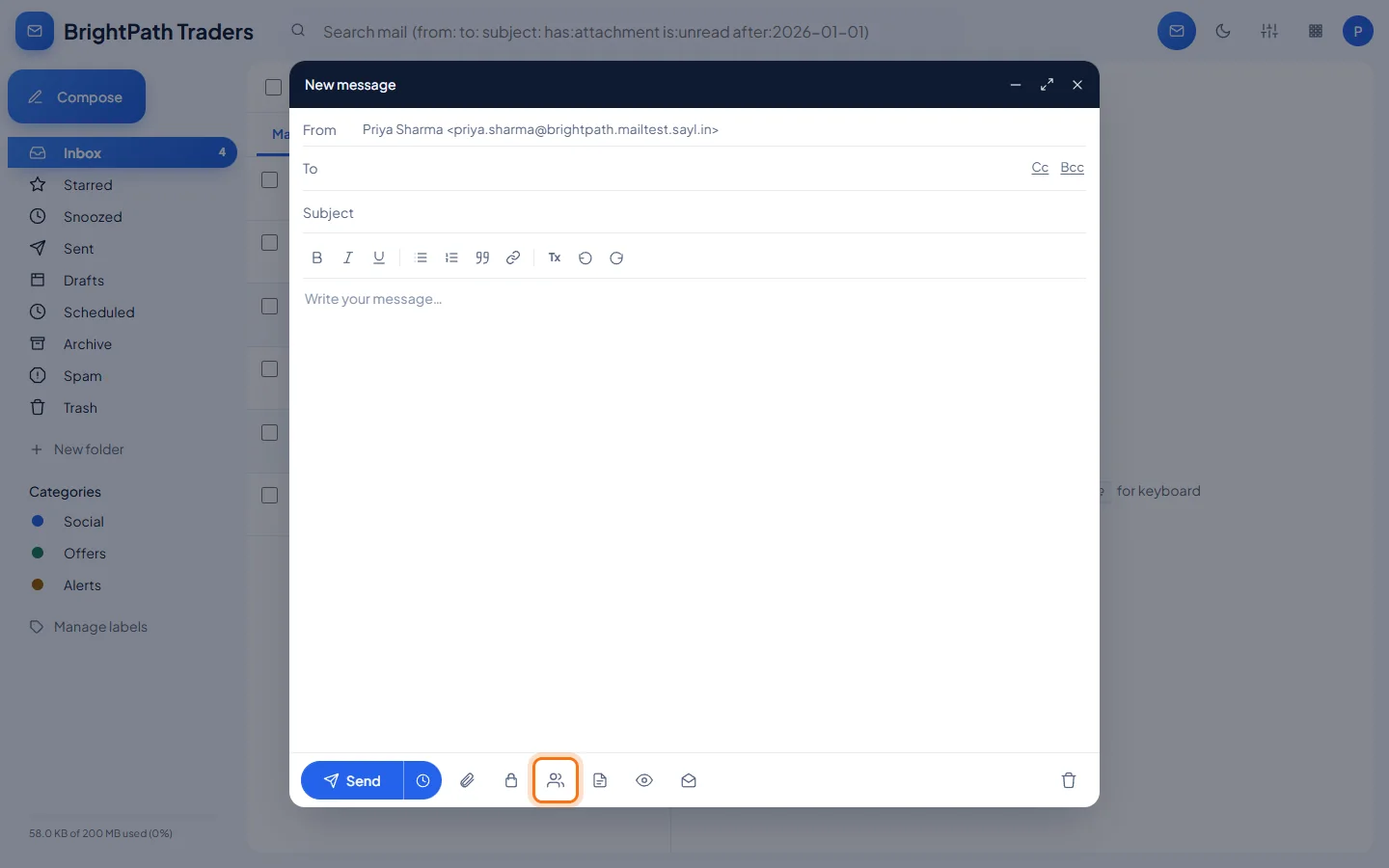
Webmail → Compose → people icon (Mail merge) at the bottom of the message
Sample files
Download a sample, put your own data in it, and use it in Sayl Mail. The same files are offered inside webmail.
Preparing your file
- File type
- Excel (.xlsx) or CSV (.csv), at most 2 MB. Only the first sheet of an Excel file is read. Older Excel files (.xls) must be saved as .xlsx or CSV first.
- Row 1
- The column headings, for example Name, Email Address, Company, City. Then one person per row. Empty rows are ignored.
- Email Address column
- Required. One address per row, written like [email protected]. Rows without a valid address are left out, and Sayl tells you their row number. A repeated address gets one message.
- Name column
- Optional but recommended: it fills {{name}} (Rahul Verma), {{first_name}} (Rahul) and {{last_name}} (Verma).
- Your own columns
- Add any columns you need. Each heading becomes a blank: lower case, with spaces as underscores. Company → {{company}}, Order Total → {{order_total}}, Due Date → {{due_date}}.
- Ready-made blanks
- {{my_name}}, {{my_email}} and {{date}} (today) are filled from you, the sender. No column is needed.
- Dates and amounts
- Type them as you want them to appear (30 Oct 2026, Rs 12,400). Excel date cells arrive as numbers, so format date columns as Text.
- How many people
- Up to 500 per mail merge. Split a longer list into several files.
Step by step
Every screenshot is from Sayl Mail itself, using a demo company with made-up people. The button to click is outlined in orange.
- 1
Start a new message and click the people icon
Click Compose (the full-screen arrow at the top gives you more room). Then click the people icon (Mail merge) in the bar at the bottom of the message.
- 2
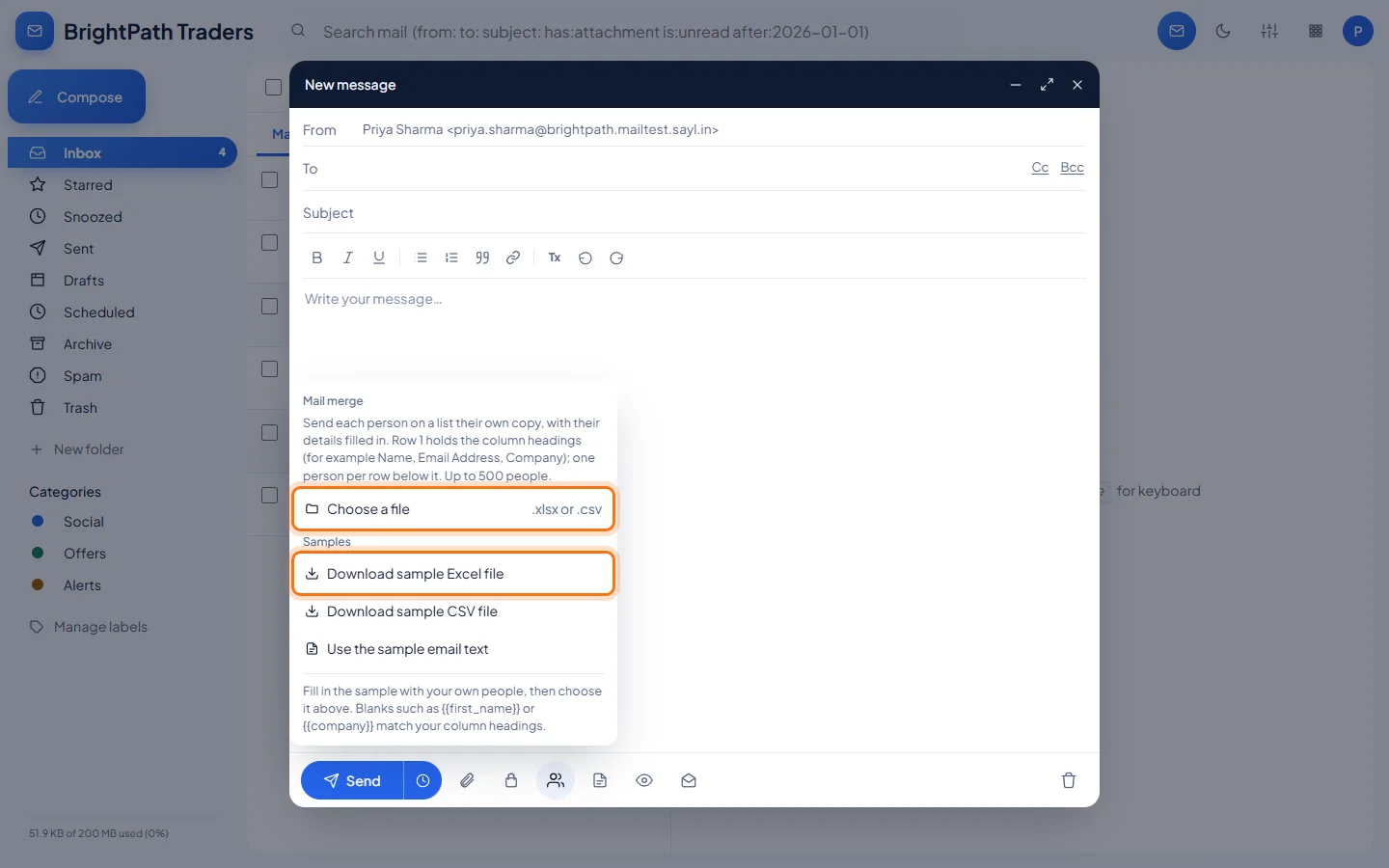
Download a sample file
The Mail merge menu opens. If you don't have a list yet, click Download sample Excel file (or the CSV file). The same files are at the top of this page.
- 3
Put your own people in the sample
Open the sample in Excel or Google Sheets. Keep row 1 as it is, replace the sample people with your own (one per row), and add or remove columns as you need. Save it as .xlsx or .csv. The sample's example.com addresses are blocked from sending, so you can't send to them by mistake.
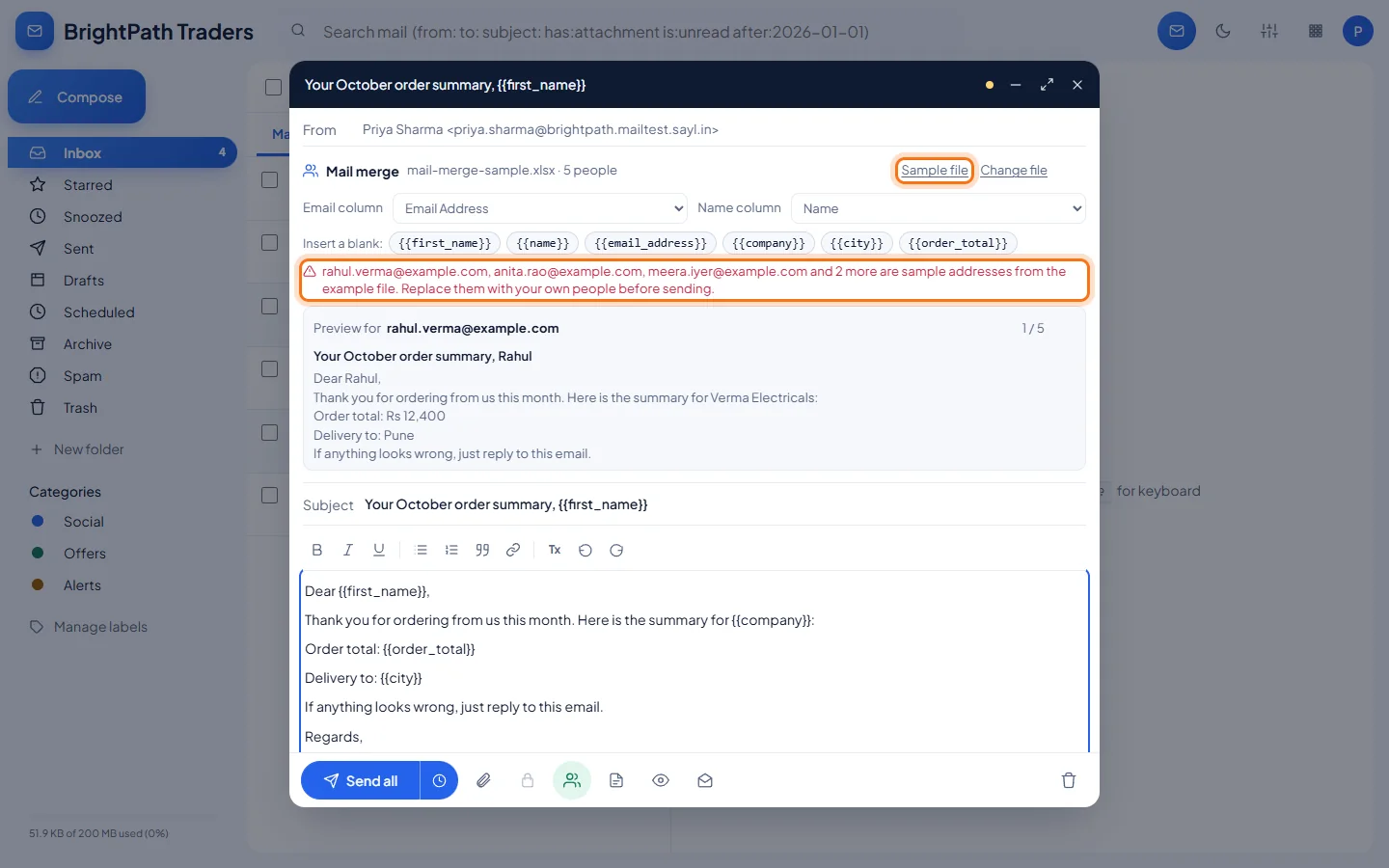
Chose the sample without changing it? Sayl stops you before anything is sent. - 4
Choose your file and write the message
Click the people icon again and choose Choose a file. Sayl picks the email and name columns for you. Write the subject and message, or click Use the sample email text, and click a blank such as {{first_name}} or {{company}} to insert it. The preview shows exactly what each person will receive; use the arrows to check them.
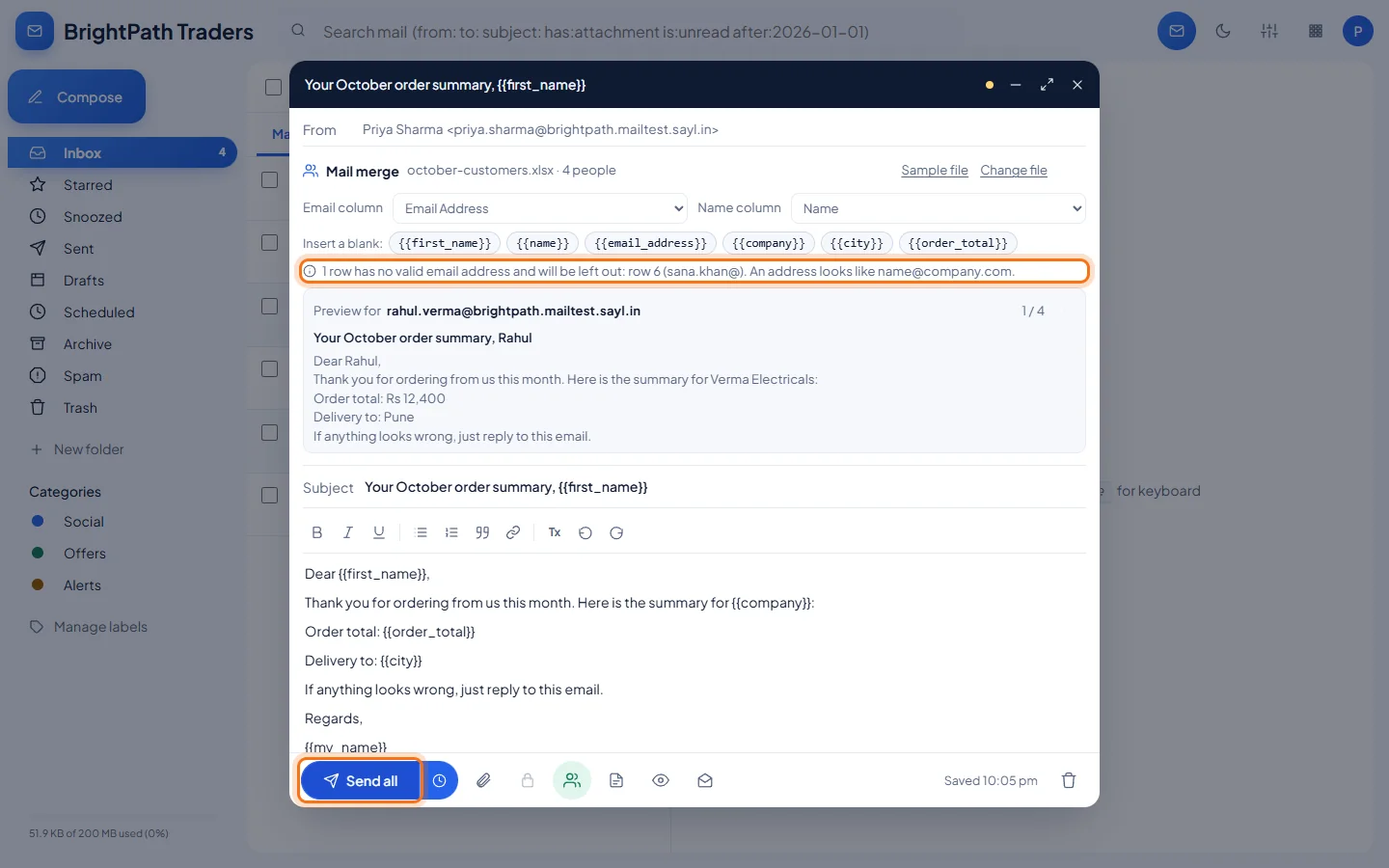
The list is checked as soon as you choose it: here row 6 has an unfinished address, so that person is left out. - 5
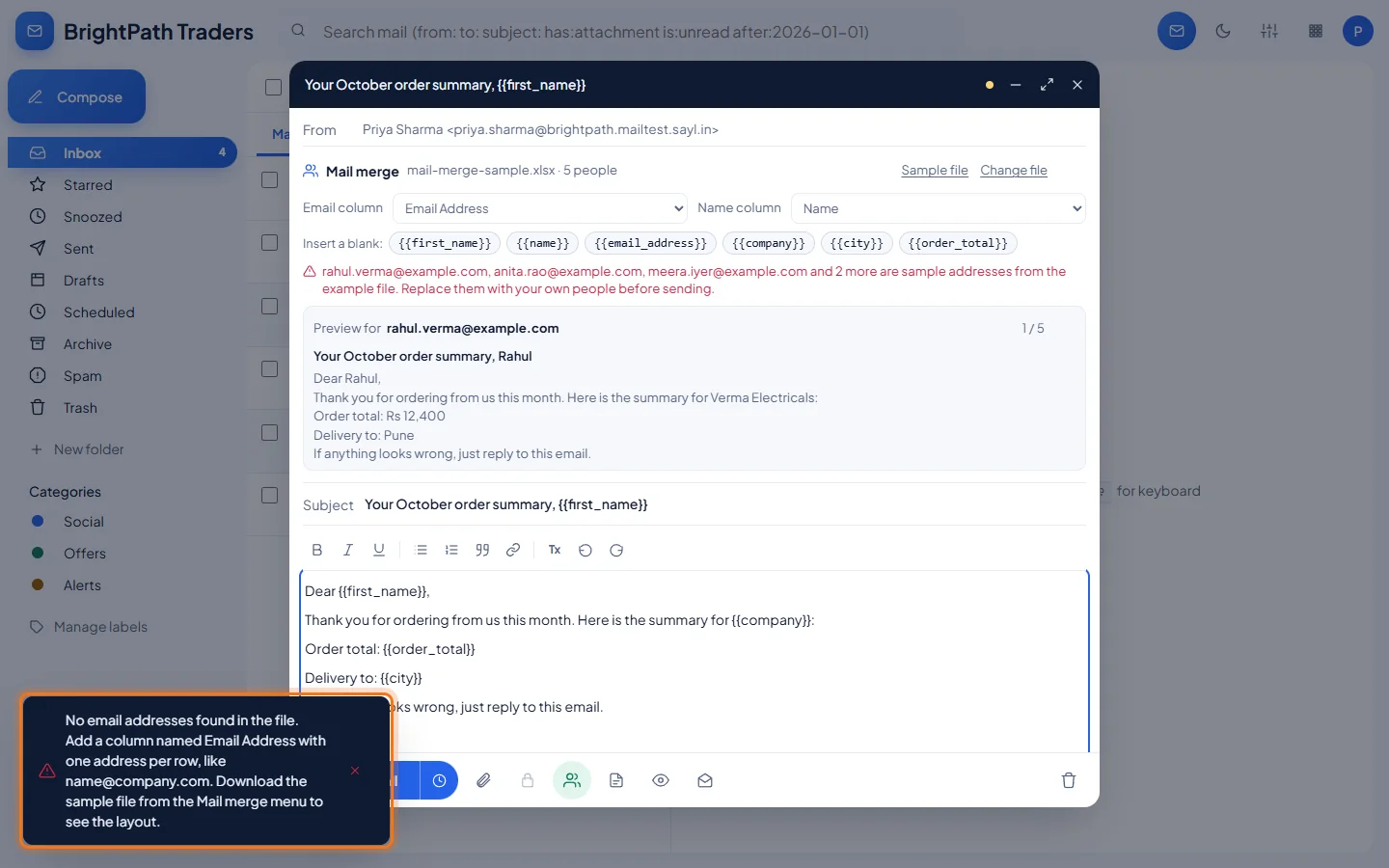
If the file can't be used, Sayl says why
A file without an email column, an old .xls file, a password-protected file or an empty sheet is refused with a message that says what to change.
- 6
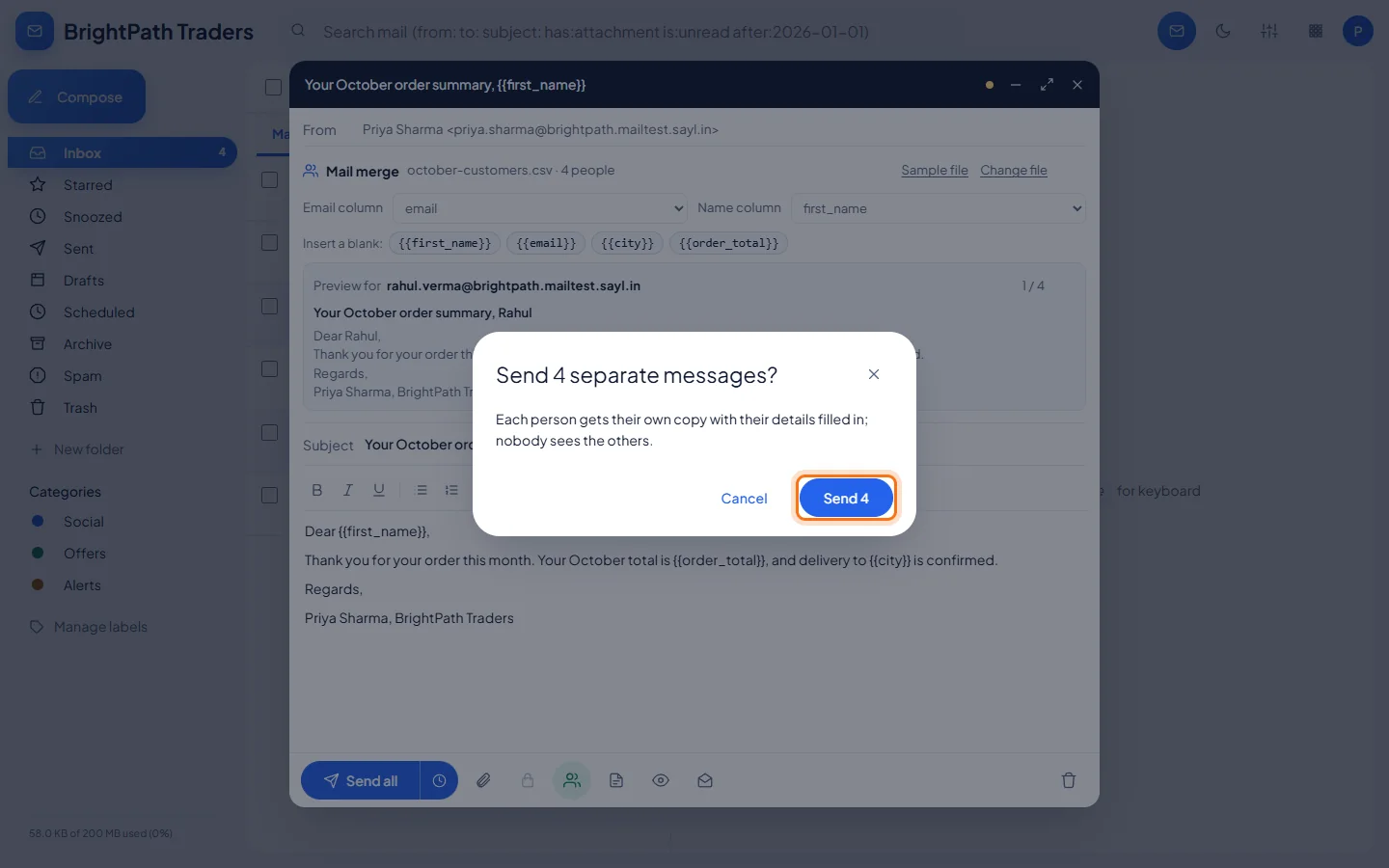
Send all, then confirm
Click Send all. Sayl asks you to confirm how many separate messages it will send. Click Send (the number matches your list).
- 7
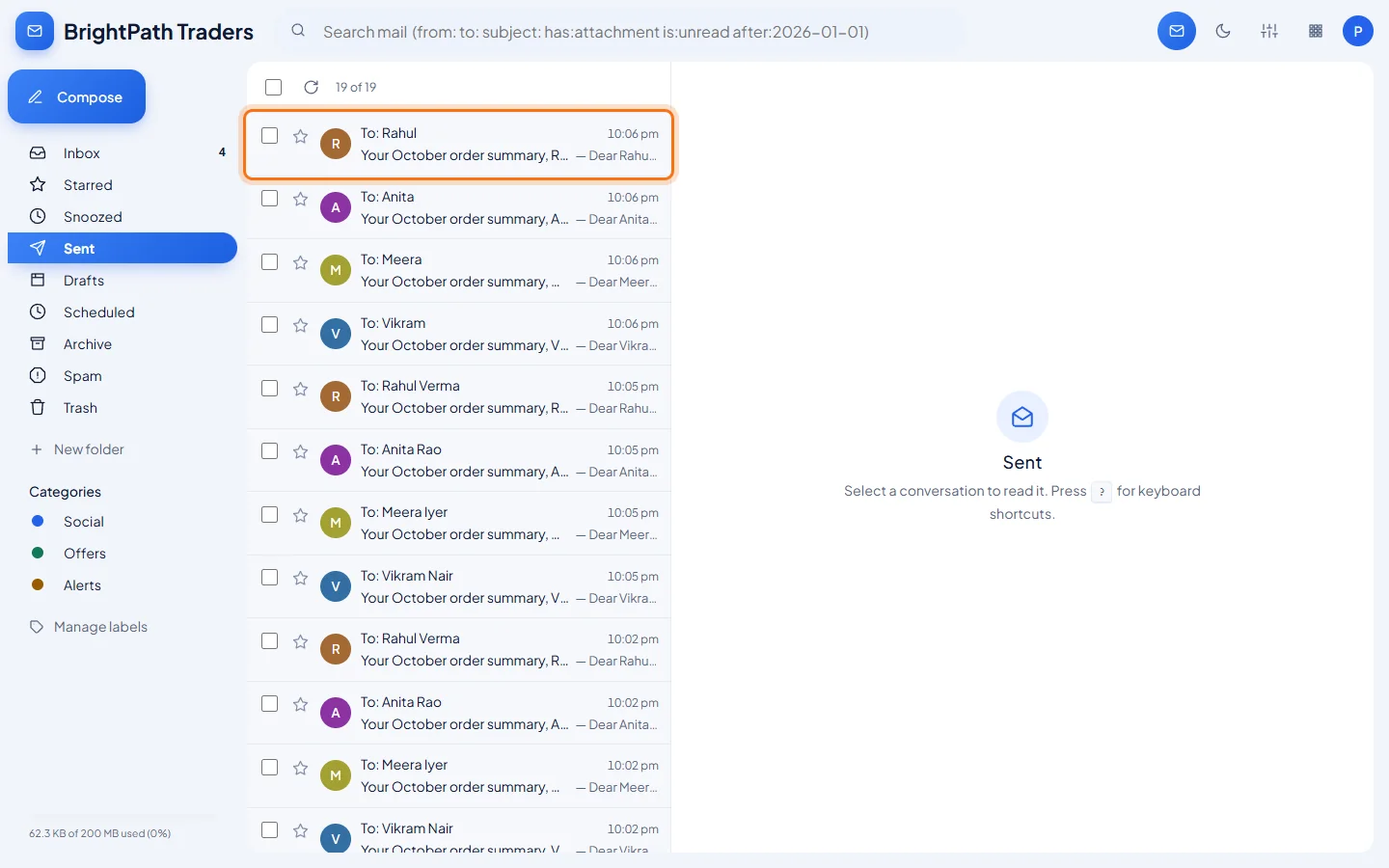
Check your Sent folder
When everything has gone, a message says how many were sent and the window closes. Each person's copy is in your Sent folder, one per person.
- 8
What each person receives
Every person receives an ordinary email addressed only to them, with their own details filled in.
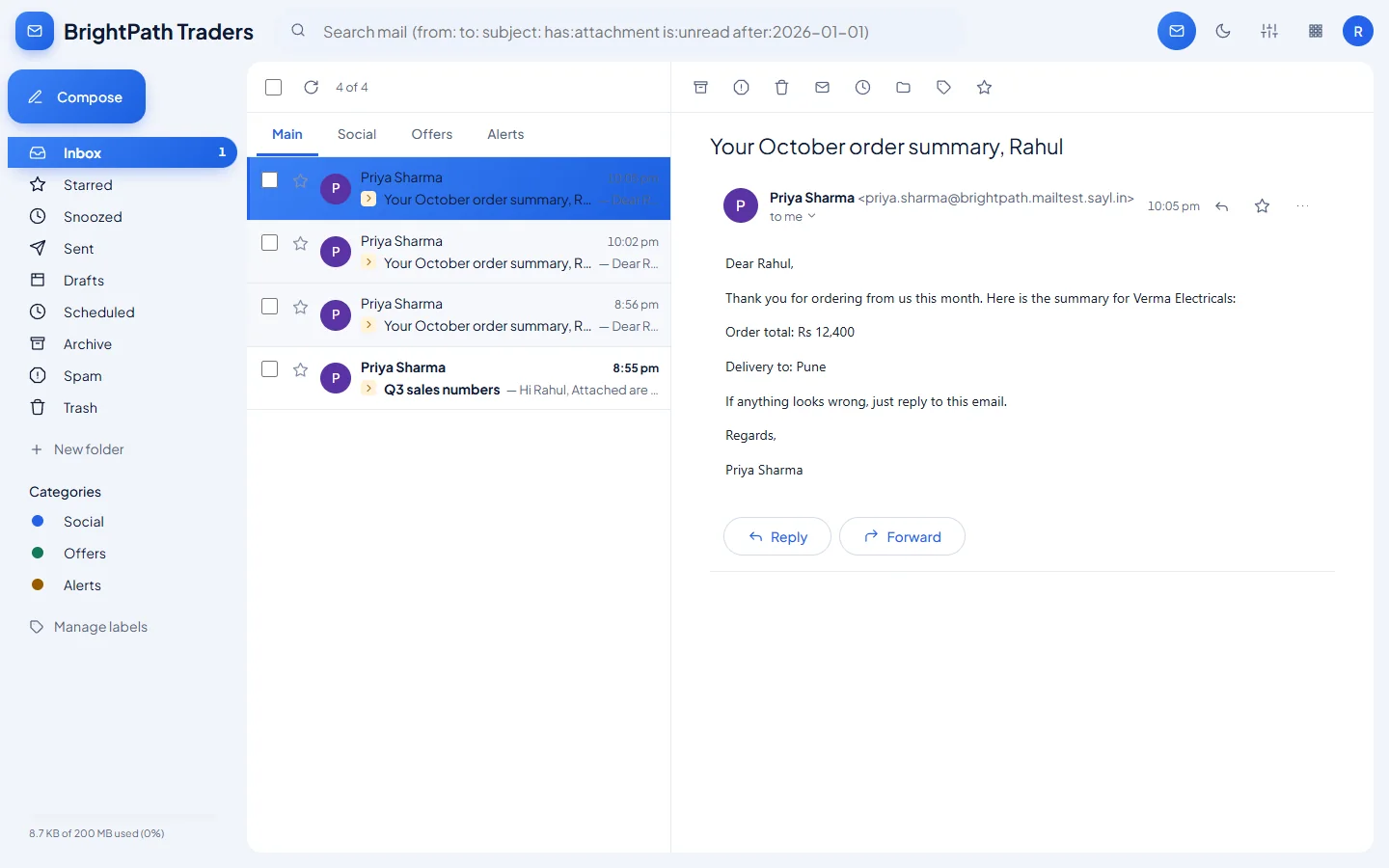
Rahul's copy: his first name, his company, his order total and his city.
Example
The sample list (first rows) and the sample email it goes with:
Name,Email Address,Company,City,Order Total
Rahul Verma,[email protected],Verma Electricals,Pune,"Rs 12,400"
Anita Rao,[email protected],Rao Textiles,Chennai,"Rs 8,950"
Meera Iyer,[email protected],Iyer & Sons,Kochi,"Rs 15,200"- Subject
- Your October order summary, {{first_name}}
- Message
- Dear {{first_name}}, Thank you for ordering from us this month. Here is the summary for {{company}}: Order total: {{order_total}}. Delivery to: {{city}}. If anything looks wrong, just reply to this email. Regards, {{my_name}}
- Rahul receives
- Your October order summary, Rahul · Dear Rahul, … the summary for Verma Electricals: Order total: Rs 12,400. Delivery to: Pune. … Regards, Priya Sharma
The result
- Each person on the list receives their own email with their details filled in.
- Your Sent folder has one copy per person, so you can see exactly what each one received.
Troubleshooting
- "No email addresses found in the file."
- Add a column named Email Address with one address per row, like [email protected]. The sample file shows the layout.
- "This kind of spreadsheet can't be read."
- It is an older Excel (.xls) or another format. In Excel use File → Save As → Excel Workbook (.xlsx) or CSV, then choose that file.
- "This Excel file could not be read."
- The file may have a password, or be damaged. Remove the password, open it in Excel and save it again as .xlsx, or save it as CSV.
- "… are sample addresses from the example file."
- The list still has the sample people (@example.com). Replace them with your own people and choose the file again.
- "1 row has no valid email address and will be left out: row 6 (sana.khan@)."
- Correct the address in that row of your spreadsheet and choose the file again, or send without that person.
- "No column for {{…}}."
- A blank in your message doesn't match any column heading. Fix the spelling, or click the blank's button above the preview to insert it exactly.
- Some people were "Not sent".
- People with an empty cell for a blank you used, or an address that bounced before, are not sent to; the reason is shown next to each. Fix the list and send to them again.
- The people icon is greyed out or missing.
- It is greyed out while confidential mode is on: turn that off first. It is not offered when replying: start a new message for a mail merge.
- My list has more than 500 people.
- One merge sends to at most 500 people. Split the list into several files. Your organisation's sending limits also apply.
Still stuck? Your organisation's administrator can help first. Administrators can reach Sayl support from the admin console, or through the contact page.