
Sayl Mail · For administrators
Block senders and stop spoofed mail with mail protection
Refuse outside mail that pretends to come from your own domain and block unwanted senders or domains for your whole organisation in Sayl Mail.
What mail protection is and why it helps
The most common phishing trick is a message that looks like it comes from your own company, such as a fake "from the CEO" request to pay an invoice. Mail protection refuses outside mail that shows your domain in From but did not come from your mail servers.
You can also block senders and whole domains for everyone in your organisation. Refused mail never reaches anyone's inbox; the sending server gets a refusal, and you see each refusal in a list.
Where to find it
Admin console → Security → Mail protection
Who can use it: Organisation administrators with full rights.
Step by step
Every screenshot is from Sayl Mail itself, using a demo company with made-up people. The button to click is outlined in orange.
- 1
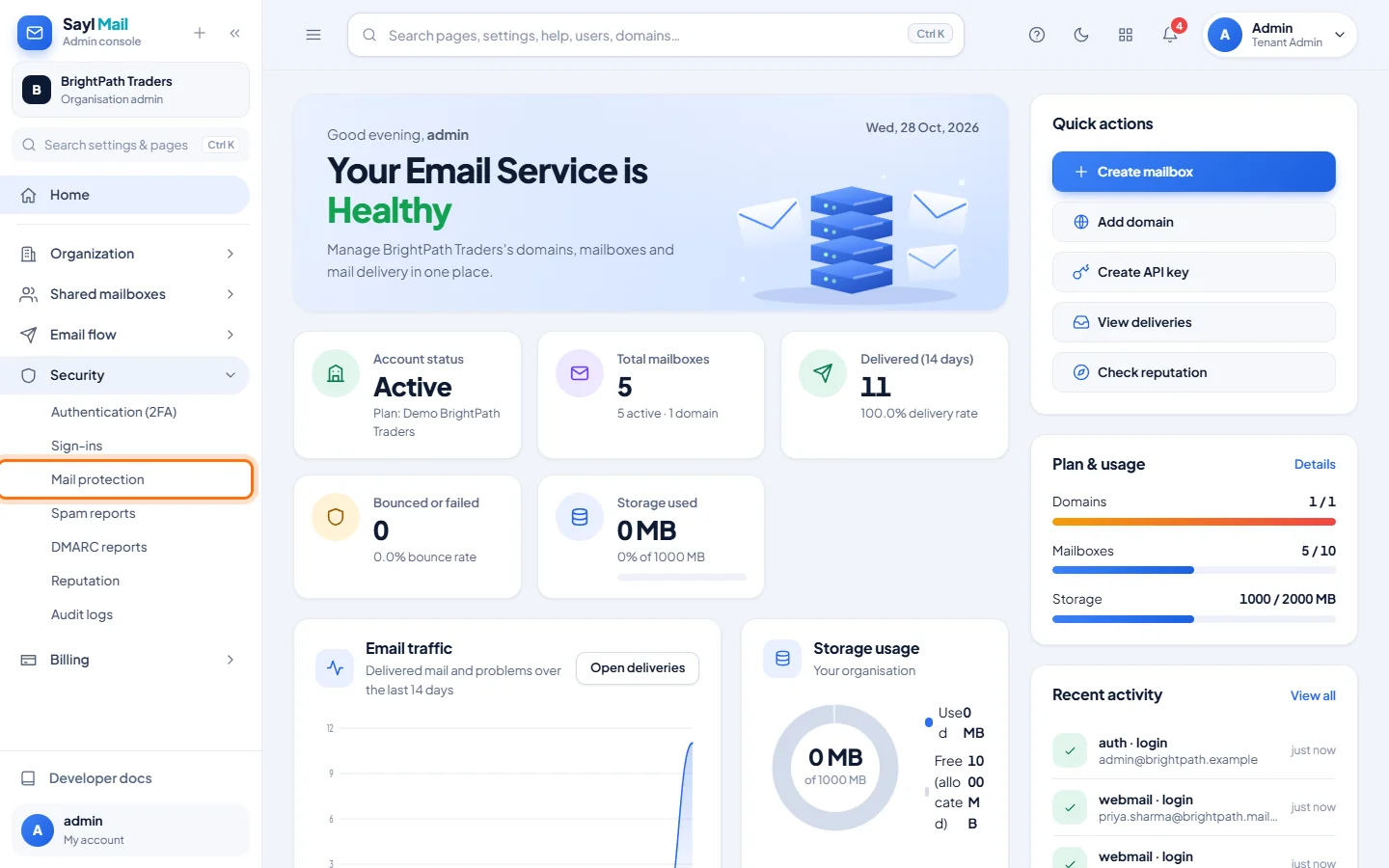
Open Security → Mail protection
In the admin console menu, open Security and click Mail protection.
- 2
Turn on spoofing protection and add blocked senders
Turn on Refuse outside mail pretending to be from your domains. In Blocked senders and domains, enter one address or domain per line (a domain also blocks its subdomains). Click Save.
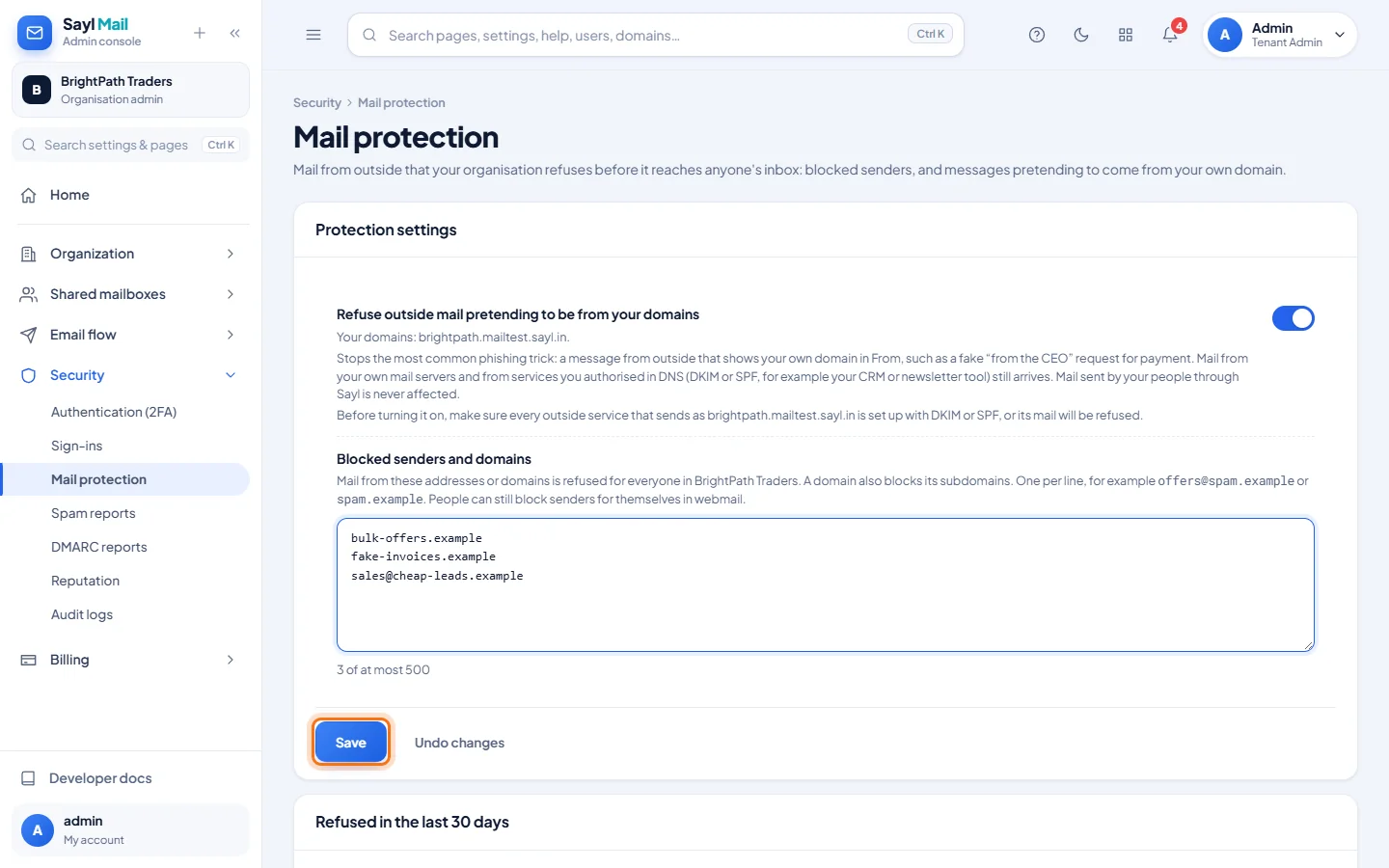
Before turning on spoofing protection, make sure outside services that send as your domain (CRM, newsletter tool) are set up with DKIM or SPF. - 3
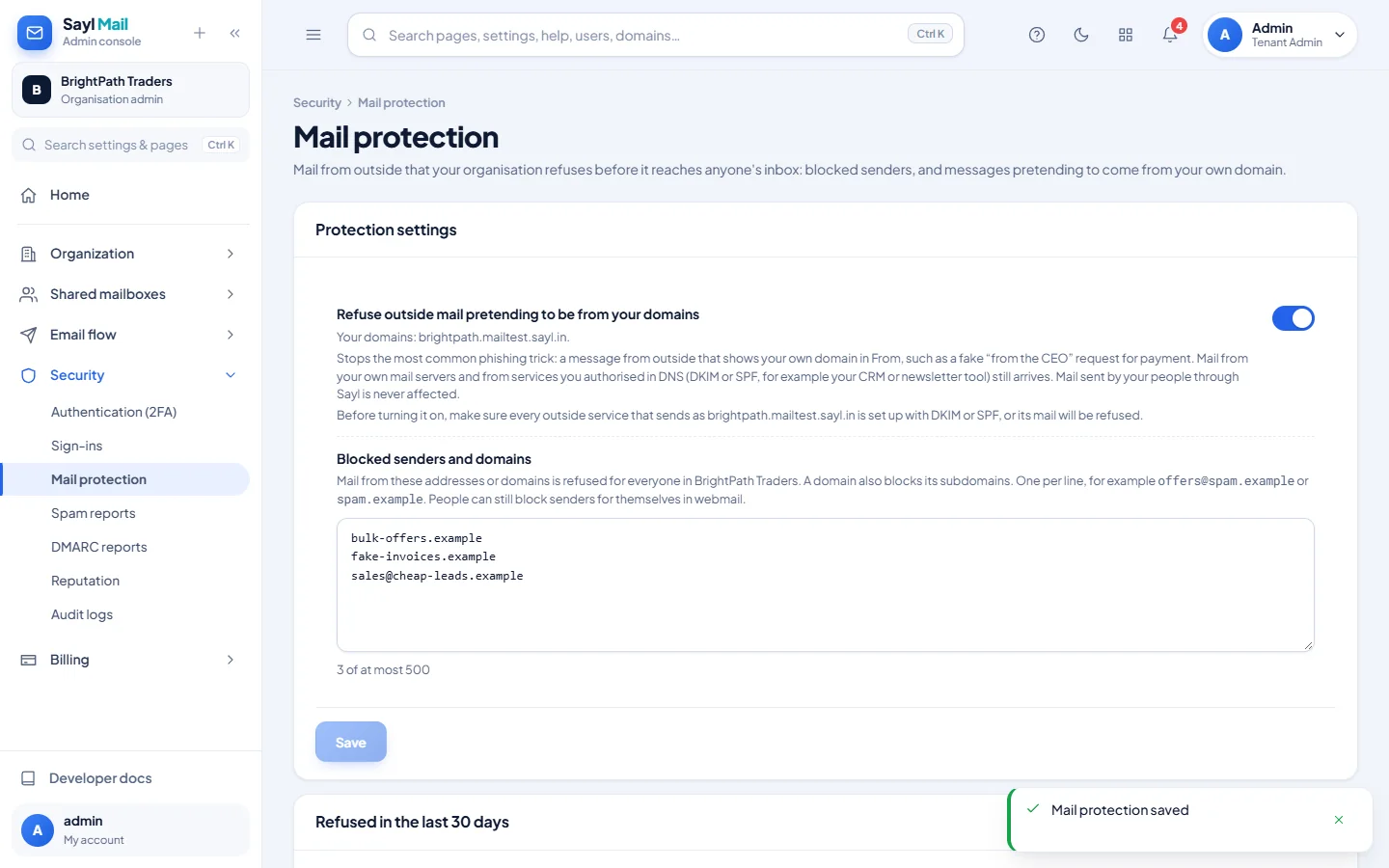
Settings saved
A message confirms Mail protection saved. The rules apply to new mail straight away.
- 4
See what was refused
Refused in the last 30 days lists every refused message: when, why (blocked, or pretended to be you), the From address and the server that sent it.
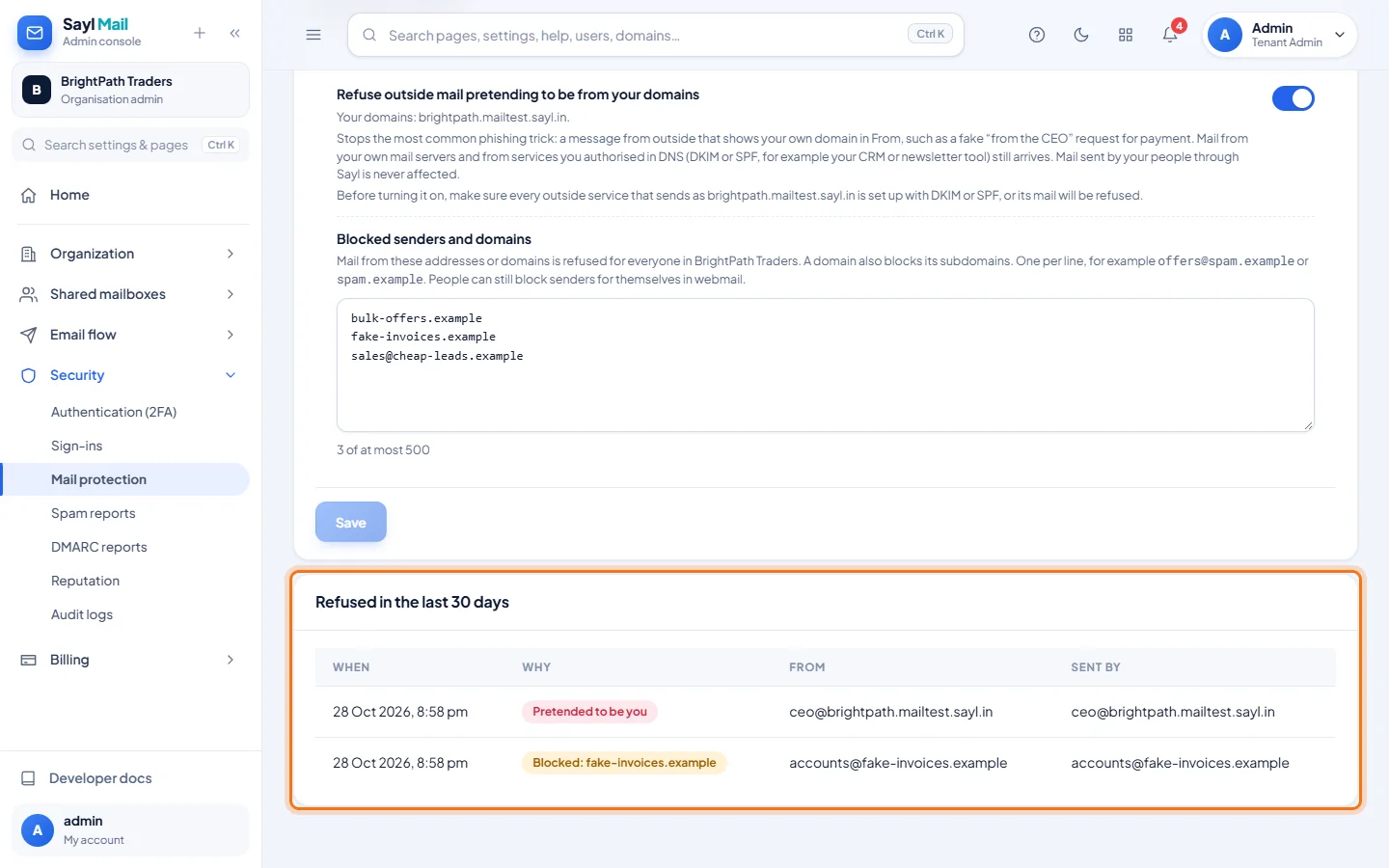
A forged "CEO" message and a message from a blocked domain, both refused.
Example
The block list used above:
bulk-offers.example
fake-invoices.example
[email protected]
The result
- Outside mail pretending to be from your domain, and mail from blocked senders, is refused before it reaches anyone.
- Every refusal is listed for 30 days, so you can check that nothing wanted was stopped.
Troubleshooting
- Mail from our CRM or newsletter tool is now refused.
- That service sends as your domain without DKIM or SPF. Add the service to your domain's SPF record or set up DKIM for it, or turn spoofing protection off until it is set up.
- Can I block a sender for just myself?
- Yes. People can block senders for themselves in webmail; this page blocks for the whole organisation.
- Is mail between our own people affected?
- No. Mail sent by your people through Sayl is never affected; only mail from outside is checked.
- The Save button is greyed out.
- Only full administrators can change these settings, and Save becomes active once you change something.
Still stuck? Your organisation's administrator can help first. Administrators can reach Sayl support from the admin console, or through the contact page.