
Sayl Mail · For administrators
Keep mail with legal holds, delete old mail with retention rules
Place legal holds that keep a protected copy of a person's mail, set retention rules that delete old mail, and search and export your organisation's mail.
What archiving and retention is and why it helps
Archiving & retention brings together three tools. A legal hold keeps a protected copy of everything one person receives and sends, even if they delete it, for example during a dispute or an audit. Retention rules delete mail older than a set age, so you don't keep mail longer than you need to.
Search & export (eDiscovery) finds mail across all your mailboxes and the archive, and downloads it as a ZIP file. Every search needs a reason and is recorded in the audit log.
Where to find it
Admin console → Security → Archiving & retention
Who can use it: Organisation administrators with full rights. Helpdesk, billing and read-only administrators do not see this page.
Step by step
Every screenshot is from Sayl Mail itself, using a demo company with made-up people. The button to click is outlined in orange.
- 1
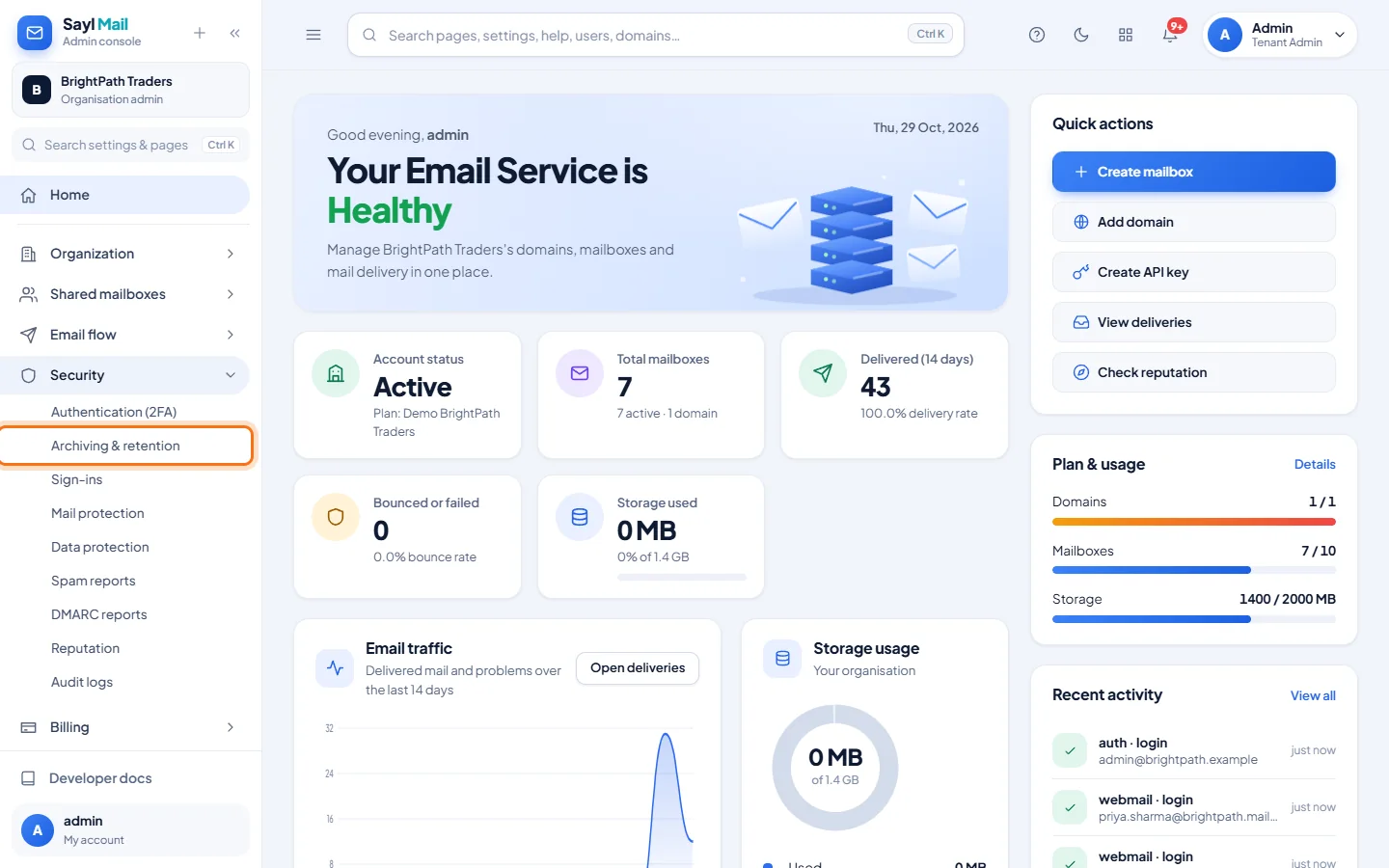
Open Security → Archiving & retention
In the admin console menu, open Security and click Archiving & retention.
- 2
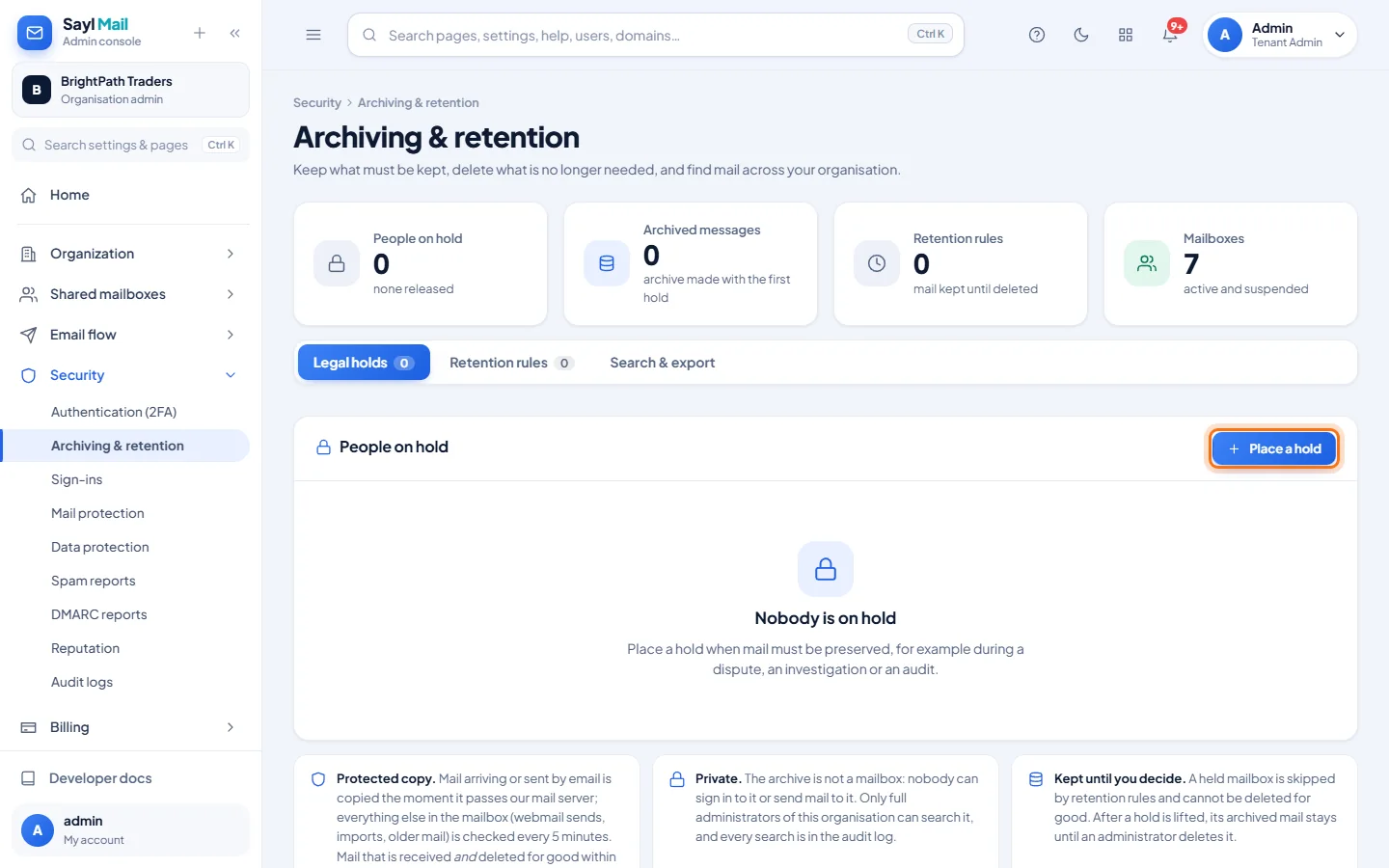
Legal holds: click Place a hold
The page opens on Legal holds, with the number of people on hold, archived messages, retention rules and mailboxes at the top. Click Place a hold.
- 3
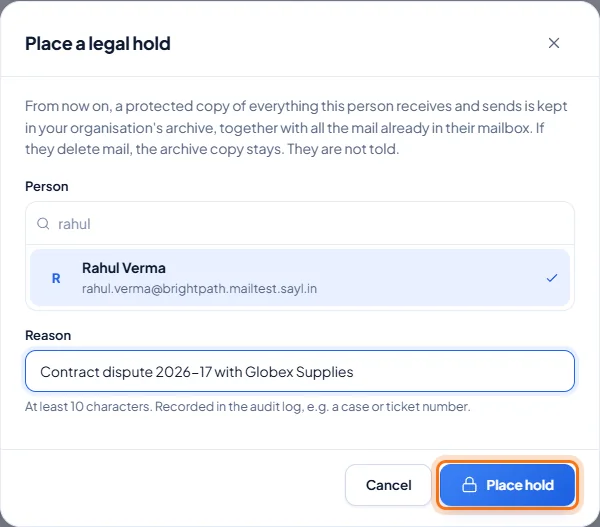
Choose the person and give a reason
Search for the person, choose them, and enter a reason of at least 10 characters, such as a case or ticket number. Click Place hold. From then on a protected copy of everything they receive and send is kept, together with the mail already in their mailbox. They are not told.
- 4
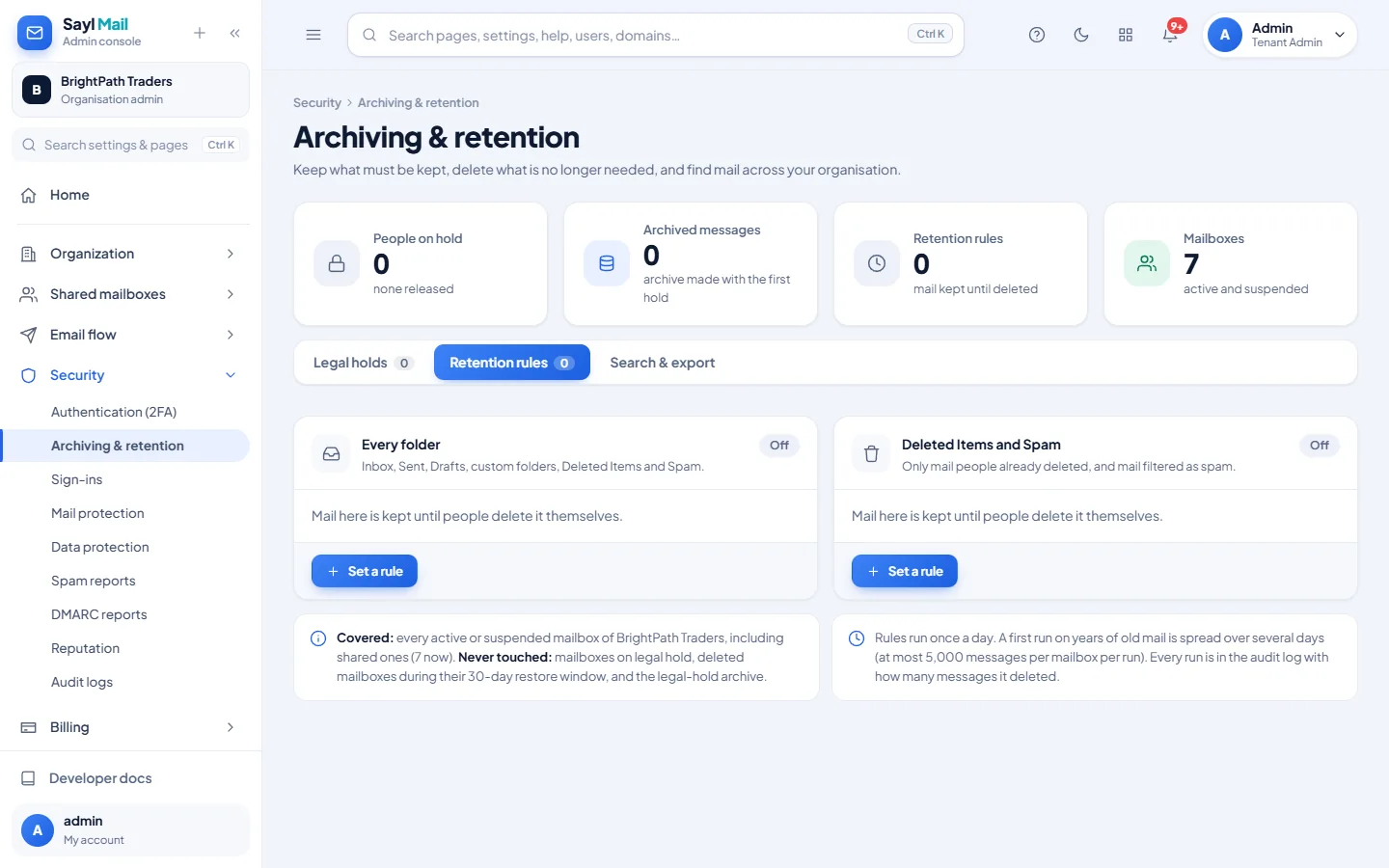
Retention rules: off until you set one
Open Retention rules. There are two kinds: Every folder, and Deleted Items and Spam only. Both are Off by default, so mail is kept until people delete it themselves. Click Set a rule to add one.
- 5
Choose the age and check the preview
Choose how old mail must be before it is deleted: 30 days, 90 days, 1 year, 3 years or 7 years, or type a number of days. The window shows how many messages would be deleted today. Nothing is deleted for 7 days after you save, and every full administrator is emailed, so a mistake can be undone in time. Type DELETE to confirm and click Save rule.
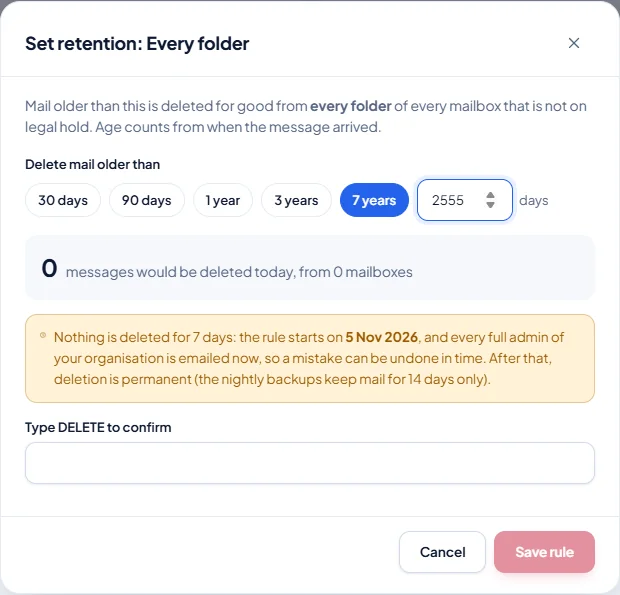
After the 7 days, deletion is permanent: the nightly backups keep mail for 14 days only. - 6
Search & export
Open Search & export. Enter words, a sender or recipient, dates or mailboxes, and a reason for the search (required, kept in the audit log). Click Search. The results show who, when, the folder and the subject; to read the messages, click Download all as ZIP.
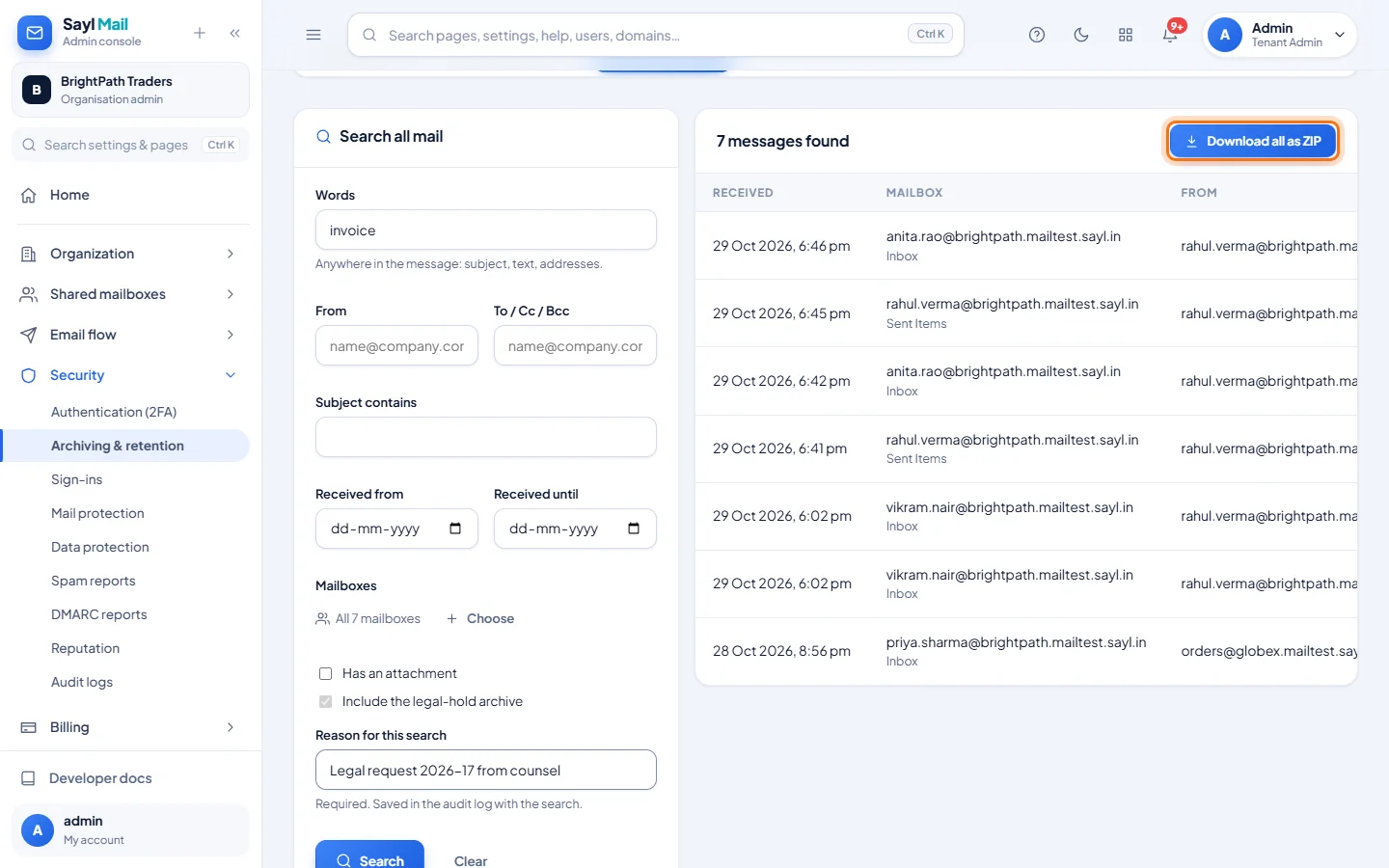
Example
What each part does:
- Legal hold
- Keeps a protected copy of everything one person receives and sends, until you lift the hold and delete the archived copy.
- Retention: Every folder
- Deletes mail older than the age you choose from every folder of every mailbox that is not on legal hold.
- Retention: Deleted Items and Spam
- Deletes only mail people already deleted, and mail filtered as spam.
- Never touched by retention
- Mailboxes on legal hold, deleted mailboxes during their 30-day restore window, and the legal-hold archive.
- Search & export
- Finds mail in every mailbox and in the archive; results can be downloaded as a ZIP. Full administrators only, reason required, recorded in the audit log.
The result
- Mail that must be kept is kept, even if the person deletes it, and mail you no longer need is deleted on a schedule.
- You can find and export mail for a legal request, with every search recorded.
Troubleshooting
- Will a held person notice anything?
- No. Their mailbox works as usual and they are not told. The archive is not a mailbox: nobody can sign in to it or send mail to it.
- Can mail slip past a legal hold?
- Mail that arrives or is sent by email is copied the moment it passes the mail server. Everything else (webmail sends, imports, older mail) is checked every 5 minutes, so a message that is received and deleted for good within those minutes without passing the mail server can be missed.
- I saved a retention rule by mistake.
- Click Remove on the rule within 7 days. Nothing is deleted before the date shown on the rule.
- Does lifting a hold delete the archived mail?
- No. The archived mail stays, listed under Released holds, until an administrator deletes it.
- Search & export says it is for the organisation's own administrators.
- Only full administrators of your organisation can search its mail. Sayl's own platform administrators never search customer mail.
- Some messages can't be read in the export.
- Messages a person stored encrypted with their own key can only be opened with their private key. See Encryption with people's own keys.
Still stuck? Your organisation's administrator can help first. Administrators can reach Sayl support from the admin console, or through the contact page.