
Sayl Mail · For administrators
Act on new email automatically with automations
When email arrives for chosen addresses, post it to Slack or Teams, send it to your own systems with a webhook, or create a follow-up task. Setup guide.
What automations is and why it helps
Automations do something for you as soon as a matching email arrives: post it to your team's Slack or Microsoft Teams channel, send it to your own systems through a webhook, or create a task for someone in their Sayl Mail tasks.
You choose which addresses to watch and, if you like, narrow it down by sender, words in the subject or whether it has an attachment. Automations never delay or change the email, and they never send email themselves, so they cannot start a mail loop.
Where to find it
Admin console → Email flow → Automations
Who can use it: Organisation administrators with full rights.
Step by step
Every screenshot is from Sayl Mail itself, using a demo company with made-up people. The button to click is outlined in orange.
- 1
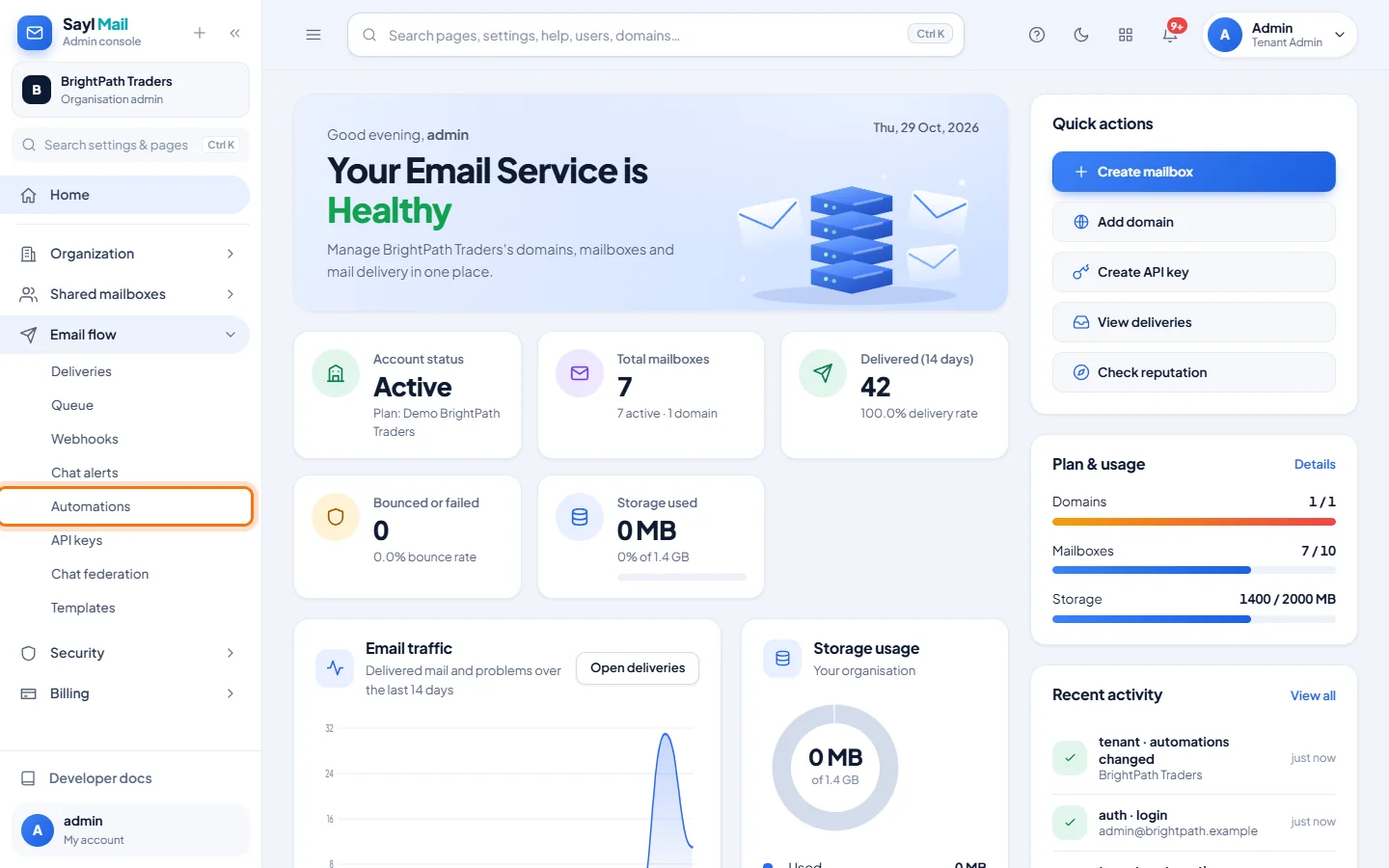
Open Email flow → Automations
In the admin console menu, open Email flow and click Automations.
- 2
Create the automation
Click New automation and give it a name. Under When an email arrives for, choose the addresses to watch in + Add an address…. Under And (optional), add Sender contains, Subject contains or Has an attachment. Under Then, choose what happens: Create a task for someone (choose the person and when it is due), Post to the team chat channel, or Send to a webhook. Add a step for more than one action, then click Save.
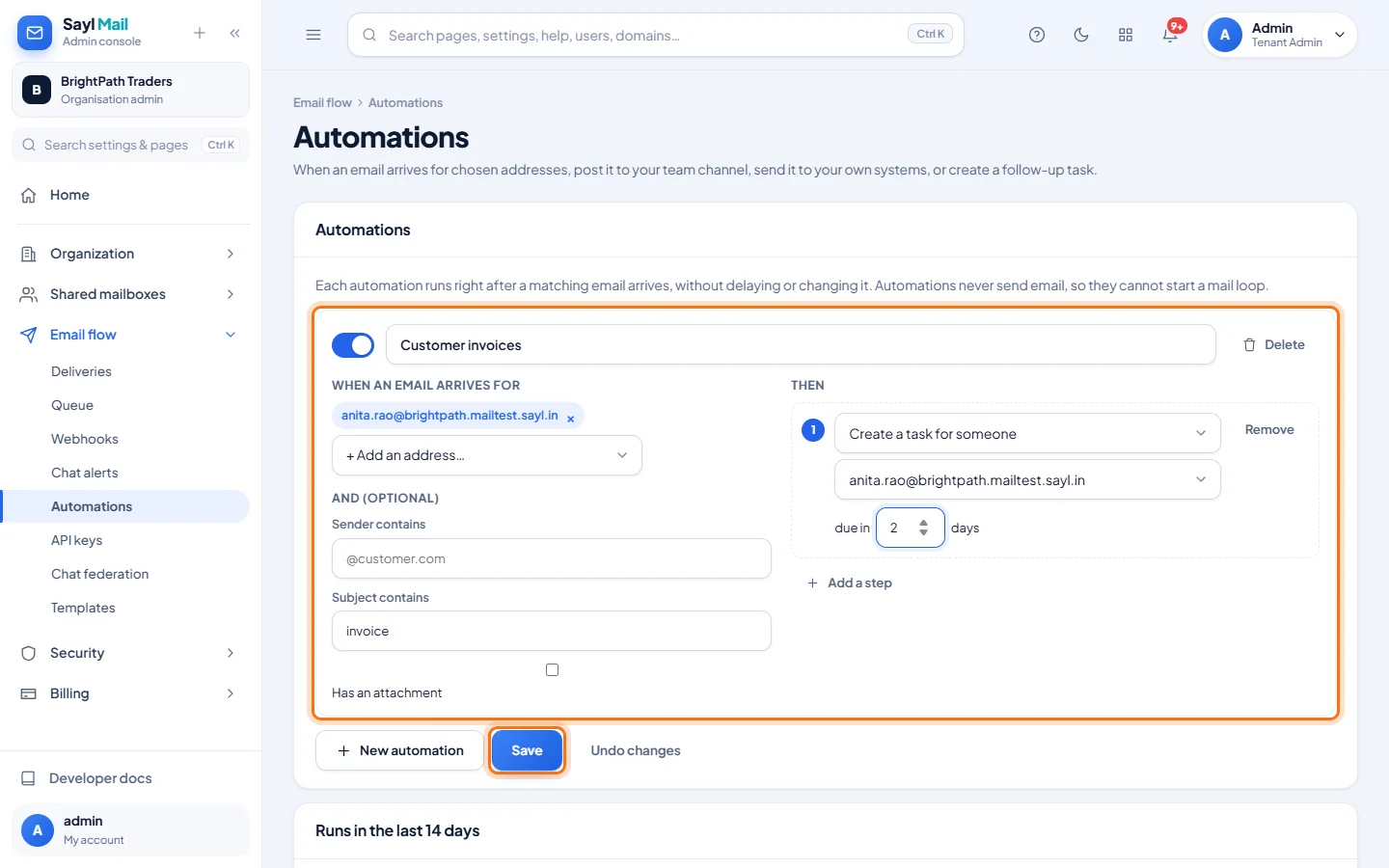
Every email to Anita with "invoice" in the subject becomes a task for her, due in 2 days. - 3
Check the runs
Runs in the last 14 days lists every time an automation ran: when, which automation, who the email came from, and whether each step worked. If a step failed, the reason is shown below it.
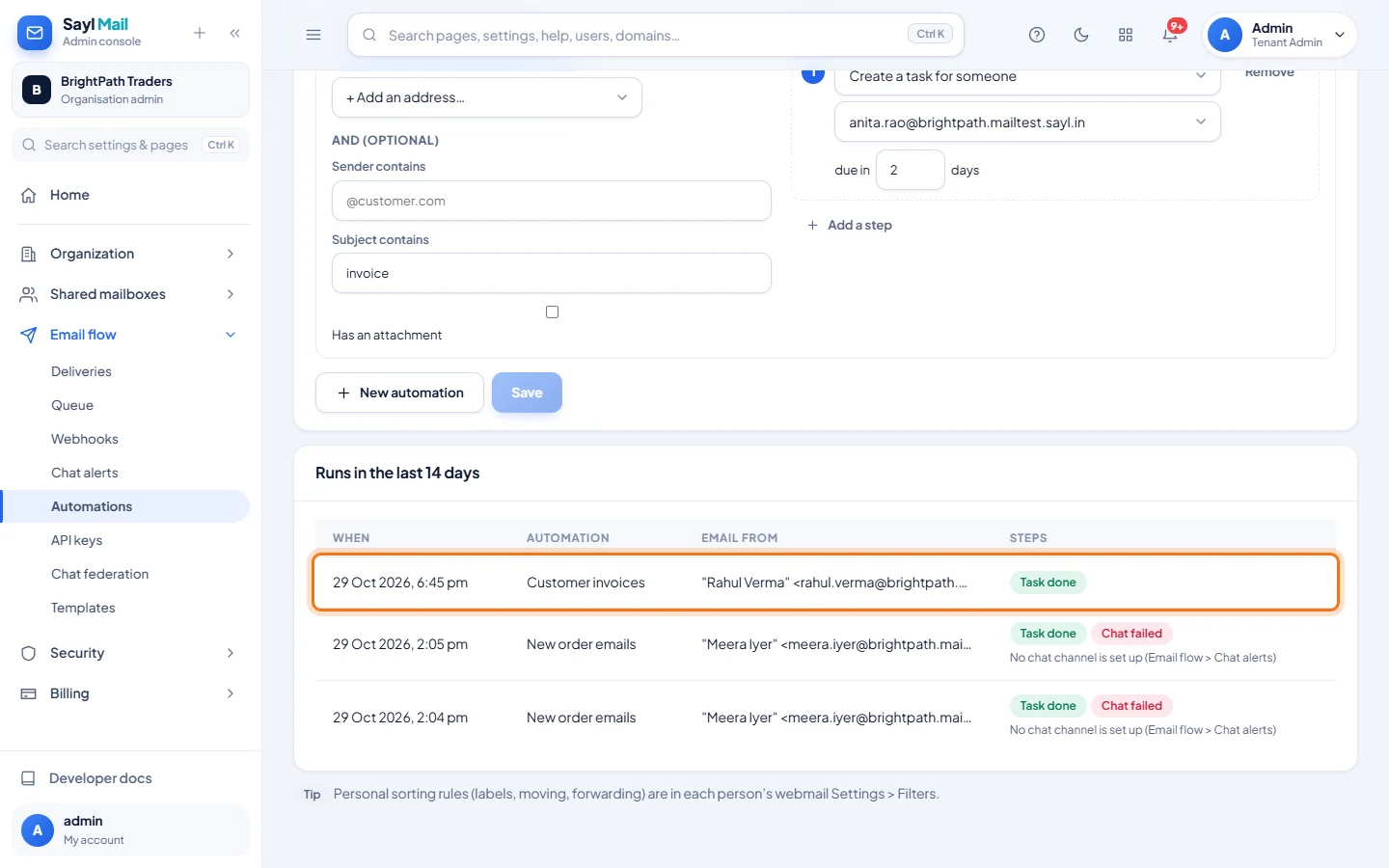
Rahul emailed "Invoice 4471 for October" to Anita, and the task was created. - 4
The task appears in the person's Tasks
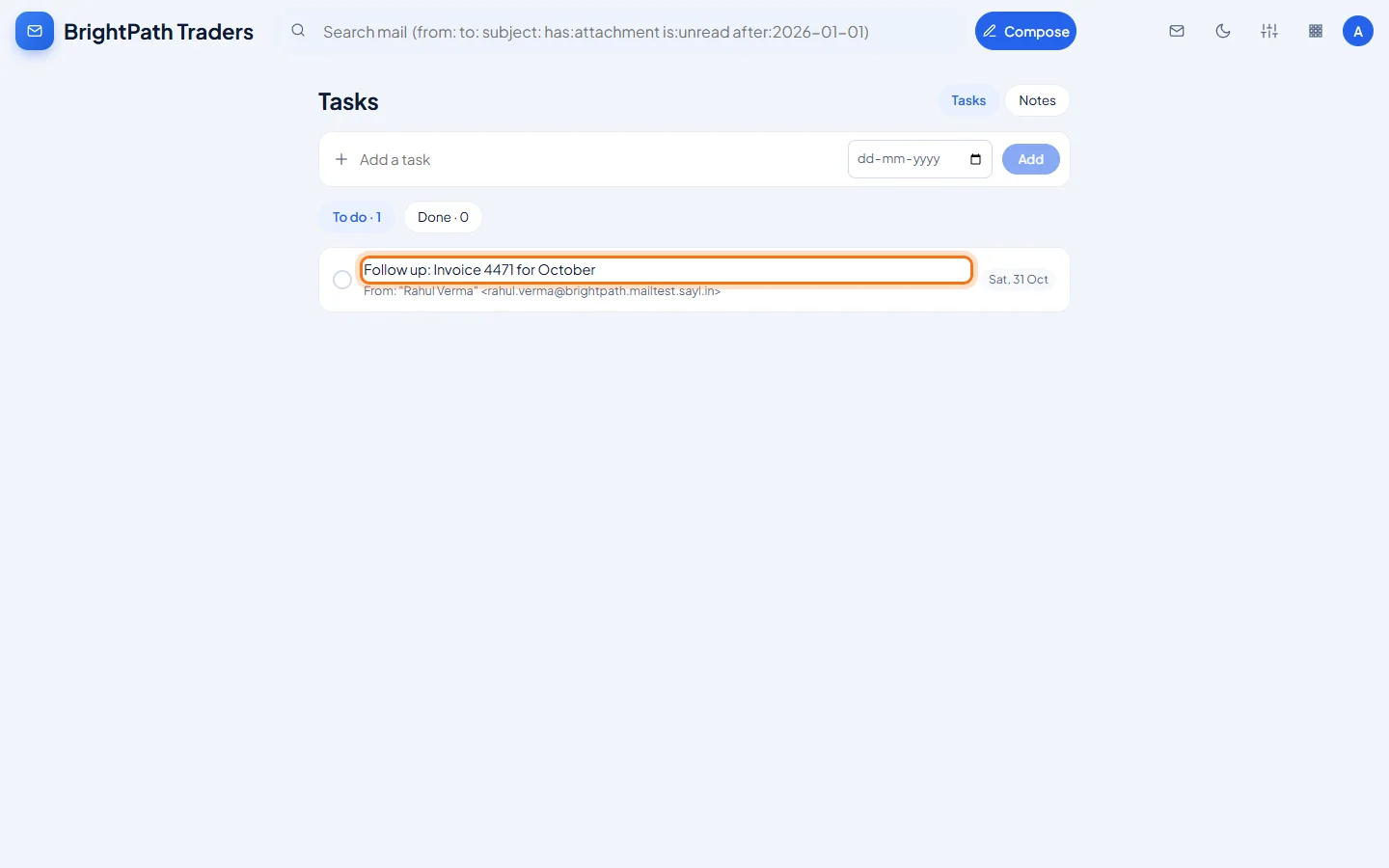
A task made by an automation appears in that person's webmail under Apps → Tasks, starting with "Follow up:" and the email's subject, with the due date and the sender.
Example
The automation used above:
- Name
- Customer invoices
- When an email arrives for
- anita.rao@ your domain
- And
- Subject contains: invoice
- Then
- Create a task for anita.rao@, due in 2 days
The result
- Matching email is turned into a task, a chat post or a webhook call within seconds, and every run is listed so you can check it worked.
Troubleshooting
- "No chat channel is set up (Email flow > Chat alerts)".
- Post to the team chat channel uses the channel from Chat alerts. Connect Slack or Teams there first.
- Send to a webhook says "No webhooks yet".
- Add the address of your system in Email flow → Webhooks first, then choose it in the step. Tick Include the subject if your system needs it.
- The automation did not run.
- Check that it is switched on, that the email was sent to one of the watched addresses, and that the subject or sender really contains the words you entered (capital letters don't matter).
- Is the email itself sent to the chat or the webhook?
- No. Only who it came from and the subject (for a webhook, only if you tick Include the subject) are passed on, never the message text or attachments.
- How do I stop an automation?
- Switch it off with the switch next to its name, or click Delete, then click Save.
- Personal sorting rules?
- Labels, moving and forwarding for one person are set in their own webmail under Settings → Rules.
Still stuck? Your organisation's administrator can help first. Administrators can reach Sayl support from the admin console, or through the contact page.