
Sayl Mail · For administrators
Stop card, Aadhaar and PAN numbers leaving by email
Block or flag outgoing email that contains card numbers, Aadhaar or PAN numbers or your own confidential words. Rules, testing and the list of matches.
What data protection is and why it helps
Data protection checks every message your people send, from webmail or a mail app, before it leaves. It looks for card numbers, Aadhaar numbers, PAN numbers or words you choose, such as a project code name.
For each rule you decide what happens: block the message, send it and alert the administrators, or send it and only record it. The numbers and words found are never stored, only which rule matched.
Where to find it
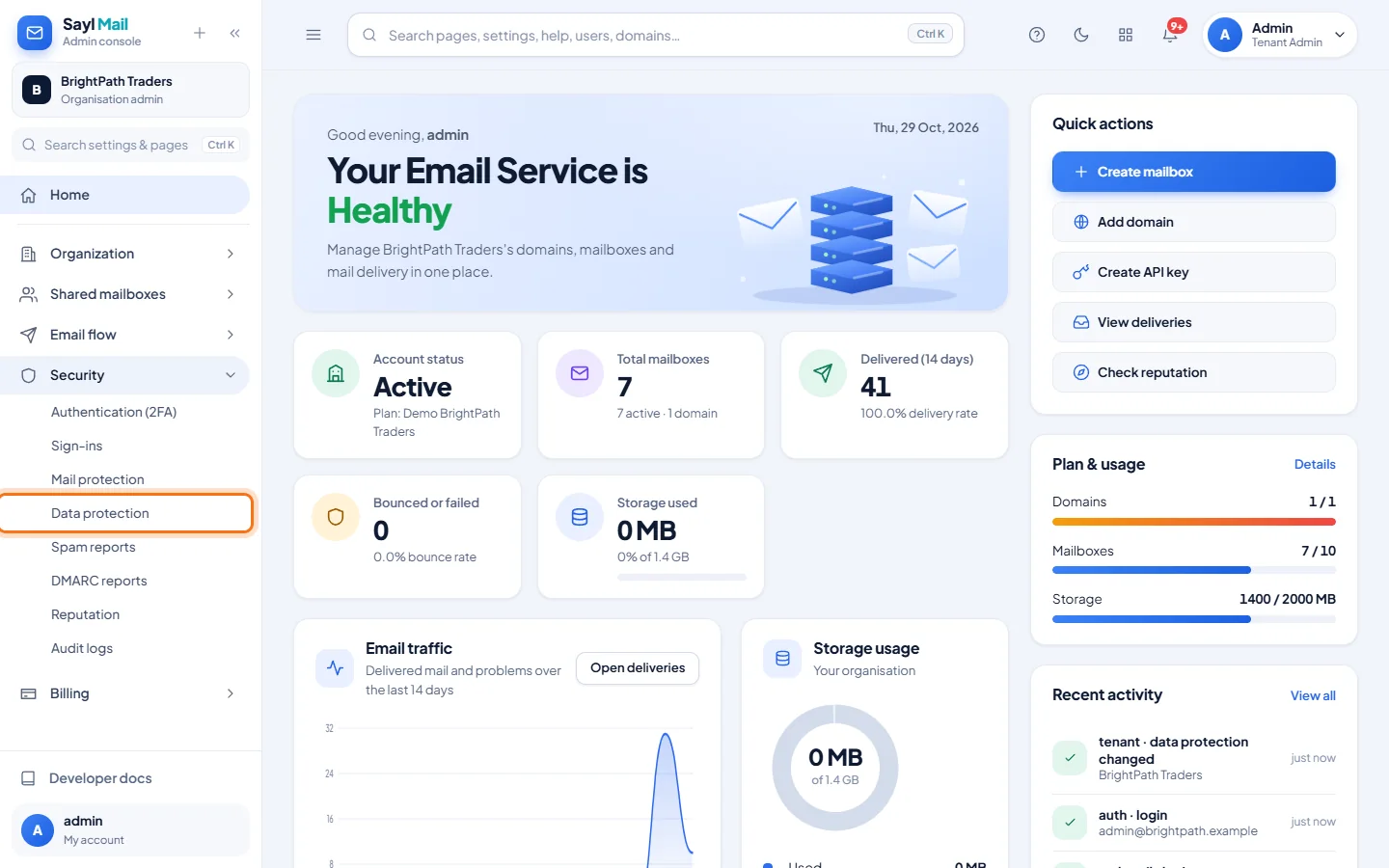
Admin console → Security → Data protection
Who can use it: Organisation administrators with full rights. Other administrators can see the page but not change the rules.
Step by step
Every screenshot is from Sayl Mail itself, using a demo company with made-up people. The button to click is outlined in orange.
- 1
Open Security → Data protection
In the admin console menu, open Security and click Data protection.
- 2
Add your rules and click Save
Choose a kind of rule in + Add a rule… (Card numbers, Aadhaar numbers, PAN numbers or Keywords) and give it a name. In Checks, choose Mail to people outside the organisation or All mail, inside too. In When found, choose Block the message, Send it and alert admins, or Send it and record it. For Keywords, enter one word or phrase per line. Click Save.
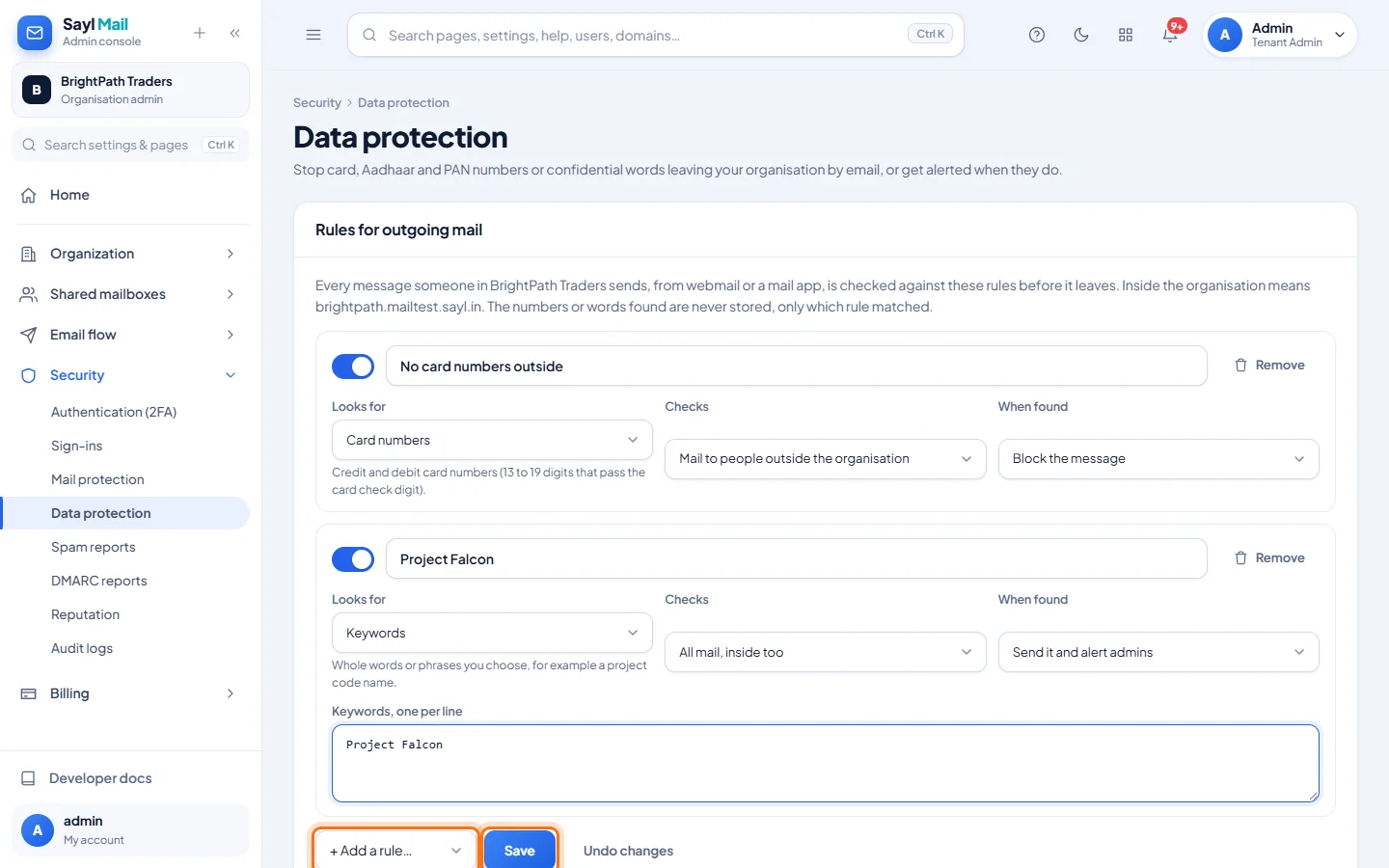
Card numbers are blocked when they go outside; "Project Falcon" is allowed but the administrators are alerted, also for mail inside. - 3
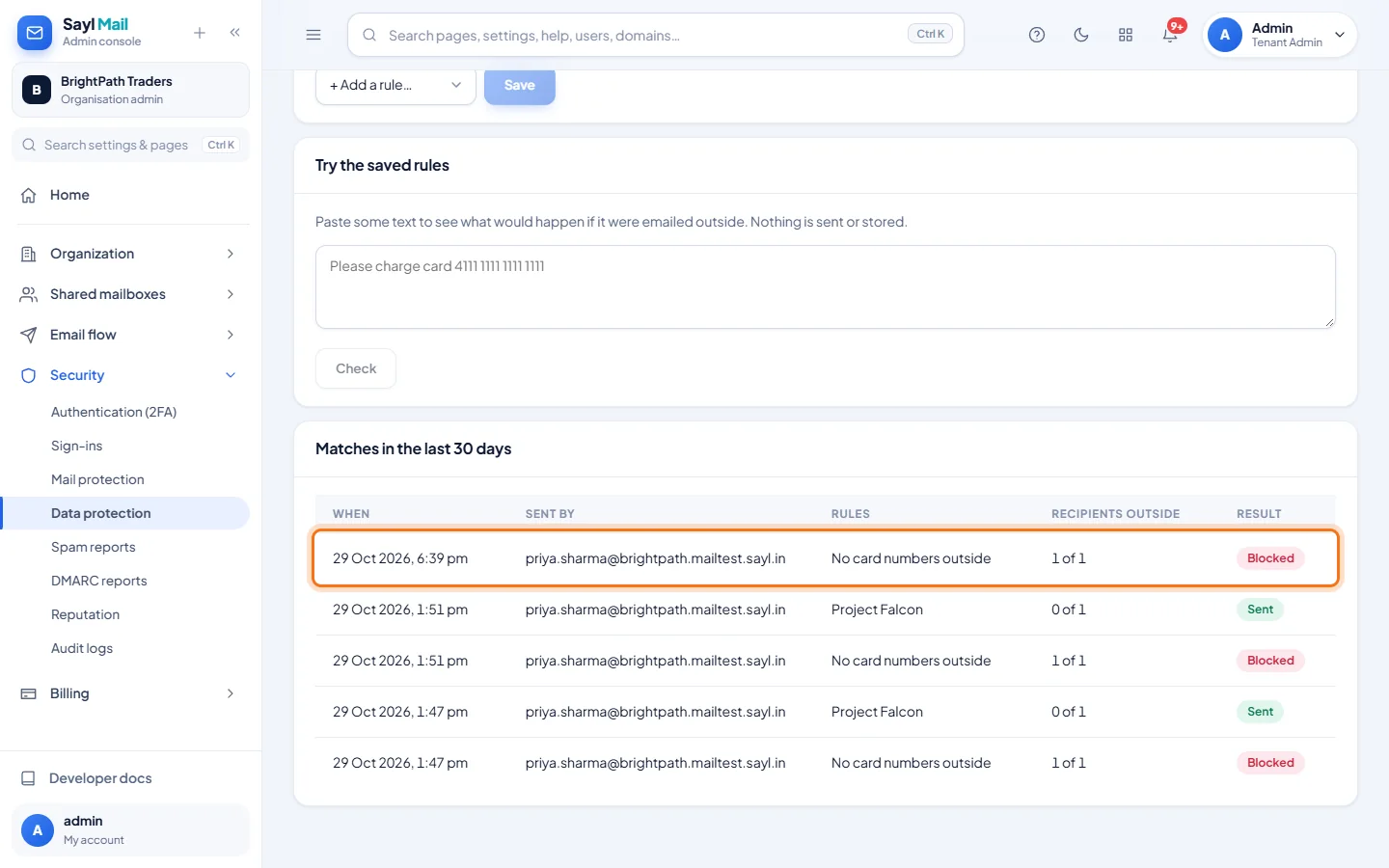
Try the saved rules
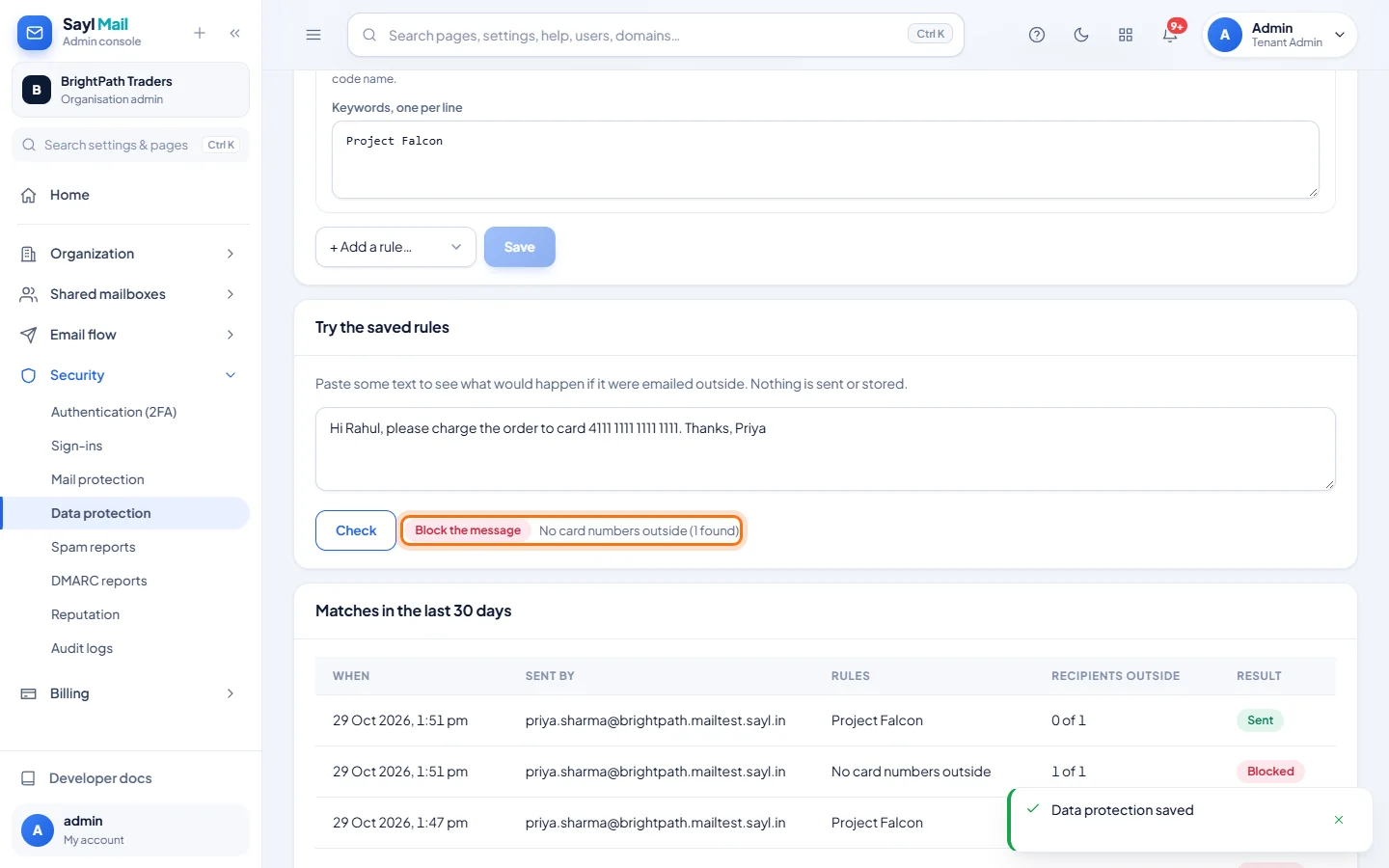
Paste some text into Try the saved rules and click Check. It shows what would happen if that text were emailed outside, and which rule matched. Nothing is sent or stored.
- 4
What the sender sees
When a rule blocks a message, it is not sent. Webmail shows a red message that says why, including the rule's name, and the message stays open so the sender can remove the number.
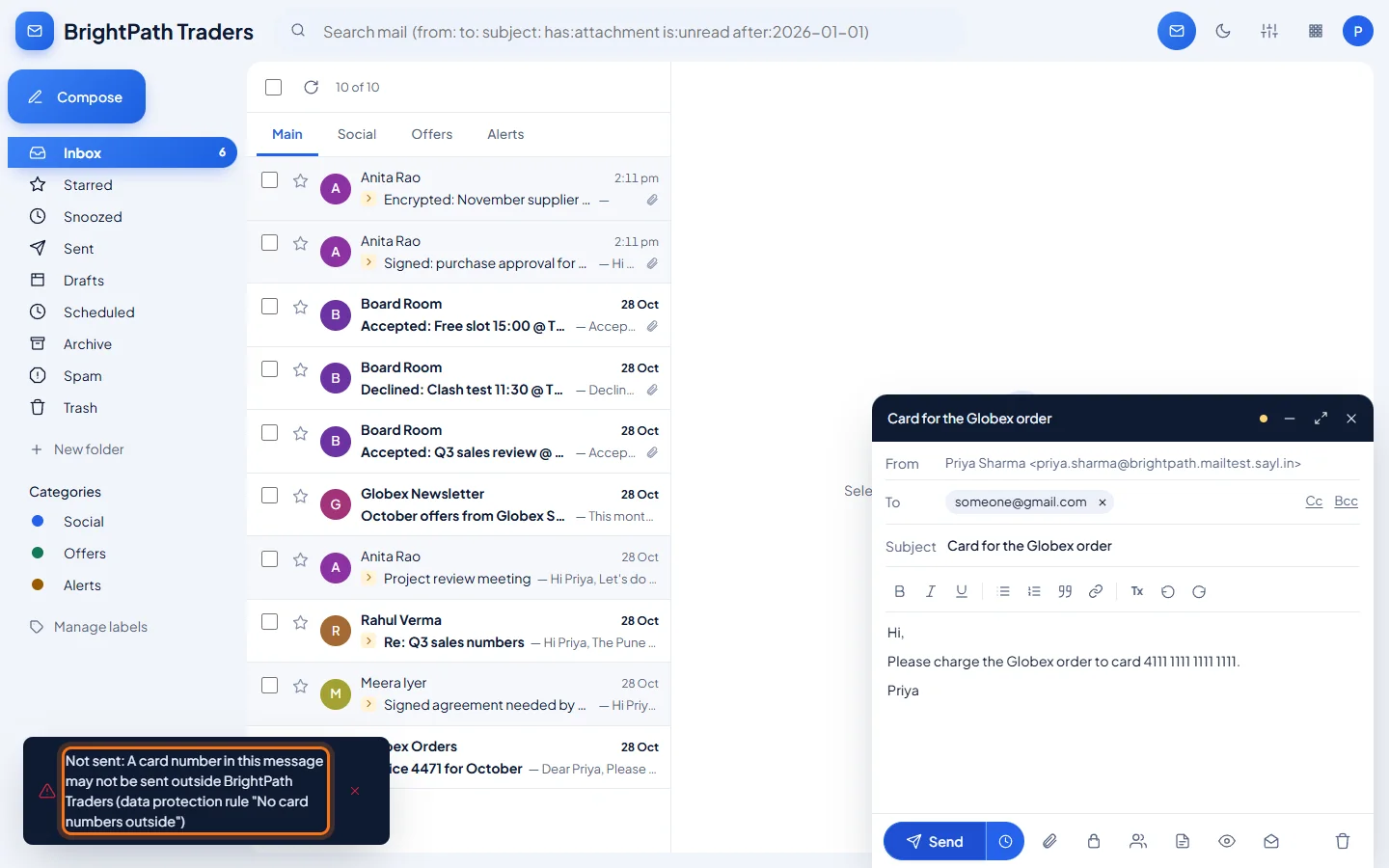
Priya tried to email a card number to an outside address. - 5
Check the matches
Matches in the last 30 days lists every message that matched a rule: when, who sent it, which rule, how many recipients were outside, and whether it was blocked or sent. The numbers or words themselves are not shown.
Example
What each kind of rule looks for, and the test text used above:
Hi Rahul, please charge the order to card 4111 1111 1111 1111. Thanks, Priya- Card numbers
- Credit and debit card numbers: 13 to 19 digits that pass the card check digit.
- Aadhaar numbers
- 12-digit Aadhaar numbers that pass the Aadhaar check digit.
- PAN numbers
- PAN numbers such as ABCPE1234F.
- Keywords
- Whole words or phrases you choose, one per line, for example Project Falcon.
The result
- Card, Aadhaar and PAN numbers or confidential words are stopped before they leave, or your administrators are told when they do.
- Every match is listed for 30 days, so you can see whether a rule is too strict.
Troubleshooting
- A message to a colleague was blocked.
- The rule checks All mail, inside too. Change Checks to Mail to people outside the organisation if mail inside should be allowed.
- I'm not sure a new rule is right for us.
- Start with When found: Send it and record it. Watch the matches list for a week, then switch to Block the message.
- Are attachments checked?
- The subject, the message text and text attachments (such as .txt, .csv and .html files) are checked. PDF, Office files and images are not opened.
- Who receives the alerts?
- With Send it and alert admins, the organisation's full administrators get an email. A person who sends several matching messages in a row causes at most one alert every 5 minutes.
- How many rules can we have?
- Up to 20 rules, with up to 50 keywords in one rule.
Still stuck? Your organisation's administrator can help first. Administrators can reach Sayl support from the admin console, or through the contact page.