
Sayl Mail · For everyone
Check signed and encrypted email (S/MIME and OpenPGP)
What the notice above a signed or encrypted message means in Sayl webmail, and the optional setting to store your new mail encrypted with your own key.
What signed and encrypted email is and why it helps
Some senders sign their email with S/MIME or OpenPGP. A signature proves the message was not changed on the way and, with a trusted certificate, who sent it. Sayl webmail checks S/MIME signatures for you and shows the result in a notice above the message.
Encrypted messages can only be opened with the recipient's private key. Webmail never holds anyone's private key, so it tells you the message is encrypted and that you need a mail app with your key to read it.
Where to find it
Webmail → open a message (the notice is above the text); Settings → Security → Encrypt new mail with my own key
Step by step
Every screenshot is from Sayl Mail itself, using a demo company with made-up people. The button to click is outlined in orange.
- 1
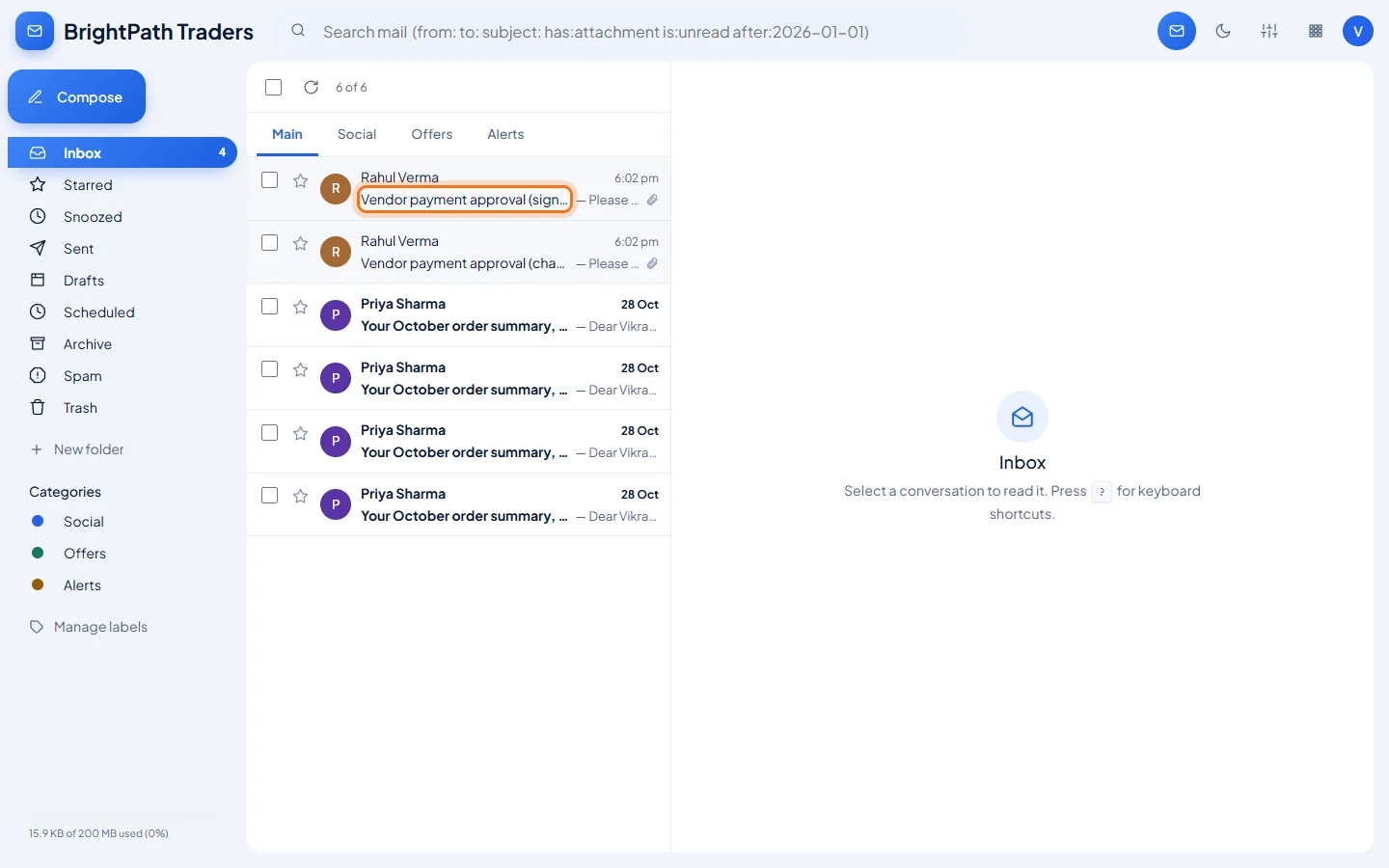
Open the message
Signed and encrypted messages look like any other message in your Inbox. The signature itself arrives as a small attachment named smime.p7s.
- 2
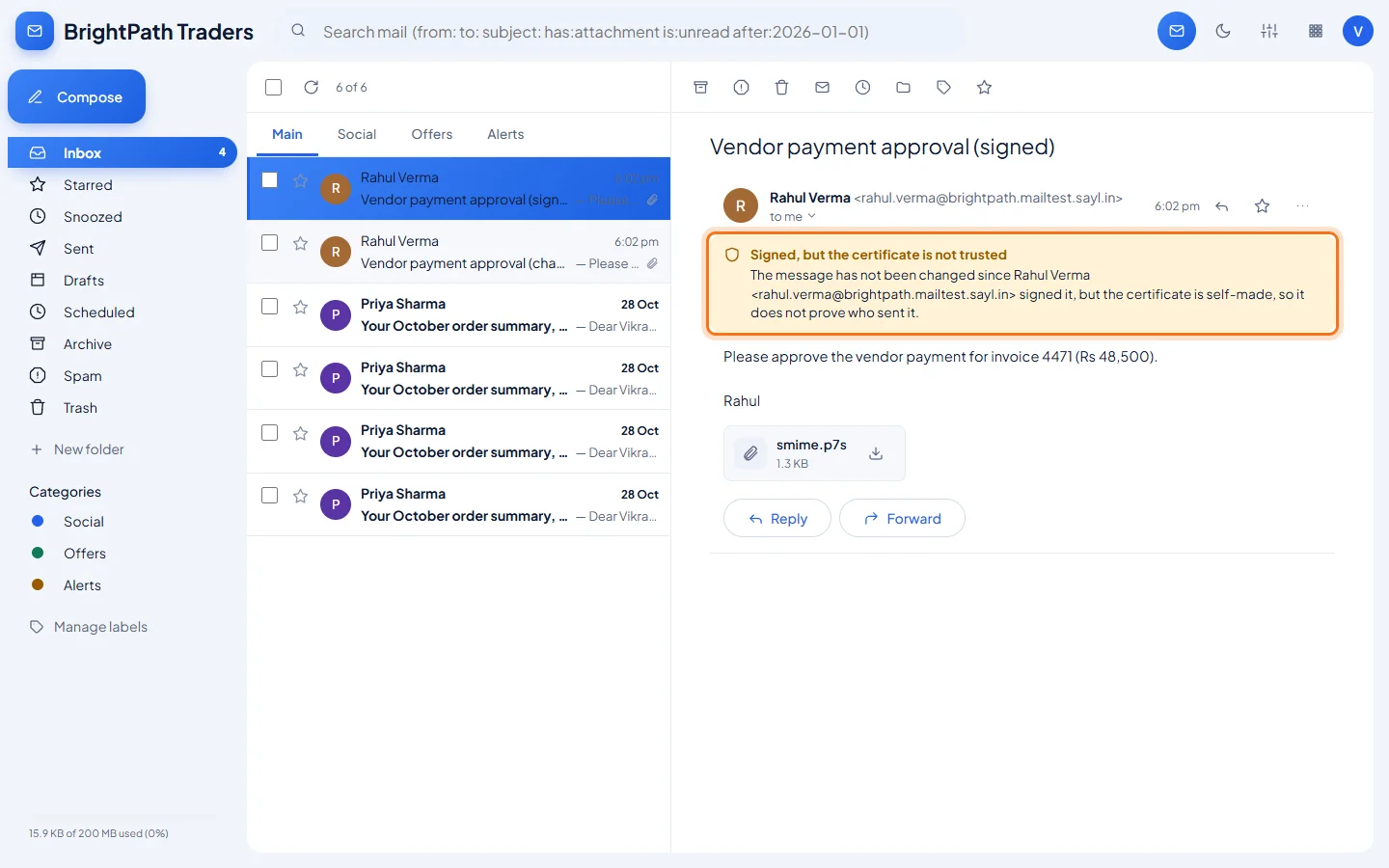
Read the notice above the message
Here Rahul signed the message with a certificate he made himself. The amber notice says the message has not been changed since he signed it, but a self-made certificate does not prove who sent it.
- 3
A red notice means the message was changed
Signature does not match means the text was changed after it was signed, or the signature is damaged. Here the amount was changed on the way. Do not act on a request in such a message; check with the sender by phone or another way.
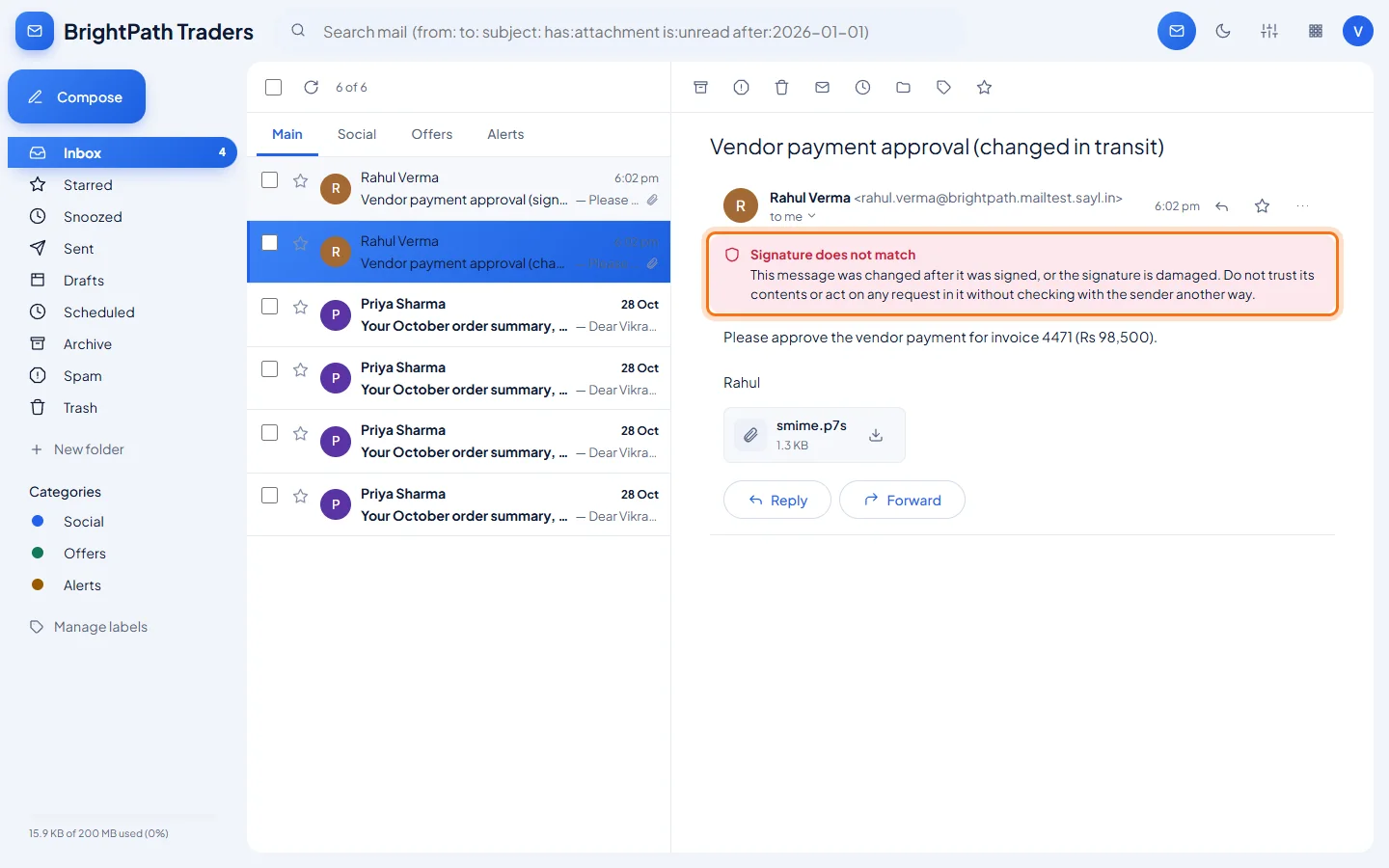
The same payment request, changed in transit: Rs 48,500 became Rs 98,500. - 4
Optional: encrypt your new mail with your own key
If your organisation allows it, Settings → Security shows the card Encrypt new mail with my own key. It is only for people who already use OpenPGP or S/MIME in a mail app such as Outlook, Apple Mail or Thunderbird. Most people should leave it off.
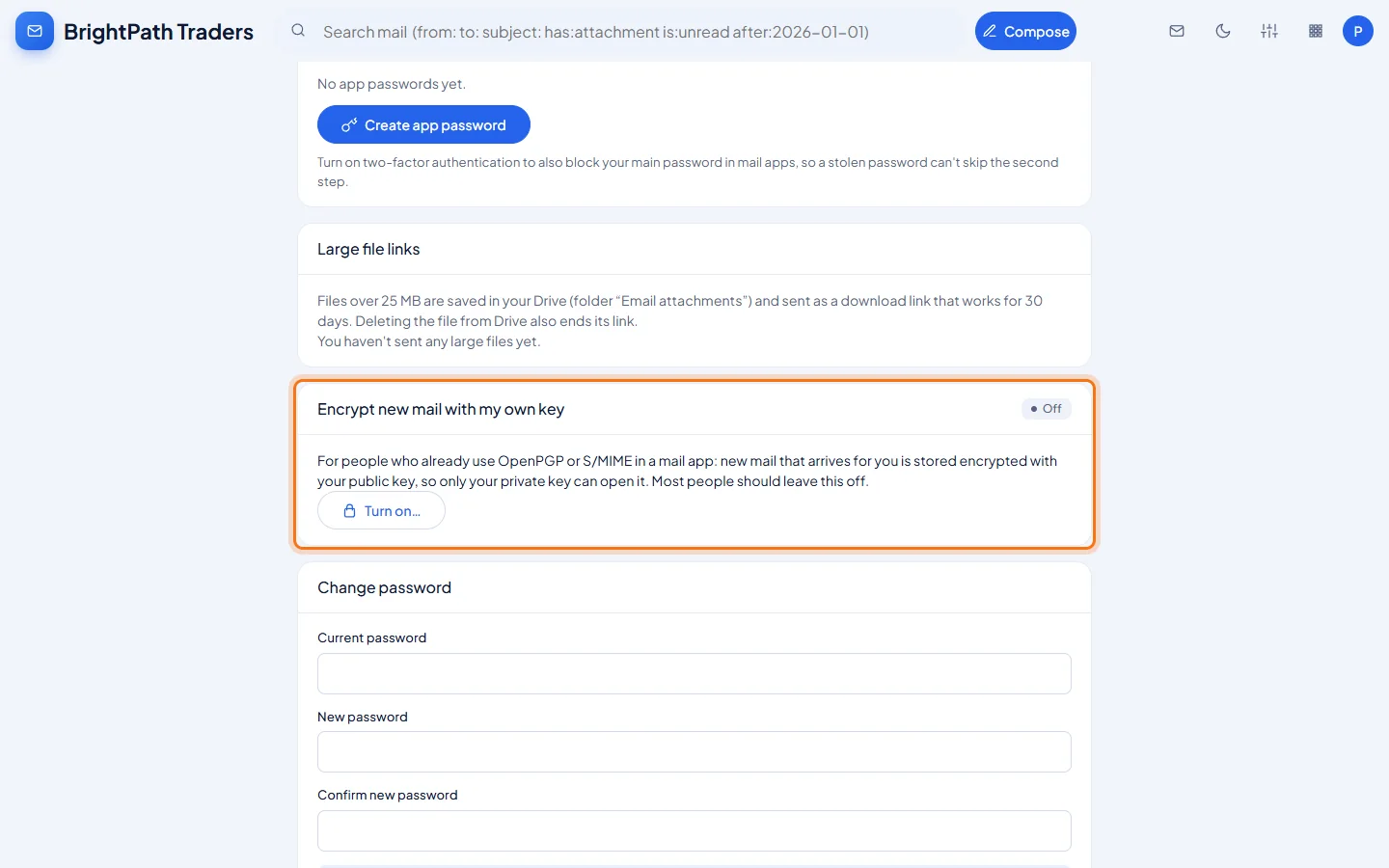
The card is not shown at all while your organisation has not allowed it. - 5
Read what changes before turning it on
Turn on… opens a window that lists what changes. To turn it on you paste your public key or certificate (never your private key), click Check key, tick that you understand, and confirm with your password. If you are not sure, click Cancel.
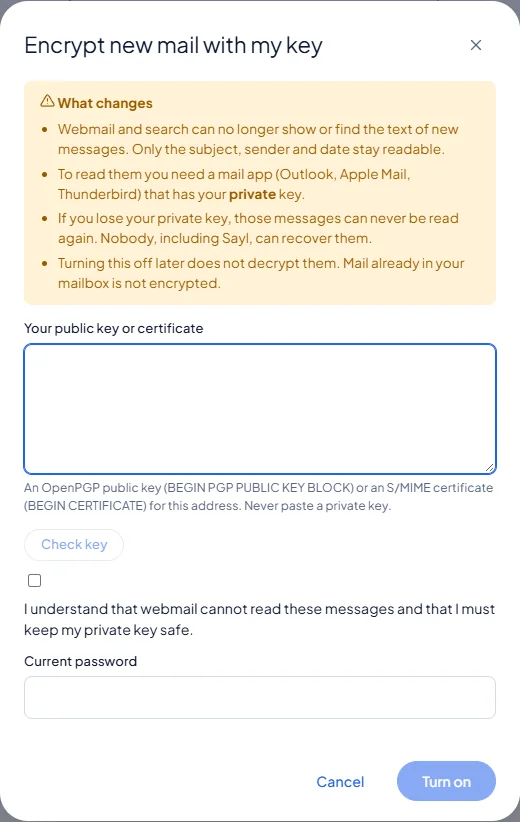
Example
The notices you can see above a message, and what they mean:
- Signature verified (green)
- Signed with a certificate from a recognised authority, and not changed since it was signed.
- Signed, but the certificate is not trusted (amber)
- Not changed since it was signed, but the certificate is self-made, expired or not from a recognised authority, so it does not prove who sent it.
- Signed by someone else (amber)
- The signature is valid, but it belongs to a different address than the sender shown.
- Signature does not match (red)
- Changed after it was signed, or the signature is damaged. Don't trust it.
- Encrypted with S/MIME or OpenPGP
- Webmail cannot show the text. Open it in a mail app that has your private key.
- Digitally signed with OpenPGP
- Webmail cannot check OpenPGP signatures, because that needs the sender's public key. A mail app with OpenPGP, such as Thunderbird, can.
The result
- You can tell at a glance whether a signed message is genuine and unchanged, and when not to trust it.
- If you use your own keys, you know exactly what changes before you encrypt your new mail with them.
Troubleshooting
- "The signature could not be checked right now."
- Open the message again later, or check it in Outlook, Apple Mail or Thunderbird, which can also show whether the signature is valid.
- I can't read an encrypted message in webmail.
- That is expected: only your private key can open it, and webmail never has it. Open the message in a mail app that has your key.
- I don't see Encrypt new mail with my own key in Settings → Security.
- Your organisation has not allowed it. Ask your administrator if you really need it.
- What happens to my mail if I turn it on?
- New mail is stored encrypted with your public key. Webmail and search can then no longer show or find the text of those messages; only the subject, sender and date stay readable. Mail already in your mailbox is not encrypted.
- I lost my private key.
- Messages encrypted with it can never be read again; nobody, including Sayl, can recover them. Ask your administrator to turn the setting off for you, so new mail is stored readable again.
- Does turning it off decrypt my old messages?
- No. Turning it off only makes new mail readable. Keep your private key to read the messages that were encrypted.
Still stuck? Your organisation's administrator can help first. Administrators can reach Sayl support from the admin console, or through the contact page.