
Sayl Mail · For administrators
See signed-in devices and sign out a lost phone
See where a person is signed in to Sayl Mail, revoke a mail app's app password, and sign them out everywhere when a phone or laptop is lost or stolen.
What devices and lost phones is and why it helps
Every person's page in the admin console shows where their mailbox is in use: each webmail session (browser, address, when it was last active) and each app password used by a phone or mail app.
When a phone or laptop is lost or stolen, you can end all webmail sessions and revoke all app passwords in one step, so the device can no longer open the mailbox.
Where to find it
Admin console → Organization → Users → click a person → Devices & access
Who can use it: Organisation administrators with full rights and helpdesk administrators.
Step by step
Every screenshot is from Sayl Mail itself, using a demo company with made-up people. The button to click is outlined in orange.
- 1
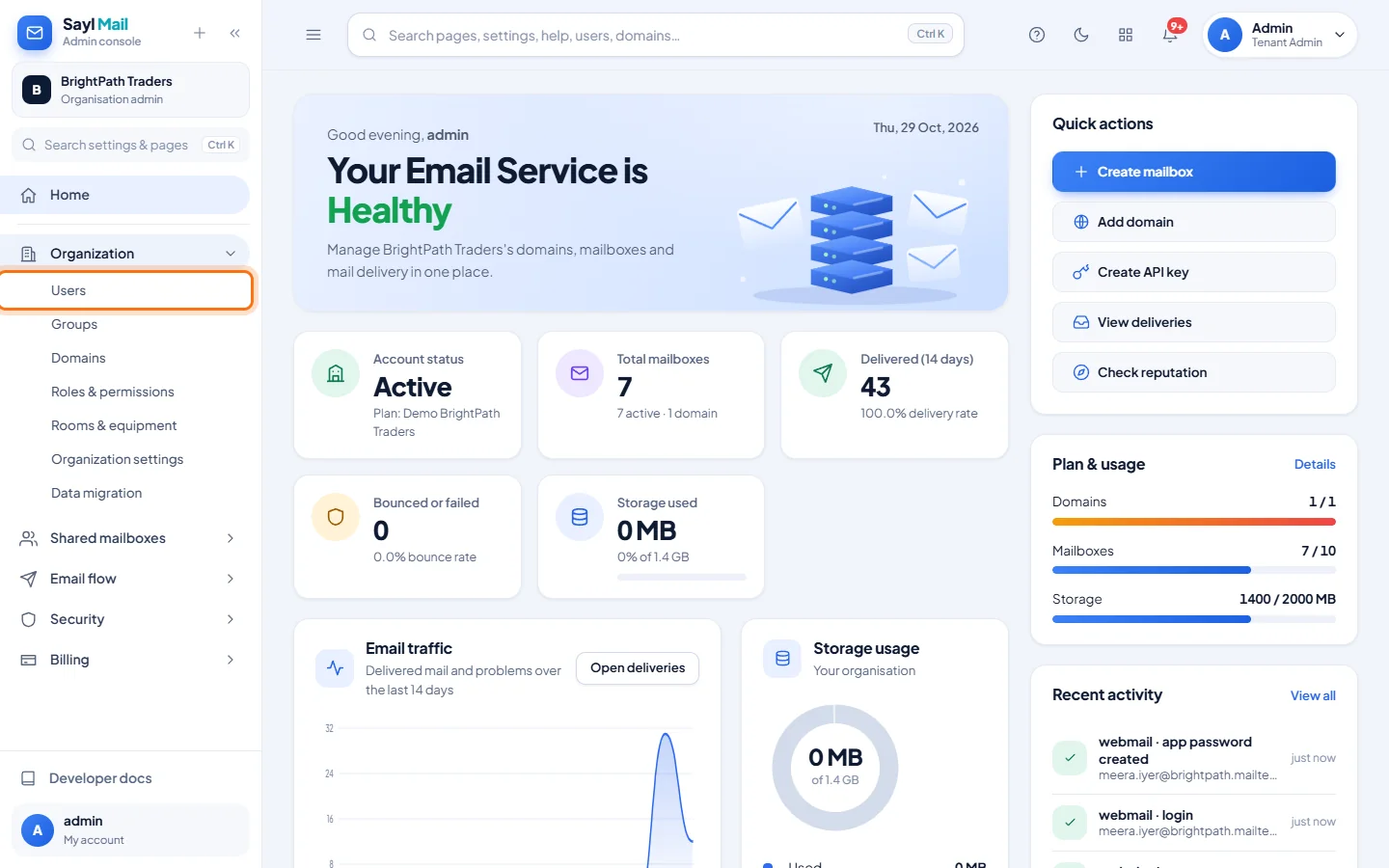
Open Organization → Users and click the person
In the admin console menu, open Organization, click Users, then click the person's address.
- 2
Look at Devices & access
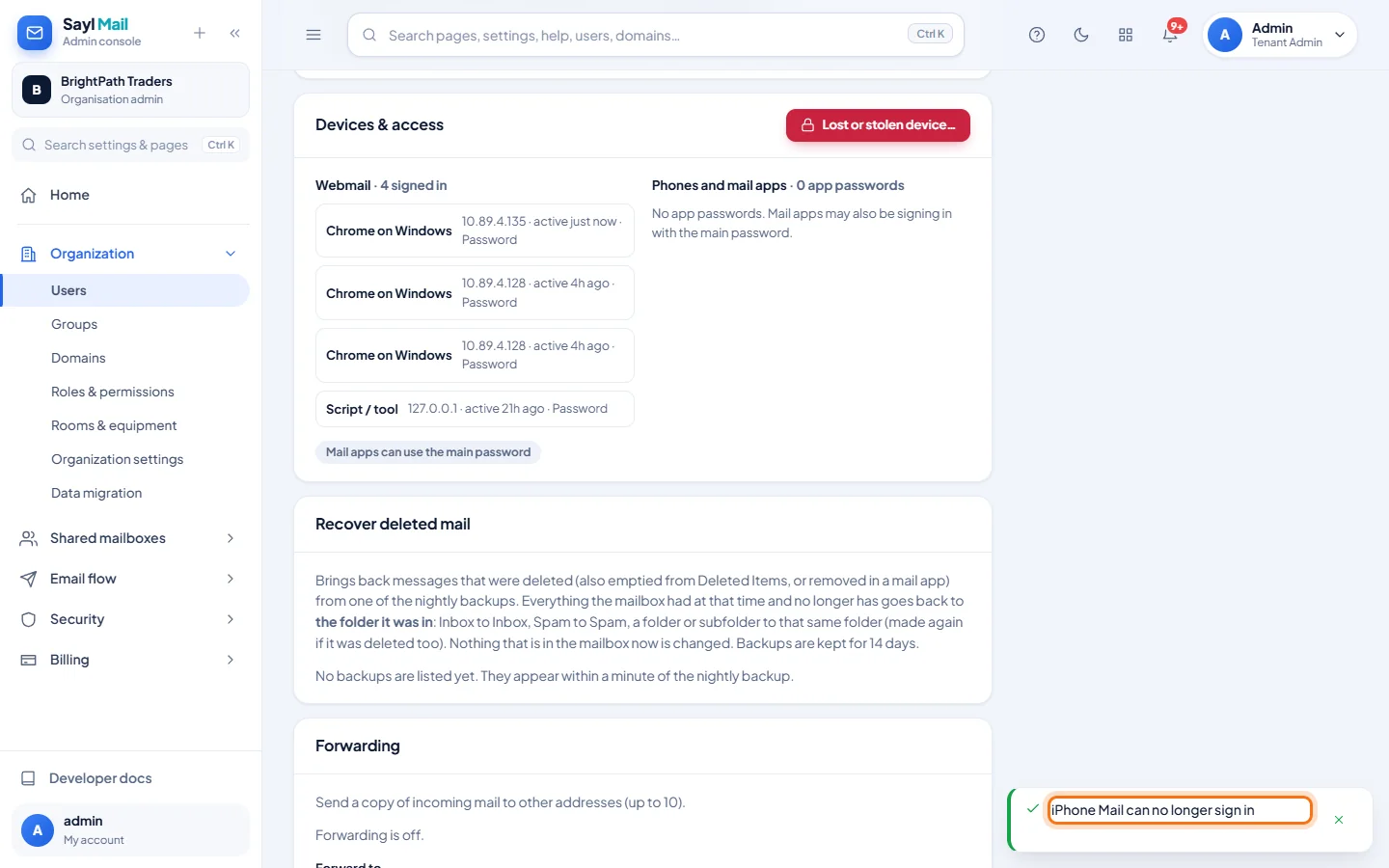
Scroll to Devices & access. Webmail lists every browser that is signed in, with its address, when it was last active and how it signed in. Phones and mail apps lists the person's app passwords and when each was made.
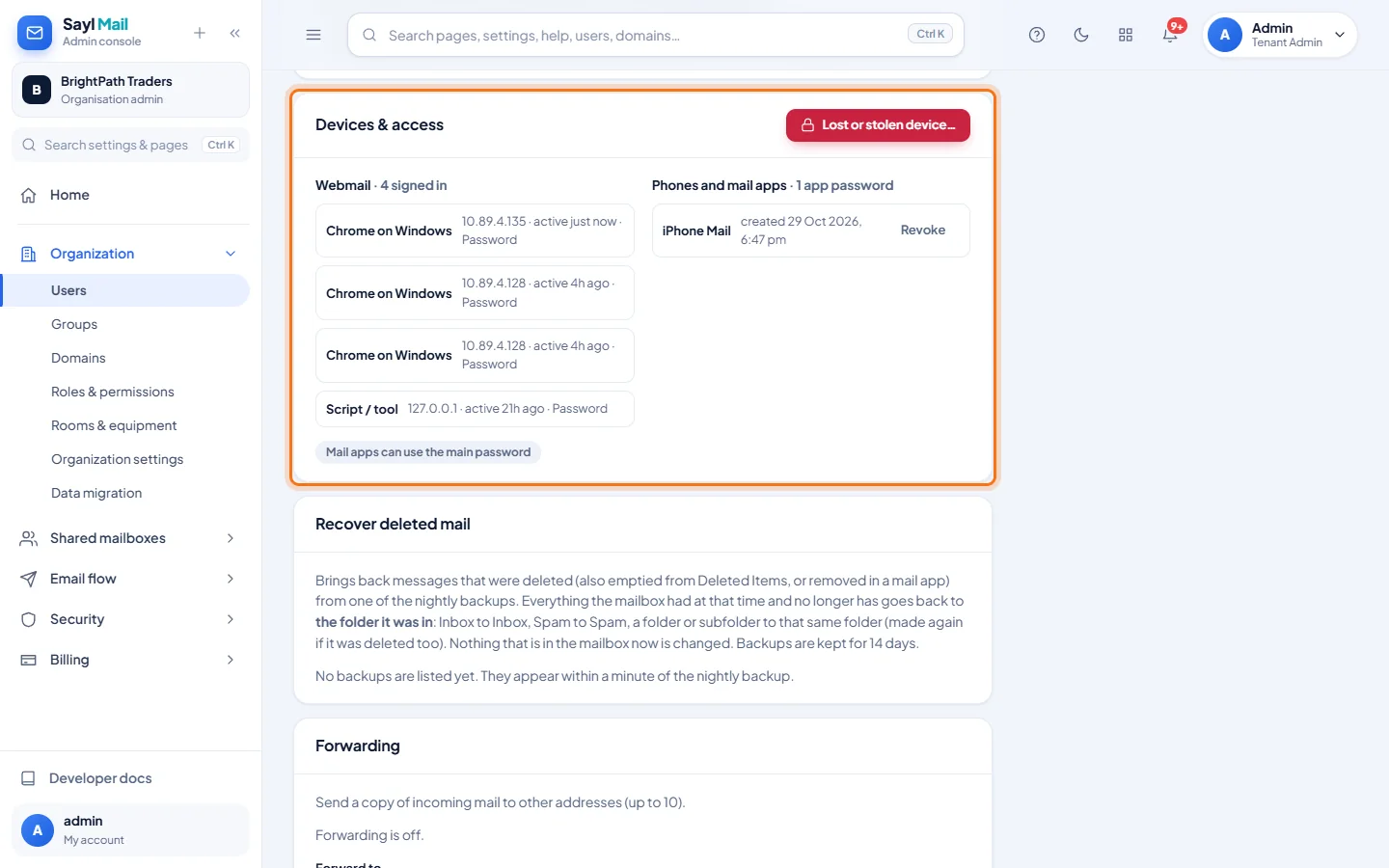
Meera is signed in to webmail and has one app password, for iPhone Mail. - 3
Lost or stolen device: sign out everywhere
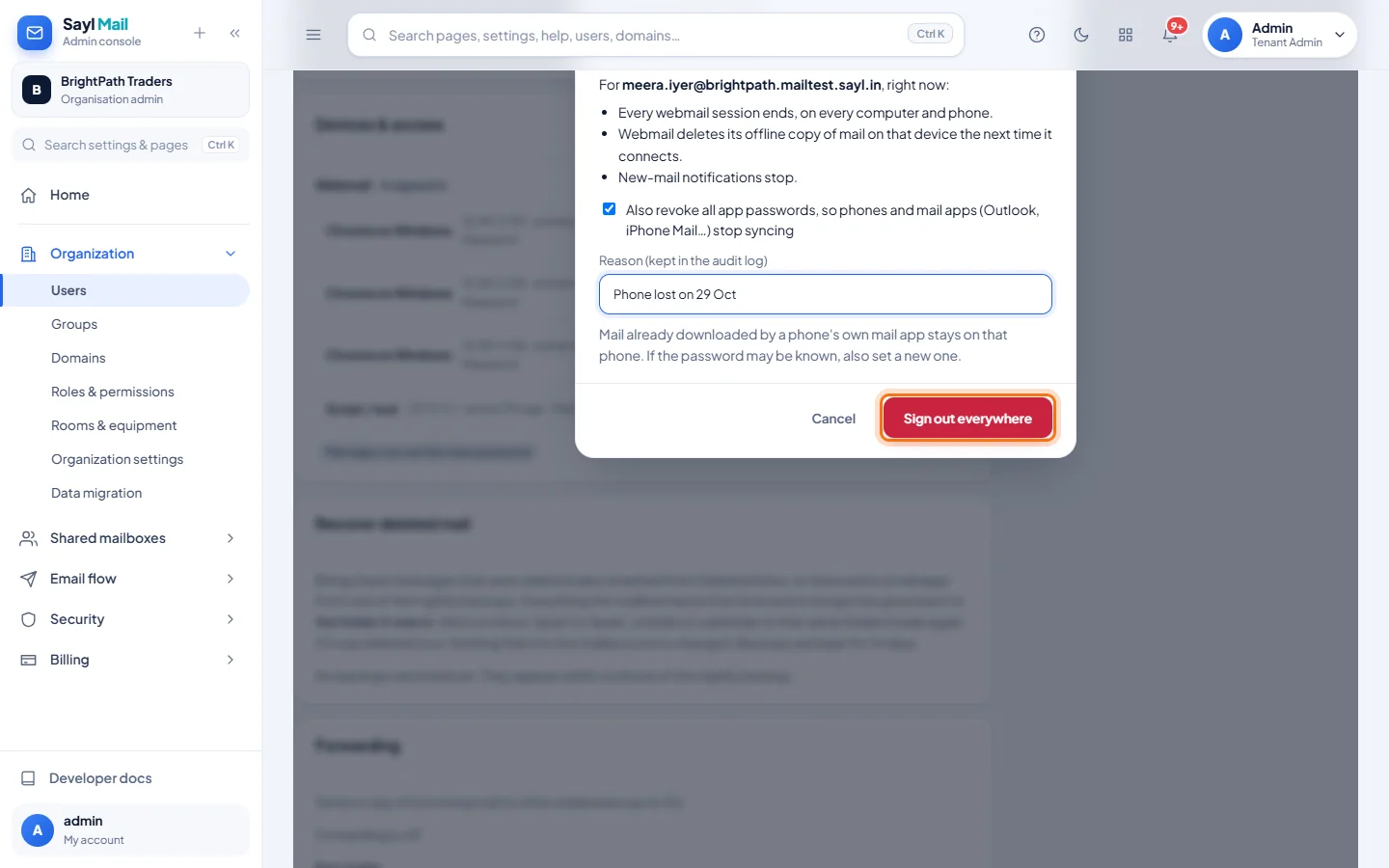
Click Lost or stolen device…. Keep Also revoke all app passwords ticked so phones and mail apps stop syncing, type a reason (it is kept in the audit log) and click Sign out everywhere. Every webmail session ends at once, new-mail notifications stop, and webmail deletes its offline copy of mail on that device the next time it connects.
- 4
Or revoke just one app password
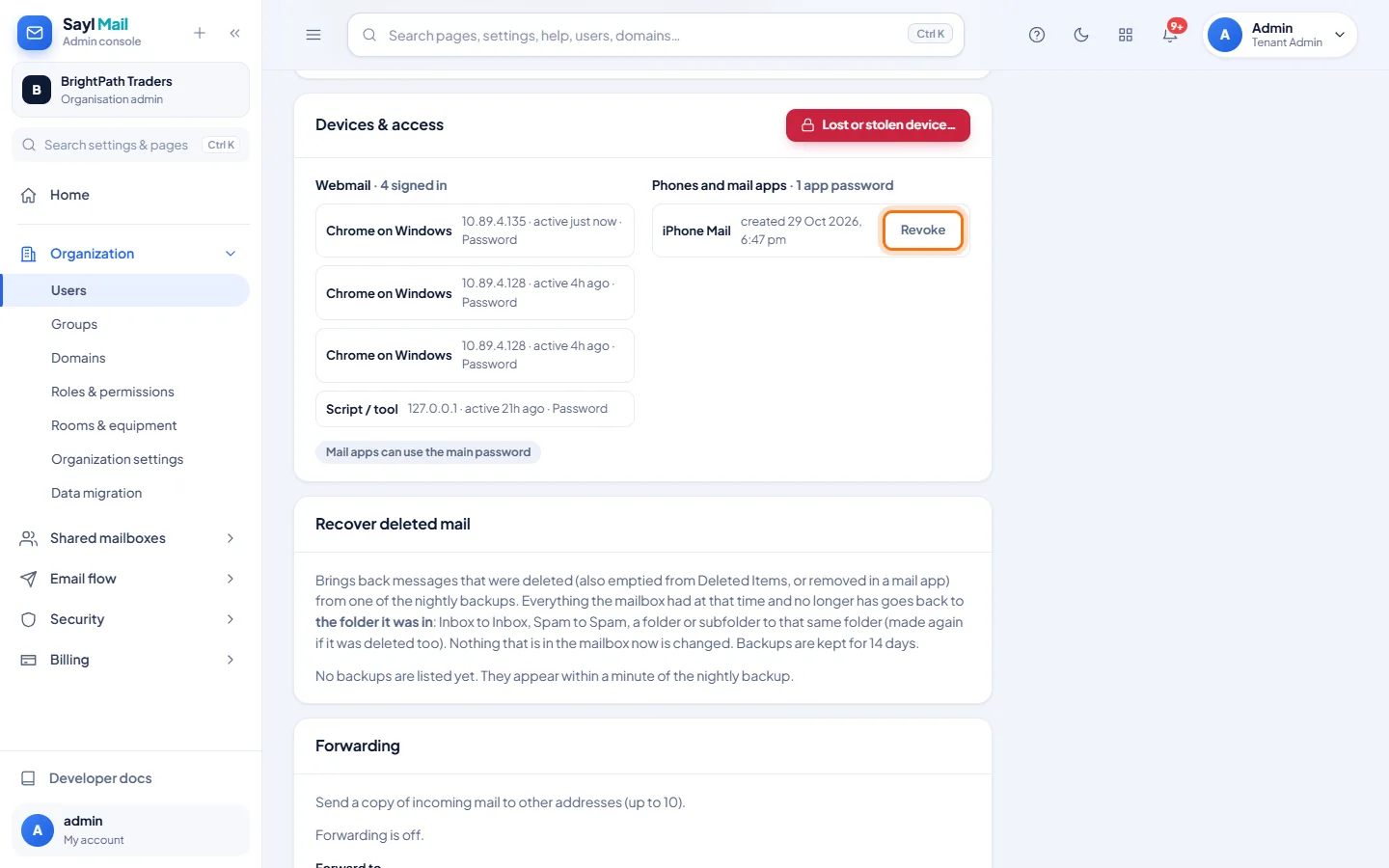
To stop only one phone or mail app, click Revoke next to its app password.
- 5
The app can no longer sign in
A message confirms that the app can no longer sign in, and the app password disappears from the list. The app asks for a password the next time it connects.
Example
What happens when you click Sign out everywhere (with Also revoke all app passwords ticked):
- Webmail
- Every session ends at once, on every computer and phone.
- Offline mail
- Webmail deletes its saved copy on that device the next time it connects.
- Notifications
- New-mail notifications stop.
- Phones and mail apps
- All app passwords are revoked, so Outlook, iPhone Mail and other apps stop syncing.
- Not removed
- Mail a phone's own mail app has already downloaded stays on that phone.
The result
- A lost or stolen device loses access to the mailbox, and the reason is recorded in the audit log.
Troubleshooting
- The phone still received new mail after I clicked Sign out everywhere.
- A mail app that is connected at that very moment can keep receiving new mail until it disconnects. The mail server ends every connection during its nightly maintenance (about 3:15 am); after that the revoked app password stops it for good.
- Someone may know the password.
- Also set a new password for the person. Revoking app passwords does not change the main password.
- Phones and mail apps shows no app passwords, but the person uses a mail app.
- The app is signing in with the main password. The card says "Mail apps can use the main password". Set a new password to stop it, and ask the person to use app passwords (webmail Settings → Security → App passwords).
- The Lost or stolen device… button is missing.
- Only full administrators and helpdesk administrators can use it.
Still stuck? Your organisation's administrator can help first. Administrators can reach Sayl support from the admin console, or through the contact page.