
Sayl Mail · For administrators
See what your people report as spam and manage block and allow lists
See the senders your people report most, spot false alarms, and manage your organisation's block and allow lists in Sayl Mail.
What spam monitoring is and why it helps
Each time someone clicks Report spam or Not spam, Sayl Mail records the sender and subject, not the message itself. Spam Monitoring adds those reports up, so you can see who is causing trouble for your organisation.
When 3 different mailboxes in your organisation report the same sender, its mail goes to Spam for your organisation automatically. A Not spam from a colleague holds this back. One person's report never blocks a sender for anyone else.
Where to find it
Admin console → Email Service → Spam Monitoring
Who can use it: Organisation administrators. Changing the lists needs full rights, and billing administrators do not see this page.
Step by step
Every screenshot is from Sayl Mail itself, using a demo company with made-up people. The button to click is outlined in orange.
- 1
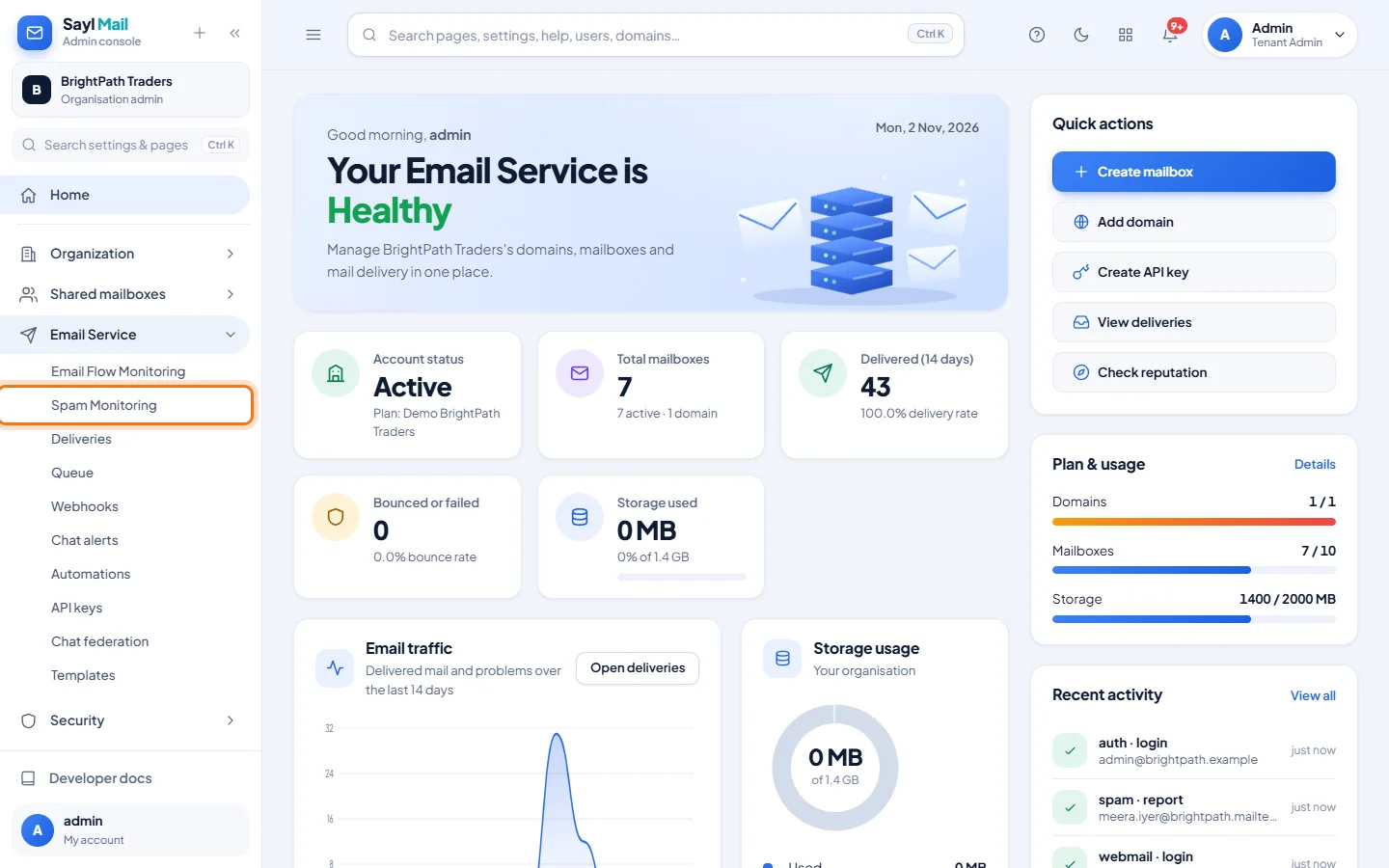
Open Email Service → Spam Monitoring
In the admin console menu, open Email Service and click Spam Monitoring.
- 2
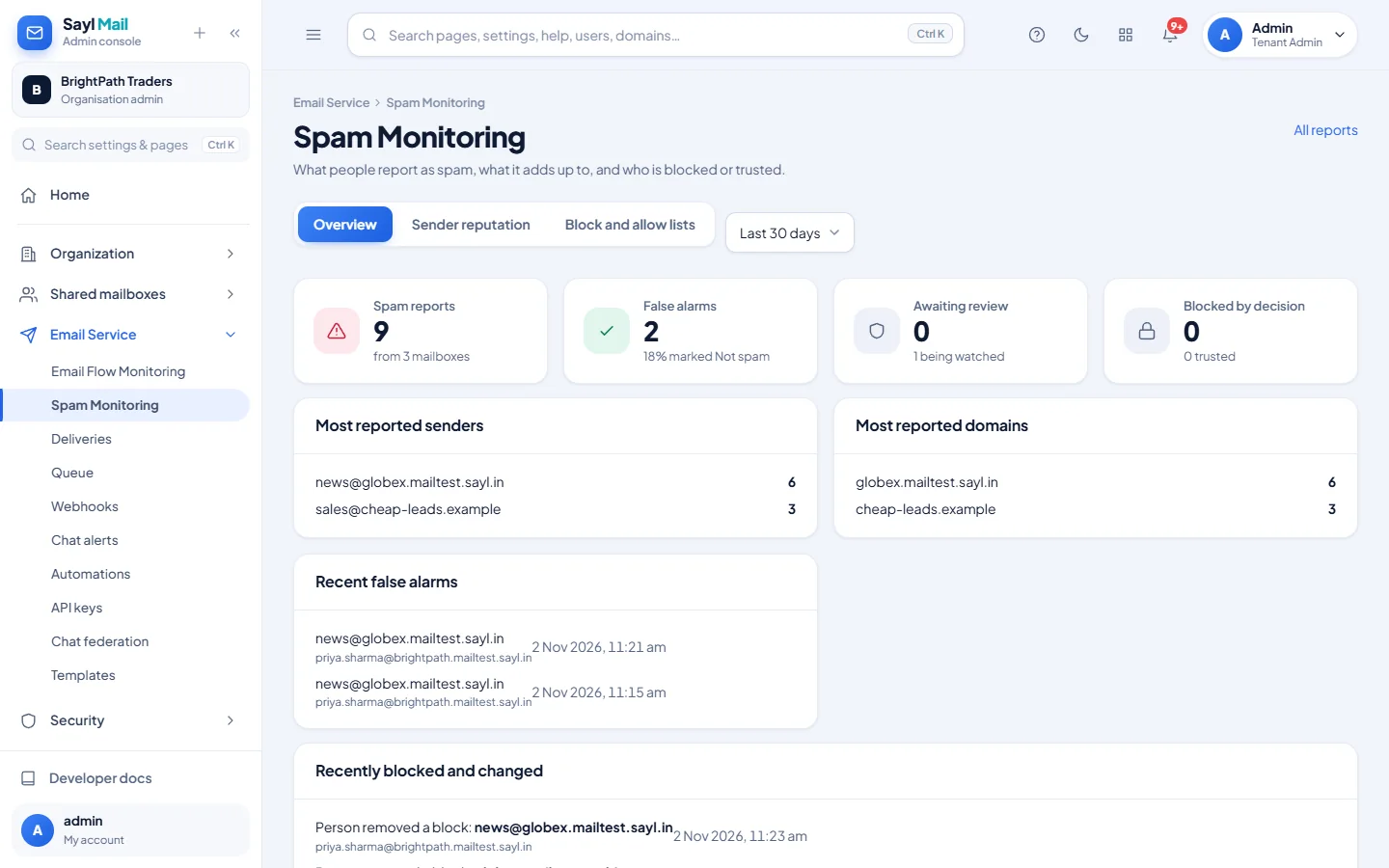
Read the Overview
The Overview shows spam reports, false alarms (messages people marked Not spam), and your most reported senders and domains. Further down are recent false alarms and recent block changes. Choose the last 7, 30 or 90 days at the top.
- 3
Check Sender reputation
Open Sender reputation for each reported sender and domain, with its status, reports, mailboxes and Not spam count. Reports come from your own organisation only.
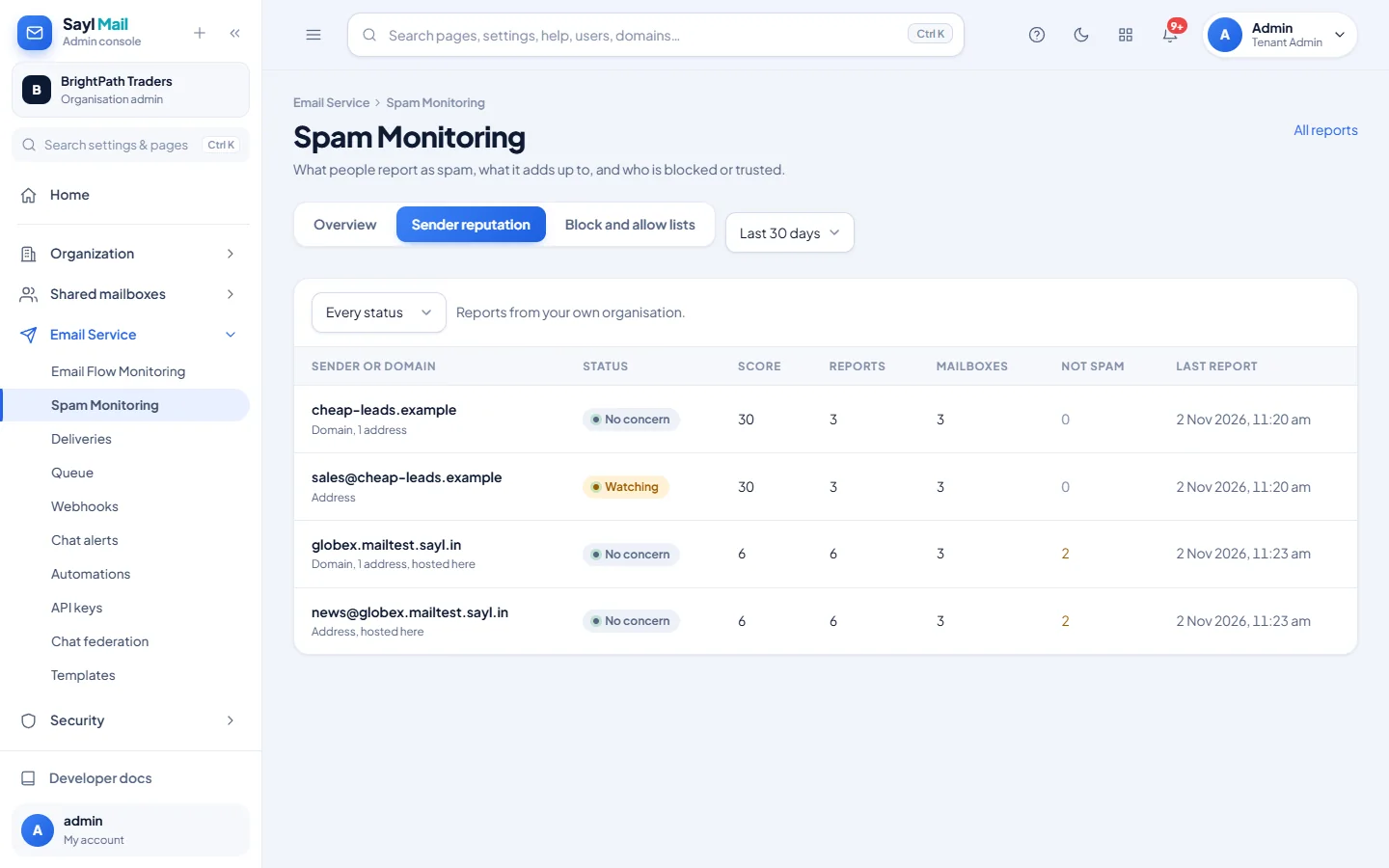
A Not spam count above zero means someone wants this sender's mail. Check with them before blocking it. - 4
Block or allow a sender for everyone
Open Block and allow lists. Type an address or a domain, choose Block or Allow, and click Add. Blocked senders are refused for the whole organisation. Allowed senders are protected from spam feedback. Click Remove to take one off.
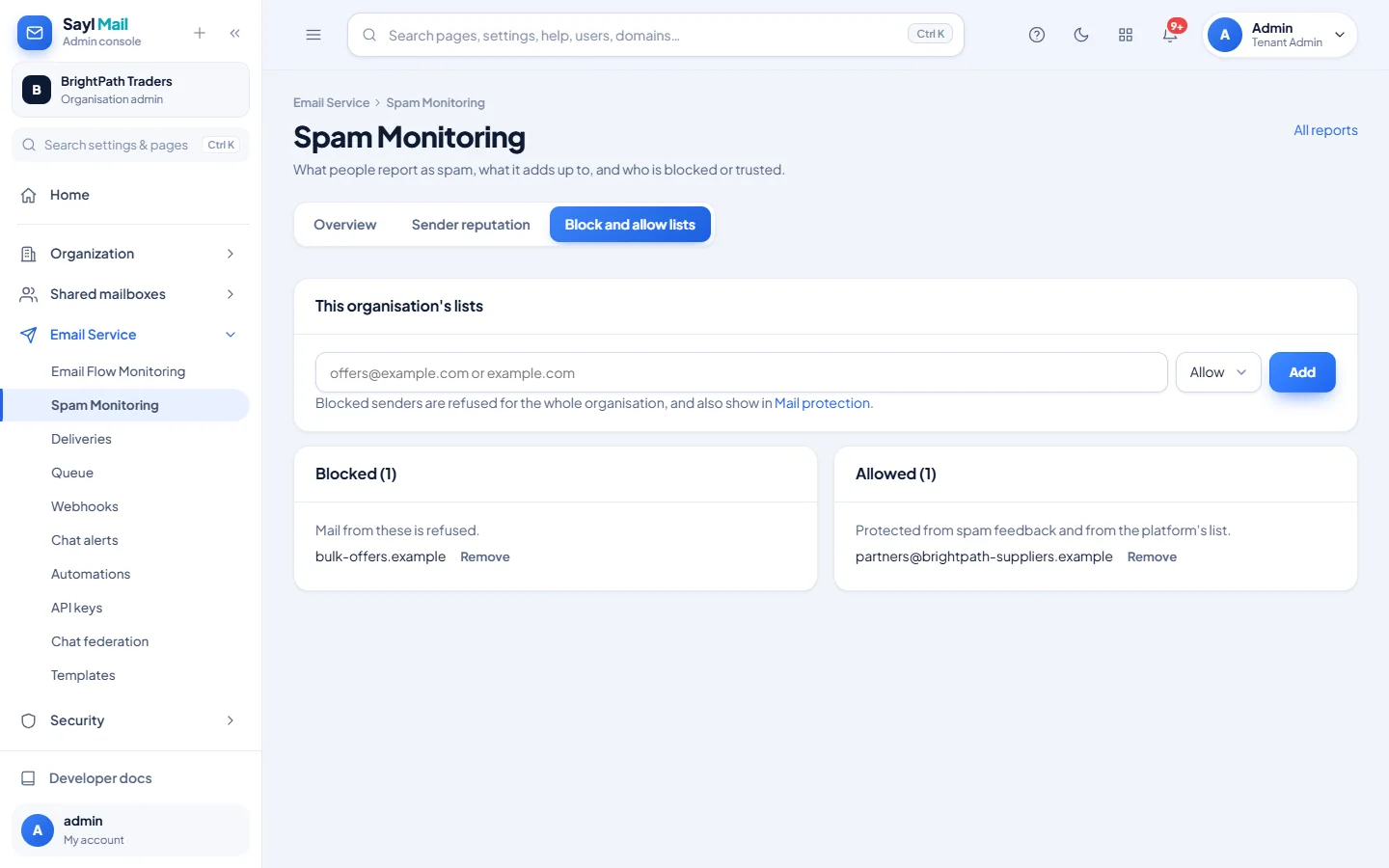
Your blocked senders also show in Mail protection, along with every message refused in the last 30 days.
Example
What a sender's status means:
- No concern
- Reports so far do not point to a problem.
- Watching
- Reports are building up across mailboxes.
- Suspected
- Reports across several organisations, waiting for Sayl to review.
- Blocked
- A decision was made to block this sender.
- Trusted
- This sender is protected from spam feedback and blocks.
- Dismissed
- Sayl reviewed the reports and took no action.
The result
- You can see who your people report, and catch good senders caught by mistake.
- Your organisation's own lists apply to new mail, and other organisations are not affected.
Troubleshooting
- A sender we need is going to Spam.
- Add its address or domain to Allowed in Block and allow lists. Your organisation's allow list also sets aside Sayl's platform list for you.
- We have only two mailboxes. Why does nothing get filtered from reports?
- Automatic filtering needs reports from 3 different mailboxes. Add the sender to Blocked, or ask people to use Block sender in webmail.
- Can I read the reported messages here?
- No. This page shows senders, domains and subjects, never the message.
- A sender is reported by other companies too. Will it be blocked for everyone?
- Not automatically. Reports from 3 organisations and 5 mailboxes put a sender under review, and it changes nothing until Sayl confirms it.
- What is the difference between Blocked and going to Spam?
- A sender in your Blocked list is refused and never arrives. Automatic filtering from reports only moves mail to Spam, so nothing is lost.
Still stuck? Your organisation's administrator can help first. Administrators can reach Sayl support from the admin console, or through the contact page.