
Sayl Mail · For everyone
Report spam, rescue good mail and block senders
Report unwanted mail, undo a mistake, move good mail back with Not spam, and block or always allow a sender or domain in Sayl Mail.
What report spam and block senders is and why it helps
Report spam moves a message out of your Inbox and into your Spam folder, and it helps Sayl Mail recognise similar mail in future. If a good message lands in Spam, Not spam puts it back.
Block and Always allow give you direct control: blocked senders go straight to your Spam folder, and allowed senders stay in your Inbox. These choices affect only your own mailbox.
Where to find it
Webmail → open a message → Report spam, or More actions (⋯)
Step by step
Every screenshot is from Sayl Mail itself, using a demo company with made-up people. The button to click is outlined in orange.
- 1
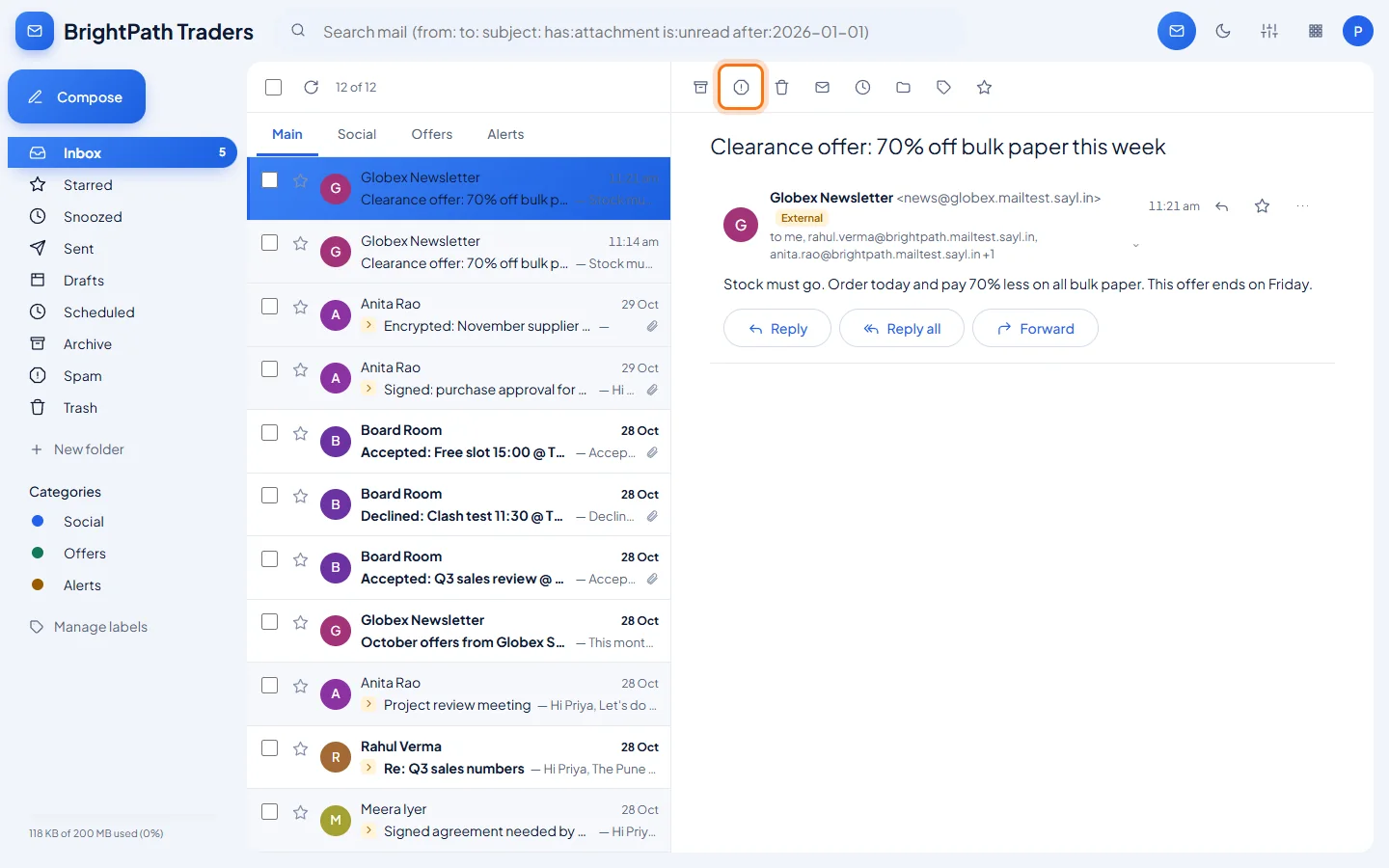
Open the message and click Report spam
Open the unwanted message and click Report spam, the round warning icon in the toolbar above it.
- 2
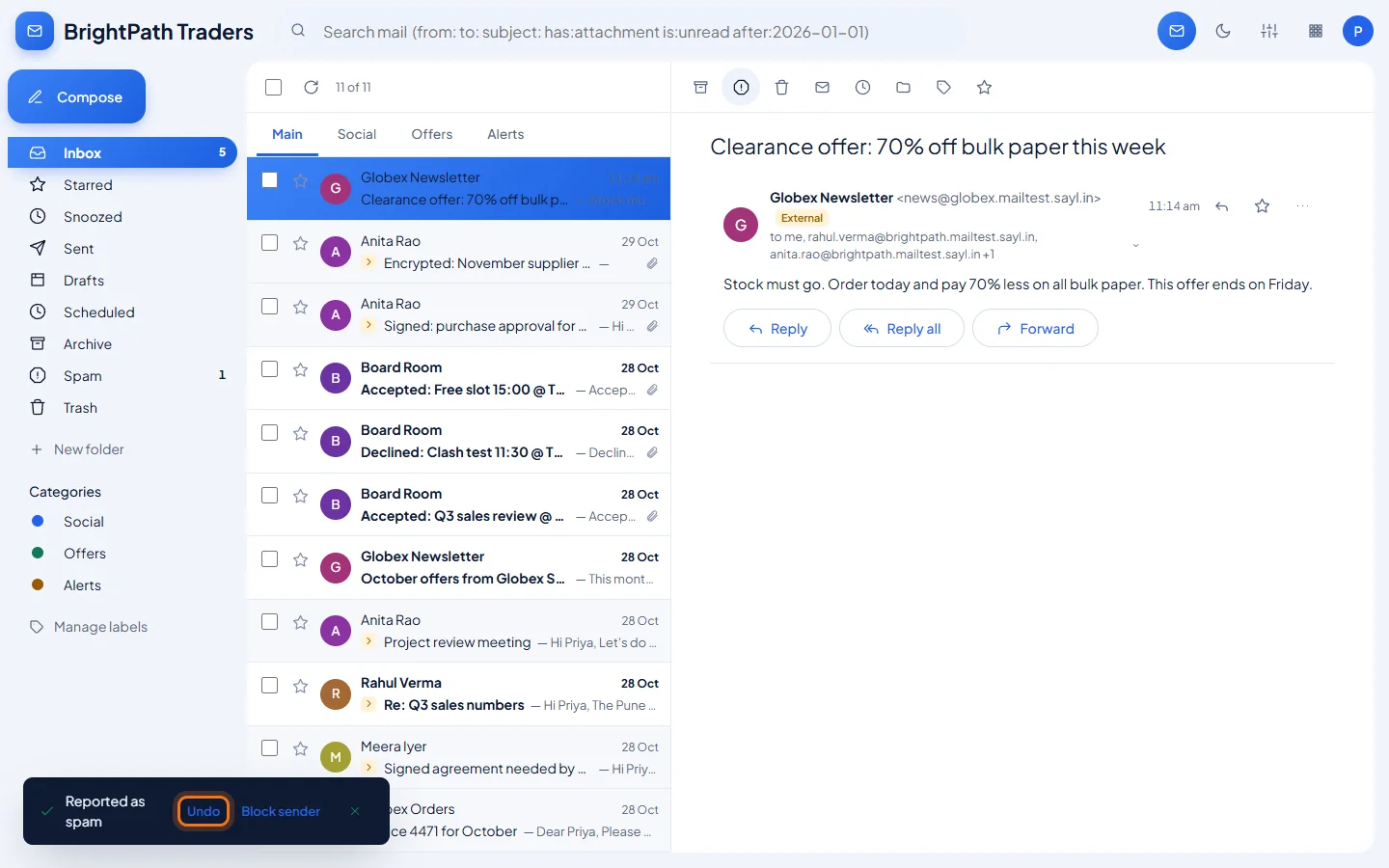
Undo it, or block the sender too
The message moves to Spam and a notice appears at the bottom of the screen. Click Undo if you reported it by mistake, or Block sender to send this person's future mail straight to Spam.
Reporting the same message twice counts once. - 3
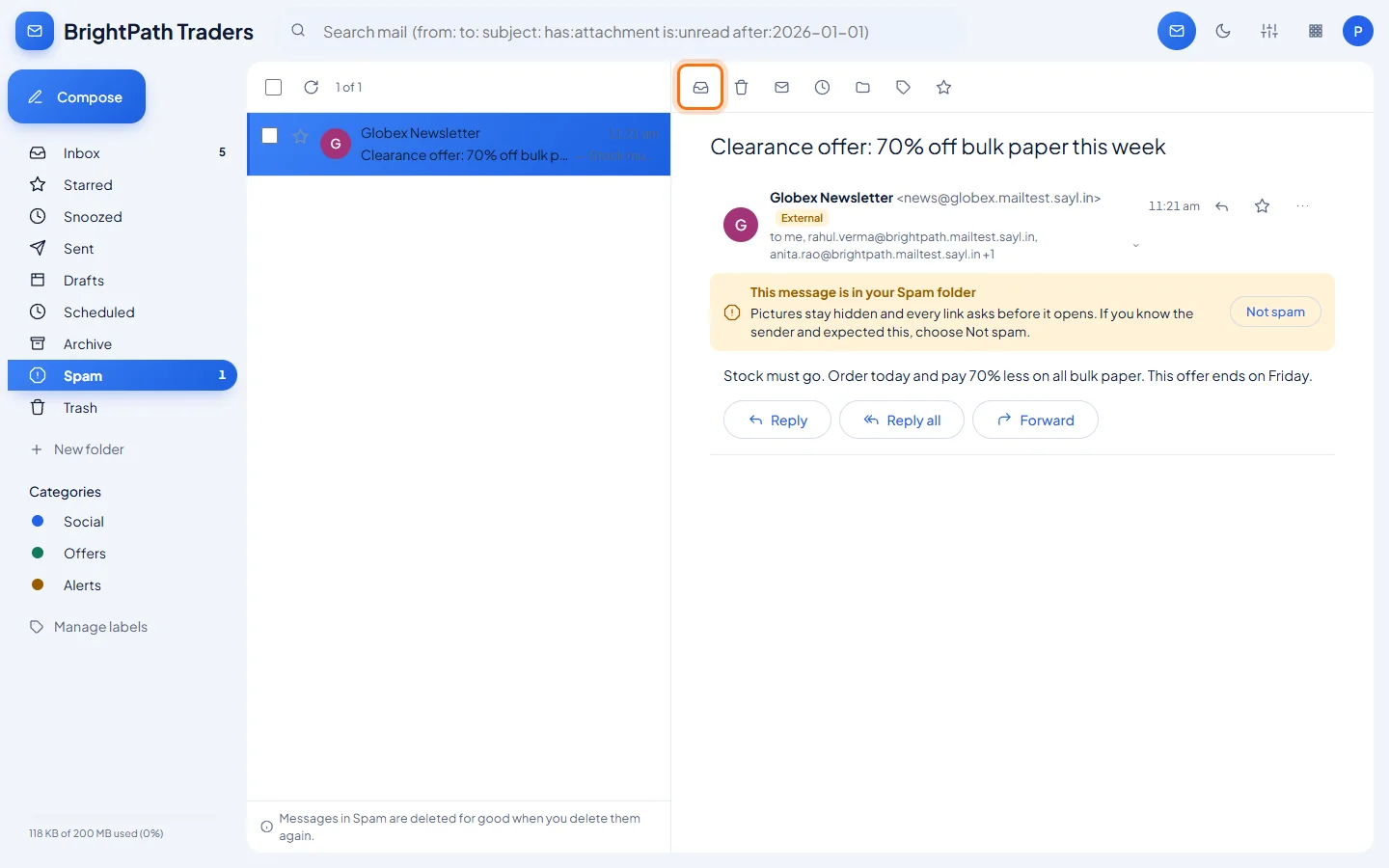
Good mail in Spam? Click Not spam
Open your Spam folder and open the message. Pictures stay hidden there and links ask before they open. Click Not spam in the yellow notice, or the Inbox icon in the toolbar.
- 4
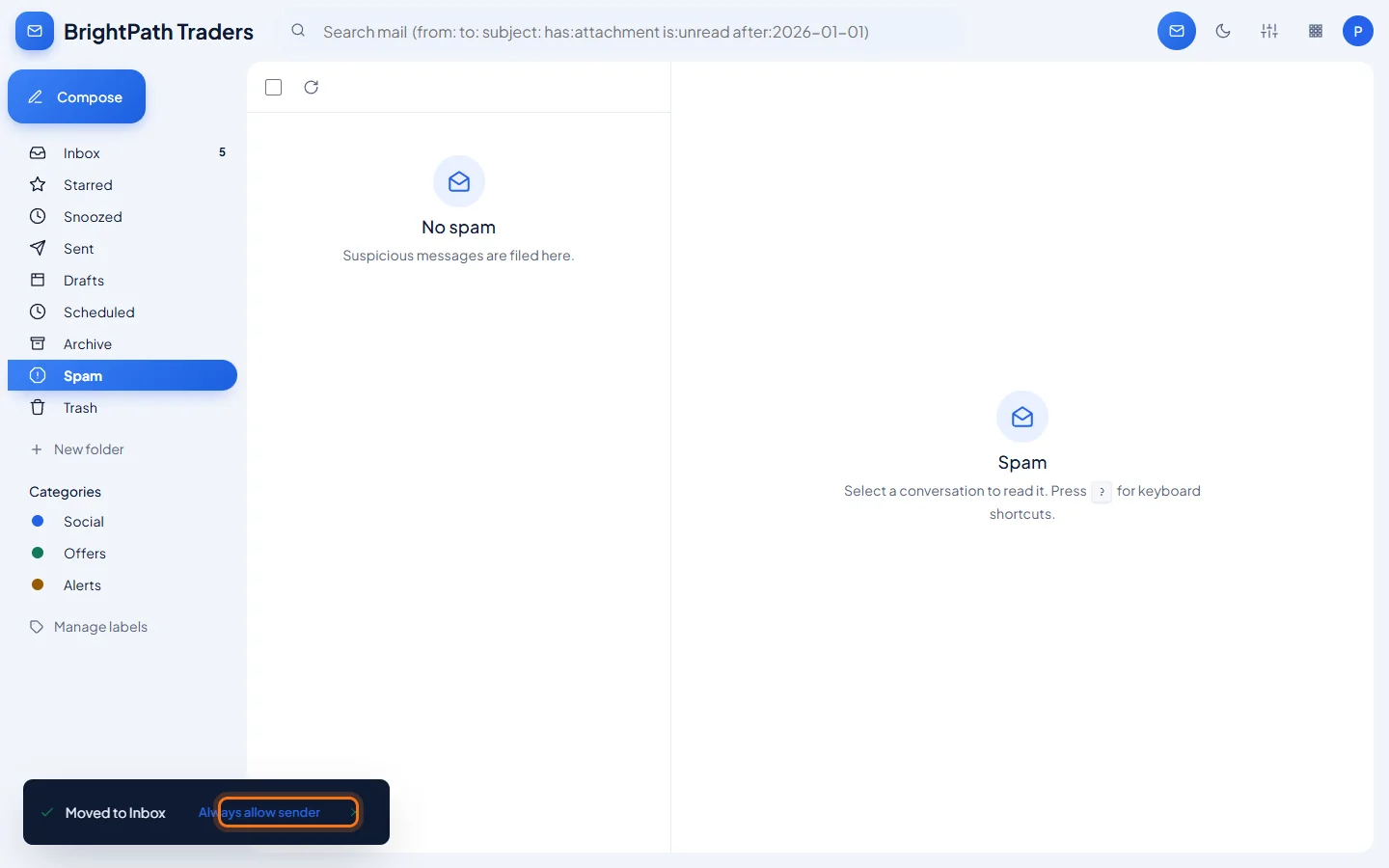
Always allow a sender you trust
The message goes back to your Inbox. Click Always allow sender in the notice to keep this person's future mail out of Spam.
- 5
Block or allow from any message
Open a message from the sender and click More actions (⋯). Choose Block sender for one address, Block domain for everyone at that domain, or Always allow sender.
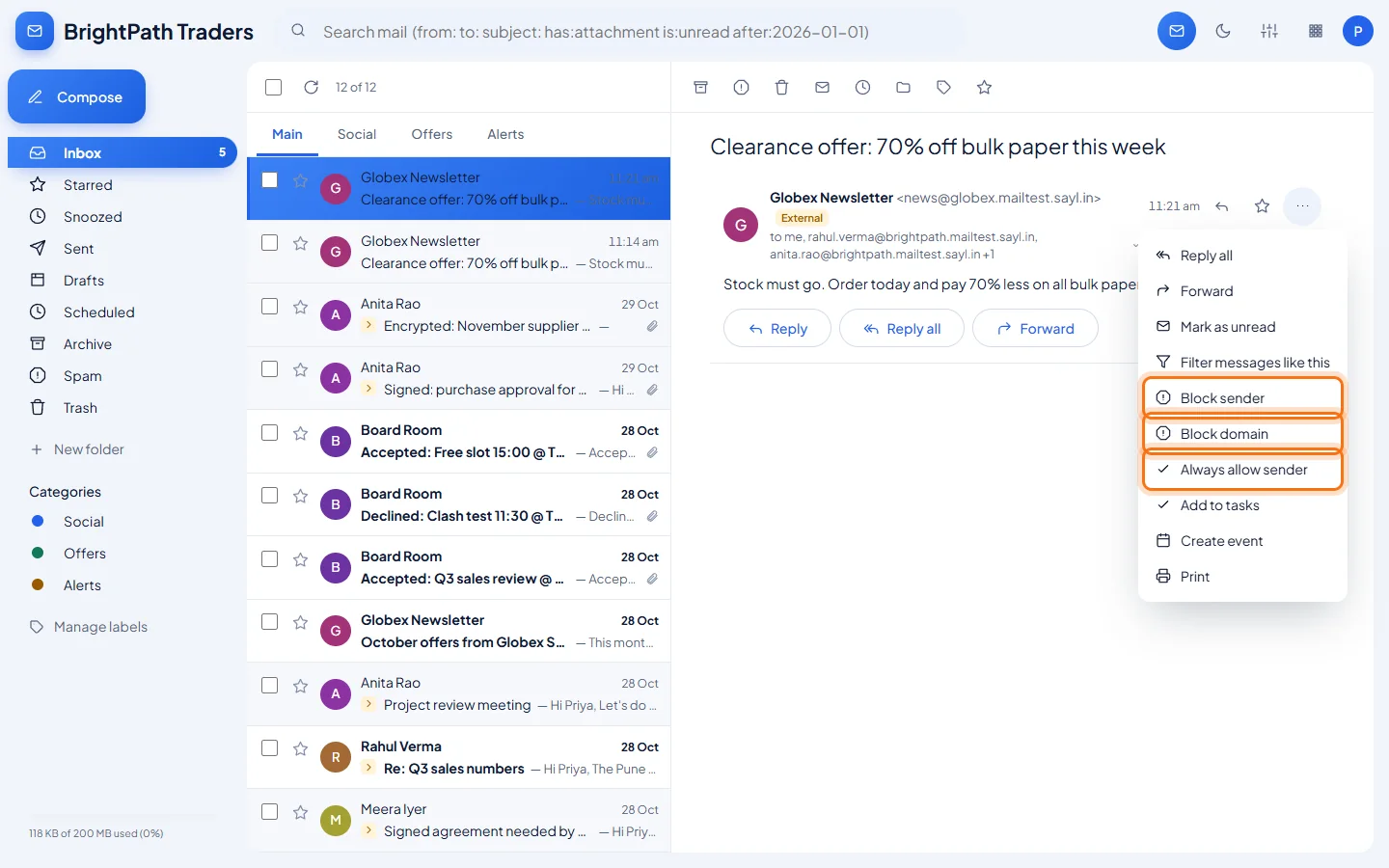
- 6
See and change your list in Settings
Open Settings → Notifications and find Blocked and allowed senders. To add one by hand, type an address or a domain, then click Block or Allow. Click Unblock or Remove to take one off the list.
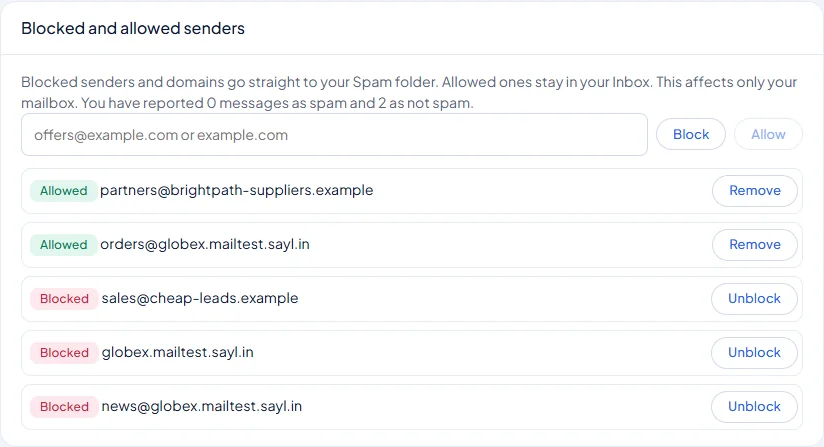
Example
What each action does:
- Report spam
- Moves this message to Spam and records your report.
- Not spam
- Moves this message to your Inbox and records that it was wanted.
- Block sender
- Future mail from that address goes to your Spam folder.
- Block domain
- Future mail from anyone at that domain goes to your Spam folder.
- Always allow sender
- Future mail from that address stays in your Inbox.
The result
- Unwanted mail is out of your Inbox, and mail you trust stays in it.
- Your block and allow list is in one place, and you can change it at any time.
Troubleshooting
- I reported a message by mistake.
- Click Undo straight away. Later, open the Spam folder, open the message and click Not spam.
- Will my report block this sender for my colleagues?
- Not on its own. Your report changes only your message. If 3 different people in your organisation report the same sender, its mail goes to Spam for your organisation, and a colleague's Not spam holds this back.
- I allowed a sender but their mail does not arrive.
- Your organisation or Sayl can refuse mail before it reaches any mailbox, and an allowed sender cannot override that. Ask your administrator.
- Blocked mail still shows in my Spam folder.
- That is expected. Block sends mail to Spam so you can still find it if you need to; it does not refuse it.
- I can't find the block options.
- They are on messages in your own mailbox. Shared mailboxes do not show them.
Still stuck? Your organisation's administrator can help first. Administrators can reach Sayl support from the admin console, or through the contact page.