
Finance, GST & Accounting · Accounting
Branches
Add branches in Sayl Finance and see income, expenses and profit for each place of operation.
What it is for
Branches are your places of operation. Money tagged to a branch rolls up into that branch's own profit and loss, so you can compare how each one performs.
How it works
- Tag a branch on an invoice, bill, expense or journal entry and it is included in that branch's totals. Anything untagged appears under “No branch”.
- A branch can carry its own GSTIN if it is registered separately.
Step by step
Every screenshot is from the live demo. The highlighted button is the one to click - nothing here is saved in the demo, so you can follow along freely.
- 1
Open Branches
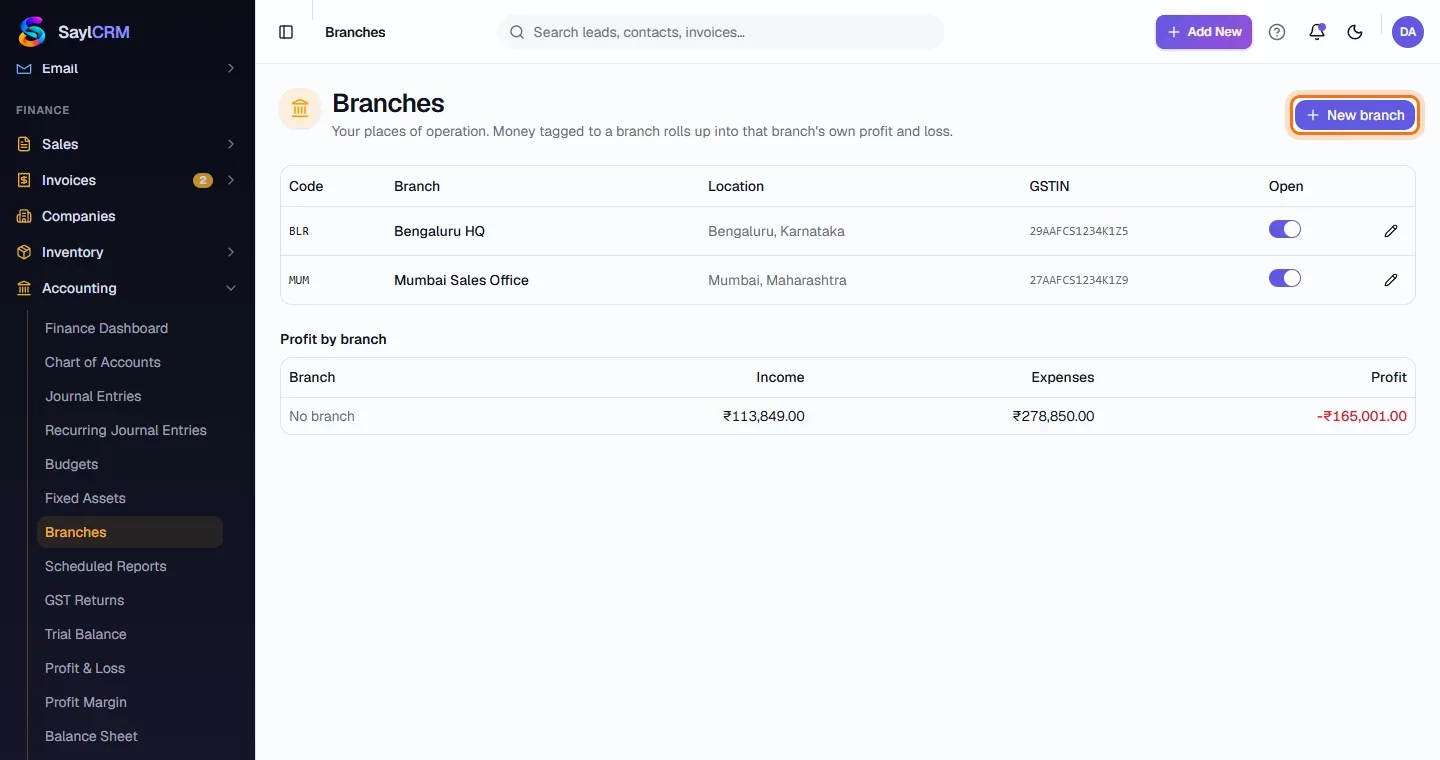
Finance → Accounting → Branches. Below the list, Profit by branch shows income, expenses and profit for each.
- 2
Click New branch
The button is at the top right (highlighted).
- 3
Enter the branch details
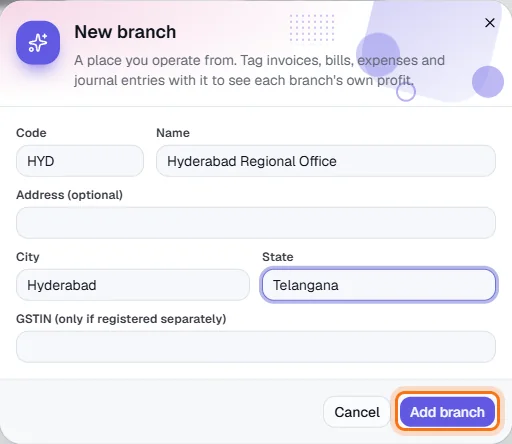
A short code and a name, then the address, city and state. Add a GSTIN only if the branch is registered separately.
- 4
Save and start tagging
Click Add branch (highlighted). The branch now appears in the Branch pickers on invoices, expenses and journal entries.