
Finance, GST & Accounting · Purchases & Expenses
Vendors
Manage suppliers in Sayl Finance with GSTIN, state code and a default expense account for their bills.
What it is for
Vendors are the suppliers you buy from - kept separate from your customer contacts so purchasing never mixes with sales.
How it works
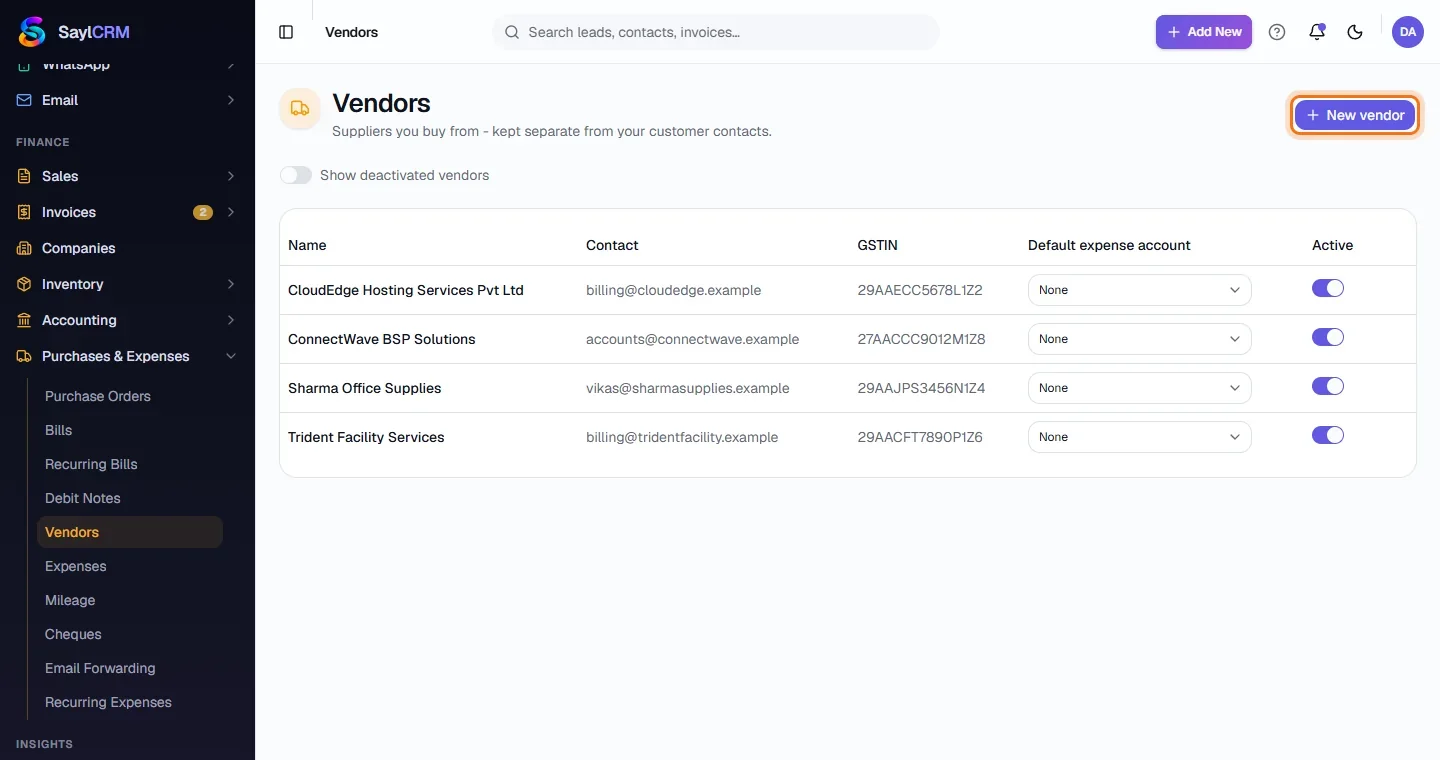
- A default expense account on the vendor is used for every bill line from them unless you pick another, which keeps recurring suppliers posting to the right place. Deactivate a vendor rather than deleting it - Show deactivated vendors brings them back into view.
Step by step
Every screenshot is from the live demo. The highlighted button is the one to click - nothing here is saved in the demo, so you can follow along freely.
- 1
Open Vendors
Finance → Purchases & Expenses → Vendors. See each vendor's contact, GSTIN and default expense account.
- 2
Click New vendor
The button is at the top right (highlighted).
- 3
Enter the vendor's details
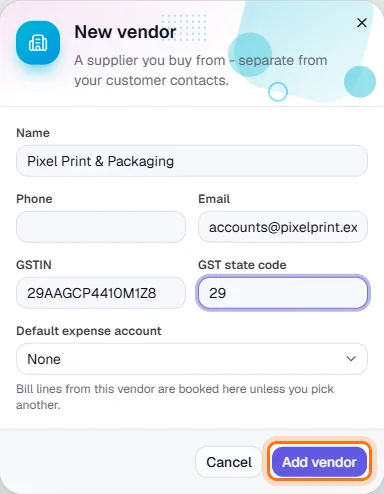
Name, phone, email, GSTIN and GST state code, plus the default expense account for their bills.
- 4
Save
Click Add vendor (highlighted). The vendor is available on purchase orders, bills, expenses and cheques.