
Finance, GST & Accounting · Reports
Profit Margin
See what each invoiced line actually made against its catalog cost in Sayl Finance's profit margin report.
Try it in the live demoFinance → Accounting → Profit Margin
What it is for
Profit Margin shows what each invoiced line actually made against its catalog cost - the price it was really billed at, not the item's list price.
How it works
- For every invoice line in the period it compares revenue with the purchase price on the item, and shows the margin in rupees and as a percentage.
- Lines that were not picked from the catalog have no known cost, so they are left out of the totals - a note under the table says how many.
Step by step
Every screenshot is from the live demo. The highlighted button is the one to click - nothing here is saved in the demo, so you can follow along freely.
- 1
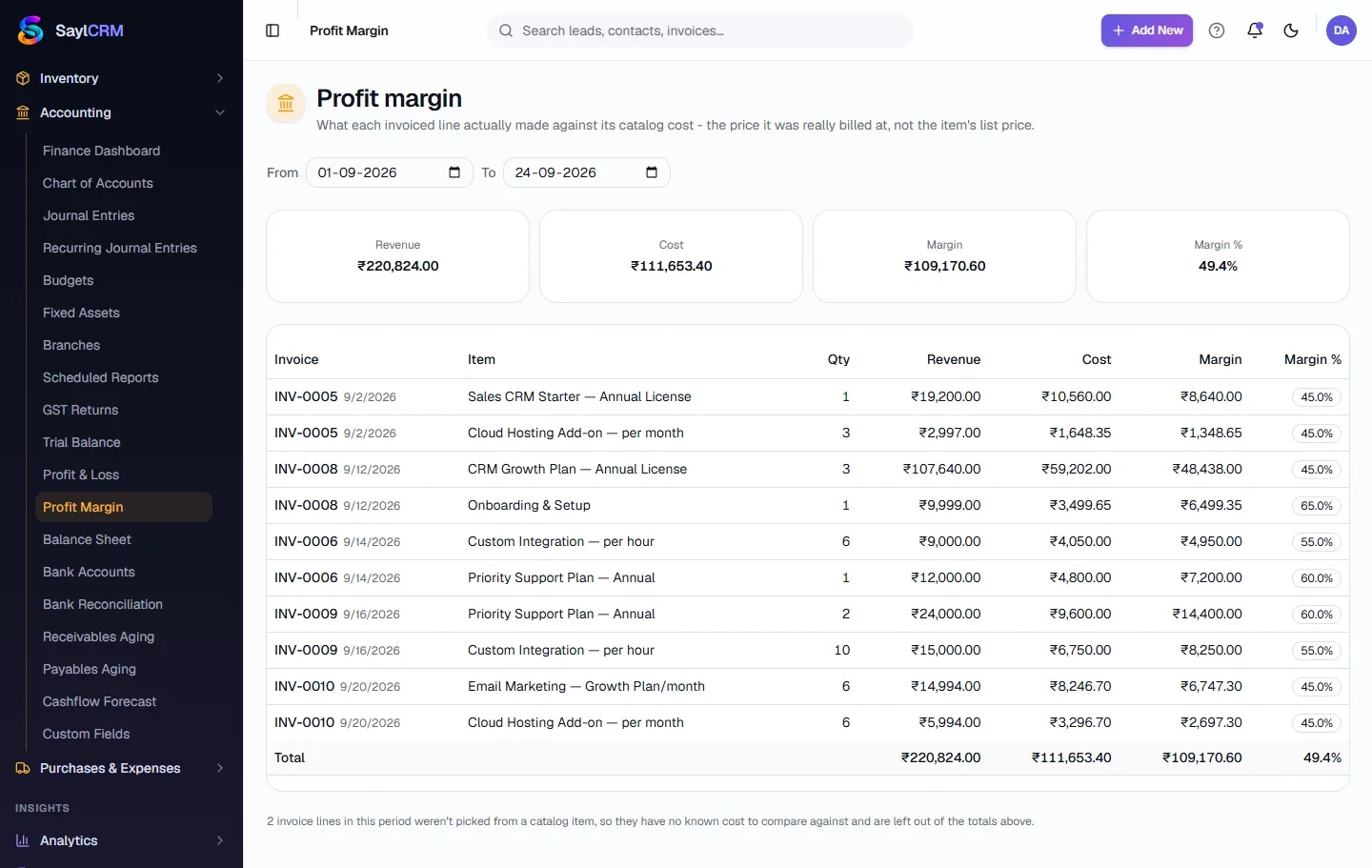
Open Profit Margin
Finance → Accounting → Profit Margin.
- 2
Choose the period
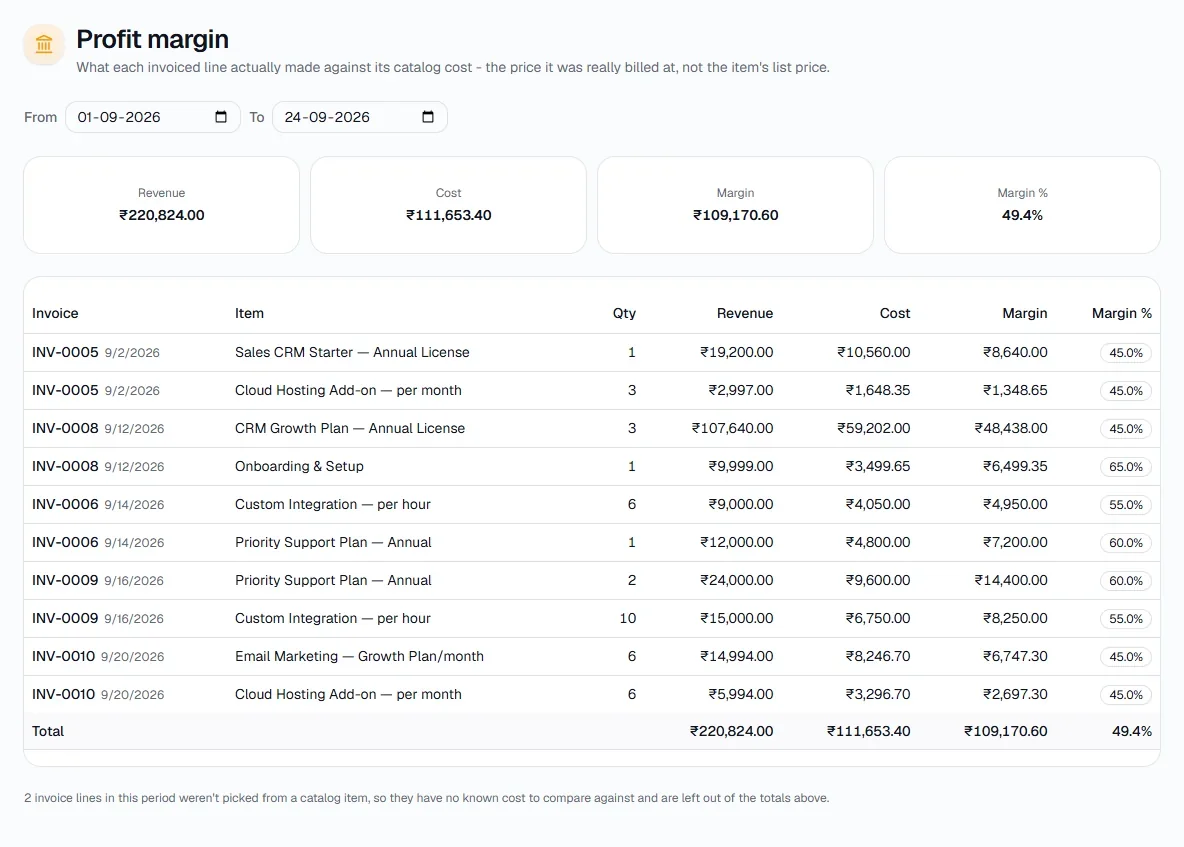
Set From and To. The summary shows total revenue, cost, margin and margin %.
- 3
Read the line-by-line table
Each invoice line shows quantity, revenue, cost and margin %. Low-margin lines stand out immediately.
Tips
- Keep each item's purchase price up to date on the Items page - it is the only source of cost here.