
Finance, GST & Accounting · Purchases & Expenses
Recurring Bills
Schedule recurring vendor bills in Sayl Finance for rent, hosting and subscriptions so they are raised automatically.
What it is for
A recurring bill is a template plus a schedule that raises a real bill on its own - weekly, monthly, quarterly or yearly - so rent or a supplier subscription never has to be re-entered.
How it works
- By default each generated bill is a draft for you to review. Turn on Open automatically to post it to the ledger the moment it is generated.
- If your workspace requires approval to open a bill, an automatically generated one is sent for approval instead.
Step by step
Every screenshot is from the live demo. The highlighted button is the one to click - nothing here is saved in the demo, so you can follow along freely.
- 1
Open Recurring Bills
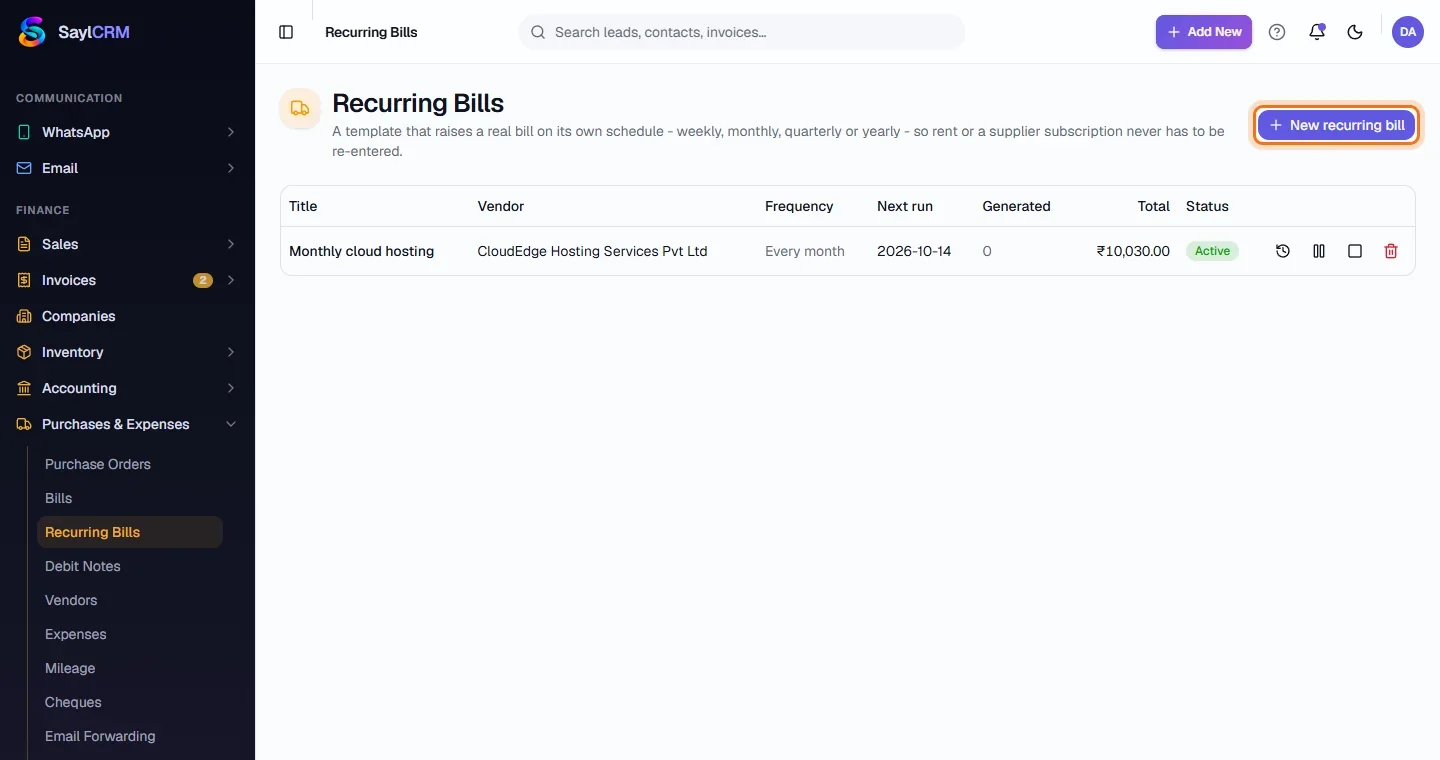
Finance → Purchases & Expenses → Recurring Bills.
- 2
Click New recurring bill
The button is at the top right (highlighted).
- 3
Choose the vendor and schedule
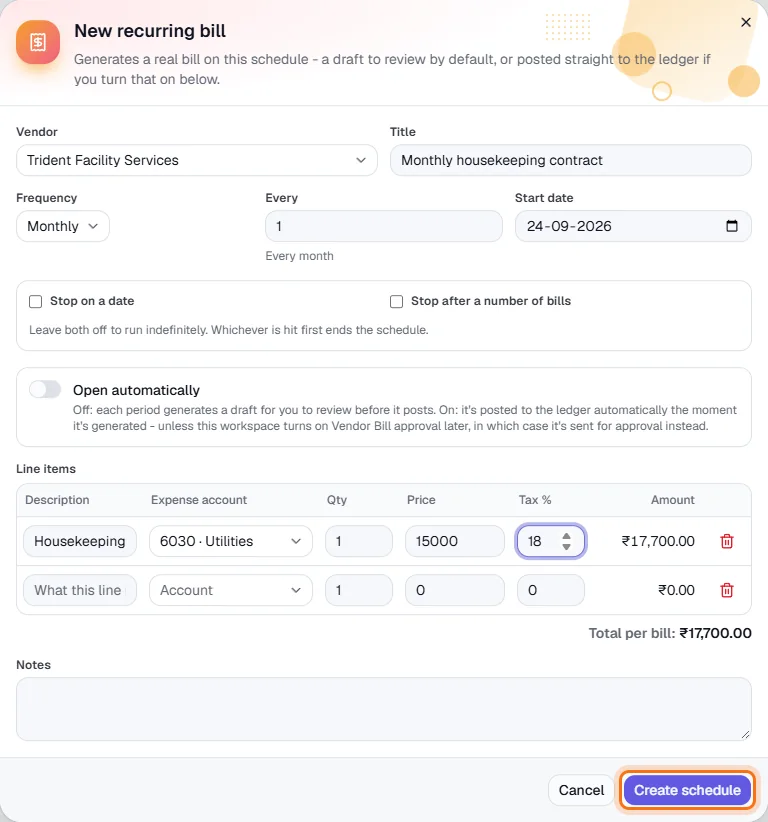
Pick the vendor, a title, the frequency, interval and start date.
- 4
Add the line items
Enter the description, expense account, quantity, price and tax %; the total per bill updates.
- 5
Create the schedule
Click Create schedule (highlighted).