
Finance, GST & Accounting · Invoicing
Recurring Invoices
Set up a recurring invoice in Sayl Finance so retainers and subscriptions bill themselves weekly, monthly, quarterly or yearly.
What it is for
A recurring invoice is a template plus a schedule. It raises a real invoice on its own cadence - weekly, monthly, quarterly or yearly - so a retainer or subscription never has to be retyped.
How it works
- Each period the schedule generates an invoice from the template. By default it is a draft for you to review before it goes out.
- Turn on Issue automatically and each one is issued and numbered the moment it is generated, with nobody in the loop.
- A schedule can run indefinitely, stop on a date, or stop after a set number of invoices - whichever you set is hit first ends it. The list shows how many have been generated so far and when the next run is due.
Step by step
Every screenshot is from the live demo. The highlighted button is the one to click - nothing here is saved in the demo, so you can follow along freely.
- 1
Open Recurring Invoices
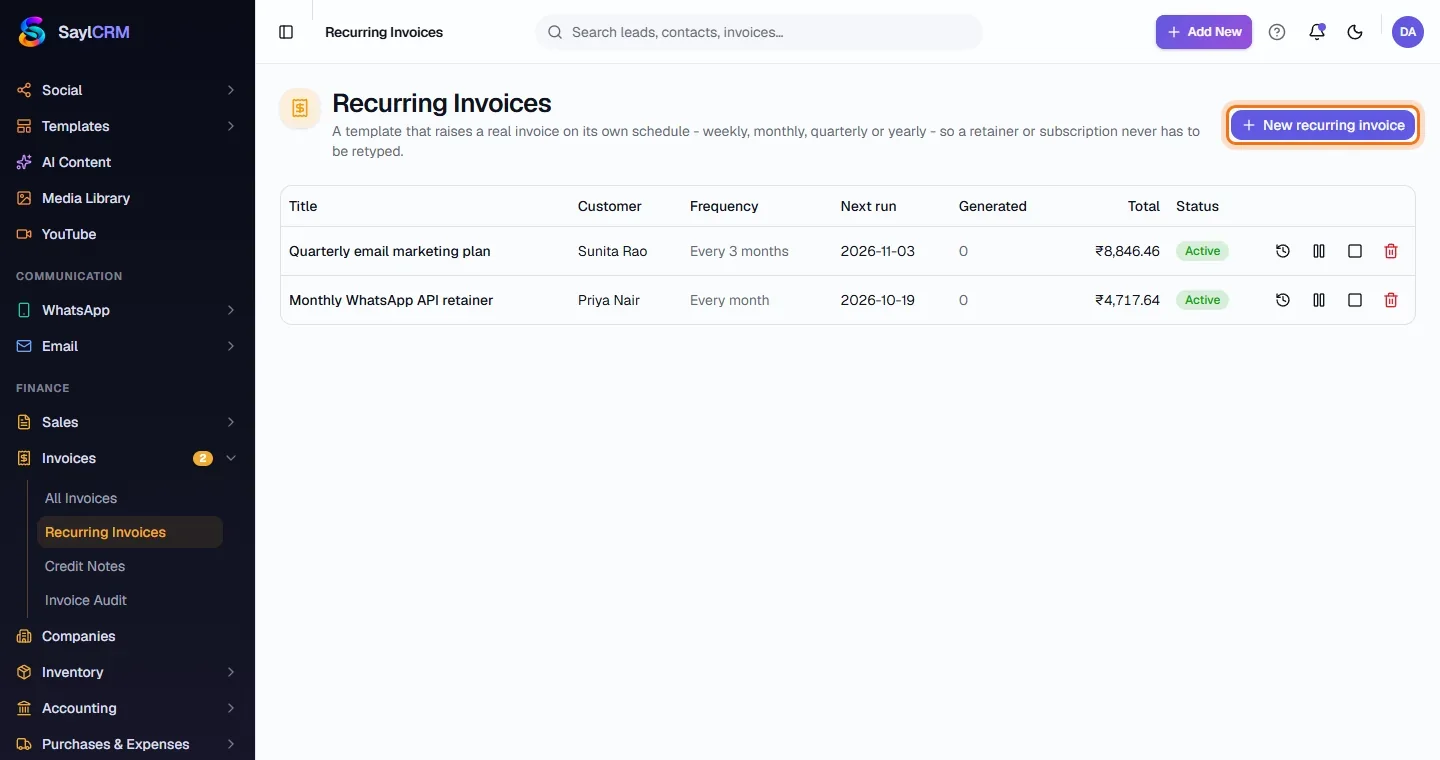
Finance → Invoices → Recurring Invoices. Each row shows the customer, frequency, next run, how many invoices it has generated, the total and its status.
- 2
Click New recurring invoice
The button is at the top right (highlighted).
- 3
Set the customer and schedule
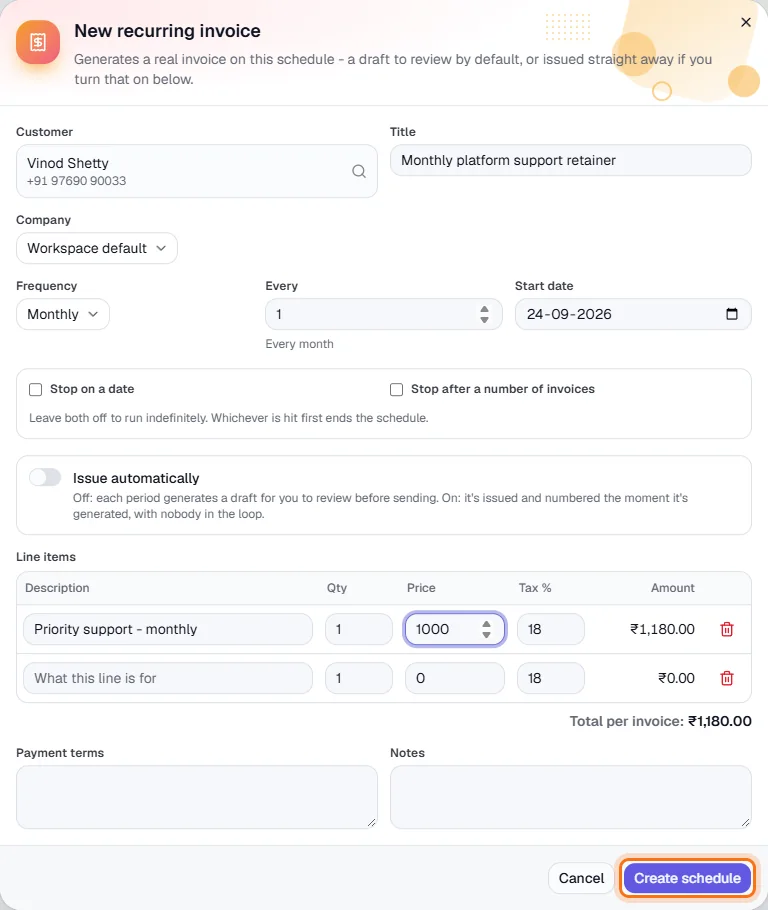
Choose the customer and give the schedule a title such as “Monthly retainer”. Pick the frequency and how often (every 1 month, every 3 months …) and the start date. Optionally stop on a date or after a number of invoices.
- 4
Add the line items and terms
Enter what to bill - description, quantity, price and tax - plus payment terms and notes. The form shows the total per invoice as you type.
- 5
Decide whether to auto-issue, then create
Leave Issue automatically off to review each draft, or switch it on to issue without review. Click Create schedule (highlighted). You can pause, resume or end it later.
Key fields
- Frequency / Every
- Weekly, monthly, quarterly or yearly, every N periods.
- Start date
- When the first invoice is generated.
- Stop on a date / after N invoices
- Optional end conditions.
- Issue automatically
- Off: drafts to review. On: issued and numbered immediately.
Tips
- Start with auto-issue off until you trust the template, then switch it on.
- Use quarterly or yearly frequency for annual licences that renew on a fixed cycle.