
Finance, GST & Accounting · Sales
Customers
Add customers in Sayl Finance once - GSTIN, billing address and GST state code - and reuse them on every quotation, sales order and invoice.
What it is for
Customers is the book of who you sell to. Every quotation, sales order and invoice starts by picking a customer, so the details you enter here - name, GSTIN, PAN, billing address - are printed on those documents automatically instead of being retyped each time.
It is deliberately a curated list. Someone who has messaged your business on WhatsApp, Instagram or Facebook is a contact, not a customer, until you add them here.
How it works
- A customer is a contact record flagged as a customer. Editing one here updates the same contact the CRM uses, so nothing is duplicated when their phone number is already known.
- The link runs one way: adding or importing a customer here marks the contact. Nothing that happens in Messages, WhatsApp or the QR bridge ever adds anyone to this list on its own.
- The GST state code on the billing address decides the tax split. Sell to a customer in your own state and a document shows CGST + SGST; sell to another state and it shows IGST.
Step by step
Every screenshot is from the live demo. The highlighted button is the one to click - nothing here is saved in the demo, so you can follow along freely.
- 1
Open Customers
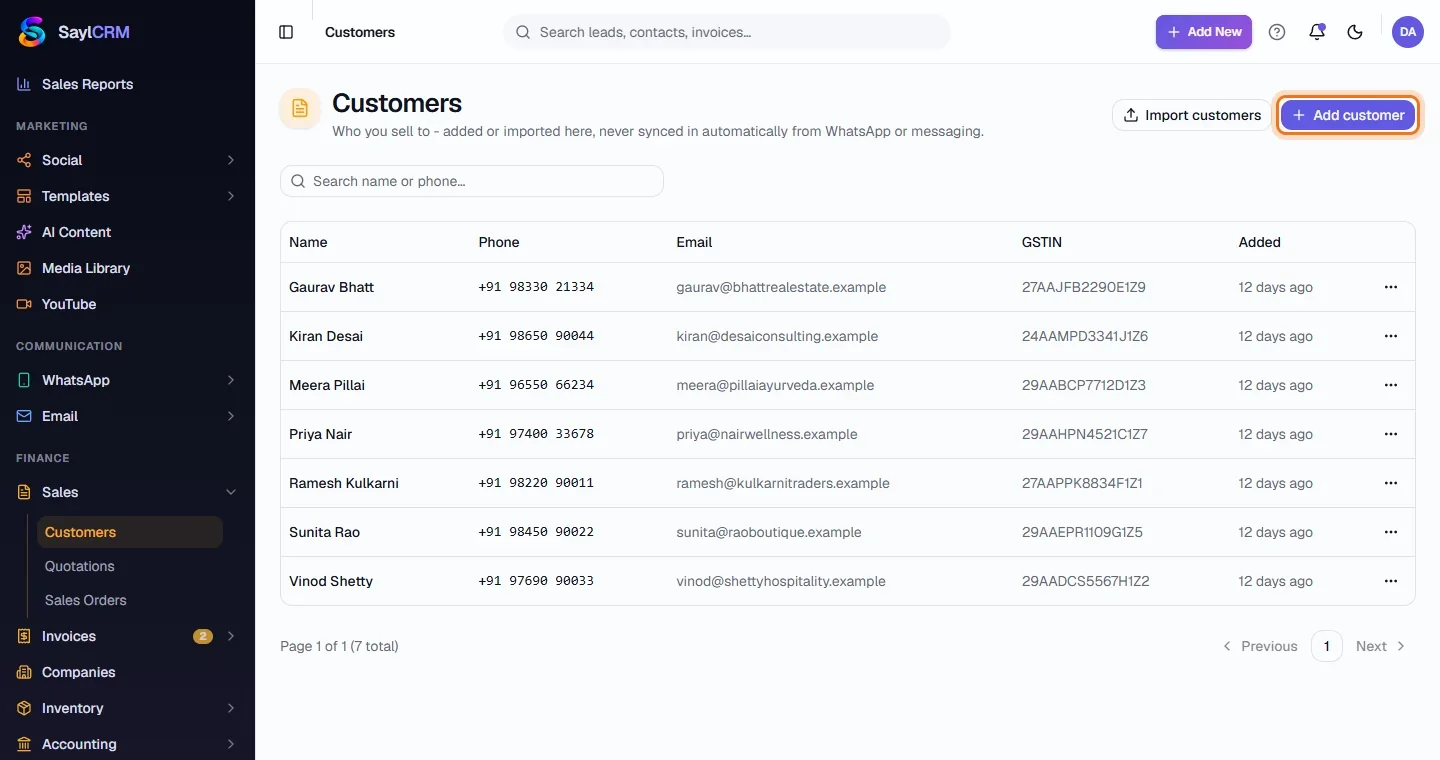
In the left menu open Finance, expand Sales and click Customers. Every customer is listed with phone, email and GSTIN, and the search box finds one by name or phone.
- 2
Click Add customer
The Add customer button is at the top right of the page (highlighted). To load many at once, use Import customers instead.
- 3
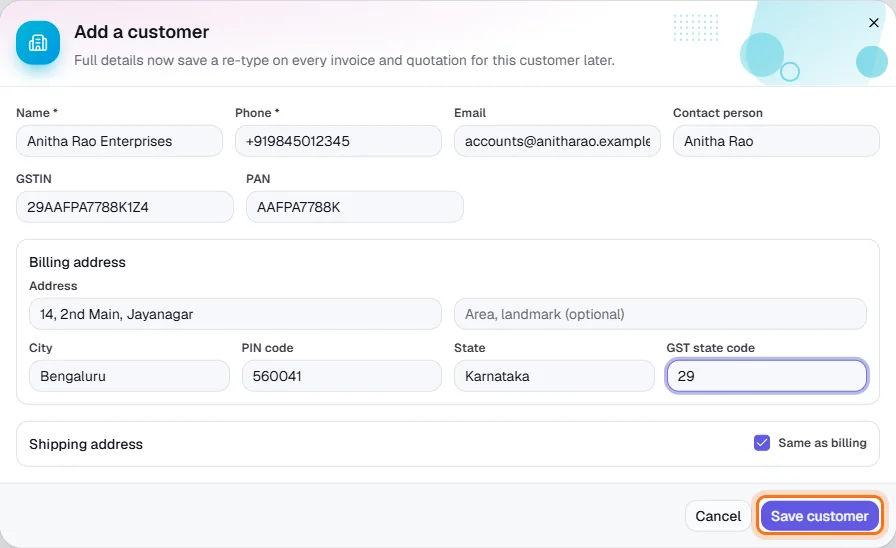
Enter the customer's details
Name and Phone are required. Add the email and a contact person if the name is a company, then GSTIN and PAN for business customers. Fill in the billing address, including the two-digit GST state code (for example 29 for Karnataka). Shipping address defaults to “Same as billing”.
- 4
Save the customer
Click Save customer. The customer appears in the list straight away and can be picked on any quotation, sales order or invoice.
- 5
Edit or remove a customer later
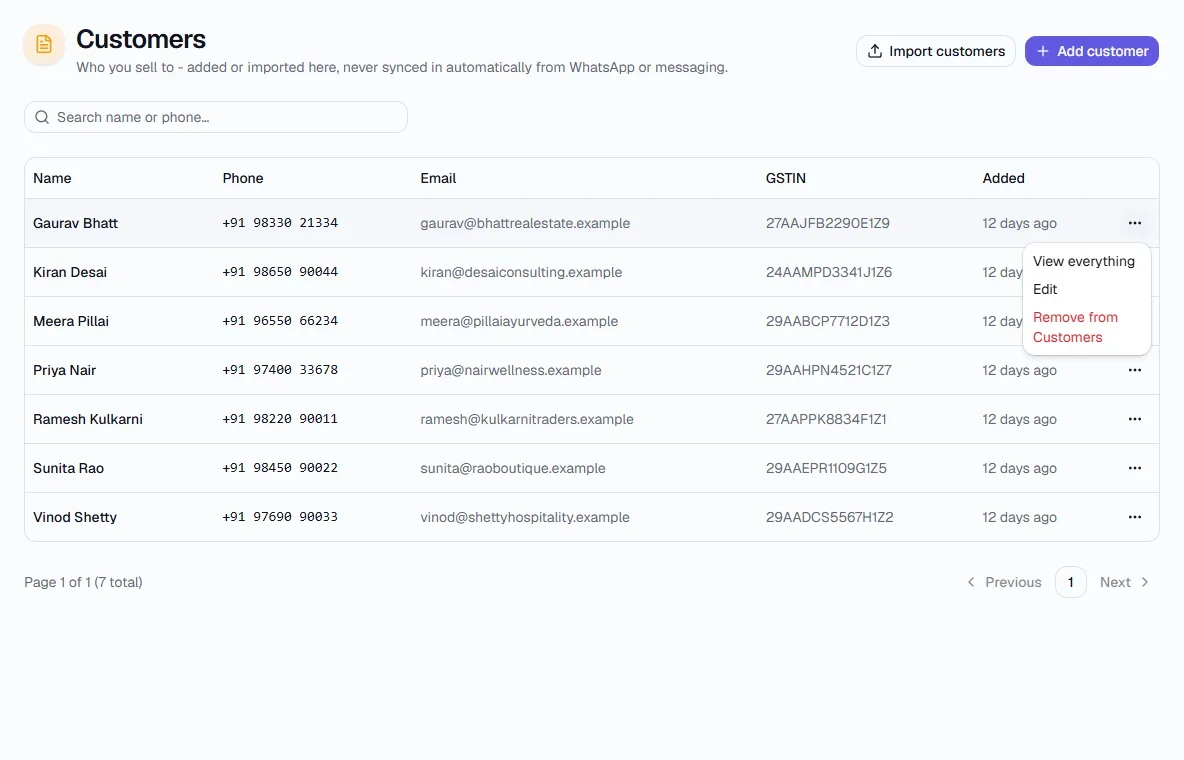
Each row has a ⋯ menu: View everything, Edit, and Remove from Customers. Removing only takes them off this list - the underlying contact is kept.
Key fields
- Name *
- The customer or company name as it should print on documents.
- Phone *
- Used to find the customer and to send documents over WhatsApp.
- GSTIN
- Printed on invoices and reported in the B2B section of GSTR-1.
- GST state code
- Two-digit state code that decides CGST/SGST versus IGST.
- Contact person
- Who to reach when the name is a company.
Tips
- Enter the GSTIN for every business customer - invoices without one are reported as B2C in GST returns.
- A customer can be put on a price list from their customer form, so their quotes and invoices pick up special prices automatically.