
Finance, GST & Accounting · Purchases & Expenses
Mileage
Log business trips at a rate per km in Sayl Finance and turn them into expenses to reimburse.
What it is for
Mileage logs business trips at a rate per kilometre, then turns them into expenses to reimburse the person who drove.
How it works
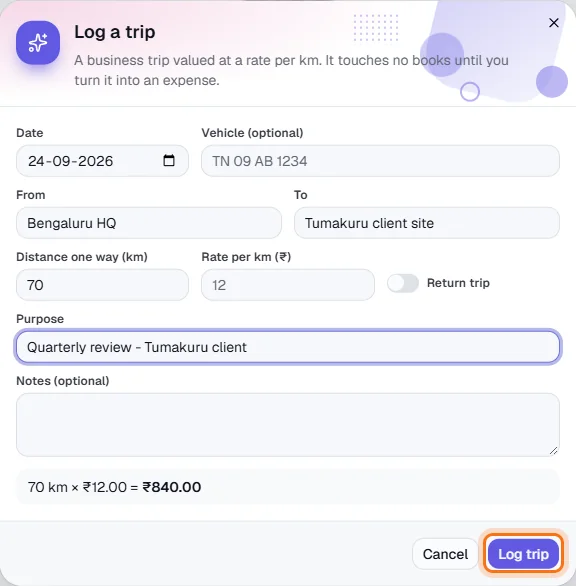
- A trip is valued at distance × rate - a live calculation appears as you type - and touches no books until you turn it into an expense.
- Set the rate per km in Rate settings first. The page totals the month's trips and shows how much is still waiting to be expensed. Trips move from Logged to Expensed.
Step by step
Every screenshot is from the live demo. The highlighted button is the one to click - nothing here is saved in the demo, so you can follow along freely.
- 1
Open Mileage
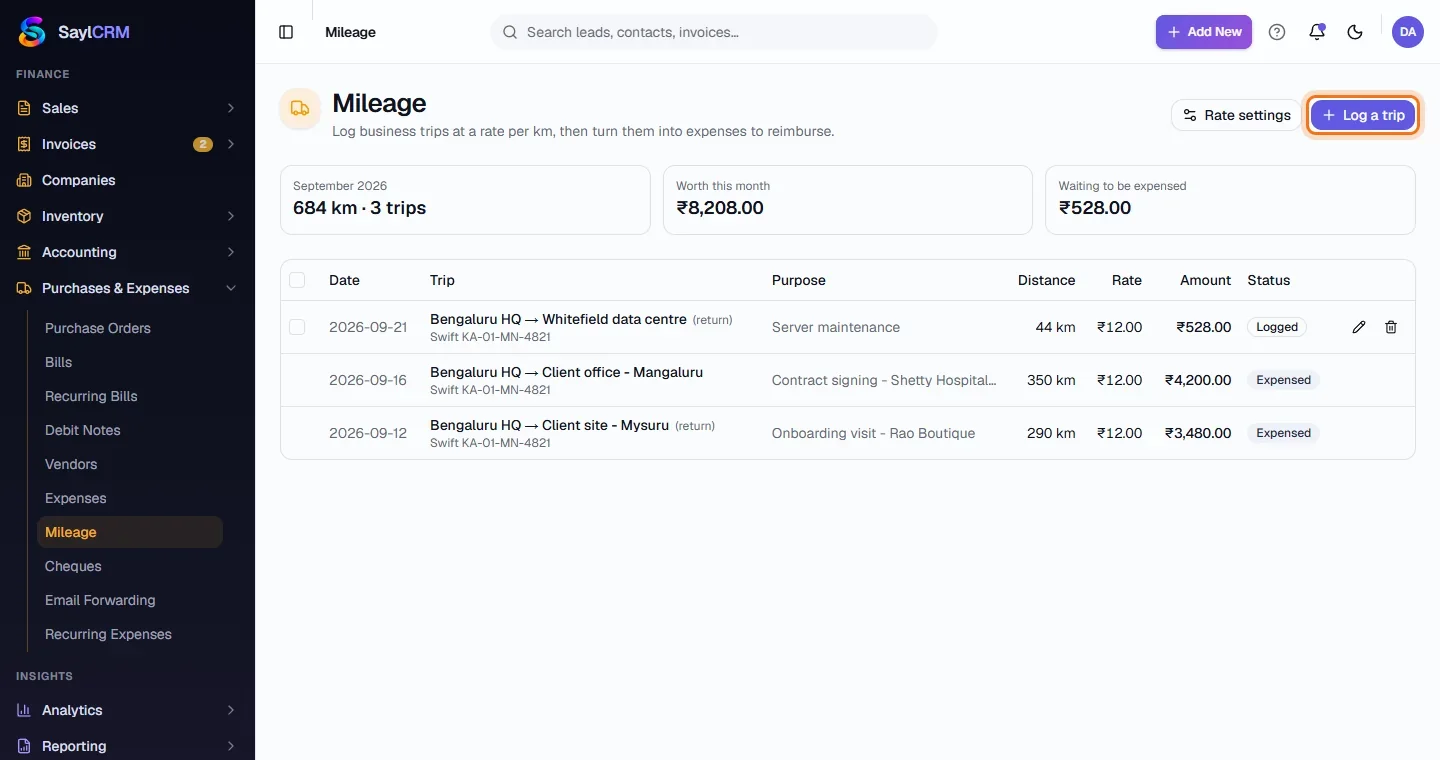
Finance → Purchases & Expenses → Mileage. The summary shows the month's distance, its value and what is waiting to be expensed.
- 2
Set the rate
Click Rate settings and enter the rate per km and the accounts to use.
- 3
Click Log a trip
The button is at the top right (highlighted).
- 4
Enter the trip
Date, vehicle, from, to and the distance one way. Switch on Return trip to double it. Add the purpose.
- 5
Log it, then expense it
Click Log trip (highlighted). When you are ready to reimburse, turn the logged trips into an expense.