Finance, GST & Accounting · Purchases
Bills
Record vendor bills in Sayl Finance - read them from a PDF, pick expense accounts, pay them in full or in part and track what you owe.
What it is for
Bills is what the business owes its suppliers. A bill is a draft until you open it, and opening it is what posts it to the ledger and into payables.
How it works
- You can enter a bill by hand, convert it from a purchase order, or upload a PDF, scan or photo and let Sayl read the vendor, dates, items, tax and totals into the form for you to check.
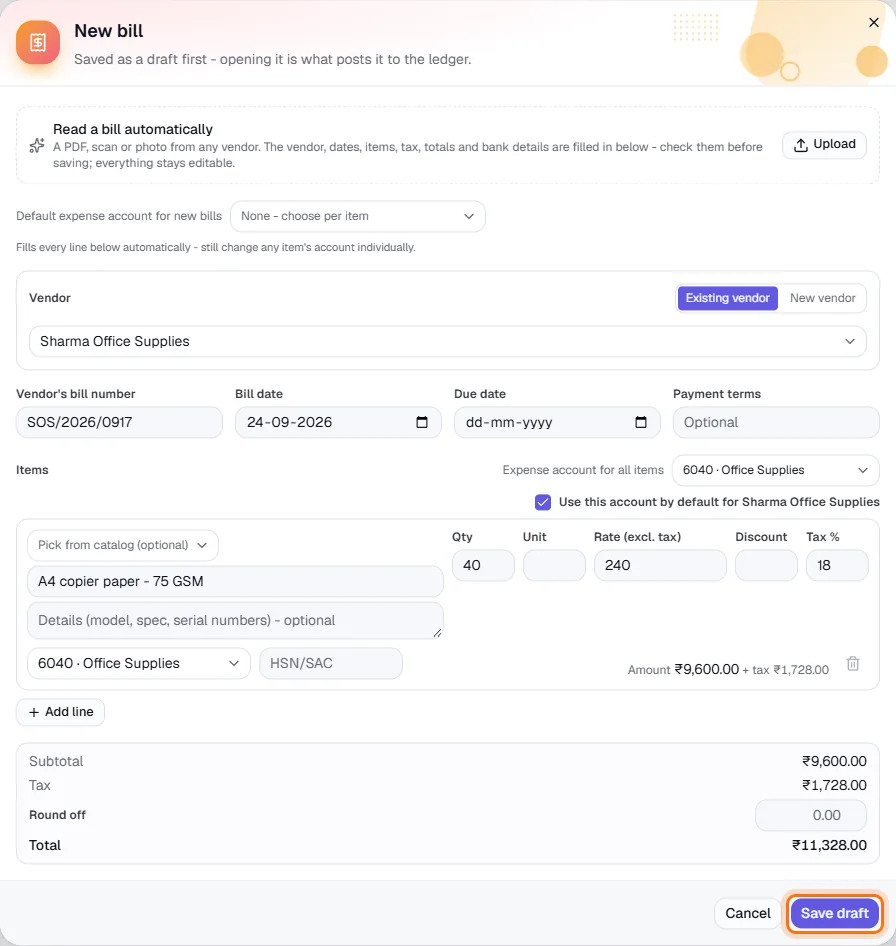
- Every line needs an expense account. Set a default on the vendor, or for the whole bill, and the lines fill in automatically.
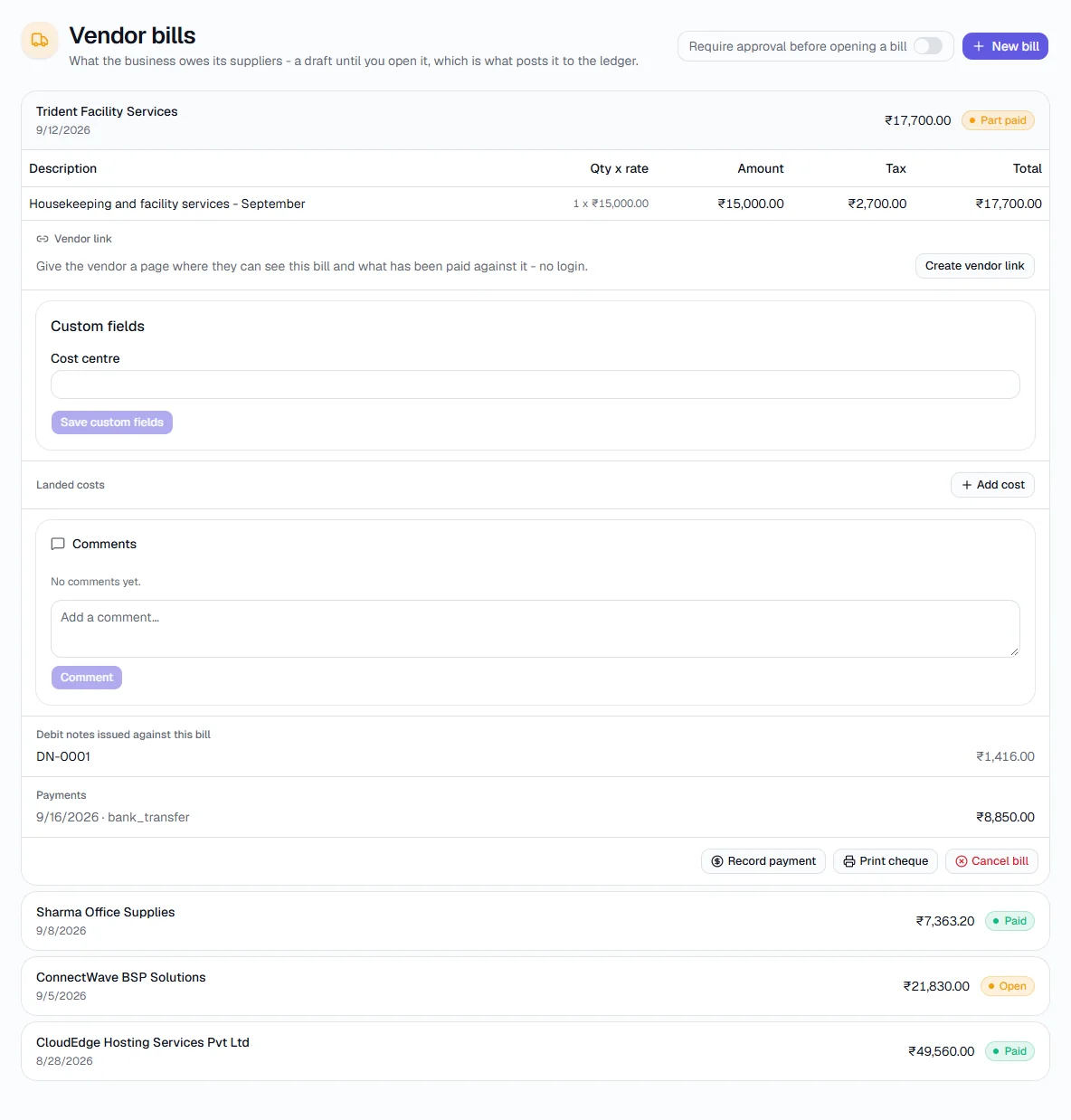
- Payments can be recorded in full or in part - the bill shows Part paid until settled - or paid by printing a cheque. Debit notes reduce what you owe on an open bill.
- A workspace can require approval before a bill is opened.
- GST on a bill is your input tax credit: each line's tax % is added on top of the rate, and the GST on all your bills shows in GST Returns → GSTR-3B under Eligible ITC.
- If the vendor's work attracts TDS, choose the section in TDS to deduct. TDS is worked out on the amount before GST and booked when the bill is opened, so the vendor is owed only the net amount. An advance already paid to the vendor is taken off at the same moment.
Step by step
Every screenshot is from the live demo. The highlighted button is the one to click - nothing here is saved in the demo, so you can follow along freely.
- 1
Where to start
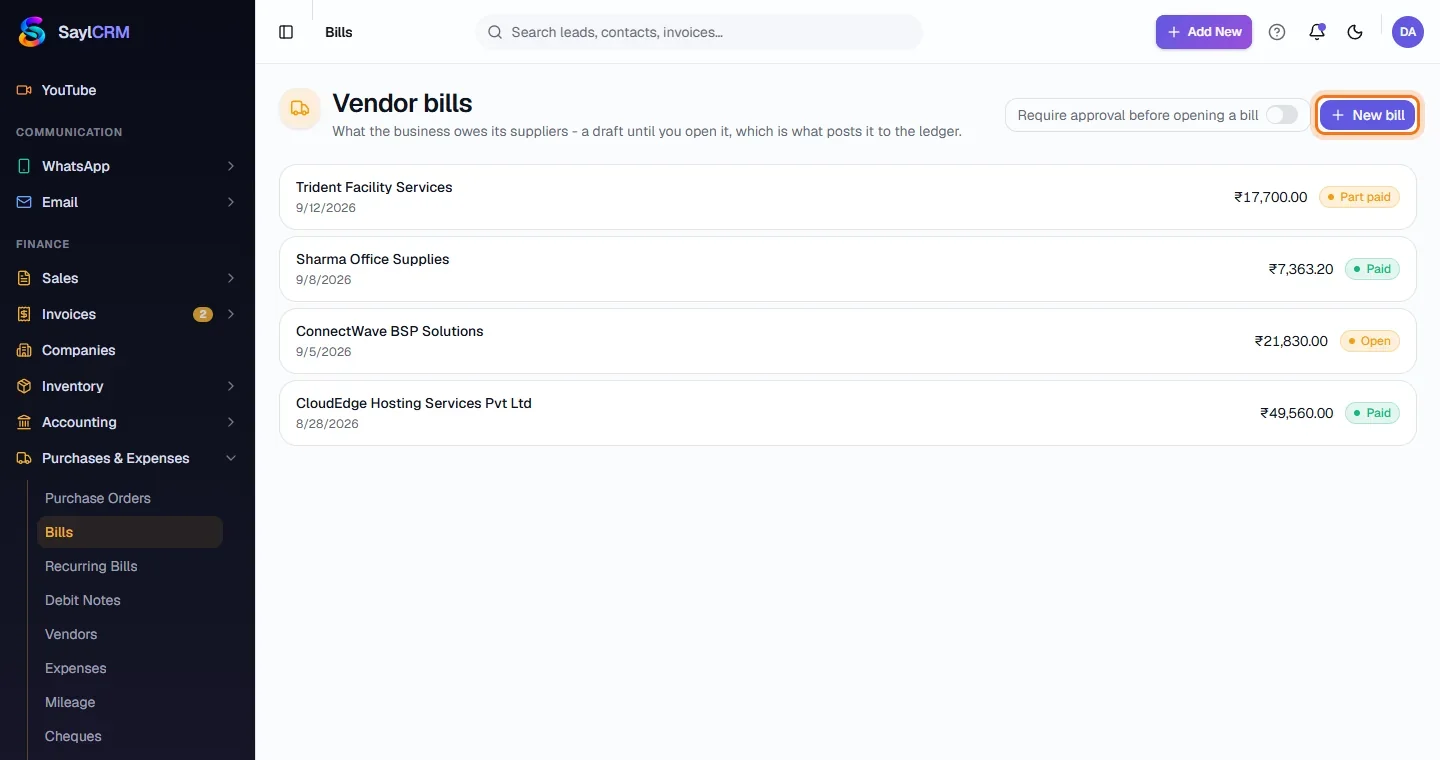
In the guides menu on the left, open Purchases and click Bills. In Sayl the page is under Finance → Purchases → Bills. Each bill shows the vendor, date, amount and status - Open, Part paid or Paid.
- 2
Click New bill
The button is at the top right (highlighted). To read a bill from a file, use Upload inside the form.
- 3
Choose the vendor and enter the bill
Pick the vendor (or add a new one on the spot), then the vendor's bill number, bill date, due date and payment terms.
- 4
Add items and expense accounts
Enter each item with quantity, rate, discount and tax %, and choose its expense account. The subtotal, tax and total update as you go.
- 5
Check the GST and choose the TDS
Under the items, check Subtotal (before GST), Tax (the GST) and Total - they must match the vendor's bill; use Round off for a paisa difference. Then look at TDS to deduct: it fills in from the vendor's default section, or pick one (for example 194C for contract work). The line under it shows the rate, the TDS and what you will pay the vendor. The rate comes from the vendor's PAN - in this example the vendor has no PAN on file, so the higher 20% applies; with a company PAN it would be 2%.
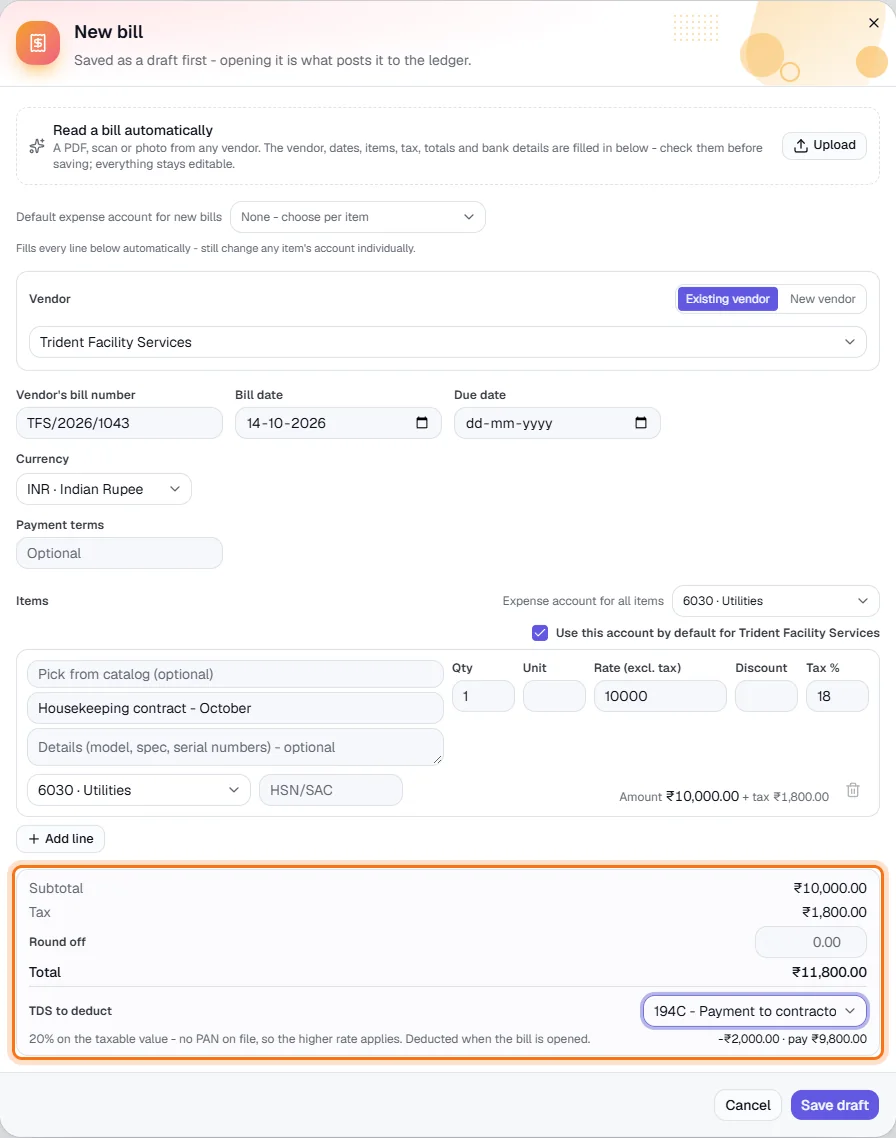
₹10,000 + ₹1,800 GST = ₹11,800. TDS 194C - here 20% because the vendor has no PAN; add the PAN under Vendors → TDS settings for the 2% rate. - 6
Save the draft, then open it
Click Save draft (highlighted). Then click the bill in the list and click Open bill - this posts it to the ledger, books the TDS and applies any advance paid to this vendor.
- 7
Record the payment
Click the bill to expand it, then Record payment. The amount is already the balance - the total minus the TDS (and any advance). Choose the method and the bank account it is paid from, add the UTR or cheque number, and click Record payment. Print cheque pays it by cheque; Create vendor link gives the vendor a no-login page showing the bill and what has been paid.
- 8
Check the TDS on the paid bill
The bill shows a line 'TDS u/s 194C @ 2%: ₹200 - deducted; the vendor is owed the net amount', and under Payments both the bank payment and 'TDS deducted'. The bill is Paid. The ₹200 now waits in Finance → GST → TDS under Deducted by us until you deposit it with a challan (see the TDS guide).

₹11,600 paid by bank transfer + ₹200 TDS deducted = ₹11,800 bill settled. - 9
Check the GST credit
Open Finance → GST → GST Returns, choose the month and the GSTR-3B tab. The GST on your bills appears under 4. Eligible ITC, split into Central and State tax (or Integrated tax for a vendor in another state).
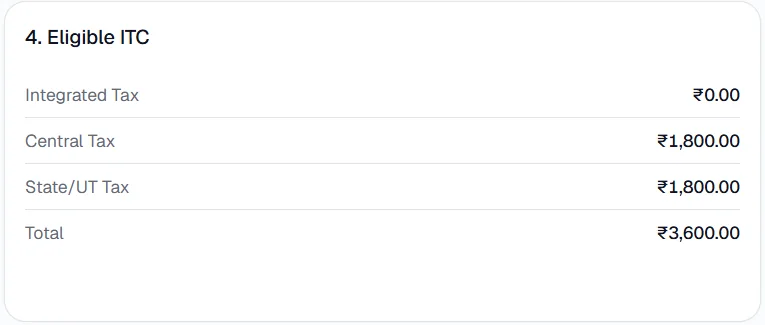
Two bills with ₹1,800 GST each: ₹3,600 of input tax credit (CGST ₹1,800 + SGST ₹1,800).
Key fields
- Vendor's bill number
- Exactly as printed on the vendor's bill.
- Expense account
- Where the cost is booked in the ledger.
- Round off
- Adjusts the total to match the vendor's bill exactly.
- TDS to deduct
- The TDS section for this bill. Worked out on the amount before GST; booked when the bill is opened.
Tips
- Set a default expense account on each vendor so recurring suppliers post correctly with no extra clicks.
- Set the vendor's PAN and default TDS section once (Vendors → ⋯ → TDS settings) and every new bill from them fills in the right TDS.