
Finance, GST & Accounting · Inventory
Items / Products
Build one item catalog in Sayl Finance - category, unit, HSN/SAC, GST rate, cost and price - and pick from it on every quotation, order and invoice.
What it is for
Items is what you sell, in one place: category, unit of measure, HSN/SAC code, tax rate, purchase cost, selling price and stock. Every quotation, sales order and invoice reads from it, so no document keeps its own copy of what a product costs or how it is classified.
How it works
- When you pick an item on a document, its price, tax and HSN/SAC are copied onto the line and can still be changed on that single line. Editing the item later never rewrites documents you have already saved.
- Enter a purchase price and a margin % and the selling price is worked out for you; or type the selling price directly.
- The purchase price is also what the Profit Margin report compares each invoiced line against.
- Items can carry an opening stock, a reorder level and a default warehouse. Stock is a single running total per item across the workspace.
Step by step
Every screenshot is from the live demo. The highlighted button is the one to click - nothing here is saved in the demo, so you can follow along freely.
- 1
Open Items / Products
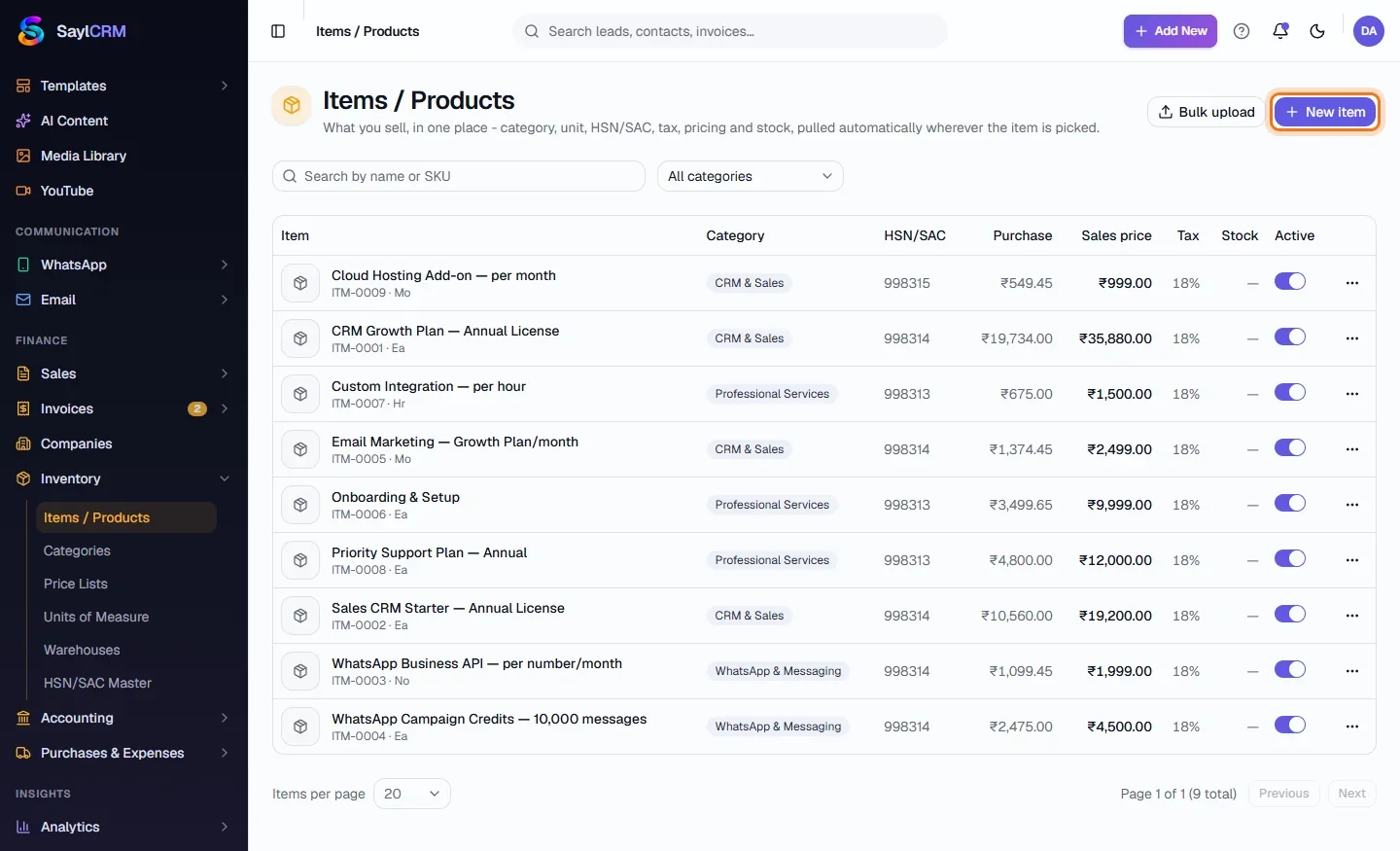
Finance → Inventory → Items / Products. The table shows each item's category, HSN/SAC, purchase price, sales price, tax and stock. Filter by category, or use Bulk upload to load many at once.
- 2
Click New item
The button is at the top right (highlighted).
- 3
Describe the item
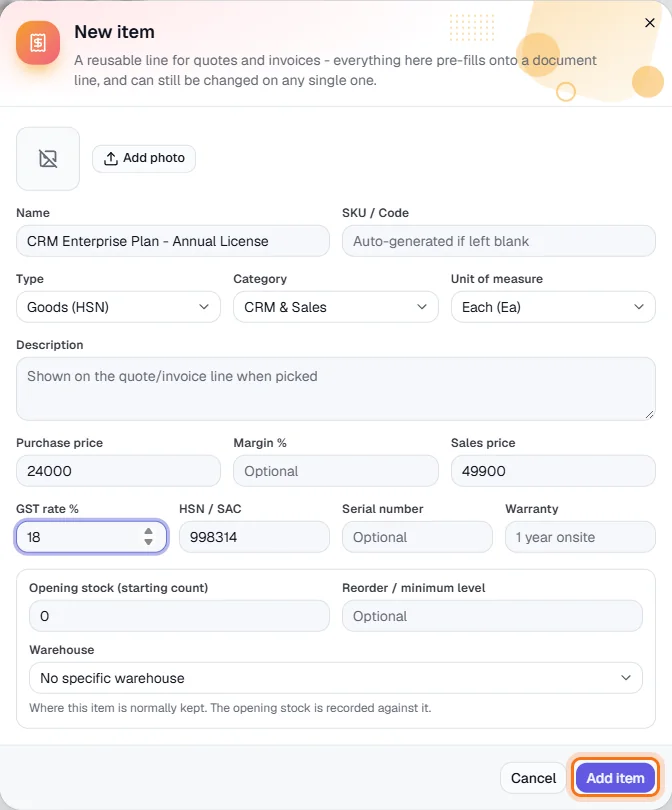
Give it a name (a SKU is generated if you leave it blank), choose whether it is goods (HSN) or a service (SAC), and pick its category and unit of measure. The description is shown on the line whenever the item is picked.
- 4
Set the price and tax
Enter the purchase price and the sales price (or a margin %), the GST rate and the HSN/SAC code. For stocked goods add the opening stock, a reorder level and the warehouse it is normally kept in.
- 5
Save and reuse it
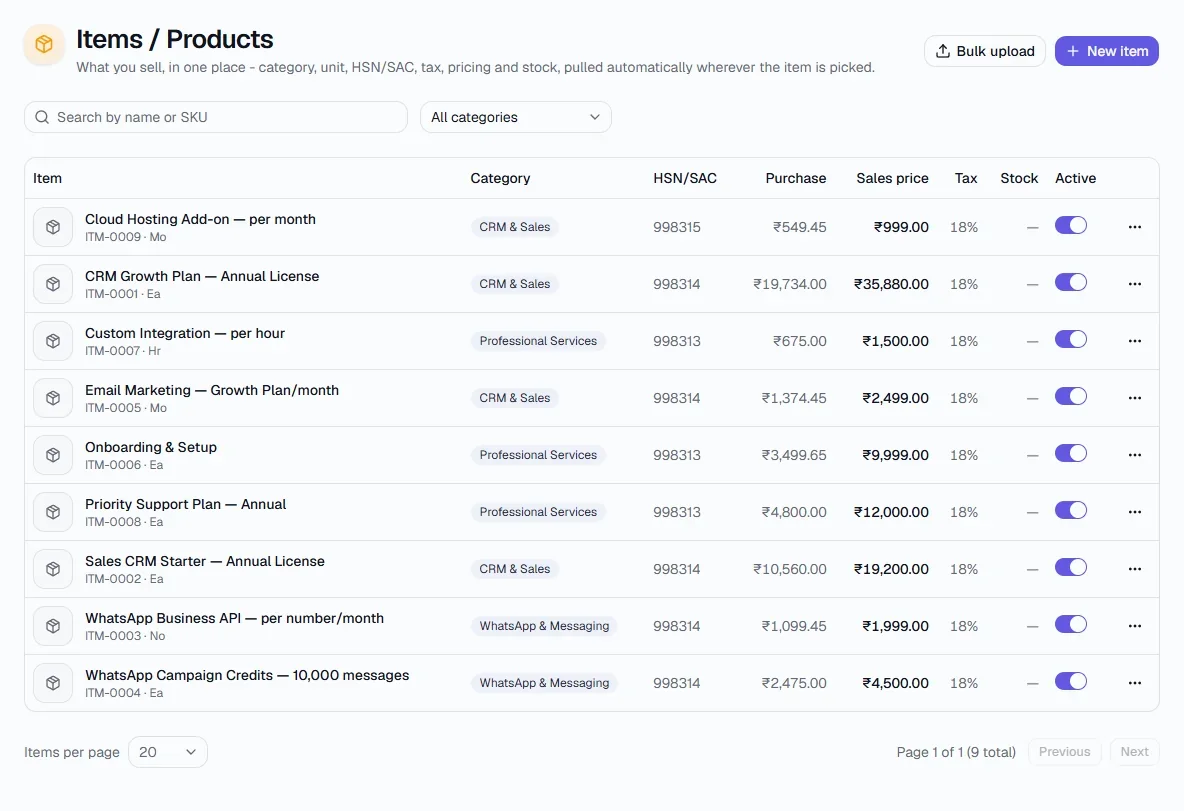
Click Add item (highlighted). It now appears in the catalog and in every item picker.
Key fields
- Purchase price / Margin % / Sales price
- Cost, markup and selling price - any two work out the third.
- GST rate %
- Copied onto document lines when the item is picked.
- HSN / SAC
- Classification code printed on invoices and reported in GST returns.
- Opening stock / Reorder level
- Starting count and the level that triggers a reorder.
Tips
- Set purchase prices even for services - it is what makes the Profit Margin report meaningful.
- Give each category a default HSN/SAC so new items in it are pre-filled.