Finance, GST & Accounting · Purchases & Expenses
Purchase Orders
Raise purchase orders in Sayl Finance for what you intend to buy, then convert them into vendor bills.
What it is for
A purchase order records what you intend to buy, before a bill exists for it. Converting one is what raises the bill, so the order and the invoice you later receive stay linked.
How it works
- A purchase order is saved as a draft first. Sending it and then converting it is what turns it into a bill.
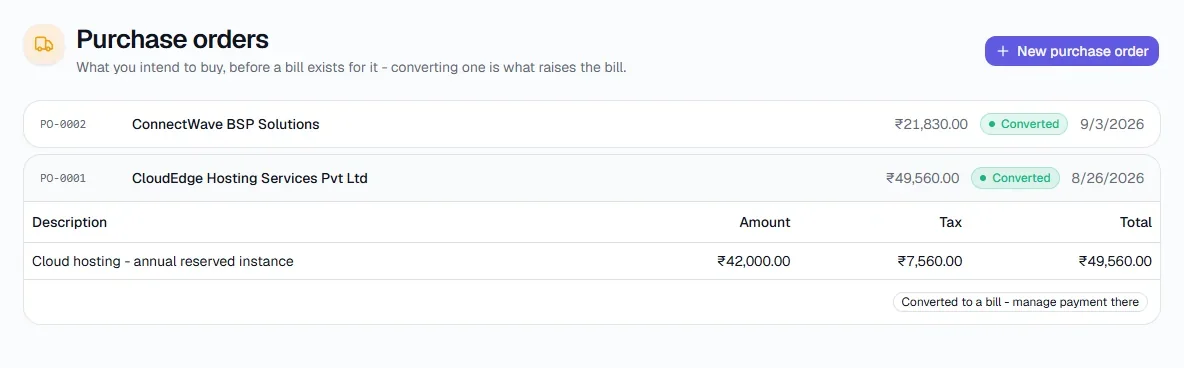
- Once converted it is marked Converted, and payment is managed on the bill from then on.
Step by step
Every screenshot is from the live demo. The highlighted button is the one to click - nothing here is saved in the demo, so you can follow along freely.
- 1
Open Purchase Orders
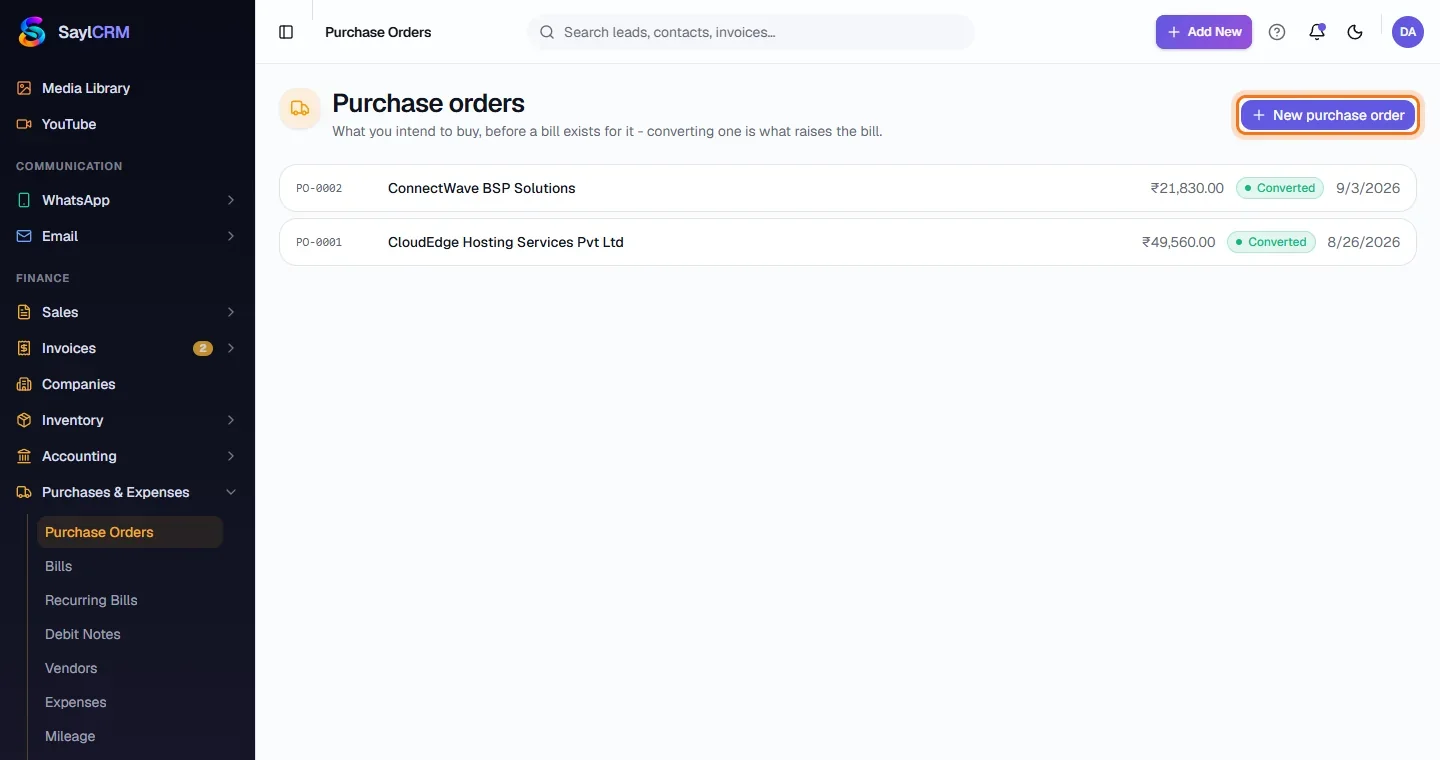
Finance → Purchases & Expenses → Purchase Orders.
- 2
Click New purchase order
The button is at the top right (highlighted).
- 3
Choose the vendor and add lines
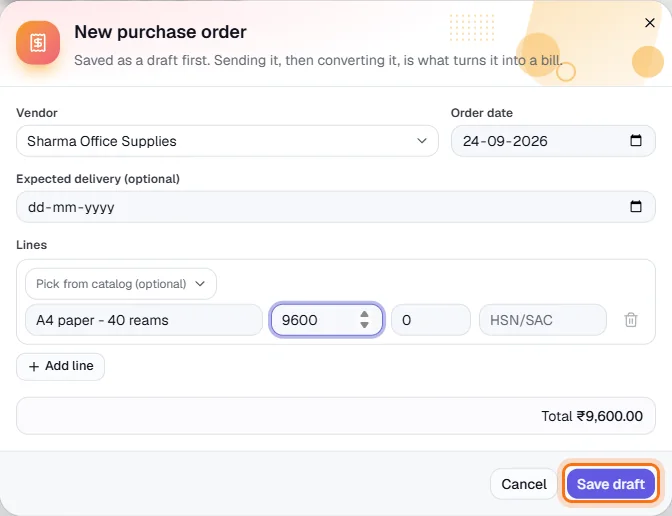
Pick the vendor, the order date and an optional expected delivery date. Add lines - pick from the catalog or type a description, amount, tax % and HSN/SAC.
- 4
Save as a draft
Click Save draft (highlighted), then send it to the vendor when it is ready.
- 5
Convert it to a bill
When the goods or services arrive, convert the order. It shows Converted, with a note that payment is managed on the bill.