
Finance, GST & Accounting · Accounting
Custom Fields
Add your own fields to invoices, quotations, vendor bills and items in Sayl Finance.
What it is for
Custom fields are extra boxes on your own documents - a PO number on invoices, a cost centre on bills, an SLA tier on items - so you can record what matters to you without waiting for a feature.
How it works
- Fields are added per document type: Invoices, Quotations, Vendor bills and Items.
- The key is fixed once created (letters, digits and underscores) because the API uses it.
- Turning a field off hides it without losing what was already recorded.
Step by step
Every screenshot is from the live demo. The highlighted button is the one to click - nothing here is saved in the demo, so you can follow along freely.
- 1
Open Custom Fields
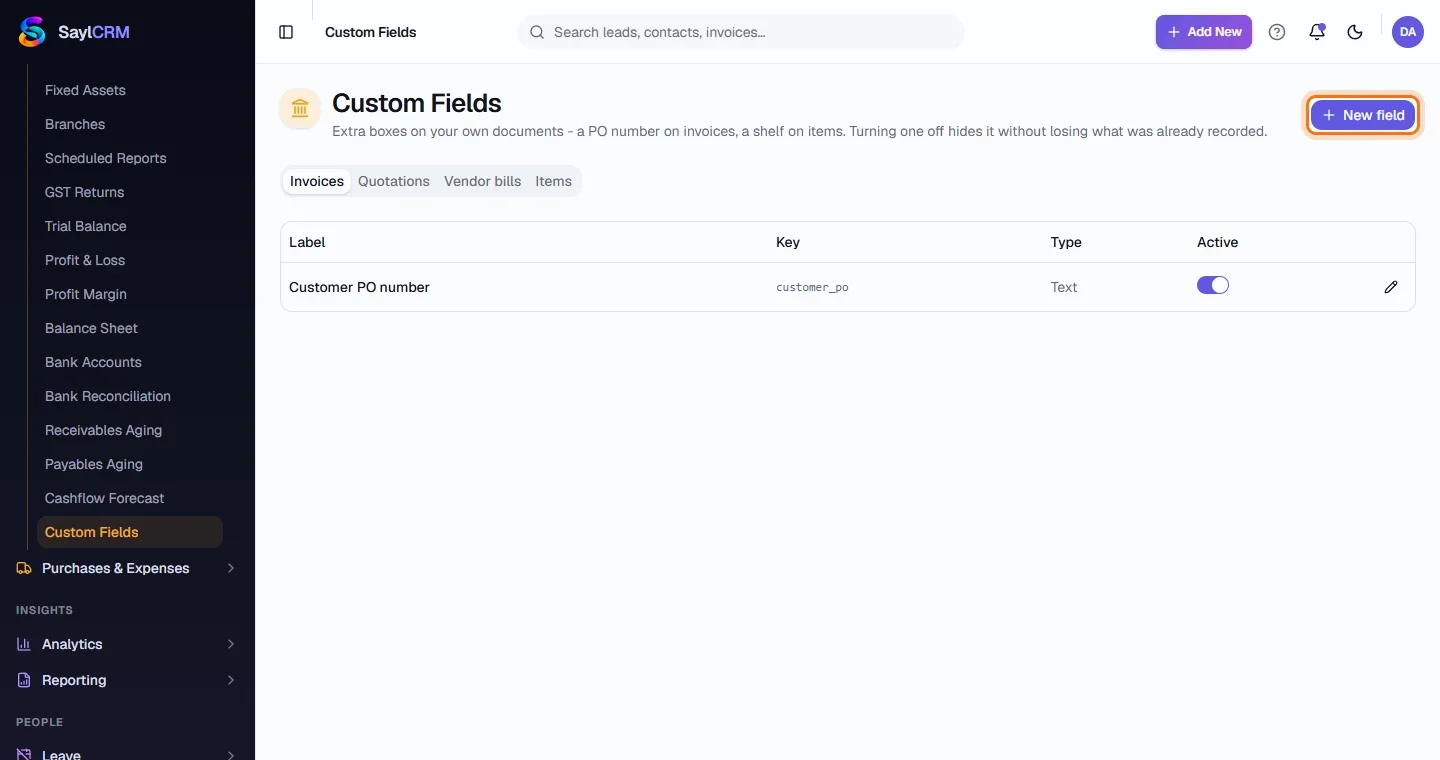
Finance → Accounting → Custom Fields. Choose the document type - Invoices, Quotations, Vendor bills or Items - to see its fields.
- 2
Click New field
The button is at the top right (highlighted).
- 3
Label the field
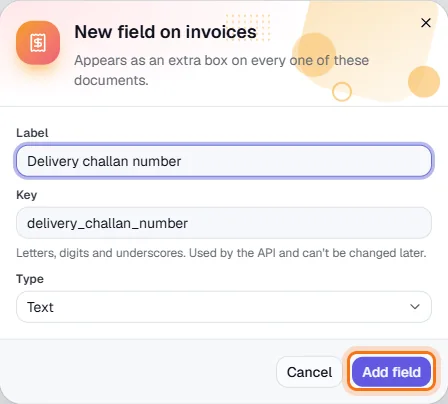
Enter the label people will see; the key is filled in for you. Choose the type, such as Text.
- 4
Save and use it
Click Add field (highlighted). It appears as a box on every document of that type.