
Finance, GST & Accounting · Inventory
Categories
Group items into categories in Sayl Finance and give each a default HSN/SAC code that new items inherit.
What it is for
Categories group items on the Items page and in reports. Each can carry a default HSN/SAC code, which is suggested whenever a new item is created in that category.
How it works
- A category is a label plus an optional default code. Changing it never rewrites the HSN/SAC already saved on an item.
Step by step
Every screenshot is from the live demo. The highlighted button is the one to click - nothing here is saved in the demo, so you can follow along freely.
- 1
Open Categories
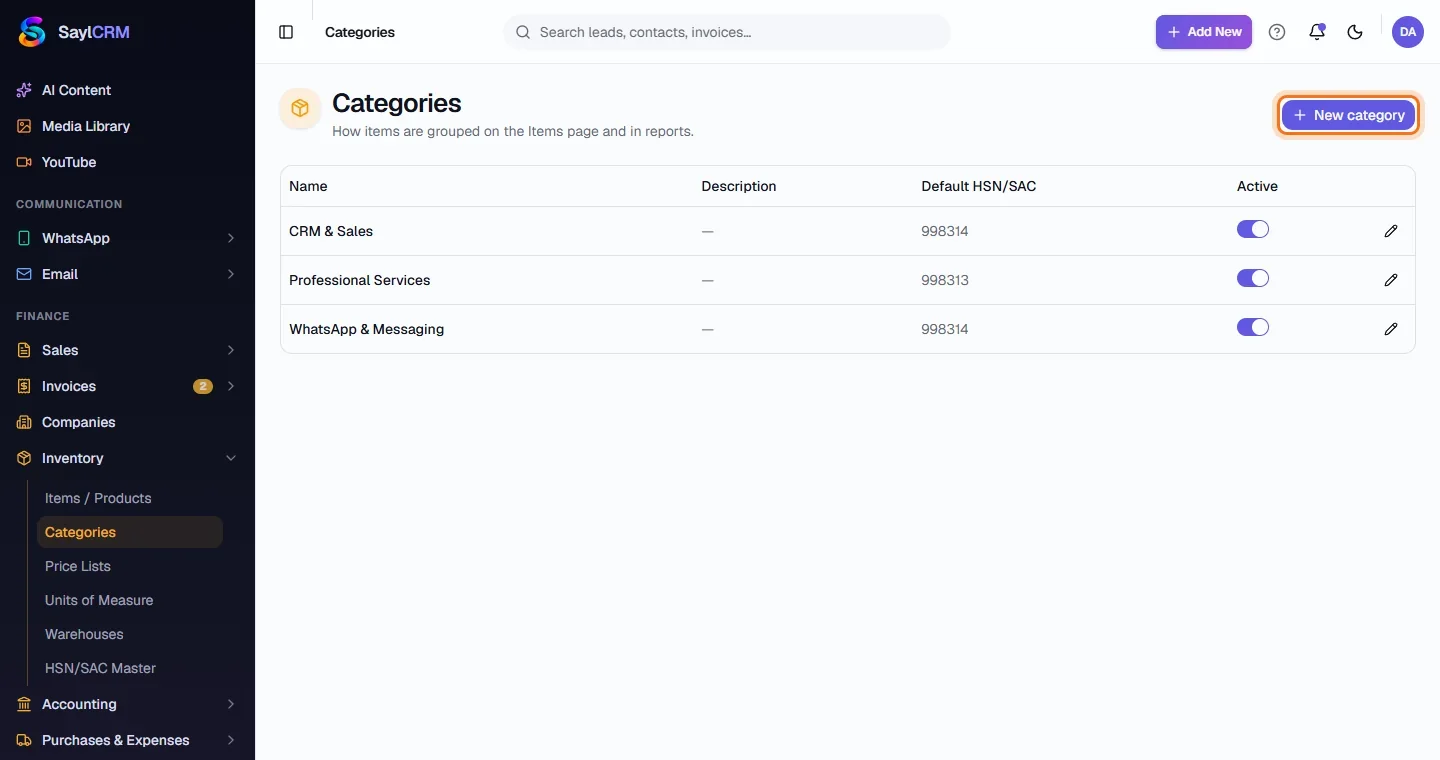
Finance → Inventory → Categories. Each row shows the name, description, default HSN/SAC and whether it is active.
- 2
Click New category
The button is at the top right (highlighted).
- 3
Name it and set a default code
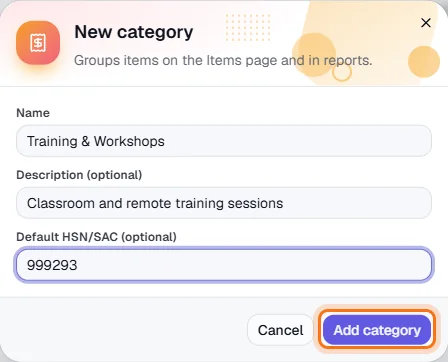
Enter a name and an optional description, plus a default HSN/SAC that is suggested on new items in this category.
- 4
Save
Click Add category (highlighted). It is now available in the Items form and as a filter on the Items page.
Key fields
- Default HSN/SAC
- Suggested on a new item in this category.