
Finance, GST & Accounting · Accounting
Journal Entries
Post manual journal entries in Sayl Finance, see every automatic posting, reverse mistakes and lock closed periods.
What it is for
Journal Entries lists every posting to the ledger, newest first - the ones Sayl makes when you issue an invoice, record a payment or open a bill, and the manual ones you post yourself for accruals, corrections and adjustments.
How it works
- Every entry must balance: total debits must equal total credits before it can be posted. The form shows Balanced or Not balanced yet as you type.
- Entries are never edited. A correction reverses an entry - posting an equal and opposite one - so the history stays intact. Reversed entries are labelled as such.
- Lock a period stops anything being posted into a closed month. A workspace can also require approval before a manual entry posts.
- Frequent entries can be saved as templates and started from with one click.
Step by step
Every screenshot is from the live demo. The highlighted button is the one to click - nothing here is saved in the demo, so you can follow along freely.
- 1
Open Journal Entries
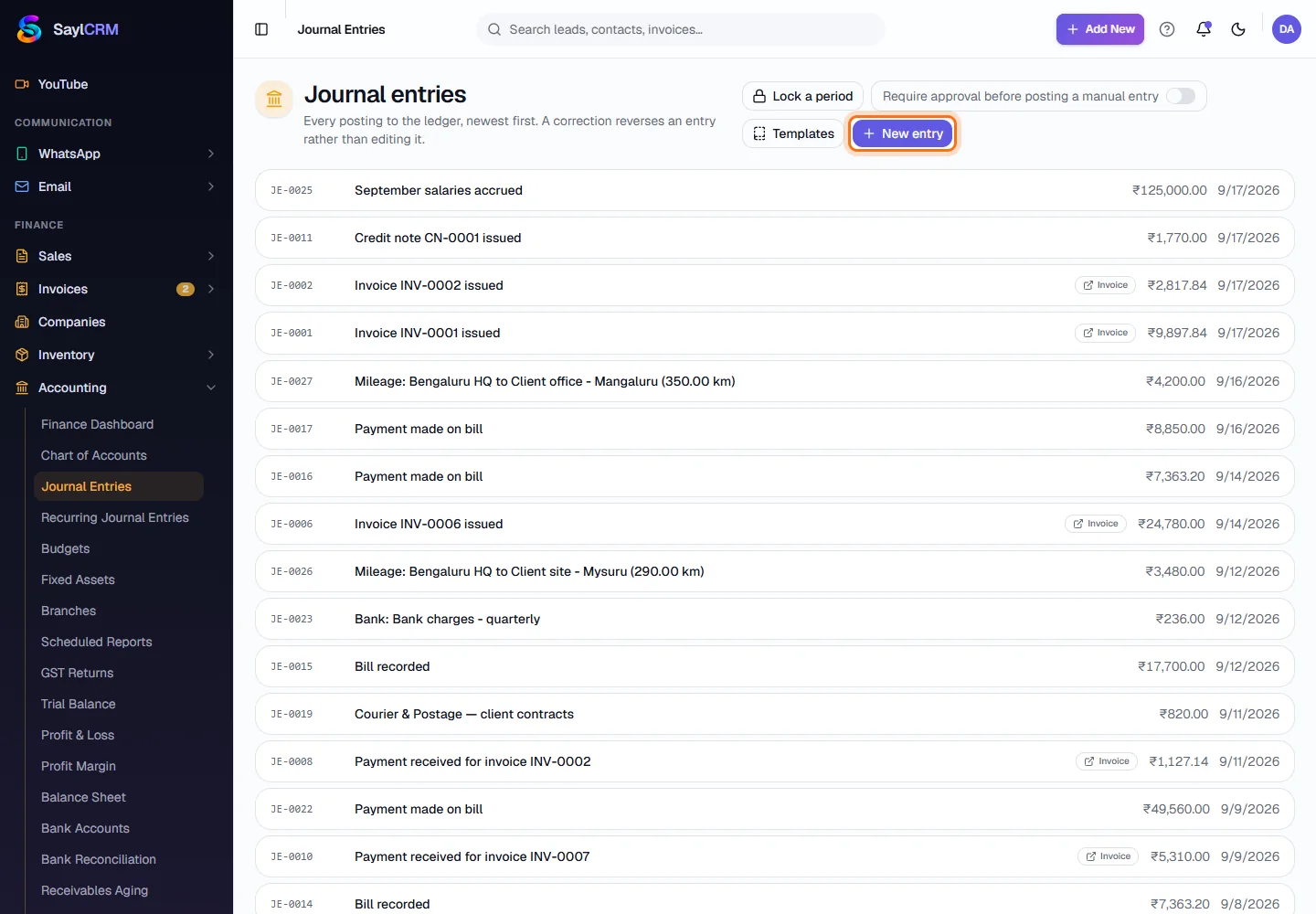
Finance → Accounting → Journal Entries. Each entry shows its number, memo, type and amount.
- 2
Click New entry
The button is at the top right (highlighted). Templates and Lock a period sit beside it.
- 3
Enter the date and memo
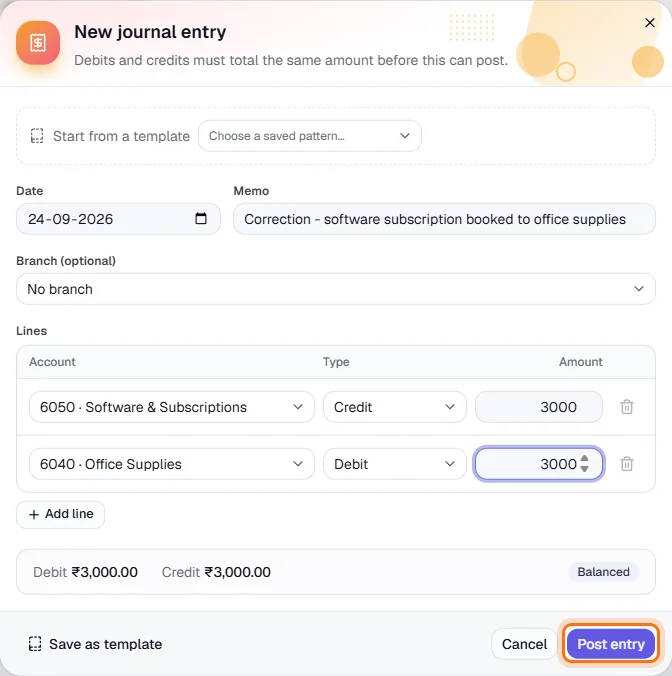
Set the date and describe what the entry is for. Optionally choose a saved pattern to start from, or a branch.
- 4
Add the debit and credit lines
For each line choose the account, whether it is a Debit or Credit, and the amount. Here software cost is moved out of Office Supplies. Add more lines with Add line.
- 5
Check it balances and post
When the panel shows Balanced, click Post entry (highlighted). Use Save as template to keep the pattern for next time.
Key fields
- Memo
- What the entry is for - searchable later.
- Lines
- Account, Debit/Credit and amount. Debits must equal credits.
- Branch
- Optionally tag the whole entry to a branch.
Tips
- To correct a wrong entry, reverse it and post the right one - never look for an edit button.