
Finance, GST & Accounting · Inventory
Price Lists
Create customer-specific and quantity-tiered price lists in Sayl Finance so quotes, orders and invoices pick up the right price automatically.
What it is for
A price list is a set of prices a customer buys on - for example Dealer, Wholesale or Key accounts. Put a customer on a list and their quotations, sales orders and invoices pick up its prices without anyone remembering to apply them.
How it works
- A list can carry a blanket discount % on every item it does not price individually, and its own price per item.
- Prices can be tiered by quantity: the largest tier the quantity reaches wins, so 1 seat, 5 seats and 10 seats can each have their own rate.
- The list only pre-fills a line when the item is picked or the quantity changes. A price you type by hand on a line is never overridden, and saved documents are never repriced.
Step by step
Every screenshot is from the live demo. The highlighted button is the one to click - nothing here is saved in the demo, so you can follow along freely.
- 1
Open Price Lists
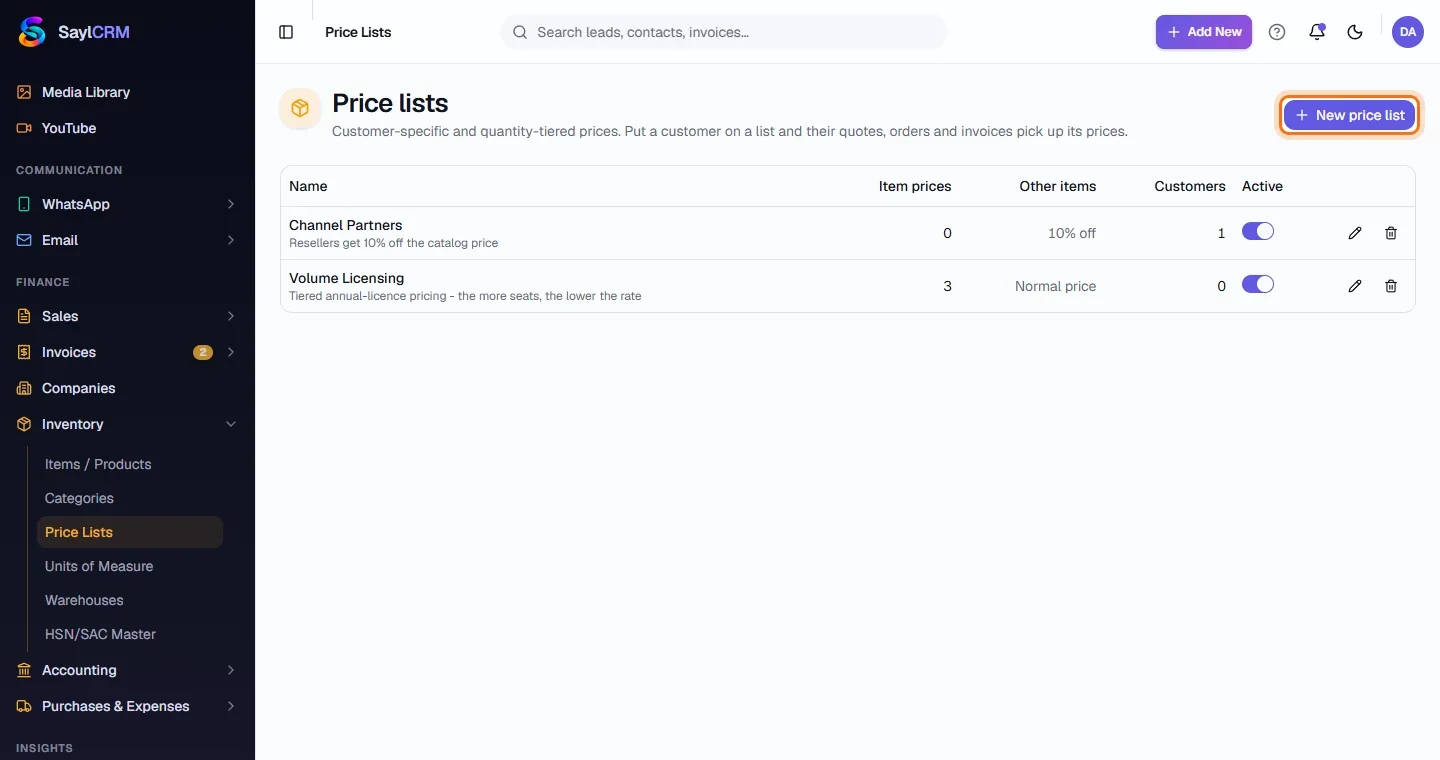
Finance → Inventory → Price Lists. Each list shows how many items it prices, the discount on other items and how many customers use it.
- 2
Click New price list
The button is at the top right (highlighted).
- 3
Name the list and set a blanket discount
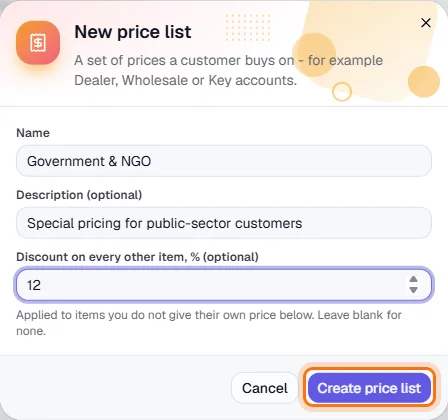
Enter a name and description. The optional discount % applies to every item the list does not price individually; leave it blank for none.
- 4
Create it, then add prices and customers
Click Create price list (highlighted). Open the list to add per-item prices and quantity tiers, and to choose which customers are on it. A customer can also be assigned from their own customer form.
Key fields
- Discount on every other item %
- Blanket discount for items with no price of their own on the list.
- Minimum quantity
- Start of a quantity tier for an item's price.
Tips
- Use a quantity-tiered list for volume licensing so larger orders quote at a lower rate automatically.