
Finance, GST & Accounting · Purchases & Expenses
Recurring Expenses
Schedule recurring expenses in Sayl Finance for rent, broadband and subscriptions so they are logged automatically.
What it is for
A recurring expense is a template that logs a real expense on its own schedule - weekly, monthly, quarterly or yearly - so rent or a subscription never has to be re-entered.
How it works
- By default every generated expense waits for your review before it posts, whatever the workspace approval setting. Turn on Post automatically and it posts immediately.
- If your workspace requires approval for expenses, an automatic one is sent for approval instead.
Step by step
Every screenshot is from the live demo. The highlighted button is the one to click - nothing here is saved in the demo, so you can follow along freely.
- 1
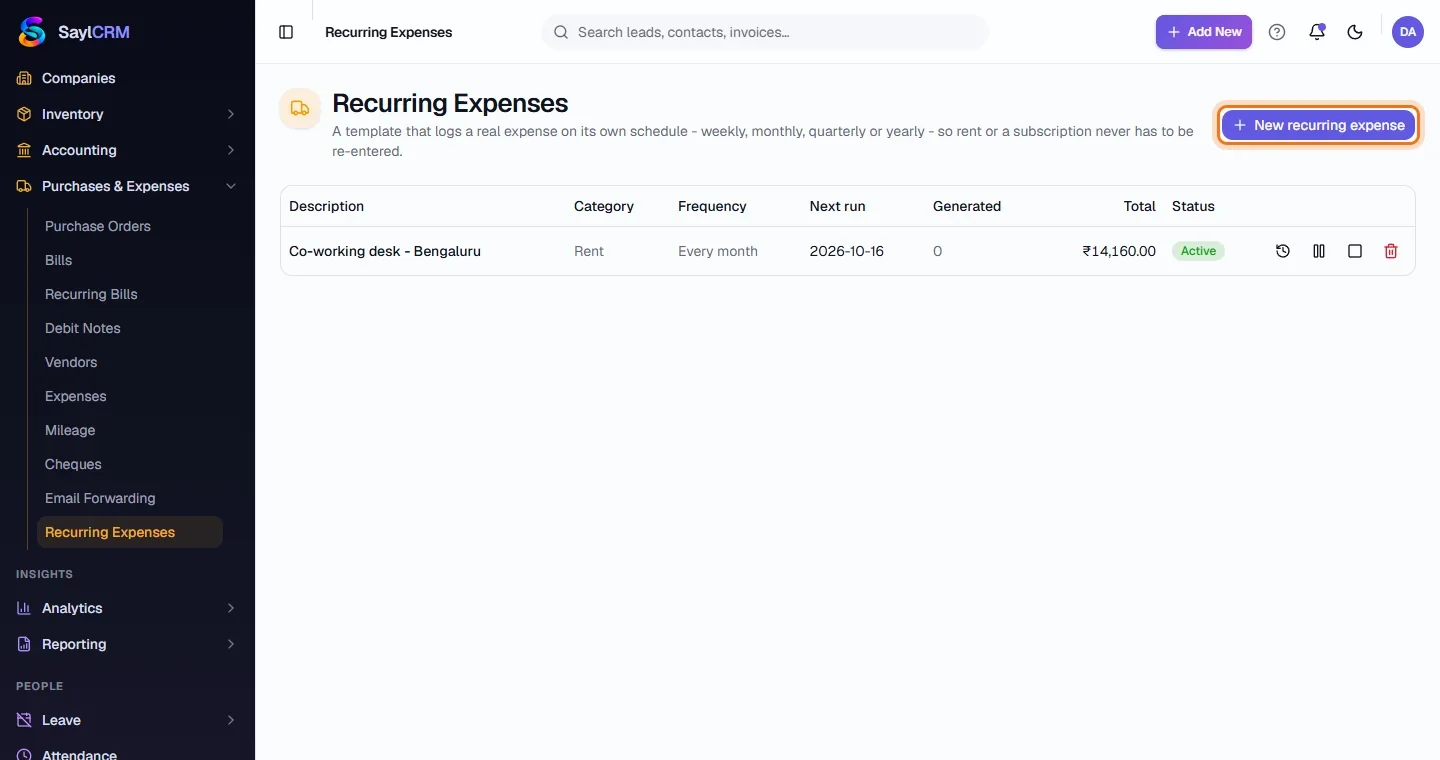
Open Recurring Expenses
Finance → Purchases & Expenses → Recurring Expenses.
- 2
Click New recurring expense
The button is at the top right (highlighted).
- 3
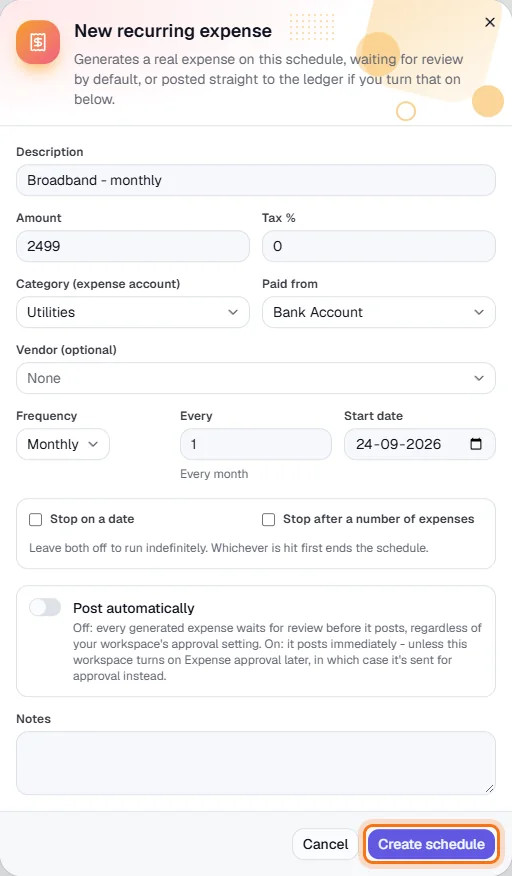
Describe the expense
Description, amount, tax %, category and the account it is paid from.
- 4
Set the schedule
Frequency, interval and start date; optionally stop on a date or after a number of expenses.
- 5
Create the schedule
Click Create schedule (highlighted).