
Finance, GST & Accounting · Accounting
Recurring Journal Entries
Schedule repeating journal entries in Sayl Finance for depreciation, accruals and prepaid amortisation.
What it is for
A recurring journal entry is a debit/credit template that posts to the ledger on its own schedule - depreciation, accruals, or revenue recognised a little at a time.
How it works
- Off by default, Post automatically means each period generates an entry that waits for your review before it posts. Switch it on and it posts immediately.
- If your workspace requires approval for manual entries, an automatically generated one is sent for approval instead.
- Like every journal entry, the lines must balance, and the schedule can stop on a date or after a set number of entries.
Step by step
Every screenshot is from the live demo. The highlighted button is the one to click - nothing here is saved in the demo, so you can follow along freely.
- 1
Open Recurring Journal Entries
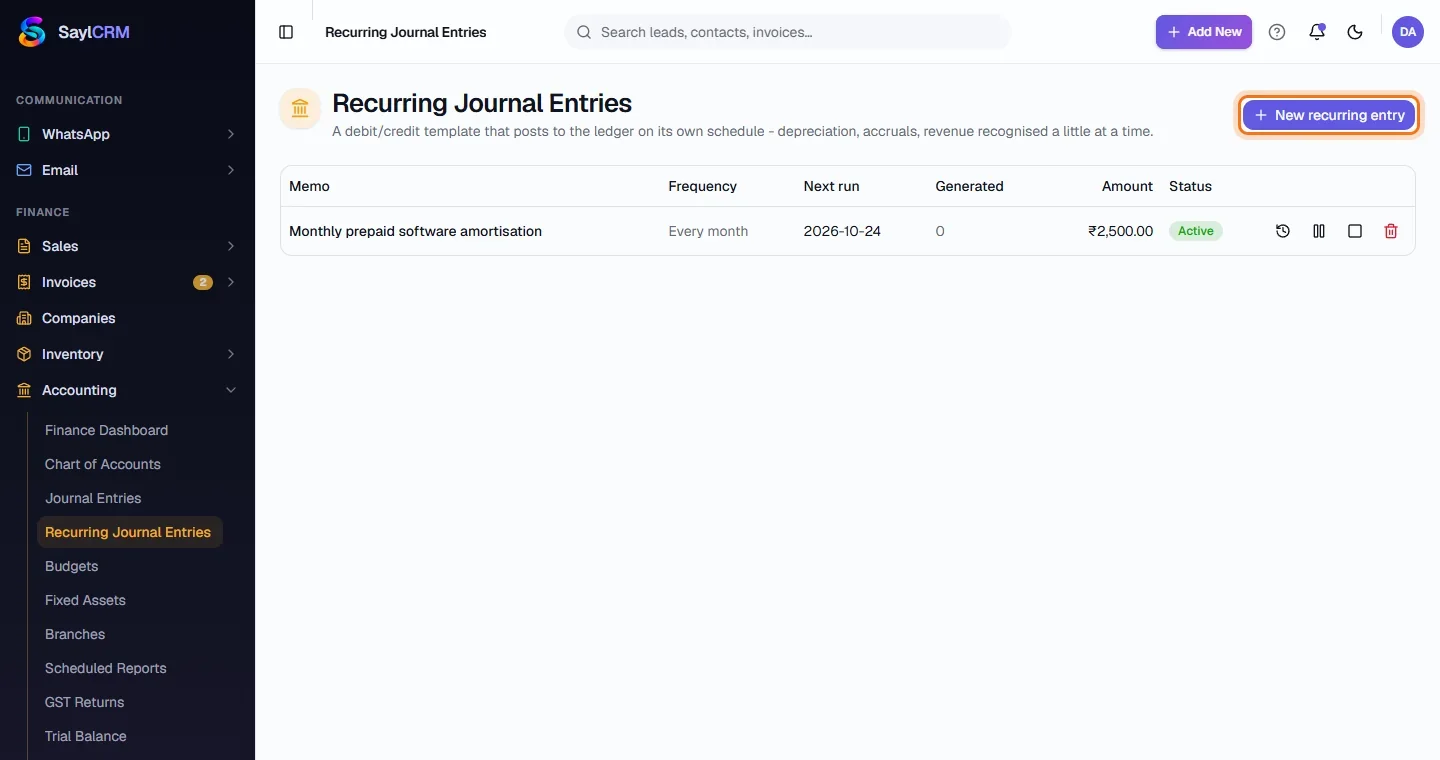
Finance → Accounting → Recurring Journal Entries. See each template, its frequency, next run, how many it has generated and its amount.
- 2
Click New recurring entry
The button is at the top right (highlighted).
- 3
Describe it and set the schedule
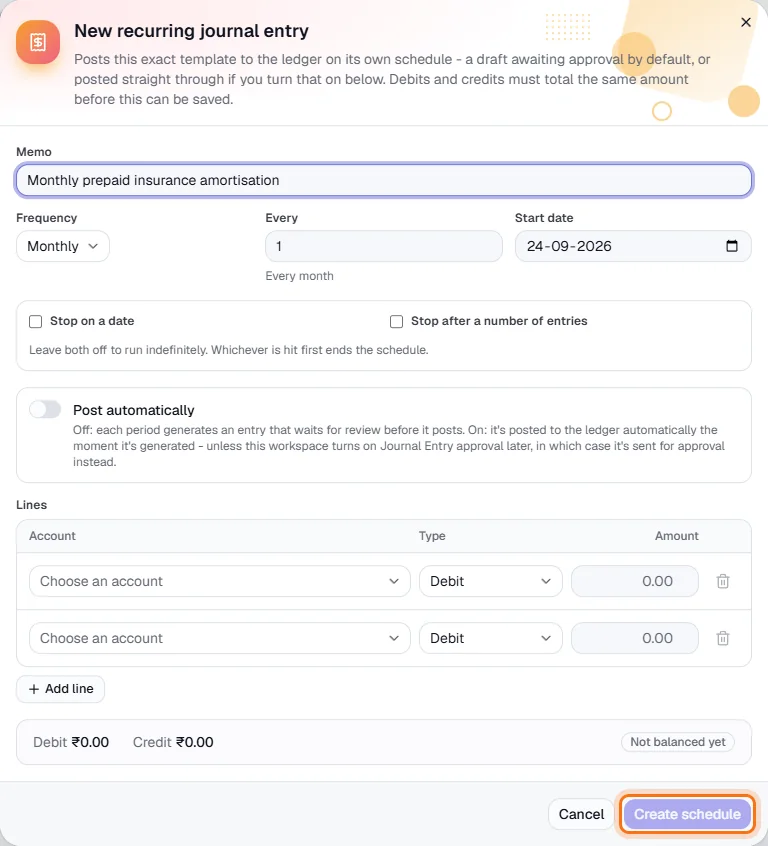
Enter a memo such as “Monthly prepaid insurance amortisation”, then the frequency, interval and start date.
- 4
Add balanced lines
Choose the debit and credit accounts and the amount - the panel shows when it balances.
- 5
Create the schedule
Click Create schedule (highlighted). You can pause, resume or end it later.