
Finance, GST & Accounting · Sales
Sales Orders
Raise sales orders from an accepted quotation or directly, route them through approval, then turn them into invoices in Sayl Finance.
What it is for
A sales order confirms what a customer has committed to buy, before it becomes an invoice. It is the checkpoint between an agreed quotation and the money side: someone approves it, stock and dispatch are checked, and only then is it billed.
How it works
- A sales order moves through Draft, Pending approval, Approved and Fulfilled - or Rejected / Cancelled. It is saved as a draft first; submitting it for approval is what starts the workflow.
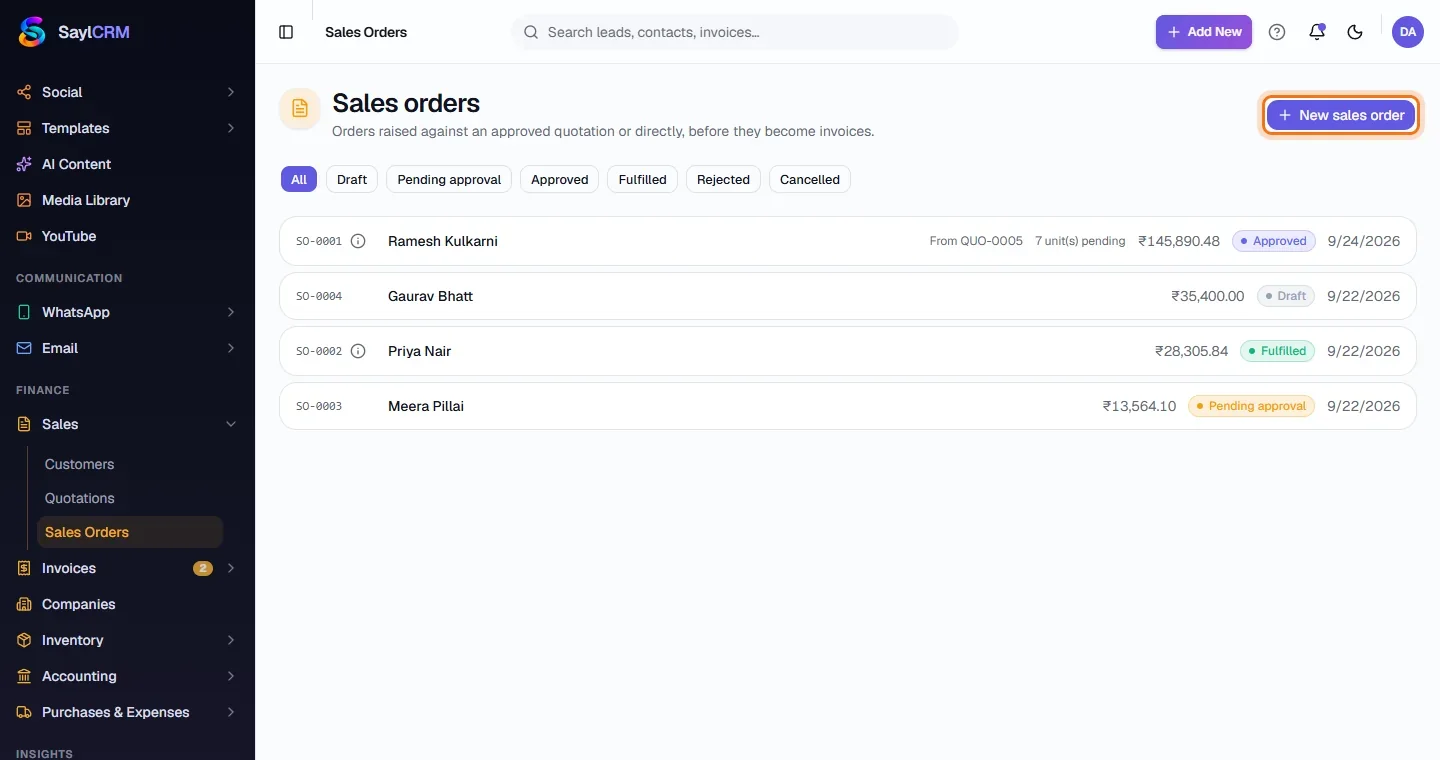
- You can create one directly or convert an accepted quotation. A converted order keeps a link back to its quotation (“From QUO-0005”).
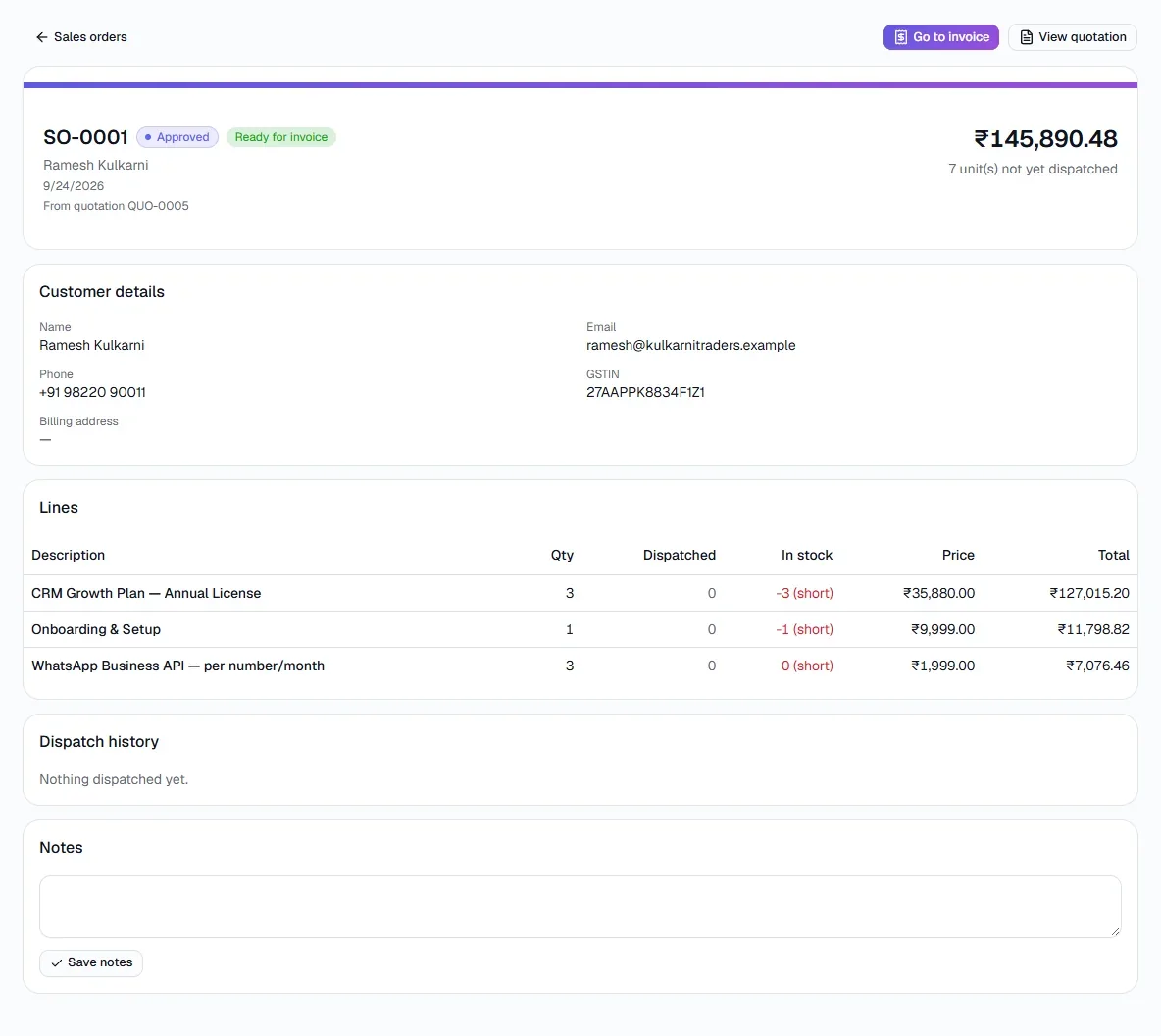
- Approved orders show a Go to invoice action. Raising the invoice marks the order Fulfilled, so the same order is not billed twice.
- The lines table shows quantity, quantity dispatched and stock on hand, so you can see whether an order is short before you promise a date.
Step by step
Every screenshot is from the live demo. The highlighted button is the one to click - nothing here is saved in the demo, so you can follow along freely.
- 1
Open Sales Orders
Finance → Sales → Sales Orders. Filter by All, Draft, Pending approval, Approved, Fulfilled, Rejected or Cancelled.
- 2
Click New sales order
Or, from an accepted quotation, use its convert action - the lines come across for you.
- 3
Choose the customer and add lines
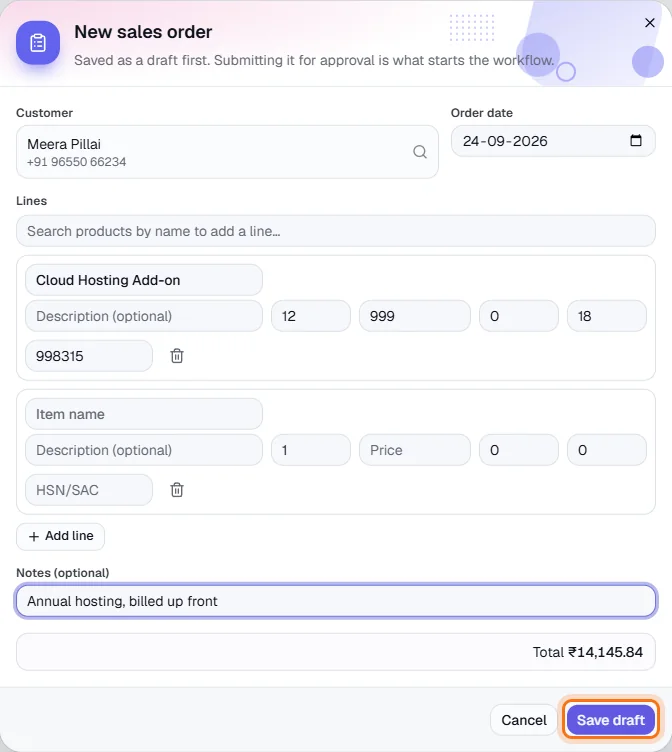
Pick the customer and the order date. Search products by name to add lines - price, tax and HSN/SAC fill in from the catalog - or type a custom line. The total updates as you go.
- 4
Save as a draft, then submit
Click Save draft. When it is ready, open the order and submit it for approval.
- 5
Approve and invoice
An approver opens a pending order and chooses Approve or Reject. An approved order shows “Ready for invoice” with a Go to invoice button; the detail page also lists dispatch history and notes.
Key fields
- Customer
- Who ordered; their details carry onto the invoice.
- Order date
- Defaults to today.
- Lines
- Item, quantity, price, discount %, tax % and HSN/SAC per line.
- Notes
- Internal instructions such as delivery timing.
Tips
- Use approval to make sure large or discounted orders are reviewed before they are billed.
- Reject with a reason - it stays on the order's history.