
Finance, GST & Accounting · Purchases & Expenses
Bills
Record vendor bills in Sayl Finance - read them from a PDF, pick expense accounts, pay them in full or in part and track what you owe.
What it is for
Bills is what the business owes its suppliers. A bill is a draft until you open it, and opening it is what posts it to the ledger and into payables.
How it works
- You can enter a bill by hand, convert it from a purchase order, or upload a PDF, scan or photo and let Sayl read the vendor, dates, items, tax and totals into the form for you to check.
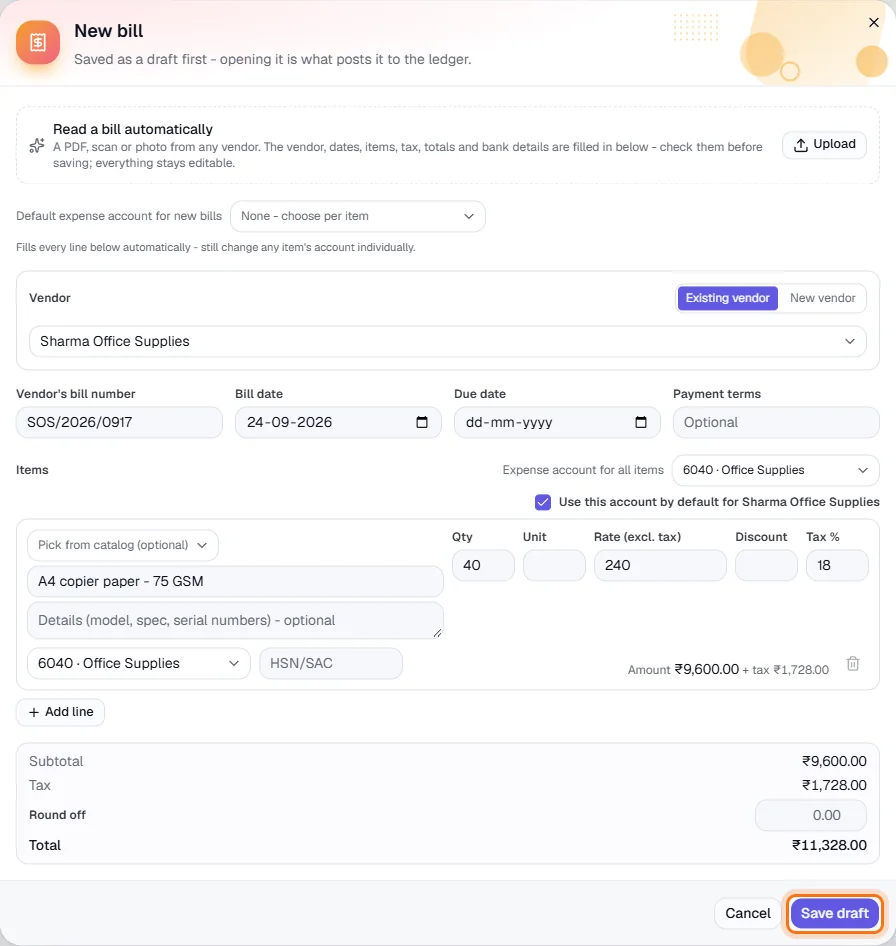
- Every line needs an expense account. Set a default on the vendor, or for the whole bill, and the lines fill in automatically.
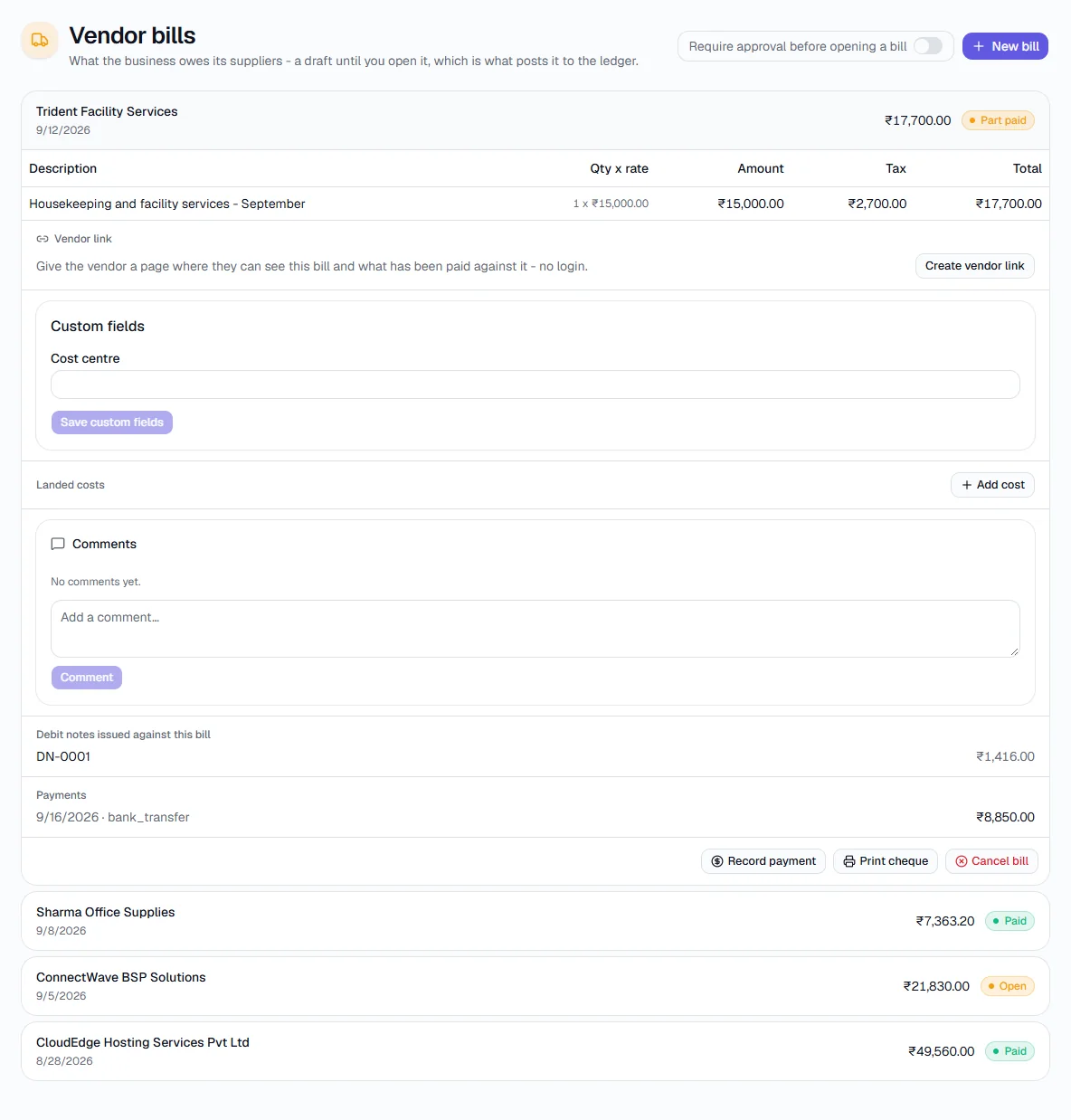
- Payments can be recorded in full or in part - the bill shows Part paid until settled - or paid by printing a cheque. Debit notes reduce what you owe on an open bill.
- A workspace can require approval before a bill is opened.
Step by step
Every screenshot is from the live demo. The highlighted button is the one to click - nothing here is saved in the demo, so you can follow along freely.
- 1
Open Bills
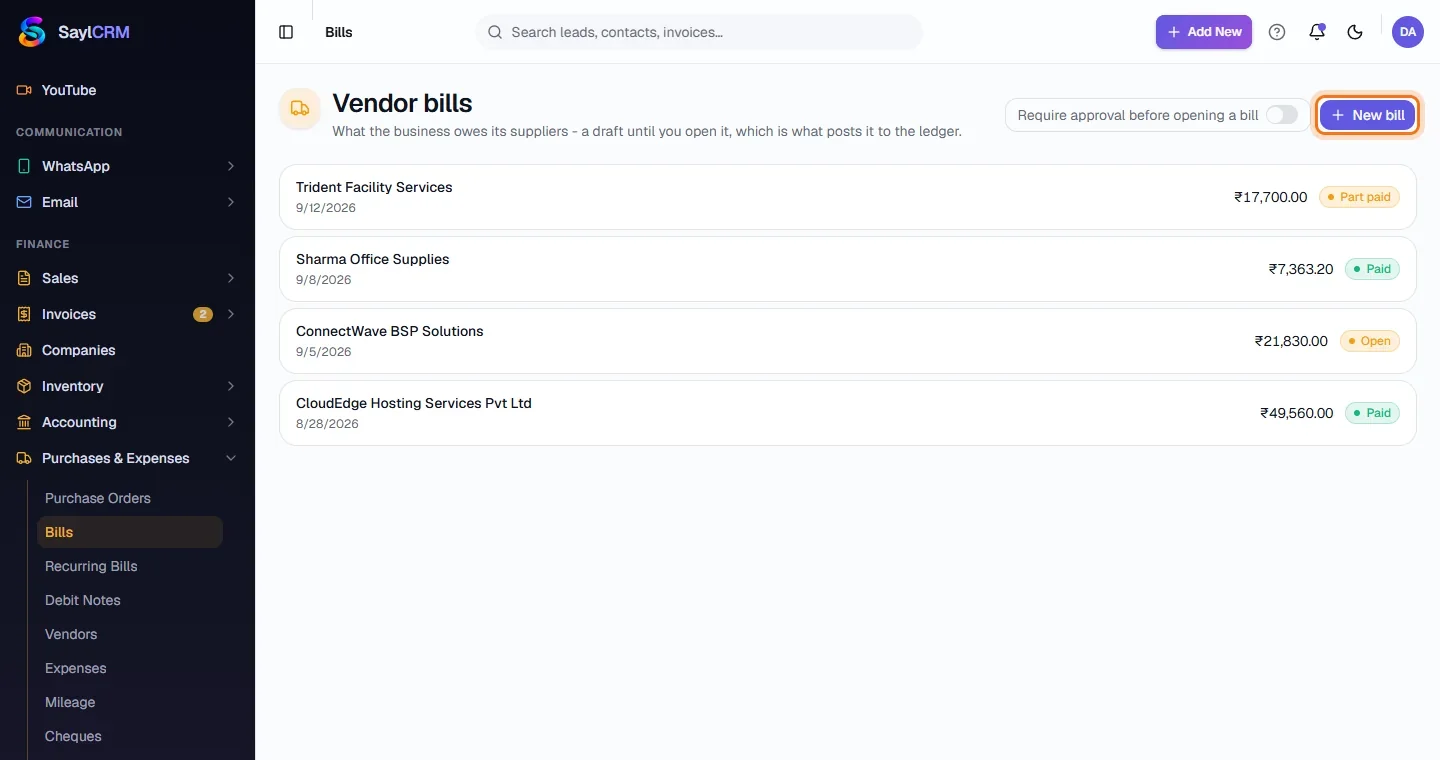
Finance → Purchases & Expenses → Bills. Each bill shows the vendor, date, amount and status - Open, Part paid or Paid.
- 2
Click New bill
The button is at the top right (highlighted). To read a bill from a file, use Upload inside the form.
- 3
Choose the vendor and enter the bill
Pick the vendor (or add a new one on the spot), then the vendor's bill number, bill date, due date and payment terms.
- 4
Add items and expense accounts
Enter each item with quantity, rate, discount and tax %, and choose its expense account. The subtotal, tax and total update as you go.
- 5
Save the draft, then open it
Click Save draft (highlighted). Opening the bill posts it to the ledger.
- 6
Record the payment
Open a bill to see its lines, payments, comments and any debit notes. Record payment settles it in full or part; Print cheque pays it by cheque; Create vendor link gives the vendor a no-login page showing the bill and what has been paid.
Key fields
- Vendor's bill number
- Exactly as printed on the vendor's bill.
- Expense account
- Where the cost is booked in the ledger.
- Round off
- Adjusts the total to match the vendor's bill exactly.
Tips
- Set a default expense account on each vendor so recurring suppliers post correctly with no extra clicks.