
Finance, GST & Accounting · Purchases & Expenses
Email Forwarding
Forward supplier bills, receipts and bank statements to your own Sayl address and they are read for you - as draft bills and expenses awaiting approval.
What it is for
Email Forwarding lets your bills, receipts and statements arrive by email instead of being typed in. Forward a document to your private Sayl address, or connect a mailbox, and it is read for you - a supplier bill becomes a draft bill, a receipt becomes an expense, a bank statement is filed.
It is built to save typing, not to remove checking: drafts and approvals only, and nothing posts to your books by itself.
How it works
- Your workspace gets three private addresses - one for bills, one for receipts, one for statements. The address itself (it contains a long random code) is what routes a message to your workspace, so keep it out of public places; if it leaks, replace it and the old one stops working at once.
- What happens depends on the address you used. A bill becomes a draft vendor bill for you to check and open. A receipt becomes an expense waiting for your approval - it is never posted until a person approves it. A statement is filed and you are told; it is never turned into a bill or expense.
- Only people in your workspace can always forward documents. Anyone else - your accountant, a supplier's billing desk - must be added under Who can send; mail from anyone else is turned away and shown as “Sender not allowed”.
- The same file is never processed twice: a document that has already been received is marked Duplicate and points to the record it created.
- As an alternative to forwarding, you can connect a mailbox (Outlook / Microsoft 365 or Gmail / Google Workspace) with a normal sign-in. Sayl gets read-only access to the one folder you choose, sees only mail that arrives after you choose it, never stores your password, and you can disconnect at any time.
Step by step
Every screenshot is from the live demo. The highlighted button is the one to click - nothing here is saved in the demo, so you can follow along freely.
- 1
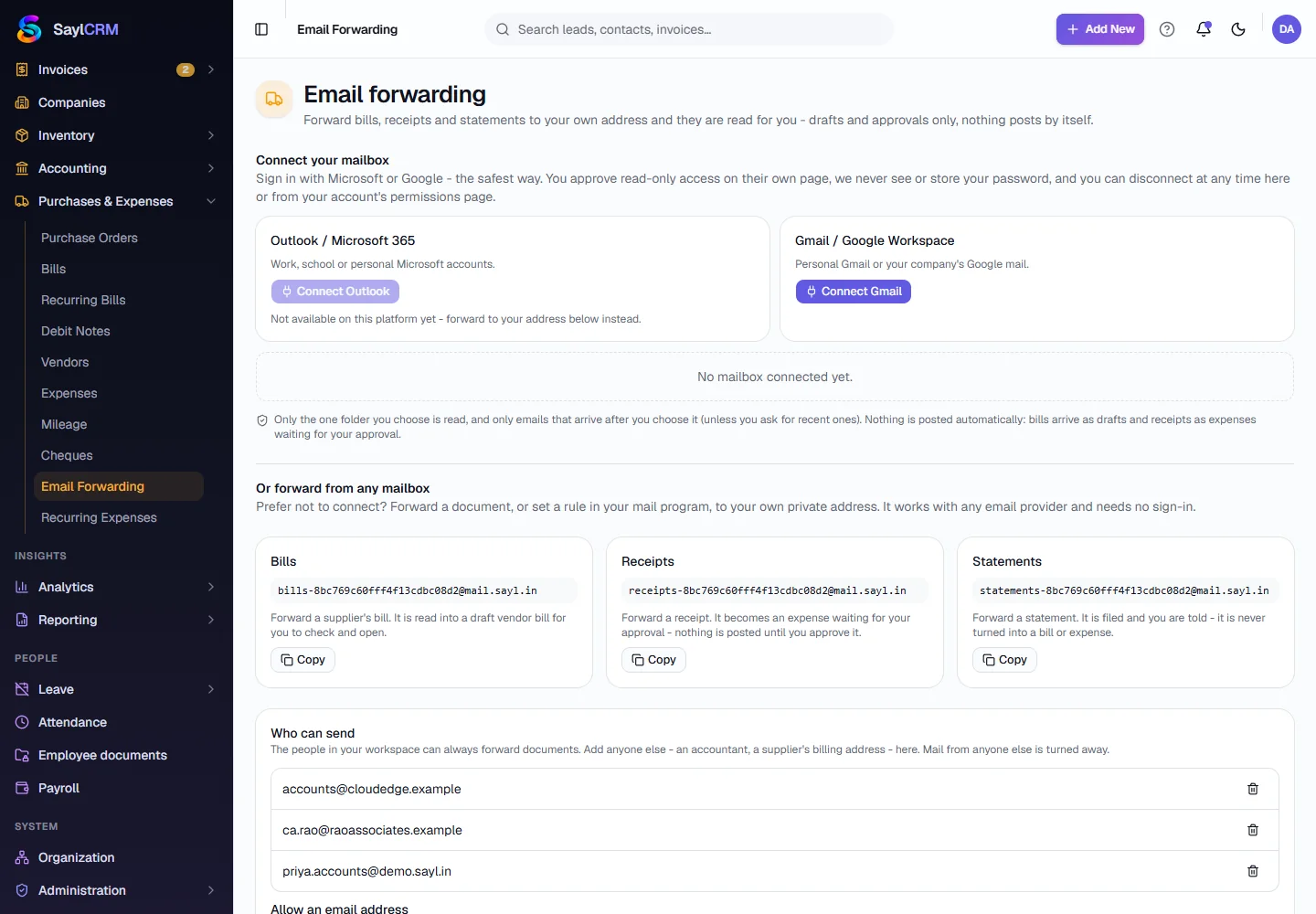
Open Email Forwarding
Finance → Purchases & Expenses → Email Forwarding. The page has three parts: connecting a mailbox, your forwarding addresses and who may use them, and a log of everything that has arrived.
- 2
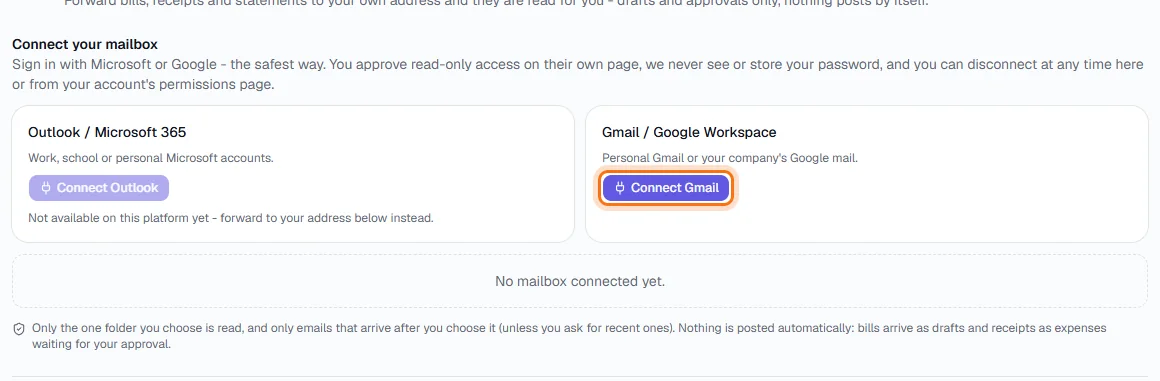
Decide how documents will reach Sayl
You can connect a mailbox - click Connect Gmail (or Connect Outlook) and approve read-only access on the provider's own page - or skip that and simply forward. Connecting suits a shared accounts@ inbox; forwarding works with any email provider and needs no sign-in. (A button can be unavailable until the platform administrator has configured that provider, as Outlook is in the demo.)
- 3
Copy your forwarding address
Under Or forward from any mailbox you have one address per document type. Click Copy beside the Bills address, then forward a supplier's invoice to it - or set a rule in your mail program to forward supplier invoices automatically. Use the Receipts address for receipts and the Statements address for bank statements.
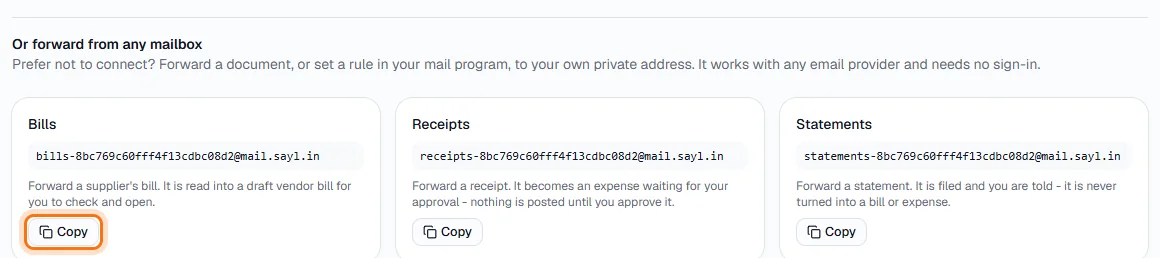
Copy is outlined - one address each for bills, receipts and statements. - 4
Allow other senders
Under Who can send, type the email address of your accountant or a supplier's billing desk and click Allow. Use the bin icon beside an address to stop allowing it. People in your own workspace never need adding.
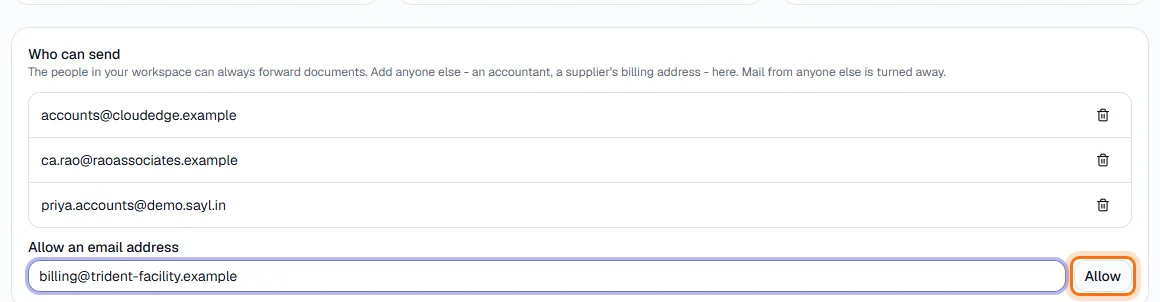
An address typed in, ready to allow - nothing is saved in the demo. - 5
Watch it arrive
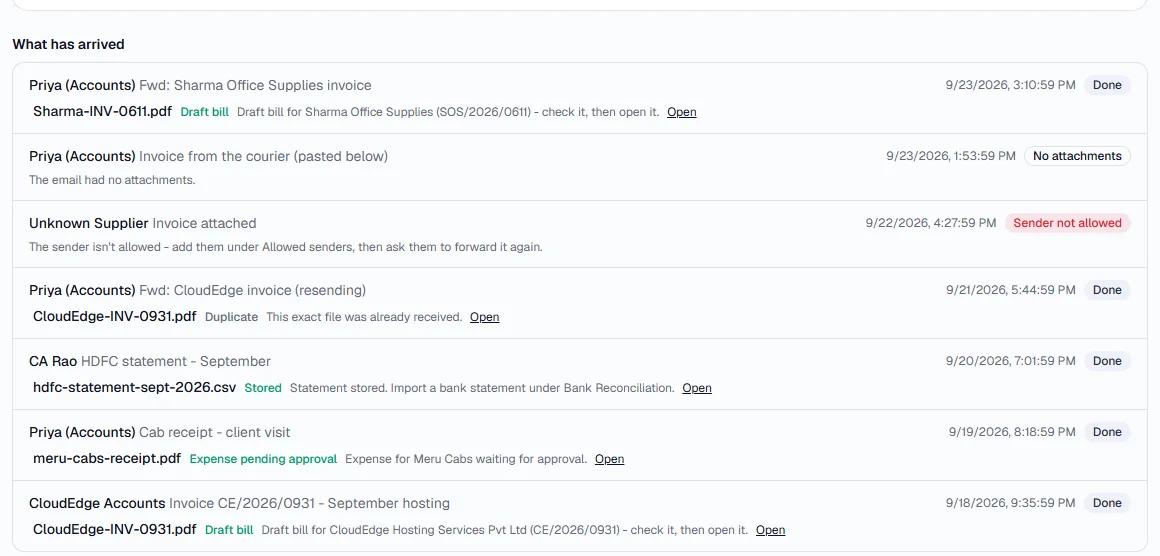
What has arrived lists every email, newest first, with the outcome for each attachment: Draft bill, Expense pending approval, Stored (a statement), or Duplicate (the same file again). An email can also show No attachments - nothing readable was attached - or Sender not allowed, with what to do about it. Click Open beside an item to go to the record it created.
- 6
Check and open the draft bill
A forwarded bill appears in Bills as a Draft with the vendor, the vendor's bill number, the lines and the total already filled in. Open it, check the vendor, the amounts and the expense accounts, then open the bill - opening is what posts it to the ledger.
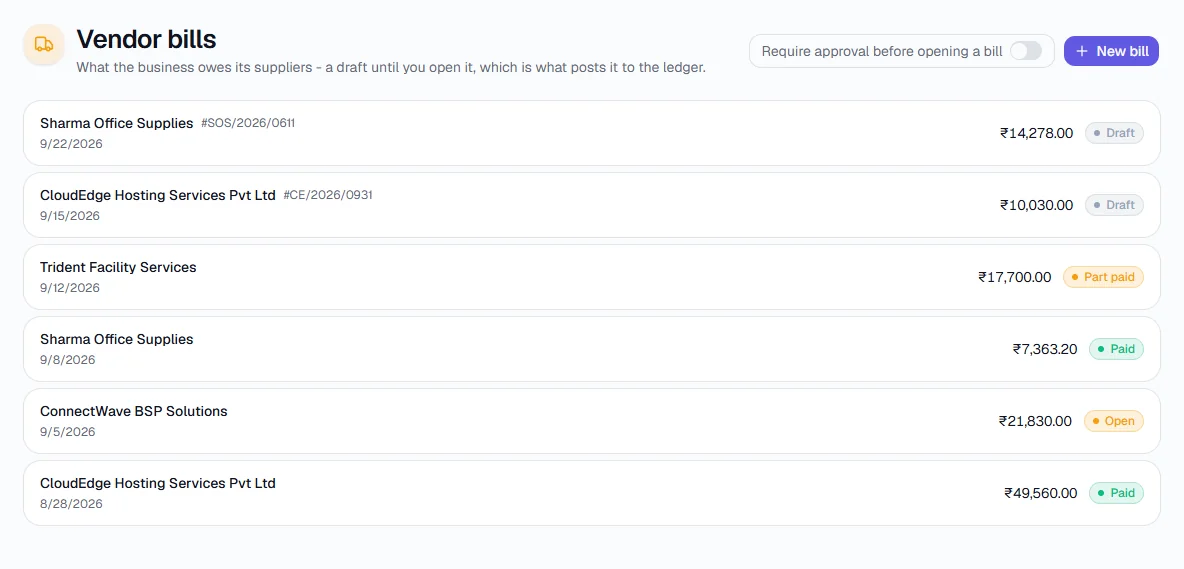
Two drafts created from forwarded emails (Sharma Office Supplies and CloudEdge). - 7
Approve the emailed receipt
A forwarded receipt appears in Expenses as Pending approval, with a note saying who sent it. Check the category and the account it was paid from, then click Approve - or Reject. It is never posted until you do, whatever your approval setting.
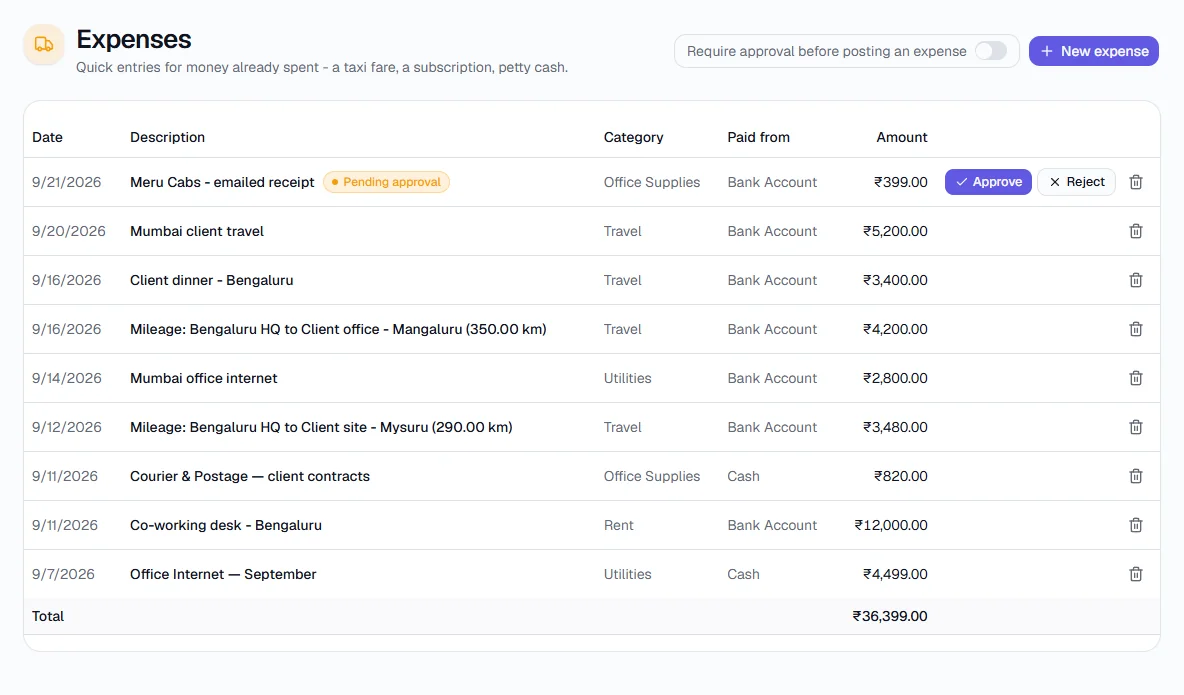
The Meru Cabs receipt is waiting for Approve or Reject. - 8
Statements are filed, not posted
A statement sent to the Statements address is stored and you are notified. It does not create anything in your books: to bring its lines in, import the statement under Bank Reconciliation.
- 9
Replace your addresses, or switch forwarding off
If an address has been shared somewhere it should not be, click Replace my addresses and confirm - new addresses are created and the old ones stop working immediately. Switch off ignores anything sent to your addresses until you switch it back on.

The confirmation is outlined; Keep them cancels it.
Key fields
- Bills / Receipts / Statements address
- Where to forward each kind of document. Each is a private address for your workspace.
- Who can send
- Email addresses allowed to forward, besides the people in your workspace.
- What has arrived
- Every email received, with the outcome of each attachment.
- File limits
- PDF or image files for bills and receipts (statements can also be CSV or Excel), up to 10 attachments per email and 15 MB per file.
Tips
- Set a rule in your mail program to forward supplier invoices to the Bills address, then just check the drafts once a day.
- Ask your accountant to send statements to the Statements address from an address you have allowed.
- Replace your addresses straight away if one is ever posted publicly or forwarded to the wrong person.