Sayl Mail · Admin console
Migrate Microsoft 365 to Sayl Mail
Copy every mailbox in your Microsoft 365 organisation into Sayl in one go, without asking anyone for their password. You create a small read-only app in your own Microsoft Entra, connect it in Sayl, pick the mailboxes, and watch them copy. Nothing is changed or deleted in Microsoft 365.
How it works
There are two separate jobs. Copying the mail does not affect anyone: your people keep using Microsoft 365 as normal while Sayl reads a copy. Changing your DNS is the moment new mail starts arriving at Sayl, so it happens last, after you have checked the copy.
Stage 1
Prepare
Add your domain and create the destination mailboxes in Sayl. Nothing changes for your people.
Stage 2
Create your app
Your Microsoft admin registers a read-only app in Microsoft Entra and approves it once.
Stage 3
Connect and copy
Paste the app's details into Sayl, pick the mailboxes or upload a file, and start.
Stage 4
Check
Watch the live progress, then compare the copy with Microsoft 365.
Stage 5
Switch
Change MX and SPF at your DNS provider. New mail starts arriving at Sayl.
Stage 6
Clean up
Bring over late mail, remove the app, tidy DNS, and close Microsoft 365 when you are sure.
What moves, and what does not
| Item | Moved? | What to do |
|---|---|---|
| Emails with their attachments and original dates | Moved?Yes | What to doNothing. |
| Folders, including folders inside folders | Moved?Yes | What to doCreated in Sayl with the same names. |
| Read and unread, flagged | Moved?Yes | What to doNothing. |
| Drafts and Sent Items | Moved?Yes | What to doNothing. |
| Deleted Items and Junk Email | Moved?No (left out on purpose) | What to doMove anything you want to keep into another folder first. |
| Shared mailboxes | Moved?Yes | What to doThey are listed like any other mailbox. Their sign-in is usually blocked, which does not matter here. |
| Online archive mailboxes | Moved?No | What to doOnly the main mailbox is read. Move what you need into the main mailbox first. |
| Contacts | Moved?No | What to doExport from Outlook, then import the CSV in Sayl webmail under Contacts. |
| Calendars | Moved?No | What to doRe-create future and repeating events in Sayl. |
| Inbox rules, signatures, categories | Moved?No | What to doSet these up again in Sayl webmail. |
| OneDrive, SharePoint, Teams chats | Moved?No | What to doThese are not email and stay in Microsoft 365. |
Another way for a single mailbox: in Sayl, Migrate a single mailbox lets one person sign in to their own Microsoft account instead of using an app. It is handy for one or two mailboxes. For a whole organisation, use the method in this guide.
1Prerequisites
Have these ready before you start. Most of the work is done once, by your Microsoft admin, and takes about 15 minutes.
People and roles
| Who | Needed for | Microsoft role |
|---|---|---|
| Your Microsoft admin | Needed forRegistering the app and creating its client secret (section 2) | Microsoft roleApplication Developer is enough, or Cloud Application Administrator / Application Administrator. |
| Your Microsoft admin | Needed forGranting admin consent to the two permissions (section 3) | Microsoft rolePrivileged Role Administrator or Global Administrator. Microsoft does not let a Cloud Application Administrator or Application Administrator approve Microsoft Graph application permissions. |
| An admin of your organisation in Sayl | Needed forConnecting the app, choosing mailboxes, starting and checking | Microsoft roleNone (this is a Sayl account). |
| Whoever manages your domain | Needed forChanging DNS at cutover (section 9) | Microsoft roleAccess to your DNS provider, which is often not Microsoft. |
Never send anyone your Microsoft 365 password, including Sayl staff. This method does not use passwords at all. Sayl will never ask for one.
Microsoft 365 checks
| Check | Where (Microsoft 365 admin center) | Why |
|---|---|---|
| Each mailbox to move has an Exchange Online licence | Where (Microsoft 365 admin center)Users → Active users → (person) → Licenses and apps | WhyA mailbox without a licence cannot be read. Keep licences until the move is finished. |
| List of mailboxes and their addresses | Where (Microsoft 365 admin center)Users → Active users → Export users | WhyBecomes your plan, and your mapping file if you use bulk upload. |
| Size of each mailbox | Where (Microsoft 365 admin center)Reports → Usage → Exchange → Mailbox usage | WhyEach Sayl mailbox needs more storage than its Microsoft 365 size. |
| Shared mailboxes | Where (Microsoft 365 admin center)Teams & groups → Shared mailboxes | WhyThey can be copied too. Create a Sayl mailbox for each. |
| Your domains | Where (Microsoft 365 admin center)Settings → Domains | WhyThe same domain is added in Sayl. |
Sayl checks
- 1Your domain is added in Sayl under Organization → Domains. It shows Pending DNS until your MX record moves at cutover. That is normal, and you can migrate before then.
- 2A Sayl mailbox exists for every Microsoft 365 mailbox you are moving, under Organization → Users, with enough storage.
- 3You can sign in to the Sayl admin console as an admin of your organisation.
2Register your app in Microsoft Entra
The app is your organisation’s own key for Sayl. It lives in your Microsoft Entra, only you control it, and you can delete it at any time. You will copy three values from it into Sayl: the Application (client) ID, the Directory (tenant) ID and a client secret.
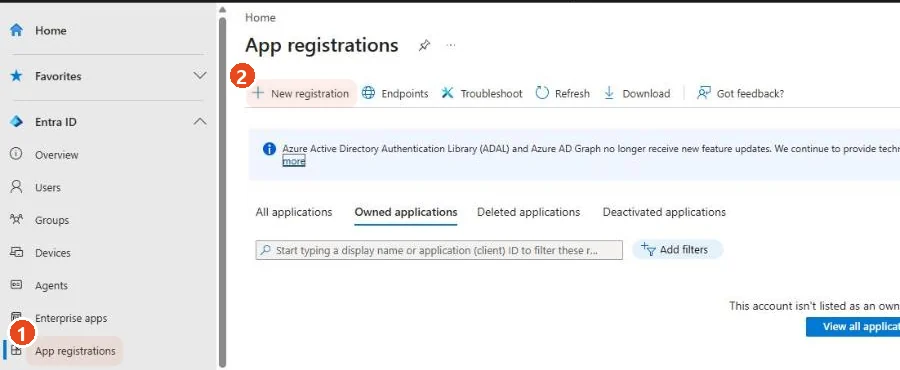
- 1Sign in to the Microsoft Entra admin center and go to Entra ID → App registrations.
- 2Click New registration.
Expected result: The Register an application form opens.
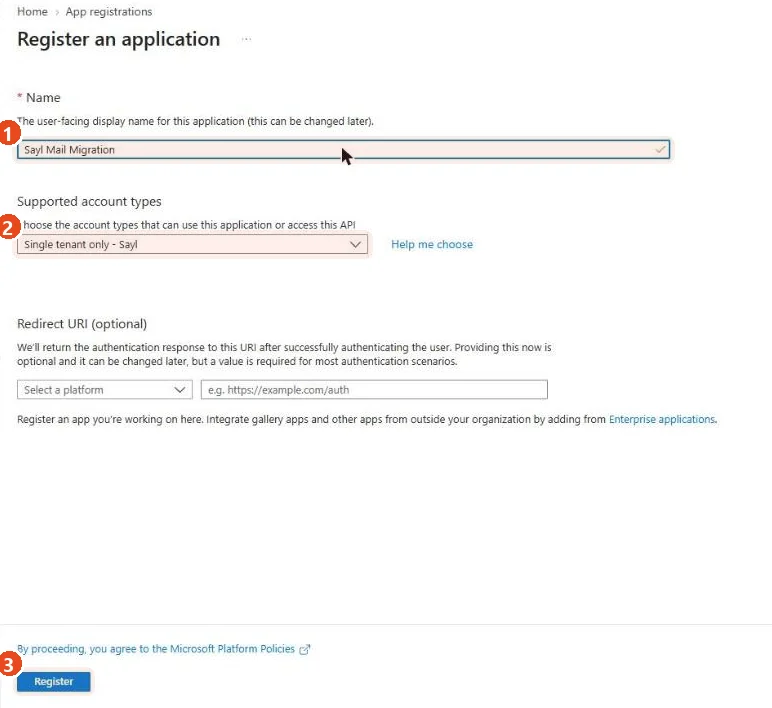
- 1Name: any name your admins will recognise, for example
Sayl Mail Migration. - 2Supported account types: keep Single tenant only - (your organisation). Some Microsoft screens still call it Accounts in this organizational directory only. Leave Redirect URI empty, because Sayl does not need one.
- 3Click Register.
Expected result: The new app opens on its Overview page.

- 1Copy the Application (client) ID.
- 2Copy the Directory (tenant) ID. Use the copy icon that appears when you point at a value.
Expected result: You have two values that look like 00000000-0000-0000-0000-000000000000. Do not use the Object ID.
Our example app is set to Multiple organizations. Yours shows Single tenant, which is correct.
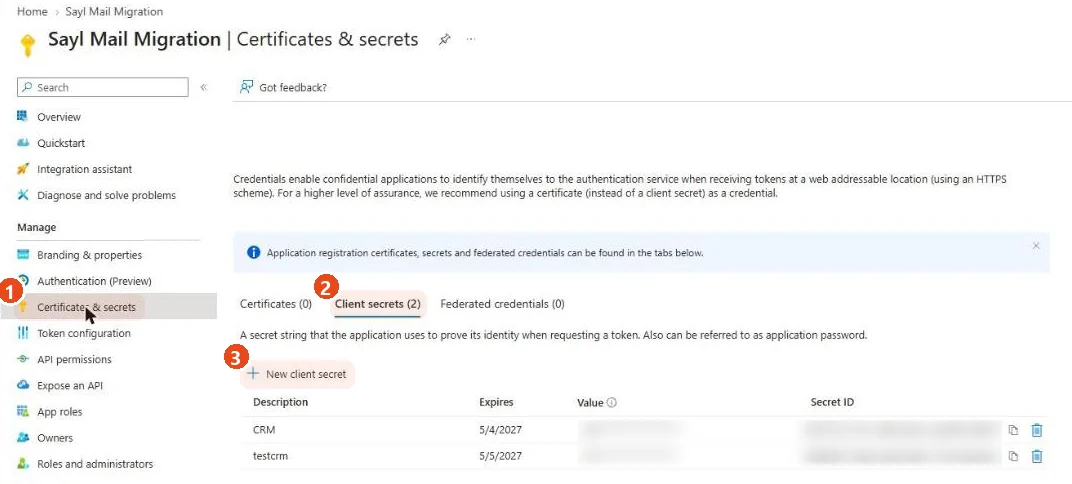
- 1In the app’s menu, open Certificates & secrets.
- 2Select the Client secrets tab.
- 3Click New client secret.
Expected result: The Add a client secret panel opens on the right.
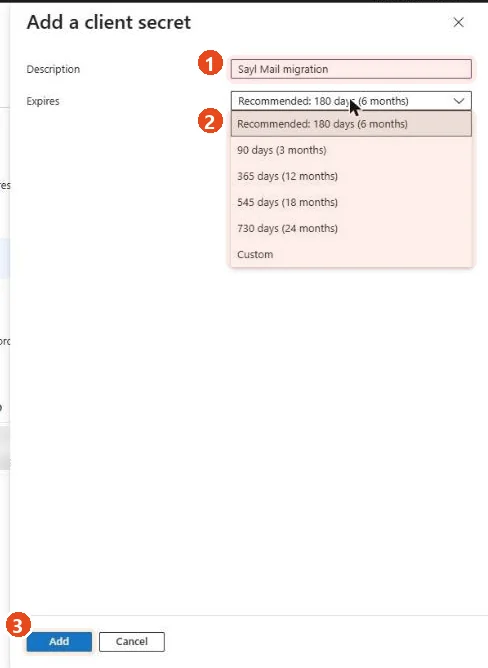
- 1Description: for example
Sayl Mail migration. - 2Expires: keep Recommended: 180 days (6 months), or choose the time your migration needs. Microsoft allows at most 24 months and recommends less than 12.
- 3Click Add.
Expected result: The secret appears in the list. Copy the Value column straight away. Microsoft shows it only once, and after you leave the page it is hidden for good. Do not copy the Secret ID: that is a different value and Sayl will refuse it.
3Microsoft Graph permissions
Sayl reads your mailboxes through Microsoft Graph. It needs exactly two application permissions, both read-only. These are the only Microsoft Graph calls Sayl makes: it lists your people, then reads each selected mailbox’s folders and messages.
Required (add both)
| Permission | Type | Microsoft's description | What Sayl uses it for |
|---|---|---|---|
Mail.Read | TypeApplication | Microsoft's descriptionRead mail in all mailboxes | What Sayl uses it forRead the folders and messages of the mailboxes you choose, so they can be copied. It cannot send, change or delete mail. |
User.Read.All | TypeApplication | Microsoft's descriptionRead all users' full profiles | What Sayl uses it forList the people in your organisation and their email addresses, so you can pick mailboxes and Sayl can check your file. |
Not needed (do not add)
| Permission | Why Sayl does not need it |
|---|---|
Mail.ReadWrite | Why Sayl does not need itAllows changing and deleting mail. Sayl only reads, so this would give far more access than necessary. |
Mail.Send | Why Sayl does not need itAllows sending mail as anyone. Sayl never sends mail from Microsoft 365. |
MailboxSettings.Read | Why Sayl does not need itNot used by the organisation method. |
offline_access | Why Sayl does not need itA delegated permission for signed-in people. Application permissions do not use it. |
Microsoft adds the delegated User.Read permission to every new app. Sayl does not use it. You can leave it or remove it.
Delegated or application permissions?
| Delegated permissions | Application permissions | |
|---|---|---|
| Who is acting | Delegated permissionsA signed-in person. Only that person's mailbox can be read. | Application permissionsThe app itself, with no one signed in. It can read the mailboxes the permission covers. |
| Who approves | Delegated permissionsEach person, or an admin for everyone. | Application permissionsAlways an admin (Privileged Role Administrator or Global Administrator). |
| Used by | Delegated permissionsSayl's Migrate a single mailbox option. | Application permissionsThis guide: whole-organisation migration without passwords. |
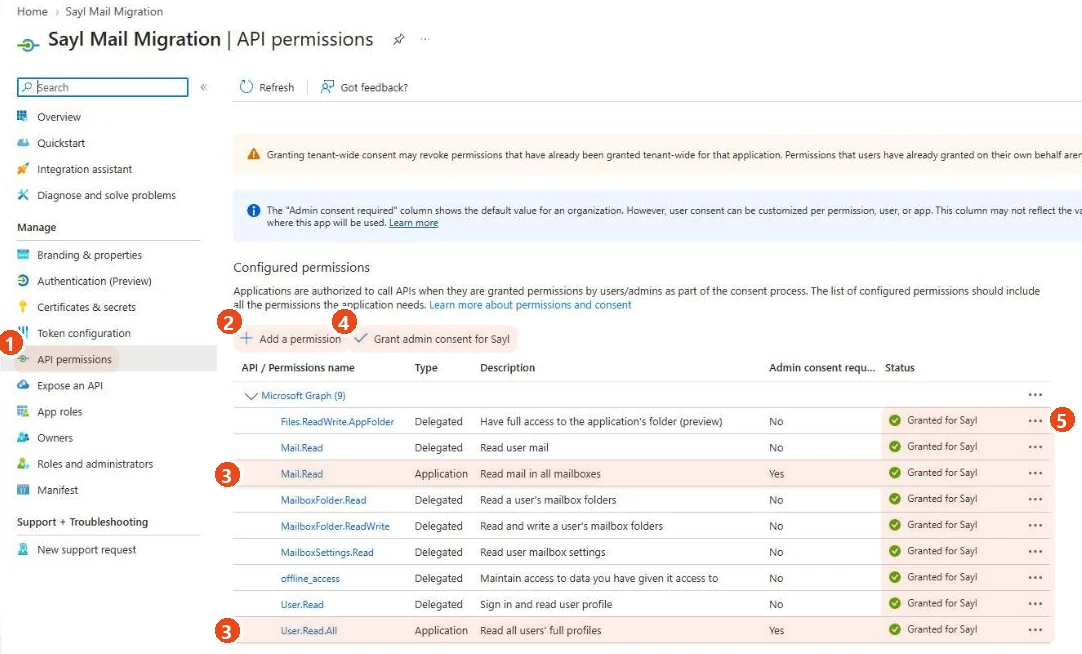
- 1In the app’s menu, open API permissions.
- 2Click Add a permission and follow 3.2 to 3.4.
- 3When you are done, the list shows
Mail.ReadandUser.Read.Allwith type Application. - 4Click Grant admin consent for (your organisation) (3.5).
- 5Check the Status column.
Expected result: Both Application permissions show a green tick and Granted for (your organisation).
Our example app has extra delegated permissions that a different Sayl feature uses. Your app needs only the two Application permissions.
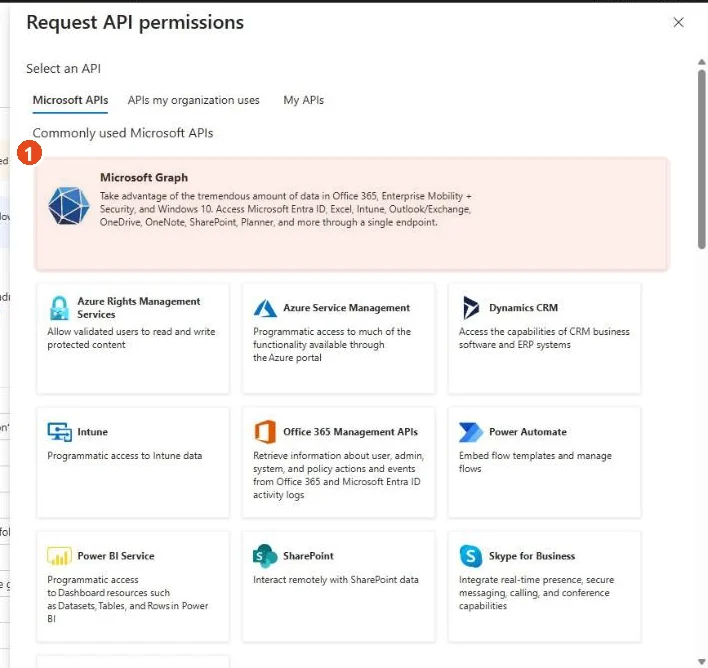
- 1On the Microsoft APIs tab, click Microsoft Graph.
Expected result: Microsoft asks what type of permissions your application requires.
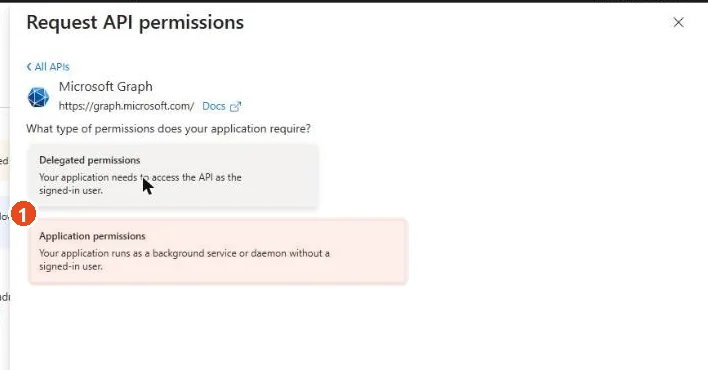
- 1Click Application permissions (“Your application runs as a background service or daemon without a signed-in user”). Not Delegated.
Expected result: A searchable list of permissions appears under Select permissions.
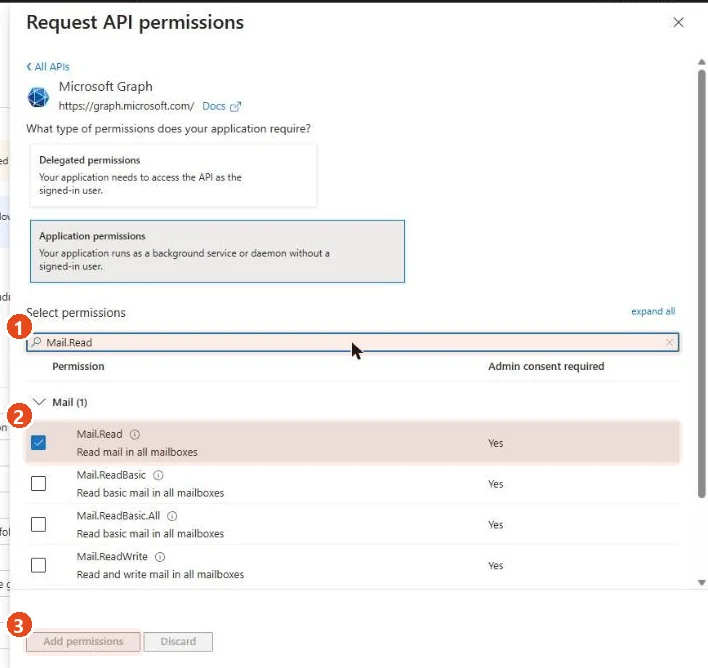
- 1Type
Mail.Readin the search box. - 2Open Mail and tick Mail.Read (“Read mail in all mailboxes”). Do not tick Mail.ReadWrite or Mail.ReadBasic.
- 3Now search for
User.Read.All, open User and tick it (next picture). Then click Add permissions once.
Expected result: The panel closes and both permissions are listed under Configured permissions, still Not granted.
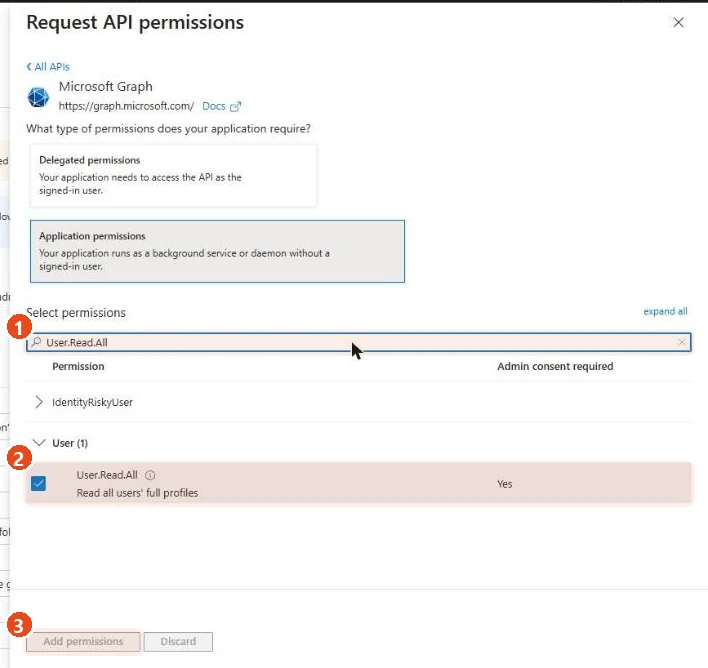
- 1Search for
User.Read.All. - 2Tick User.Read.All (“Read all users’ full profiles”).
- 3Click Add permissions.
Expected result: Both permissions appear in the list.
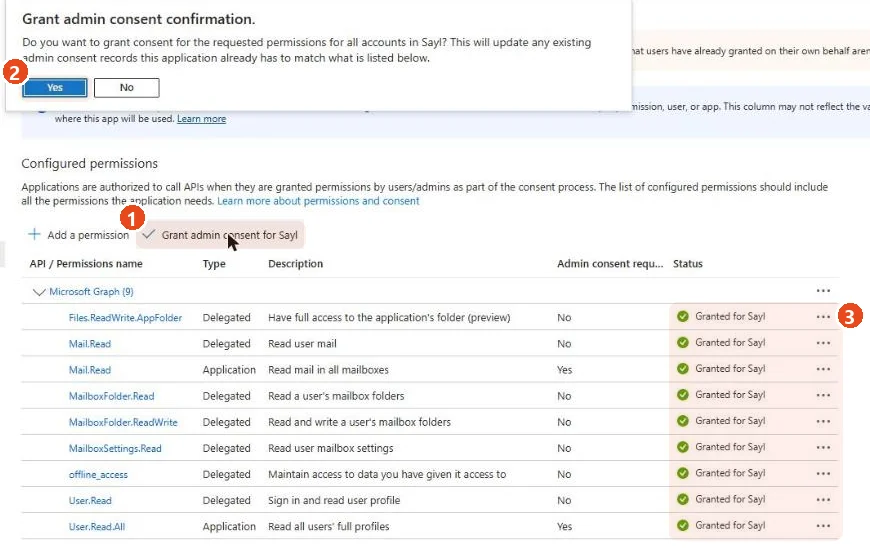
- 1As a Privileged Role Administrator or Global Administrator, click Grant admin consent for (your organisation). If the button is greyed out, your account does not have one of these roles.
- 2Read the confirmation and click Yes.
- 3Click Refresh and check the Status column.
Expected result: Mail.Read and User.Read.All show Granted for (your organisation). Your Microsoft setup is complete.
4Security
Minimum access
- Only the two read-only application permissions in section 3. Nothing that can send, change or delete mail.
- Your app works only in your own directory (Single tenant). No other organisation can use it.
- In Sayl, the app belongs to your organisation alone. Other Sayl customers can never see or use it, and Sayl staff do not need it.
- Microsoft 365 passwords are never used, typed or stored.
Handling the client secret
- Paste it directly from Microsoft into Sayl. Do not email it, chat it, put it in a ticket or save it in a shared document.
- Sayl tests it with Microsoft before saving, stores it encrypted, and never shows it again. Not even your own admins can read it back.
- Use a short expiry, ideally 6 months, and write the expiry date in your calendar.
- To renew it: create a new secret in Microsoft (2.4), click Replace secret in Sayl and paste the new Value, then delete the old secret in Microsoft.
- If you think a secret was exposed, delete it in Microsoft straight away. Sayl stops working with it at once, and nothing else is affected.
Optional: limit the app to certain mailboxes
Mail.Read as an application permission covers every mailbox in your organisation. If only some mailboxes should be readable, an Exchange administrator can use RBAC for Applications in Exchange Online (it replaces the older application access policies). There, you grant the Application Mail.Read role scoped to a group of mailboxes, and then remove the organisation-wide Mail.Read consent in Entra. If you keep both, the scope has no effect. Keep User.Read.All in Entra. Changes can take up to 2 hours. Mailboxes outside the scope still appear in Sayl’s list, but Sayl reports them as “not allowed to read this mailbox”.
Common mistakes
| Mistake | Result | Do this instead |
|---|---|---|
| Copying the Secret ID instead of the Value | ResultSayl shows: the client secret is wrong | Do this insteadCopy the Value column, right after creating the secret. |
| Adding Delegated instead of Application permissions | ResultSayl cannot list your users | Do this insteadAdd Mail.Read and User.Read.All as Application permissions. |
| Forgetting Grant admin consent | ResultMicrosoft refuses Sayl's requests | Do this insteadClick Grant admin consent and check that the status says Granted. |
| Adding Mail.ReadWrite or Mail.Send "to be safe" | ResultMore access than needed | Do this insteadRemove them. Sayl only reads. |
| Copying the Object ID instead of the Application (client) ID | ResultSayl shows: client ID not found | Do this insteadUse the Application (client) ID from Overview. |
| Letting the secret expire during a migration | ResultCopying stops with an error | Do this insteadRenew before the expiry date with Replace secret. |
5Connect Microsoft 365 to Sayl
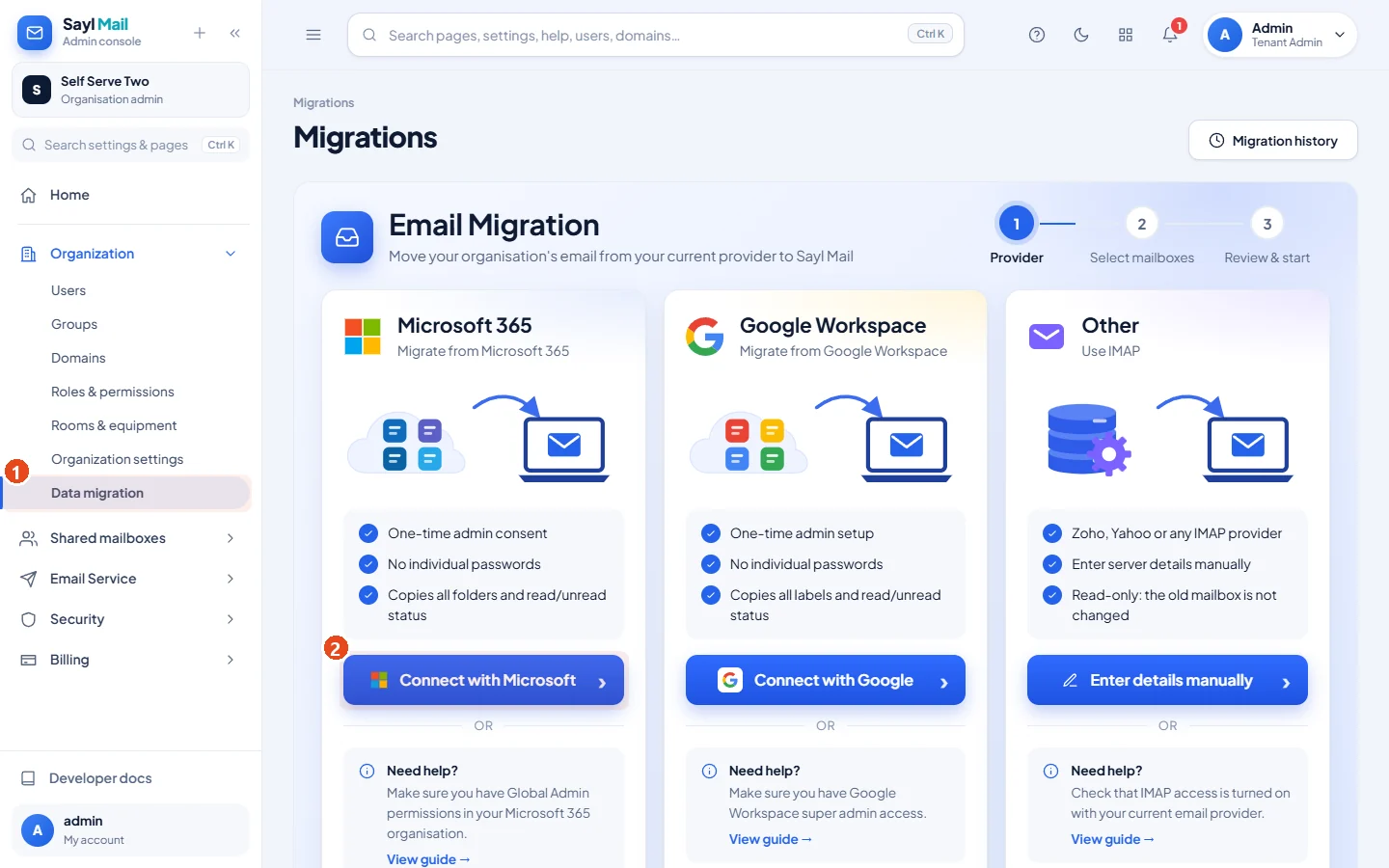
- 1Sign in at admin.sayl.in and open Organization → Data migration.
- 2On the Microsoft 365 card, click Connect with Microsoft.
Expected result: The Microsoft 365 migration screen opens, with Step 1 (your organisation's Microsoft app) at the top.
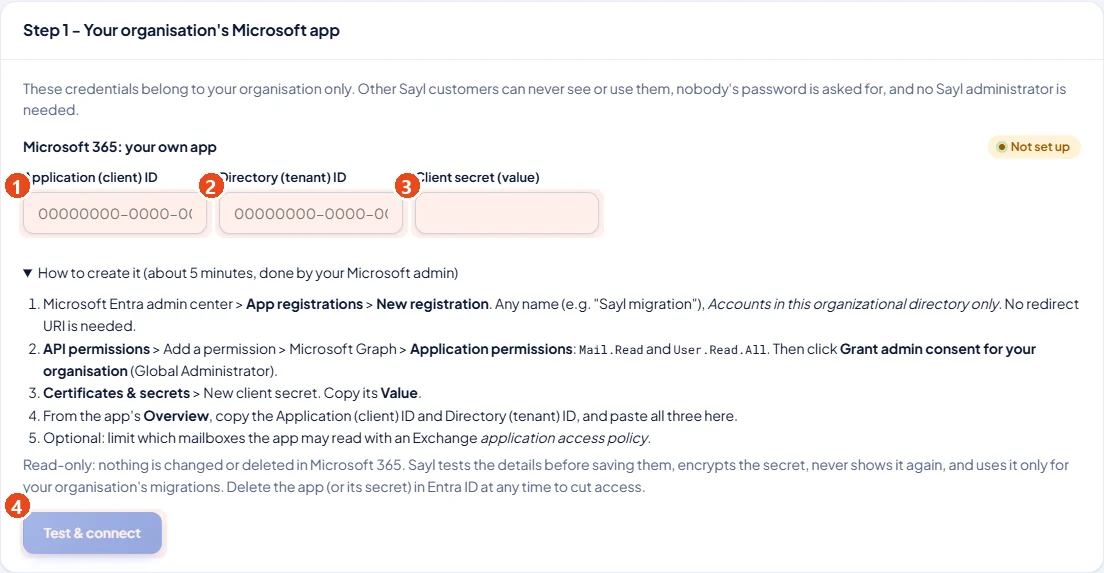
- 1Application (client) ID from 2.3.
- 2Directory (tenant) ID from 2.3.
- 3Client secret (value) from 2.5.
- 4Click Test & connect. Sayl asks Microsoft for access with these details and lists your users once, before saving anything.
Expected result: Step 1 shows Connected (5.3). If Microsoft refuses, nothing is saved and Sayl says which value is wrong (below).
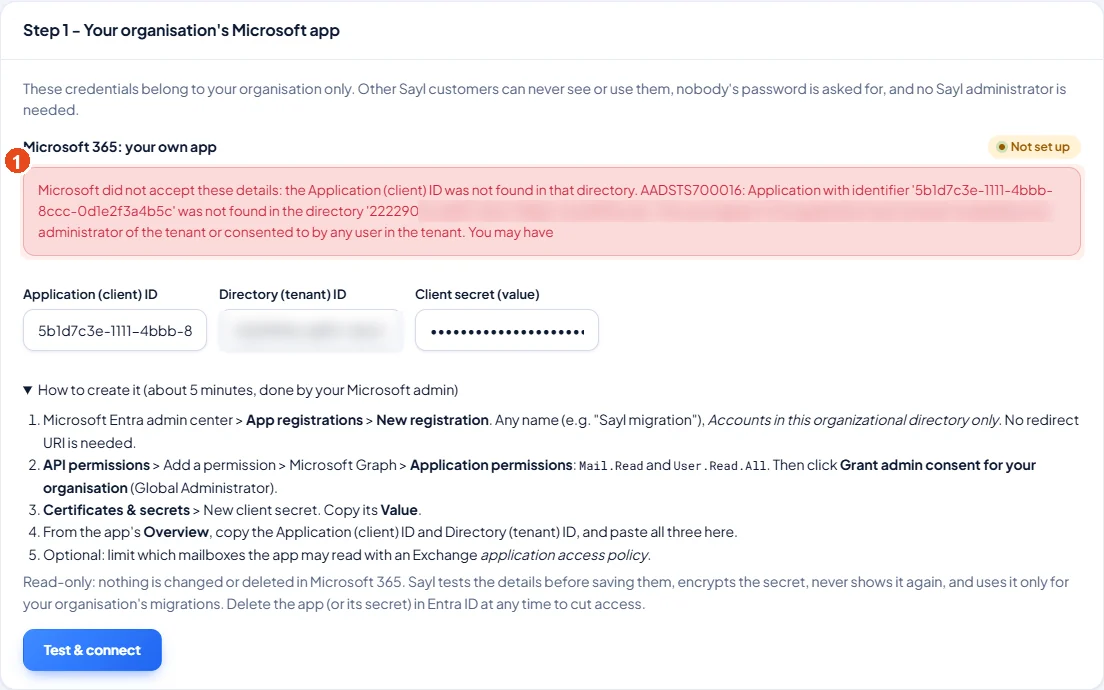
- 1Sayl shows Microsoft’s own answer and what it means. Here, a made-up client ID: “the Application (client) ID was not found in that directory. AADSTS700016”. Fix the value and click Test & connect again. Section 10 lists every message.
Expected result: Nothing is saved until Microsoft accepts all three values.
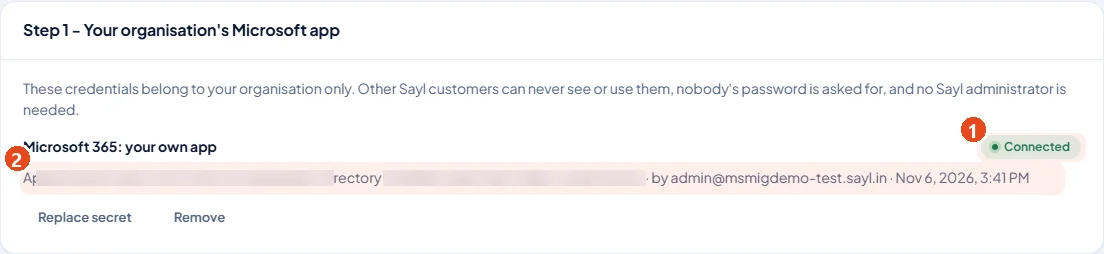
- 1The badge says Connected.
- 2Sayl shows which app and directory are in use, who connected them, and when. The secret is never shown. Use Replace secret when it is renewed, or Remove to stop Sayl using the app.
Expected result: Your Microsoft 365 organisation is connected. Now choose the mailboxes.
6Choose mailboxes and start
Start with one test mailbox, check it (section 8), then do the rest. There are two ways to choose mailboxes: pick them from your directory (best for up to a few dozen), or upload a mapping file (best for hundreds).
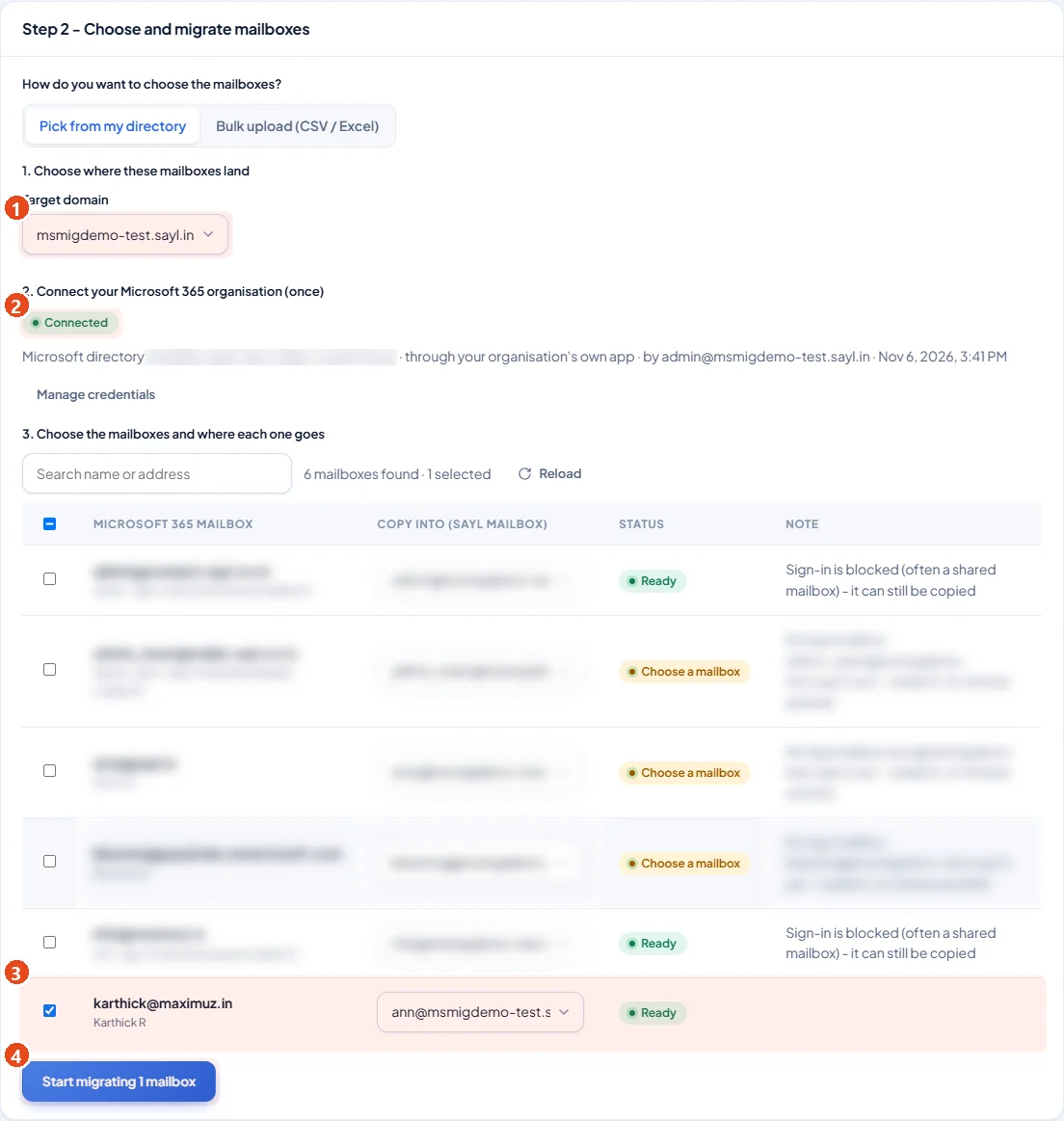
- 1Target domain: your domain in Sayl. Sayl suggests a destination with the same name on that domain for every Microsoft 365 mailbox.
- 2Check that the organisation shows Connected.
- 3Tick the mailboxes to copy, and check each Copy into (Sayl mailbox). Change it if the person has a different address in Sayl. Ready means it can start. Choose a mailbox means there is no Sayl mailbox with that name yet: create it, or pick another. Already migrating means it is in another migration.
- 4Click Start migrating N mailboxes.
Expected result: Sayl opens the batch page and the copy begins at once. All selected mailboxes run together, and each has its own progress.
Each Sayl mailbox takes one source mailbox, so mail from two people never mixes.
6.2 Or: bulk upload from a CSV or Excel file
For many mailboxes, prepare a file with two columns, Source Email (the Microsoft 365 address) and Destination Email (the Sayl address). It can be CSV or Excel (.xlsx) and hold up to 5,000 rows. Click Download template for an example.
Source Email,Destination Email
[email protected],[email protected]
[email protected],[email protected]
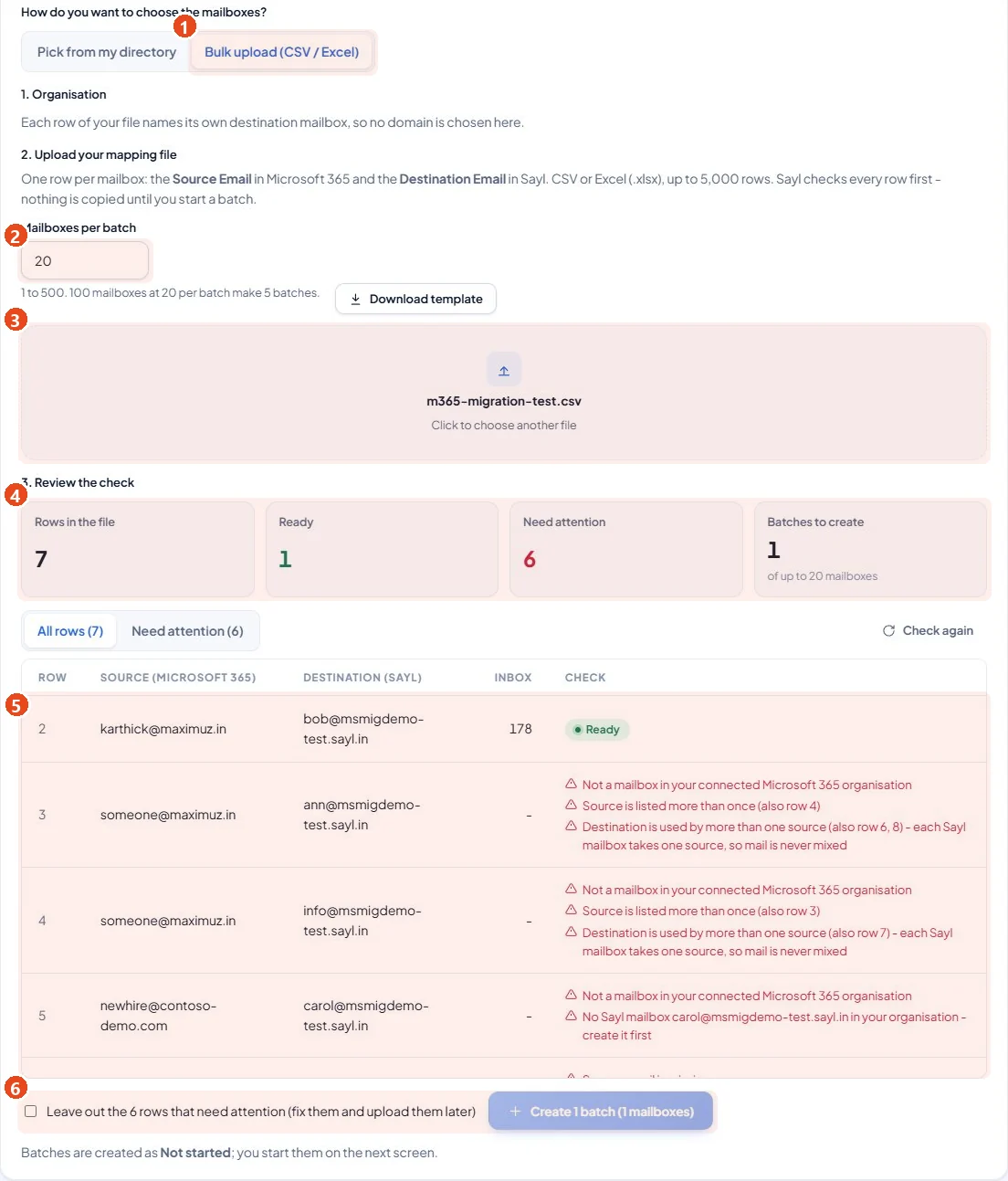
- 1In Step 2, choose Bulk upload (CSV / Excel).
- 2Mailboxes per batch: for example 20. 100 rows at 20 per batch make 5 batches.
- 3Drop your file in the box, or click to choose it. Sayl checks every row straight away. Nothing is copied yet.
- 4Read the summary: rows in the file, Ready, Need attention, and the number of batches.
- 5Each row that needs attention says why: missing or invalid address, listed twice, a destination used by two sources, no such Sayl mailbox, not in your Microsoft 365, or Sayl cannot open the mailbox. Fix the file and click Check again.
- 6To go ahead with only the ready rows, tick Leave out the rows that need attention, then click Create N batches.
Expected result: The batches are created as Not started, and the upload overview opens.
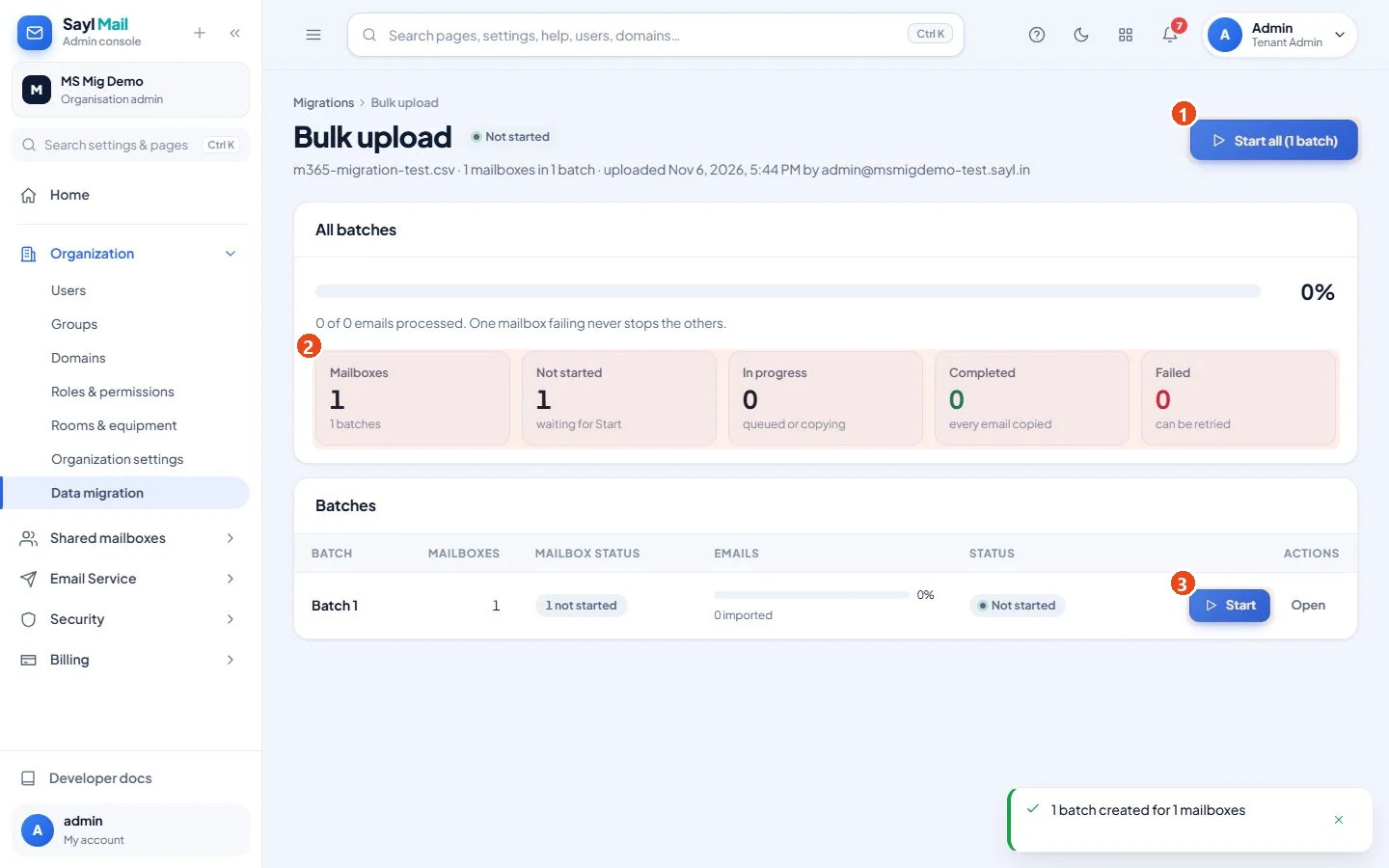
- 1Start all starts every batch.
- 2The totals show mailboxes not started, in progress, completed and failed, across all batches.
- 3Or start one batch at a time with its own Start button. A batch that is not started copies nothing.
Expected result: The started batches begin copying. Sayl copies a limited number of mailboxes at the same time; the rest show Queued and start on their own.
7Monitor progress
Every page refreshes itself every few seconds, so there is no need to reload. You can close the page: the copy carries on in Sayl.
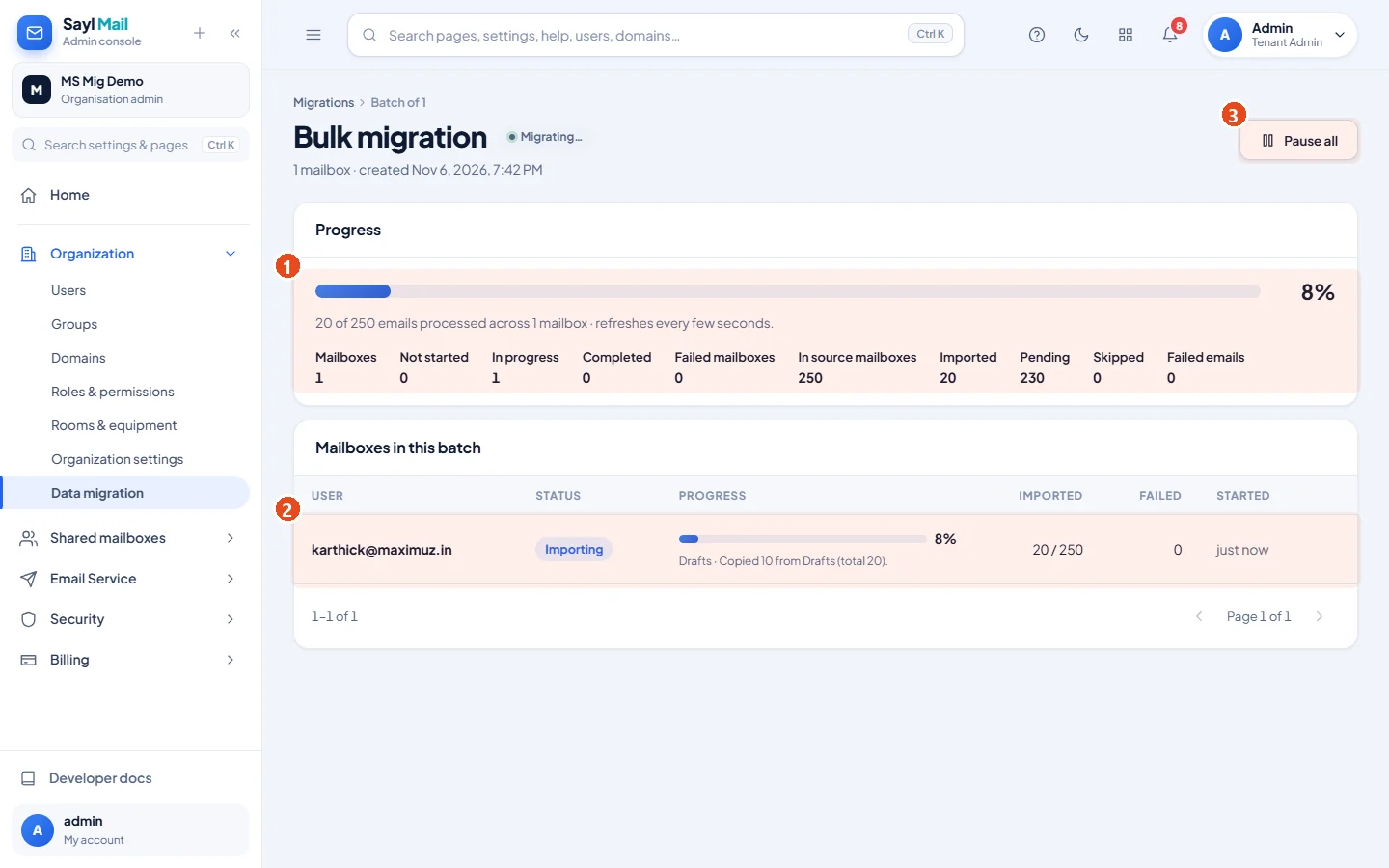
- 1Overall progress with the number of mailboxes not started, in progress, completed and failed, and the emails found, imported, pending and failed.
- 2One line per mailbox, with its status, percentage, current folder and latest activity. Click it to open the mailbox page.
- 3Pause all stops copying until you resume. Nothing already copied is lost.
Expected result: You can see at a glance which mailboxes are done and which need attention.
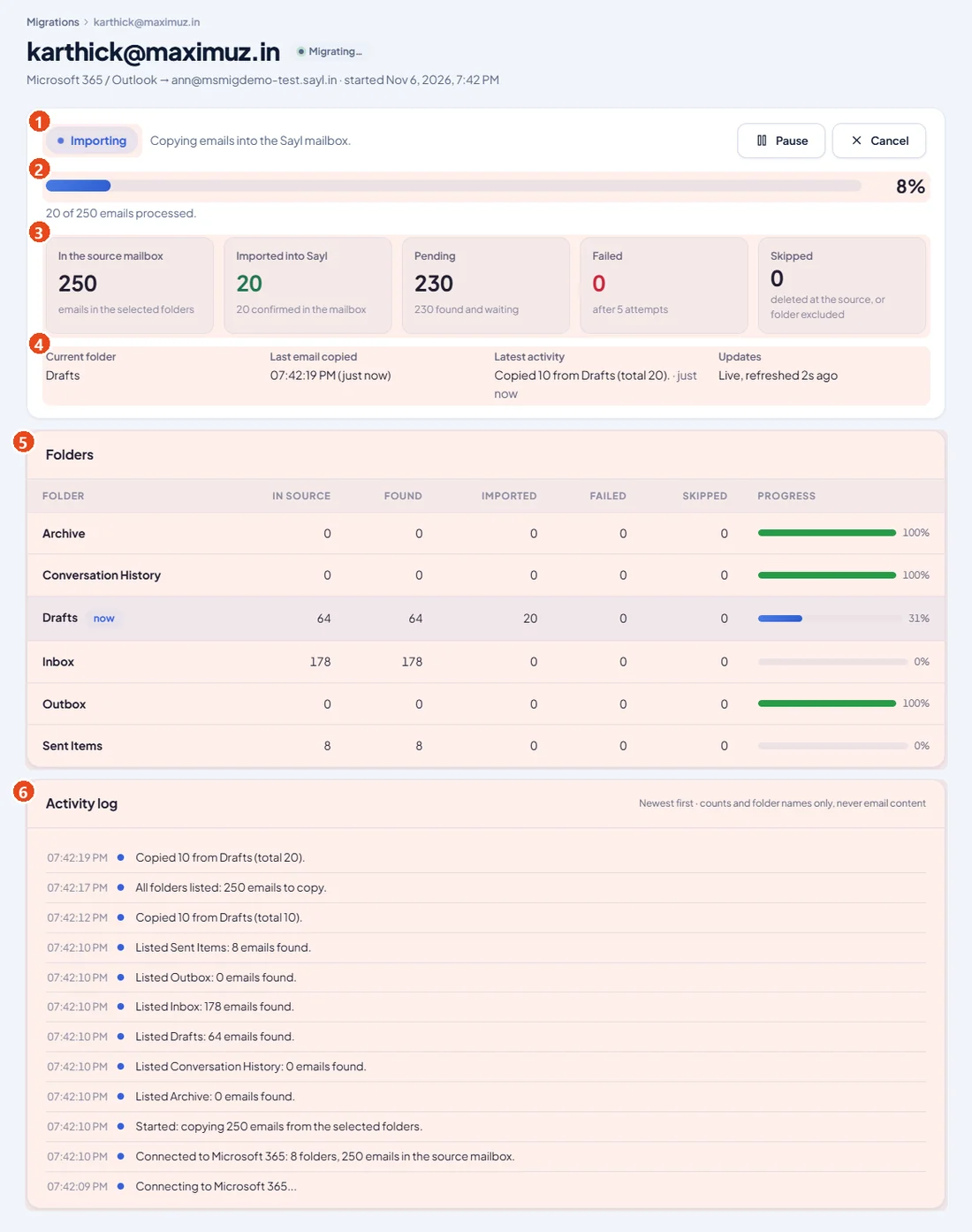
- 1Status: Queued, Connecting, Running (finding emails), Importing, Paused, Completed, Completed with errors, Failed or Cancelled.
- 2Percentage of emails processed, out of all emails in the selected folders.
- 3In the source mailbox, Imported into Sayl (with the number confirmed in the Sayl mailbox), Pending, Failed and Skipped.
- 4The folder being copied now, when the last email arrived in Sayl, and the latest activity.
- 5Each folder: emails in Microsoft 365, found, imported, failed and skipped.
- 6The activity log: everything that happened, newest first. It shows counts and folder names only, never email content.
Expected result: If nothing changes for 3 minutes, an orange box explains why, for example a retry time or Microsoft asking Sayl to slow down.
8Check the result
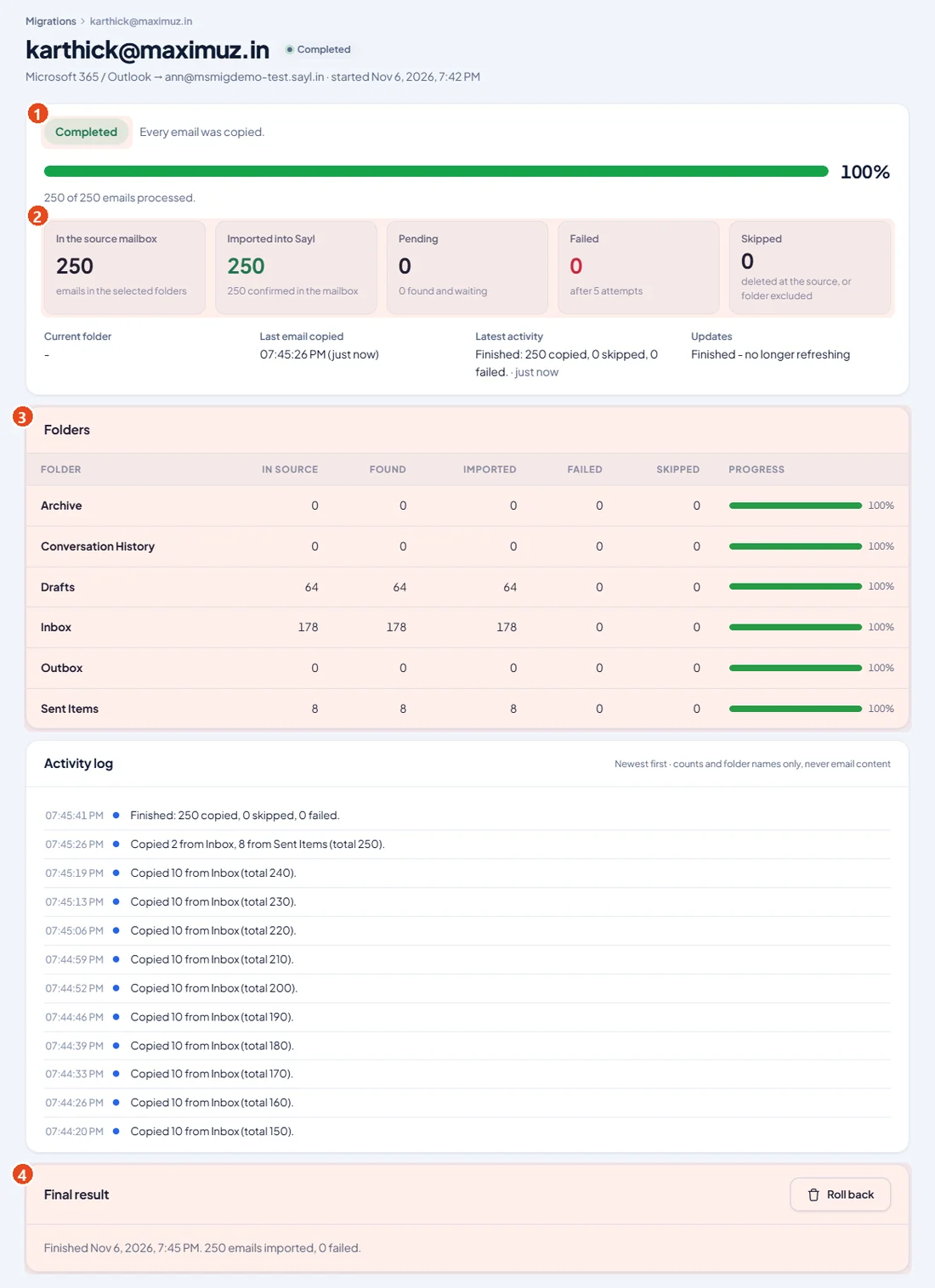
- 1The status says Completed (or Completed with errors if some emails failed).
- 2Imported into Sayl equals In the source mailbox, and Pending and Failed are 0.
- 3Every folder is at 100%, and Imported matches In source for each folder.
- 4Final result: use Retry failed items if any failed, or Roll back to remove exactly what this migration added (for example, if you chose the wrong destination).
Expected result: This example is a real mailbox: 250 emails in 6 folders, with all 250 imported, 0 failed, and every folder matching Microsoft 365.
Then check by eye
- Sign in to Sayl webmail as that person and compare the main folders and their counts with Outlook.
- Check that unread emails are still unread and flagged emails are still flagged.
- Open an old email and an email with an attachment. Check the date, and that the attachment opens.
- Check that folders inside folders are in the right place.
- Emails received in Microsoft 365 after the copy started are not included. Bring them over at cutover (section 9).
Sayl tested this exact process against a real Microsoft 365 mailbox. Microsoft 365 and Sayl matched on every folder (Inbox 178 with 21 unread, Drafts 64, Sent Items 8), on flags, and on all 45 emails with attachments. Every message ID was present in the right mailbox, and none came from another mailbox.
9DNS and cutover
DNS is your domain’s public address book. The exact values for your domain are in Sayl under Organization → Domains → (your domain) → DNS records, each with a copy button. Always copy from there, because your DKIM values are unique to your domain.
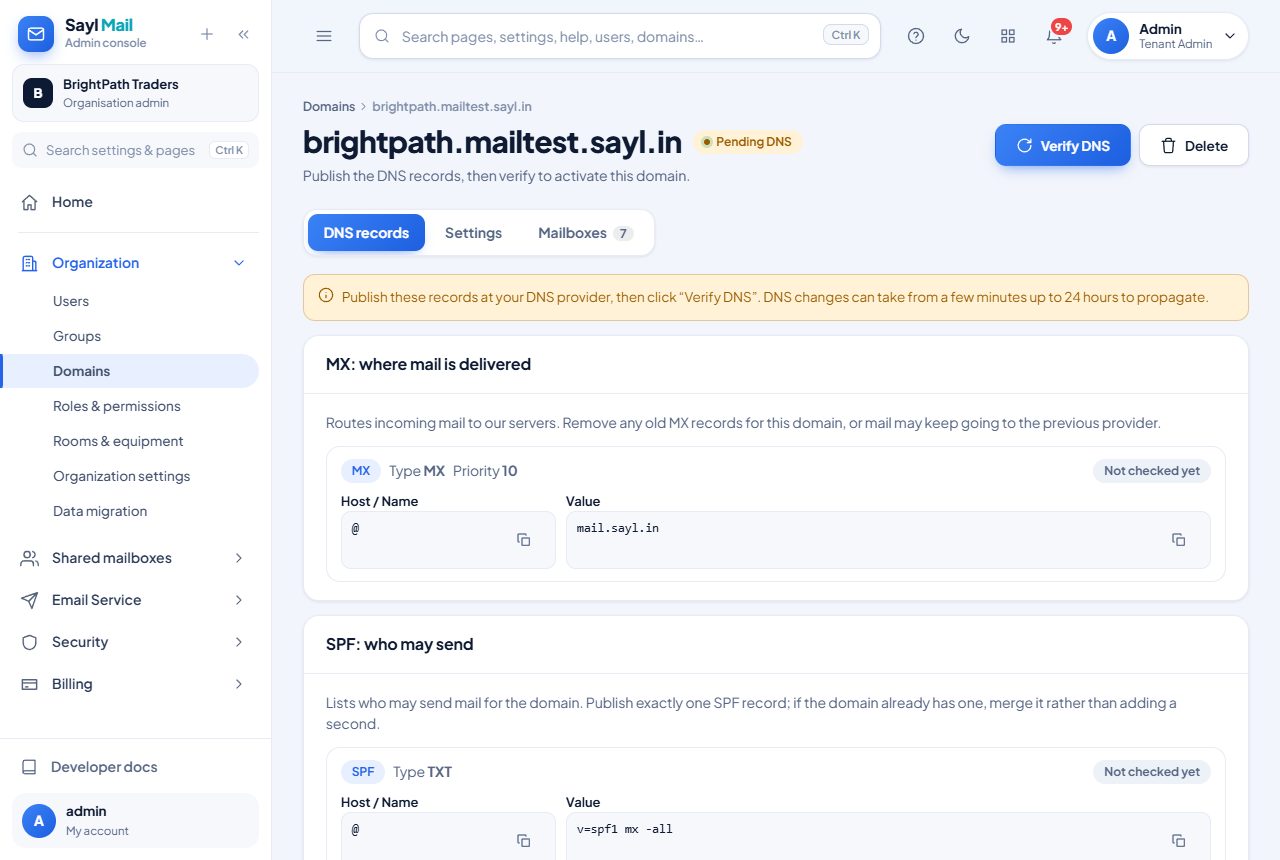
The correct order
| When | Record | What to do | Effect on delivery |
|---|---|---|---|
| 1 to 2 days before cutover | RecordMX | What to doLower its TTL to 300 seconds if your provider allows it. Do not change the value yet. | Effect on deliveryNone. Later changes just take effect sooner. |
| Before cutover | RecordDKIM (TXT) | What to doAdd the Sayl DKIM records. Leave Microsoft's selector1 and selector2 records alone. | Effect on deliveryNone. They use different names, so both can exist. |
| Before cutover | RecordDMARC (TXT) | What to doIf you already have one, keep it. If you have none, start with v=DMARC1; p=none. After cutover and your checks, move to the stricter value Sayl shows. | Effect on deliveryNone. p=none only asks for reports. |
| At cutover | RecordSPF (TXT) | What to doChange it to v=spf1 mx include:spf.protection.outlook.com -all, keeping any other senders you use. | Effect on deliveryBoth Sayl and Microsoft can send during the changeover. |
| At cutover | RecordMX | What to doRemove Microsoft’s MX record and add mail.sayl.in with priority 10. | Effect on deliveryNew mail starts to arrive at Sayl. |
| At cutover, only if you use them | RecordMTA-STS, DANE | What to doUpdate your MTA-STS policy to list mail.sayl.in, and remove any TLSA records for Microsoft. | Effect on deliveryIf you skip this, some senders may refuse to deliver to you. |
| After 7 days, when all is well | RecordSPF (TXT) | What to doChange it to the Sayl value v=spf1 mx -all, keeping any other senders you use. | Effect on deliveryMicrosoft can no longer send as your domain. |
| After 7 days, when all is well | RecordAutodiscover | What to doRemove the autodiscover CNAME that points to Microsoft. | Effect on deliveryMail apps stop looking for Microsoft. |
| After 7 days, when all is well | RecordDKIM | What to doRemove Microsoft's selector1 and selector2 records. | Effect on deliveryNone. |
A domain may have only one SPF record. Edit the existing one rather than adding a second. Two SPF records make SPF fail, and your mail can land in spam or be refused.
Cutover steps
- 1All mailboxes are copied and checked (section 8), and you have a copy of every current DNS record.
- 2At your DNS provider, make the At cutover changes: SPF, then MX.
- 3In Sayl, open your domain and click Verify DNS. Changes can take up to 24 hours to reach everyone.
- 4Your people switch to Sayl webmail at mail.sayl.in. Mail apps use IMAP
mail.sayl.inport 993 and SMTPmail.sayl.inport 465. - 5Send test emails both ways from an outside account such as Gmail. In Gmail, use Show original and confirm SPF, DKIM and DMARC show PASS.
Bring over late mail
A migration copies what was in the mailbox when it started. About 48 hours after cutover, bring over anything that arrived in Microsoft 365 since then. In Outlook on the web, create a folder called Late mail, move those emails into it, then run the mailbox again in Sayl. Emails already copied are skipped, so nothing is duplicated within one migration.
Finish up
Keep your Microsoft 365 subscription for at least 30 days. When you are sure nothing still relies on it, remove Sayl’s access (below), make the After 7 days DNS changes, remove the domain under Settings → Domains → (your domain) → Remove domain, and only then cancel your licences.
10Troubleshooting
When connecting (Test & connect)
| Message in Sayl | What it means | What to do |
|---|---|---|
| ...the Application (client) ID was not found in that directory. AADSTS700016 | What it meansThe client ID is wrong, belongs to another directory, or the app was deleted. | What to doCopy the Application (client) ID from the app's Overview, and check the Directory (tenant) ID next to it. |
| ...the Directory (tenant) ID was not found. AADSTS90002 | What it meansThe directory ID is wrong. | What to doCopy the Directory (tenant) ID from the app's Overview. |
| ...the client secret is wrong (copy its Value, not its Secret ID). AADSTS7000215 | What it meansThe secret does not match, usually because the Secret ID was copied. | What to doCreate a new secret and copy its Value (2.4 and 2.5). |
| ...the client secret has expired - create a new one. AADSTS7000222 | What it meansThe secret's expiry date has passed. | What to doCreate a new secret and use Replace secret in Sayl. |
| Microsoft refused to list your users: in your app's API permissions, add the APPLICATION permissions User.Read.All and Mail.Read and click 'Grant admin consent' | What it meansThe permissions are missing, are Delegated, or have not been granted. | What to doFollow section 3, including Grant admin consent. |
| Grant admin consent is greyed out in Microsoft | What it meansYour account cannot approve application permissions. | What to doAsk a Privileged Role Administrator or Global Administrator. |
When choosing mailboxes or checking a file
| Message | What it means | What to do |
|---|---|---|
| No Exchange Online mailbox (no licence, or it was removed) | What it meansThat person has no mailbox Microsoft can open. | What to doAssign an Exchange Online licence, wait a few minutes, and check again. |
| Your Microsoft app is not allowed to read this mailbox | What it meansMail.Read is not granted, or an RBAC for Applications scope leaves this mailbox out. | What to doGrant admin consent, or add the mailbox to the scope (section 4). |
| Not a mailbox in your connected Microsoft 365 organisation | What it meansThe source address is not in the connected directory. | What to doCheck for typos. Use the person's main email address. |
| No Sayl mailbox ... in your organisation - create it first | What it meansThe destination does not exist in Sayl. | What to doCreate it under Organization > Users, then check again. |
| Choose a mailbox | What it meansNo Sayl mailbox with the suggested name. | What to doPick another destination, or create it. |
| Source is listed more than once / Destination is used by more than one source | What it meansDuplicates in your file. | What to doKeep one row per mailbox. Each Sayl mailbox takes one source. |
| This mailbox is already being migrated (or is waiting in another batch) | What it meansA migration for it is already running or queued. | What to doWait for it to finish, or cancel it first. |
While copying
| What you see | What it means | What to do |
|---|---|---|
| Queued: N mailboxes ahead, M being copied right now | What it meansSayl copies a limited number of mailboxes at the same time. | What to doNothing. It starts automatically. |
| Microsoft 365 asked Sayl to slow down; copying continues in about N seconds | What it meansMicrosoft Graph is limiting requests (throttling). | What to doNothing. Sayl waits and carries on. |
| Sayl's mail server is busy; copying continues in about 15 seconds | What it meansMany mailboxes are importing at once. | What to doNothing. The email is retried without counting as a failure. |
| An email in (folder) could not be copied yet (attempt N of 5) | What it meansA temporary error. Sayl retries automatically. | What to doUsually nothing. |
| An email in (folder) failed after 5 attempts | What it meansThat email could not be copied. The rest carry on. | What to doWhen the mailbox finishes, click Retry failed items. If it fails again, contact support with the error text. |
| No progress for N minutes... | What it meansNothing has moved for a while. The message gives the reason. | What to doFollow the reason. If it says the background service may not be running, contact Sayl support. |
| Sayl can no longer read this Microsoft 365 organisation... | What it meansThe app, its secret or its consent was removed or has expired. | What to doFix it in Microsoft, use Replace secret if needed, then click Retry failed on the batch. |
| Failed emails that mention storage | What it meansThe Sayl mailbox is full. | What to doRaise its storage, then Retry failed items. |
Undo and roll back
| If you need to | Do this |
|---|---|
| Undo a copy into the wrong mailbox | Do thisOpen the finished or cancelled mailbox migration and click Roll back. It removes only the emails that migration added. |
| Stop a running copy | Do thisPause (keeps everything so far), or Cancel. Then use Roll back if needed. |
| Retry failed mailboxes | Do thisOn the batch or upload page, click Retry failed. Failed mailboxes start again where they stopped, and copied emails are never copied twice. |
| Send new mail back to Microsoft 365 after cutover | Do thisRestore your saved MX and SPF records. Mail that arrived in Sayl stays in Sayl, so forward what you need. |
11Final checklist
Microsoft Entra
- App registered as Single tenant
- Mail.Read and User.Read.All added as Application permissions
- Admin consent granted: both show Granted
- No Mail.ReadWrite or Mail.Send on the app
- Client secret Value copied, expiry date noted
Sayl
- Domain added, destination mailboxes created with enough storage
- Step 1 shows Connected
- One test mailbox copied and checked
- All mailboxes show Completed, with Failed at 0
- Folder counts match Microsoft 365
Your checks
- Unread, flagged and attachments look right in Sayl webmail
- Contacts exported and imported
- Calendar events noted for re-creating
- Printers, forms and apps that send mail have a plan
Cutover and after
- Current DNS records saved
- DKIM published, then SPF and MX changed, Verify DNS passes
- Test emails pass SPF, DKIM and DMARC
- Late mail brought over
- App and secret removed in Sayl and in Microsoft Entra
Remove access afterwards
When every mailbox is copied, checked and the late mail is in, remove the access. Your mail in Microsoft 365 and in Sayl is not touched.
- 1In Sayl, open the Microsoft 365 migration screen and click Remove under Step 1. Sayl deletes the saved secret at once.
- 2In the Microsoft Entra admin center, go to Entra ID → App registrations, open your app and click Delete. This removes the app, its secret and its permissions.
Questions
- Do we need a Global Administrator?
- Only for one click: granting admin consent to Microsoft Graph application permissions needs a Privileged Role Administrator or Global Administrator. Registering the app can be done by an Application Developer or Cloud Application Administrator.
- Will Sayl ever ask for our Microsoft 365 passwords?
- No. This method uses your own app and never uses passwords. Never send a password to anyone, including Sayl staff.
- Can Sayl change or delete anything in Microsoft 365?
- No. The app has read-only permissions (Mail.Read and User.Read.All). It cannot send, change or delete mail.
- Can we migrate all mailboxes at once?
- Yes. Pick them from your directory, or upload a CSV or Excel file of up to 5,000 mappings split into batches. Each mailbox has its own progress, and one failure never stops the others.
- Why does Sayl need User.Read.All?
- To list the people in your organisation and their email addresses, so you can pick mailboxes and Sayl can check your file. It reads profiles only, not mail.
- Do we need Mail.ReadWrite or Mail.Send?
- No. Sayl only reads mail. Adding them would give the app more access than it needs.
- What happens when the client secret expires?
- Copying stops with a message saying the secret has expired. Create a new secret in Microsoft Entra, use Replace secret in Sayl, then click Retry failed.
- Are contacts and calendars migrated?
- No, this migration moves mail only. Export contacts from Outlook and import them in Sayl webmail. Re-create calendar events in Sayl.
- Can we go back to Microsoft 365?
- Yes, as long as you have not removed your domain or cancelled your licences. The copy only reads, so your mail is still in Microsoft 365. Restore your saved MX and SPF records.
Microsoft steps checked in November 2026 against registering an app, adding a client secret, granting admin consent and RBAC for Applications. Screenshots are from the Microsoft Entra admin center and the Sayl admin console. IDs and other people’s details are blurred. Microsoft may rename menu items.