
Finance, GST & Accounting · Inventory
Serial Numbers
Track every unit of a product by serial number in Sayl Finance - record the numbers, choose them on the invoice, and trace a unit to the customer and invoice it went out on.
What it is for
Serial-number tracking gives every physical unit of a product its own record. You always know which numbers are in stock, which customer and invoice each sold unit went to, and what happened to it afterwards - a return, a write-off, a correction.
It is for goods you sell one identifiable unit at a time: scanners, printers, laptops, phones, machinery - anything with a warranty or a number stamped on it.
How it works
- You switch on Track serial numbers for an item. From then on its stock is the serial numbers you have recorded as in stock, and every invoice line for it must say exactly which units it delivers.
- Each unit is In stock, Sold or Written off. A unit moves to Sold when the invoice is issued, and back to In stock if that invoice is cancelled or you record a customer return. Every move is written to the unit's history.
- A draft invoice only selects units - nothing is sold until the invoice is issued. You can save a draft with fewer numbers than the quantity while you fill it in, but the invoice cannot be issued until every unit of the quantity is named.
- If the item already had units counted in stock before you turned tracking on, the first serial numbers you add are matched to those units; only numbers beyond the existing stock add new units.
Step by step
Every screenshot is from the live demo. The highlighted button is the one to click - nothing here is saved in the demo, so you can follow along freely.
- 1
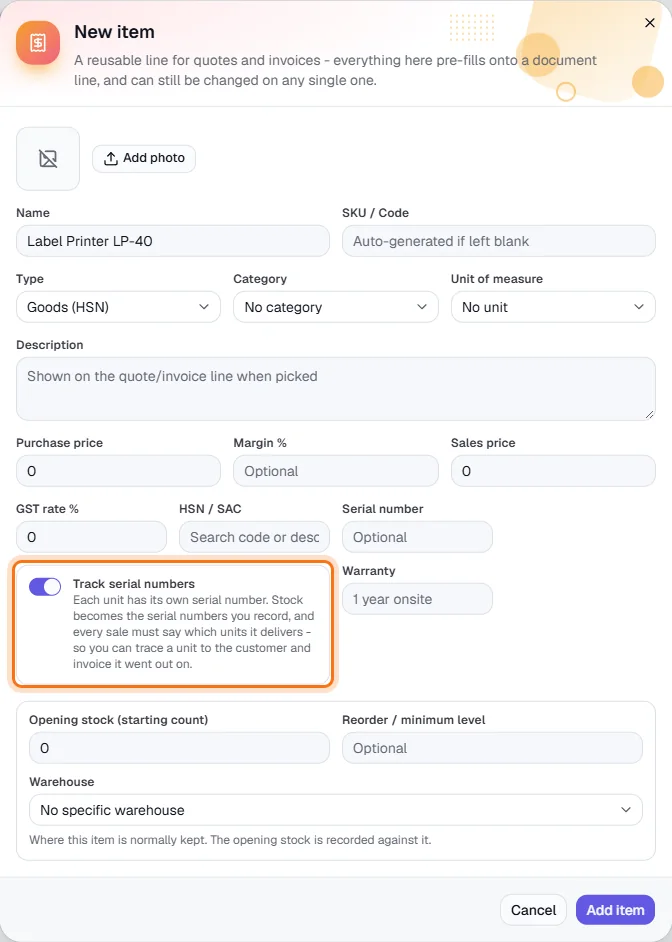
1 · Turn on tracking for the item
Finance → Inventory → Items / Products, then New item (or open an existing item to edit it). For goods, switch on Track serial numbers (highlighted). It appears only for goods - a service has nothing to number. The plain Serial number box above it is just an optional free-text reference; the switch is what tracks each unit.
- 2
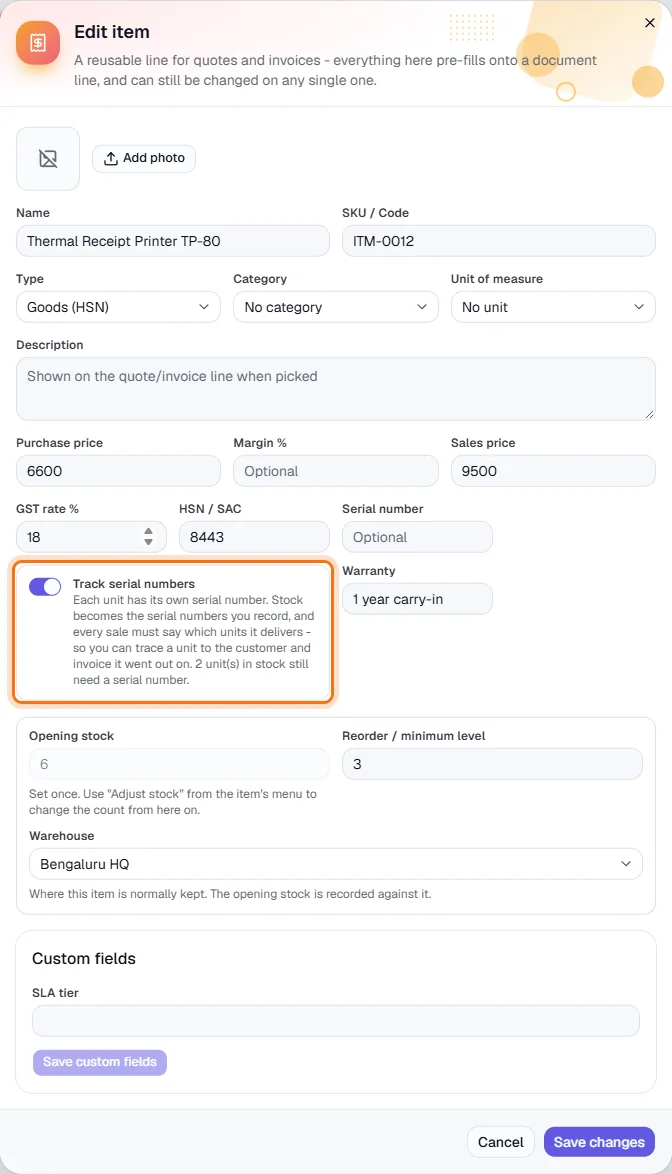
See what still needs a number
When you turn tracking on for an item that already has stock, the item form tells you how many units in stock still need a serial number (highlighted). Those units keep counting as stock until you give them numbers.
- 3
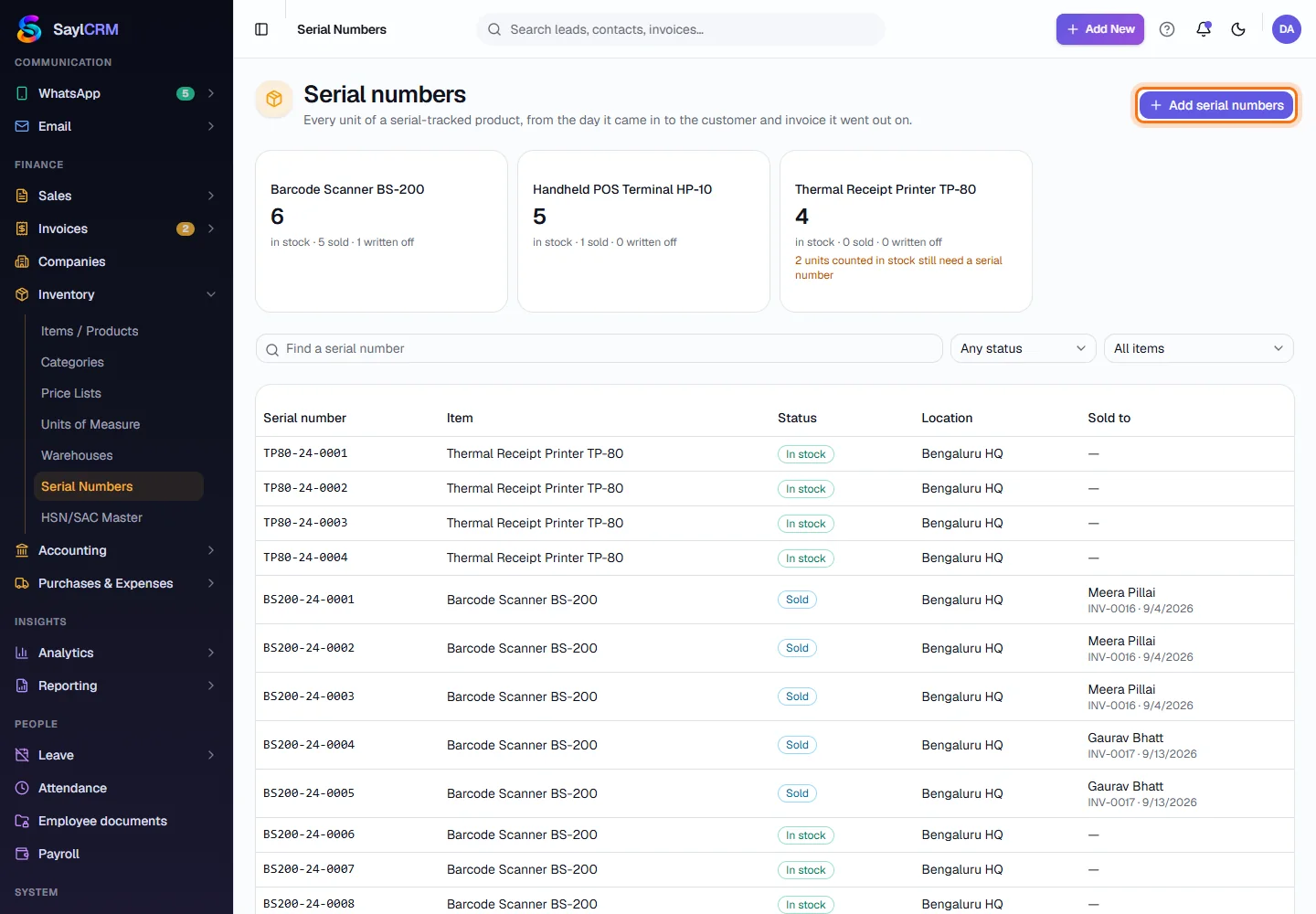
Open Serial Numbers
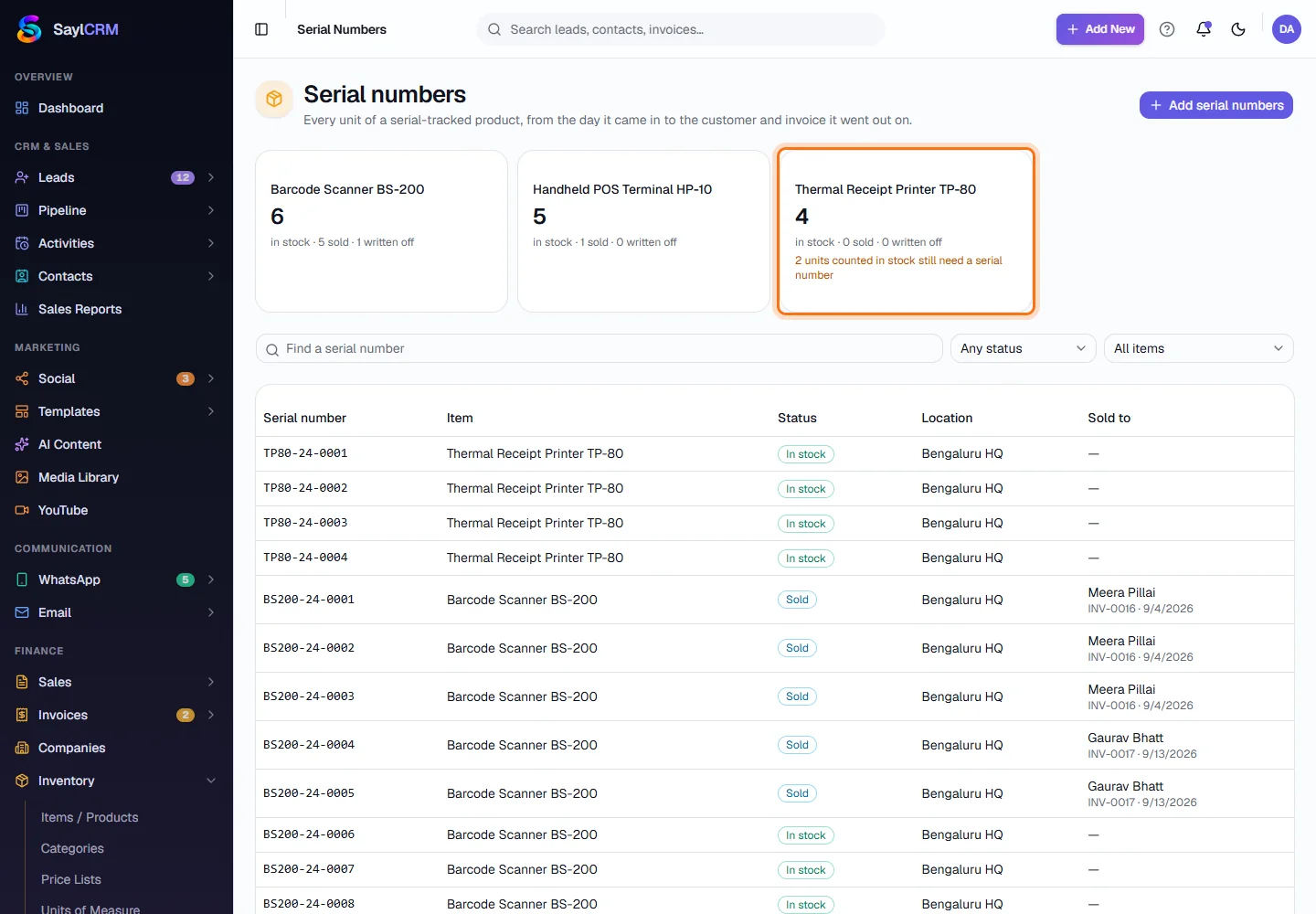
Finance → Inventory → Serial Numbers. One card per tracked item shows how many units are in stock, sold and written off; click a card to filter the list to that item. Below, every unit is listed with its status, location and - if sold - the customer and invoice. Click Add serial numbers (highlighted).
- 4
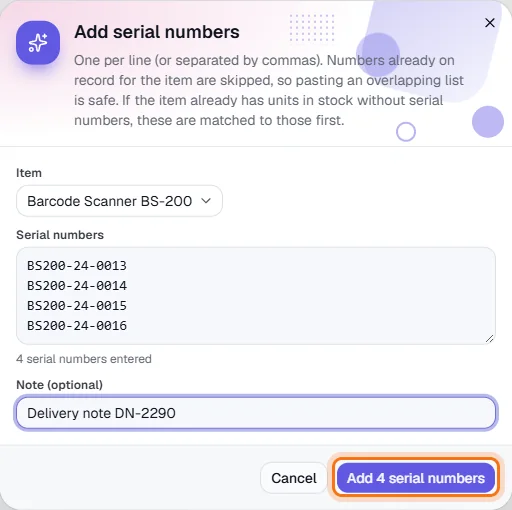
2 · Add one or many serial numbers
Choose the item, then type or paste the numbers - one per line, or separated by commas. The dialog counts them as you go, so a pasted list of 200 is as easy as one. Numbers already on record for that item are skipped, so pasting an overlapping list is safe. Add an optional note (a delivery note or supplier) and click the Add button (highlighted).
- 5
Units counted in stock but not yet numbered
A card shows an amber line (highlighted) while some of an item's counted units have no serial number yet. Add their numbers and the count comes down. The manual Adjust stock option is not available for a tracked item - to change the count, add serial numbers or write a unit off.
- 6
3 · Choose the serial numbers on the invoice
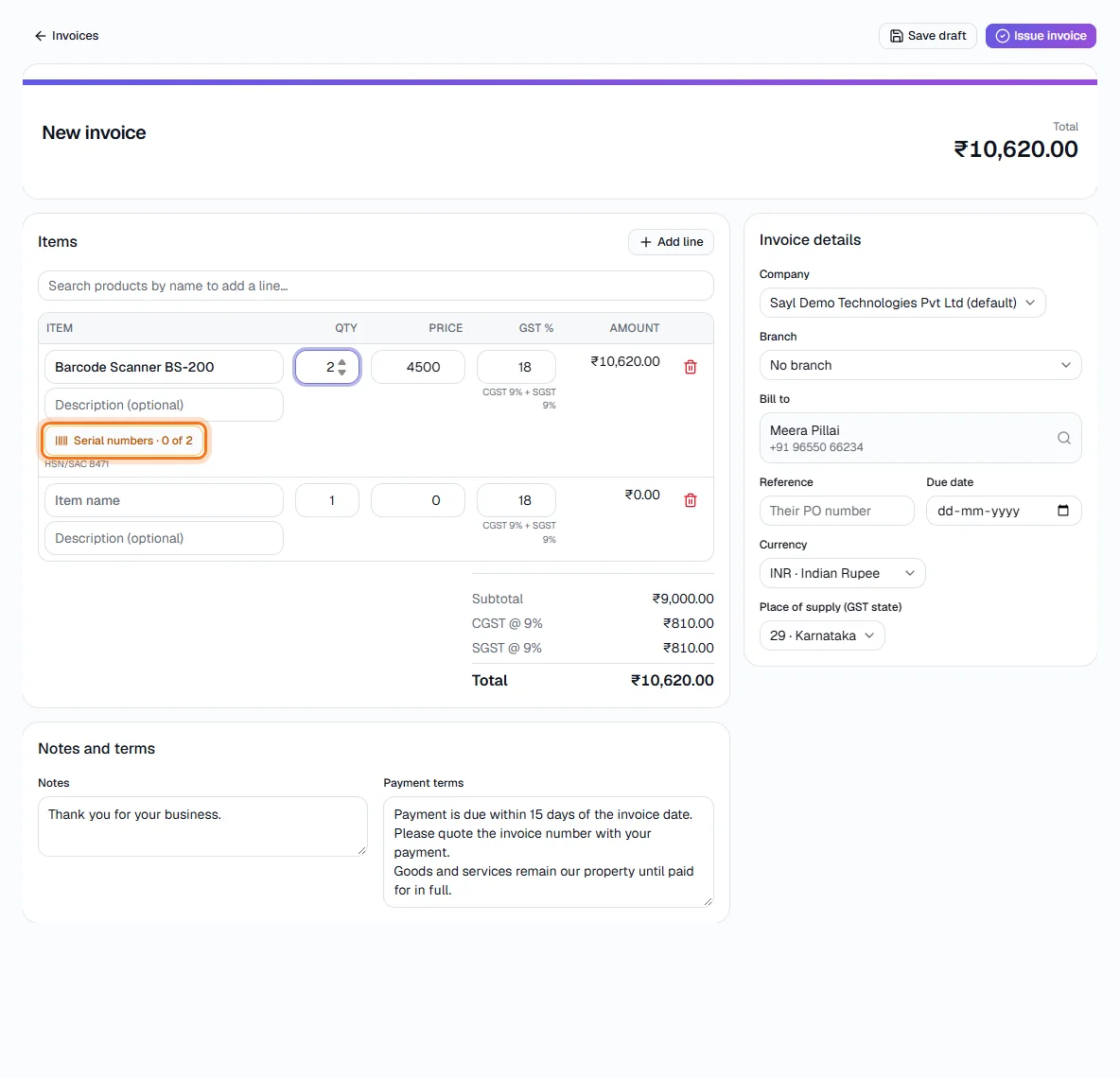
Create the invoice (Finance → Invoices → New invoice) and add the tracked item. Under the line a Serial numbers button appears showing how many you have chosen out of the quantity - amber while some are missing (highlighted). Quantity must be a whole number for a tracked item.
- 7
Pick the units
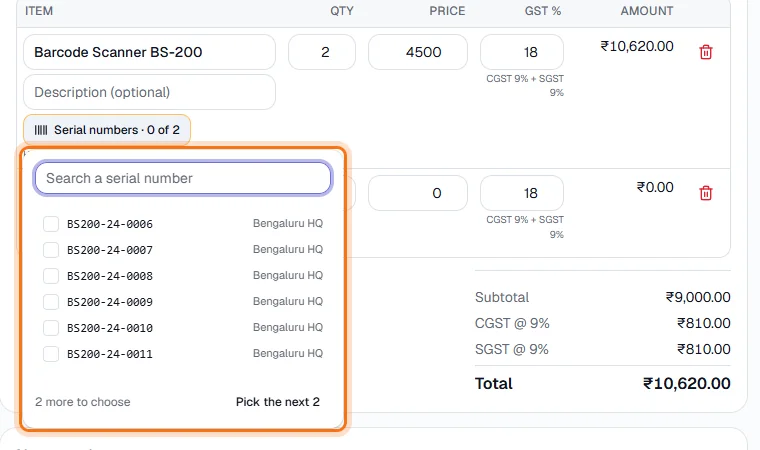
Click the button. Only units that are in stock are offered; search by number, tick the ones this line delivers, or click Pick the next N to take the next available units.
- 8
You cannot choose more than the quantity
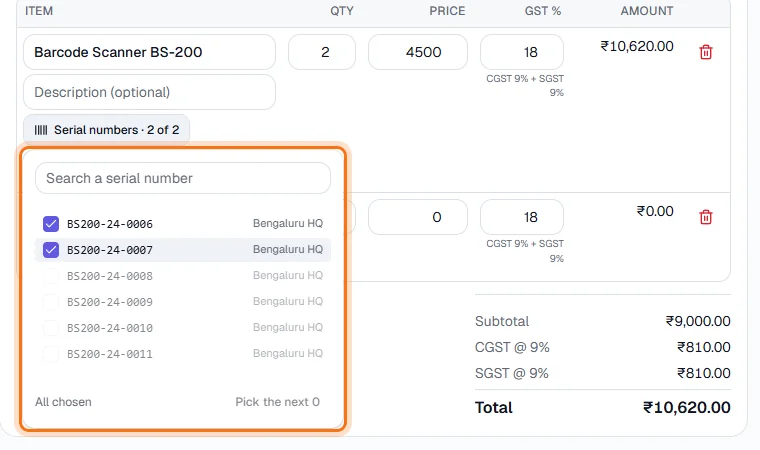
Once as many units are chosen as the quantity, the counter says All chosen and the remaining numbers are greyed out - untick one to swap it. To sell more, raise the quantity first.
- 9
Chosen units show on the line
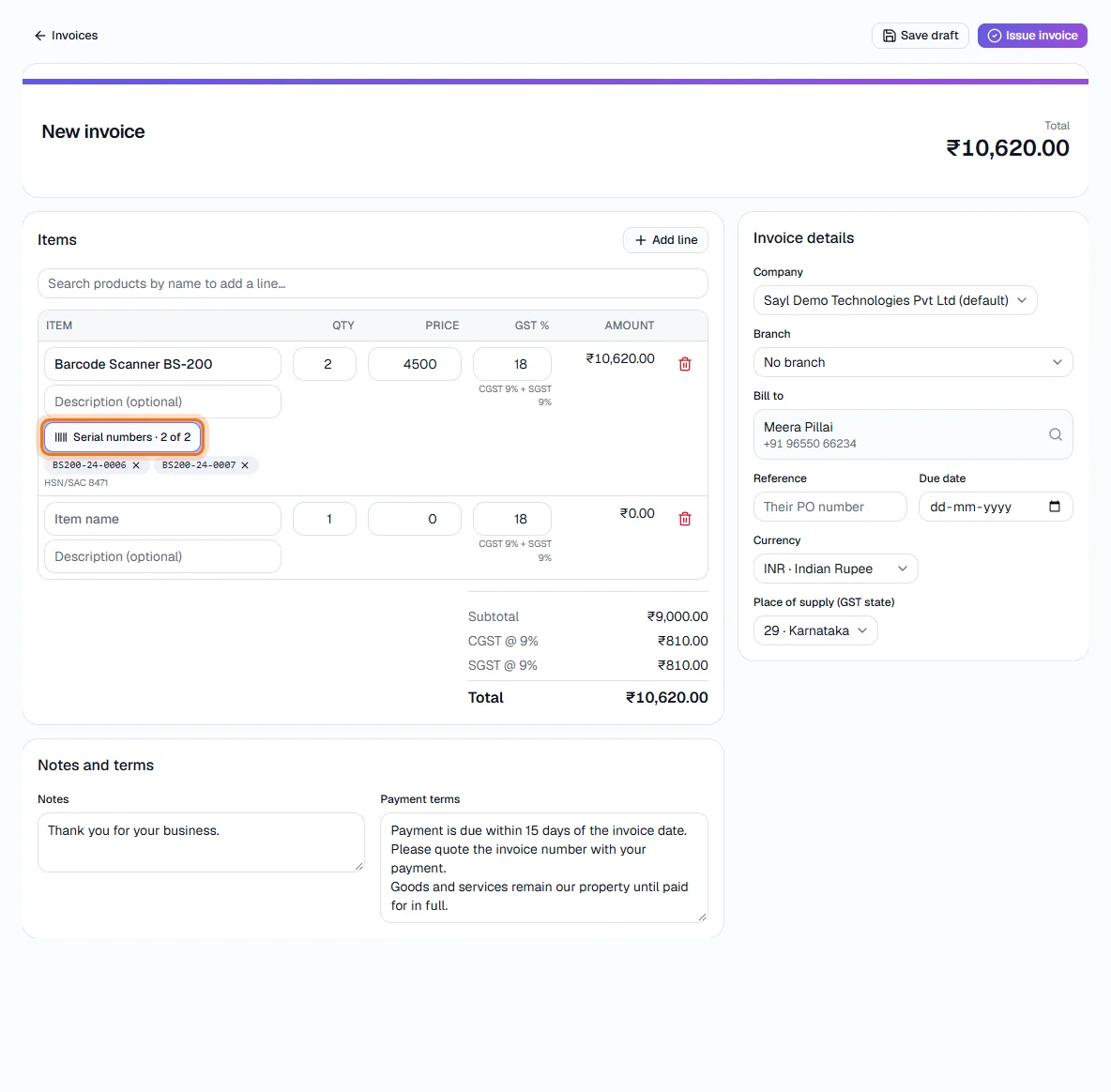
The chosen numbers appear under the line as tags (click × to remove one), and the button now reads, for example, 2 of 2. Issue the invoice - the units are marked Sold to that customer and invoice.
- 10
4 · What happens when the count is wrong
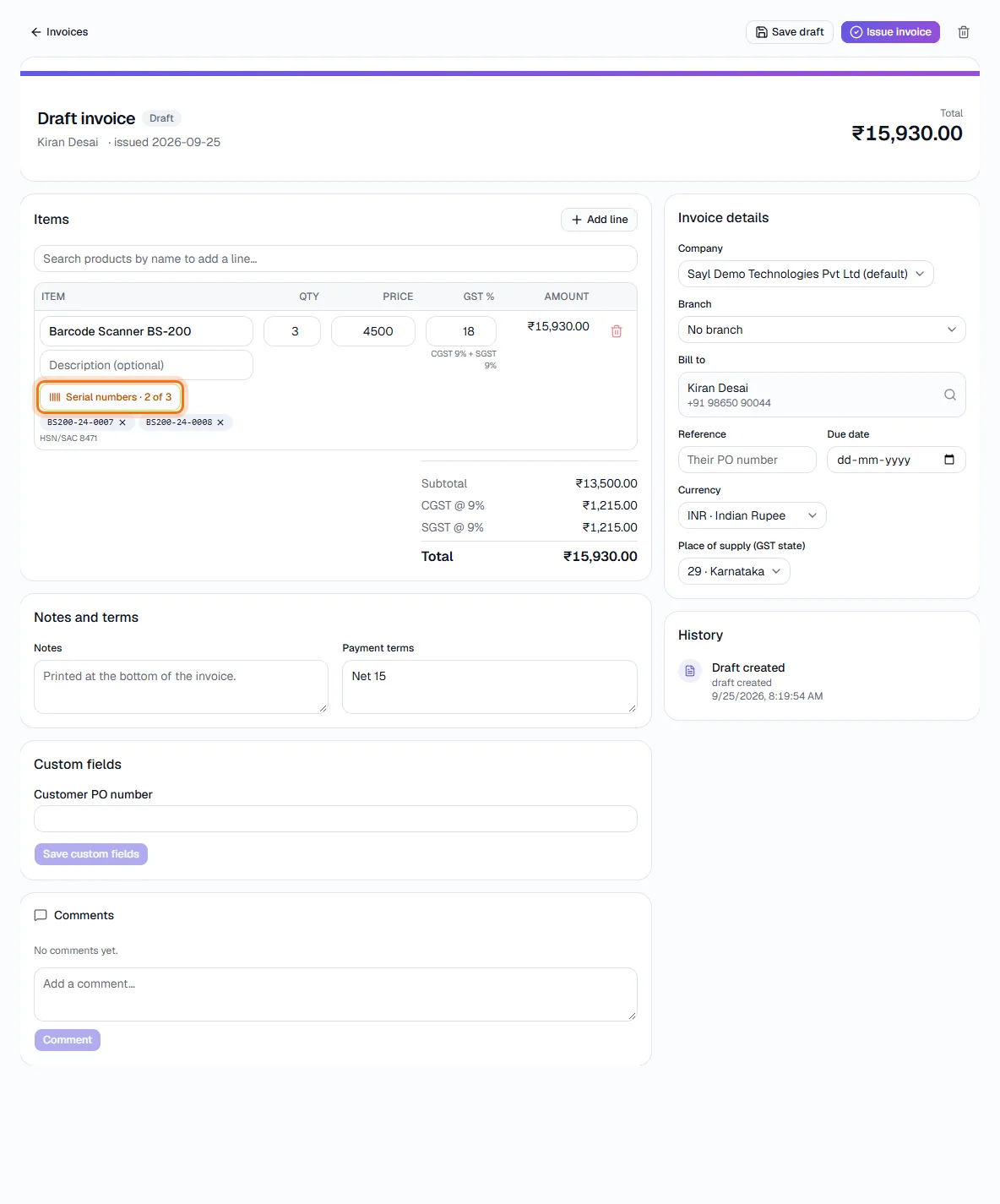
Fewer numbers than the quantity: the draft saves, and the button stays amber (here 2 of 3 - highlighted).
- 11
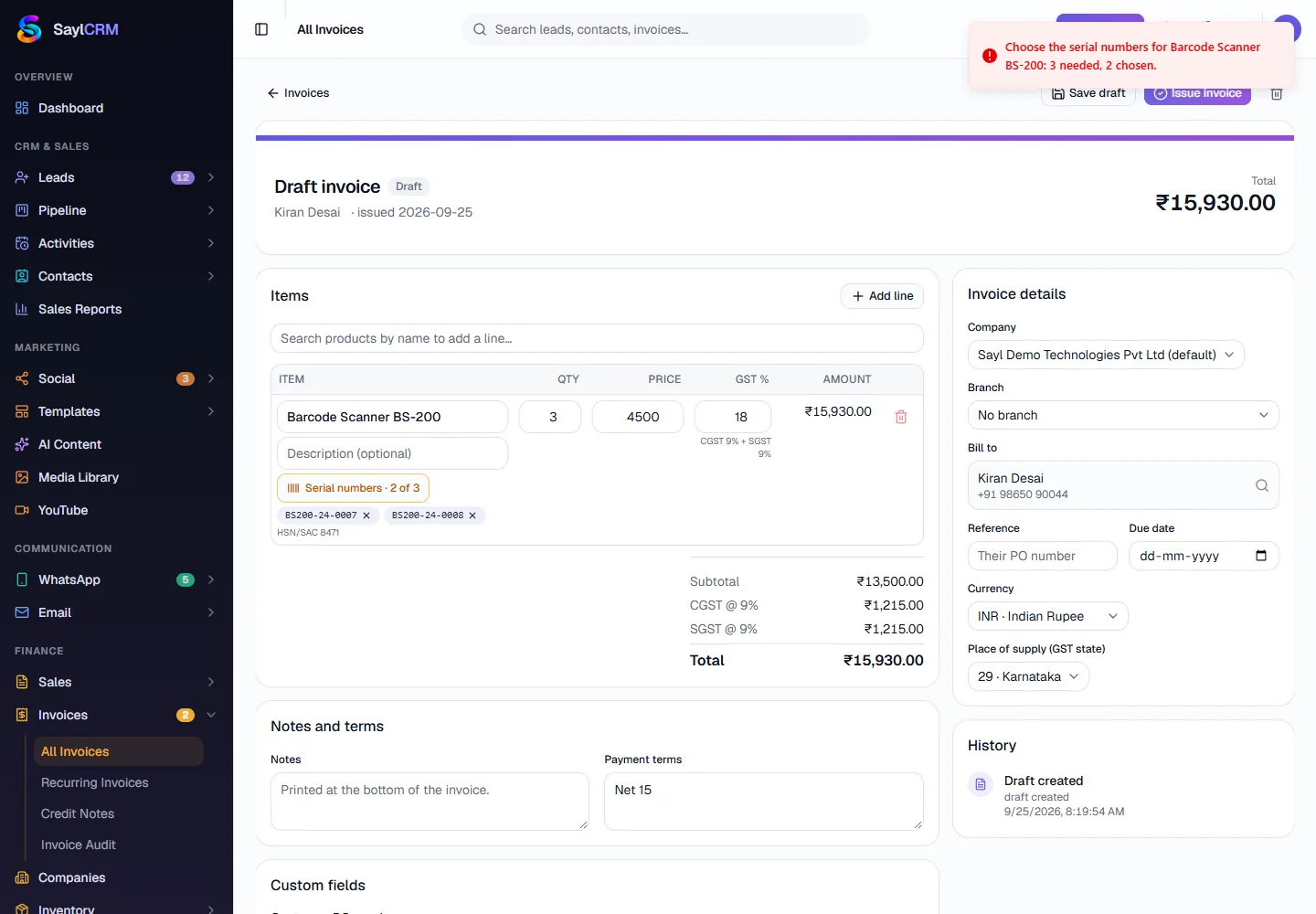
The invoice is refused, nothing is changed
Clicking Issue invoice is refused with a message naming the item and the shortfall - "Choose the serial numbers for Barcode Scanner BS-200: 3 needed, 2 chosen." No invoice number is used and no unit is marked sold. Choose the missing unit (or lower the quantity) and issue again. The same rule applies to recurring invoices.
- 12
5 · Find a unit
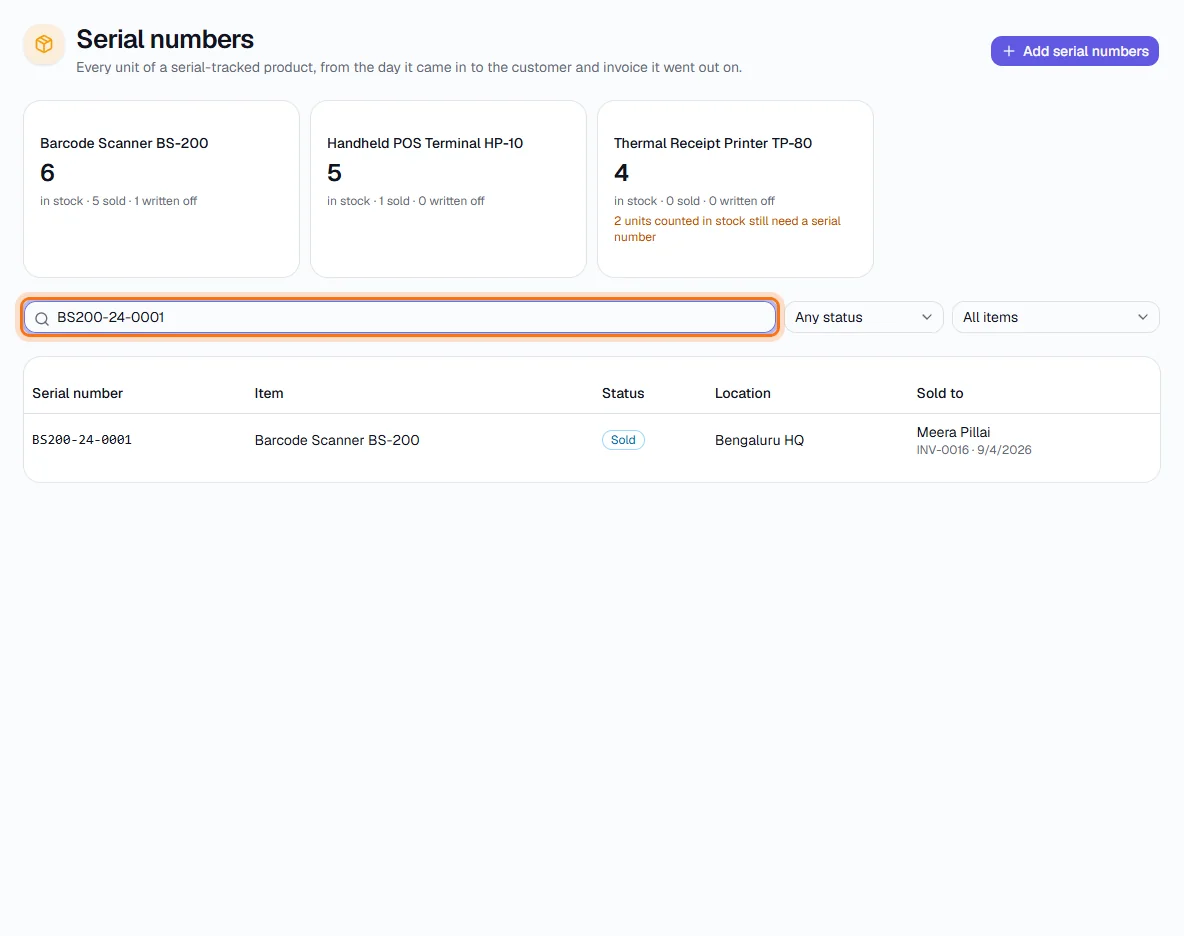
Back on Serial Numbers, type part of a number in Find a serial number (highlighted), or filter by status and item. The status filter shows Any status, In stock, Sold or Written off.
- 13
Check its history after it is sold
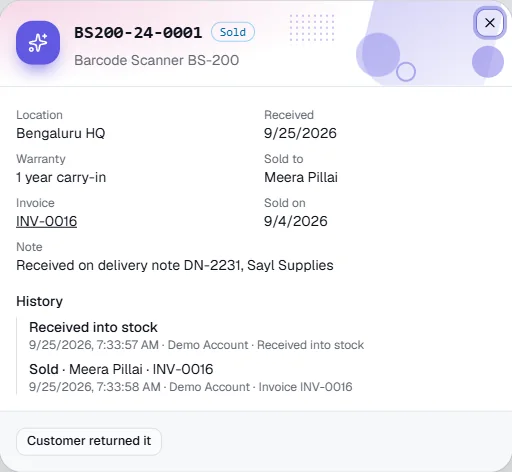
Click the unit. A sold unit shows the customer it was sold to, the invoice (a link that opens it), the sale date, its warranty and where it was received, and a History list: Received into stock, then Sold with the customer and invoice number. If the customer sends it back, the button Customer returned it puts it back in stock and records that too.
- 14
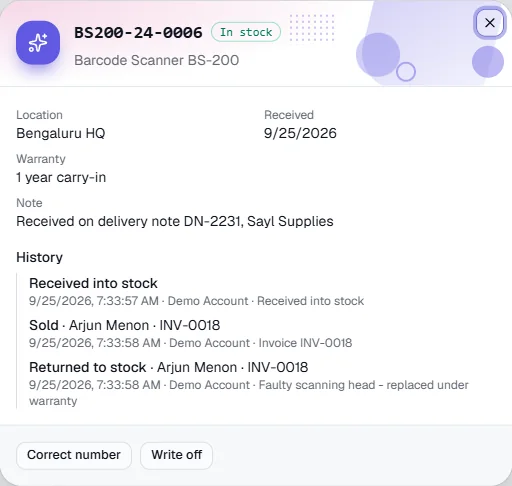
A unit that was returned
This unit was sold, came back faulty and is in stock again. The history keeps all three events with their dates and who recorded them, and the note explains why.
- 15
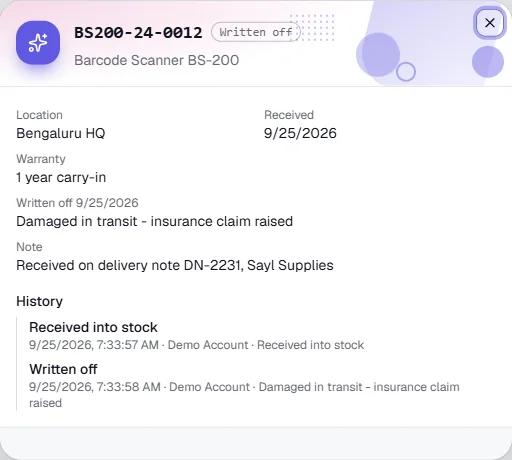
A unit that was written off
An in-stock unit can be written off - lost, damaged, stolen - and a reason is required. It leaves stock, keeps its record, and can no longer be sold or renumbered.
- 16
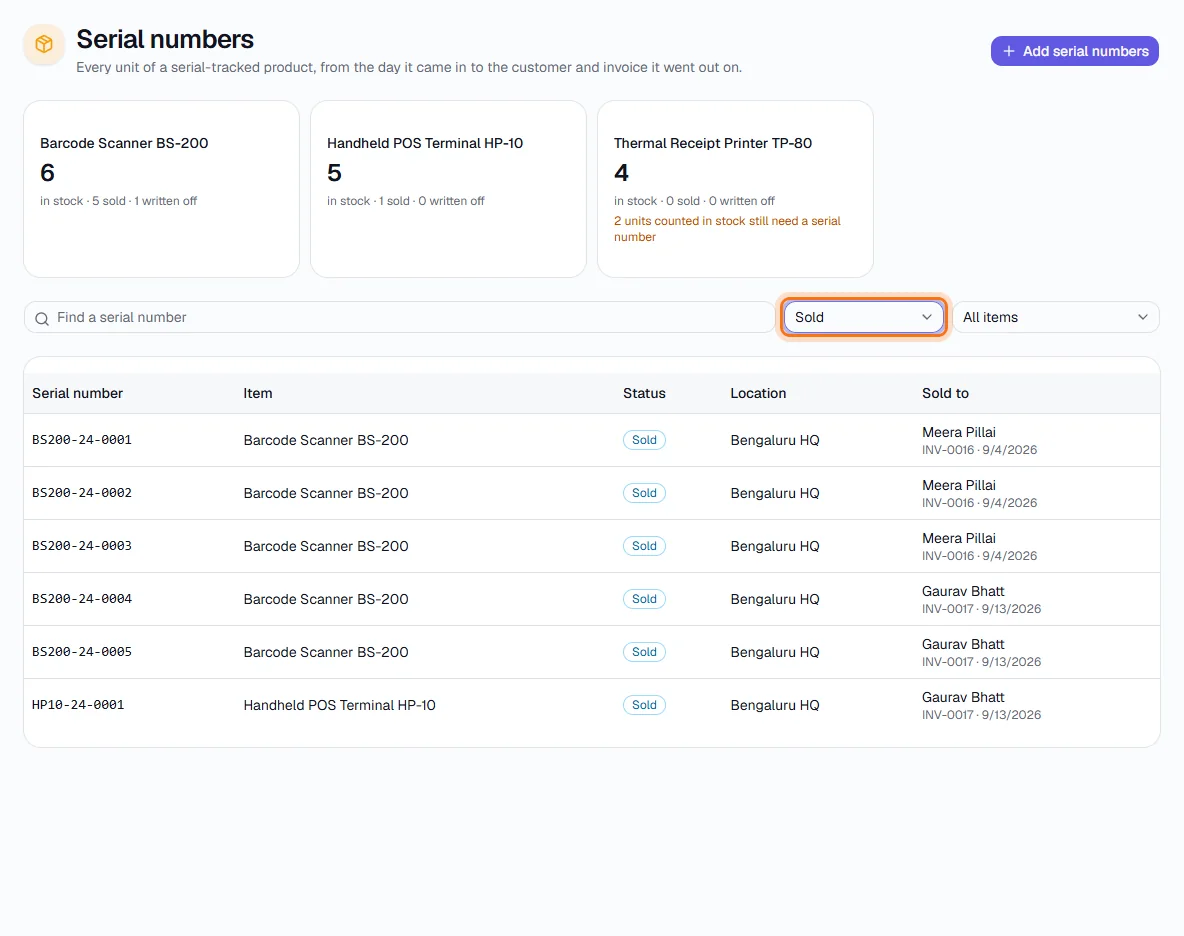
See everything that has been sold
Set the status filter to Sold (highlighted) to list every sold unit with its customer, invoice number and date - the quickest answer to "who bought this?".
Key fields
- Track serial numbers
- Item switch (goods only). Each unit gets its own record and every sale must name its units.
- Serial numbers
- One per line or comma-separated, up to 2,000 at a time and 120 characters each. Duplicates for the same item are skipped.
- Status
- In stock, Sold (to a customer and invoice) or Written off (with a reason).
- Serial numbers · N of M
- On an invoice line: how many units are chosen out of the quantity sold.
Tips
- Paste the numbers straight from your supplier's delivery note into Add serial numbers, and put the note number in the Note box so every unit's history says where it came from.
- You cannot delete an item that has serial numbers - archive it instead, so the sales history stays traceable.
- A sold or written-off unit's number cannot be changed; correct the number of an in-stock unit from its detail dialog (Correct number).
- Cancelling an issued invoice puts its units back in stock automatically and adds a line to their history.