
Finance, GST & Accounting · Invoices
Customer Advances
Record money a customer pays before being invoiced, with GST on the advance where it applies, and let Sayl apply it to their next invoice without counting GST twice.
What it is for
An advance is money a customer pays before you have invoiced them. Sayl keeps it as Advances from Customers - money you hold for them, not yet income - and applies it to their next invoice automatically, so the invoice shows only what is still owed.
The page shows how much was received, how much has been applied to invoices, refunded, and what is still unused.
How it works
- For services, GST is due when an advance arrives. Set 'GST on advance payments' to GST applicable on the customer (with the rate), and every advance from them books its GST at once - ₹5,900 at 18% holds ₹900 of GST.
- When the advance is applied to an invoice, the invoice charges GST on its full value as usual, and the GST already booked on the advance is released. So the GST is counted once - never on both the advance and the invoice.
- For goods, GST is not due on advances: leave the customer on GST not applicable and nothing is booked until the invoice.
- Advances apply automatically, oldest first, when you issue the customer's next invoice. Turn off 'Apply automatically' to hold one back and apply it by hand from the invoice. Unused money can be refunded.
Step by step
Every screenshot is from the live demo. The highlighted button is the one to click - nothing here is saved in the demo, so you can follow along freely.
- 1
Where to start
In the guides menu on the left, open Invoices and click Customer Advances. In Sayl the page is under Finance → Invoices → Customer Advances. Use the filter to see advances With balance (default), Fully used, Cancelled or All.
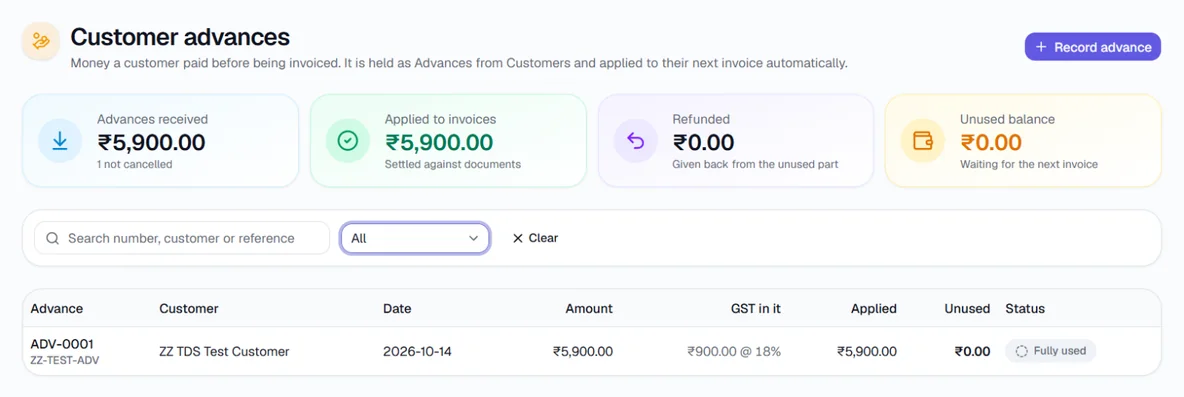
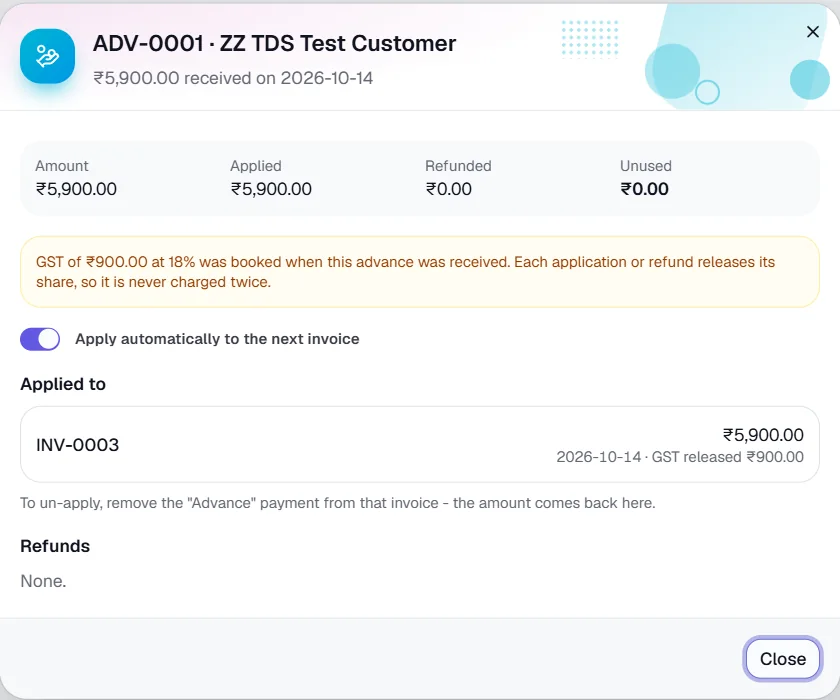
An advance of ₹5,900 that held ₹900 of GST at 18%, now fully used. - 2
Set GST on advances on the customer (once)
Go to Customers (or Contacts), open the ⋯ menu on the customer's row and click Edit. Under 'GST on advance payments' choose GST applicable (usually services) and enter the rate, or GST not applicable (usually goods). Click Save changes. This is only in the Edit form - it does not show in the customer's side panel.
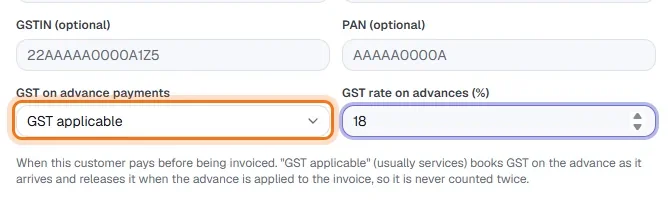
GST on advance payments: GST applicable at 18%. - 3
Record the advance
Click Record advance. Choose the customer, enter the amount received and the date, how it was paid and which bank account it went into. 'GST on this advance' follows the customer's setting - change it only for an exception. Add the UTR or reference, leave Apply automatically on, and click Record advance.
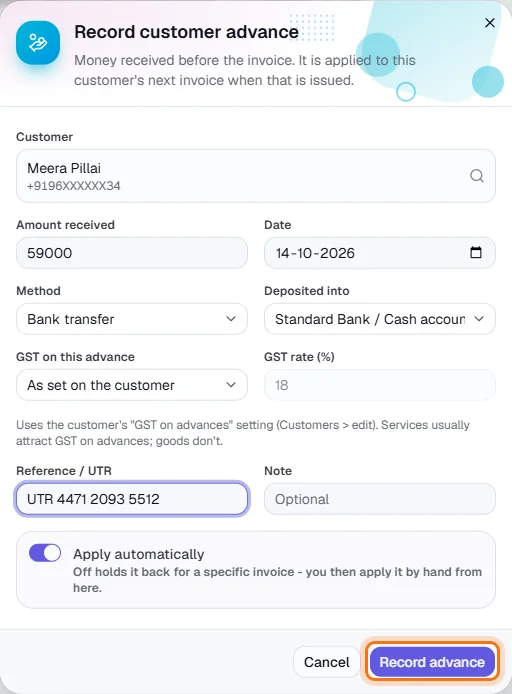
Amount received is the full amount including GST. - 4
See what was booked
Click the advance to open it. It shows the amount, what has been applied and what is unused, and a note of the GST booked when it was received. In the books the money is held as Advances from Customers, and its GST goes to GST Payable straight away.

Advance received: bank ₹5,900 in, held as Advances from Customers; its ₹900 GST booked to GST Payable. - 5
Issue the customer's next invoice
Create and issue the invoice as usual. Sayl applies the unused advance on its own: the invoice shows an 'advance applied' payment line and only the rest is left to pay. Record the remaining payment when it arrives.
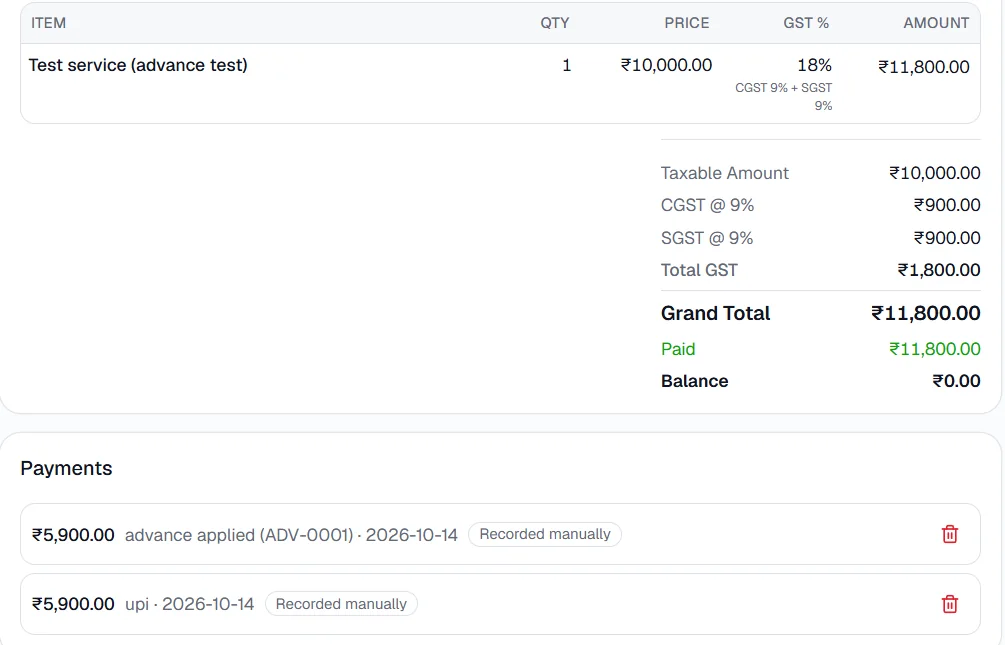
Invoice ₹11,800 (CGST ₹900 + SGST ₹900). ₹5,900 came from the advance, ₹5,900 was paid by UPI. - 6
Check that GST was not counted twice
Open the advance again: under Applied to, the invoice is listed with 'GST released' - the GST that was booked on the advance is taken back out when the invoice charges it. Overall this sale has exactly ₹1,800 of GST: ₹900 on the advance, plus ₹1,800 on the invoice, minus the ₹900 released.
- 7
What the books show
In Journal entries, the entry 'Advance applied to invoice …' moves the advance off Advances from Customers onto the invoice, and releases the advance's GST (GST Payable debited, GST Paid on Advances credited).

- 8
Refund or cancel
In the advance's window, Refund unused gives back money that will not be used (its share of GST is released too). Cancel advance removes an advance entered by mistake; it must not have been applied yet - remove it from the invoice first.
Key fields
- Amount received
- Everything the customer paid, GST included.
- GST on this advance
- As set on the customer, or overridden for this one advance.
- Deposited into
- The bank or cash account the money reached.
- Apply automatically
- On: used by the next invoice. Off: held back for you to apply by hand.
Tips
- Money that arrives on the Receive Payment page and is not allocated to an invoice can be saved as an advance - switch on 'Record anything not allocated as an advance'.
- An unused advance appears on the customer's invoices with an Apply button, so it is never forgotten.