
Finance, GST & Accounting · Invoices
Invoices
Create GST invoices, send them over WhatsApp or email, record payments and track what is overdue in Sayl Finance.
What it is for
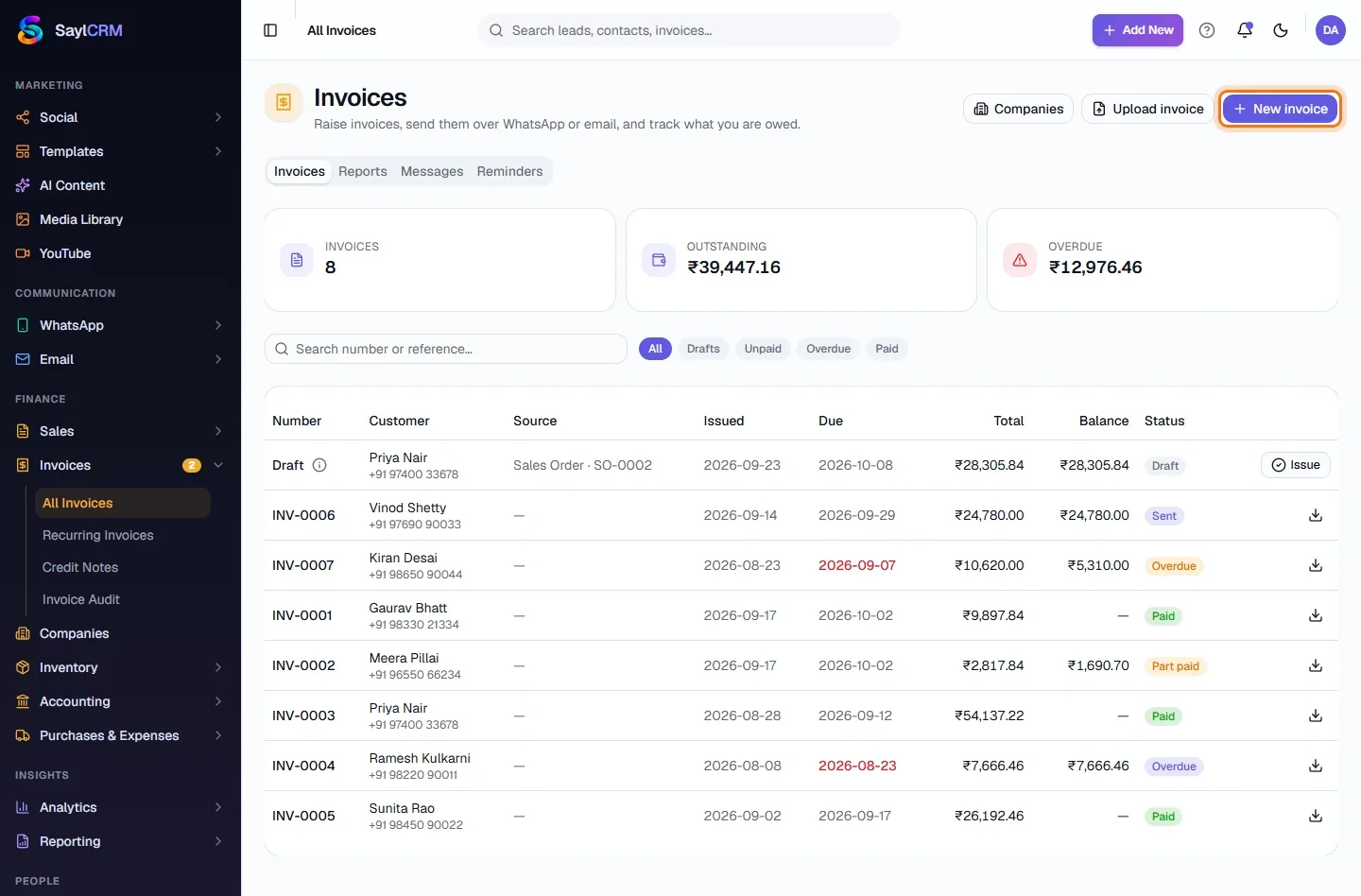
Invoices is where you bill customers and track what you are owed. The page opens with three numbers - how many invoices, how much is outstanding and how much is overdue - so the first thing you see is what needs chasing.
How it works
- An invoice is a draft until you issue it. Issuing gives it its number (INV-0001, INV-0002 …) and posts it to the ledger, which is what puts it into receivables and the reports.
- GST is worked out for you. The place of supply on the invoice decides the split: in your own state each line shows CGST and SGST, in another state it shows IGST.
- Payments are recorded against the invoice. A partly paid invoice shows Part paid and keeps its balance; paying it in full marks it Paid. Past its due date and unpaid, it is flagged Overdue.
- When you send an invoice for the first time, a secure no-login link is created so the customer can view, download and pay it themselves.
Step by step
Every screenshot is from the live demo. The highlighted button is the one to click - nothing here is saved in the demo, so you can follow along freely.
- 1
Open Invoices
Finance → Invoices → All Invoices. Filter by All, Drafts, Unpaid, Overdue or Paid. The tabs above the list also give you Reports, Messages and Reminders.
- 2
Click New invoice
The button is at the top right (highlighted). Use Upload invoice instead to start from an existing invoice file.
- 3
Choose the customer and add items
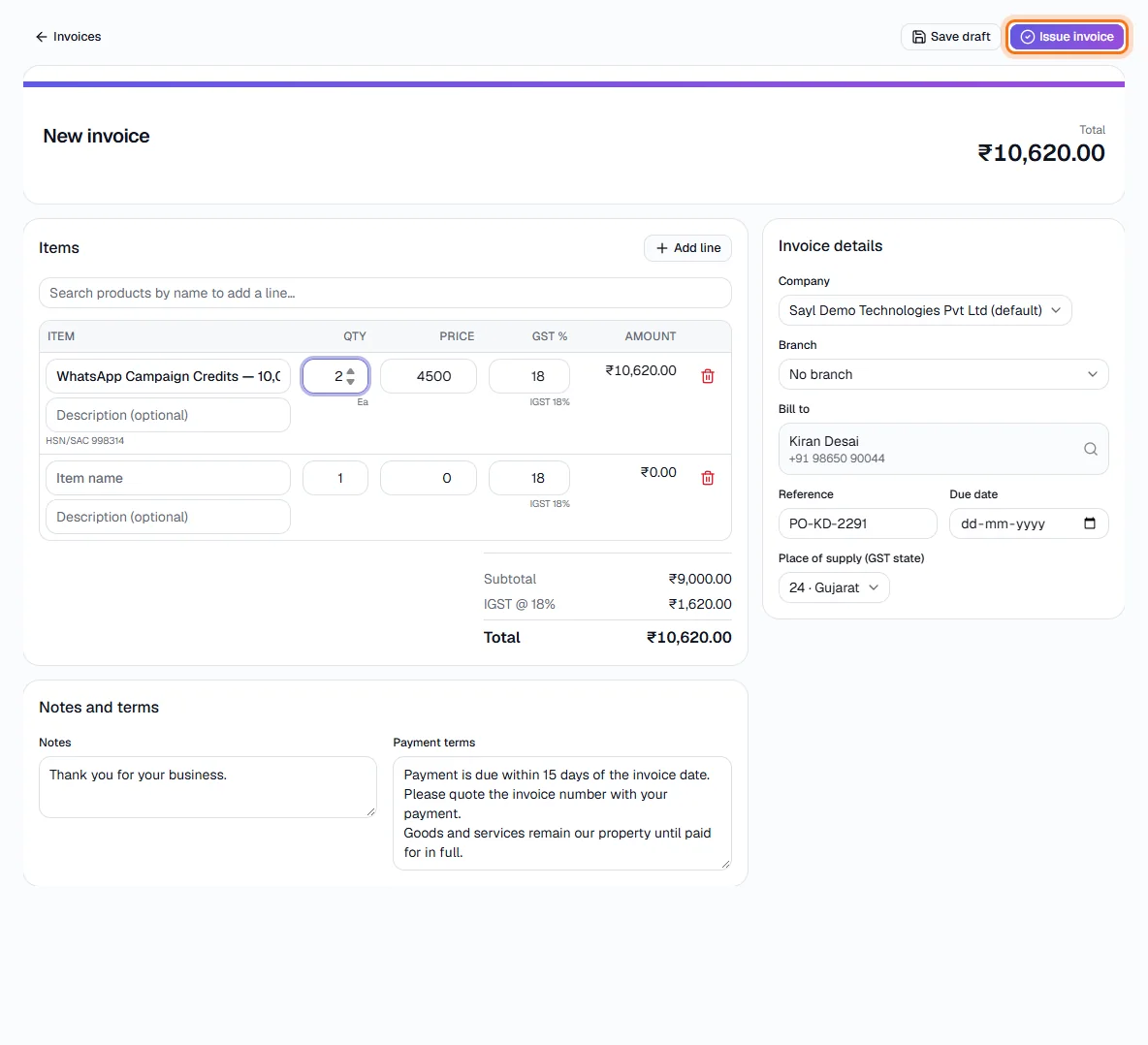
Pick who to bill under Bill to, then search products by name to add lines - the price, HSN/SAC and GST rate fill in. Set the company you bill under, a reference such as the customer's PO number, the due date and the place of supply. The total, with CGST/SGST or IGST, updates as you type.
- 4
Save the draft or issue it
Save draft keeps it private and editable. Issue invoice numbers it and posts it to the ledger (highlighted).
- 5
Send it and follow the money
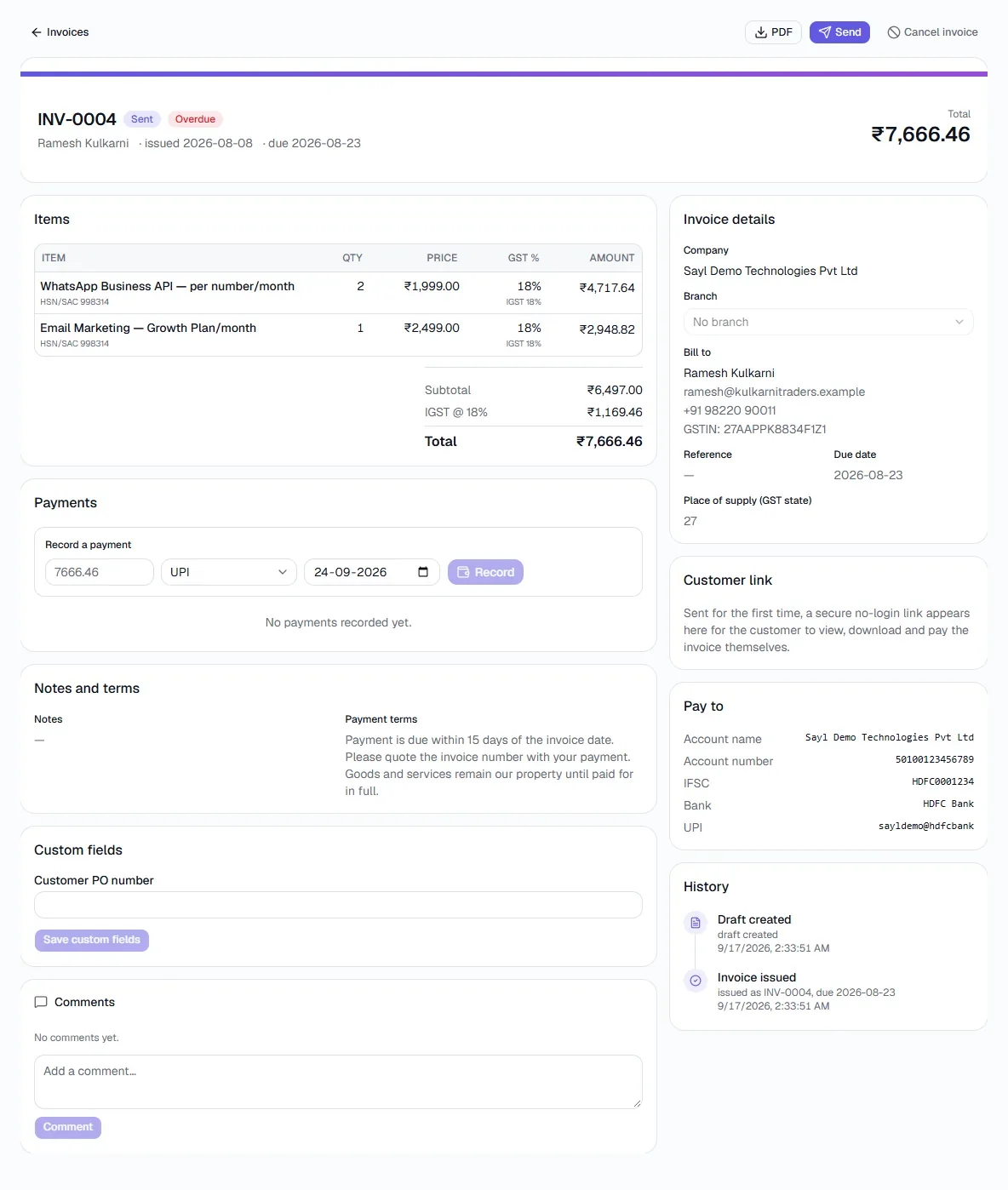
Open an invoice to see everything: the items, payments, the customer link, your bank details, its history and comments. PDF downloads a copy; Send delivers it; Cancel invoice voids it.
- 6
Record a payment
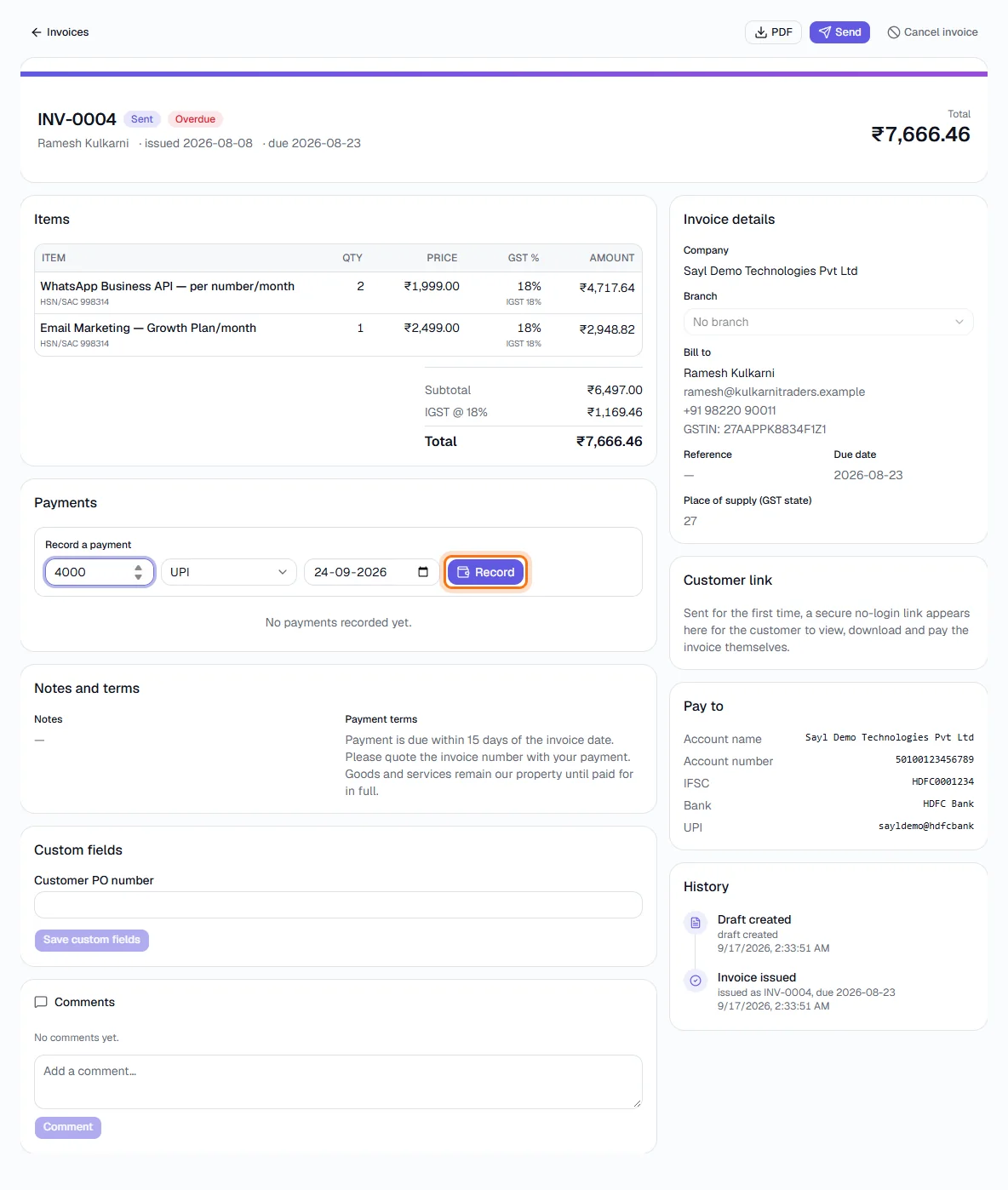
Under Payments enter the amount (it defaults to the balance), the method - such as UPI or bank transfer - and the date, then click Record. A part payment leaves the invoice as Part paid.
- 7
Reports, Messages and Reminders
The tabs above the invoice list open three more views. Reports shows what was collected, what is outstanding and overdue, and how many of your sends were delivered - for the last 7, 30 or 90 days. Messages holds the wording for each message Sayl sends (invoice, due soon, payment received…), per channel, each with an on/off switch and an Edit button. Reminders is the automatic chase: a schedule such as “3 days before due” and “3 days after due”. The master switch “Send reminders automatically” is off until you turn it on, and nothing is sent to a customer before then. Further down you choose how reminders are sent (WhatsApp, email or both), set quiet hours so nothing arrives at night, and see a log of every pass the scheduler has made.
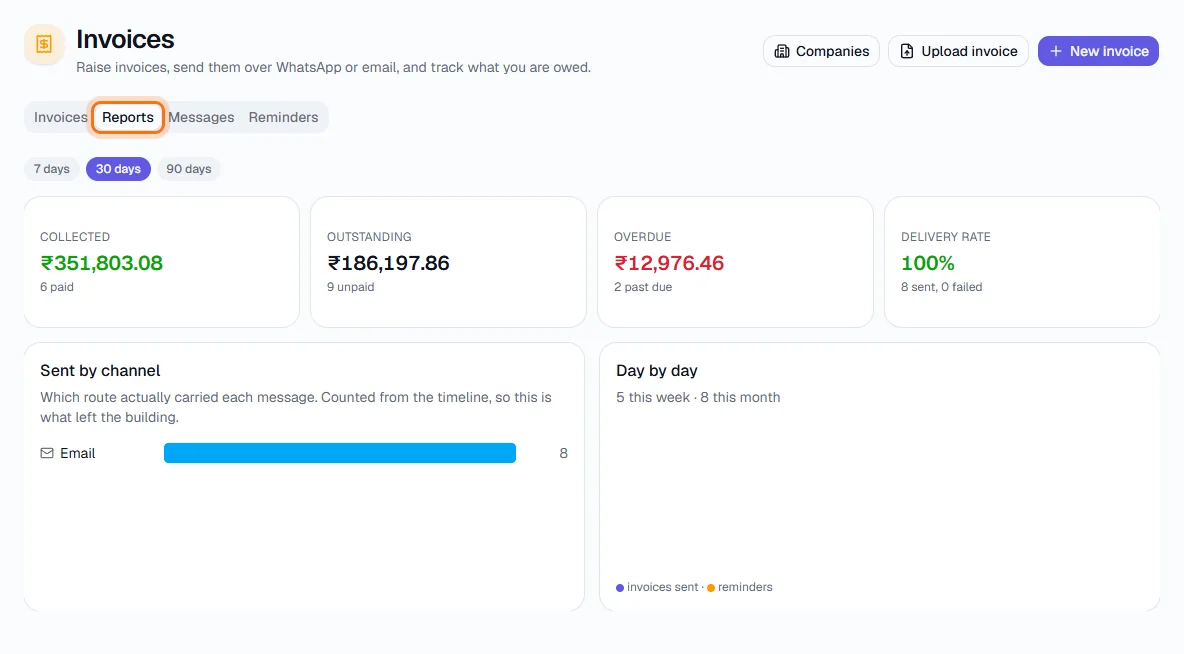
Reports - collected, outstanding, overdue, delivery rate 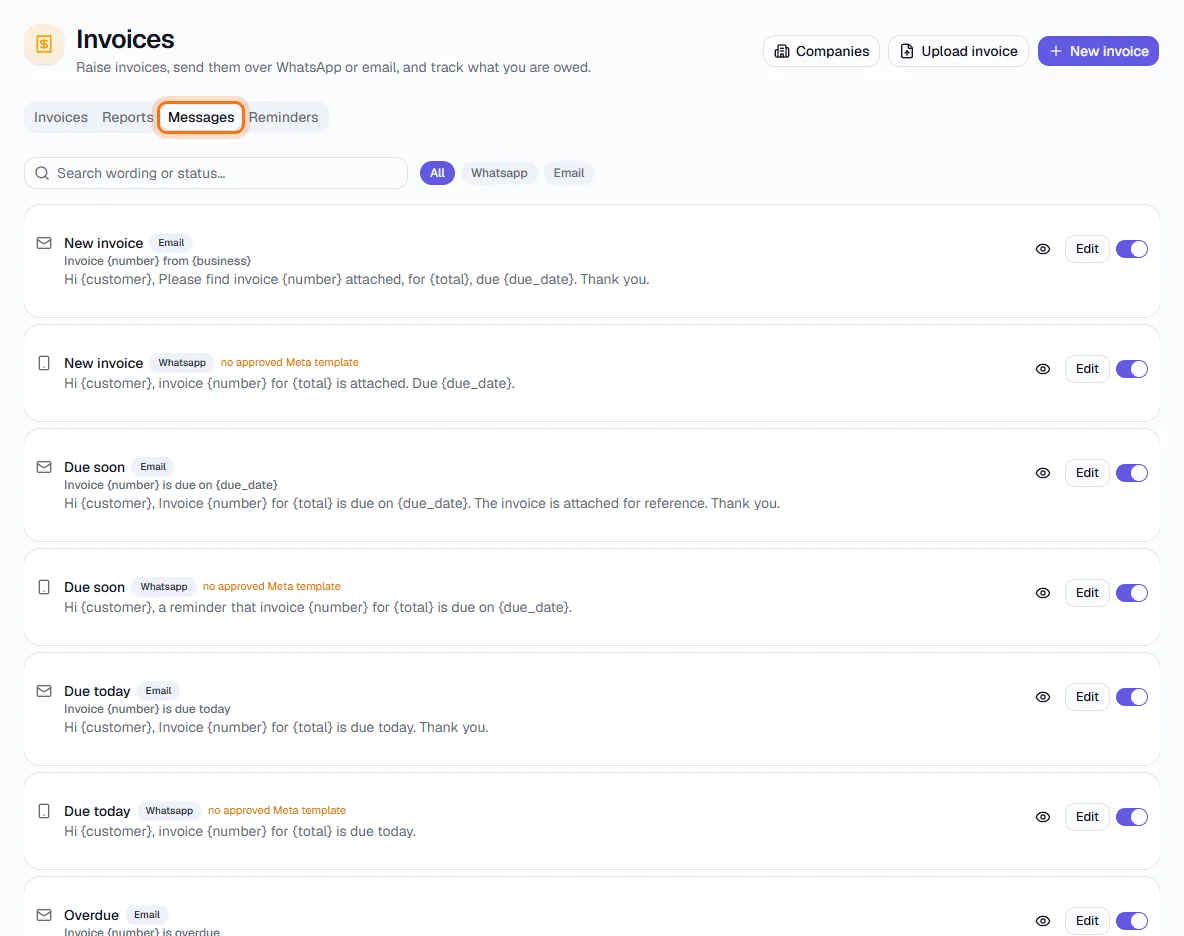
Messages - the wording of each message, by channel 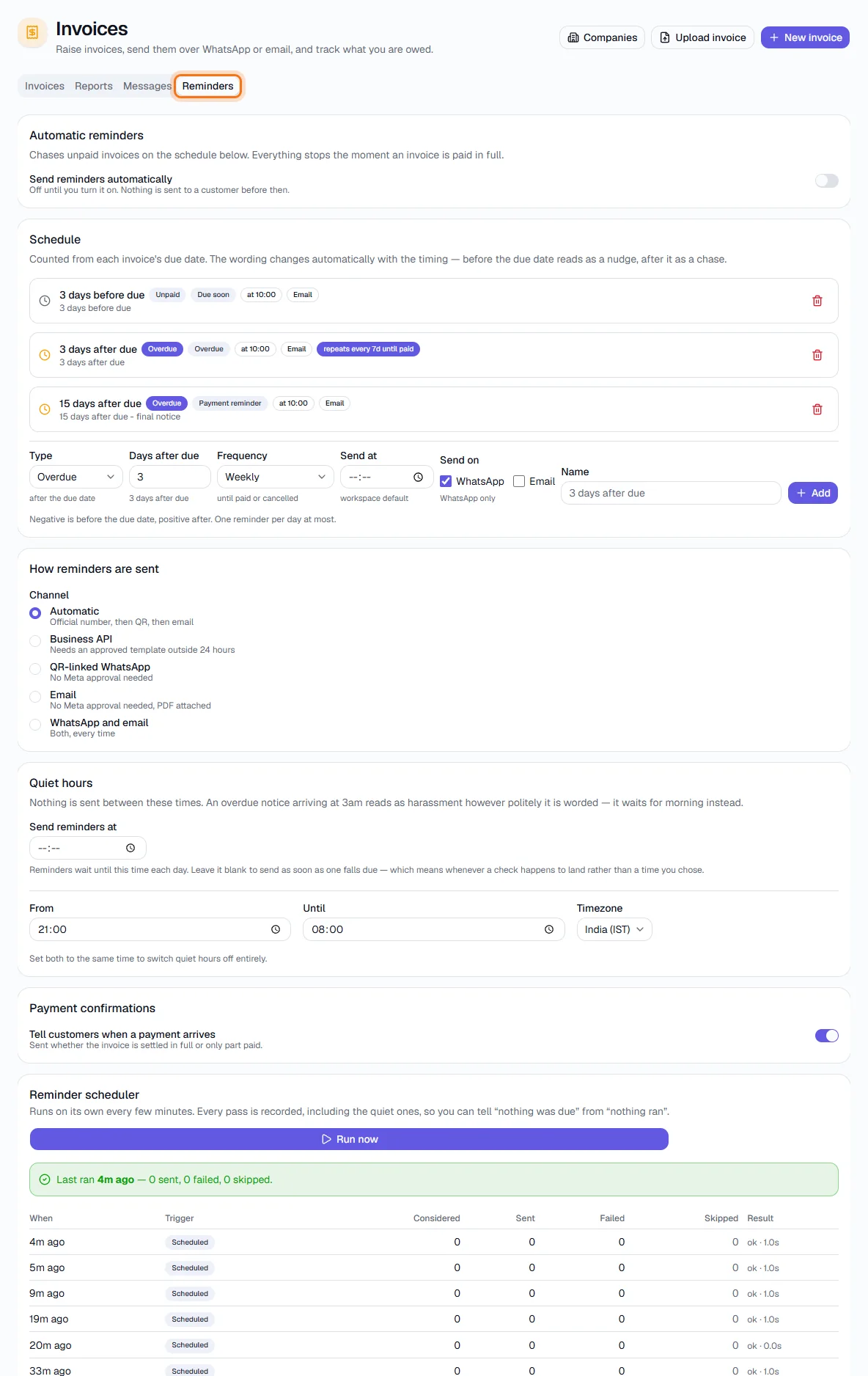
Reminders - the automatic chase schedule (switch is off)
Key fields
- Bill to
- The customer; their GSTIN and address print on the invoice.
- Company
- Which of your legal entities issues it - see Companies.
- Reference
- The customer's PO number or your own reference.
- Due date
- When payment is due; drives Overdue and the aging reports.
- Place of supply
- GST state that decides IGST versus CGST + SGST.
Tips
- Add a custom field such as “Customer PO number” once and it appears on every invoice.
- Reminders (the Reminders tab) chase unpaid invoices automatically instead of you doing it by hand.
- Use a credit note - not an edit - to correct an invoice that has already been issued.