
Finance, GST & Accounting · Inventory
Batches & Expiry
Track stock in batches or lots in Sayl Finance - quantity and expiry per batch, sell the oldest first, and trace a batch to the customers who received it.
What it is for
Batch (lot) tracking keeps stock in separate lots, each with its own quantity, manufacture and expiry dates. You always know what is left in each batch, what is about to expire, and which customers received a given batch - the basis for first-expiry-first-out selling and for recalls.
It suits goods that expire or are produced in lots: food, medicines, chemicals, cosmetics, paints.
How it works
- Switch on Track batches / lots for an item. From then on its stock is the quantity you have received into batches, and every invoice line for it must say which batches the quantity comes from.
- A batch past its expiry date cannot be received or sold. Stock that expires is written off with a reason, which stays in the batch's history.
- A draft invoice only allocates quantity - stock leaves the batch when the invoice is issued. A draft may hold fewer units than the quantity while you fill it in; issuing needs the whole quantity allocated.
- A product is tracked by serial number or by batch, never both, and a kit cannot be batch-tracked.
Step by step
Every screenshot is from the live demo. The highlighted button is the one to click - nothing here is saved in the demo, so you can follow along freely.
- 1
1 · Turn on tracking for the item
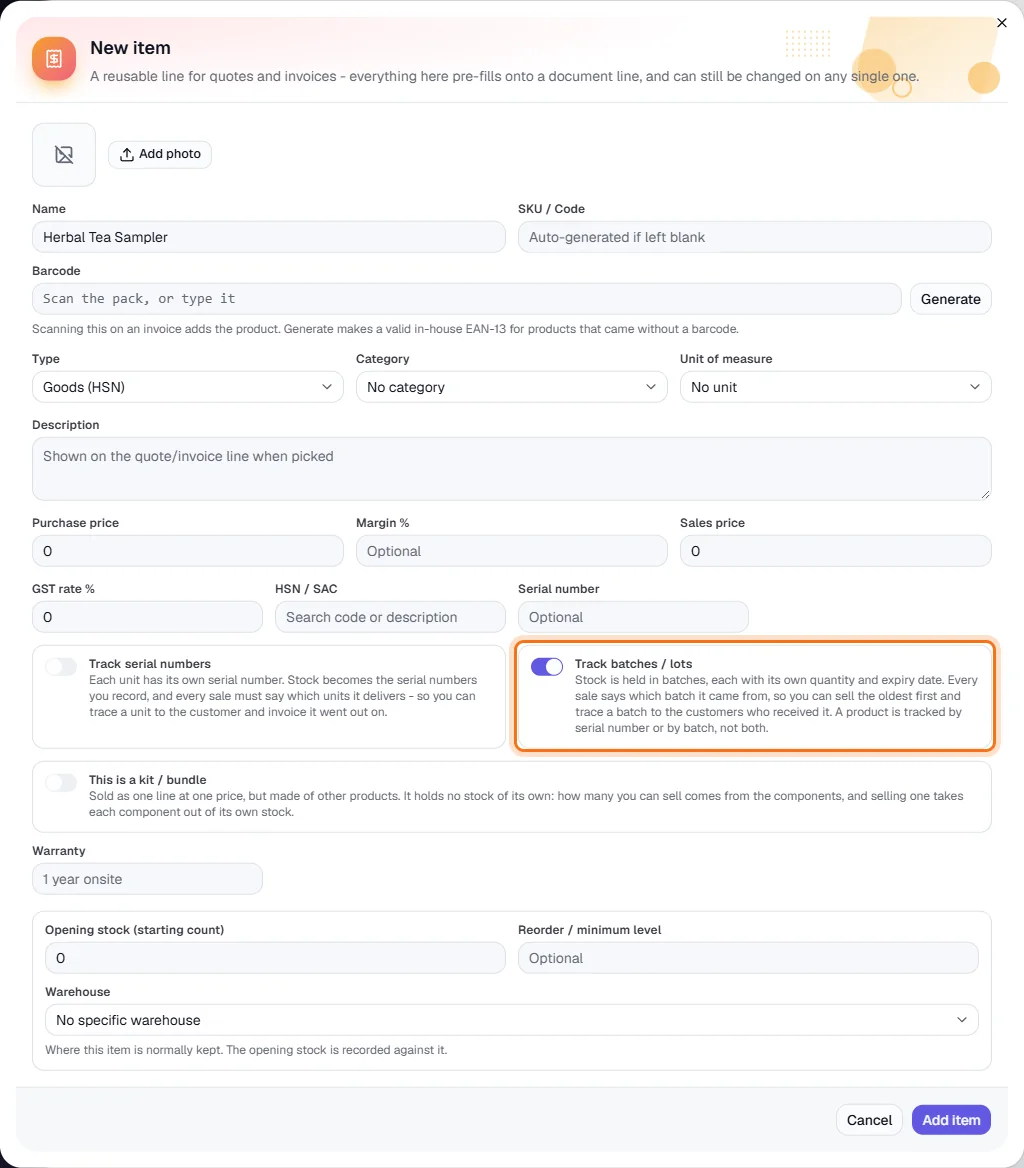
Finance → Inventory → Items / Products, then New item (or open an existing item). For goods, switch on Track batches / lots (highlighted). The Track serial numbers and kit switches are then unavailable - one method per product.
- 2
Open Batches & Expiry
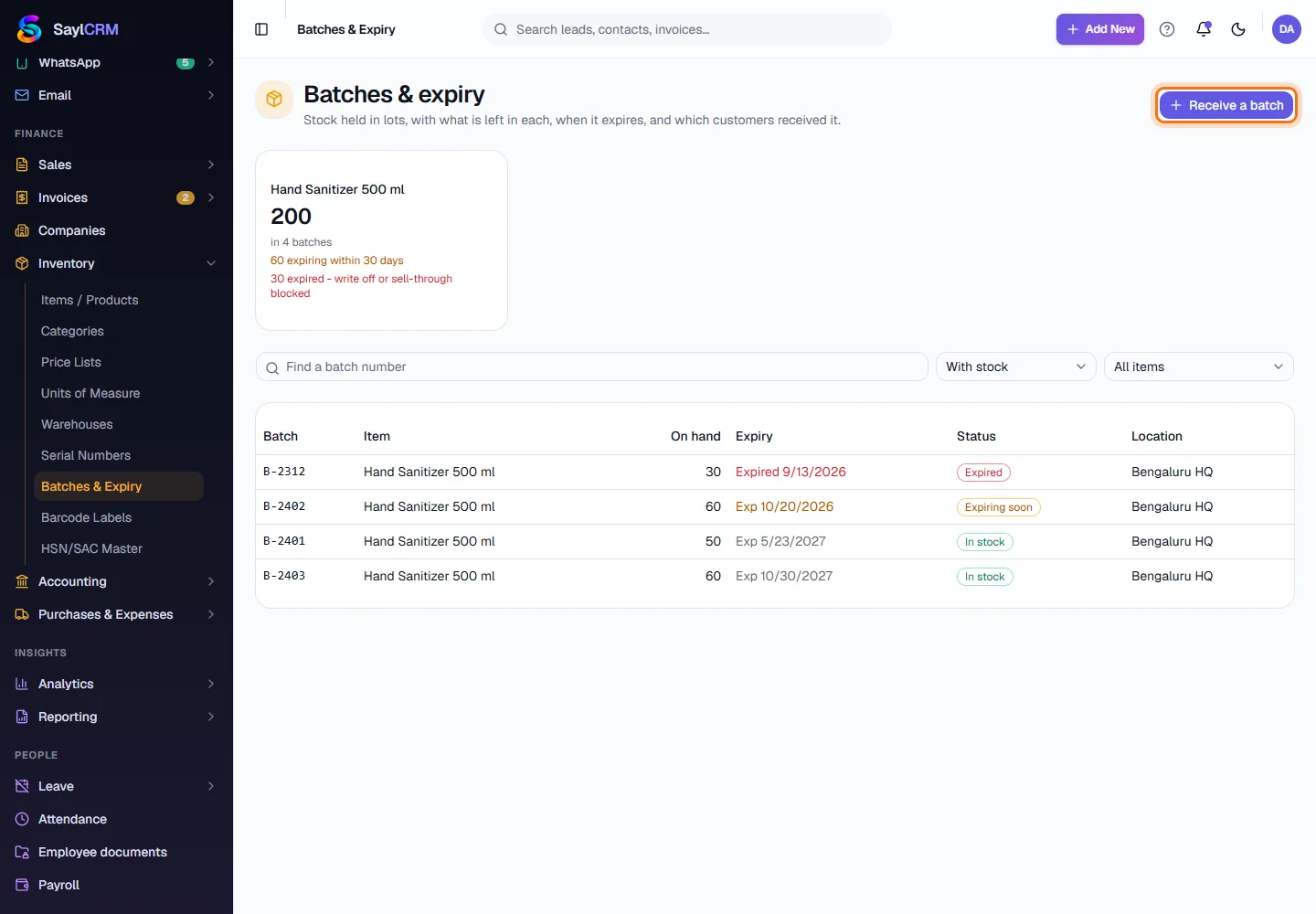
Finance → Inventory → Batches & Expiry. One card per batch-tracked item shows the quantity on hand, how many batches hold it, how much expires within 30 days and how much has already expired. Below, every batch shows what is on hand, its expiry, status and location. Filter by With stock or Expiring soon, by item, or search a batch number. Click Receive a batch (highlighted).
- 3
2 · Receive a batch
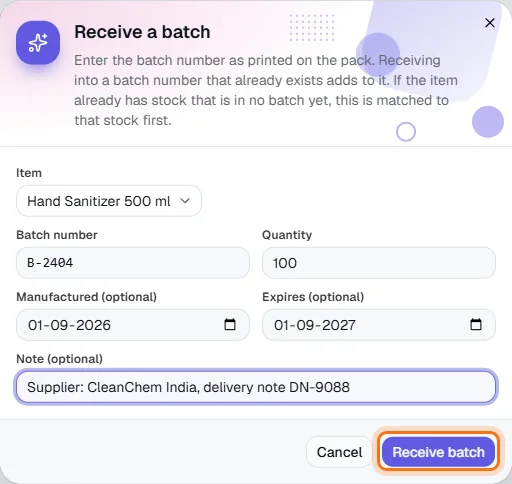
Choose the item, enter the batch number and quantity, and optionally the manufacture and expiry dates and a note (supplier, delivery note). Click Receive batch (highlighted). Receiving more of a batch number that already exists adds to that same batch - it must have the same expiry date. An expiry date in the past is refused.
- 4
3 · Choose batches on the invoice
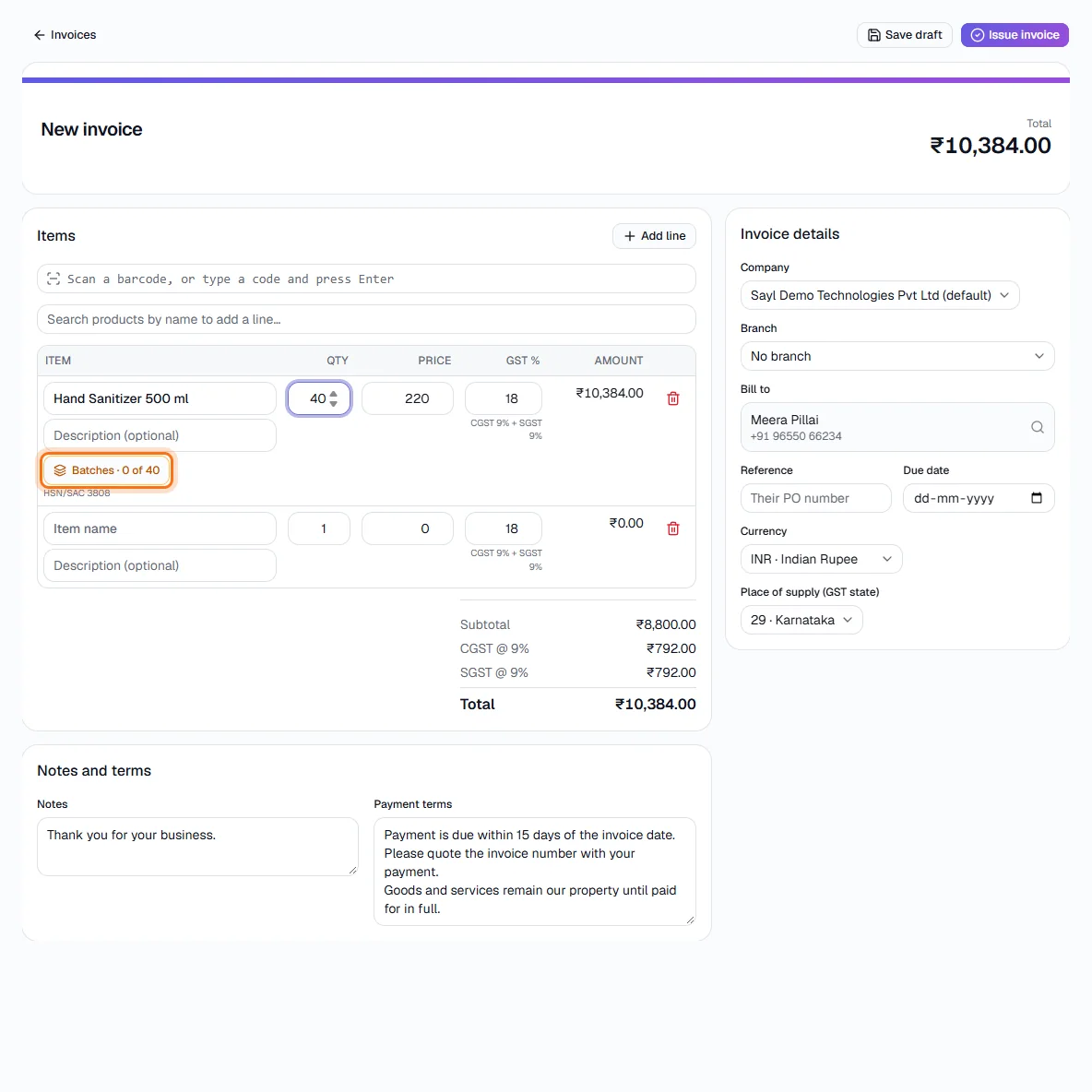
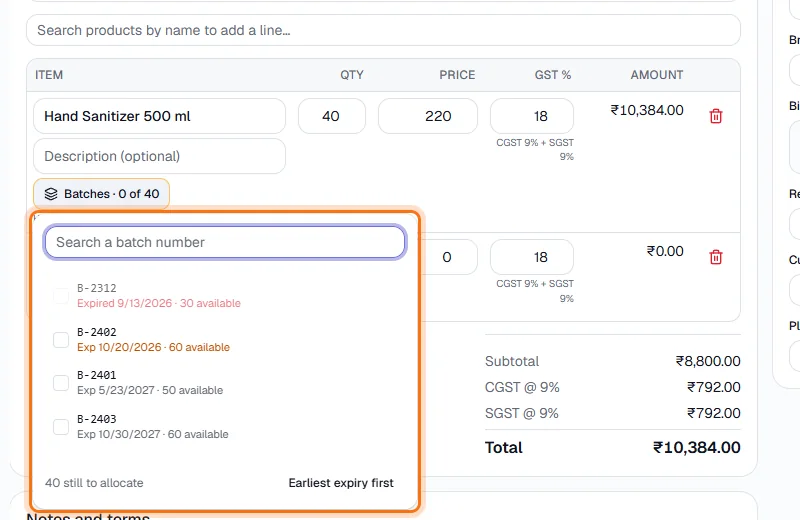
Create the invoice and add the batch-tracked item. Under the line a Batches button shows how much of the quantity is allocated, amber while some is missing (highlighted).
- 5
See what each batch holds
Click the button. Each batch with stock is listed with its expiry and how much is available; an expired batch is greyed out and cannot be chosen.
- 6
Earliest expiry first
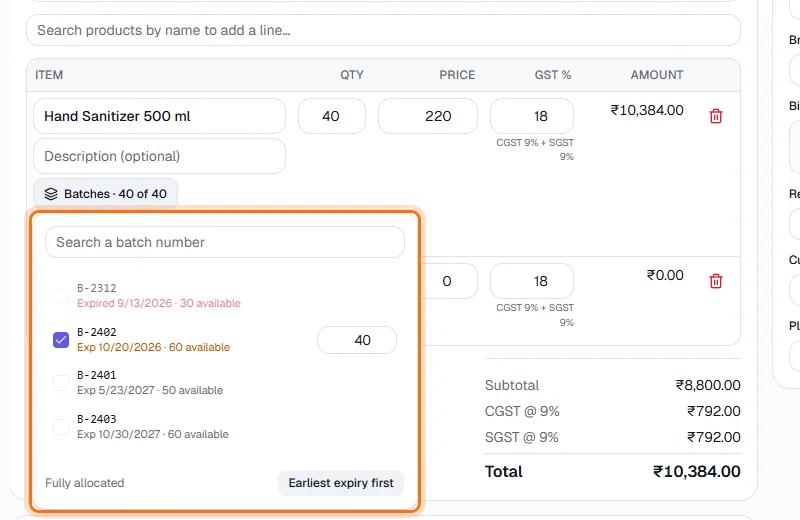
Click Earliest expiry first to fill the whole line from the batches that expire soonest, or tick batches yourself and type how much to take from each. The counter reads Fully allocated when the line is covered.
- 7
Allocated batches show on the line
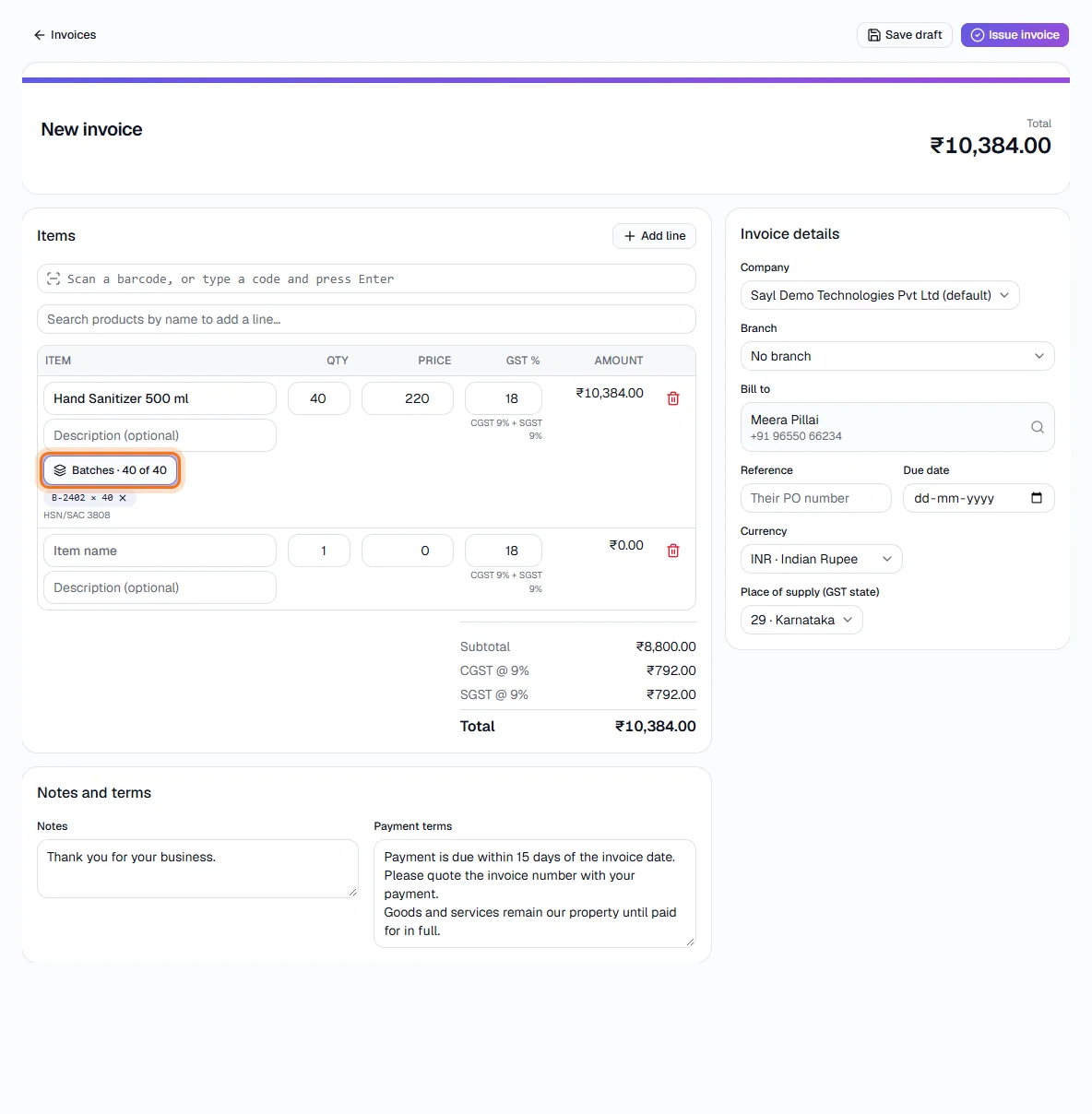
The button now reads, for example, 40 of 40 and the chosen batches appear under the line. Issue the invoice - the quantity is taken out of those batches. Lowering the line's quantity later trims the allocation back from the last batch.
- 8
4 · What happens when the quantity is wrong
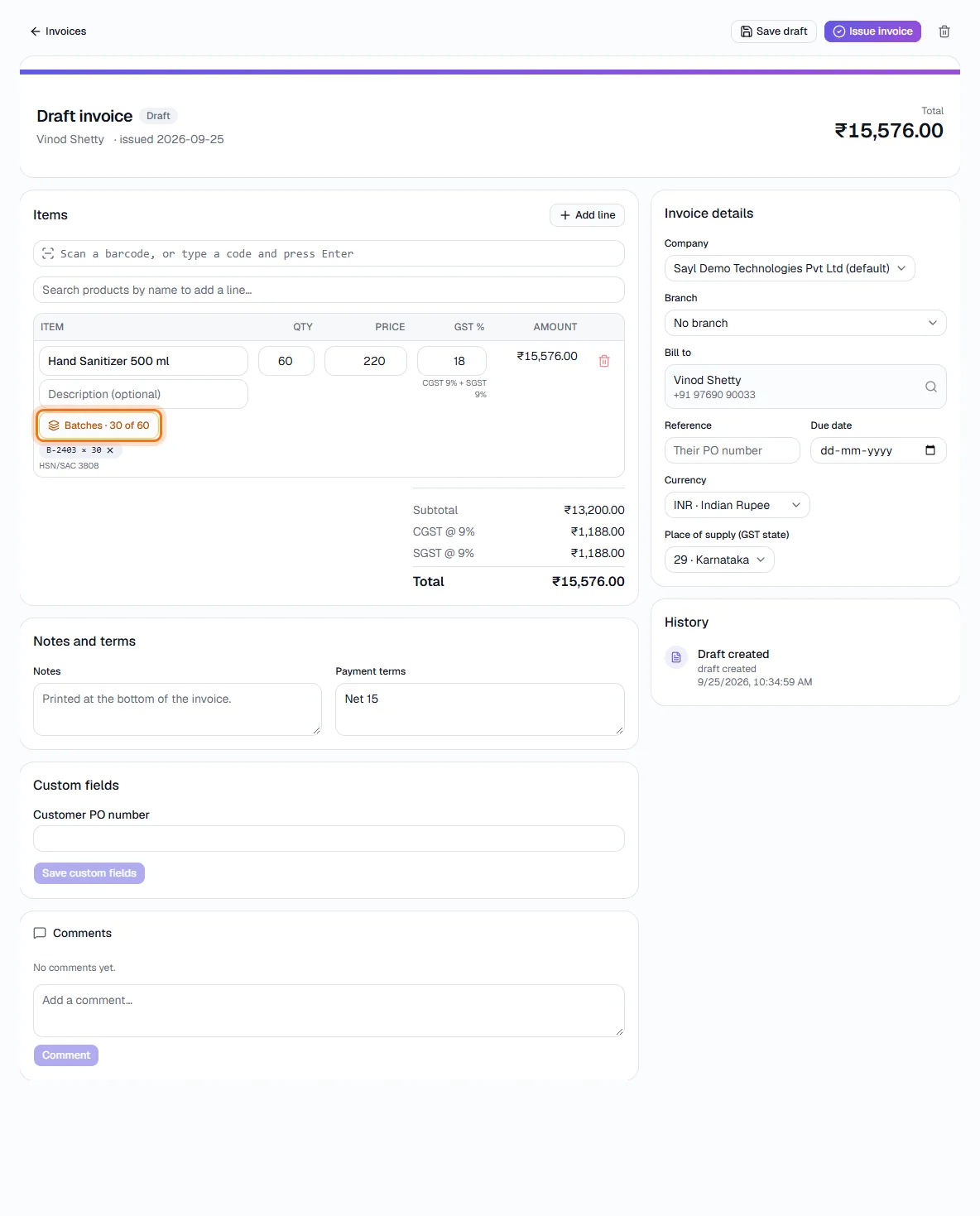
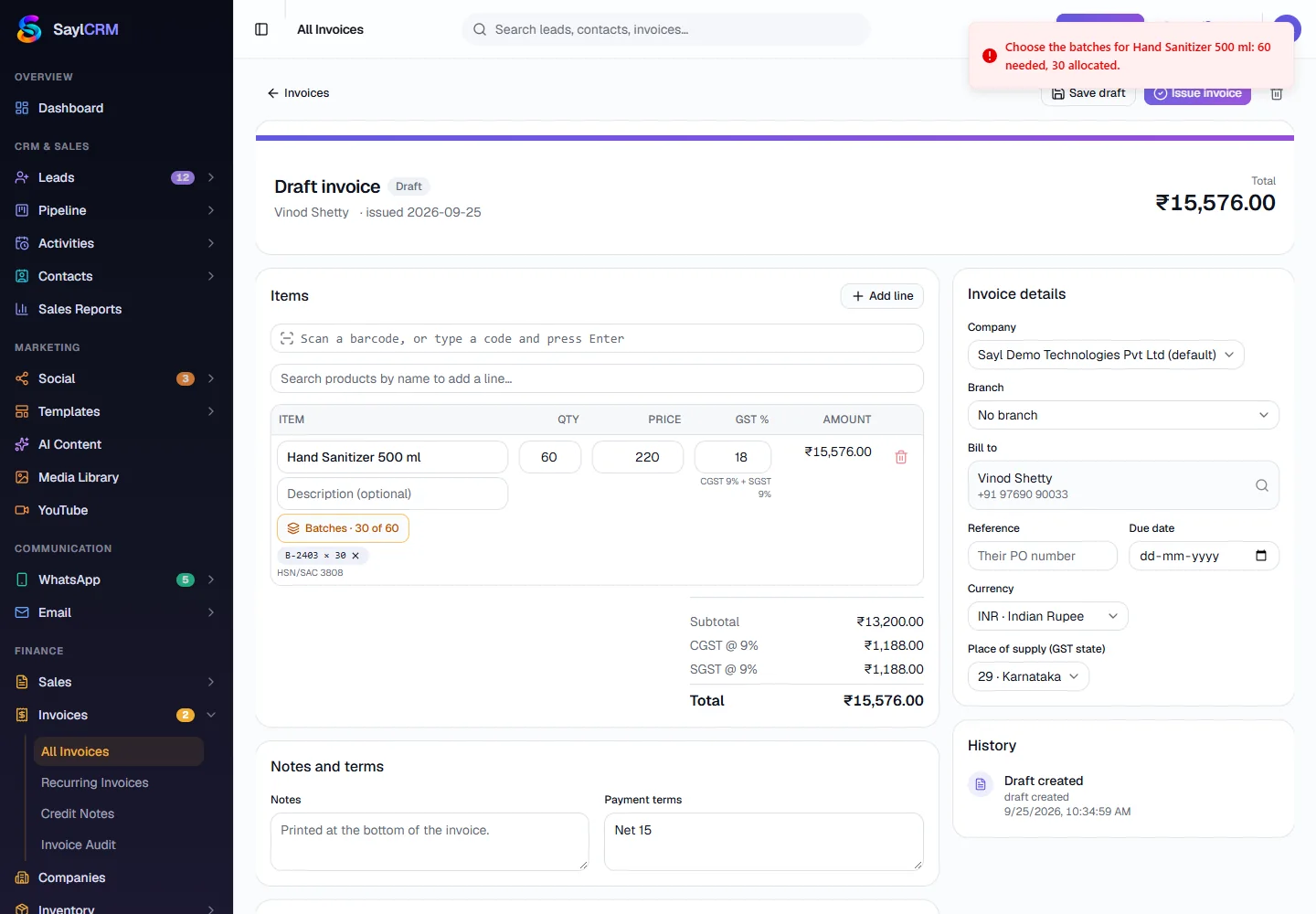
Allocating less than the quantity: the draft saves, and the button stays amber (here 30 of 60 - highlighted).
- 9
The invoice is refused, nothing is changed
Clicking Issue invoice is refused with a message naming the item and the shortfall - "Choose the batches for Hand Sanitizer 500 ml: 60 needed, 30 allocated." No invoice number is used and no stock leaves any batch. Allocate the rest and issue again. Choosing more than a batch holds, or an expired batch, is refused the same way.
- 10
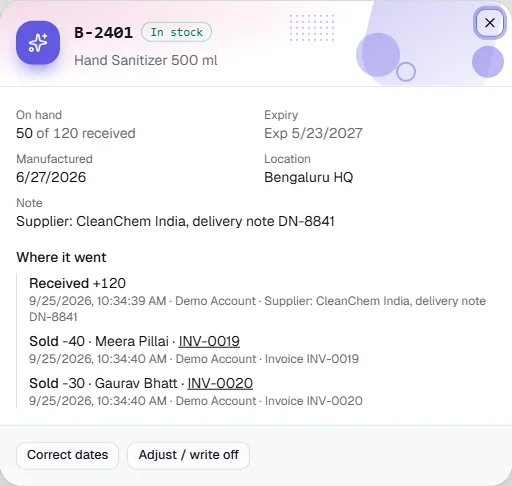
5 · Trace where a batch went
Click a batch on the Batches & Expiry screen. Its history lists what was received and every sale, with the customer and a link to the invoice Use Correct dates to fix a manufacture or expiry date, or Adjust / write off for a recount or disposal.
- 11
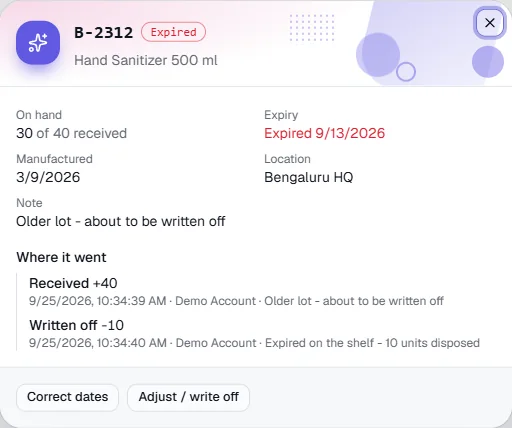
Expired stock
A batch past its expiry shows Expired, cannot be sold and is called out on the item's card. Write off what is left with Adjust / write off - a reason is required and it stays in the history. Here 10 of 40 units were written off as expired on the shelf.
Key fields
- Track batches / lots
- Item switch (goods only). Stock is held in batches; every sale names its batches.
- Batch number
- Your own lot number, up to 200 characters. Reusing one adds to that batch.
- Expires / Manufactured
- Optional dates. Expiry drives Expiring soon (30 days) and Expired, and blocks selling.
- Batches · N of M
- On an invoice line: how much of the quantity is allocated to batches.
Tips
- Use Earliest expiry first on every sale so the oldest stock always goes out before newer lots.
- Filter the list to Expiring soon each week to plan discounts or returns before stock is lost.
- If an item already had stock before you turned batch tracking on, the first batches you receive are matched to those units - the item form shows how many still need a batch.