
Finance, GST & Accounting · Inventory
Barcode Labels
Give products a barcode in Sayl Finance, print labels in the size you need, and scan a product straight onto an invoice.
What it is for
Barcodes let you label what you stock and ring it up by scanning. Every product can carry one barcode; the Barcode Labels screen prints a sheet or roll of labels for the products you choose, and the invoice screen adds a product the moment its barcode is scanned.
How it works
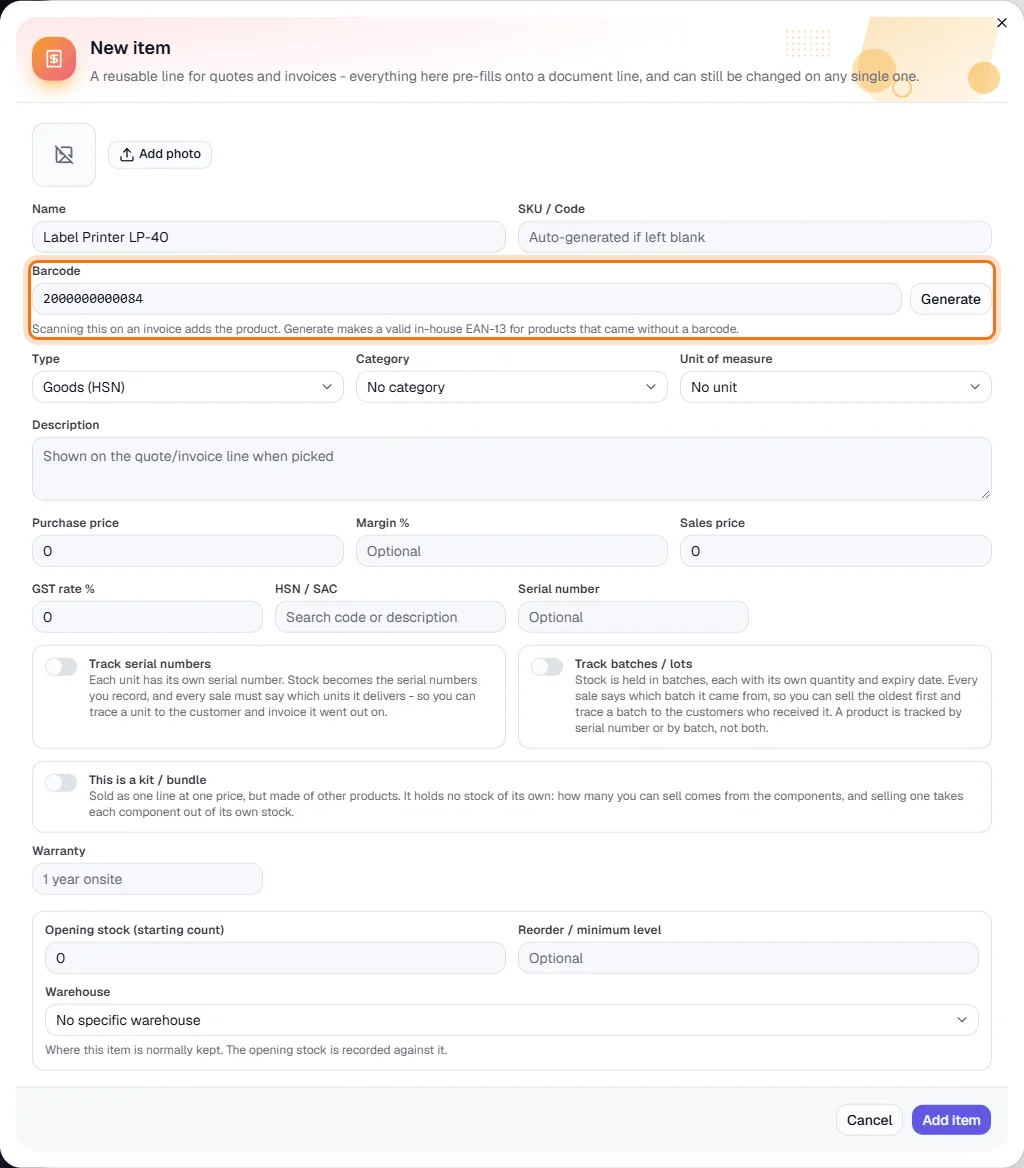
- The barcode is stored on the item. Type or scan the one printed on the pack, or click Generate to create a valid in-house EAN-13 for a product that came without one. A barcode can belong to only one product in the workspace.
- On the Barcode Labels screen you choose how many labels of each product to print (up to 500), a label size and whether to show the price. The preview shows exactly what will print.
- On an invoice, a USB or Bluetooth scanner types the code and presses Enter, so the Scan box only needs to be focused. Where the browser can read barcodes from a camera (Chrome or Edge), a camera button opens a viewfinder. A scanned code is matched against barcodes first, then SKUs.
Step by step
Every screenshot is from the live demo. The highlighted button is the one to click - nothing here is saved in the demo, so you can follow along freely.
- 1
Give the product a barcode
Finance → Inventory → Items / Products, then New item (or edit an item). Type or scan the barcode into the Barcode box, or click Generate to fill in a valid in-house EAN-13 (highlighted). Barcodes are unique - saving a code that another product already uses is refused.
- 2
Open Barcode Labels
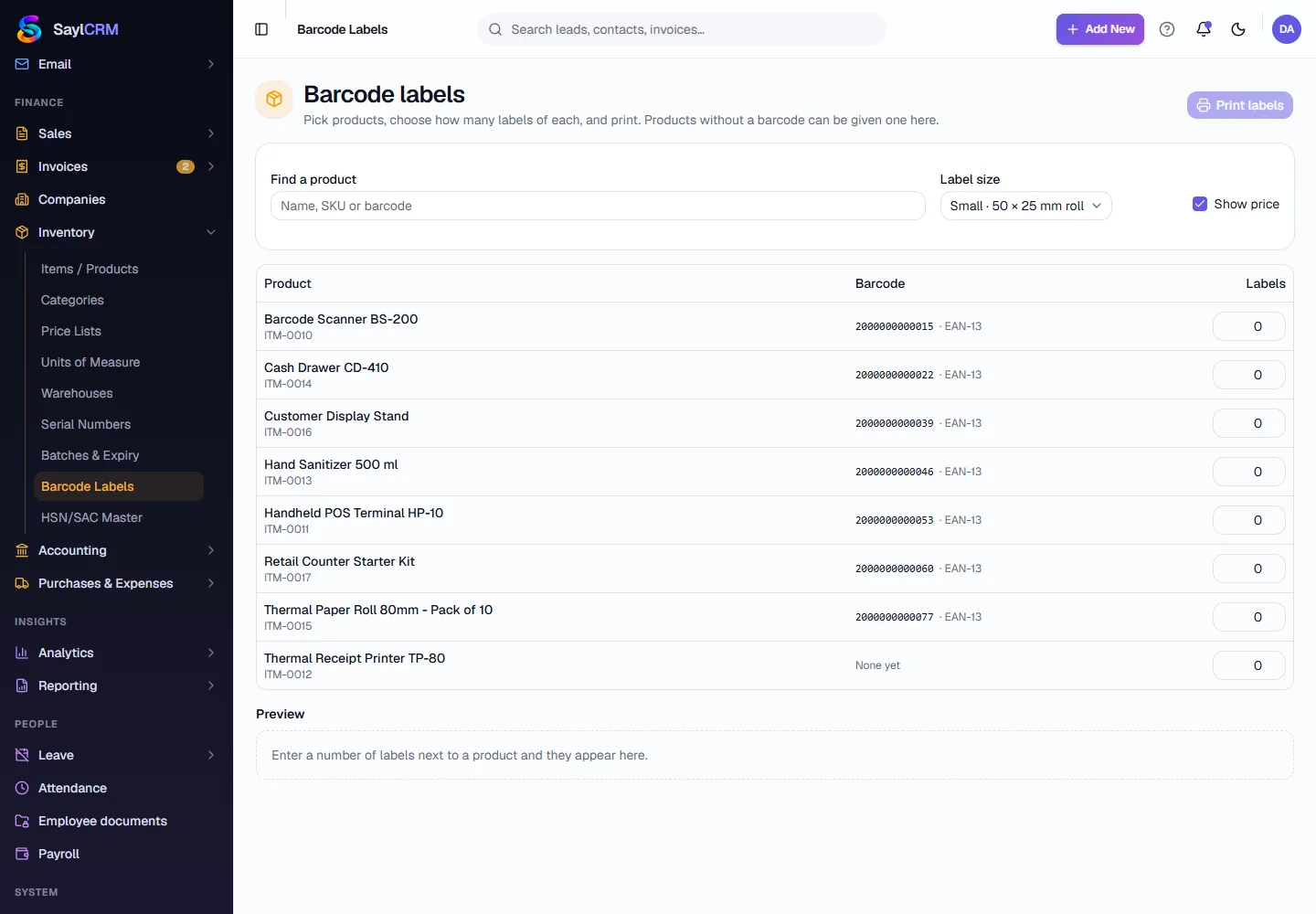
Finance → Inventory → Barcode Labels. Every product that is goods is listed with its barcode and type (EAN-13, for example). Services are not listed - there is nothing to stick a label on. Search by name, SKU or barcode, then type how many labels you want next to each product.
- 3
Products with no barcode yet
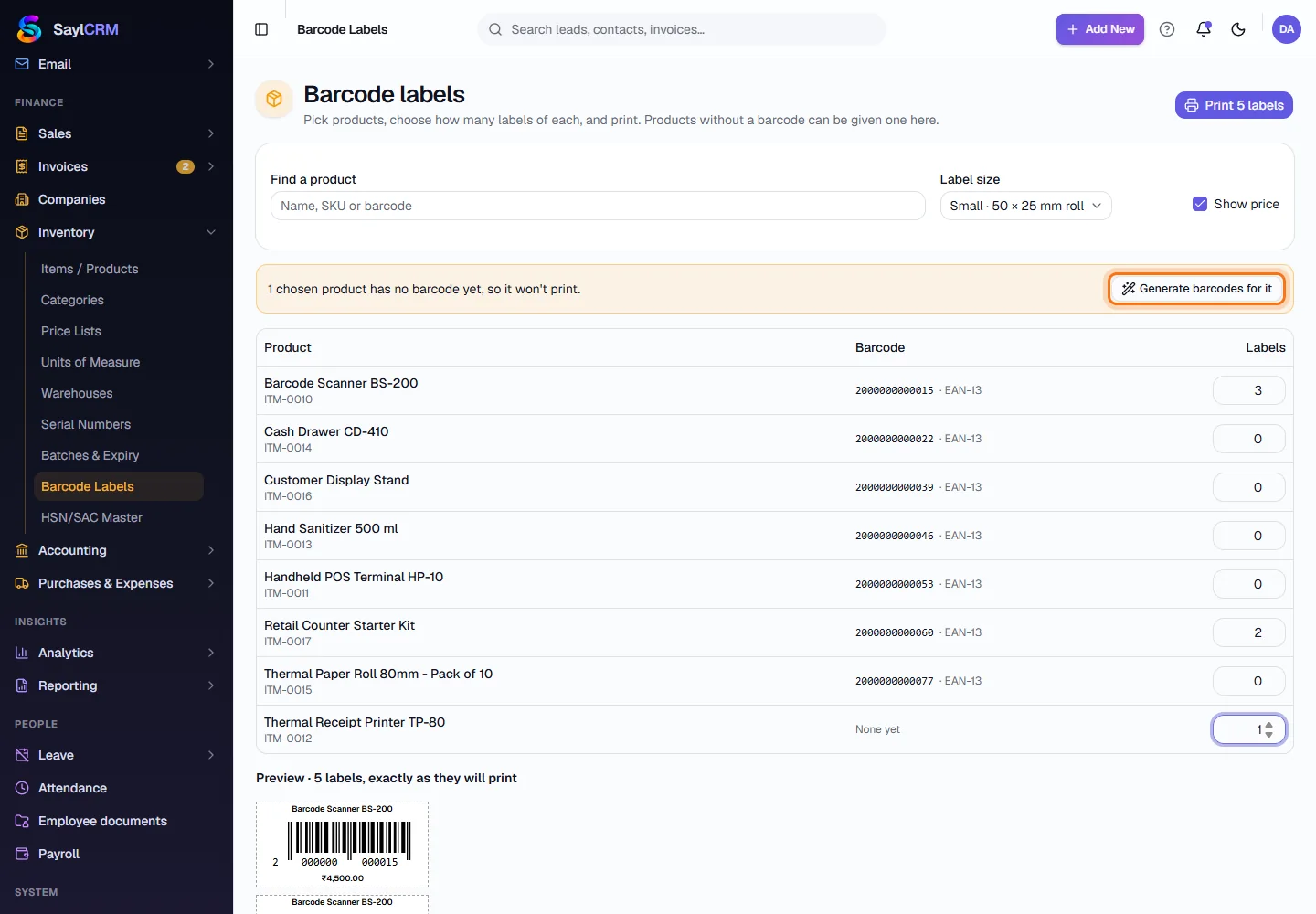
A product with a label count but no barcode will not print. An amber bar says so and offers Generate barcodes for it (highlighted); products that already have a barcode are left exactly as they are.
- 4
Choose the label size
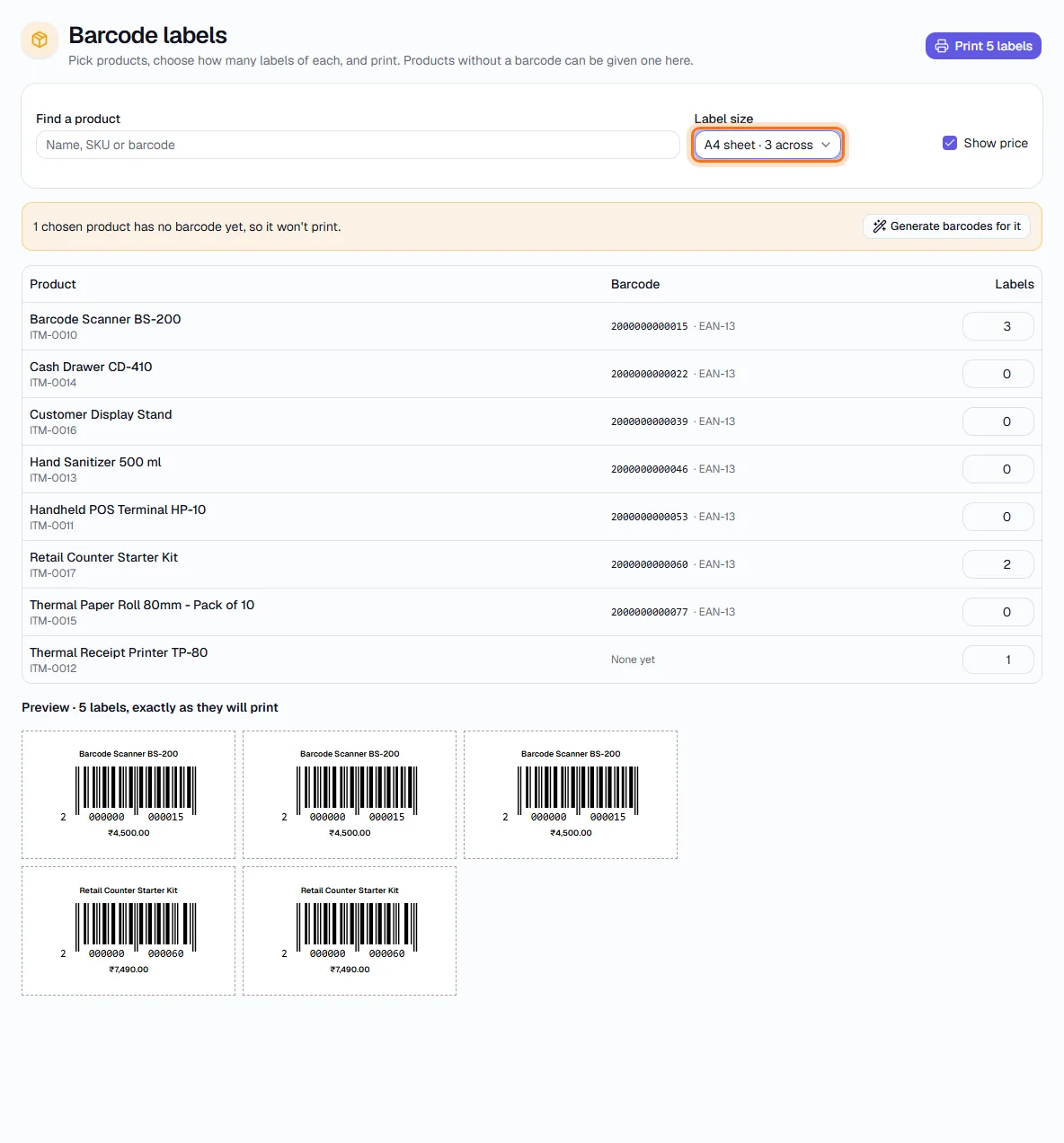
Pick Small (50 × 25 mm roll), Medium (60 × 40 mm roll) or A4 sheet (3 across) (highlighted), and tick or untick Show price. The preview below shows each label as it will print - the product name, the bars and the price.
- 5
Print
Click Print (highlighted). It opens your browser's print dialog with only the labels on the page, sized to the stock you chose - pick your label printer or Save as PDF.

- 6
Scan on an invoice
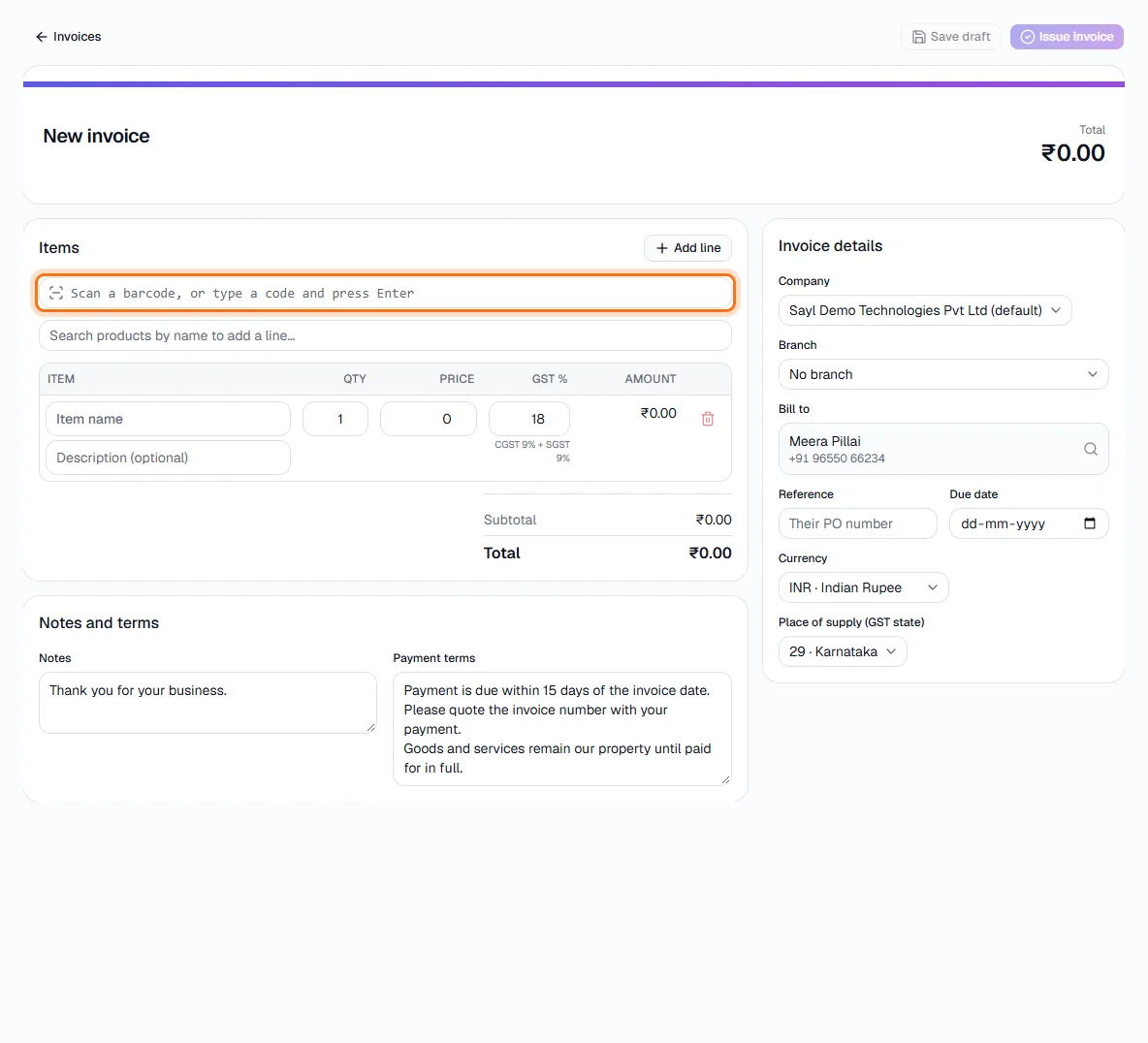
Create an invoice (Finance → Invoices → New invoice) and click into the Scan box (highlighted). Scan the pack, or type a barcode and press Enter.
- 7
The product is added
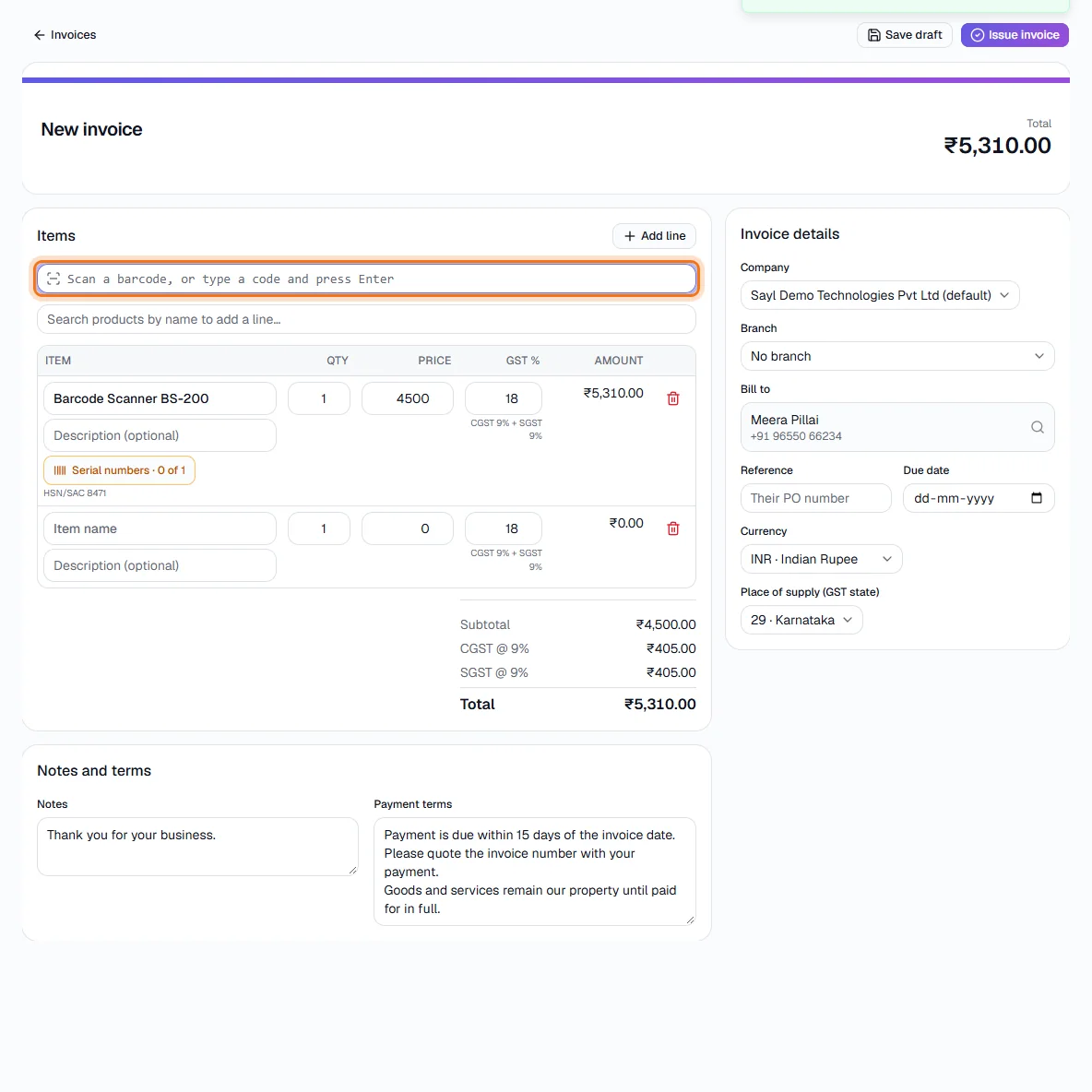
The product is added as a line and a green message confirms it. Scanning the same product again adds one to its quantity. A code that belongs to no product says so, and an archived product is refused. A product tracked by serial number or batch still asks you to choose its units - here the Serial numbers button on the new line.
Key fields
- Barcode
- One per product, unique in the workspace. Generate makes an in-house EAN-13.
- Labels
- How many labels of that product to print, 0 to 500.
- Label size
- Small 50 × 25 mm roll, Medium 60 × 40 mm roll, or A4 sheet with three labels across.
- Show price
- Prints the item's sales price under the bars.
Tips
- Generate barcodes for a whole batch of products at once from the Barcode Labels screen: enter a label count for each, then click Generate barcodes for them.
- A kit has its own barcode and its own labels - scanning it adds the kit line.
- Scanning also matches a product's SKU, so a shelf tag that only carries the SKU still works.