
Finance, GST & Accounting · Invoices
Proforma Invoices
Raise a proforma invoice in Sayl Finance for a customer to approve or pay in advance, email it as a PDF, record their answer and convert it into a real invoice in one click.
What it is for
A proforma invoice looks like an invoice but is not one. It tells a customer exactly what they would be billed - items, prices, GST and total - so they can approve the order or pay an advance before you raise the tax invoice. It is not a tax invoice, creates no entry in your accounts and does not use up an invoice number.
When the customer agrees, you convert the proforma into a draft invoice in one click. The items, prices and GST carry over unchanged, so nothing is typed twice and the invoice total always equals the proforma total.
How it works
- A proforma moves Draft → Sent → Accepted, and then Converted once its invoice is created. A customer can also turn it down: Sent or Accepted becomes Rejected, and a Rejected proforma can be reopened as a draft. A proforma that is not wanted any more is Cancelled.
- Draft means it is saved in the CRM and not sent. Sent means the customer has it - either because you emailed it from the CRM, or because you used Mark as sent after sharing it another way. The list says Emailed with the date for the first, and Not emailed for the second, so you always know which it was.
- Convert to invoice works from Draft, Sent or Accepted - you do not have to wait for the customer to accept in the system if the order was confirmed on a call. Each proforma converts only once. The invoice is created as a draft, takes its invoice number when you issue it, and posts nothing to the accounts until then.
- Draft and Sent proformas can be edited. Changes to a Sent one are recorded in its history, and you should email it again so the customer has the new version. Accepted, Rejected, Converted and Cancelled proformas are fixed; Duplicate copies one into a new draft.
- Valid until is the date the prices hold until. After it the proforma shows Expired, which is only a reminder - it is not an overdue payment, and an expired proforma can still be converted.
- GST is worked out for you. The customer's GSTIN and address come from the customer record, and the place of supply decides between CGST + SGST (same state as your company) and IGST (another state). Check the company's GST state under Company → Companies so the split is right.
- Numbers follow your own pattern - by default PI/2026-27/0001, restarting each April - and are set under Settings on the list page. The company's invoice design is used for the PDF.
Step by step
Every screenshot is from the live demo. The highlighted button is the one to click - nothing here is saved in the demo, so you can follow along freely.
- 1
Open Proforma Invoices
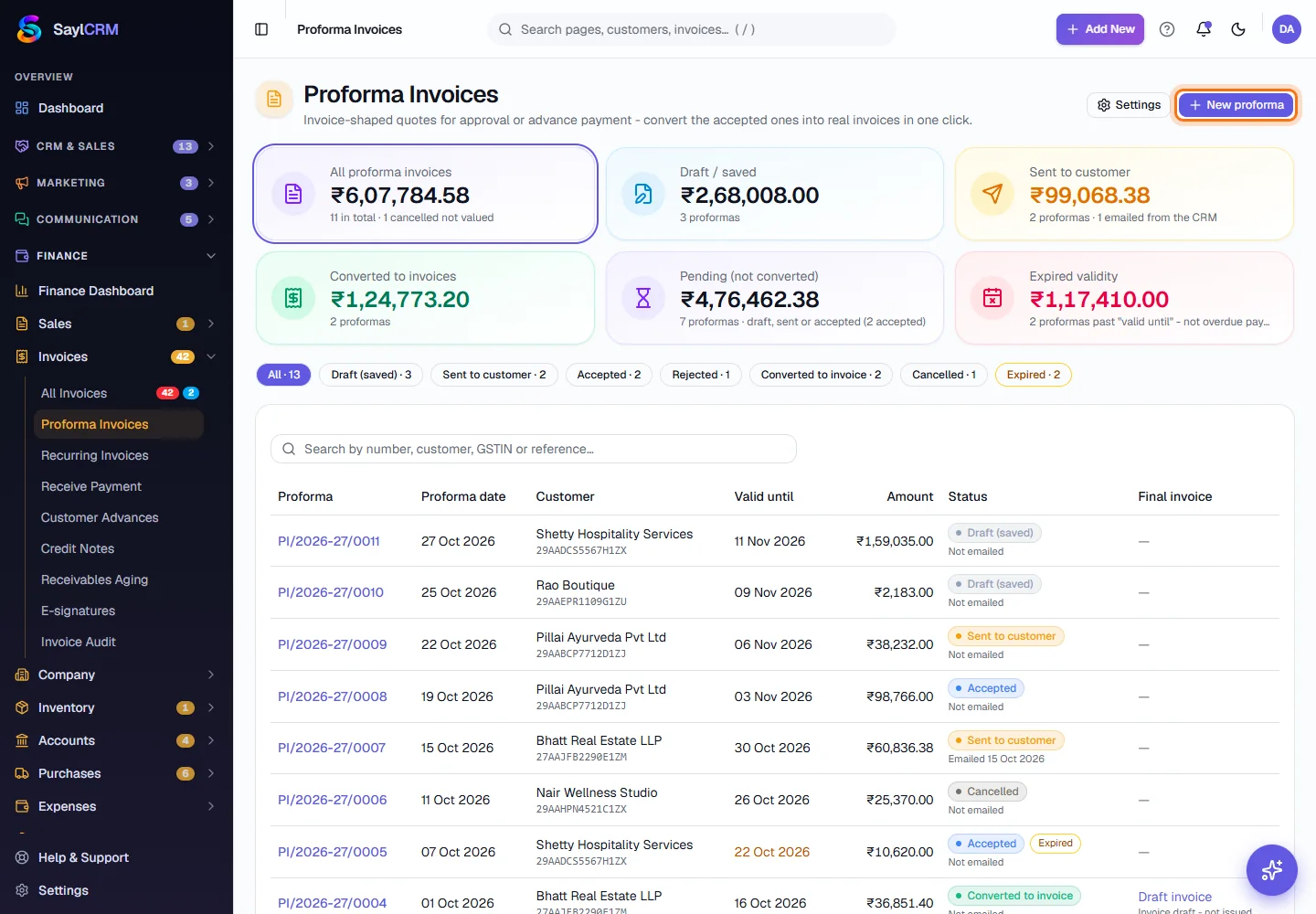
Finance → Invoices → Proforma Invoices. Six cards at the top add up the money by stage: all proformas, drafts, sent, converted, pending (draft, sent or accepted but not yet converted) and expired. Below them is every proforma with its date, customer, valid-until date, amount, status and final invoice.
- 2
Filter and search
Click a card or a status pill to show only that stage, for example Sent to customer to see what is waiting for an answer. Search by proforma number, customer name, GSTIN or reference. Expired shows the ones past their valid-until date.
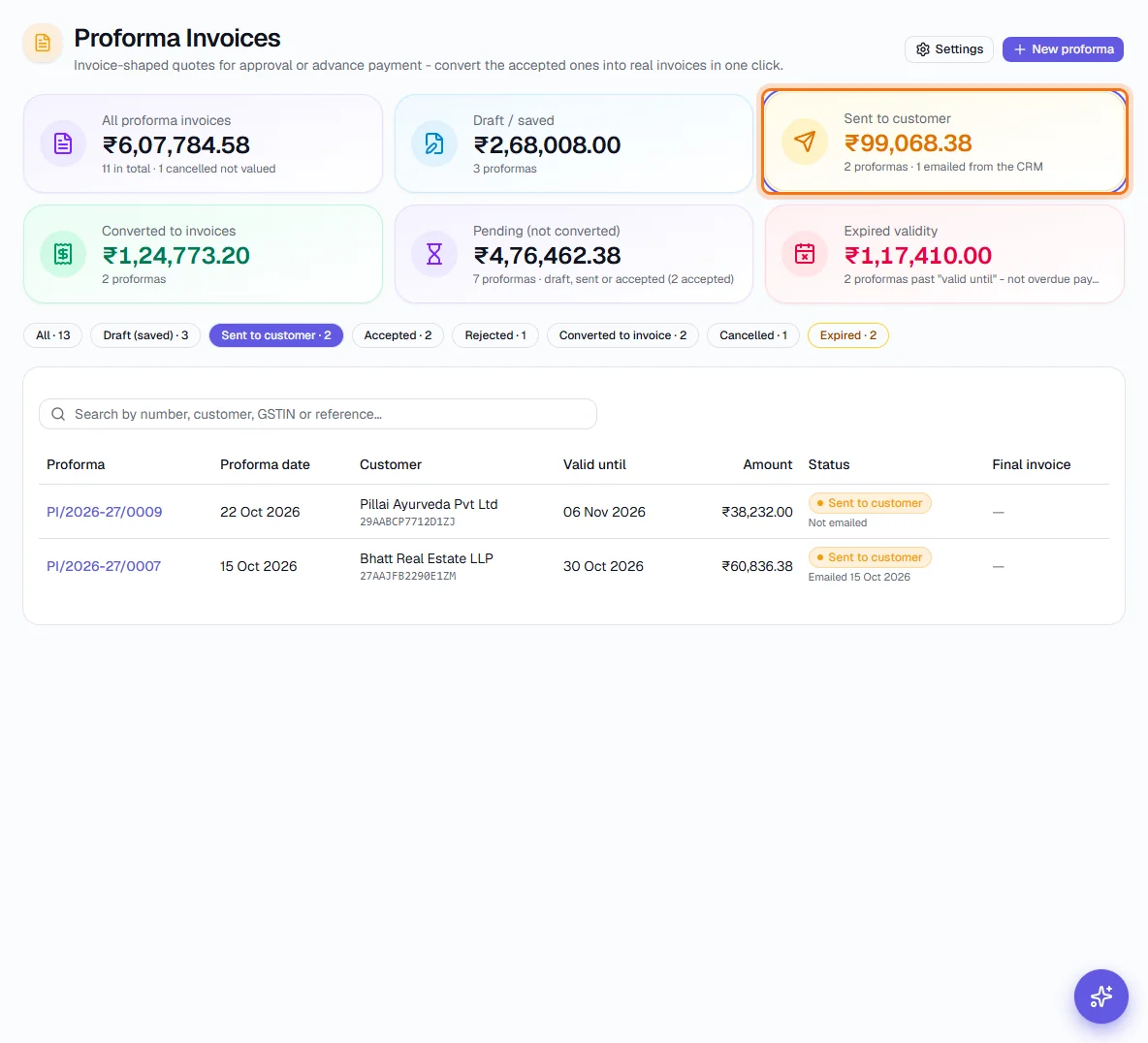
Filtered to Sent to customer: the card is outlined. - 3
Click New proforma
The button is at the top right (highlighted).
- 4
Choose the customer and the details
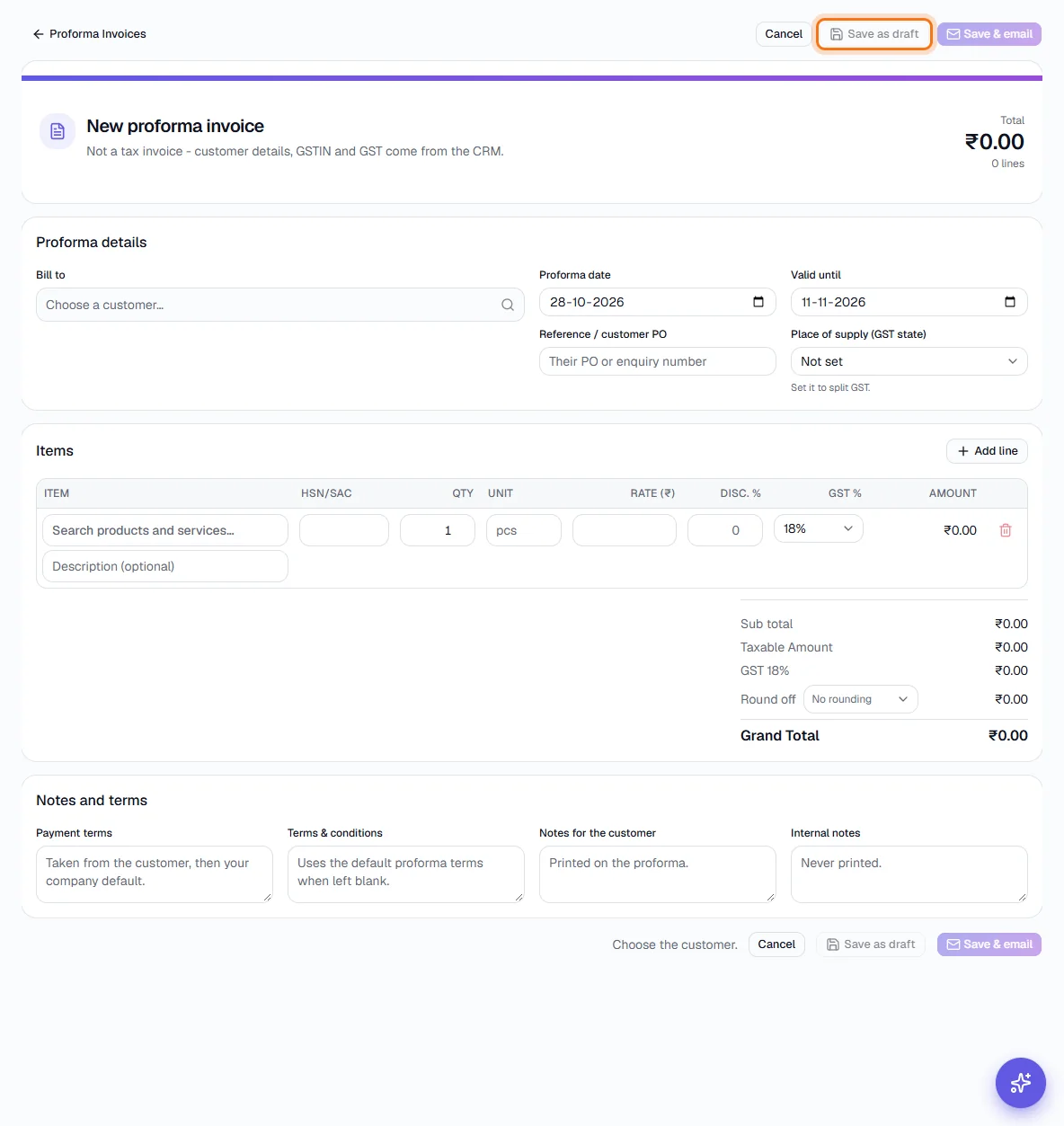
Pick the customer under Bill to - their address, GSTIN and email appear below it. Set the proforma date and Valid until, and add their PO or enquiry number under Reference. Place of supply is filled in from the customer, and the page tells you whether IGST or CGST + SGST applies.
- 5
Add the items
Search your products and services and pick one - the HSN/SAC, unit, rate and GST % fill in from the catalog. Change the quantity, rate, discount % or GST % where this proforma differs, and use Add line for more items. The amount, GST split, rounding and Grand Total update as you type and are exactly what will be saved.
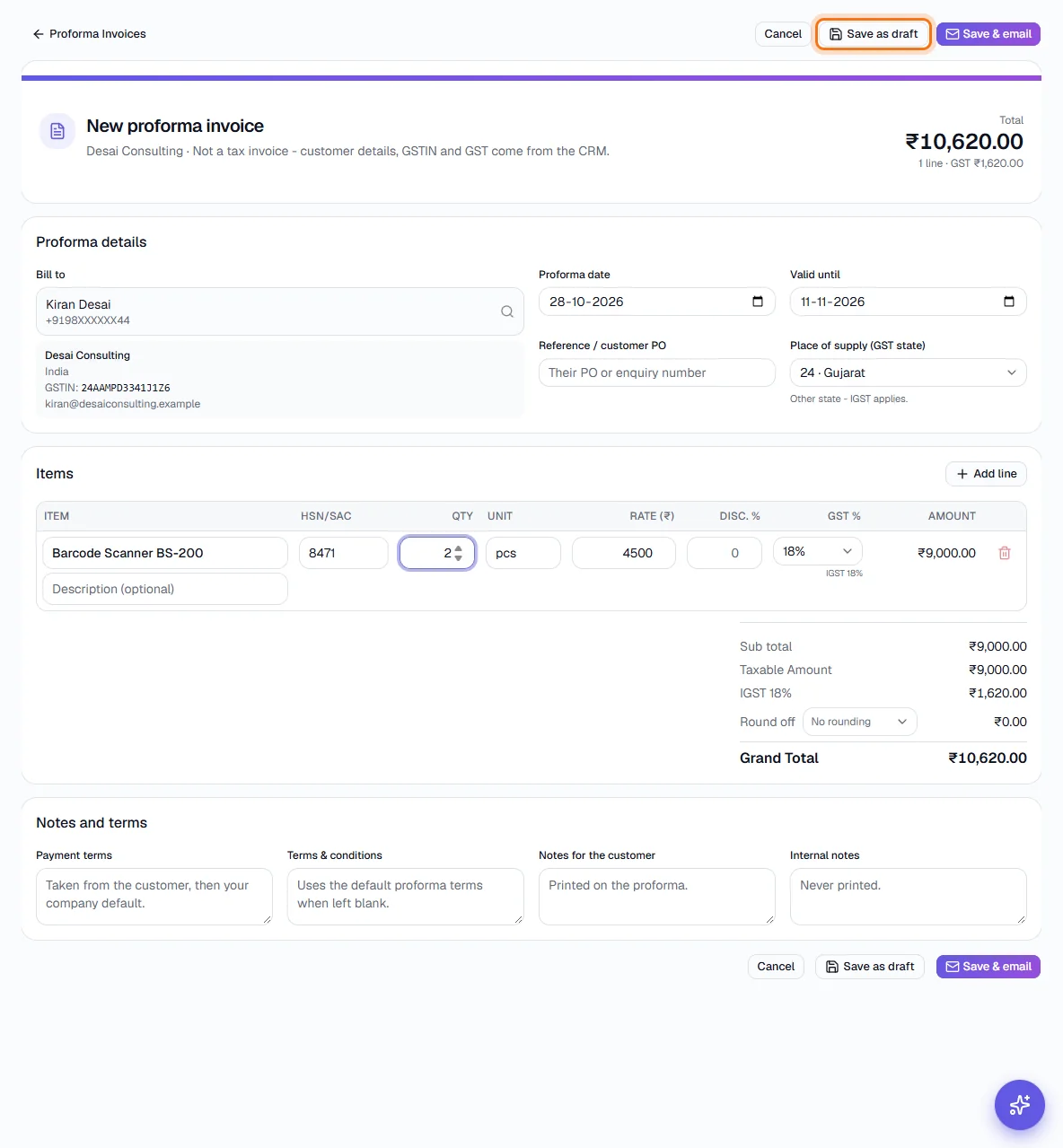
One item added: the total and GST appear at the top right and Save as draft is outlined. Nothing is saved in the demo. - 6
Add notes and terms
Payment terms and Terms & conditions are filled from the customer and from the defaults in Settings when left blank. Notes for the customer are printed on the proforma; Internal notes are never printed.
- 7
Save it
Save as draft keeps it in the CRM and sends nothing to the customer. Save & email saves it and then opens the email for you to check and send. A proforma needs a customer and at least one item with a quantity and rate before it can be saved.
- 8
Check a draft
The saved proforma opens with a one-line note telling you what you can do next. Review it here, use PDF to download it, Edit to change it, or Duplicate to copy it. A draft can also be Deleted (click twice to confirm) or Cancelled. If something is wrong - a missing GSTIN or email, say - a yellow box lists it before you send.
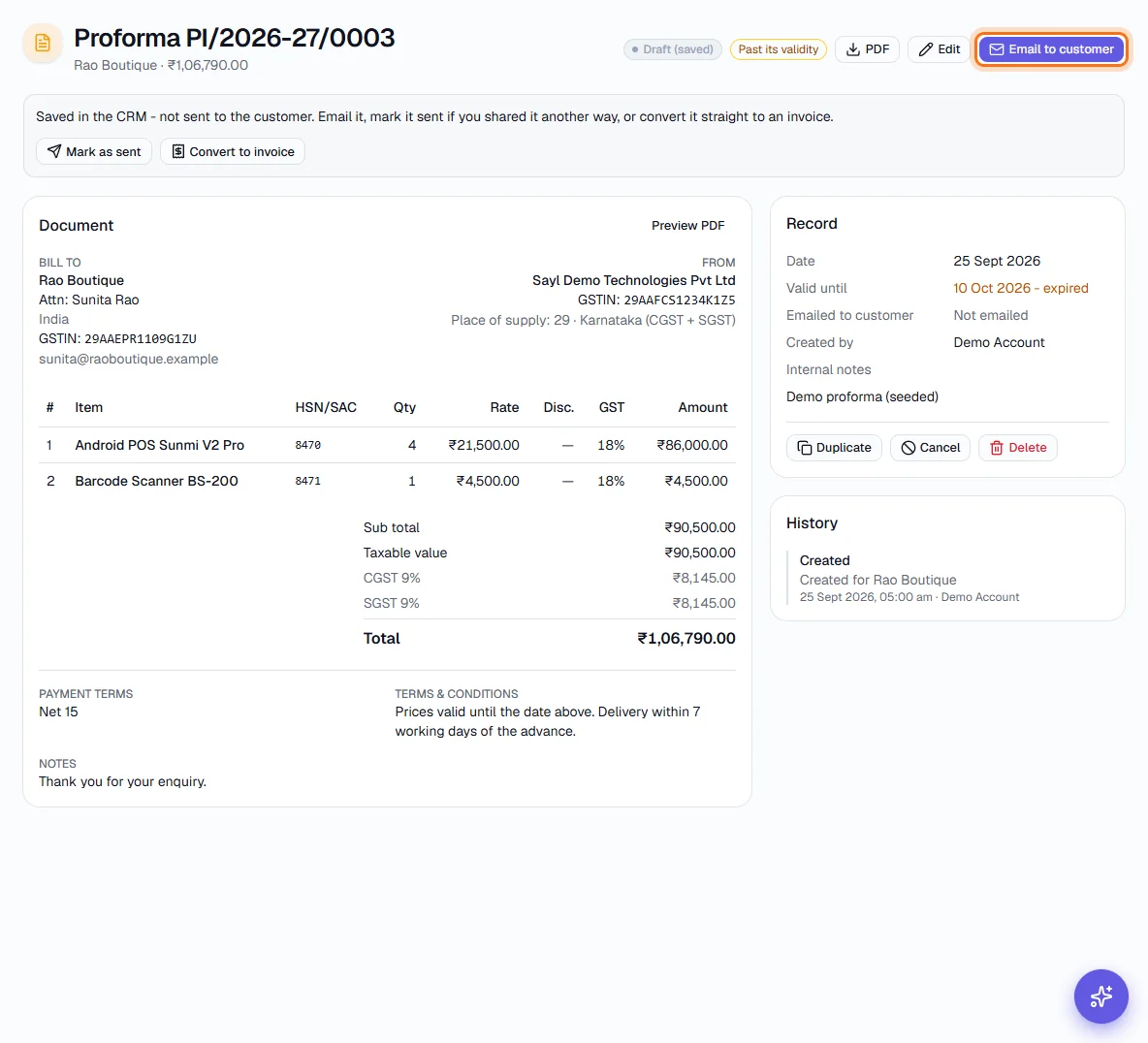
A draft: Email to customer is outlined. - 9
Preview the PDF
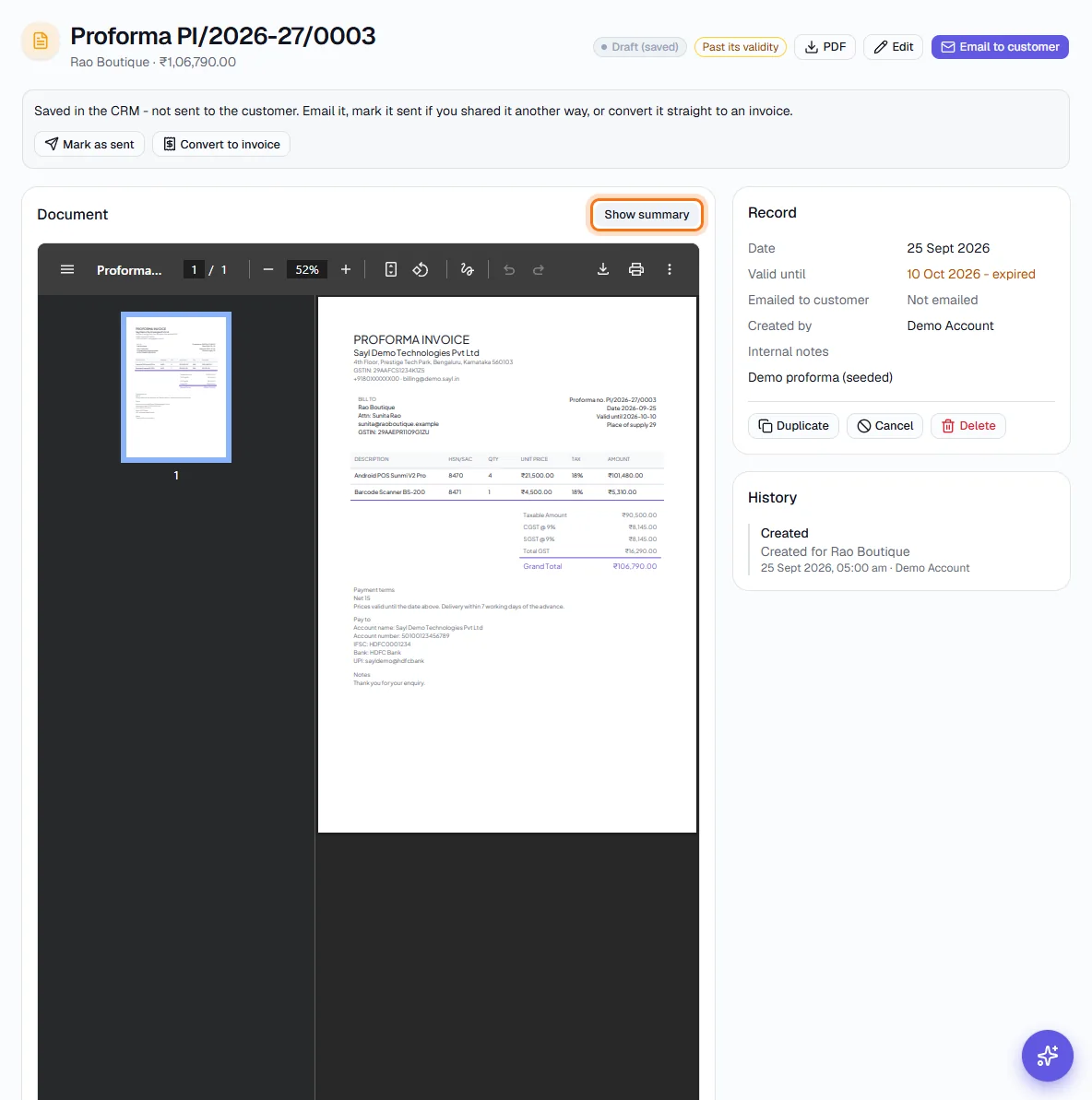
Click Preview PDF in the Document card to see the page exactly as the customer will get it, in your company's invoice design with PROFORMA INVOICE as its title. Show summary returns to the details.
- 10
Email it to the customer
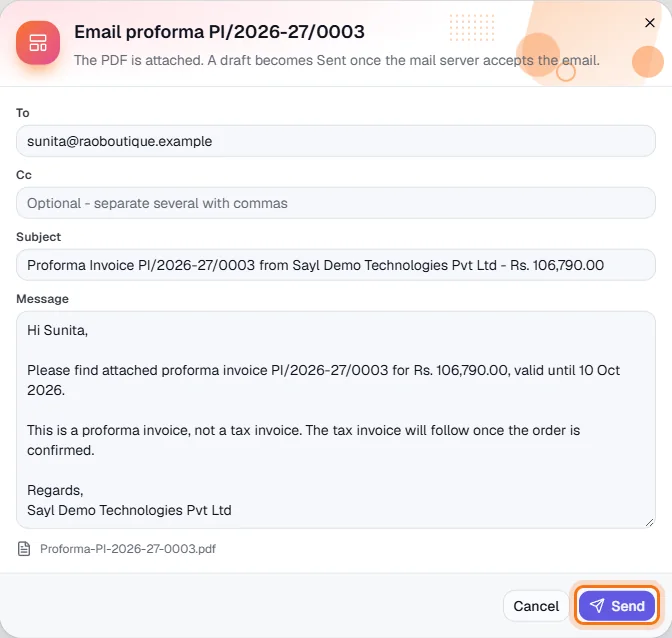
Click Email to customer. The To address comes from the customer record; add Cc addresses if you want, change the subject or message, and click Send. The PDF is attached. The proforma becomes Sent once the mail server accepts the email, and the date is stored as Emailed. If the email fails, the proforma stays as it was and History says why.
- 11
Or mark it sent by hand
If you sent it by WhatsApp, in person or from your own mail, click Mark as sent on a draft. It becomes Sent but shows Not emailed, so the record stays honest about how it reached the customer.
- 12
Record the customer's answer
On a Sent proforma the note reads Waiting for the customer. Click Customer accepted when they agree, or Customer rejected when they decline. Back to draft takes it back to edit again.
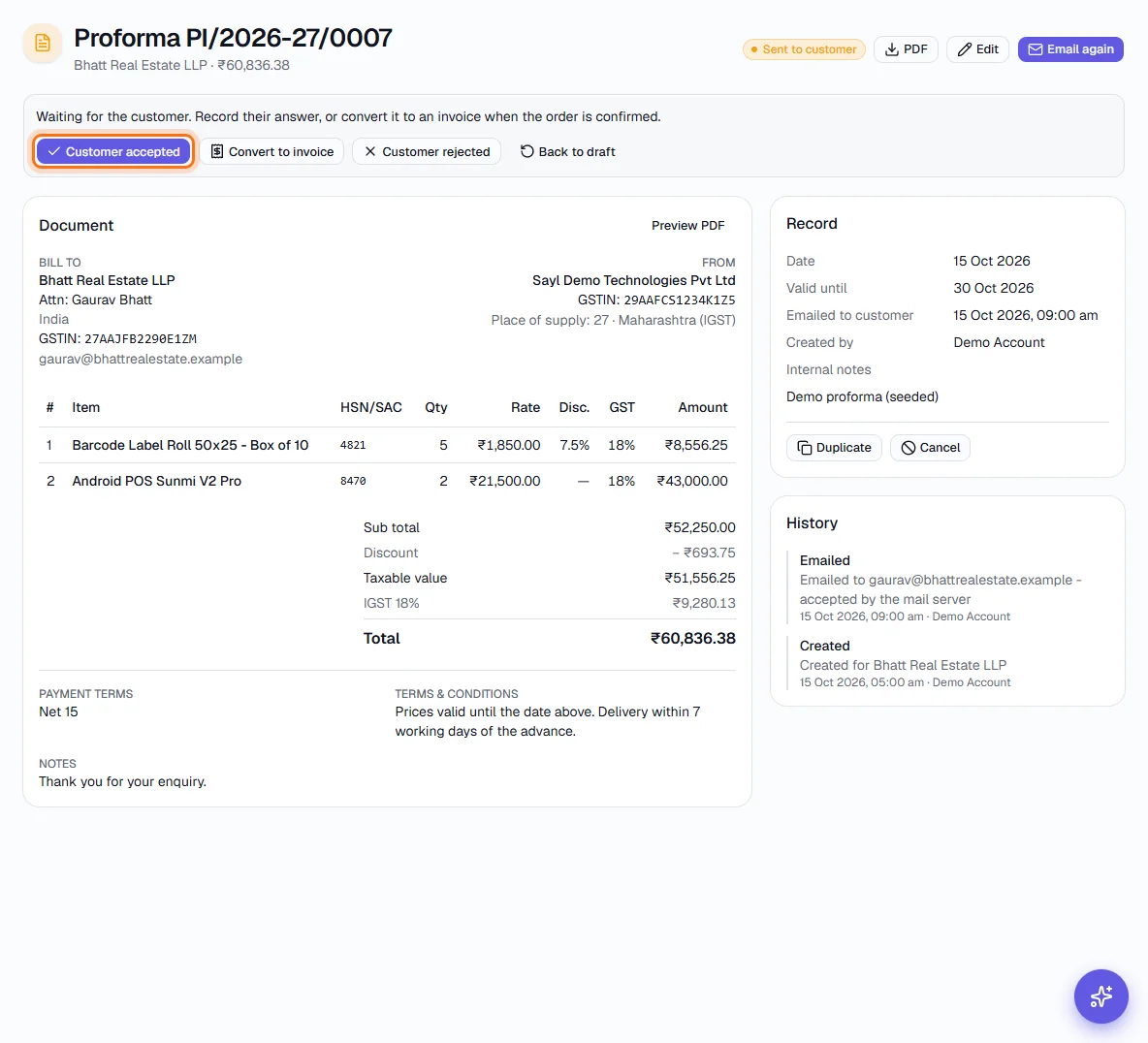
A sent proforma: Customer accepted is outlined. - 13
Say why it was rejected
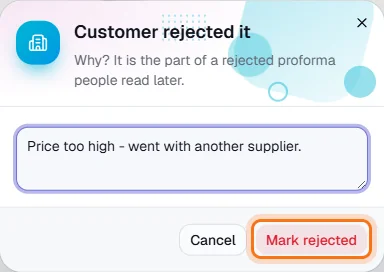
Customer rejected asks for a reason, for example the price was too high or they chose another supplier. The reason is shown on the proforma under Rejected because, and in its history.
- 14
Convert an accepted proforma
Click Convert to invoice. It is highlighted on an Accepted proforma, and also available on a Draft or Sent one when the order is confirmed another way.
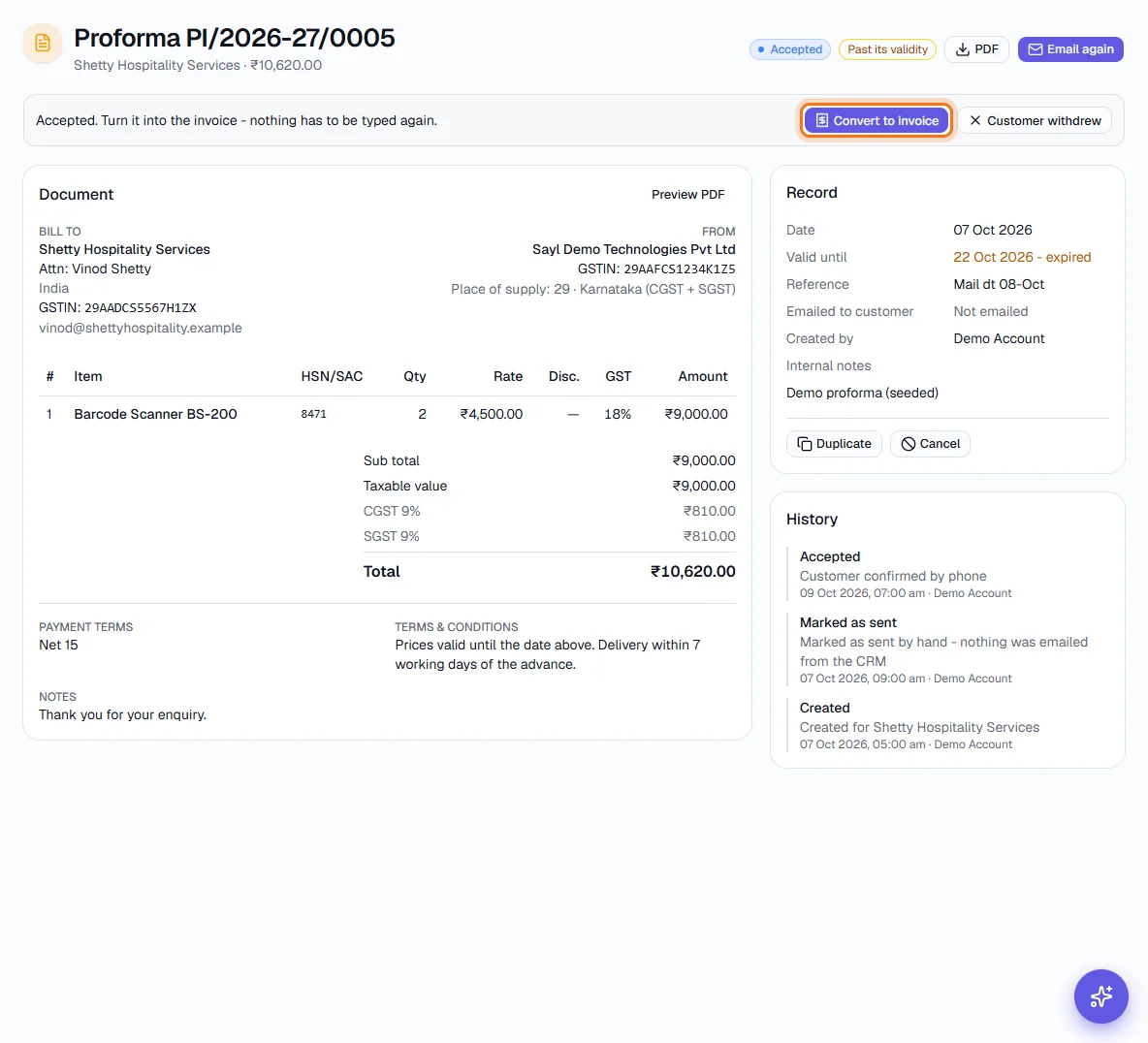
An accepted proforma: Convert to invoice is outlined. - 15
Confirm the conversion
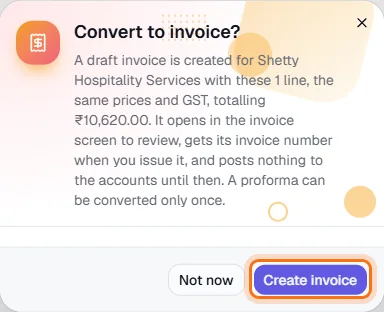
The dialog tells you which customer, how many lines and the total. Click Create invoice. Sayl opens the new draft invoice with the same items, prices and GST. It gets its invoice number when you issue it, and nothing is posted to the accounts until then. A proforma can be converted only once.
- 16
Follow a converted proforma
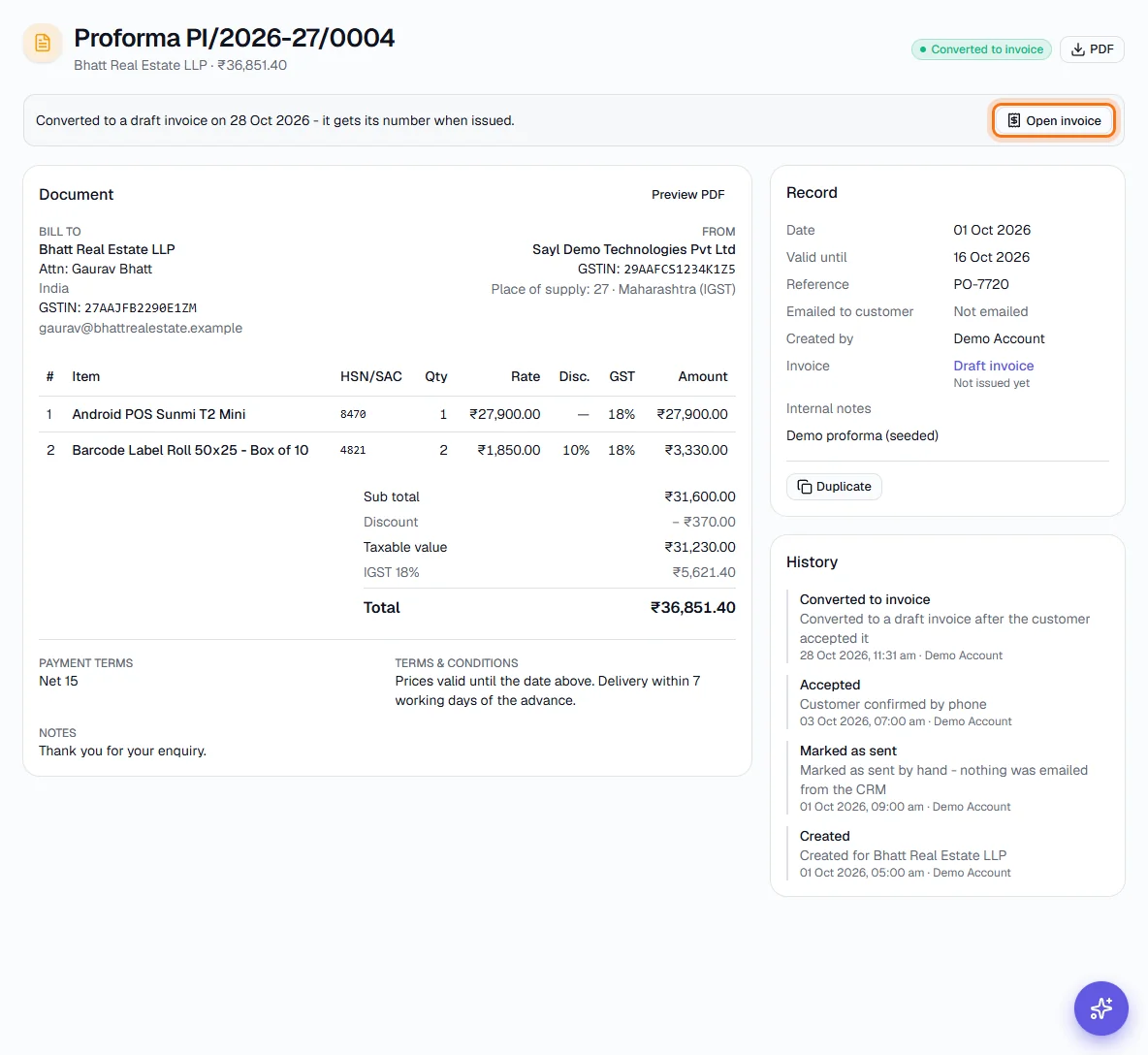
A converted proforma shows Converted to invoice, links to its invoice with Open invoice, and the list shows that invoice's own status - Invoice draft, Issued unpaid, Part paid or Paid - next to it, so you can see whether the advance or the balance has come in. If the draft invoice is later deleted, the proforma can be converted again.
- 17
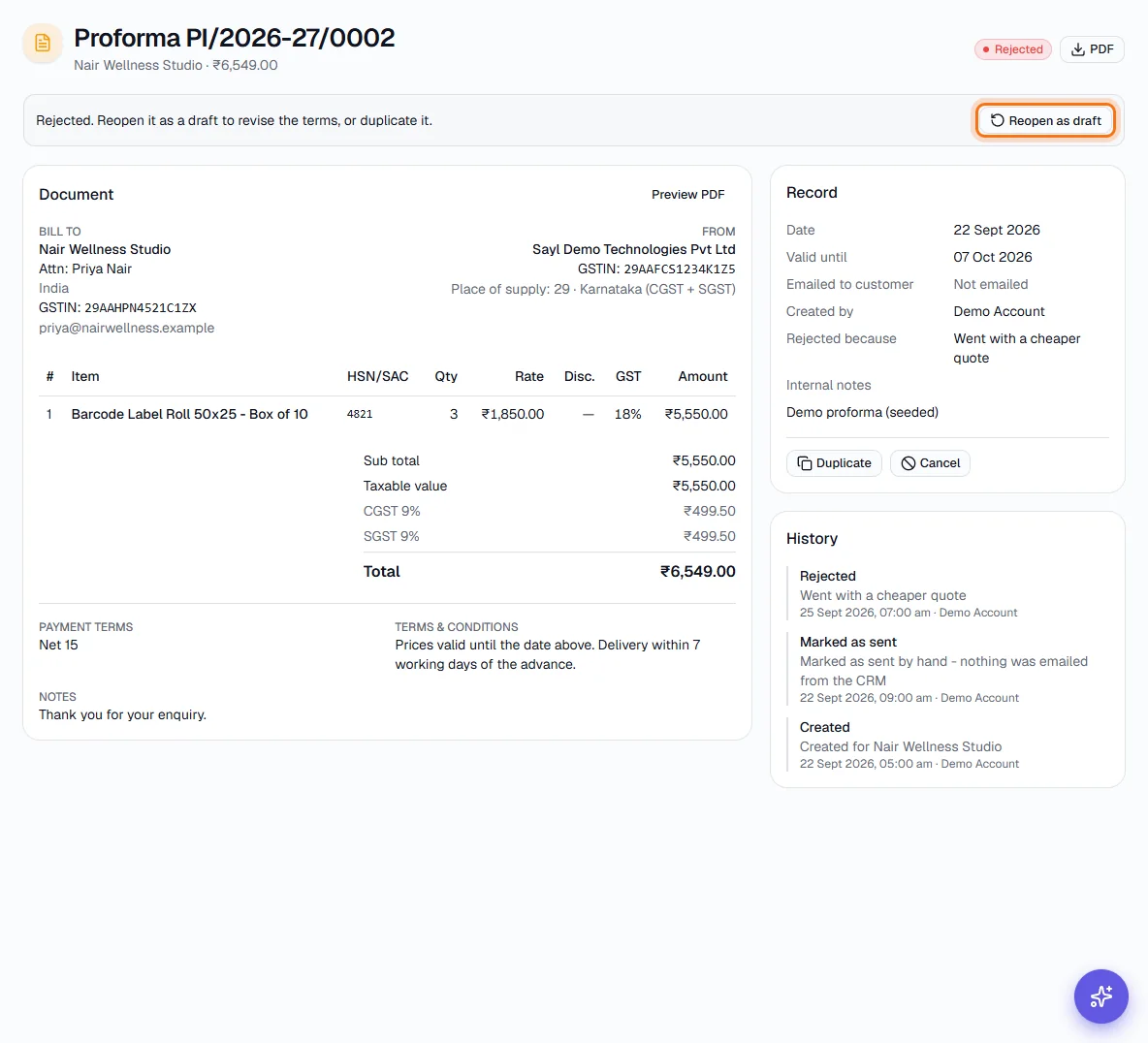
A rejected proforma
Rejected shows the reason. Click Reopen as draft to revise the prices or terms and send it again, or Duplicate it into a new proforma.
- 18
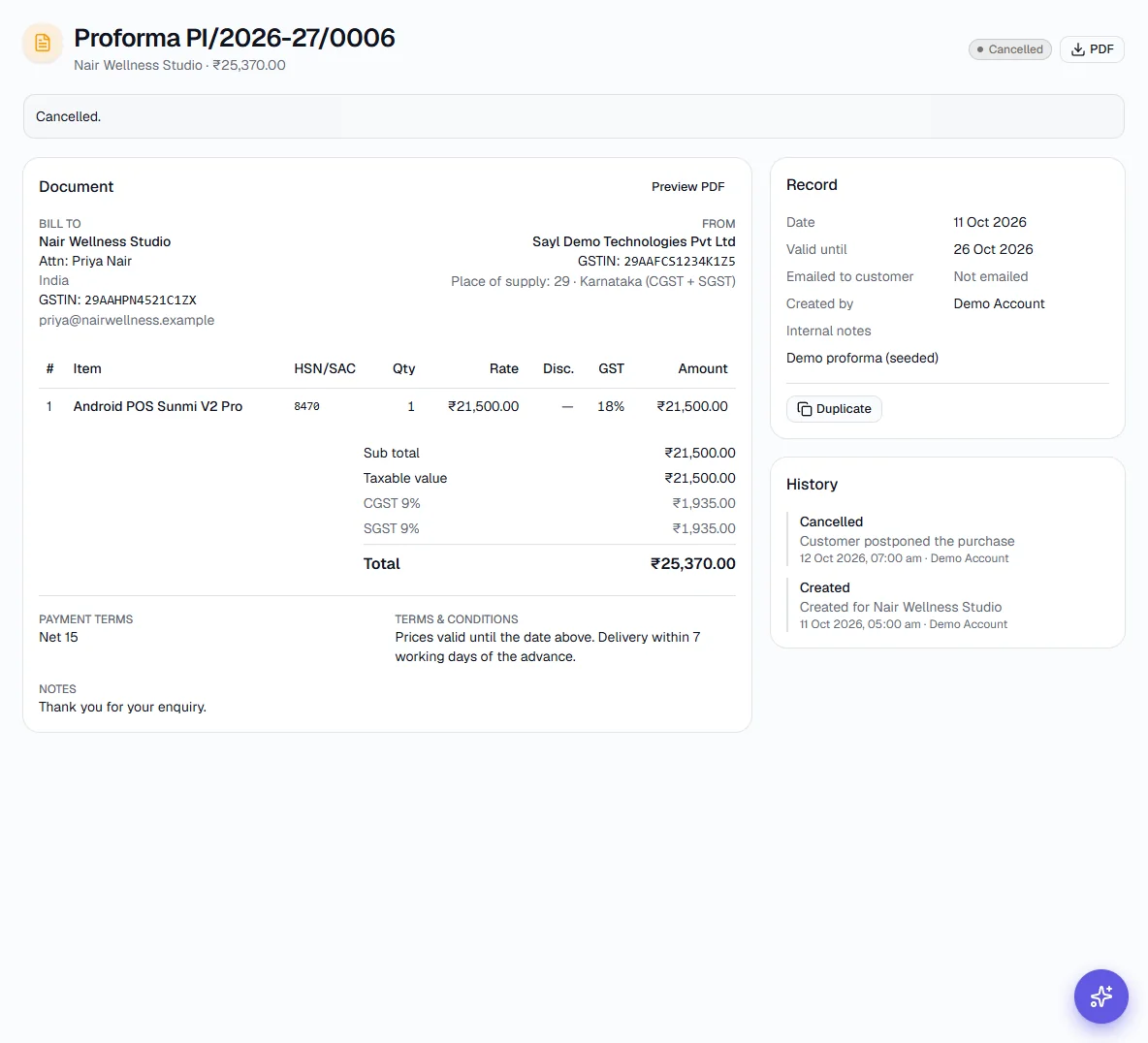
A cancelled proforma
Cancel is available on a Draft, Sent, Accepted or Rejected proforma that is not wanted any more. It stays on record, marked Cancelled, and its value is left out of the totals on the cards.
- 19
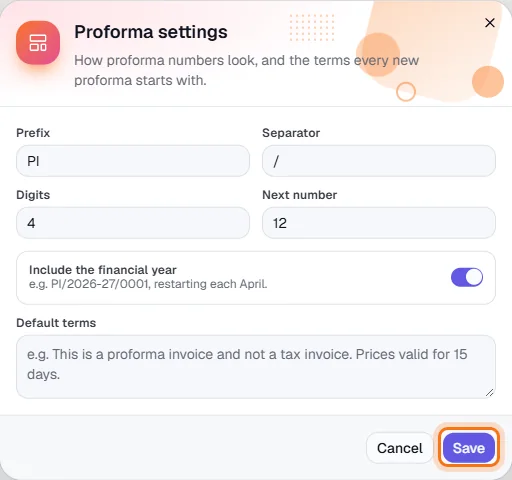
Set the numbering and default terms
Click Settings on the list page (owners and admins). Choose the prefix, separator, number of digits, next number, whether to include the financial year, and the default terms every new proforma starts with. The confirmation shows what the next number will be.
- 20
Read the history
Every proforma keeps its own history on its page: created, edited, emailed (or email failed), marked as sent, accepted, rejected, reopened, cancelled and converted, with who did it and when.
Key fields
- Bill to *
- The customer. Their address, GSTIN, contact person and email come from the customer record.
- Proforma date *
- The date shown on the document.
- Valid until
- How long the prices hold. After it the proforma shows Expired - a reminder, not an overdue payment.
- Reference / customer PO
- The customer's PO or enquiry number, kept with the proforma.
- Place of supply (GST state)
- Decides IGST or CGST + SGST.
- Items *
- Item (from the catalog or typed), HSN/SAC, quantity, unit, rate, discount % and GST % per line.
- Round off
- Optional rounding of the grand total.
- Payment terms / Terms & conditions
- Printed on the proforma. Blank fields use the customer's and the Settings defaults.
- Notes for the customer / Internal notes
- The first is printed; the second never is.
Tips
- Use a proforma when a customer wants something in writing before they commit or pay an advance - it keeps the invoice series free of documents that may never be needed.
- Use Save & email for the quickest route: it saves, then opens the email ready to check and send.
- Use Mark as sent only for proformas shared outside the CRM; the list keeps Emailed and Not emailed apart so you can see which ones the customer really received.
- Put the customer's PO or enquiry number under Reference so it is on the proforma they receive.
- Watch the Pending card: it is the value you have quoted but not yet turned into invoices.