
Finance, GST & Accounting · Invoices
Receive Payment
Record one payment from a customer in Sayl Finance and split it across their unpaid invoices, with TDS the customer deducted, round-off and any extra kept as an advance.
What it is for
Receive Payment is where money from a customer is recorded. A customer often pays one amount for several invoices, or pays part of one, or deducts TDS before paying. This page takes the single amount received and lets you decide how much of it goes to each invoice, so every invoice keeps its own correct balance.
Each payment is posted to your accounts and to the bank or cash account it was deposited into, and every invoice it touches moves to Partially paid or Paid.
How it works
- Choose the customer first. Sayl lists every unpaid or part-paid invoice of that customer, oldest due first, with the total, what is already paid, and the balance due. Overdue invoices are marked in red.
- Type the amount received, then decide where it goes. Auto-allocate, oldest first fills the Pay now boxes for you; or type an amount against each invoice yourself, or click Full on a row to pay that invoice off.
- The four cards at the top keep count: how many invoices are open, the amount received, how much you have allocated, and how much is still to allocate. A payment can be recorded only when it is fully allocated or you have chosen to keep the rest as an advance.
- TDS the customer deducted is not cash. Enter the section (for example 194J) and the rate, and click Apply to all - Sayl works out the TDS on each invoice's taxable value - or type the TDS on a single invoice. The invoice is then settled by the cash received plus the TDS, and the TDS is kept so it can be matched with the certificate the customer sends later.
- A few rupees short can be written off as Round off, up to 99.99 on an invoice. When an invoice is left a small amount short, a Round off link appears beside it so one click closes it.
- If the customer paid more than they owe, or paid before the invoice was raised, switch on Record anything not allocated as an advance. The rest is held as a customer advance and applied to the next invoice for that customer automatically.
- Part payments are fine. An invoice paid in part shows Partially paid and the amount left, and stays on this page until it is cleared.
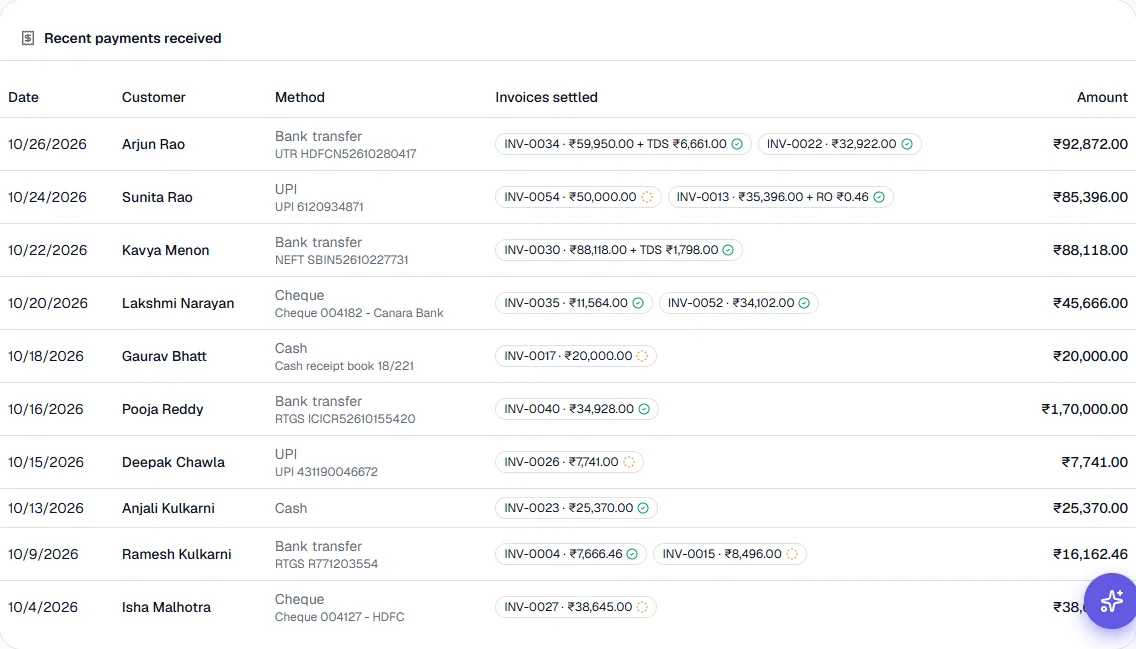
- Each receipt is listed under Recent payments received here, and shows on every invoice it settled.
Step by step
Every screenshot is from the live demo. The highlighted button is the one to click - nothing here is saved in the demo, so you can follow along freely.
- 1
Open Receive Payment
Finance → Invoices → Receive Payment. The top of the page is the payment form; below it, once you choose a customer, are their open invoices, and at the bottom the latest payments received.
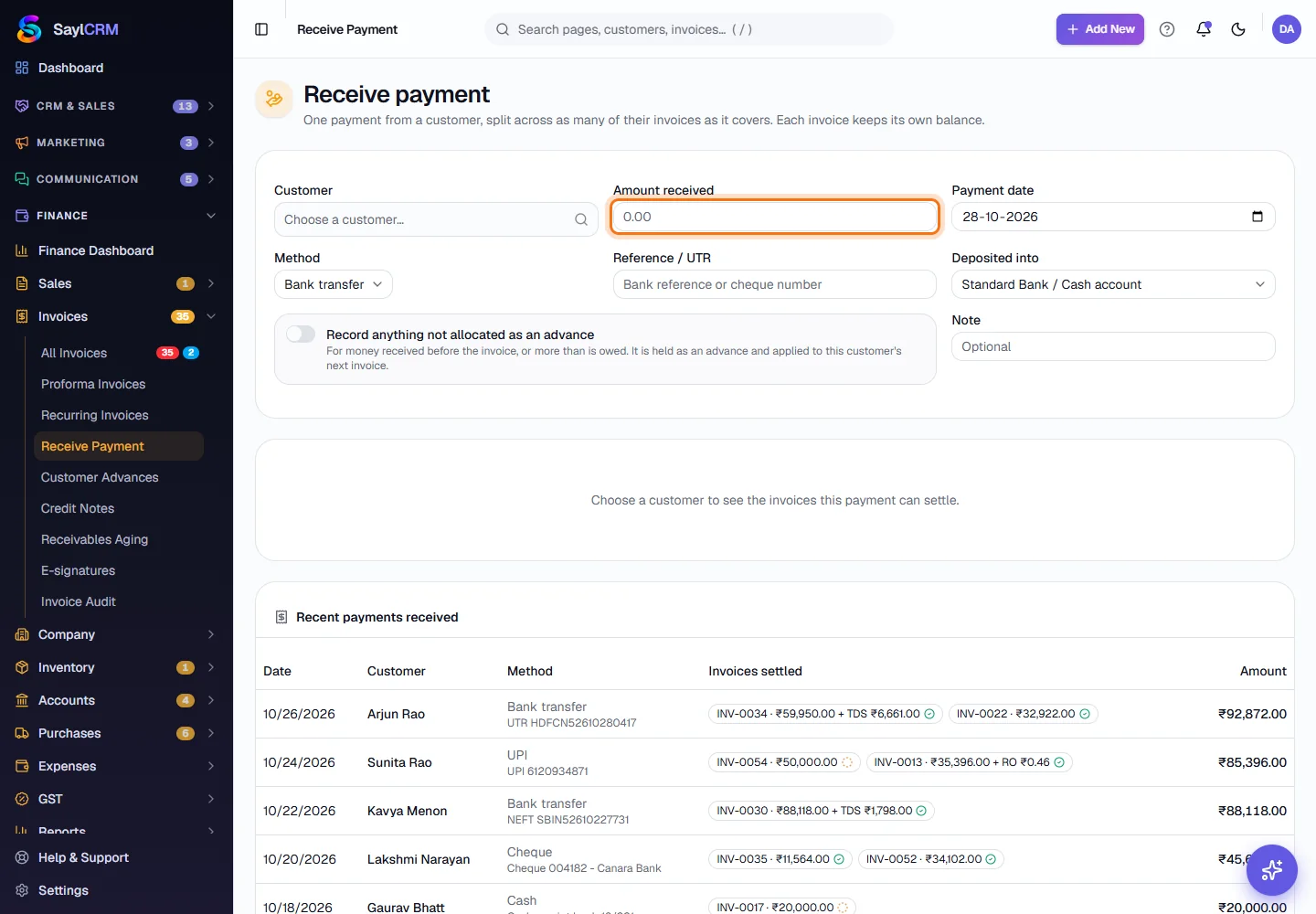
Start by choosing the customer. Amount received is outlined. - 2
Choose the customer
Search by name, number or email and pick the customer. Their unpaid and part-paid invoices appear, with the number of open invoices and the total they owe.
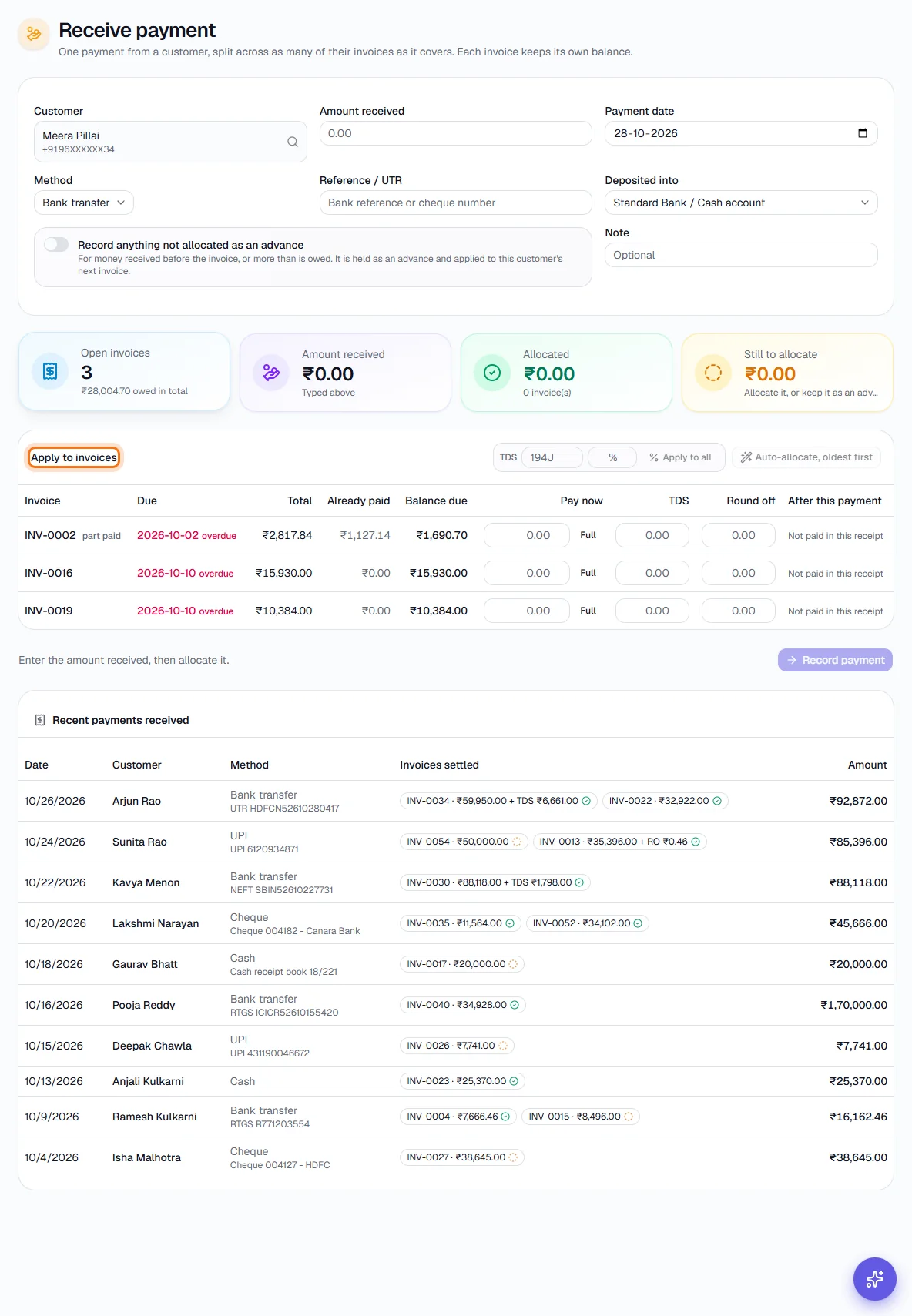
- 3
Enter the payment details
Type the Amount received and the Payment date. Choose the Method - Bank transfer, UPI, Cash, Cheque, Card or Other - and note the Reference or UTR (a bank reference or a cheque number). Choose the bank or cash account it was Deposited into. Add a Note if it helps.
- 4
Allocate it to invoices
Click Auto-allocate, oldest first to pay the oldest invoices first, or type an amount in Pay now on each invoice. A row shows Fully paid, Partially paid with the amount left, or Not paid in this receipt. The Still to allocate card shows what remains.
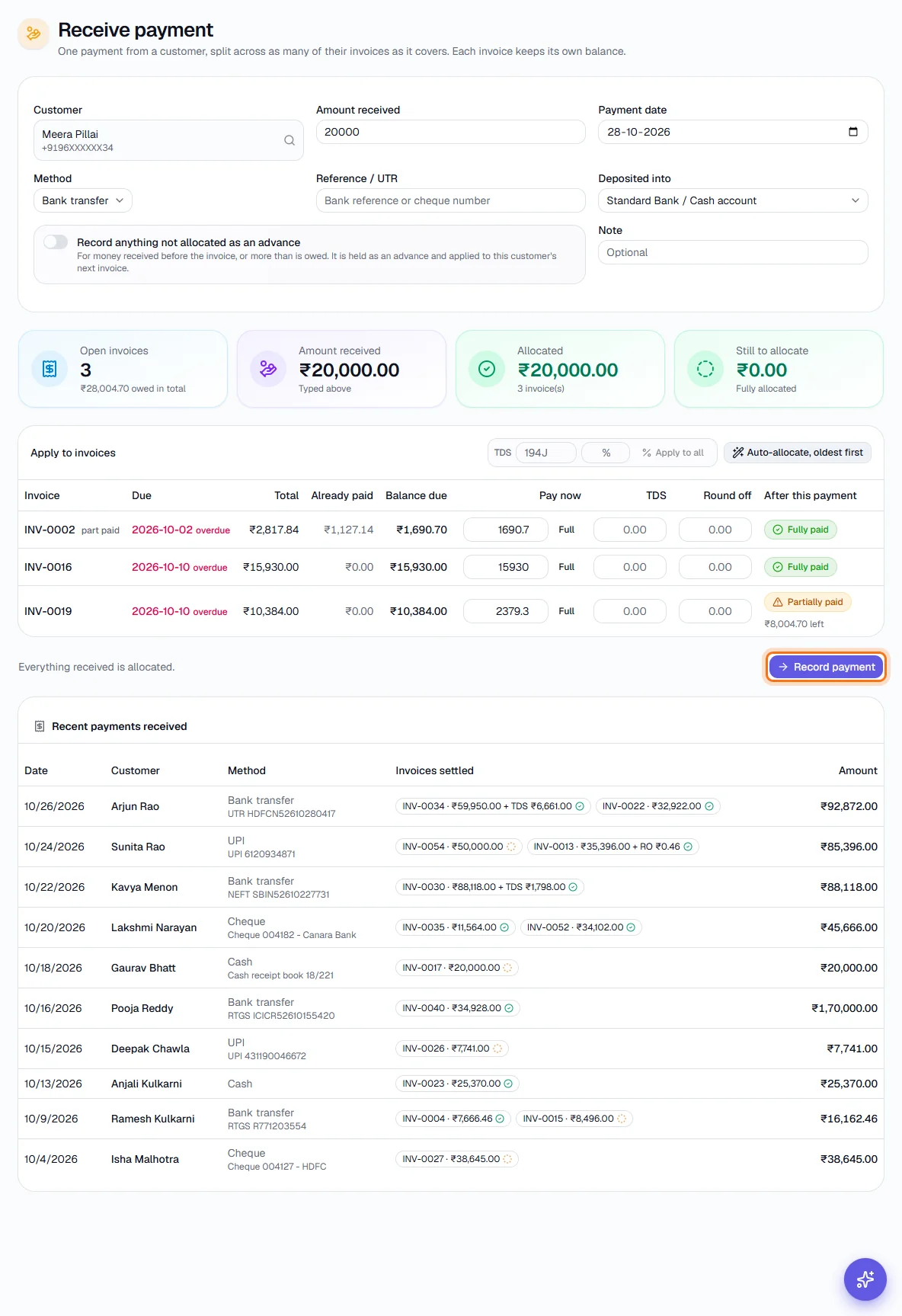
₹20,000 received: it clears the first two invoices and part-pays the third. Record payment is outlined. - 5
Record TDS the customer deducted
Enter the TDS section and rate and click Apply to all, or type the TDS on each invoice. The cash and the TDS together settle the invoice, so the customer's short payment does not leave a balance behind. The Allocated card shows the TDS beside the cash.
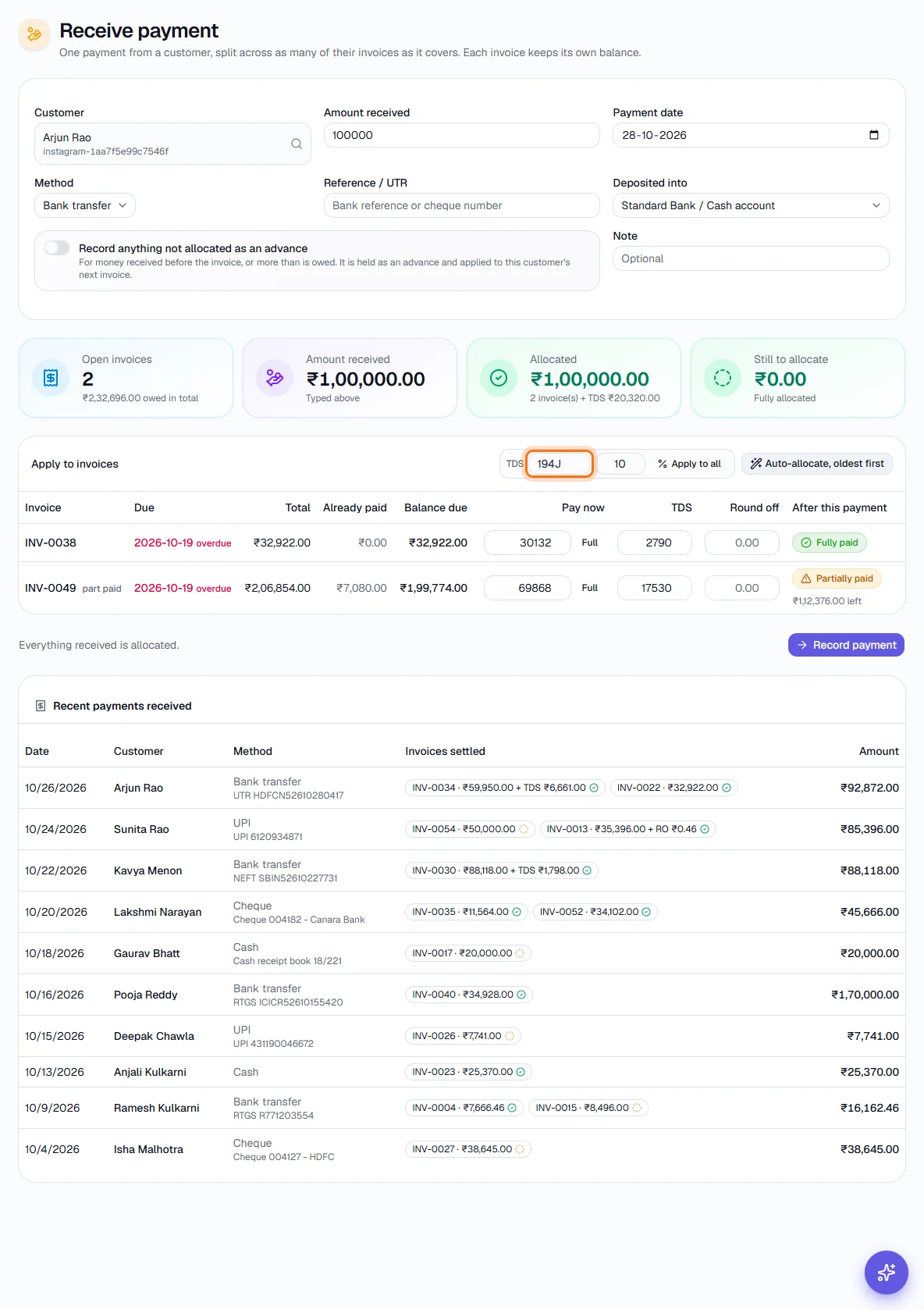
₹1,00,000 received with 10% TDS under 194J: the TDS section is outlined. - 6
Write off a small shortfall
If an invoice is left a few rupees short, click Round off beside it or type the amount in the Round off column. It is limited to 99.99 per invoice, and the invoice is then marked Fully paid.
- 7
Keep any extra as an advance
When the customer pays more than they owe, switch on Record anything not allocated as an advance. The page says how much will be kept as an advance. If the customer has no unpaid invoices at all, the page offers Record the amount as an advance instead.
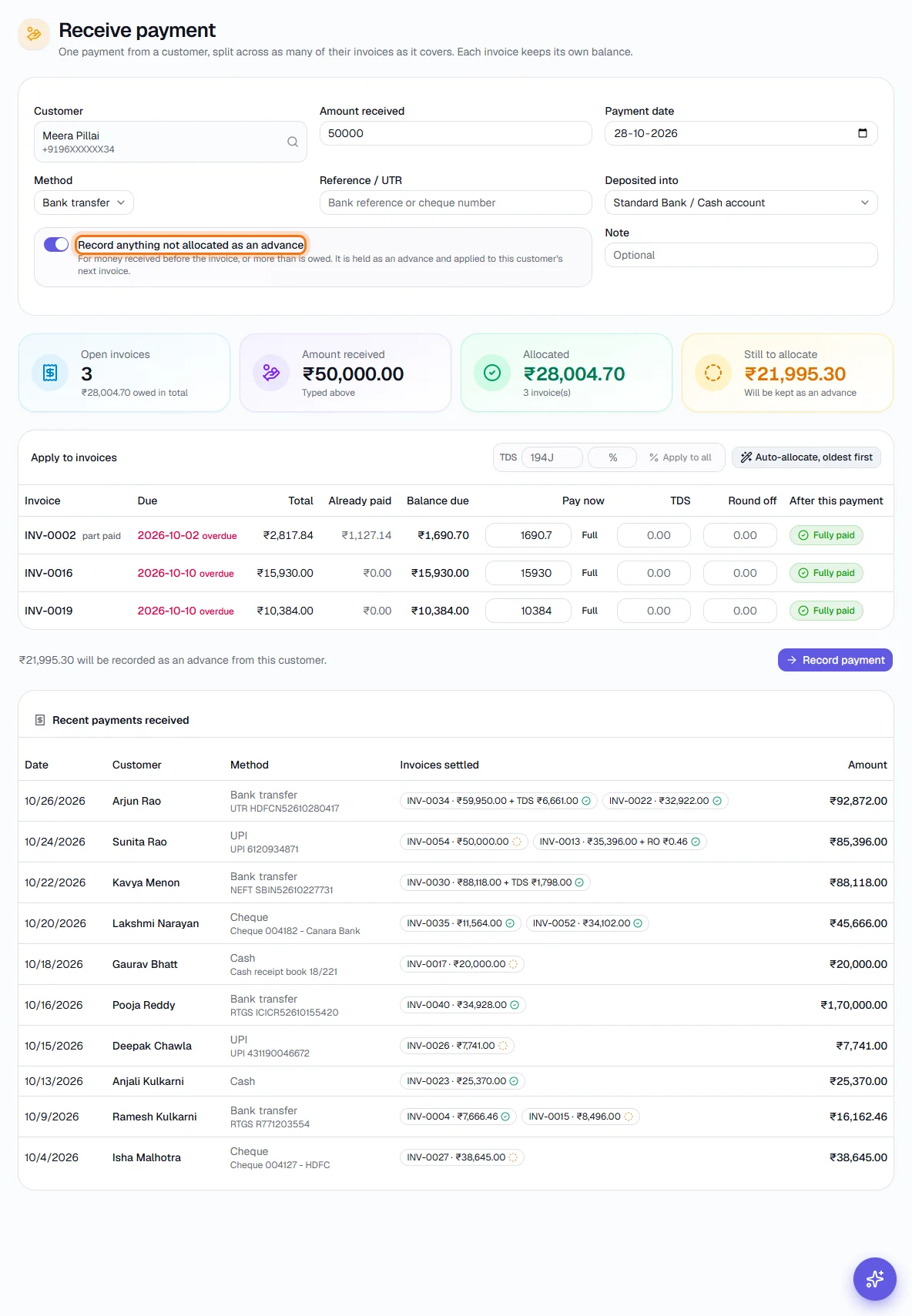
₹50,000 received against ₹28,004.70 owed: the switch is on and the rest becomes an advance. - 8
Click Record payment
Record payment saves the receipt. A green panel confirms the amount and customer and lists each invoice with what was paid, any TDS or round-off, and whether it is now Fully paid or Partially paid with the amount left. If an advance was created its number is shown, linked to Customer Advances. Each invoice opens from its number.
- 9
See the recent payments
Recent payments received lists the latest ten payments: date, customer, method and reference, and the invoices each one settled. A tick means the invoice is fully paid; a dotted circle means part paid. TDS and round-off are shown beside the amount.
Key fields
- Customer *
- Whose payment it is. Only their open invoices are listed.
- Amount received *
- The total cash received, before TDS.
- Payment date
- The date the money was received.
- Method
- Bank transfer, UPI, Cash, Cheque, Card or Other.
- Reference / UTR
- A bank reference or the cheque number.
- Deposited into
- The bank or cash account the money went to.
- Pay now
- How much of this payment goes to that invoice.
- TDS
- Tax the customer deducted on that invoice. Set the section and rate once and apply to all.
- Round off
- A small shortfall to write off, at most 99.99 per invoice.
- Record anything not allocated as an advance
- Keeps the unallocated money as a customer advance.
Tips
- Allocate before you save: the Still to allocate card should read zero, or the advance switch should be on.
- When a customer pays several invoices in one transfer, record it once here rather than invoice by invoice - one receipt matches one line in the bank statement.
- Enter the TDS section and rate before you click Apply to all, so each invoice's TDS uses the right taxable value.
- Use the Reference field for the UTR or cheque number - it makes reconciling with the bank statement quick.