
Finance, GST & Accounting · Sales
Customer POs
Register the purchase order a customer sends you, approve it, raise sales orders, record deliveries and payments against it, and see the whole deal in one place in Sayl Finance.
What it is for
A Customer PO is the purchase order a customer sends you - their paper that says what they will buy, at what price, on what terms. It is the opposite of a purchase order you send to a supplier (those live under Purchases).
Registering it first gives the deal one home. From the PO you raise sales orders for what the customer wants now, record each delivery, create the invoices and note every payment or cheque, so at any moment you can see what was ordered, what has gone out, what has been billed and what is still owed.
How it works
- A PO moves Draft → Received → Under review → Approved. Draft is a PO you are still typing; Received means it has arrived and is registered; Under review means someone is checking prices and terms; Approved means you accept it and can start fulfilling it. A PO can be Cancelled at any time before it is finished.
- Once a PO is Approved its progress is worked out for you: Partially ordered, Ordered, Partially invoiced, Fully invoiced and finally Completed - which means everything is invoiced and paid. A PO that passes its valid-until date without being approved shows as Expired.
- Approving needs the same permission as approving a sales order, because from that moment you can raise orders and invoices against it. Everyone who can see the PO sees its status, but only an approver can move it to Approved.
- The same customer PO number cannot be registered twice for one customer. Sayl refuses the second one and tells you which CPO number already holds it, so a PO is never worked on twice.
- After approval the customer, currency and items are fixed - sales orders are raised against those exact lines. If the customer amends their PO, upload the amendment under Documents and adjust the orders, or cancel and register the new PO.
- You can never order more of a line than the PO asked for. Raising a sales order lists what is still unordered on each line, and you choose how much to order now, so a PO can be fulfilled in several orders.
- Deliveries recorded on a PO are real delivery challans: they appear under Delivery Challans too, with their own numbers, and an e-way bill, vehicle and transporter can be noted. Invoices raised from the PO's sales orders carry the customer's PO number as their reference.
- Payments are recorded on the invoice exactly as from the invoice page, and a cheque is tracked from received to deposited to cleared. If a cheque bounces, its payment is taken off the invoice automatically and the amount is owed again.
Step by step
Every screenshot is from the live demo. The highlighted button is the one to click - nothing here is saved in the demo, so you can follow along freely.
- 1
Open Customer POs
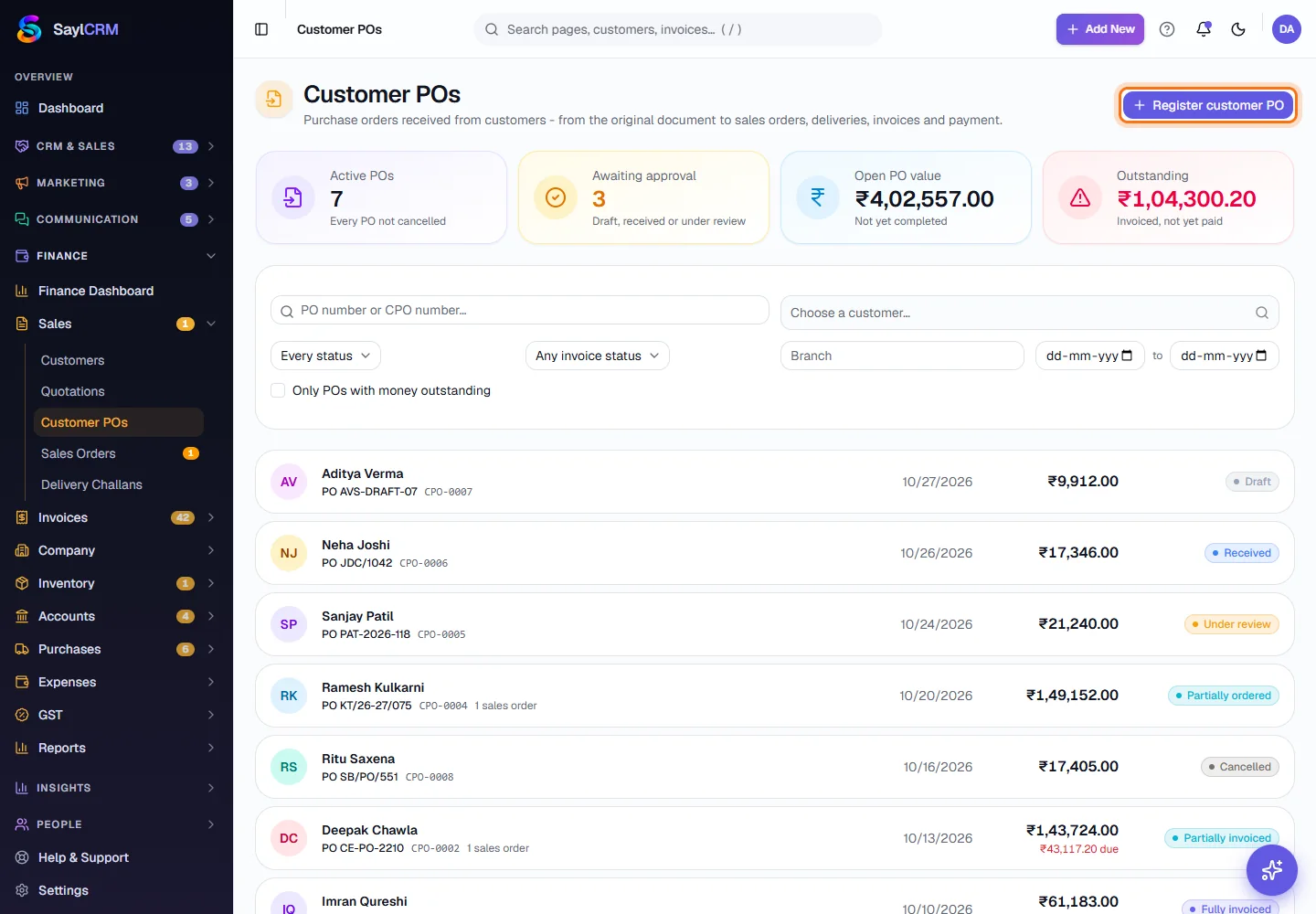
Finance → Sales → Customer POs. The four cards at the top show the active POs, those awaiting approval, the open PO value and the money invoiced but not yet paid. Below them every PO is listed with its customer, date, value and status.
- 2
Find a PO
Search by the customer's PO number or the CPO number, or filter by customer, status, invoice status, branch and date range. Tick Only POs with money outstanding to see what you are still waiting to be paid for.
- 3
Click Register customer PO
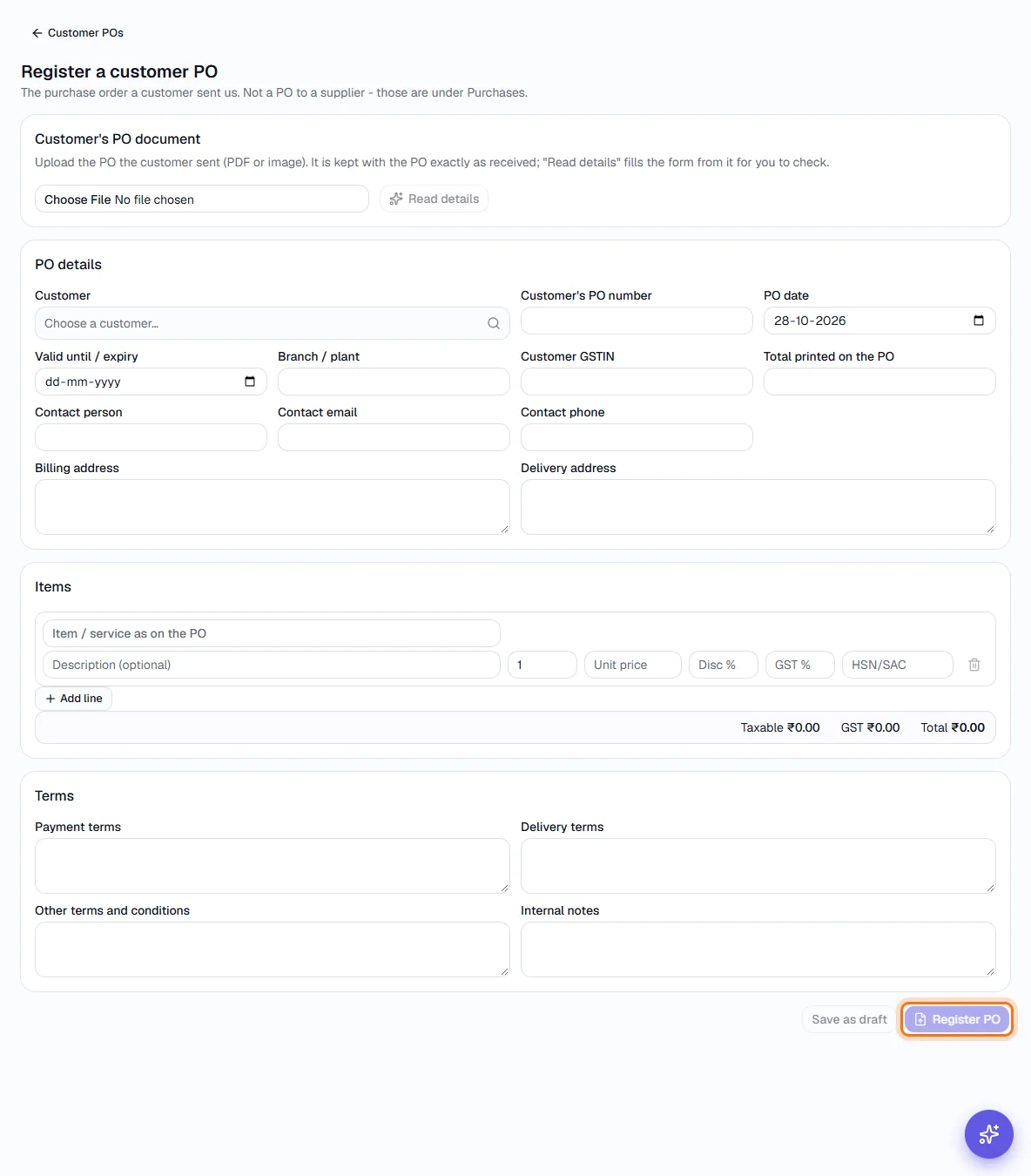
The button is at the top right (highlighted). The page asks first for the customer's own document, then the details.
- 4
Upload the customer's PO (optional)
Upload the PDF or image the customer sent. It is kept with the PO exactly as received. Click Read details and Sayl fills the form from the document for you to check - it never saves anything on its own, and if it could not read a field you type it. The reading continues in the background, so you can carry on working and open the PO from the bell when it is ready.
- 5
Fill in the PO
Choose the customer, type their PO number and date, and set the valid-until date. Add the contact person, billing and delivery address and GSTIN if they differ from the customer record, then add the items - picked from your catalog or typed - with quantity, price, discount and GST. Add the payment terms, delivery terms and any other conditions printed on their PO.
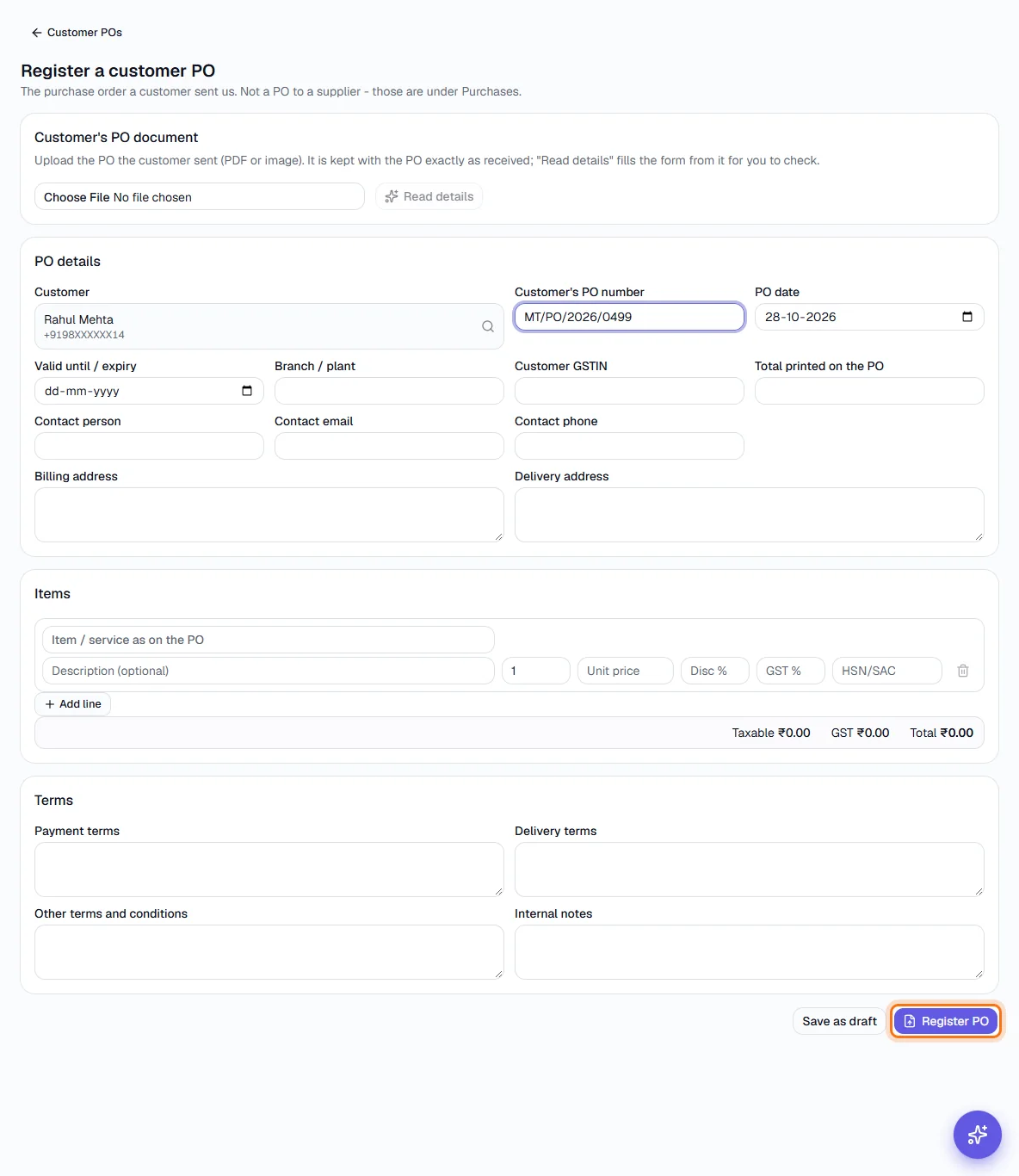
Registering a PO: the customer and number are filled in and Register PO is outlined. Nothing is saved in the demo. - 6
Save as draft or register it
Save as draft keeps it private while you finish. Register PO records it as Received and gives it its CPO number (CPO-0001, CPO-0002 …). If you enter a PO number that already exists for that customer, Sayl refuses it and names the existing record.
- 7
Work a draft
A Draft PO offers Mark received (it has arrived) and Send for review. You can still Edit it, Cancel it - or Delete it, which is only possible for a draft that nothing was raised from. Registered POs are cancelled, never deleted, so the record of what the customer sent is kept.
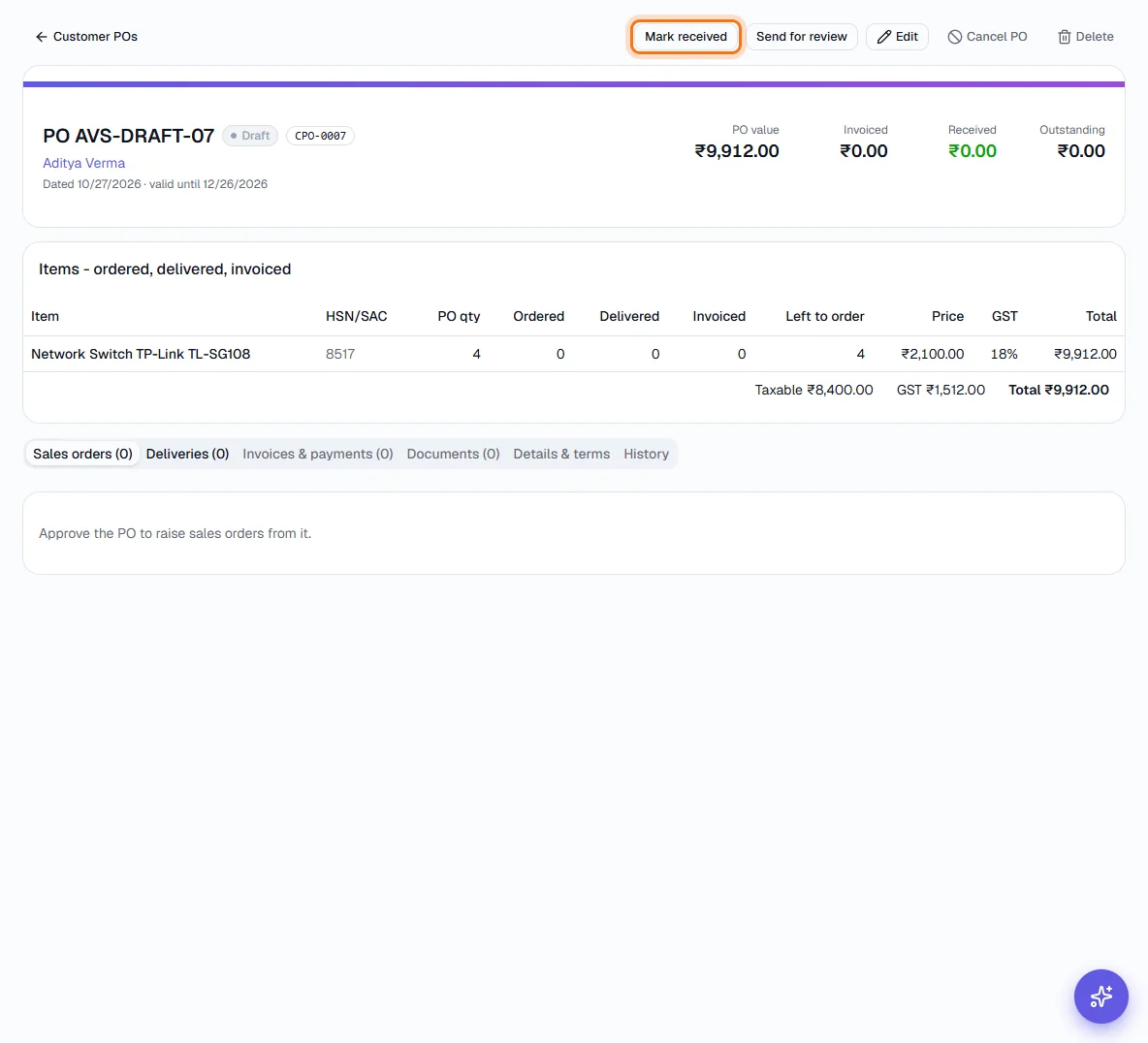
A draft PO: Mark received is outlined. - 8
Review it
A Received PO can be Sent for review or Approved straight away. Under review is the stage to check prices, quantities and terms against your quotation; from there you can send it back to Received or Approve it.
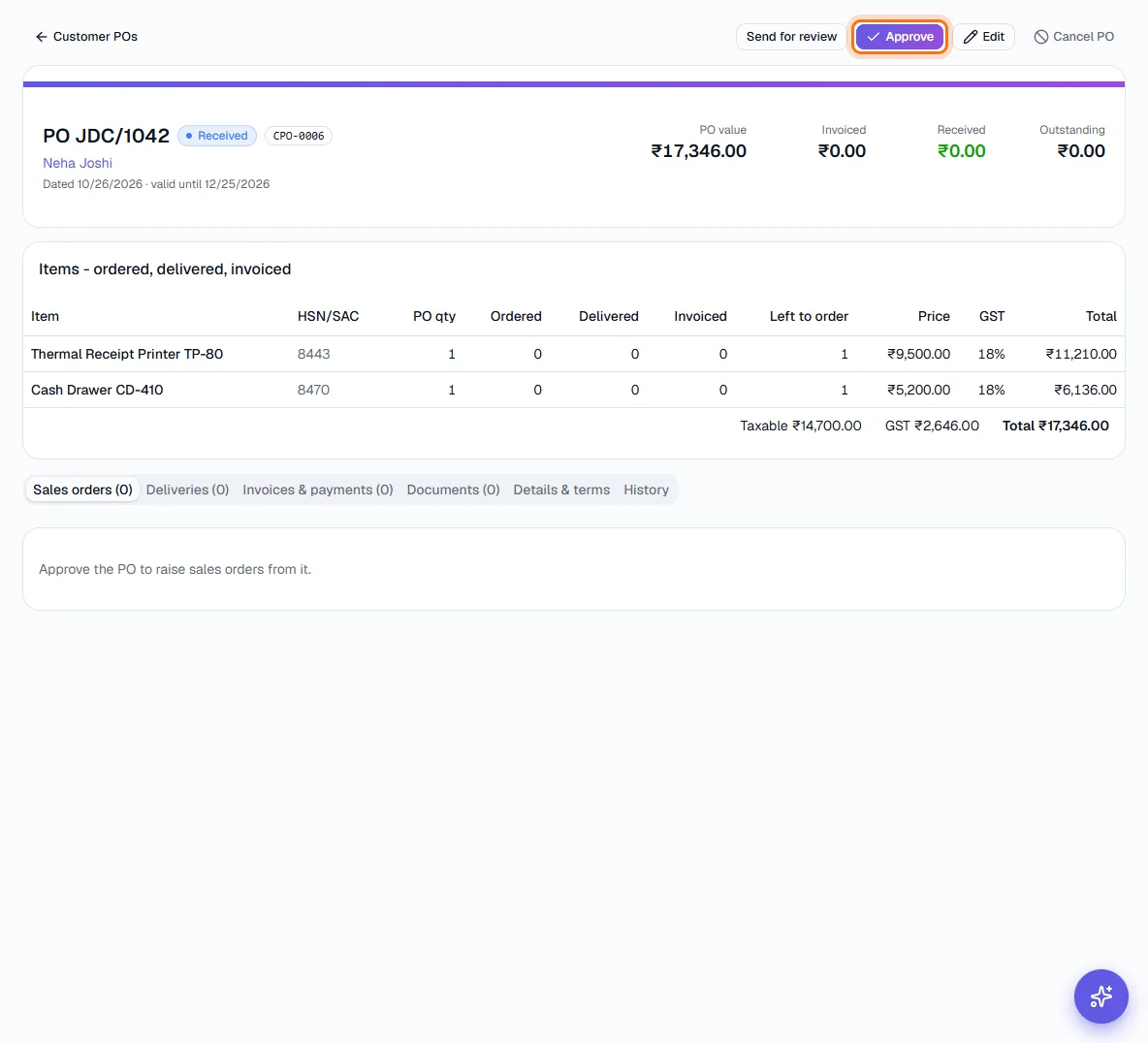
A received PO: Approve is outlined. - 9
Approve it
Click Approve. The PO shows who approved it and when, and the sales order, delivery and payment actions appear. A PO with no items or a zero total cannot be approved.
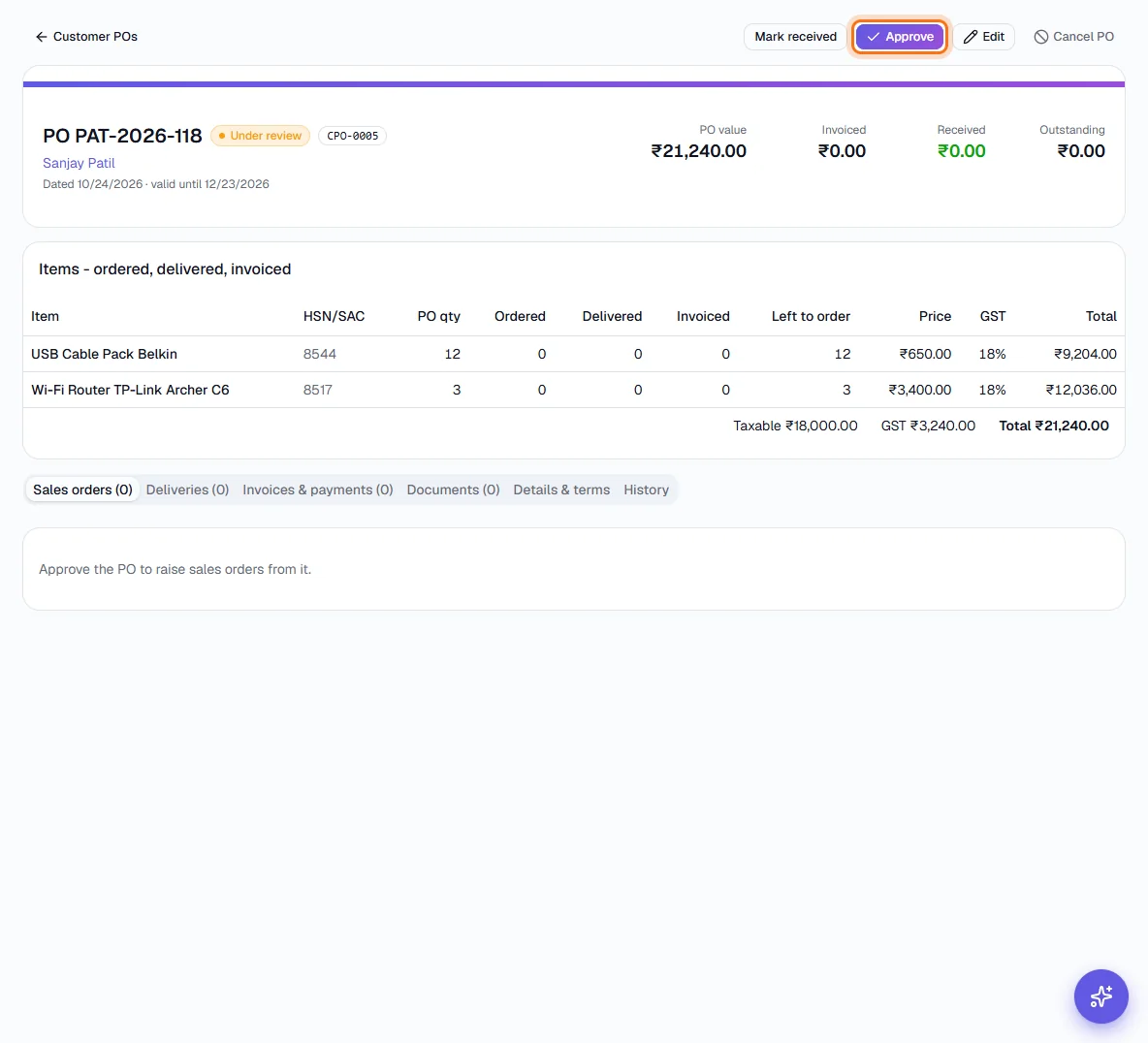
A PO under review: Approve is outlined. - 10
Read the progress cards and the items table
Four numbers sit at the top of every PO: PO value, Invoiced, Received (money) and Outstanding. The items table shows each line's PO quantity, how much has been ordered, delivered and invoiced, and what is Left to order. Delivered counts goods on delivery challans, including ones still on the road.
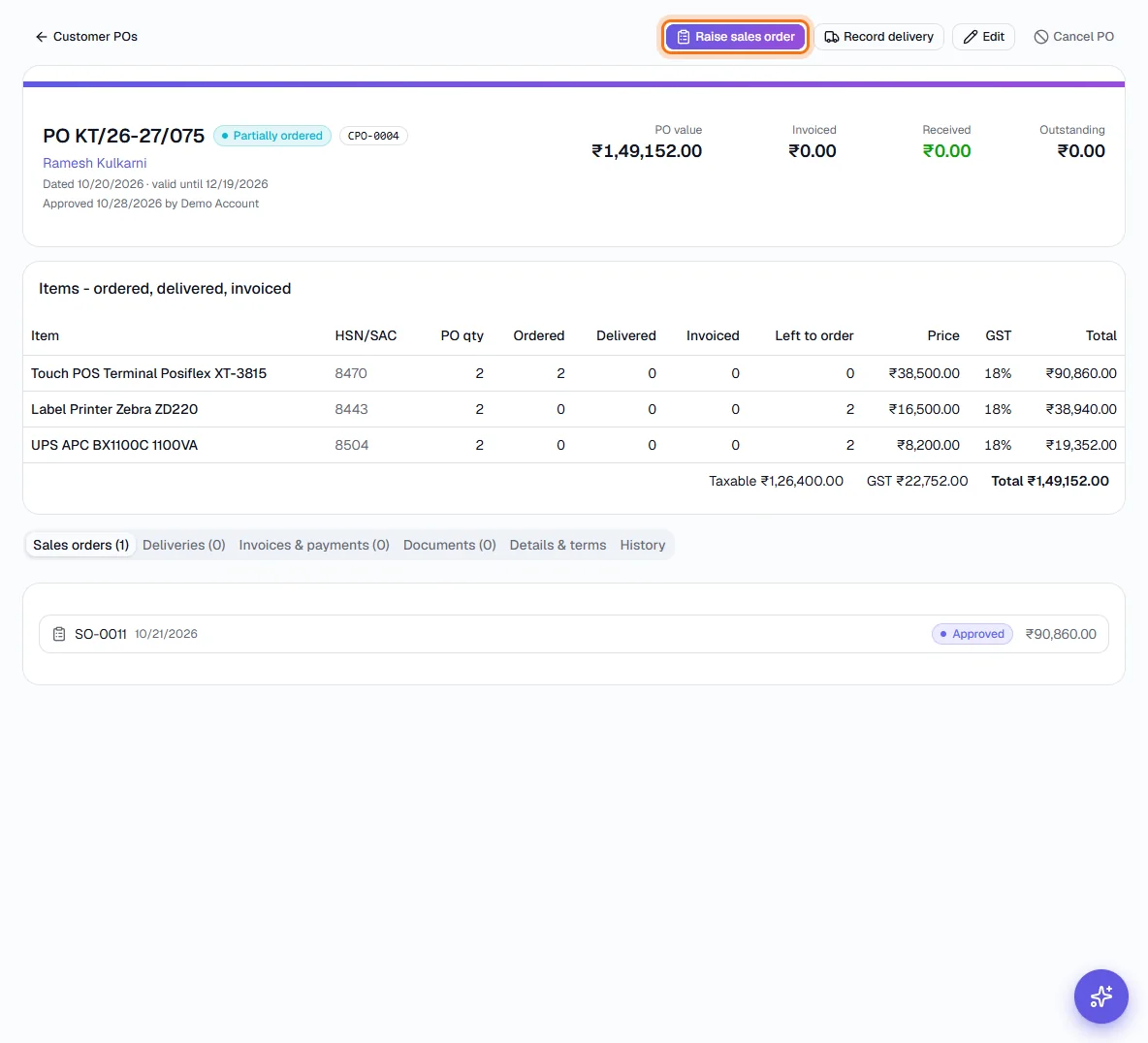
An approved PO that is only partly ordered: Raise sales order is outlined. - 11
Raise a sales order
Click Raise sales order. Each line shows how much is still unordered and defaults to all of it; lower a quantity to order only part now. The order starts as a Draft Sales Order and goes through the normal approval before it can be billed.
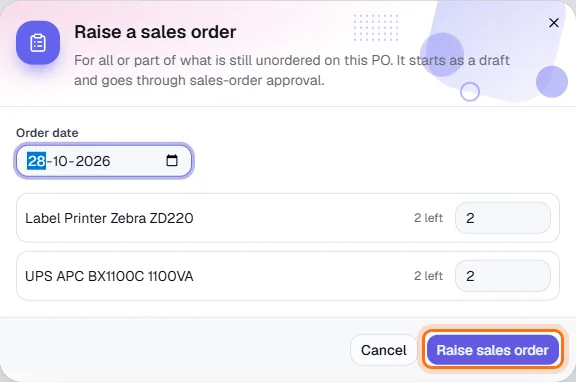
- 12
Record a delivery
When goods leave, click Record delivery, choose the sales order, enter the date, e-way bill, vehicle and transporter and the quantity of each item sent. Sayl creates a delivery challan and dispatches it, unless your challan settings require approval first, in which case it waits as a draft for its approver.
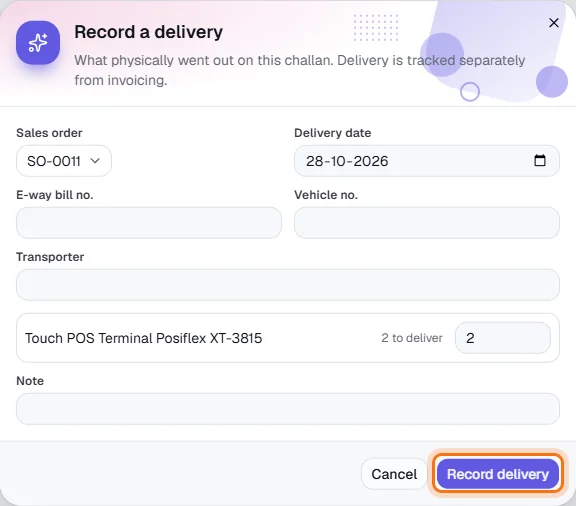
- 13
Follow the deliveries
The Deliveries tab lists each challan with its order, items, e-way bill and vehicle. Mark a dispatched delivery Delivered when it reaches the customer, Acknowledged when the customer has signed for it, or Cancel it before it leaves.
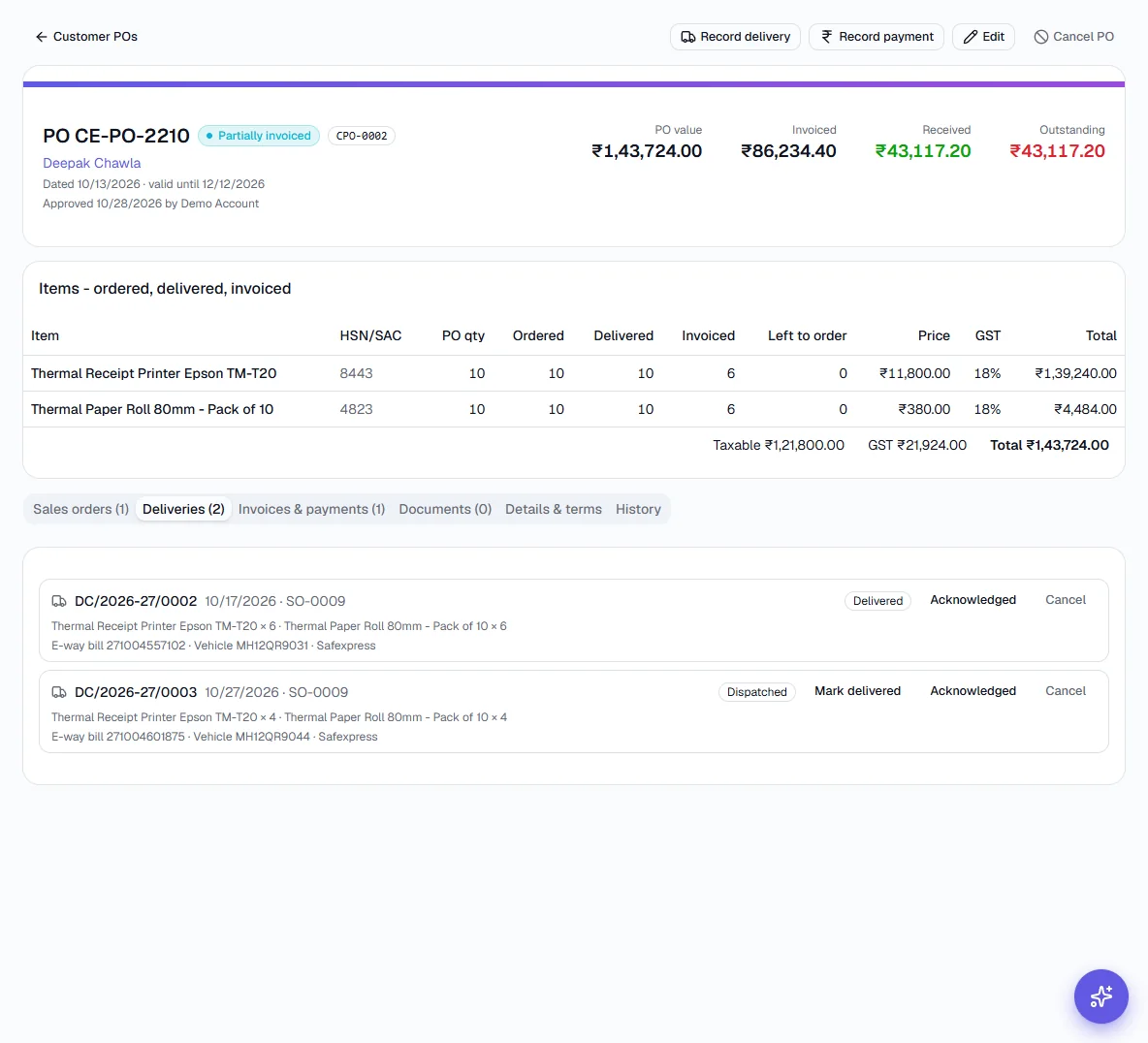
- 14
Invoice the order
Open the sales order from the Sales orders tab and use Go to invoice to bill all of it or one delivery at a time - see the Sales Orders guide. The invoice then appears on this PO under Invoices & payments.
- 15
Record a payment
Click Record payment, choose the invoice, enter the amount and date and how it was paid. Part payments are fine. It is recorded on the invoice with the same checks, ledger posting and confirmation as from the invoice page, so the invoice balance and the PO's Outstanding figure update together. Only an owner or admin who can edit invoices can record or reverse payments.
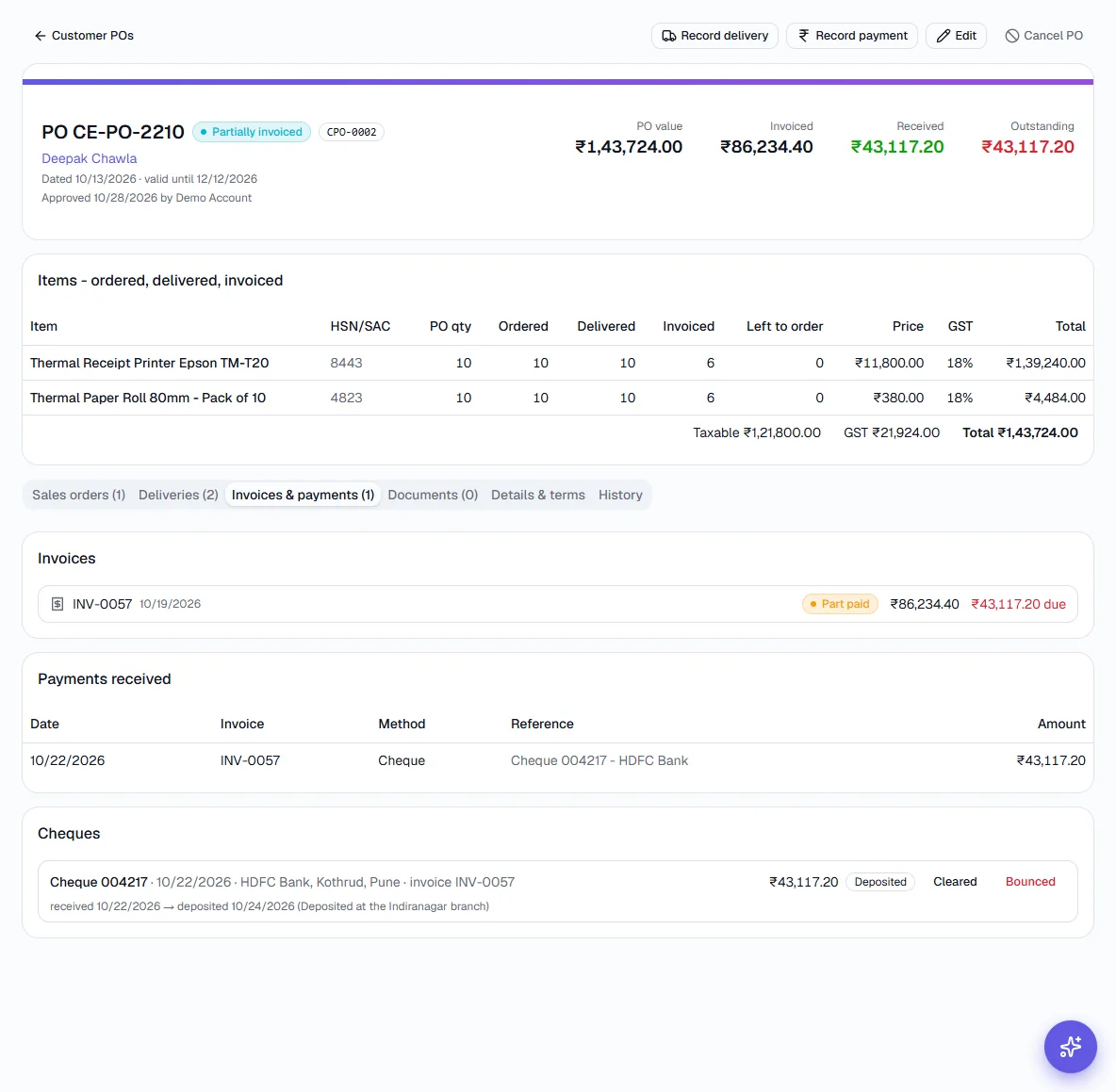
Invoices, the payments received against them and the cheque trail. - 16
Fill in the payment
Pick the bank or cash account it was deposited to and a reference. Choosing Cheque adds the cheque number, date and bank, which registers the cheque so it can be followed.
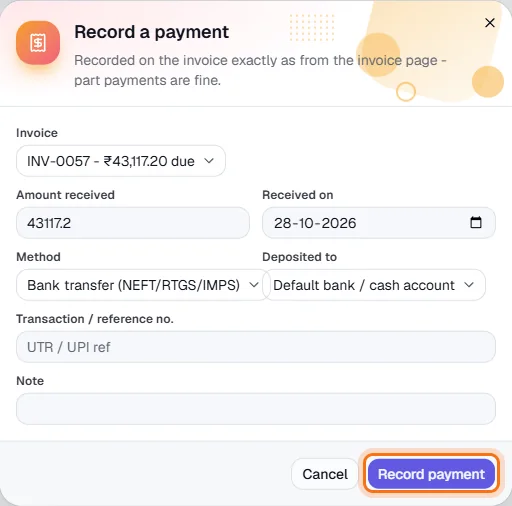
- 17
Track a cheque
A cheque starts as Received. Mark it Deposited when it goes to the bank, then Cleared when the money arrives. Each step records the date and any note.
- 18
When a cheque bounces
Mark it Bounced. The payment it was recorded as is removed from the invoice, the ledger is reversed and the amount is owed again - the cheque keeps its history so you can see what happened.
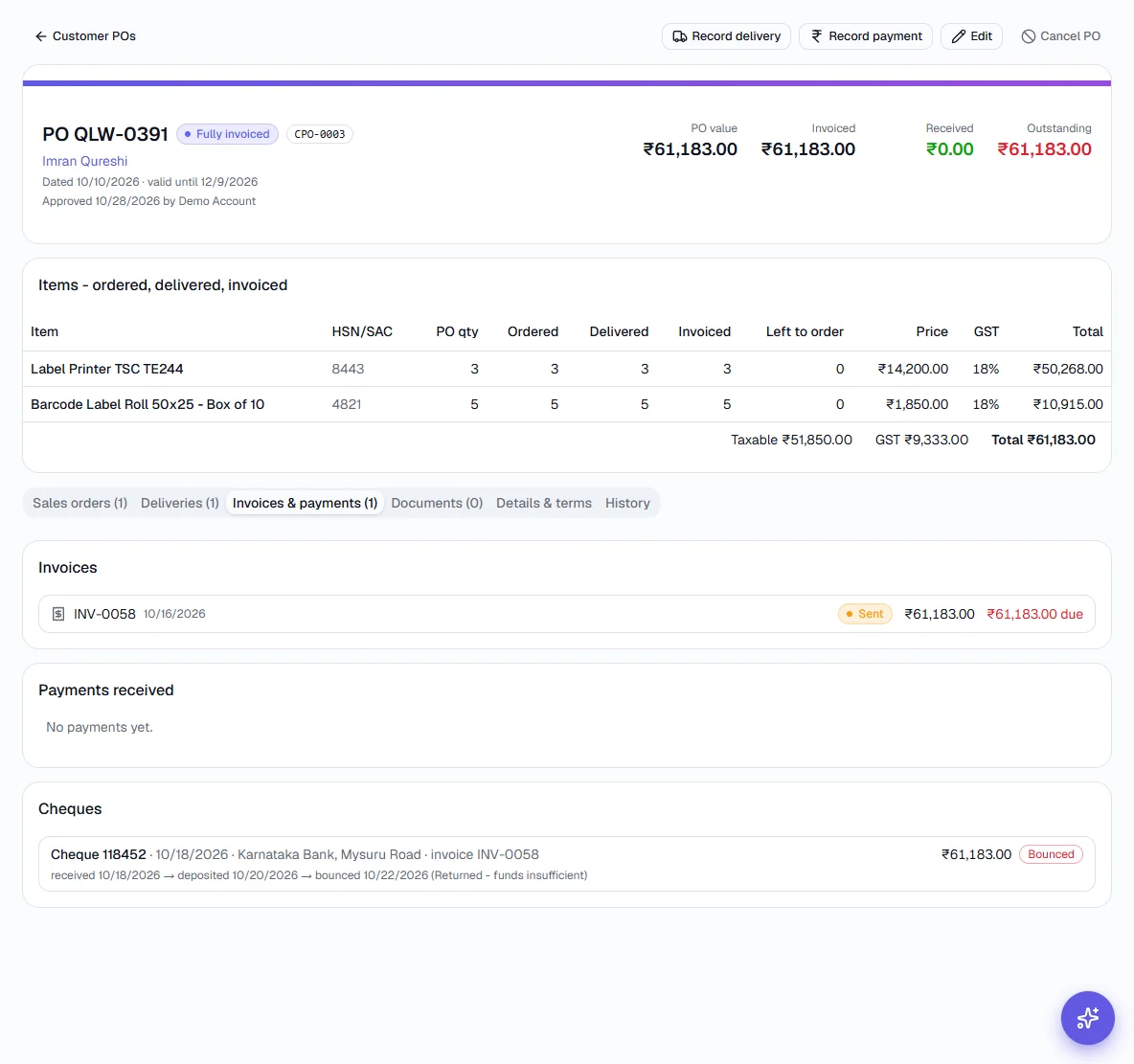
A bounced cheque: the invoice owes its full amount again. - 19
Completed POs
When every line is invoiced and paid the PO shows Completed and Outstanding is zero. The Sales orders, Deliveries and Invoices & payments tabs still show the full trail.
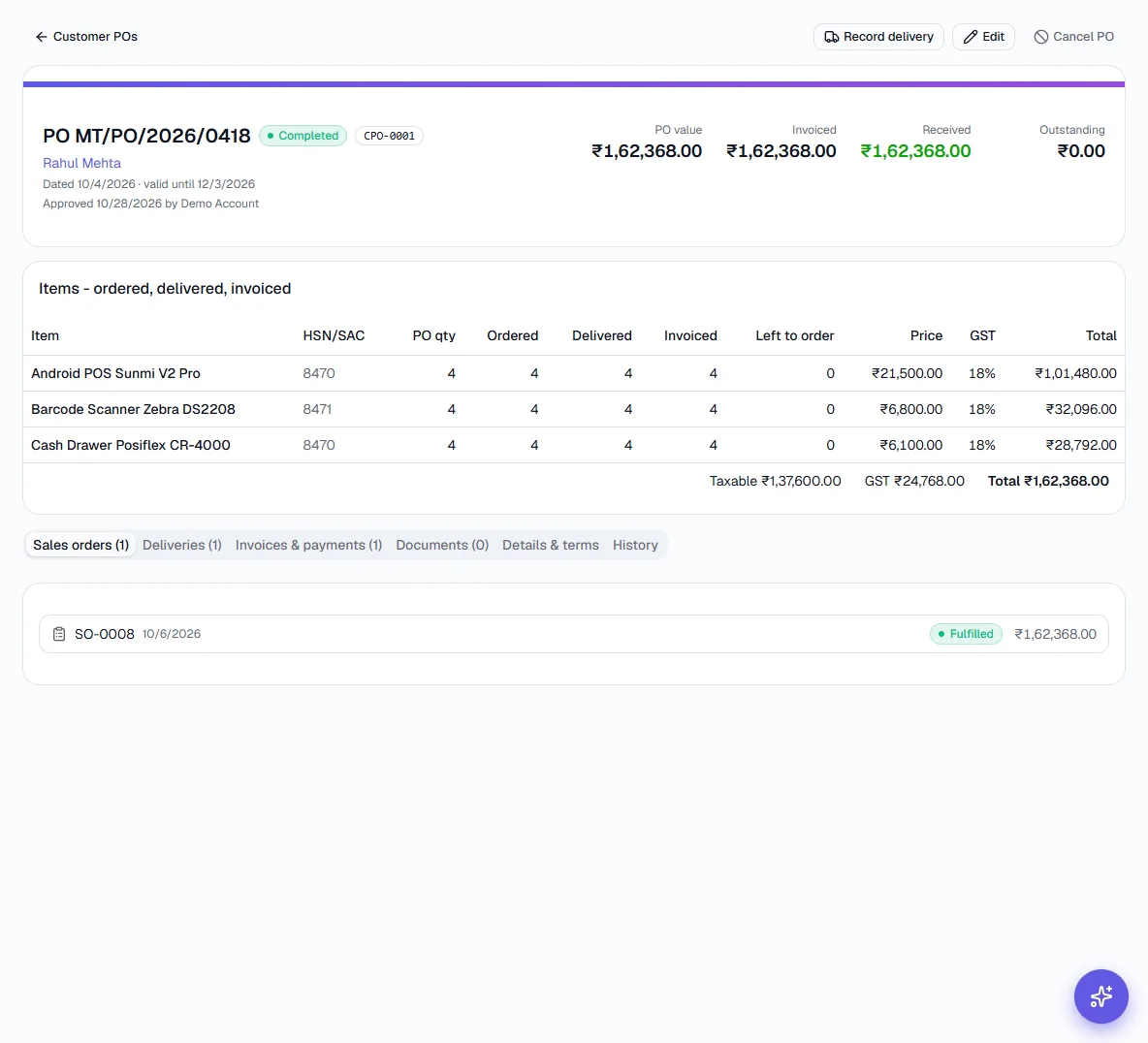
- 20
Cancel a PO
Click Cancel PO and give the reason. The PO and its documents are kept, marked Cancelled. Any open sales order raised from it must be cancelled or closed first, so an order never points at a PO that no longer stands.
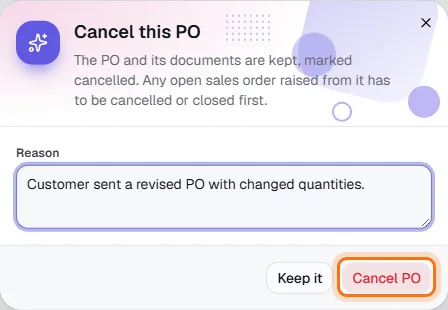
- 21
See a cancelled PO
A cancelled PO shows the reason under its number and offers no further actions.
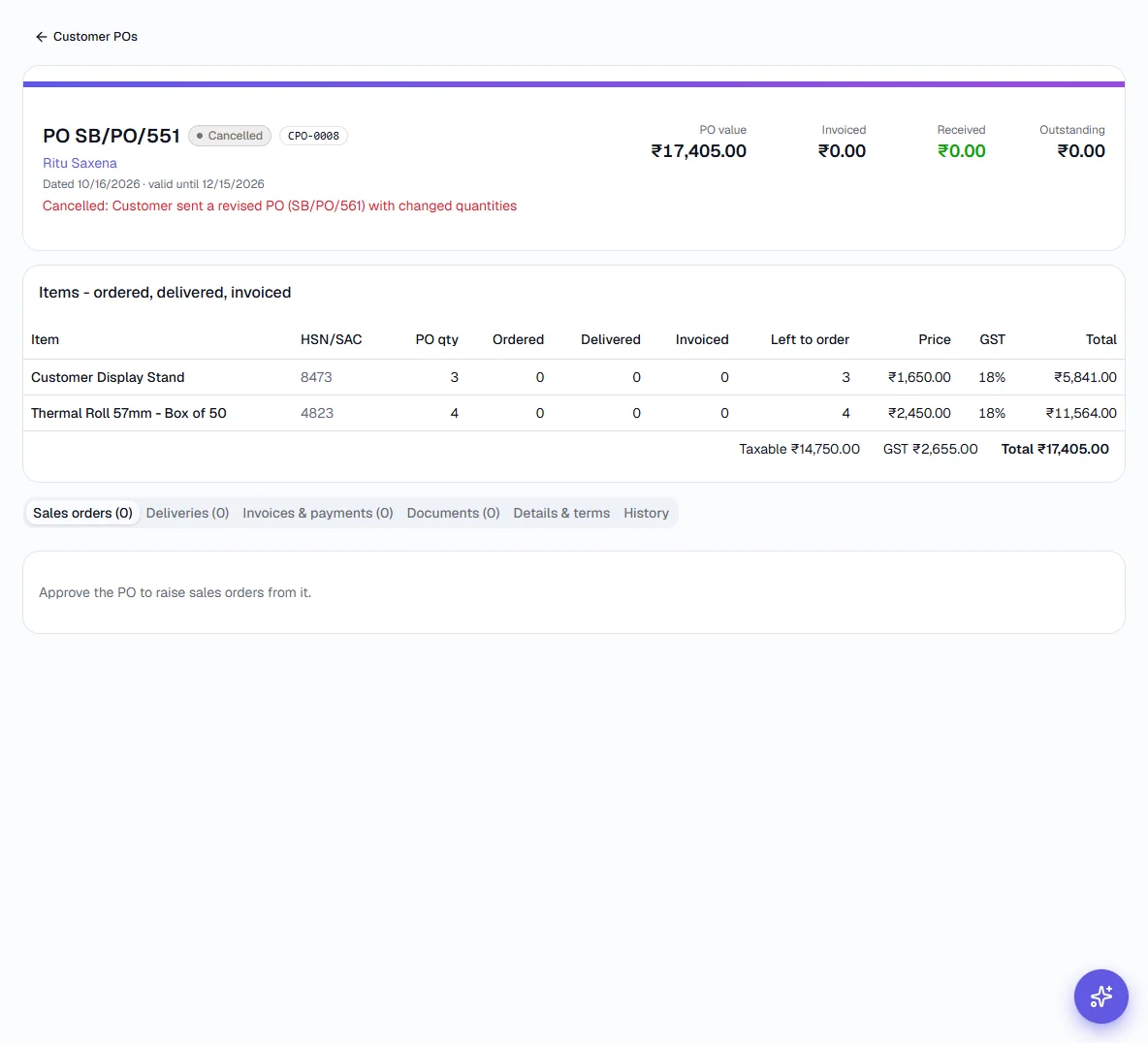
- 22
Check the details, terms and history
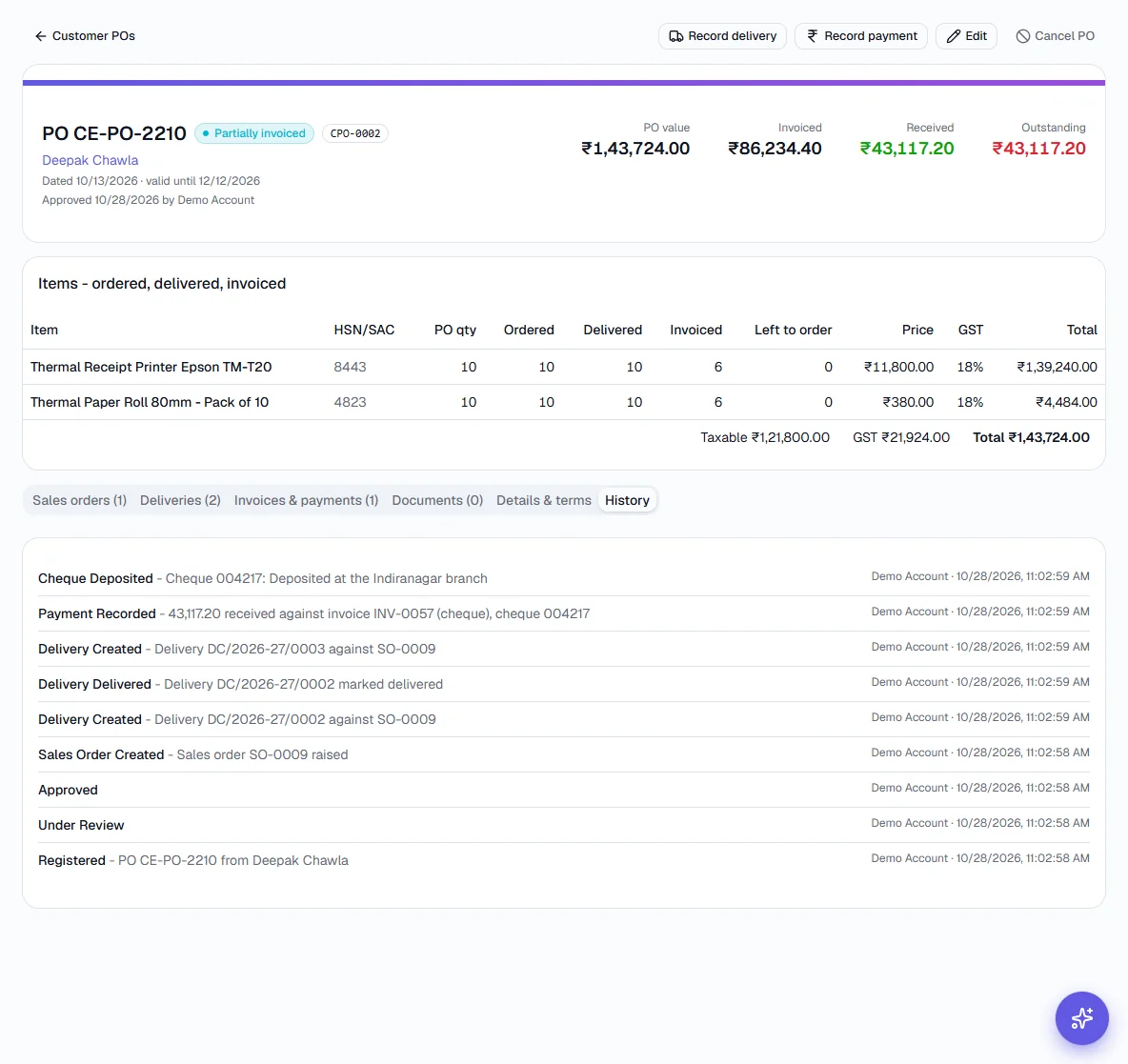
Details & terms holds the contact, addresses, GSTIN, payment and delivery terms and notes, and whether the PO was entered by hand or read from a document. History lists every step - registered, approved, order raised, delivery, payment, cheque - with who did it and when. Documents holds the customer's original PO and any amendments.
Key fields
- Customer *
- Who sent the PO. Their GSTIN and addresses fill in from the customer record.
- Customer's PO number *
- The number printed on their PO. The same number cannot be registered twice for one customer.
- PO date *
- The date on the customer's PO.
- Valid until
- When the PO lapses. An unapproved PO past this date shows as Expired.
- Branch / plant
- Which of the customer's locations ordered, when they have several.
- Total printed on the PO
- What the customer's document says the total is, so you can check that Sayl's total agrees.
- Items
- Item, quantity, price, discount % and GST % per line.
- Payment and delivery terms
- Copied from their PO so they stay with the order.
- Internal notes
- For your own team; never printed.
Tips
- Register the PO before you do anything else with the order - every sales order, challan and invoice then links back to it, and you can answer 'what is left on this PO?' in one screen.
- Use Read details on a clear PDF or photo to save typing, but always check the lines against the document before registering.
- A cheque is not money until it clears. Mark cheques Deposited and Cleared as they happen, so Outstanding is honest.
- Tick Only POs with money outstanding on the list to chase payment.