
Finance, GST & Accounting · Sales
Delivery Challans
Create delivery challans for goods leaving your premises - against an invoice, a sales order or with no invoice - then dispatch, deliver, cancel and print them in Sayl Finance.
What it is for
A delivery challan is the document that travels with the goods. It lists what is being sent, to whom, by which vehicle and with which e-way bill, and the person receiving the goods can sign it.
A challan can be raised against an invoice, against a sales order, or on its own for goods that leave without an invoice - a sample, a demo unit, a replacement, job work or a branch transfer.
How it works
- A challan moves Draft → Dispatched → Delivered. If the customer receives less than was sent it becomes Partially delivered; Cancelled is the exit for a challan that should not stand. If your workspace requires approval, a challan goes Draft → Awaiting approval → Approved before it can be dispatched.
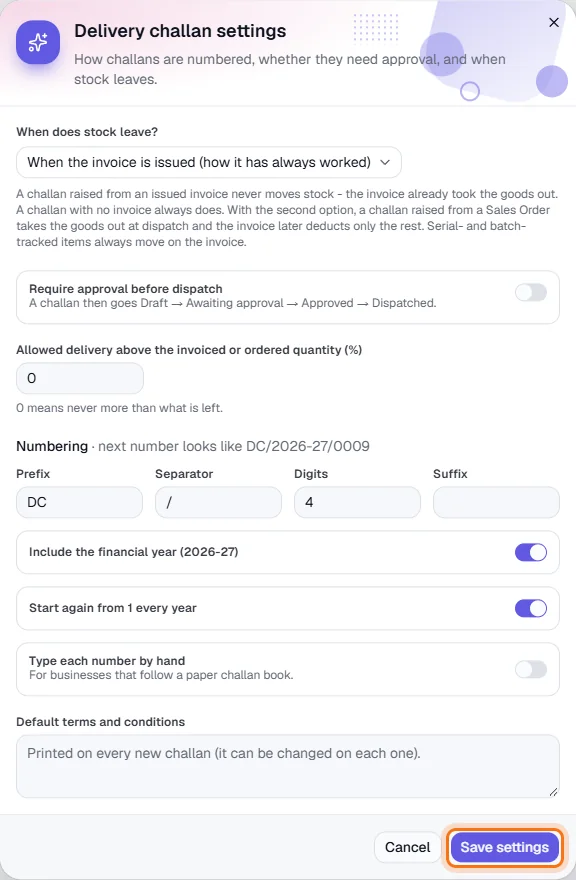
- Whether goods leave stock depends on what the challan is raised from. Against an issued invoice, the invoice already took the goods out, so the challan moves no stock. With no invoice, dispatching takes the goods out of stock. Against a sales order, goods leave on dispatch only if you chose that in Settings; otherwise the invoice takes them out later. Serial- and batch-tracked items always move on the invoice.
- Sayl stops you delivering more than is left. Each line shows ordered, delivered earlier, this challan and left, so a big invoice or order can be delivered in several challans. A tolerance percentage in Settings allows a small excess if you need it.
- A challan that the customer has received cannot be cancelled once stock has left - the goods are with them. Record the goods coming back instead. A draft or dispatched challan that moved no stock can be cancelled with a reason.
- Challans are numbered DC/<financial year>/0001 and onward, and the format - prefix, separator, digits, year, yearly reset, or typing each number by hand - is set in Settings.
- Challans raised from a Customer PO's Record delivery action are ordinary challans, so they show here as well.
Step by step
Every screenshot is from the live demo. The highlighted button is the one to click - nothing here is saved in the demo, so you can follow along freely.
- 1
Open Delivery Challans
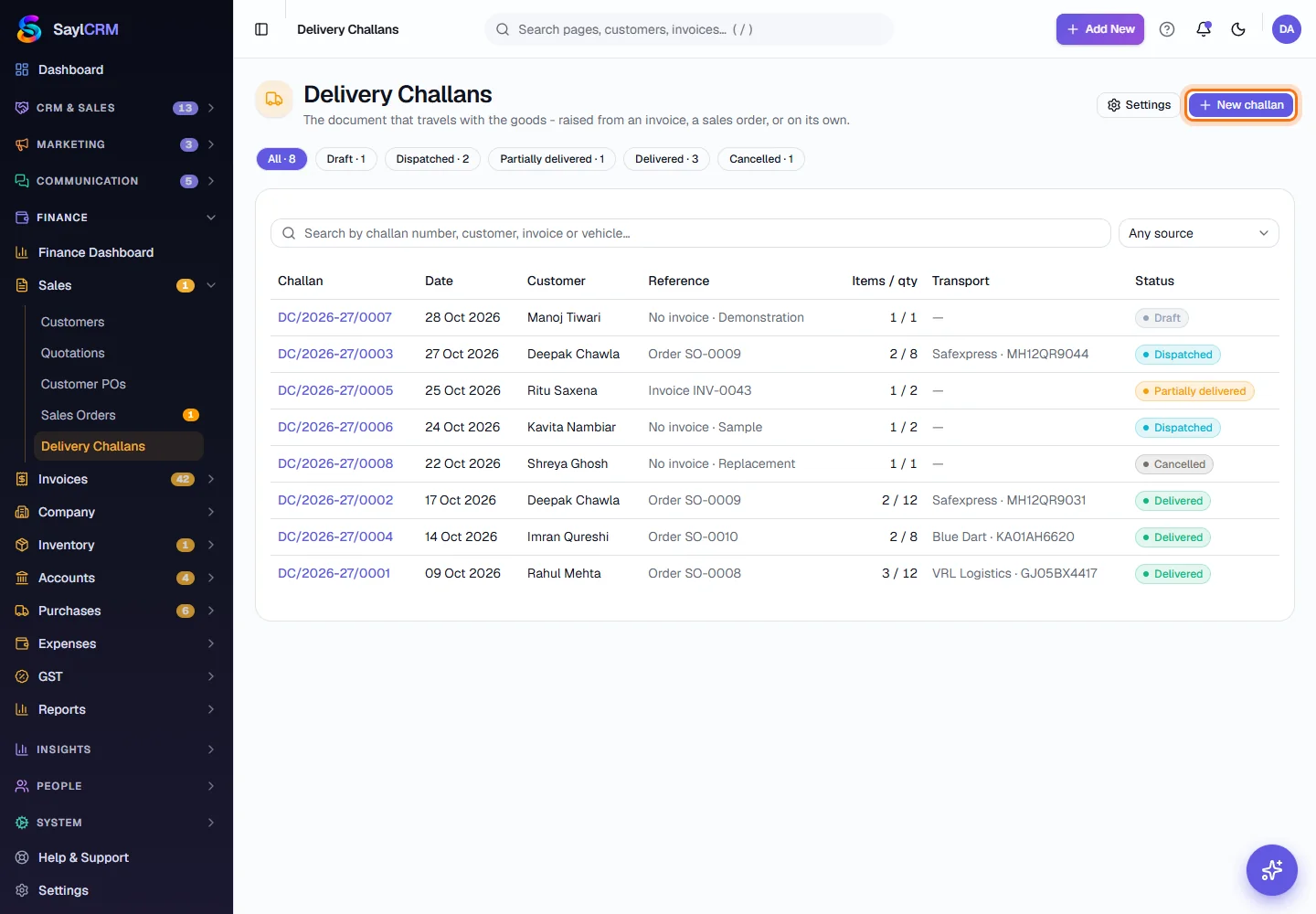
Finance → Sales → Delivery Challans. Every challan is listed with its number, date, customer, what it was raised against, the item count and quantity, the transport details and its status.
- 2
Filter by status
The tabs across the top filter the list by where each challan is. The demo has at least one challan in every status.
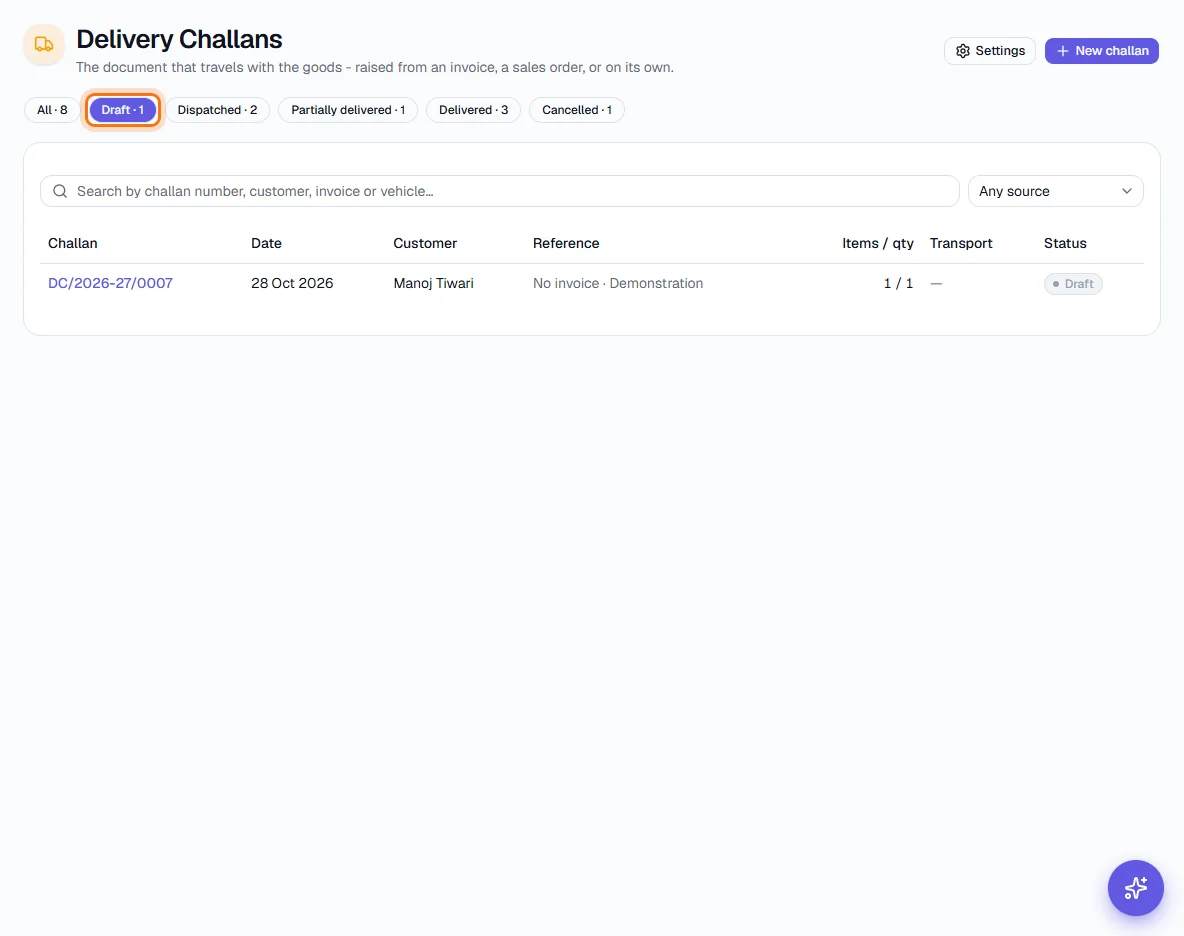
Draft - prepared, not yet sent 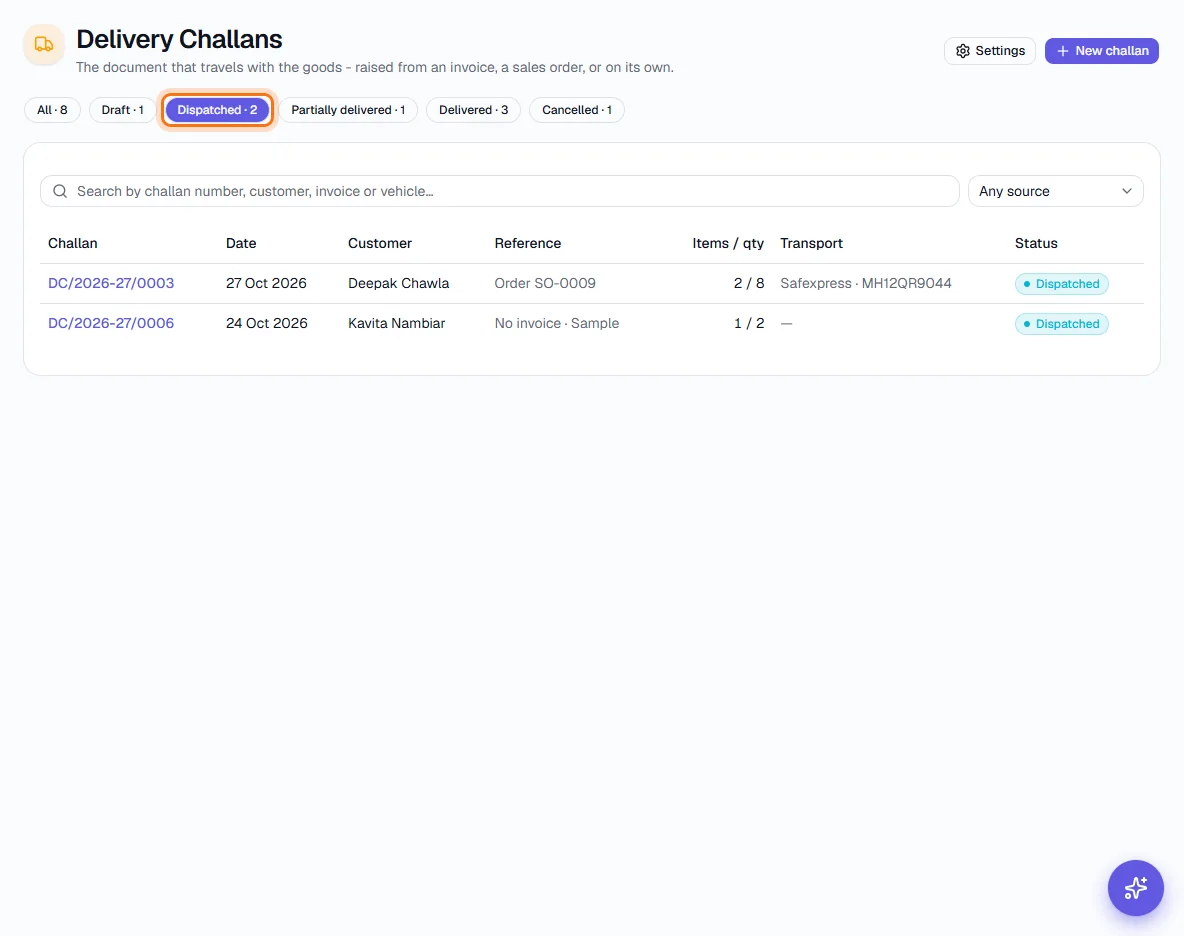
Dispatched - goods are on the way 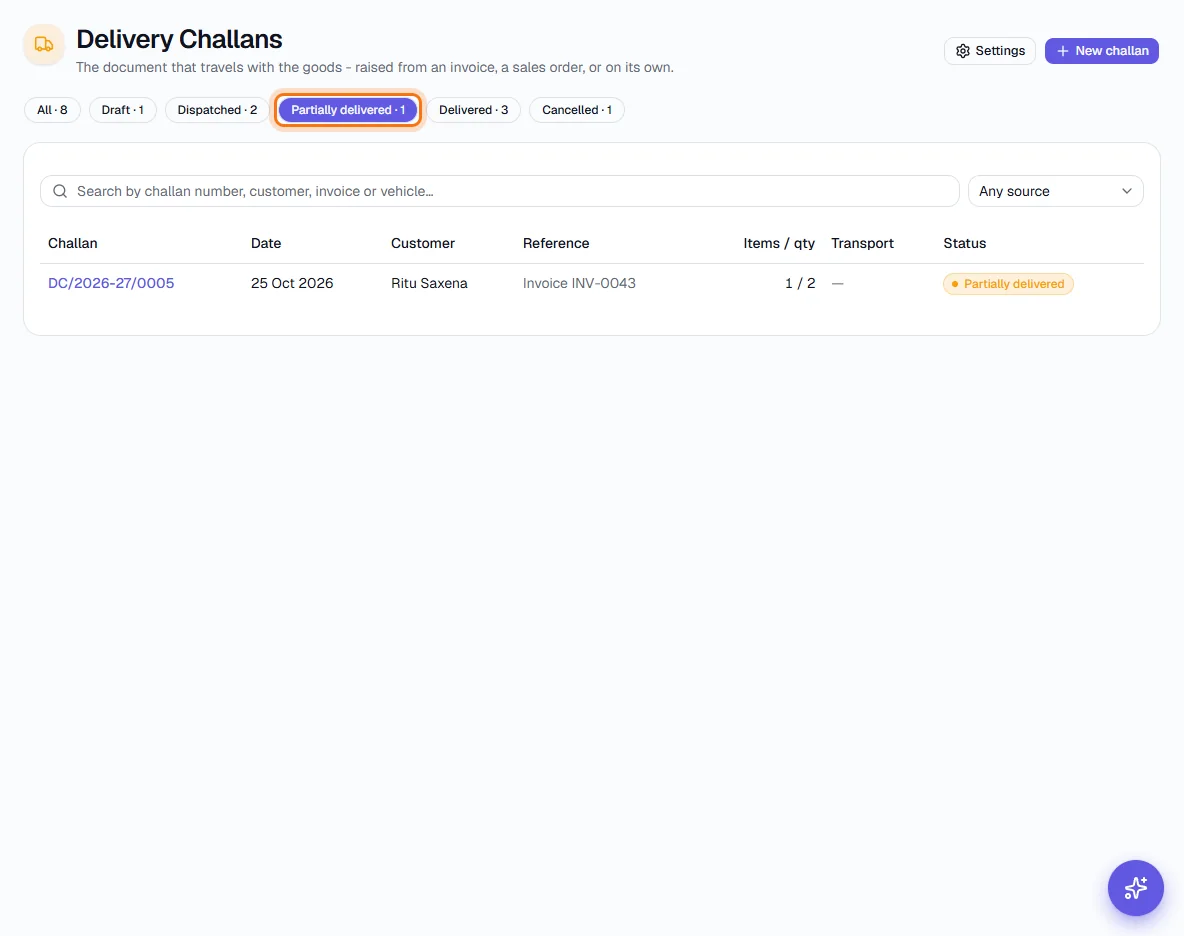
Partially delivered - the customer received less 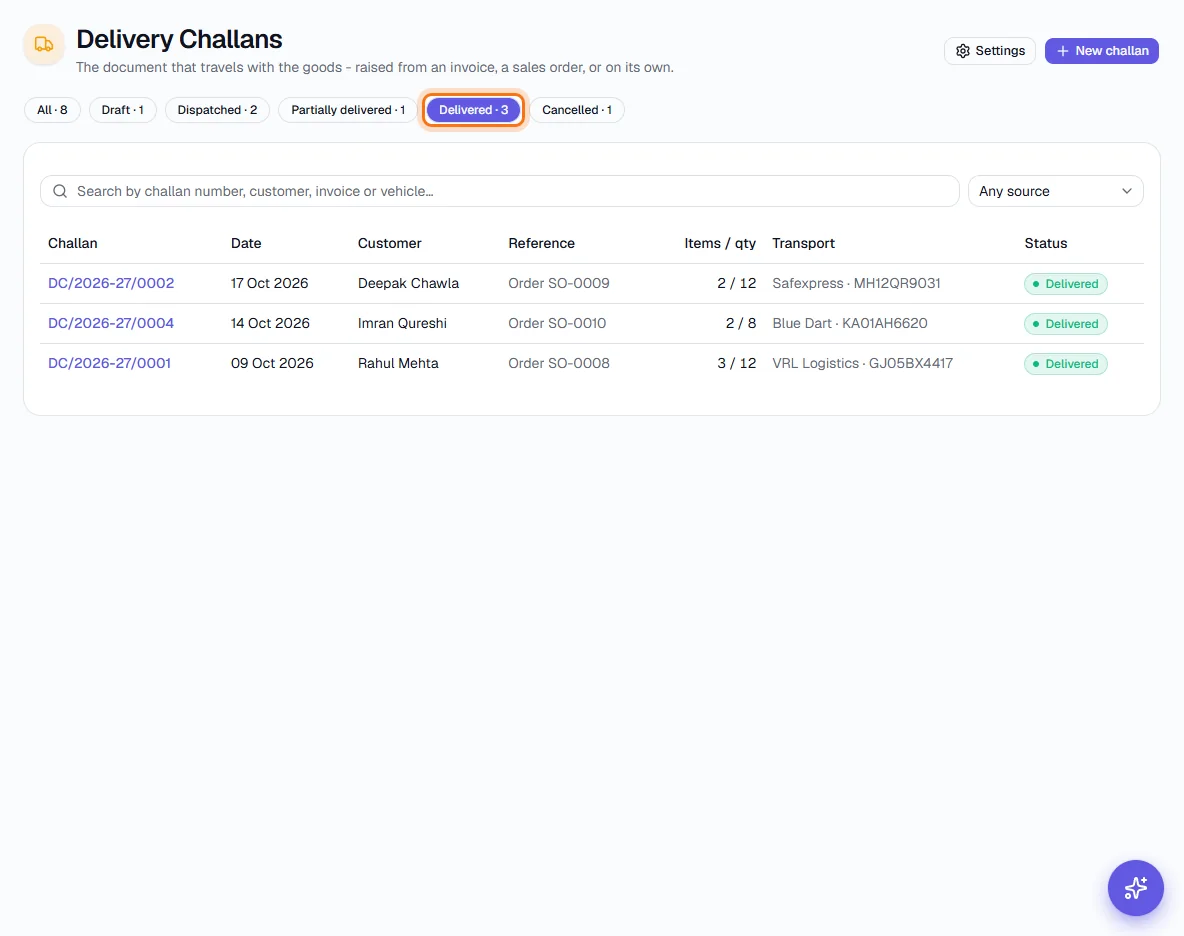
Delivered - received in full 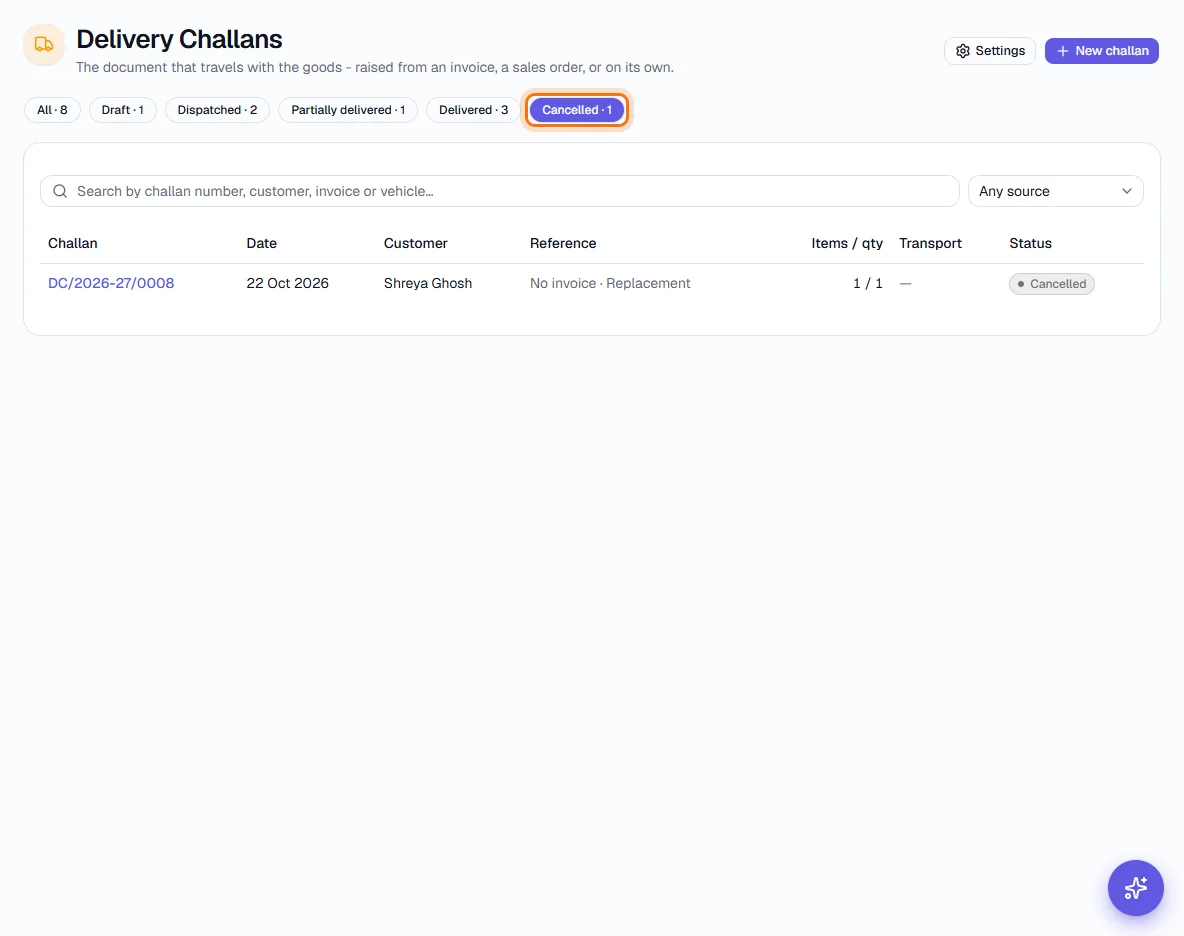
Cancelled - will not go ahead - 3
Click New challan
The button is at the top right of the page (highlighted). You can also start one from an invoice or sales order, which carries its customer and items across.
- 4
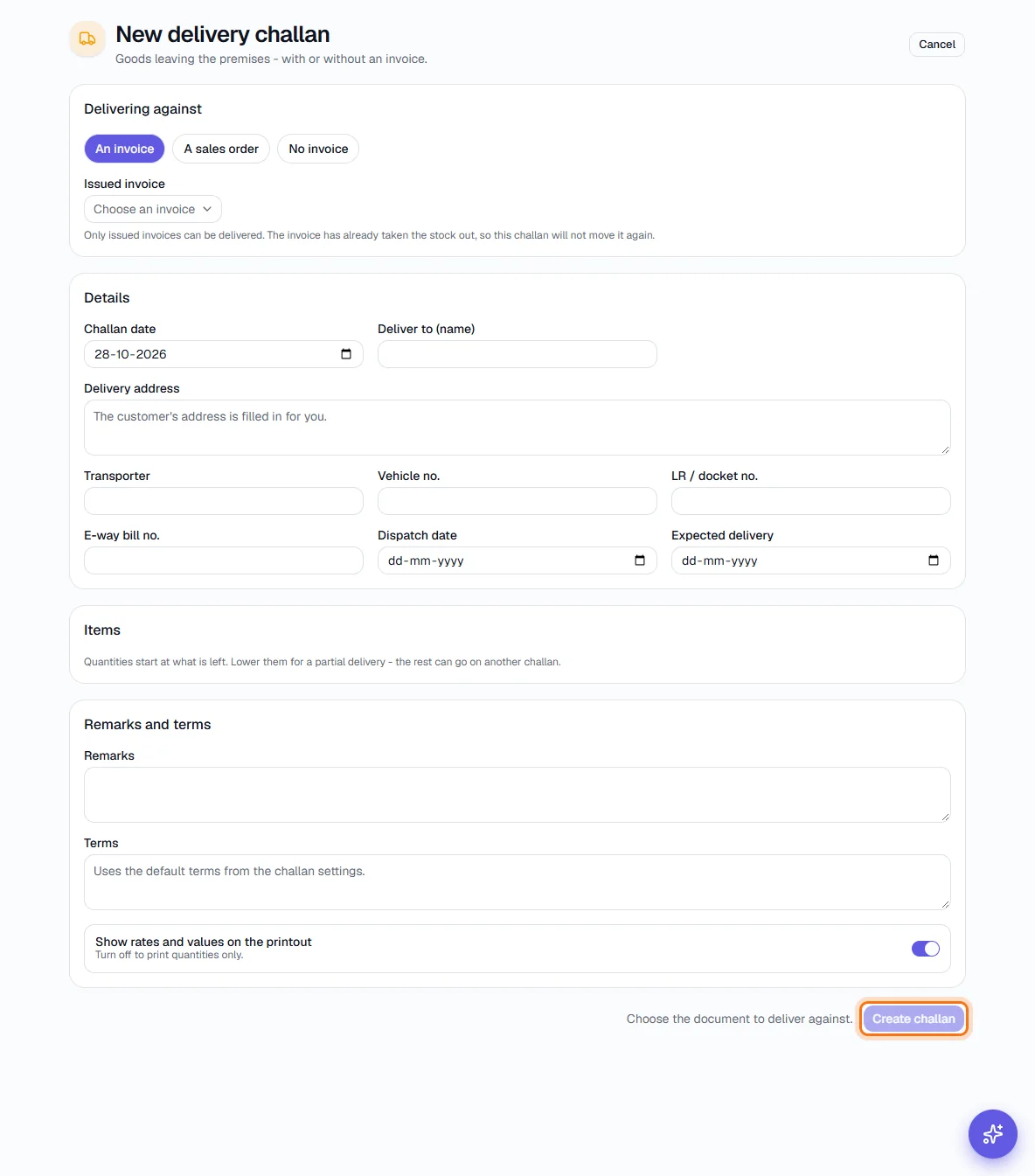
Choose what you are delivering against
Pick An invoice, A sales order or No invoice. For an invoice or order, choose it and Sayl lists what is still undelivered, ready to send in full or in part. The customer's delivery address and GSTIN fill in for you.
- 5
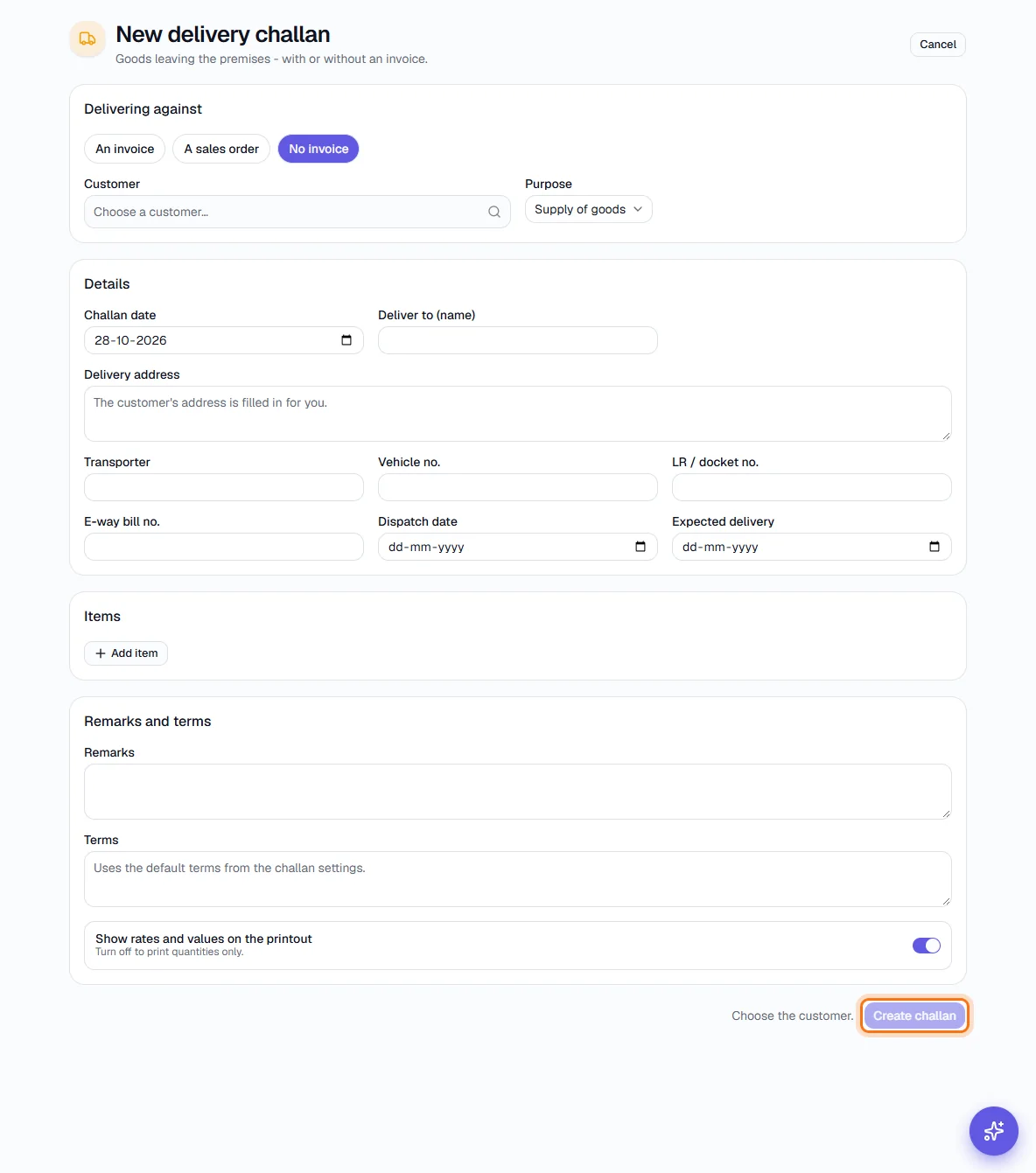
Or send goods with no invoice
Choose No invoice, pick the customer and the purpose - Supply of goods, Sample, Replacement, Demonstration, Job work, Branch transfer, Return or Other - then add the items. A purpose is required, because these goods are leaving without a bill.
- 6
Fill in the transport details
Add the transporter, vehicle number, LR or docket number, e-way bill number, dispatch date and the expected delivery date. Add remarks and terms if needed. Turn off Show rates and values on the printout to print quantities only.
- 7
Create the challan
Click Create challan (highlighted). It is saved as a Draft with its next DC number. A draft can still be edited or deleted.
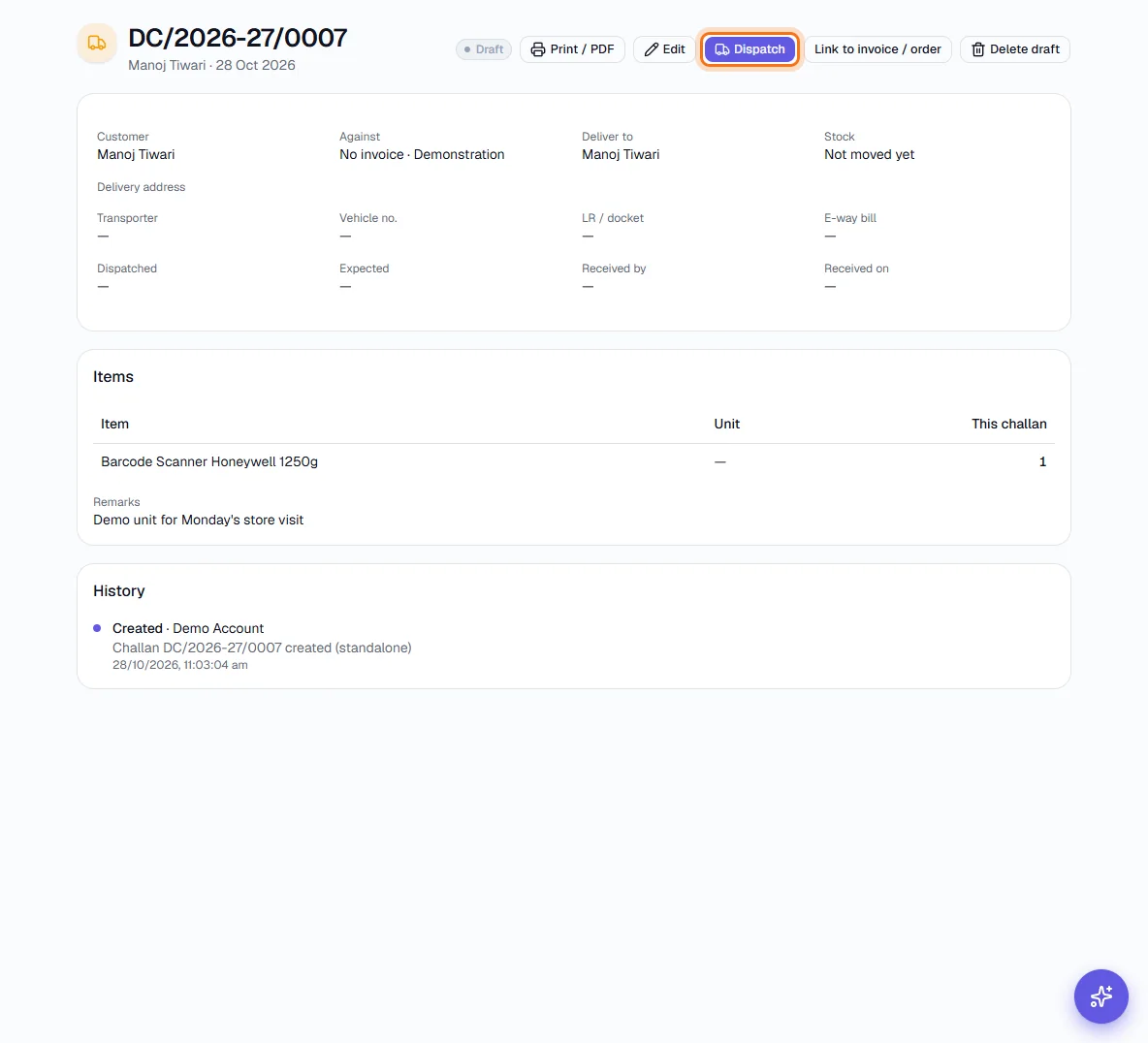
A draft challan: Dispatch is outlined. The other actions are Print / PDF, Edit, Link to invoice / order and Delete draft. - 8
Dispatch it
When the goods leave, click Dispatch and confirm the dispatch date and transport details. Stock moves now if the rules above say this challan moves it, and the quantities are locked.
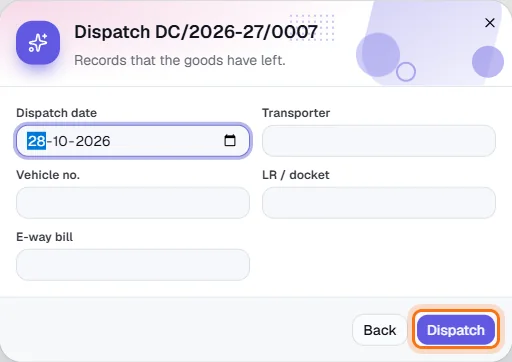
- 9
Follow a dispatched challan
A dispatched challan shows Mark delivered and Cancel challan. Print / PDF gives the printable challan to travel with the goods.
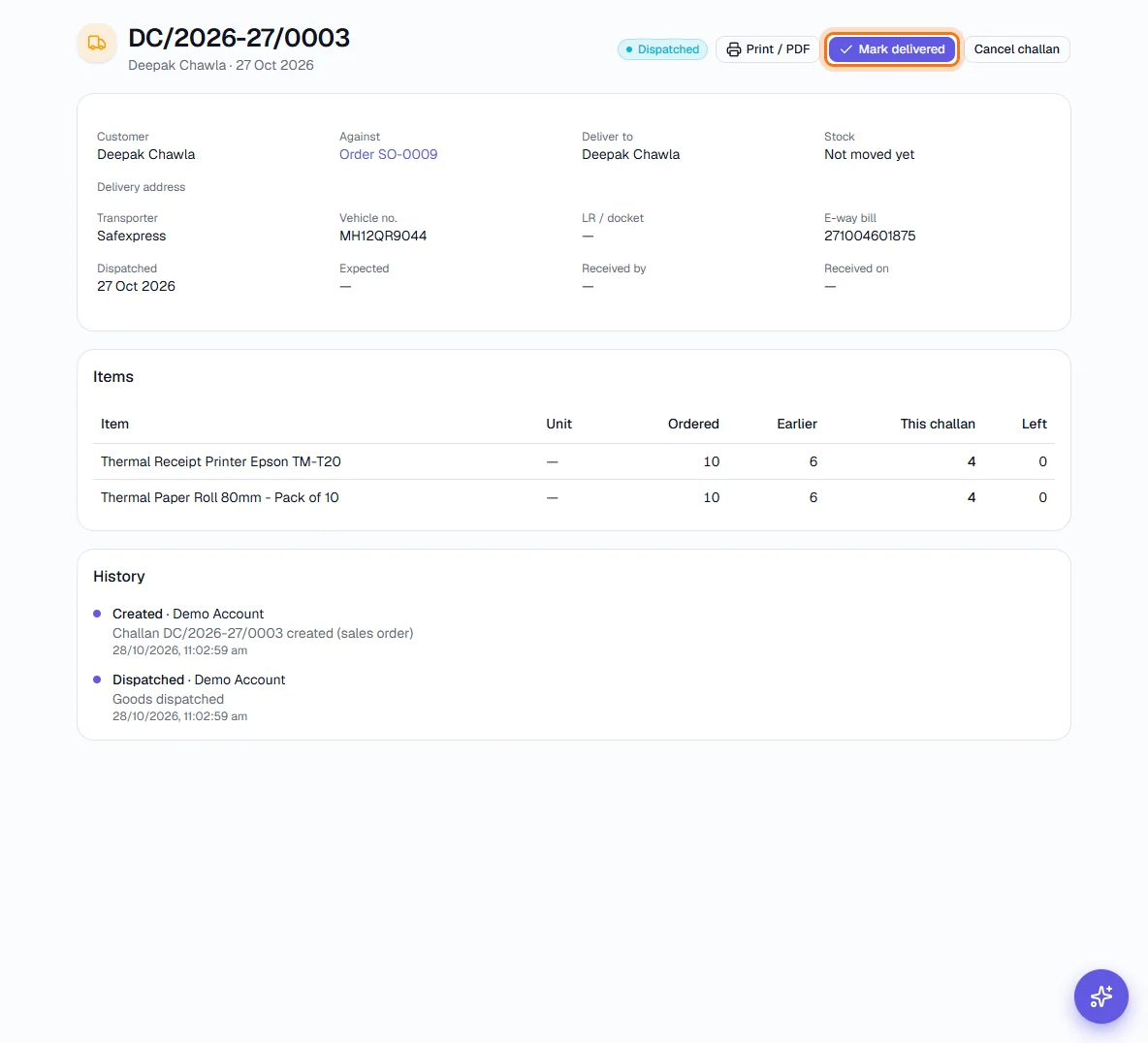
A dispatched challan: Mark delivered is outlined. - 10
Mark it delivered
When the customer receives the goods, click Mark delivered and enter who received them, their phone, the date and any note. Change a quantity only if less than was sent actually arrived - the challan then becomes Partially delivered.
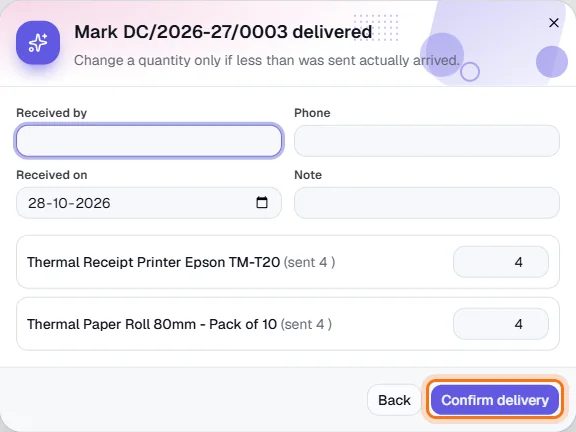
- 11
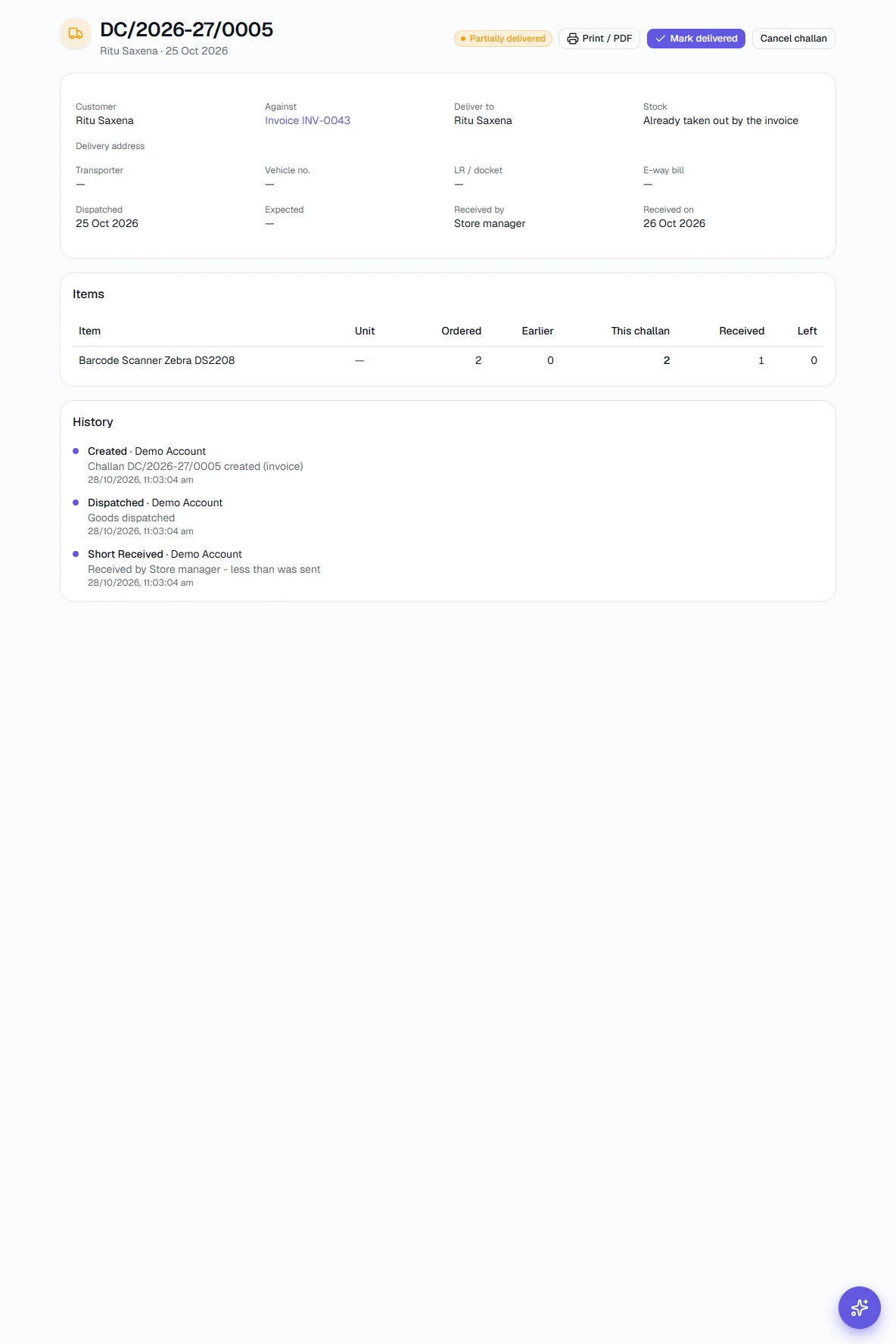
A challan received short
When the received quantity is lower than what was sent, the challan shows Partially delivered with the shortfall per line. The history records who received it and that it was less than sent. It can be marked delivered again once the rest has been accounted for.
- 12
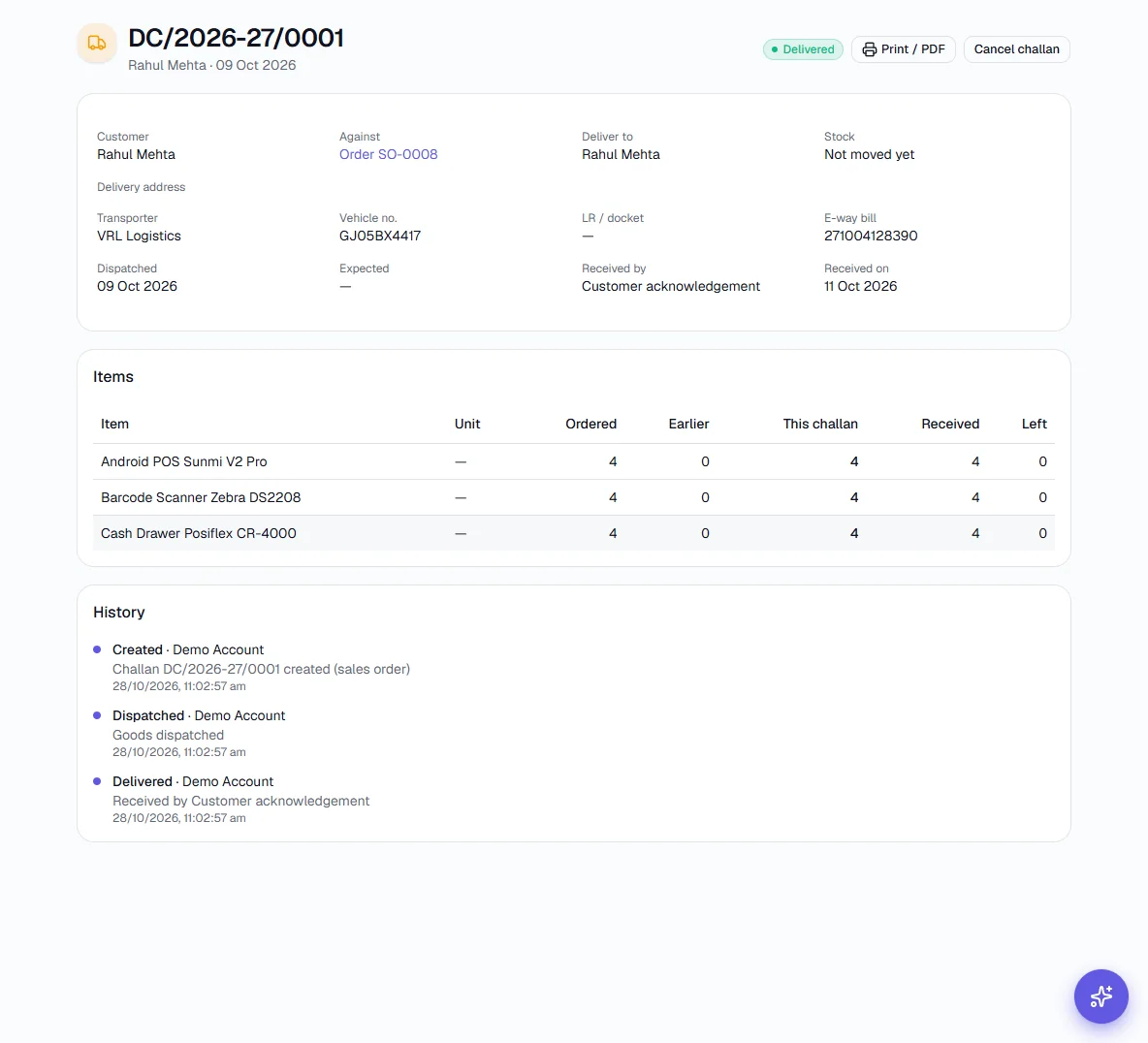
A delivered challan
A delivered challan shows who received the goods and when, with its full history.
- 13
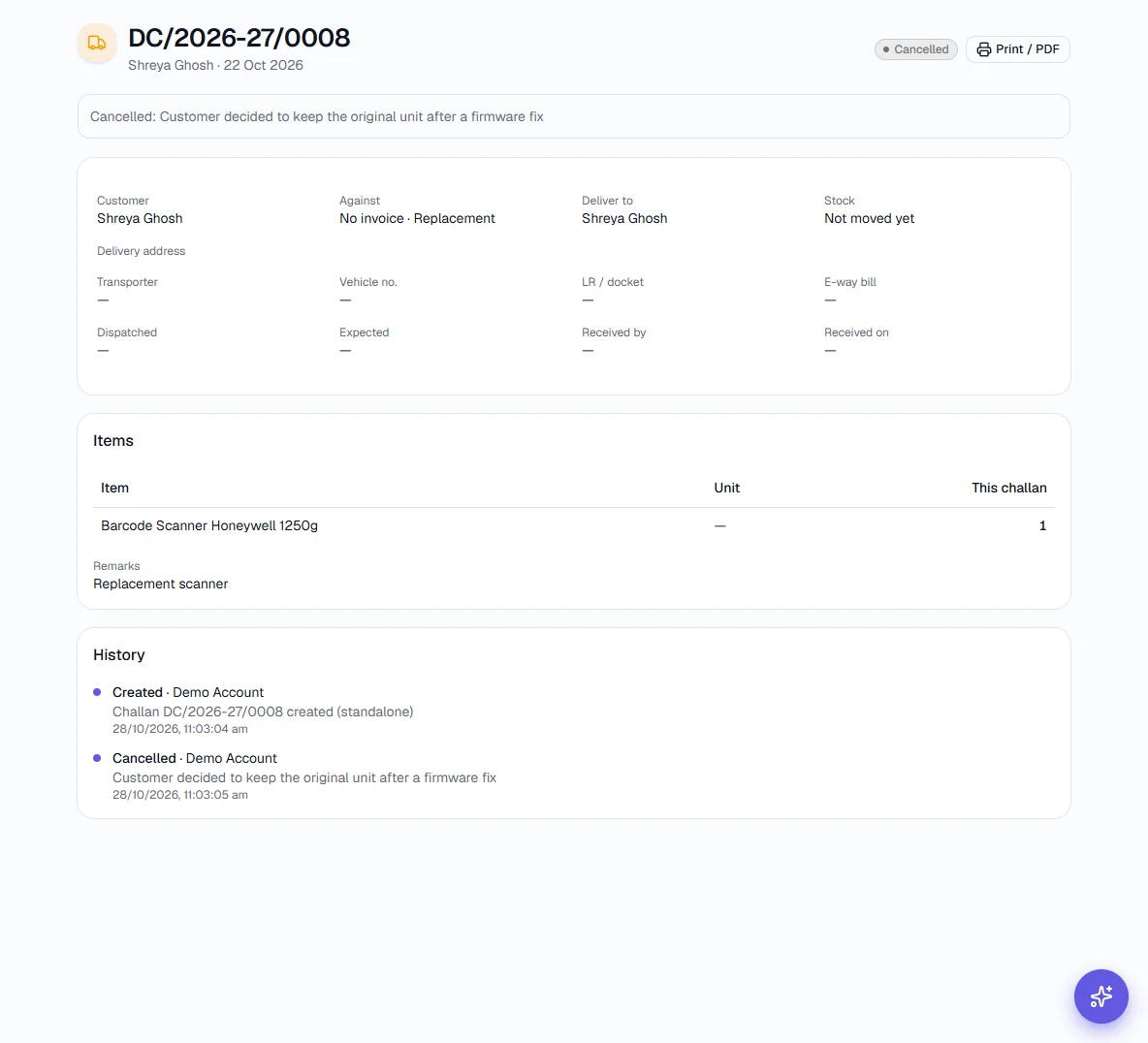
Cancel a challan
Cancel challan asks for a reason. It is available on a draft or dispatched challan that has not been received; a cancelled challan stays in the list for your records and frees the quantities to be delivered again.
- 14
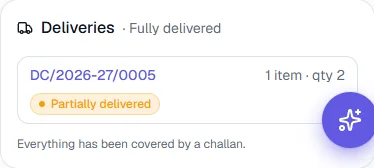
See deliveries from an invoice
Every issued invoice shows a Deliveries panel listing the challans raised against it and whether everything is covered, so you can trace goods back to the bill. A sales order shows the same.
The Deliveries panel on an invoice. - 15
Set up numbering, approval and stock
Click Settings at the top of the list. Choose when stock leaves, whether a challan needs approval before dispatch, the allowed excess percentage, the number format and default terms and conditions.
Key fields
- Delivering against
- An invoice, a sales order, or no invoice.
- Customer *
- Who receives the goods.
- Purpose
- For a challan with no invoice: supply, sample, replacement, demonstration, job work, branch transfer, return or other.
- Challan date
- Defaults to today.
- Deliver to / Delivery address
- Filled from the customer; change them if the goods go elsewhere.
- Transporter, vehicle no., LR / docket no.
- Printed on the challan so the driver and receiver can match it.
- E-way bill no.
- The e-way bill that covers the movement.
- Dispatch date, Expected delivery
- When the goods left and when you expect them to arrive.
- Items
- Item and quantity per line. Against an invoice or order, never more than is left.
- Show rates and values
- Turn off to print quantities only.
Tips
- Raise the challan from the invoice or order wherever you can - the items, quantities and customer carry across and cannot exceed what is left.
- Use No invoice with the right purpose for samples and demo units, so the stock leaving the shelf is recorded and explained.
- Mark challans Delivered as soon as the signed copy comes back. The customer's name and date then sit on the record.
- Turn on approval in Settings if goods must be released by a second person.