
Finance, GST & Accounting · Company
Validation Rules
Set rules your team cannot forget - checked whenever an invoice, bill, expense, product, customer or payment is saved.
What it is for
A validation rule checks a record every time it is saved and either warns the person or stops the save. Use it for the things people forget: a PO number on large invoices, a receipt on expenses, a valid email on a customer.
Sayl comes with a library of ready-made rules, and you can write your own in plain words.
How it works
- Each rule applies to one kind of record - Invoice, Vendor bill, Expense, Product, Customer / contact, Invoice payment or Bill payment.
- A rule reads like a sentence: only when (an optional condition), then a check, for example Receipt attached must be yes when Amount (before tax) is more than 1000.
- Warns only shows your message and lets the person save. Stops the save blocks it until the problem is fixed.
- A rule can be turned off without deleting it, so you can try one and switch it back.
Step by step
Every screenshot is from the live demo. The highlighted button is the one to click - nothing here is saved in the demo, so you can follow along freely.
- 1
Open Validation Rules
Finance → Company → Validation Rules. My rules lists the rules your workspace uses, each with what it applies to, whether it Warns only or Stops the save, the condition in words and the message people will see. A switch turns a rule on or off, and its menu lets you edit it, delete it or check existing records. Ready-made rules is the library of rules you can add. Rules set by the platform admin appear first, marked Global, and can be read but not changed.
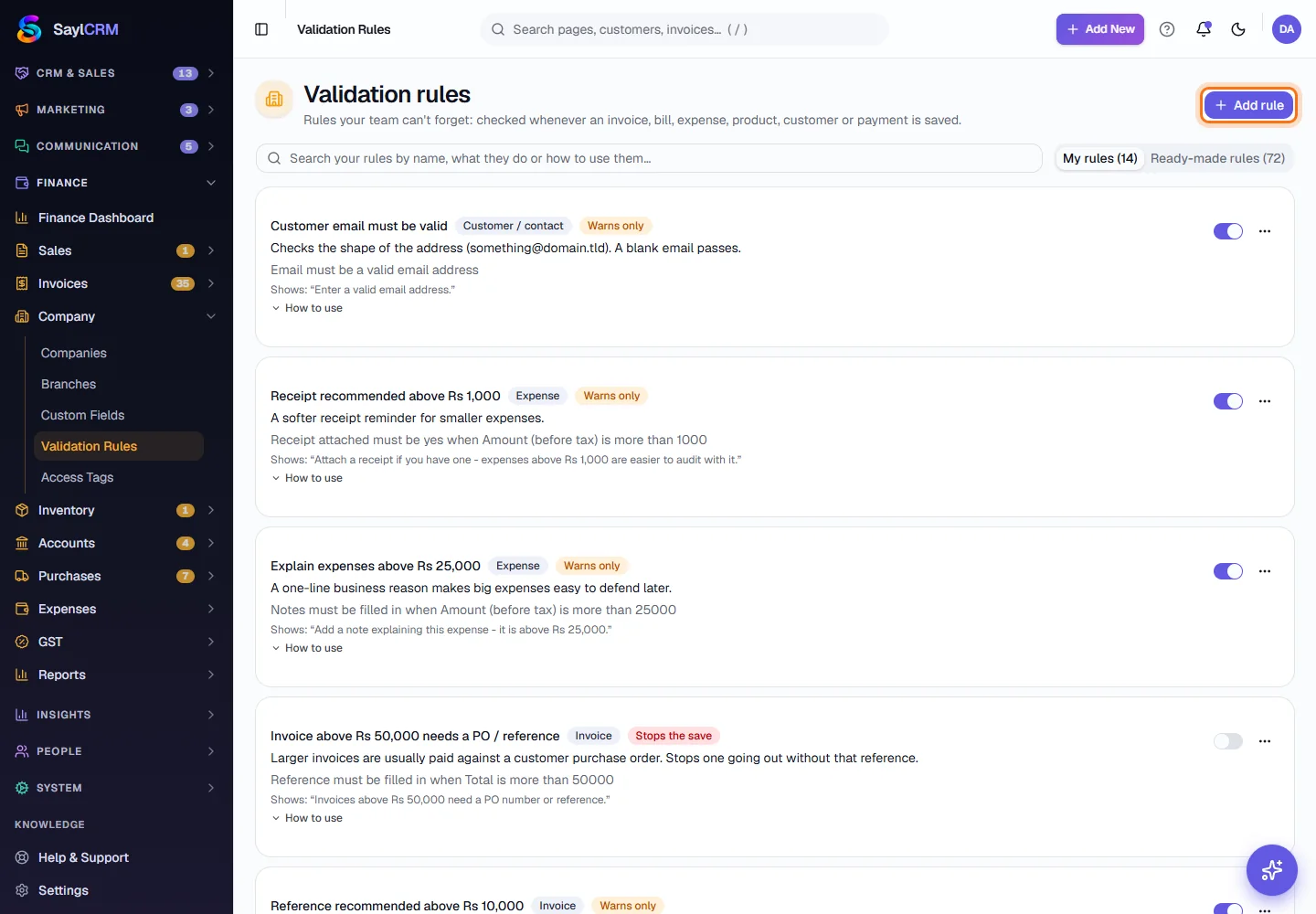
Add rule (highlighted) is at the top right. - 2
Browse the ready-made rules
Open the Ready-made rules tab and use the record-type buttons to see just invoices, expenses and so on. Each card says what the rule checks and how it behaves; How to use explains it in plain words. Click Add to my rules to take one - it then shows as Already in your rules and appears under My rules, where you can change it.
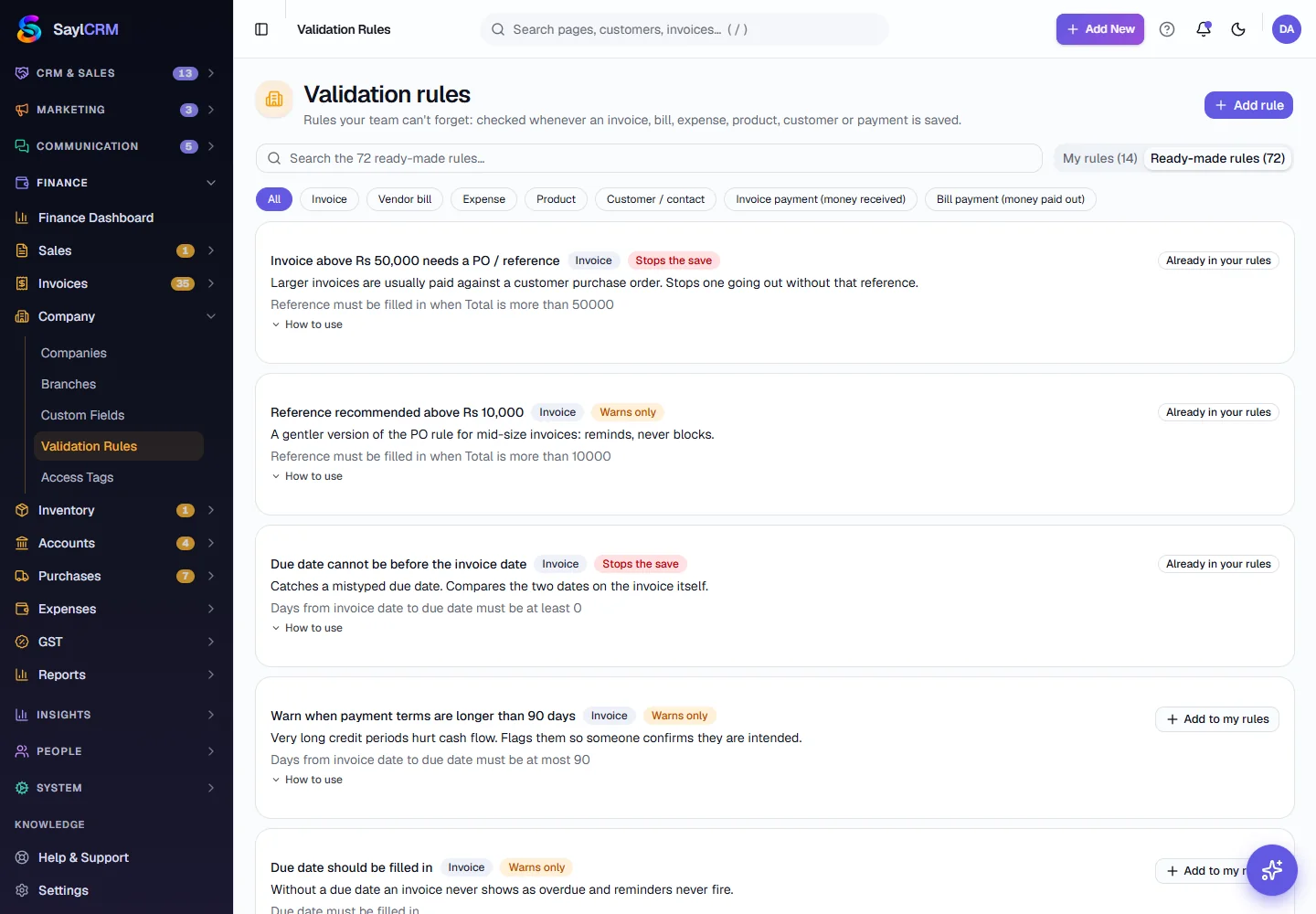
- 3
Write your own rule
Click Add rule. Give it a name and choose what it applies to. Under Only when… add the condition if it should only apply sometimes, for example when the total is above a limit. Under Then… choose the field to check and what must be true of it - filled in, a valid email, one of a list, at least some characters and so on. Choose whether it warns or stops the save, write the message people will see, and save.
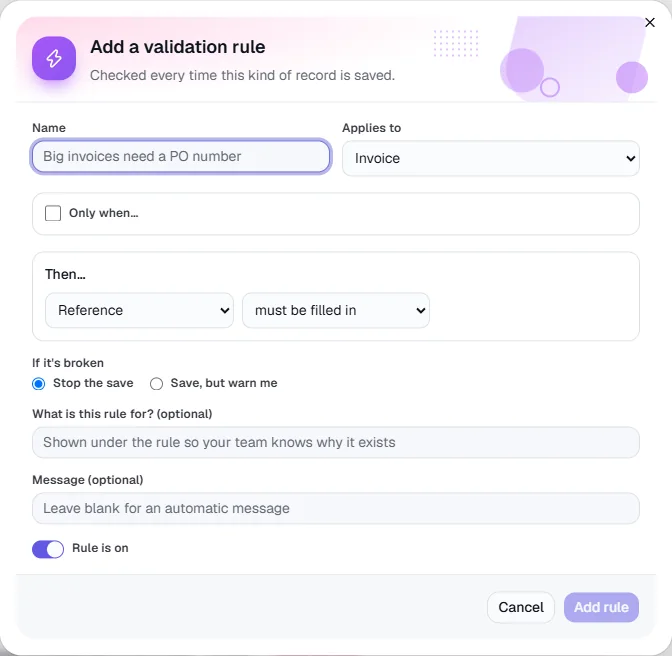
The rule builder. Nothing is saved in the demo. - 4
Try it
Create or edit a record the rule applies to and break the rule on purpose - the message appears, and a rule that stops the save keeps the record from being saved. Fix it and save again. Rules only check what is saved in the app: invoices raised automatically by a recurring schedule and bulk imports are not checked, and records that already exist are not changed - use Check existing records on a rule to see which ones would break it.
- 5
Switch a rule off
Use the switch on the rule to stop checking it without losing it. Turn it on again whenever you need it.
Key fields
- Name
- A short label for the rule, shown in My rules.
- Applies to
- The kind of record that is checked when it is saved.
- Only when…
- An optional condition. Leave it empty to check every record.
- Then…
- The field to check and what must be true of it.
- Warns only / Stops the save
- Whether a failed rule lets the person save anyway, or blocks it.
- Message
- The sentence shown when the rule fails. Say what to fix.
Tips
- Start with Warns only for a new rule, watch how often it fires, and make it Stops the save once the team is used to it.
- Write the message as an instruction - Attach a receipt - not a complaint.
- Keep rules few and specific; a rule that fires on every record is quickly ignored.