
Finance, GST & Accounting · Inventory
Brands
Keep a list of the brands you sell, tag every item with one, and filter your sales reports by brand.
What it is for
A brand is the make of a product - Zebra, Epson, Sunmi. Setting brands up once lets you pick one on every item, and then see how each brand sells in the Sales by Brand & Model report.
The Brands page lists every brand with how many items use it, and whether it is active.
How it works
- A brand is just a name and an optional description. It does not change prices, tax or stock - it only groups items.
- An inactive brand stays on the items that already have it, but it is no longer offered when you add or edit an item. Use this for a brand you have stopped selling instead of deleting it.
Step by step
Every screenshot is from the live demo. The highlighted button is the one to click - nothing here is saved in the demo, so you can follow along freely.
- 1
Open Brands
Finance → Inventory → Brands. Cards at the top show how many brands you have, how many are active (offered when adding an item) and inactive (hidden from item pickers), plus how many are in use by at least one item. The table lists each brand with its description, the number of items and its status. Search by name or description, or filter by status.
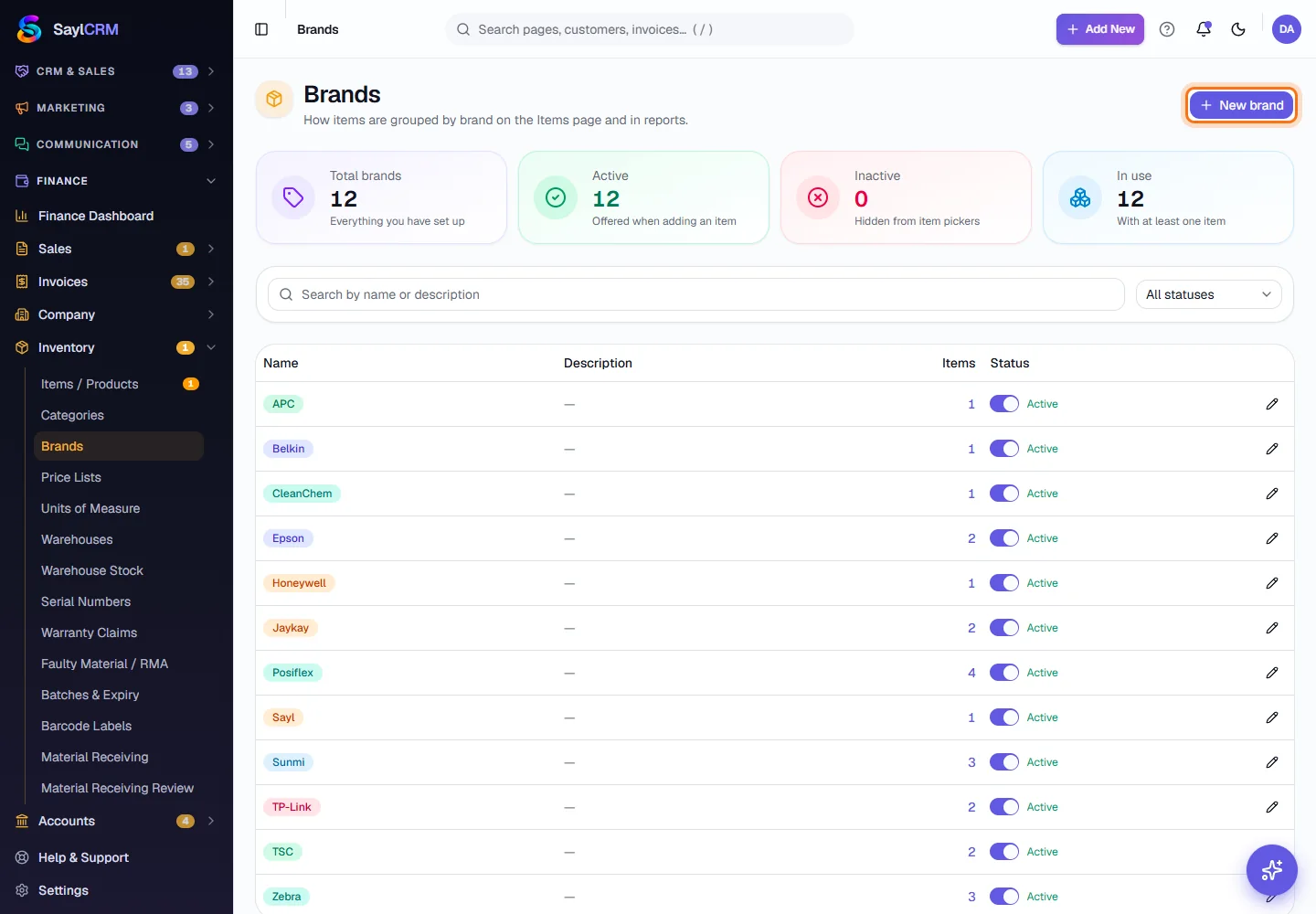
New brand (highlighted) is at the top right. - 2
Add a brand
Click New brand, type the name, add a short description if it helps, and click Add brand. It appears in the list at once and is offered on the Items form.
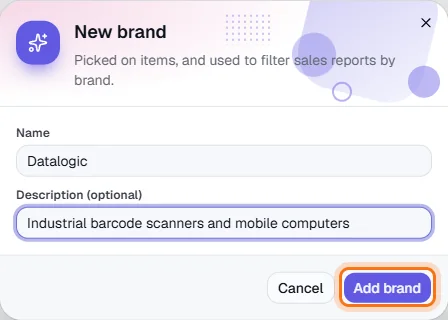
Add brand (highlighted). Nothing is saved in the demo. - 3
Edit a brand or switch it off
Click the pencil on a brand's row to change its name or description. Use the switch in the Status column to make a brand inactive - or active again. Items keep their brand either way.
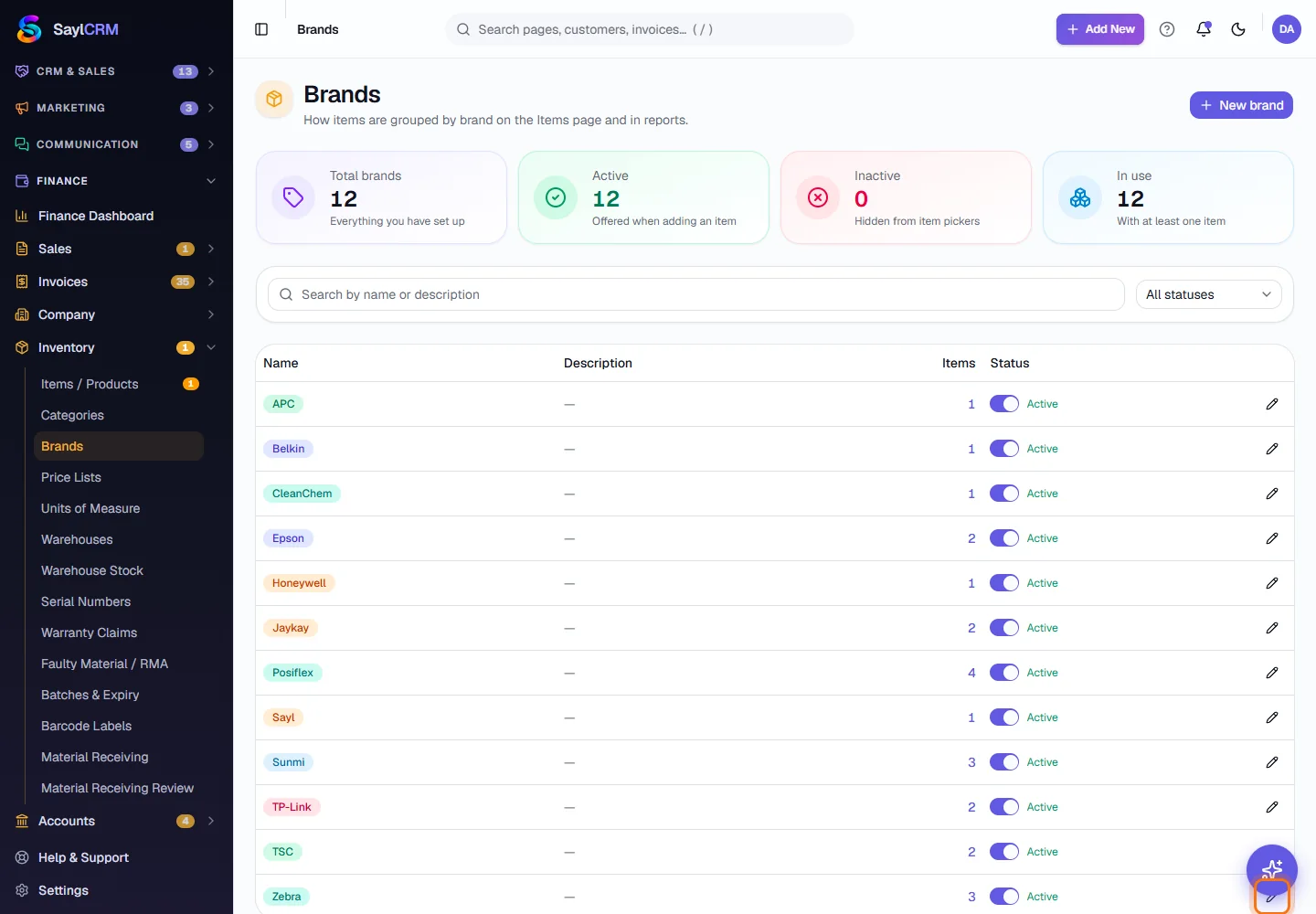
The pencil (highlighted) edits the brand; the switch changes its status. - 4
Use the brand on items
Open Items / Products, add or edit an item and choose its Brand. The Items column here then counts that item. Once items carry brands, the Sales by Brand & Model report can total your sales for each one.
Key fields
- Name *
- The brand as you want it shown on items and reports.
- Description (optional)
- A note for your team - for example what the brand supplies.
- Status
- Active brands are offered on items. Inactive ones are hidden from pickers but stay on the items that have them.
Tips
- Set brands up before you import or add a lot of items, so each item can be tagged as it is created.
- Switch a brand off instead of trying to remove it - your past sales reports keep their history.
- Keep one spelling per brand (Zebra, not Zebra Tech and ZEBRA) so reports group them together.