
Finance, GST & Accounting · Invoices
E-signatures
See every document you have sent for signature - quotations, sales orders and invoices - and where each one stands.
What it is for
An e-signature request sends a customer a link to review a document and sign it, without printing anything. The E-signatures page is the register of all those requests: who was asked, what for, and whether they signed, declined or let the link expire.
You ask for a signature from the document itself - a quotation, sales order or invoice - and follow it up here.
How it works
- A request is Waiting until the customer acts. It then becomes Signed, Declined (with the reason they gave) or Expired if the link was not used in time. You can Withdraw a request that is still waiting.
- A signed request keeps an audit trail - who signed, when and from where - and a certificate anyone can verify with its code.
- Signed invoices can also be downloaded as a signed PDF.
Step by step
Every screenshot is from the live demo. The highlighted button is the one to click - nothing here is saved in the demo, so you can follow along freely.
- 1
Open E-signatures
Finance → Invoices → E-signatures. Four cards show the requests sent, how many are waiting, how many are signed, and how many were declined or expired. Under them are search, status filters with counts, and one row per request.
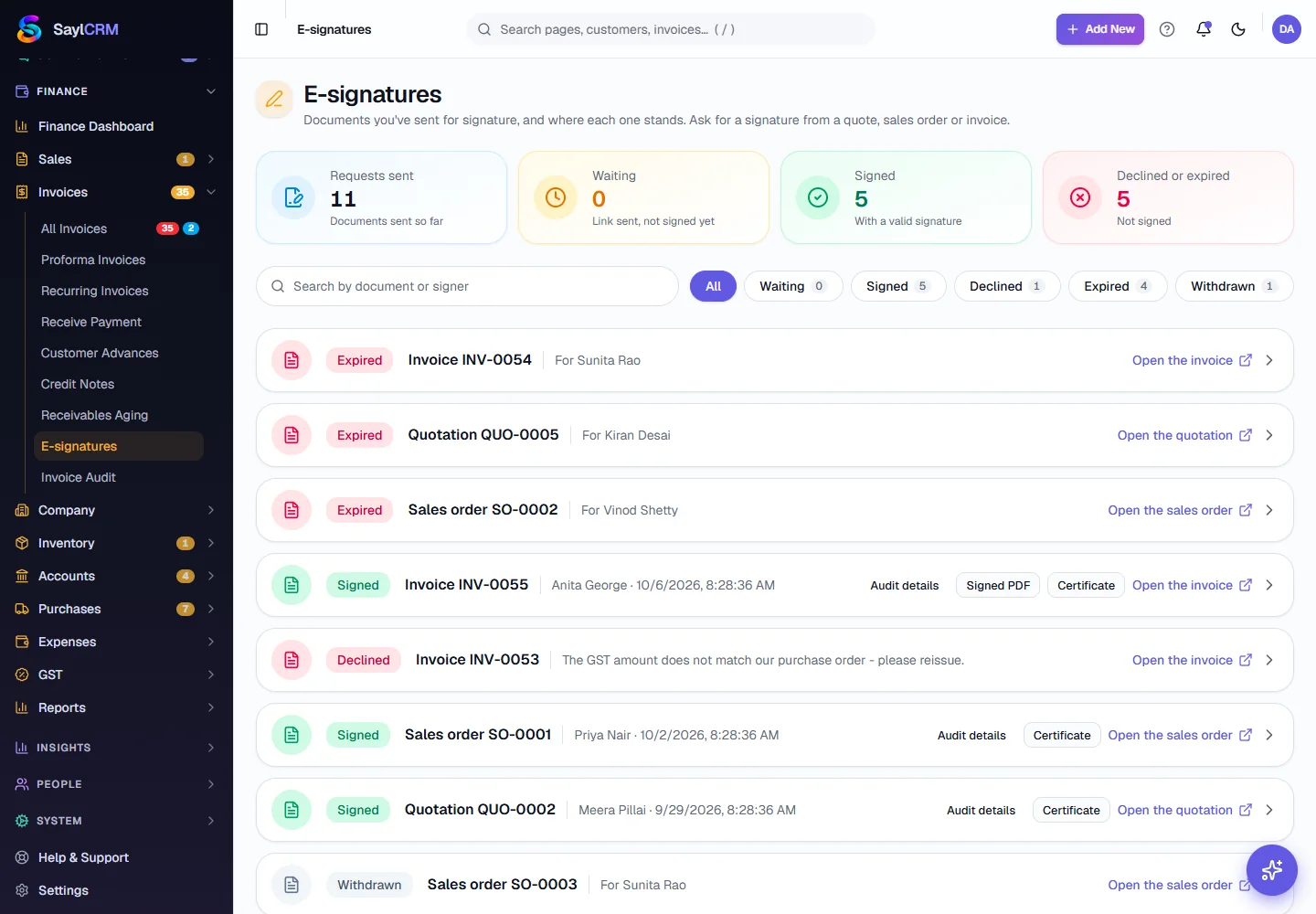
Each row shows the status, the document, who it was for and a link to open it. - 2
Ask for a signature
Open the quotation, sales order or invoice and click Request signature. Optionally enter the signer's name and email, and how many days the link stays valid (14 by default, up to 90), then create the request. Sayl shows a private signing link to copy and send by WhatsApp, email or however you like - the signer needs no login. The request appears here as Waiting.
- 3
Filter and search
Click All, Waiting, Signed, Declined, Expired or Withdrawn to see just those - the number on each tells you how many there are. Search by document number, title or the signer's name.
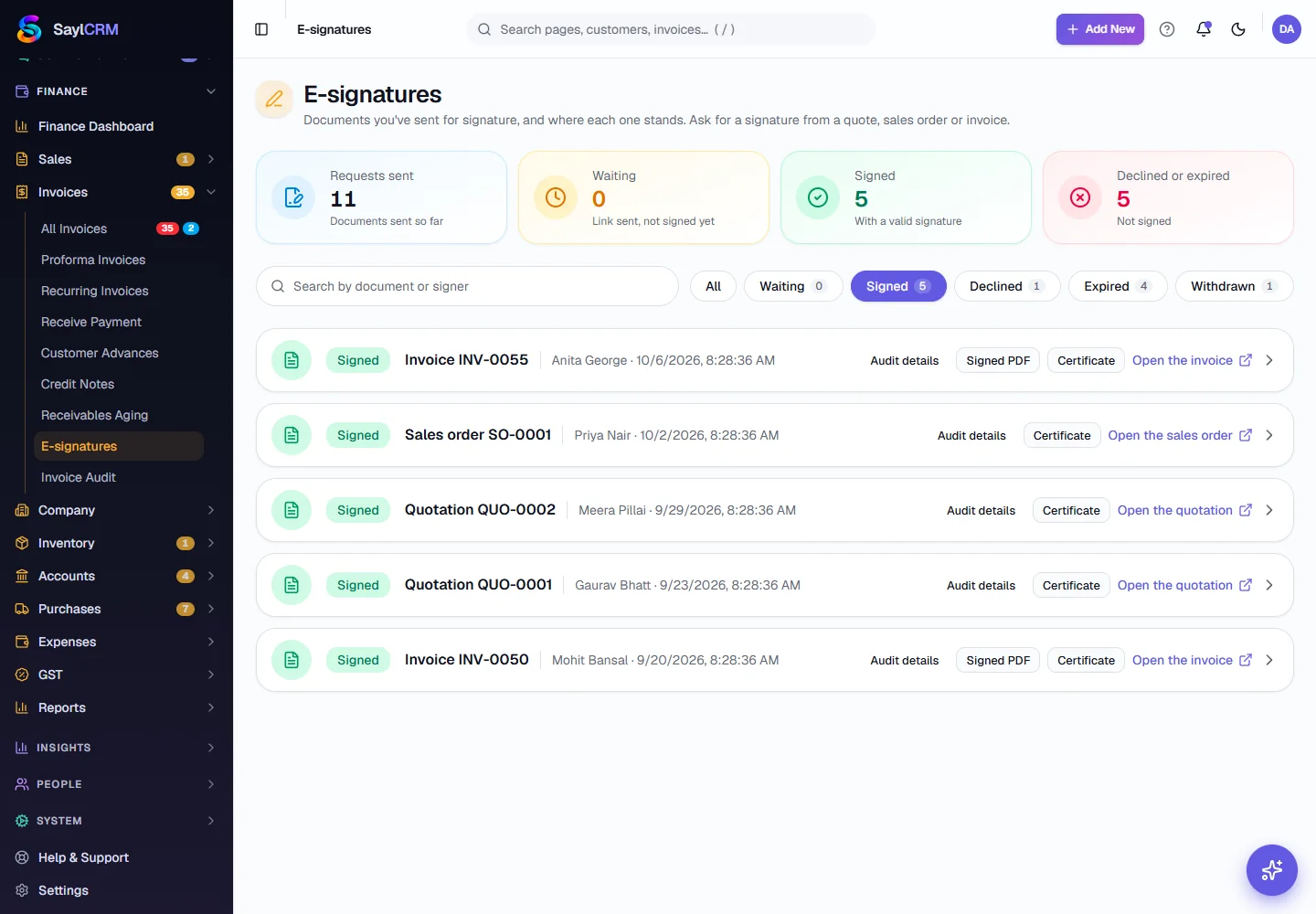
Filtered to Signed requests. - 4
Check the audit trail
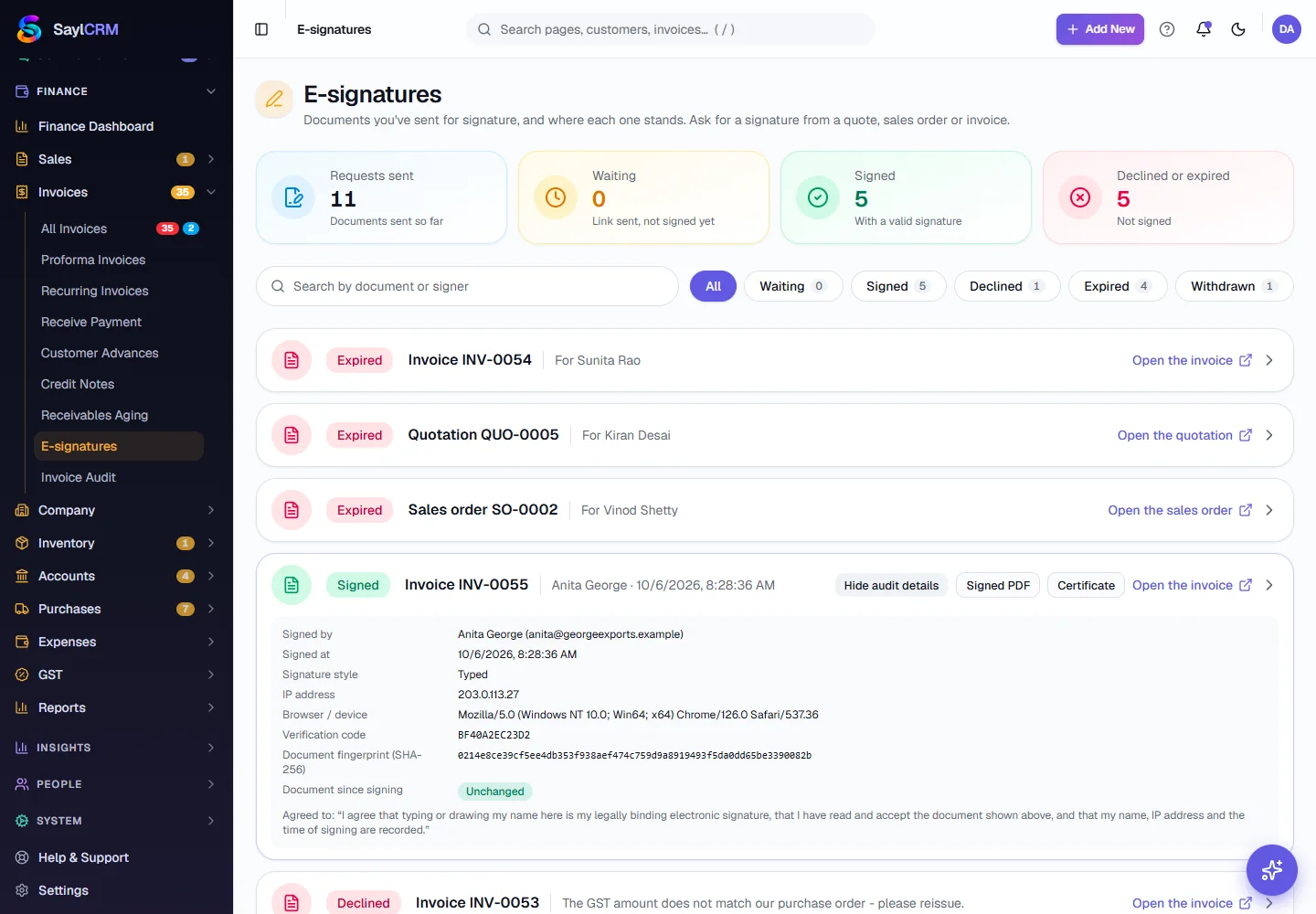
On a signed request click Audit details to see exactly how it was signed - the signer's name, the date and time, the device and the fingerprint of the document that was signed.
- 5
Download the signed copy and certificate
On a signed invoice click Signed PDF to download the document with its signature page. Click Certificate to open the public verification page, which anyone you share the code with can use to confirm the signature is genuine.
- 6
Withdraw a request
If you sent the wrong document, click Withdraw on a waiting request. The link stops working and the request is marked Withdrawn.
Key fields
- Status
- Waiting, Signed, Declined, Expired or Withdrawn.
- For
- The person the request was sent to.
- Audit details
- Signer, date and time and the document fingerprint for a signed request.
- Certificate
- A public page that verifies the signature from its code.
Tips
- Chase Waiting requests after a few days - the link expires, and an expired request means starting again.
- Read a Declined request's reason before you reply: it usually says exactly what to correct and reissue.
- Keep the certificate link with the contract - it is the proof the document was signed.