
Finance, GST & Accounting · Invoices
Invoice Audit
Read the trail behind every invoice - each send, reminder, payment and failure - and see what became of each message.
What it is for
The Invoice Audit page is the invoice log from Reporting: every action and every message sent against every invoice, with what became of each one.
Use it to answer questions like 'did the customer get the reminder?' and 'who recorded this payment?', and to find sends that failed.
How it works
- Each line is one event on one invoice: the invoice, who it went to and from, the event (sent, reminder sent, payment recorded and so on), the delivery result and the detail.
- A send that did not reach the customer is shown as send failed with the reason - for example that a WhatsApp connection is not set up, or that the template for that message is not approved.
- Opening Invoice Audit takes you to Reporting → Invoice log, which belongs to the same set of logs as the audit trail, the WhatsApp log and the email log.
Step by step
Every screenshot is from the live demo. The highlighted button is the one to click - nothing here is saved in the demo, so you can follow along freely.
- 1
Open the Invoice log
Finance → Invoices → Invoice Audit opens Reporting with the Invoice log tab selected. The newest events are first. Each row shows when it happened, the invoice number, who it was sent to and from, the event, how it was delivered and a detail line.
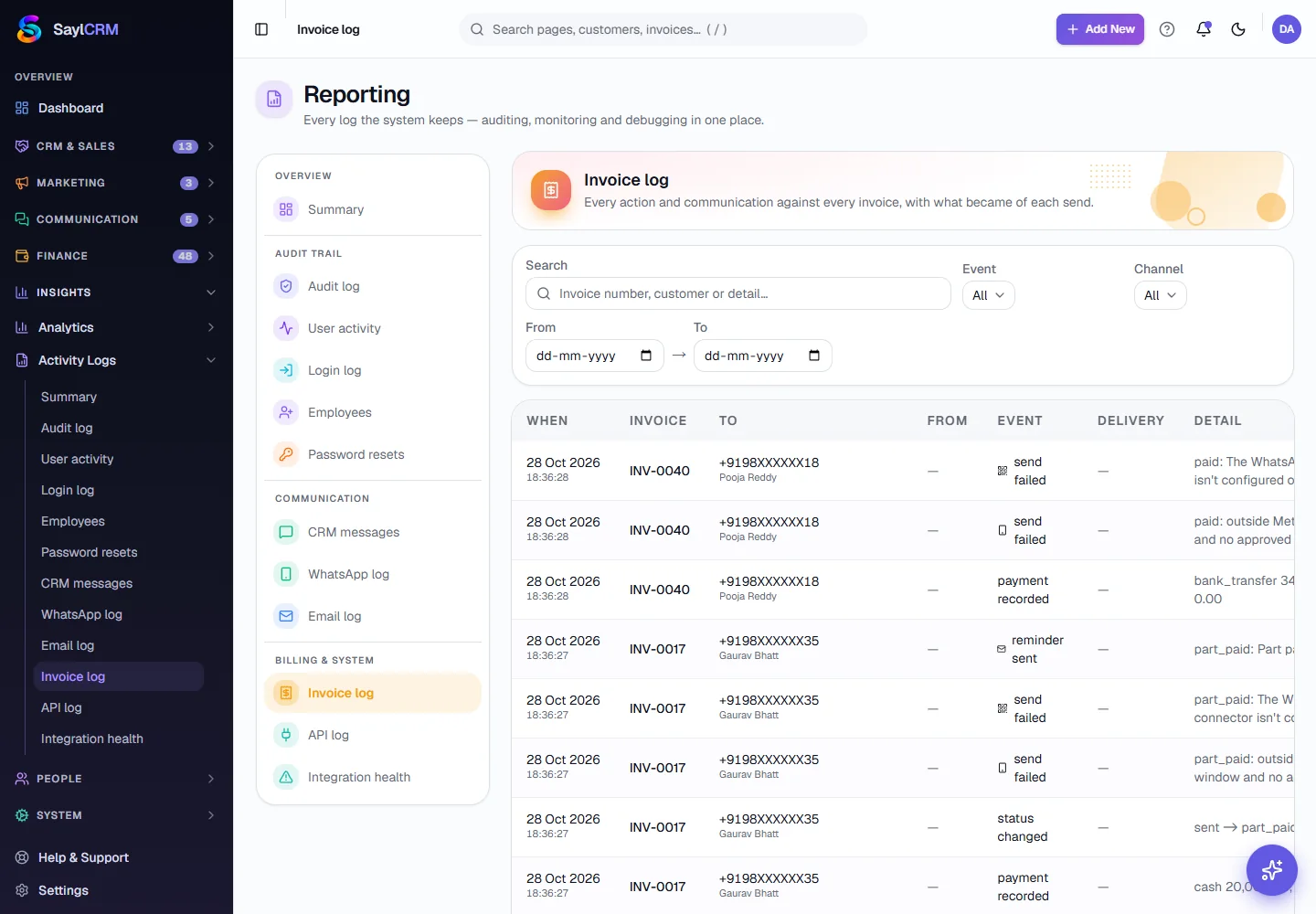
Every event on every invoice, newest first. - 2
Find an invoice or customer
Type in the search box - an invoice number, a customer's name or a word from the detail - to narrow the log to what you are looking for.
- 3
Filter by event, channel and dates
Use Event to see only one kind of event, such as send failed or payment recorded, Channel to see just WhatsApp, email or in-app messages, and the From → To dates to look at a period.
- 4
Read a failure
A line marked send failed explains why in its detail. Fix the cause - connect the channel, approve the template, correct the number - and send the invoice or reminder again from the invoice.
Key fields
- When
- The date and time of the event.
- Invoice
- The invoice it happened on.
- To / From
- The customer a message went to, and who or what sent it.
- Event
- What happened: sent, reminder sent, payment recorded, send failed and so on.
- Delivery
- What became of a message: delivered, read or failed.
- Detail
- The reason or the figures behind the event.
Tips
- Filter to send failed once a week - a reminder that never left is a collection you did not make.
- Search a customer before you phone them: the log shows exactly which reminders they were sent and when.
- A payment recorded line is also your proof of who recorded it and for how much.