
Finance, GST & Accounting · Inventory
Warehouse Stock
See where each product's stock sits across your warehouses, and move stock from one warehouse to another.
What it is for
Warehouse Stock shows, product by product, how many units are in each warehouse. A second tab lists every transfer that moved stock, so you can always see how it got where it is.
Moving stock only changes where it is. A product's total never changes when you transfer it, so your stock value and your sales are not affected.
How it works
- Each warehouse has its own column, followed by the product's Total. The Unassigned column holds stock that is not in any warehouse yet - for example stock that existed before you set up warehouses. Transfer it out of Unassigned to place it.
- A transfer takes quantities out of the From warehouse and puts them into the To warehouse, and it is numbered (TRF-0001, TRF-0002 and so on). Pick Unassigned as the source to place stock for the first time.
- Serial-tracked items, batch-tracked items and kits are not listed in the transfer window - they cannot be moved from here.
Step by step
Every screenshot is from the live demo. The highlighted button is the one to click - nothing here is saved in the demo, so you can follow along freely.
- 1
Open Warehouse Stock
Finance → Inventory → Warehouse Stock. Five cards at the top count your products, how many are in stock, out of stock and low, and the total units across all warehouses. Below them, one row per product shows its quantity in each warehouse, its Total and what is Unassigned. Green numbers are stock on hand; a red number means the warehouse is oversold.
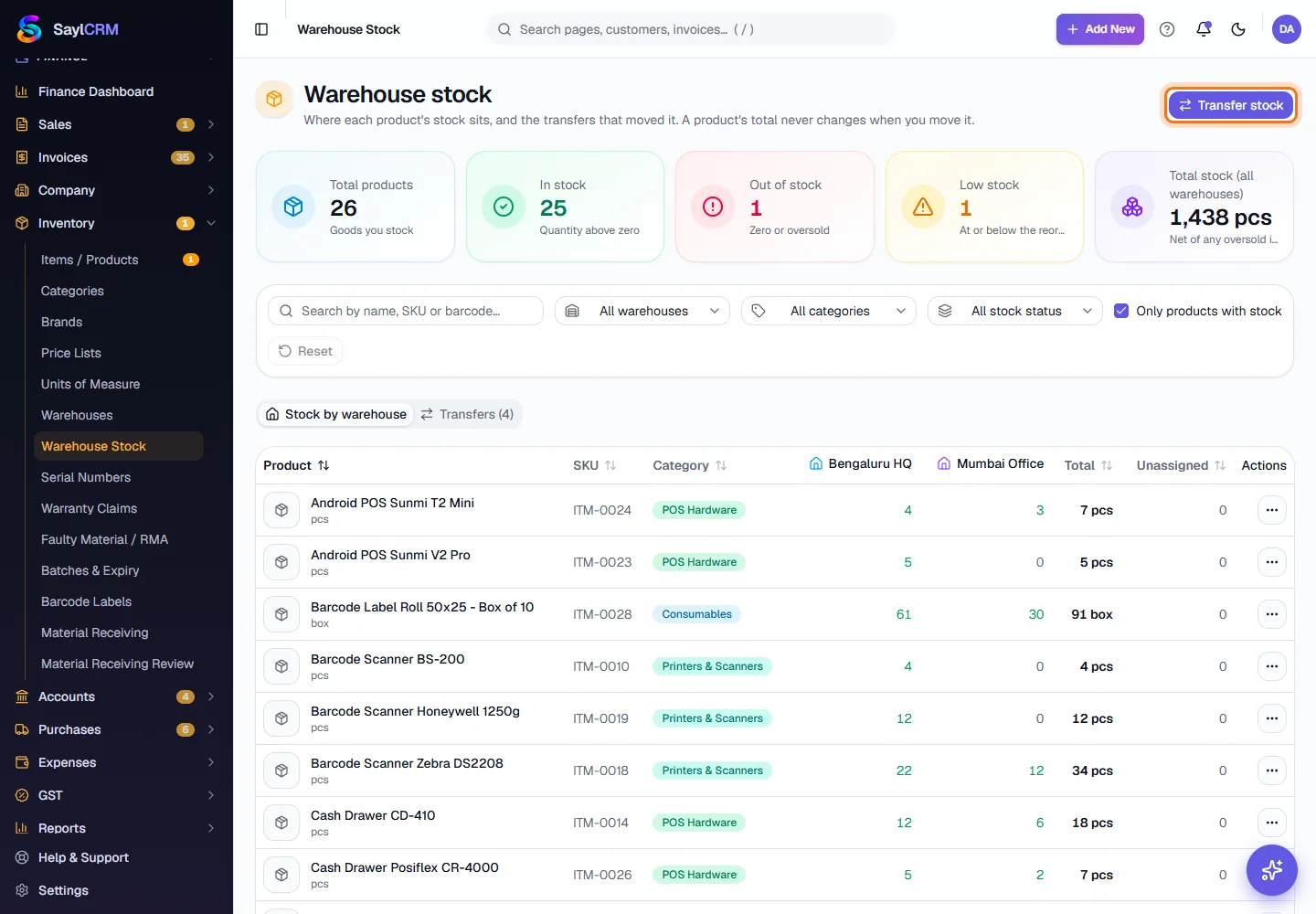
Transfer stock (highlighted) is at the top right. - 2
Find what you are looking for
Search by name, SKU or barcode, or filter by warehouse, category and stock status (in stock, out of stock or low). 'Only products with stock' is on by default - untick it to include products with none. Click a column heading to sort, and Reset to clear the filters.
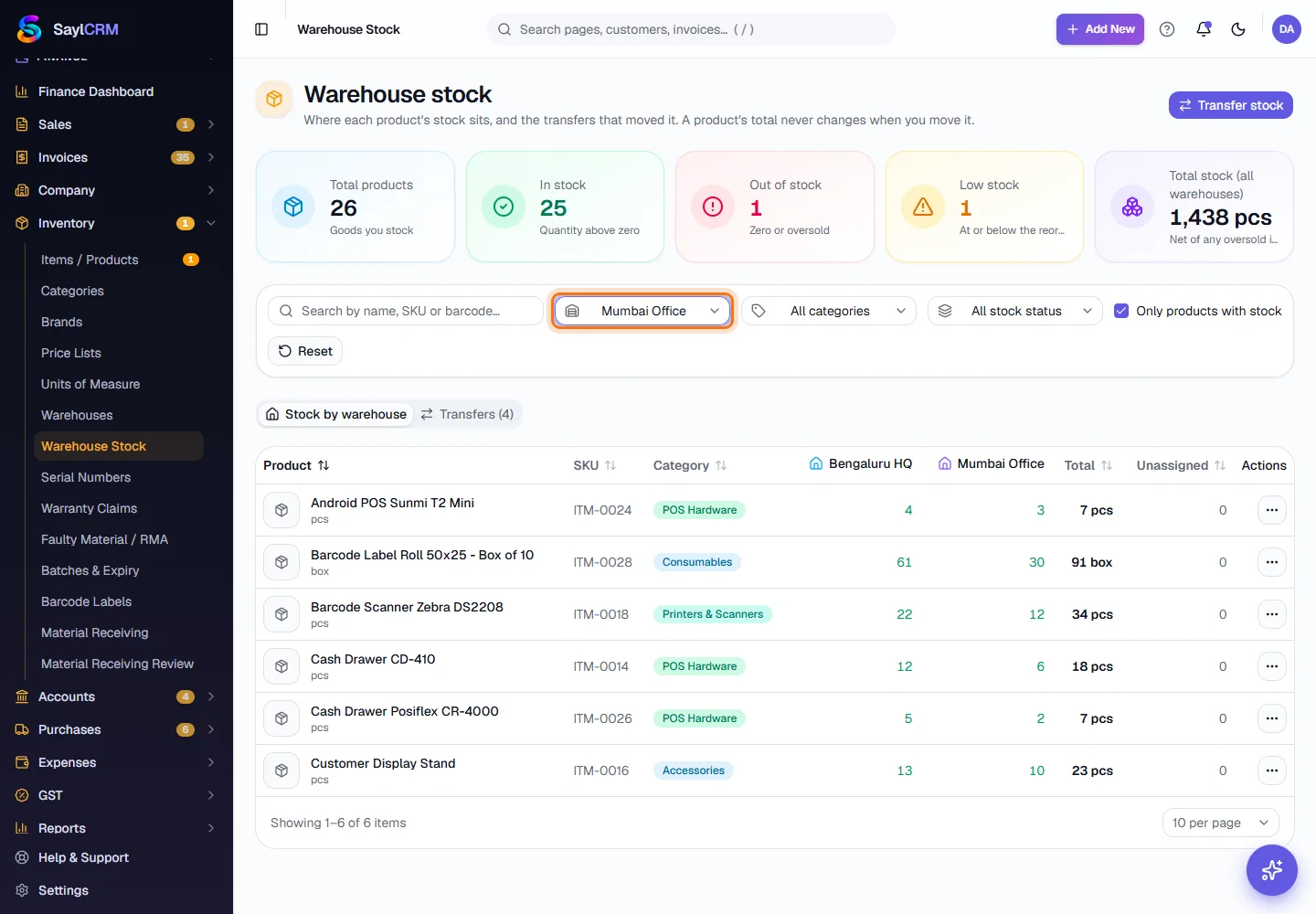
Filtered to Mumbai Office: only products that have stock there. - 3
Start a transfer from a product
Click ⋯ at the end of a product's row and choose Transfer stock. The window opens with that product already added.
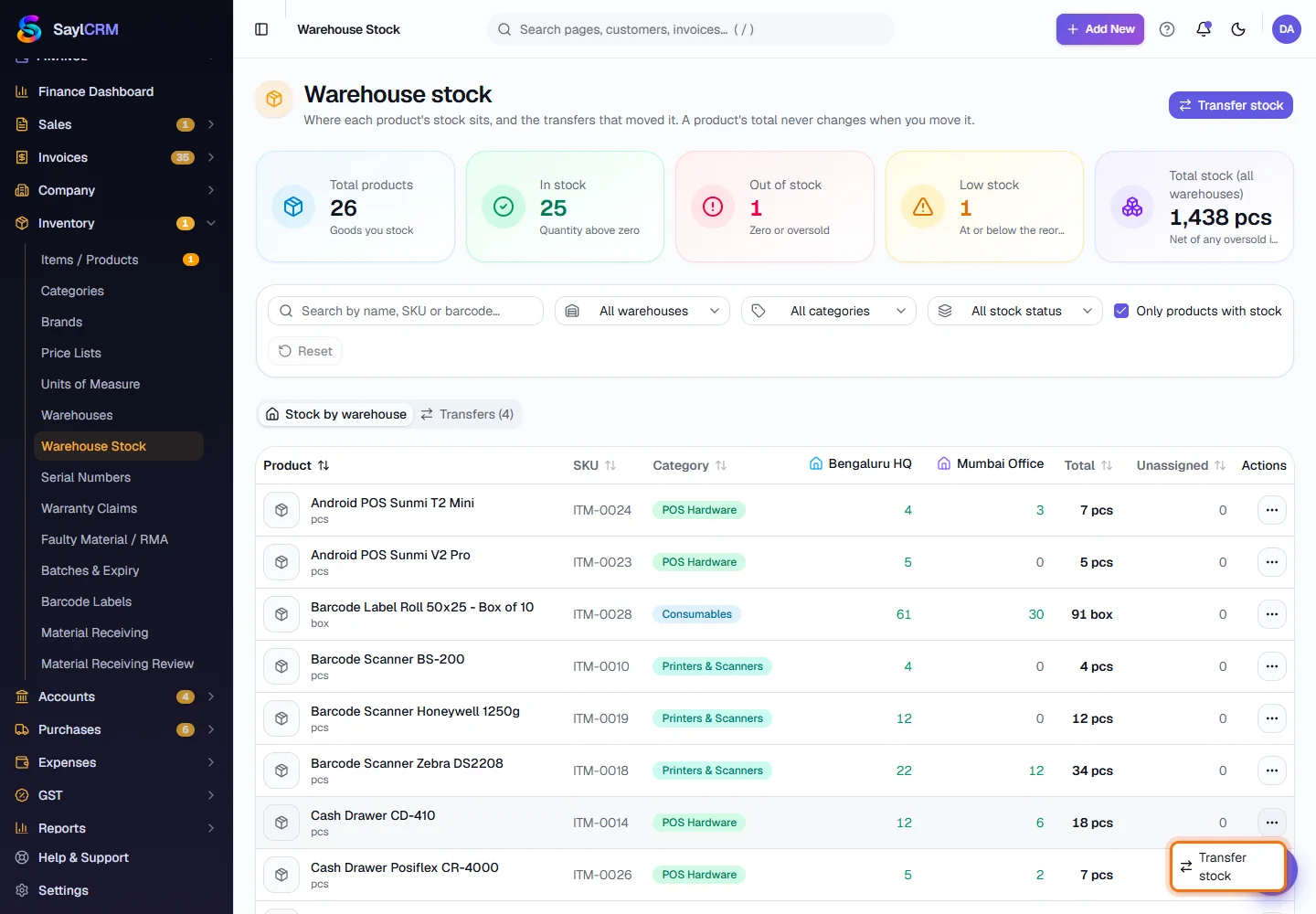
- 4
Choose where it moves, and how many
Pick the warehouse it comes From and the one it goes To. Each product shows how many are in stock in total; type the quantity to move. To move several products in one go, pick another under 'Add a product…' and click Add. Add a note if you like, then click Record transfer.
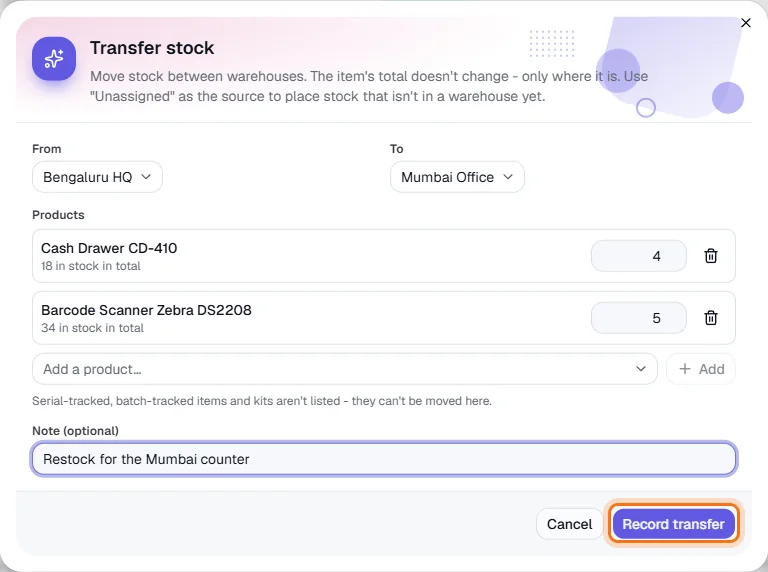
Moving 4 cash drawers and 5 scanners to Mumbai. Nothing is saved in the demo. - 5
Check the transfer
The transfer gets the next number and the quantities move at once. Open the Transfers tab to see every transfer with its date, From → To, the note and the products moved. The product's Total is the same as before.
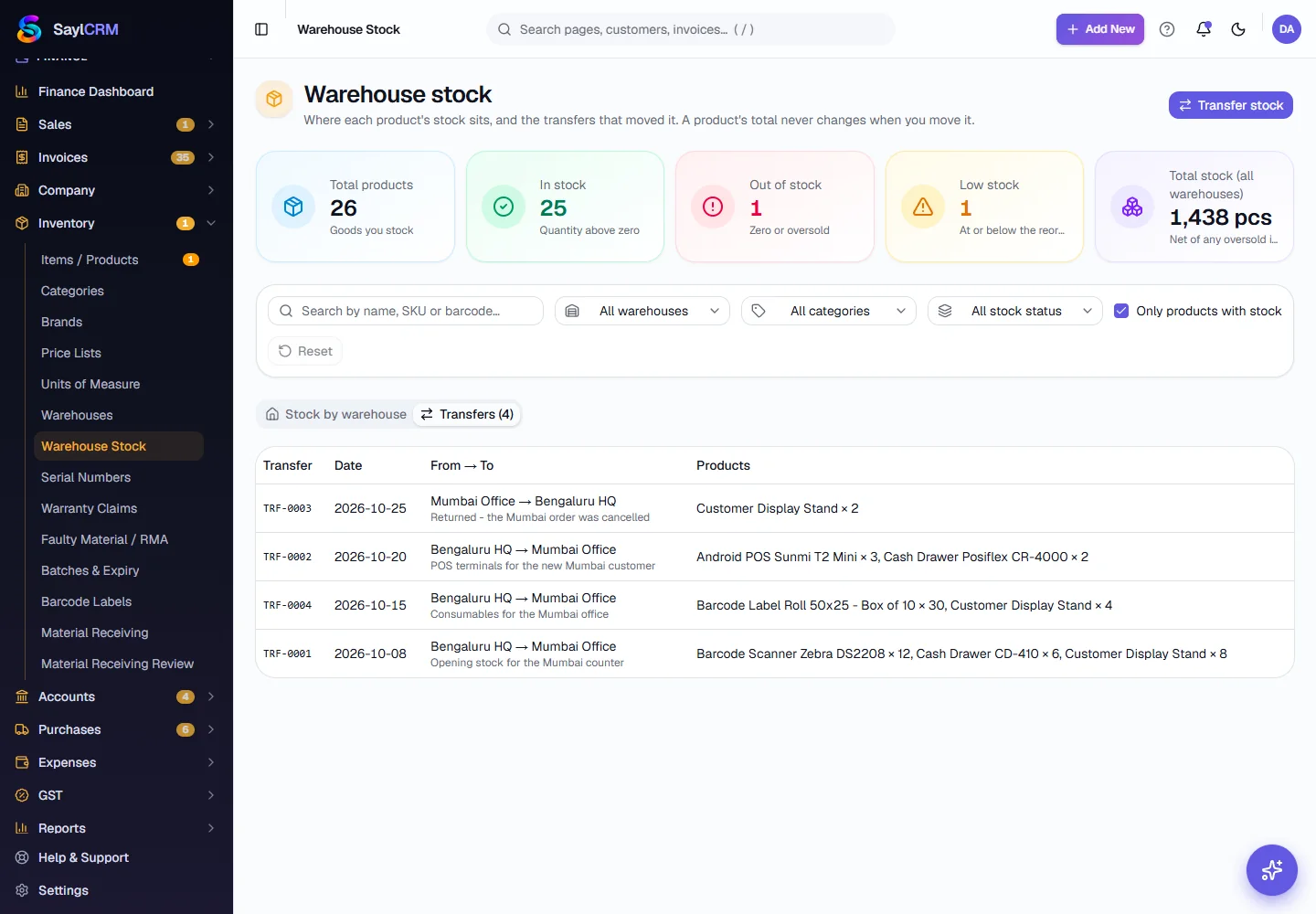
The Transfers tab: each transfer and what it moved. - 6
Start a transfer without a product
Click Transfer stock at the top right to open the window empty, then choose the warehouses and add the products you want. Use this to restock a branch with several products at once, or to return stock to the main warehouse.
Key fields
- From
- The warehouse the stock leaves. Unassigned means stock not yet placed in a warehouse.
- To
- The warehouse the stock goes into.
- Products and quantity
- One or more products, each with the quantity to move. A product cannot be moved if it is serial- or batch-tracked.
- Note (optional)
- Why it moved, for example 'Restock for the Pune branch'. Shown on the Transfers tab.
Tips
- Place existing stock once: transfer it from Unassigned to the warehouse it actually sits in, so each warehouse column is right.
- Check the Low stock card before a transfer - move stock to the warehouse that is running short, not the one that has plenty.
- To return stock, record a transfer the other way round. Transfers are never edited, so the Transfers tab is a true history.