
Finance, GST & Accounting · GST
GST e-Invoice
Register invoices with the government's e-invoice system to get an IRN, and generate e-Way Bills - tested here against a sandbox first.
What it is for
Businesses above the e-invoicing threshold must register each invoice with the government's Invoice Registration Portal, which returns an IRN (invoice reference number) and a QR code. Goods being moved also need an e-Way Bill.
The GST e-Invoice page is where this is set up and tested. It talks only to a test (sandbox) system: the IRNs and e-Way Bills it creates are not real government documents, and live access is locked until it is approved.
How it works
- The page opens on Setup. It lists what is still needed - a test GSTIN, API credentials and your seller details - and says Not complete until they are all in.
- The values are entered under Integrations → GST e-Invoice & e-Way Bill (sandbox), where the key and secret are stored encrypted. The page's Setup guide lists every field and where its value comes from.
- Test connection checks the credentials. Once it passes, an issued invoice or credit note gets a GST e-Invoice section with Check and Generate IRN.
- The sandbox is a test service: it returns a sample IRN for each request and rejects cancels and e-Way Bills, so those need the government's own sandbox. Never enter your real GSTIN or a live key.
Step by step
Every screenshot is from the live demo. The highlighted button is the one to click - nothing here is saved in the demo, so you can follow along freely.
- 1
Open GST e-Invoice
Finance → GST → GST e-Invoice. The banner says Sandbox only. Under Sandbox settings, Setup shows Not complete and lists what is still needed. The demo workspace has no sandbox credentials, so it stays on that state.
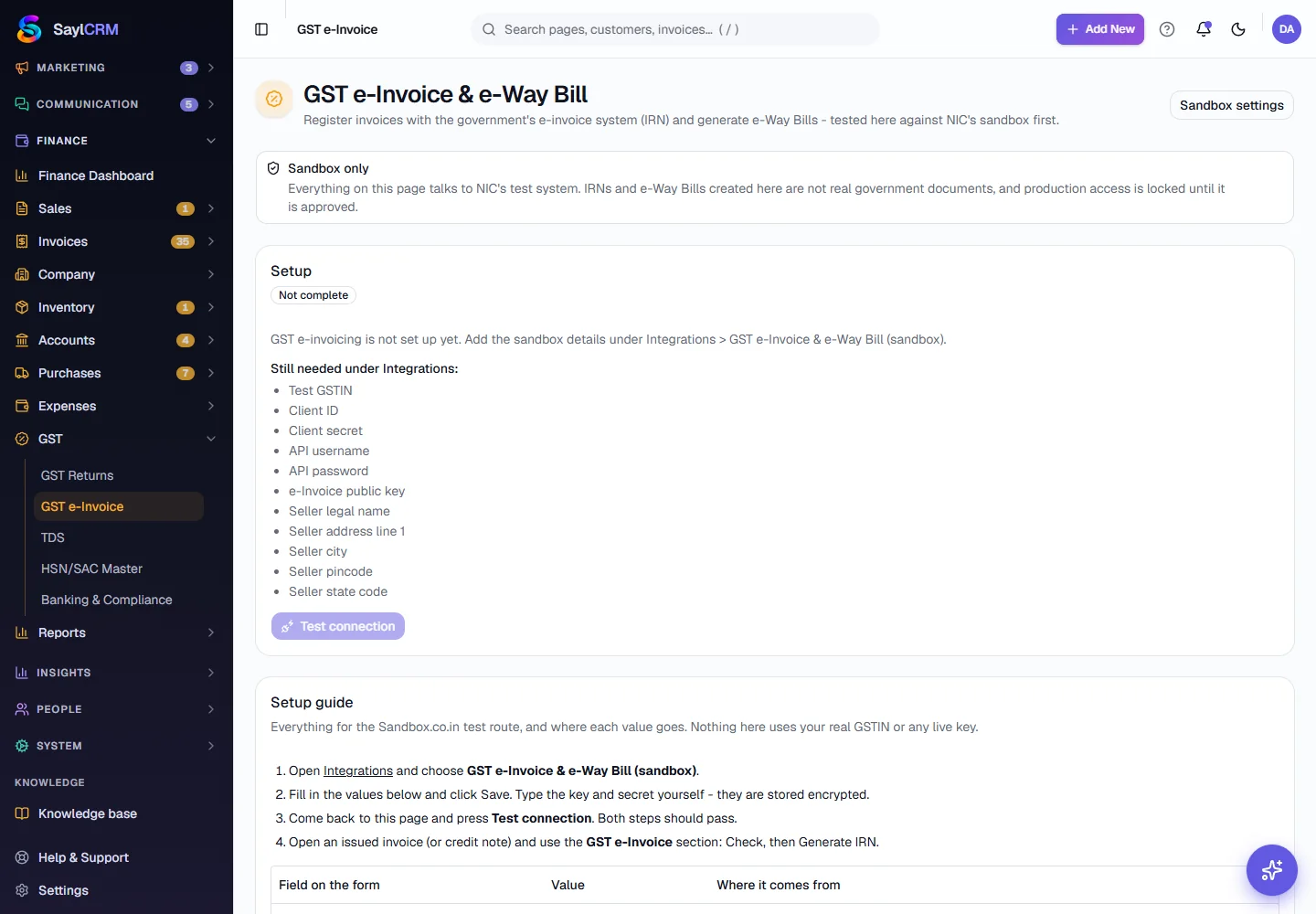
Setup not complete: the demo has no sandbox credentials. - 2
Enter the sandbox details
Open Integrations → GST e-Invoice & e-Way Bill (sandbox) and fill in the test GSTIN, the API key and secret, the API username and password, and the seller's legal name, address, city, pincode and state code. They must match the test taxpayer the sandbox provides. Type the key and secret yourself - they are stored encrypted and never shown again.
- 3
Test the connection
Come back to this page and click Test connection. Both of its steps should pass. The Test progress section counts your test calls, because the portal asks for a number of successful and failed tests of each API before it approves production access.
- 4
Generate an IRN
Open an issued invoice (or credit note) and use its GST e-Invoice section: click Check to validate it, then Generate IRN. The IRN and QR code are stored on the invoice. In the sandbox the IRN is a sample.
- 5
Generate an e-Way Bill
For an invoice of goods being moved, generate the e-Way Bill from the same section, with the transport details. The sandbox rejects e-Way Bills, so a real one needs the government's own sandbox.
Key fields
- Test GSTIN
- The sandbox's test taxpayer - never your own GSTIN.
- API key and secret
- Test credentials only. Live keys are refused.
- Seller details
- Legal name, address, city, pincode and state code, matching the test taxpayer.
- Test progress
- How many test calls have passed and failed, towards the portal's requirement.
Tips
- Do the whole flow in the sandbox first - check, generate, cancel - so the first real invoice is not your first attempt.
- Make sure every item has an HSN code and every customer a GSTIN where needed; the check fails without them.
- Production access is locked until the portal approves it. Until then, nothing here is a legal document.