
Finance, GST & Accounting · Inventory
Warranty Claims
Log a customer's faulty product, approve or reject the claim, and send a free replacement that keeps the remaining warranty.
What it is for
When a product fails while it is still under warranty, a warranty claim keeps the whole story in one place: who the customer is, which unit failed, what went wrong, who decided what, and what you sent back.
A claim that ends in a replacement issues a new unit free of charge. It is never an invoice, so a replacement does not count as a sale - and the remaining warranty carries forward to the new unit.
How it works
- A claim moves through five statuses: Open when it is raised, Approved or Rejected once you decide, Replaced once a new unit has gone out, and Closed when you are finished with it.
- Each claim is raised against the invoice the customer bought on. For a product tracked by serial number, the claim also records which serial number failed, and the replacement is a new serial number from your stock.
- Every step is written to the claim's status timeline with its date, so you can always see who did what and why.
Step by step
Every screenshot is from the live demo. The highlighted button is the one to click - nothing here is saved in the demo, so you can follow along freely.
- 1
Open Warranty Claims
Finance → Inventory → Warranty Claims. Four cards at the top show the total claims, those still pending (open or approved), the free replacements issued, and how many warranties expire in the next 30 days. The list shows each claim with its customer, product, the old serial number, status, the date it was reported and the warranty remaining. Search by claim, customer, product, serial number or invoice, or filter by status.
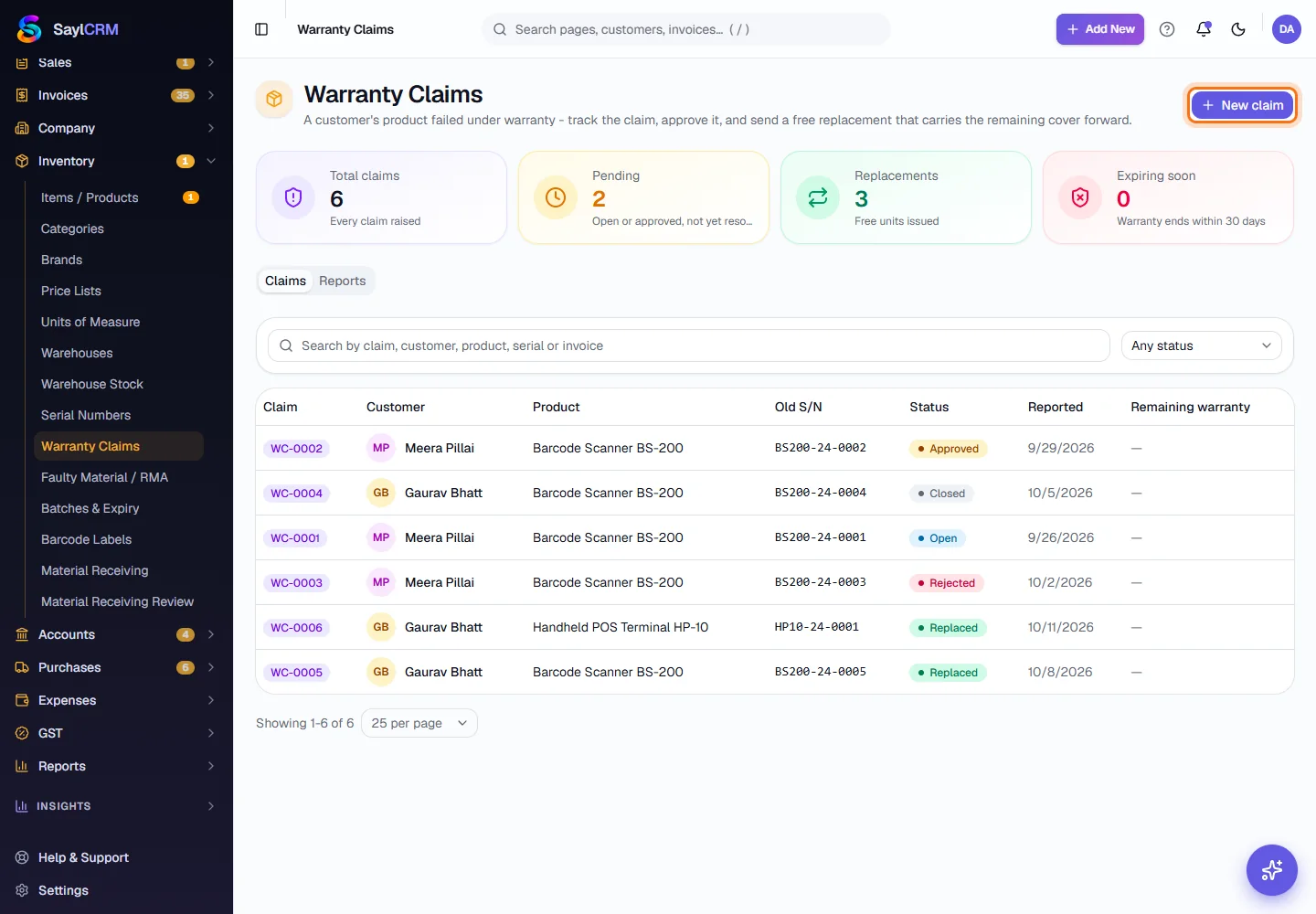
New claim (highlighted) is at the top right. - 2
Raise a new claim
Click New claim. On By invoice, type the invoice number or the customer's name and pick the invoice, then choose the product that failed. If you only have the serial number, use By serial number and search it instead. Set Reported on, describe what went wrong, and click Open claim.
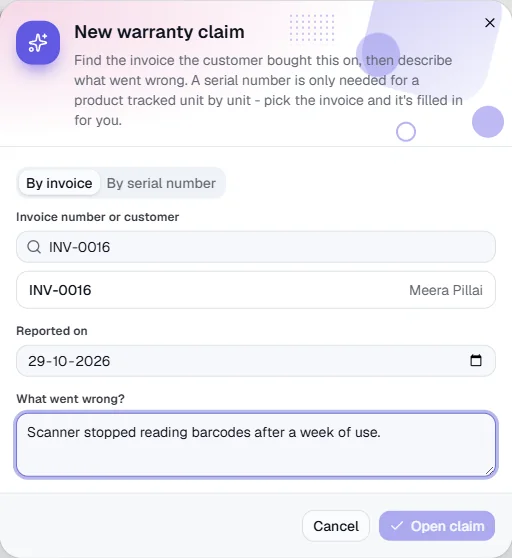
Searching INV-0016 finds the invoice and its customer. Nothing is saved in the demo. - 3
Open a claim to decide
Click a claim in the list. It shows the customer, the product and the original serial number, the date reported, the original invoice and the reason, with the status timeline underneath. A new claim is Open: click Approve if the fault is covered by the warranty.
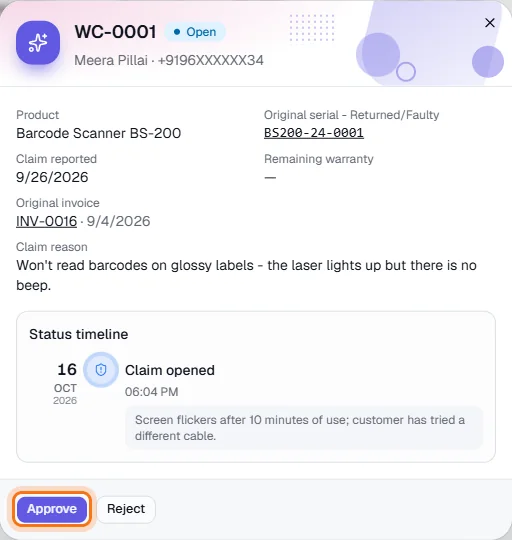
An Open claim: Approve (highlighted) or Reject. - 4
Reject a claim that is not covered
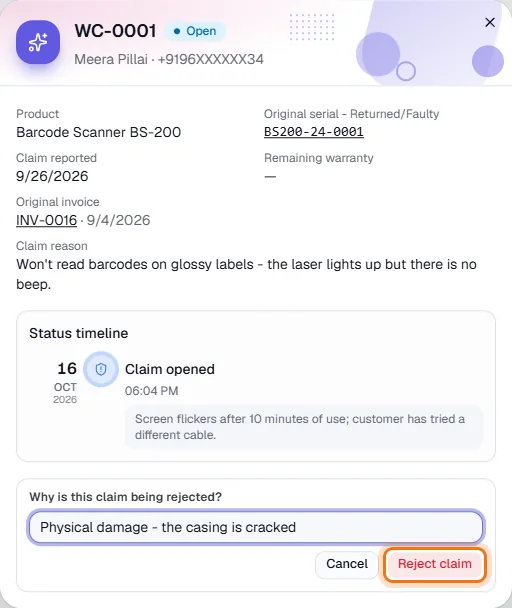
Click Reject, write why - for example damage from a drop or use outside the warranty - and click Reject claim. The reason is kept on the claim and shown to everyone who opens it.
- 5
Issue the free replacement
Open an Approved claim and click Issue replacement. Choose the replacement serial number from the units you have in stock, or type it, and click Issue replacement. The replacement unit is marked as a warranty replacement for that customer and is not invoiced.
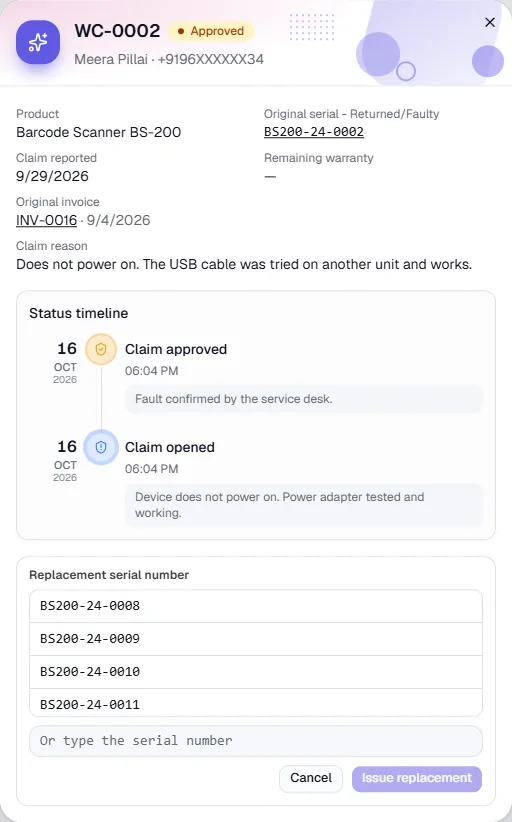
Pick a serial number in stock for the replacement. - 6
Close the claim
A Replaced claim shows the new serial number, who it was issued to and the date, together with the whole timeline. Click Close claim when nothing more is needed. Closing is final, so a closed claim stays as a record.
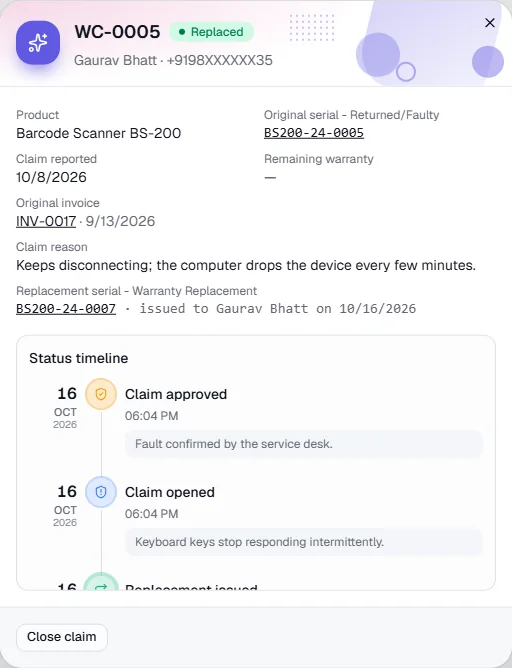
A Replaced claim: the replacement serial and its timeline. - 7
See the reports
Open the Reports tab for the totals, the warranties expiring in the next 30, 60 or 90 days, and replacements by customer, by product and by serial number - each with the claim, the old and new serial numbers and the date replaced. Use them to spot a product that keeps failing or a customer who claims often.
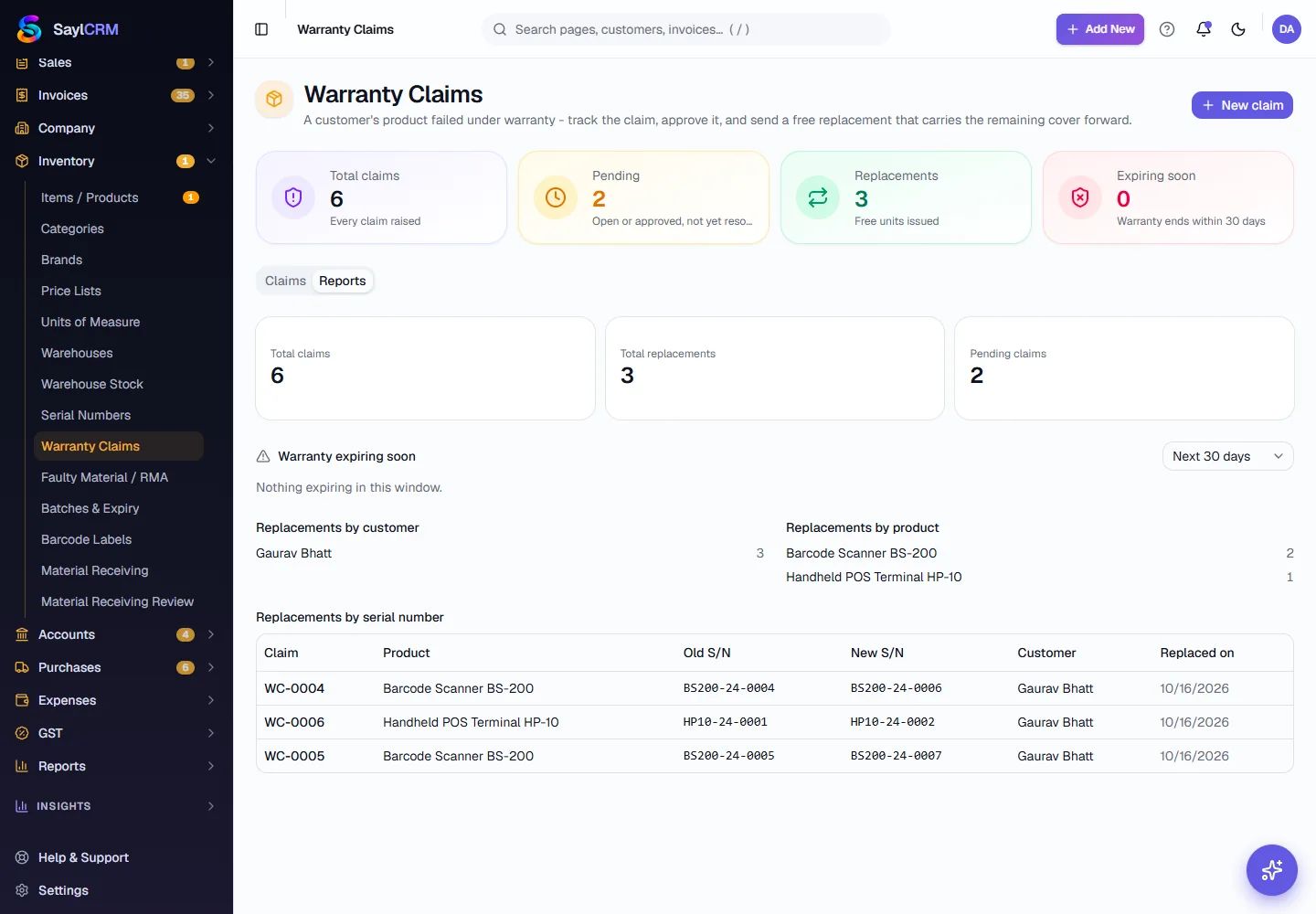
Key fields
- Invoice or serial number
- How you find the sold unit the claim is about. Picking the invoice fills in the serial number for you.
- Reported on
- The date the customer reported the fault.
- What went wrong?
- The customer's description of the fault. Shown on the claim as the claim reason.
- Reject reason
- Required to reject: why the fault is not covered.
- Replacement serial number
- The unit sent to the customer, taken from stock. Required to issue a replacement.
Tips
- Raise the claim the day the customer reports the fault, even before you have checked it - the reported date is what counts.
- Always give a reason when you reject. It is the answer you will need if the customer comes back.
- Check Expiring soon on the cards (or the Reports tab) to contact customers before their warranty runs out.
- Serial numbers and their warranty periods are set up under Serial Numbers - see that guide first if a claim cannot find the unit.