
Finance, GST & Accounting · Inventory
Material Receiving
Let warehouse staff report what arrived, with the delivery challan and invoice attached, for Finance to review before anything touches stock.
What it is for
Material Receiving is for the person at the dock. When goods arrive, they report what came - which warehouse, which purchase order, how many of each - and attach the delivery challan and the supplier's invoice.
Nothing is added to stock and no bill is created until Finance reviews and approves the receipt on the Material Receiving Review page. Until then it is only a report.
How it works
- A receipt moves through these statuses: Draft (saved, not sent), Pending approval (sent to Finance), Correction required (Finance sent it back), Approved (stock added) and Rejected (refused).
- Report what actually arrived, not what was ordered. The purchase order shows what is still pending for each line, but you enter the quantity you counted.
- If you do not know the purchase order, say so and list the materials instead - Finance matches the order before approving.
- For items tracked by serial number or batch, enter the serial numbers (one per line) or the batch number and expiry, so stock is recorded unit by unit.
Step by step
Every screenshot is from the live demo. The highlighted button is the one to click - nothing here is saved in the demo, so you can follow along freely.
- 1
Open Material Receiving
Finance → Inventory → Material Receiving. The list shows each receipt with its number, warehouse, purchase order, vendor, supplier invoice number, delivery date and status. Filter by Draft, Submitted, Correction required, Approved or Rejected.
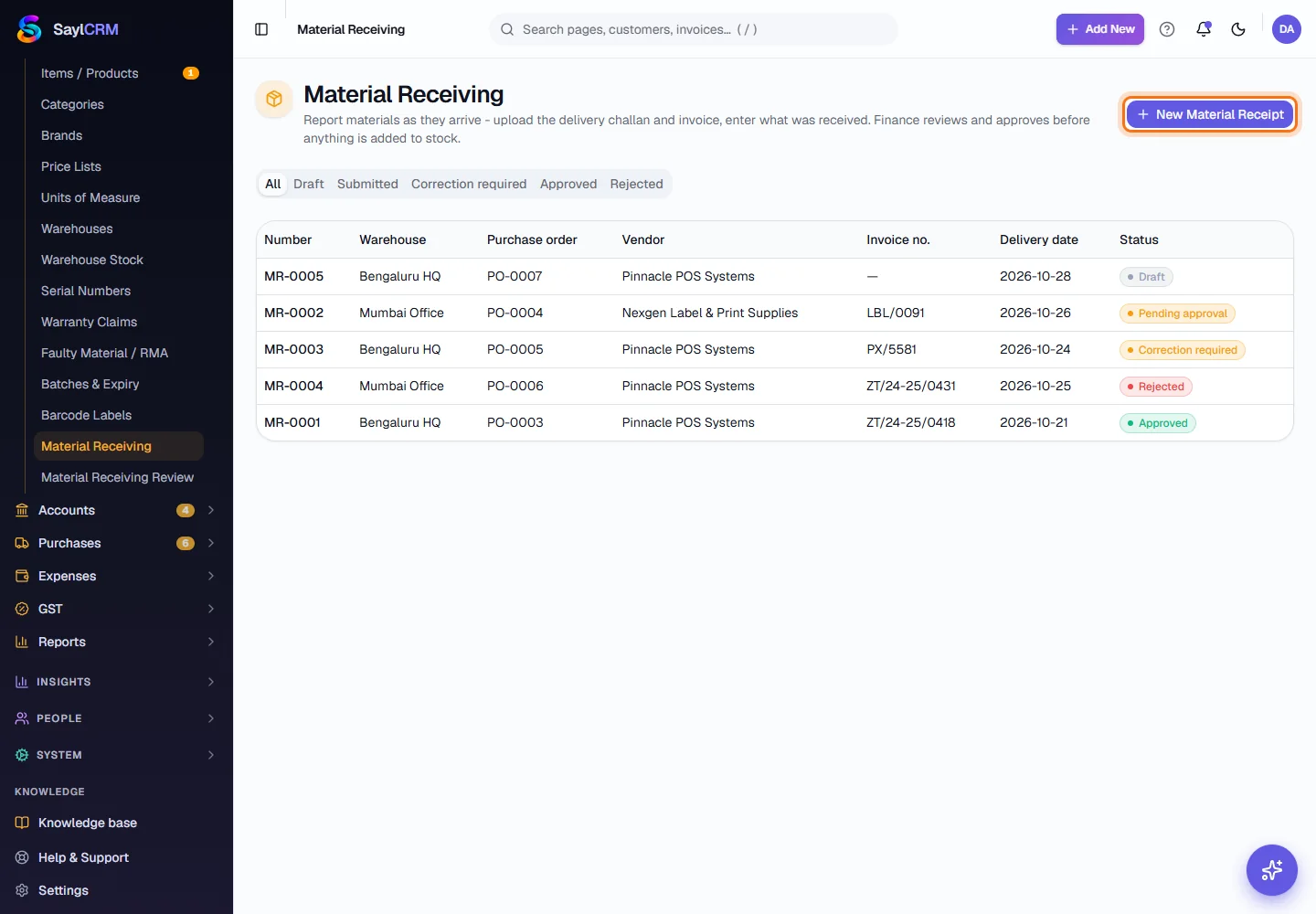
New Material Receipt (highlighted) is at the top right. - 2
Report what arrived
Click New Material Receipt. Choose the warehouse the goods arrived at and the purchase order they are against - the lines still pending on that order appear. Enter the supplier's invoice number and date, the delivery date and any notes for Finance, then enter the quantity you actually received on each line.
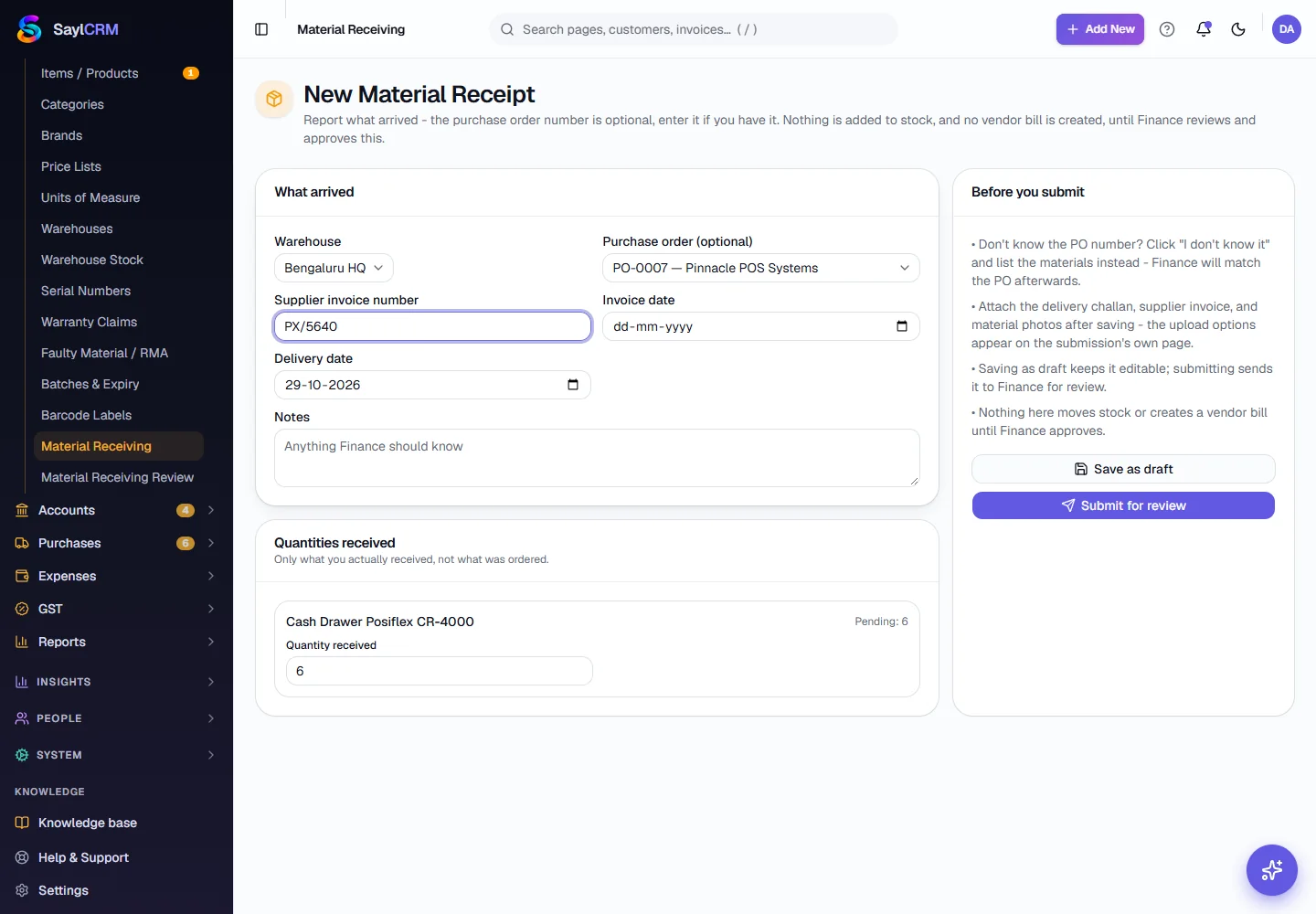
A purchase order picked, with the quantity received to fill in. - 3
Save a draft or submit
Click Save as draft to keep working on it, or Submit for review to send it to Finance. A draft is only visible to you; it can be edited and sent later.
- 4
Attach the paperwork
Open the receipt and, under Supporting documents, choose the document type - Supplier Invoice, Delivery Challan, Purchase order copy, Material photo or Other - and click Upload. PDF, JPG, PNG or WEBP, up to 10 MB each. A supplier invoice on file lets Sayl draft the purchase bill for Finance once the receipt is approved.
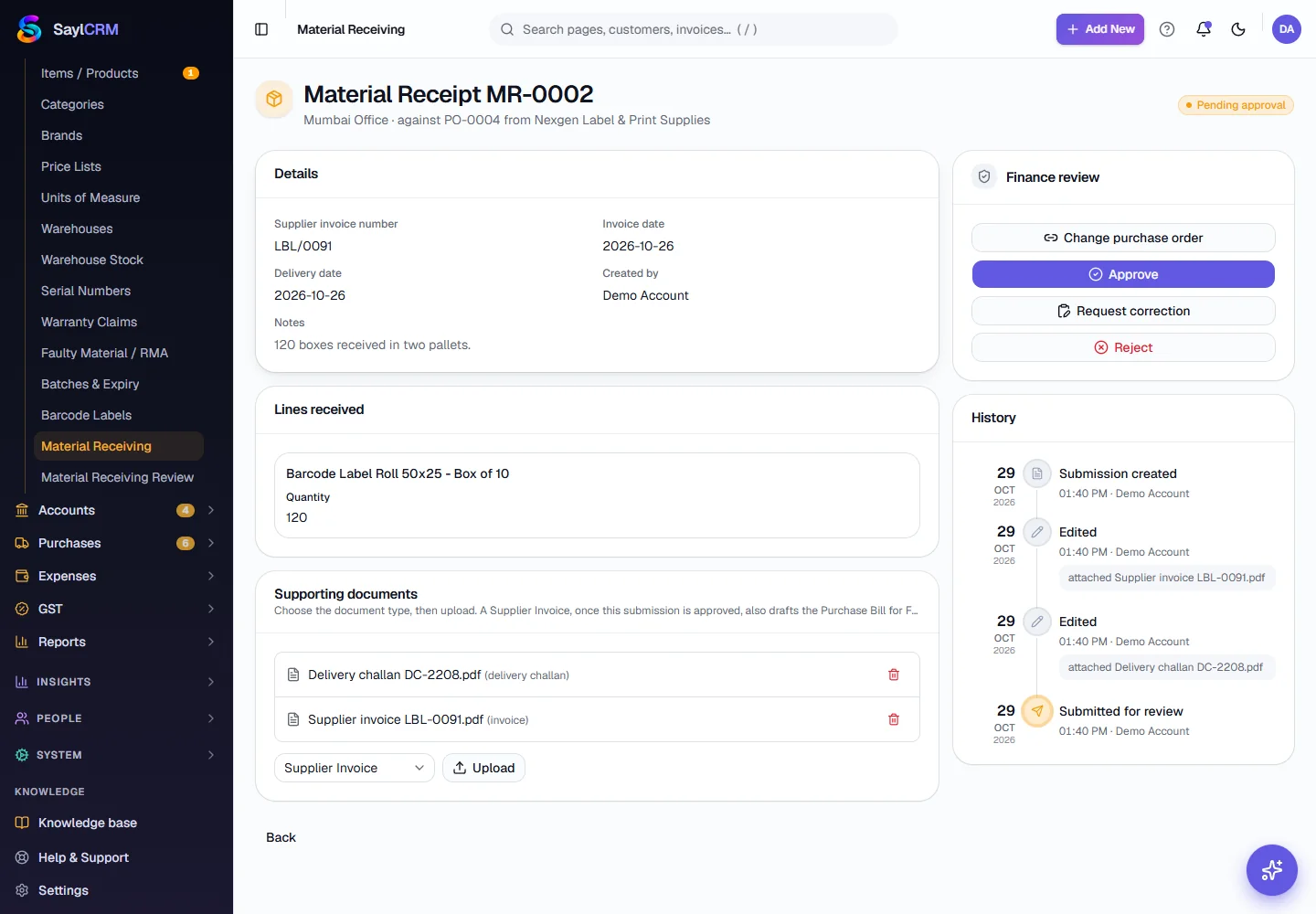
A receipt waiting for approval, with its documents and history. - 5
Correct a receipt Finance sent back
A receipt with Correction required shows what Finance asked for. Fix the quantity or the details, click Save changes, and click Resubmit for review. It goes back into Finance's queue with its history intact.
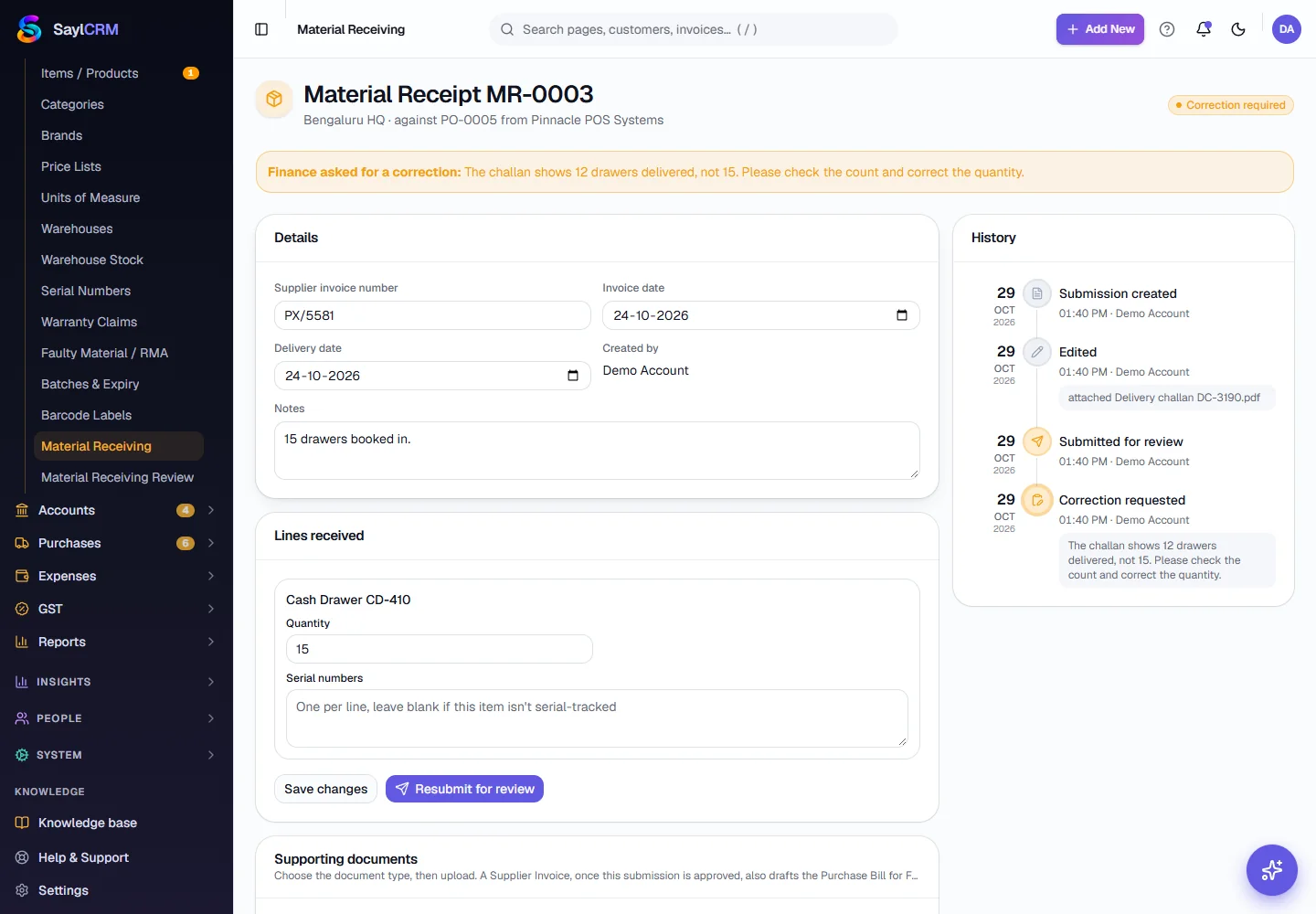
Finance asked for a correction: the challan shows 12 drawers, not 15. - 6
See an approved receipt
When Finance approves, the receipt shows the goods receipt number that was created and says that stock has moved. If a supplier invoice was attached, it also says a draft purchase bill was created - Finance posts it under Bills.
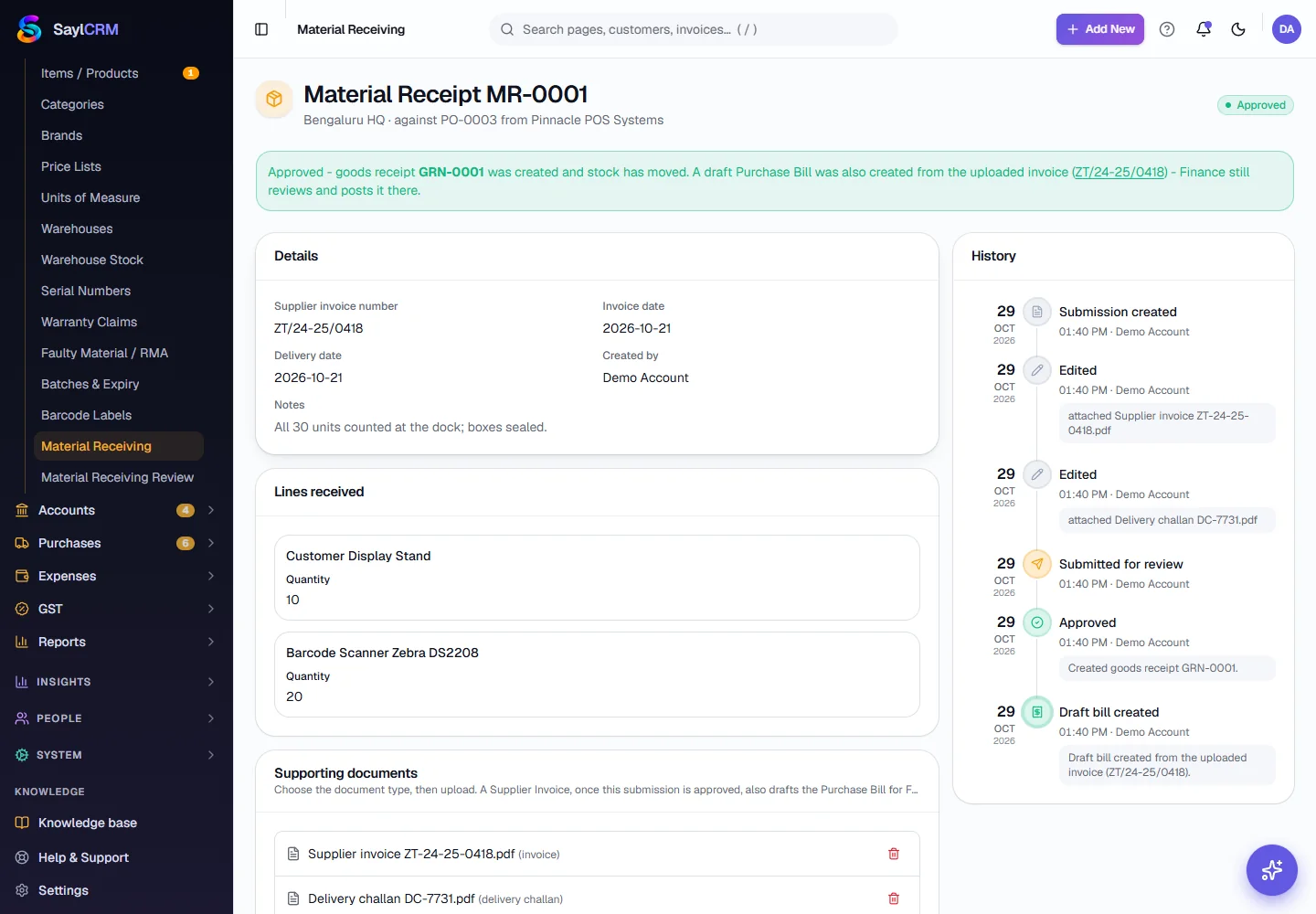
Approved: goods receipt GRN-0001 created and a draft bill from the invoice.
Key fields
- Warehouse *
- Where the goods arrived. You only see the warehouses you are assigned to.
- Purchase order (optional)
- The order the goods are against. Choose the don't-know option to list materials instead.
- Supplier invoice number / date
- As printed on the supplier's invoice. Also becomes the bill reference.
- Delivery date *
- The day the goods arrived.
- Quantity received
- What you actually counted, per line.
- Serial numbers / Batch number
- For tracked items: one serial per line, or the batch number and expiry.
- Notes
- Anything Finance should know - damage, a short delivery, a split shipment.
Tips
- Photograph or scan the delivery challan at the dock and attach it before you submit - Finance can approve faster.
- If boxes arrive damaged, say so in Notes and attach a Material photo, so a rejection or a claim has evidence.
- Submit the receipt the same day the goods arrive, so stock is added as soon as it is approved.