
Finance, GST & Accounting · Inventory
Faulty Material / RMA
Follow a returned, faulty unit from inspection to the vendor or service centre, and through to repaired, replaced or scrapped.
What it is for
When a customer returns a faulty unit under warranty, the unit does not just disappear. An RMA case (return merchandise authorisation) tracks what happens to it: inspected, sent to your vendor or a service centre, and then repaired, replaced or scrapped.
It keeps the faulty serial number, the customer, the original invoice and the warranty claim together, with a history of every step.
How it works
- A case is opened for a unit that came back faulty. Cases for units returned on a warranty claim link to that claim; you can also open one by hand from a returned or faulty serial number.
- A case moves through its statuses as you act on it: Pending inspection, then sent to the vendor or service centre, Under repair or Awaiting replacement, Repaired or Received back, and finally Closed - or Scrapped when it cannot be fixed.
- Every action is written to the case's history with its date, so you can answer where a unit is now.
Step by step
Every screenshot is from the live demo. The highlighted button is the one to click - nothing here is saved in the demo, so you can follow along freely.
- 1
Open Faulty Material / RMA
Finance → Inventory → Faulty Material / RMA. Each case is a row with its case number, the faulty serial number, the product, the customer, its status, where it was sent and when it was opened. Search by case number, RMA reference or vendor, or filter by status.
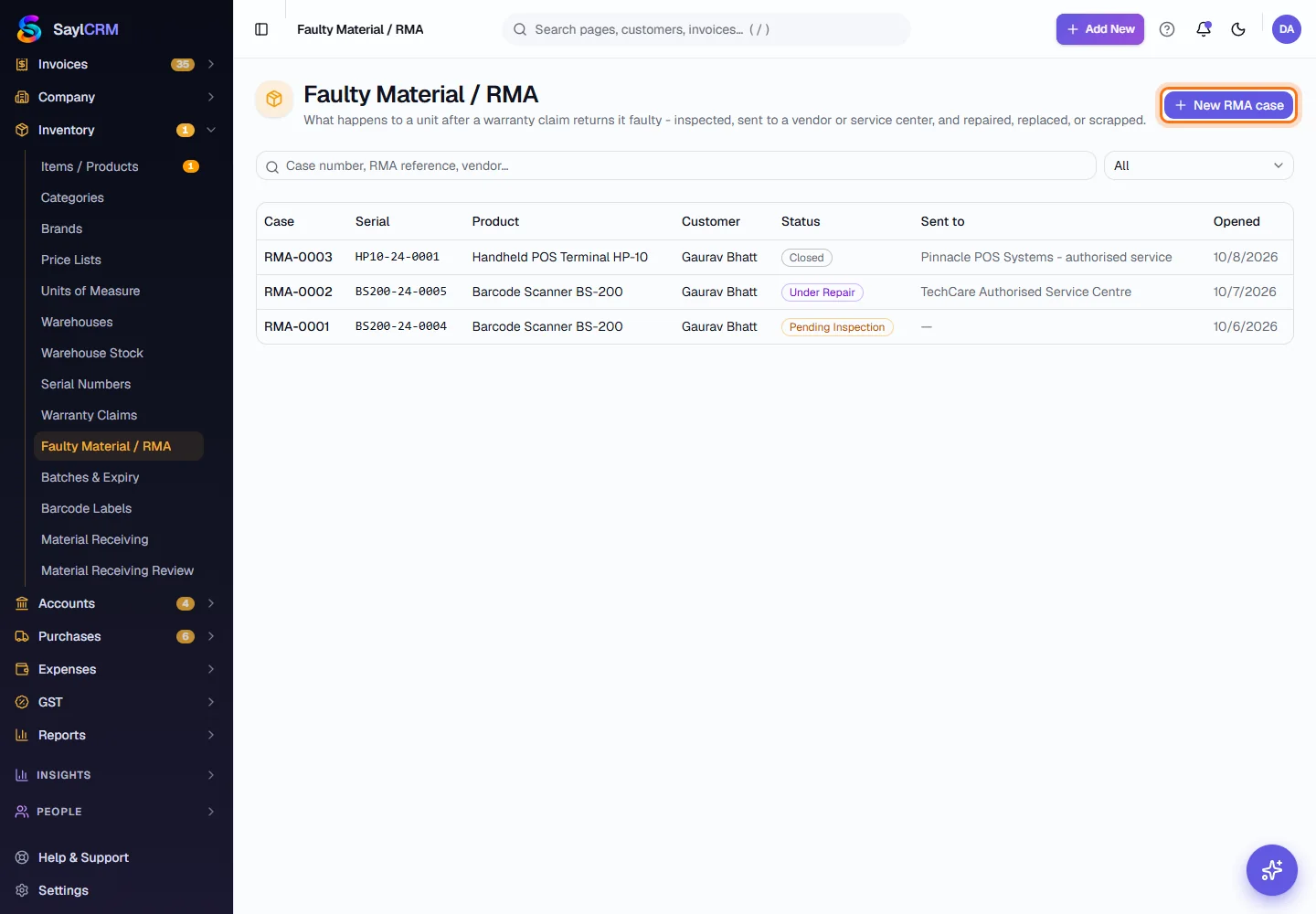
New RMA case (highlighted) is at the top right. - 2
Open a case by hand
Click New RMA case. Type part of the serial number and pick the returned or faulty unit from the matches - only units that came back are listed. Describe the fault and click Open case.
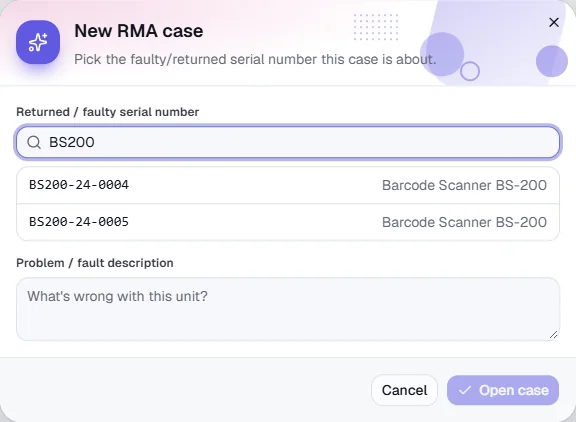
Search a returned serial number. Nothing is saved in the demo. - 3
Inspect the case
Click a case to open it. It shows the product, the faulty serial and, if a replacement was already given to the customer, the serial that replaced it, together with the original invoice, the warranty claim, the fault and the history. A new case is Pending inspection: once you have checked the unit, decide whether to send it away or scrap it.
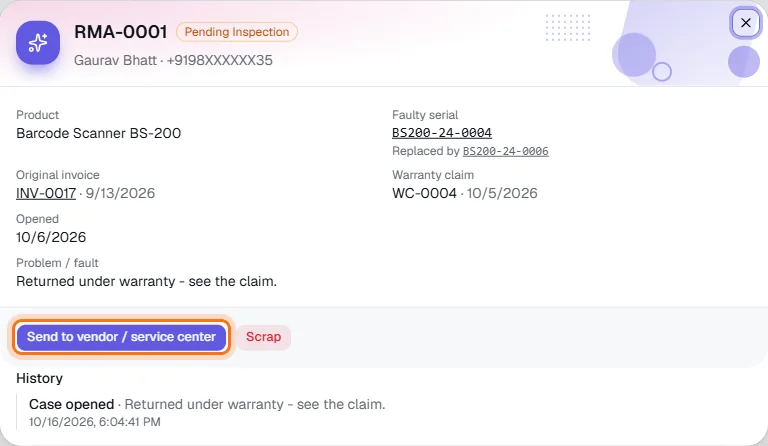
A case waiting for inspection: Send to vendor / service center (highlighted). - 4
Send it to the vendor or service centre
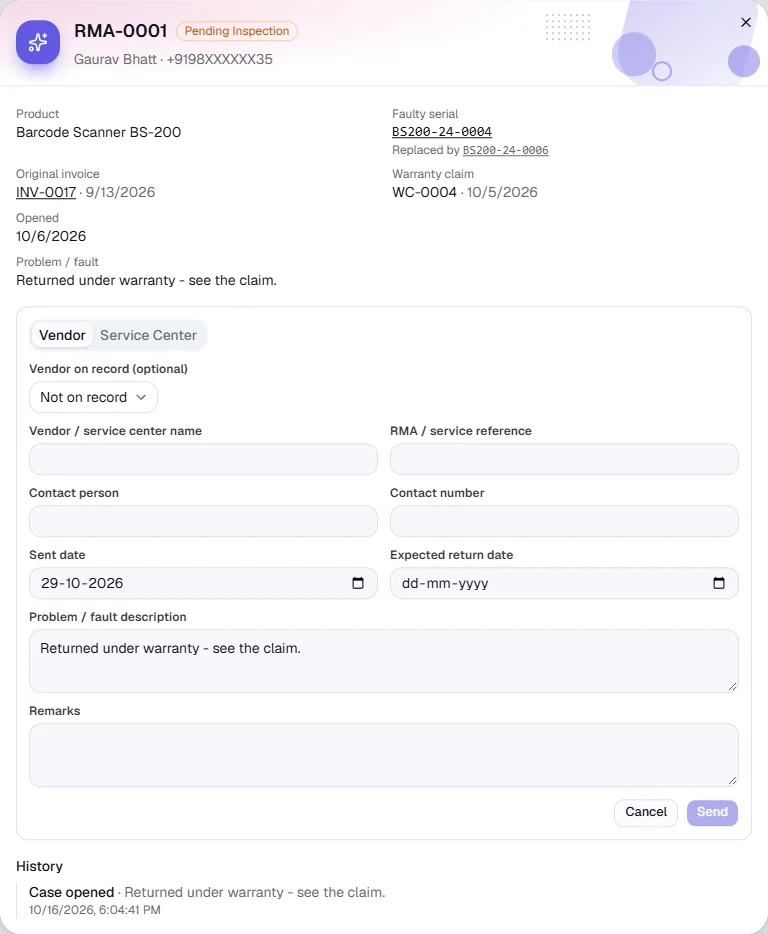
Click Send to vendor / service center. Choose Vendor or Service Center, pick the vendor on record if there is one, or type the name, add the RMA or service reference they gave you, a contact person and number, the date it was sent and the date it should come back. Click Send.
- 5
Track the repair and receive it back
Once sent, the case shows where it is and when it is due back. Use Mark under repair or Mark awaiting replacement as the vendor tells you. When the unit returns, click Mark repaired / received and note what was fixed - or click Receive replacement and enter the replacement's serial number and the date it arrived.
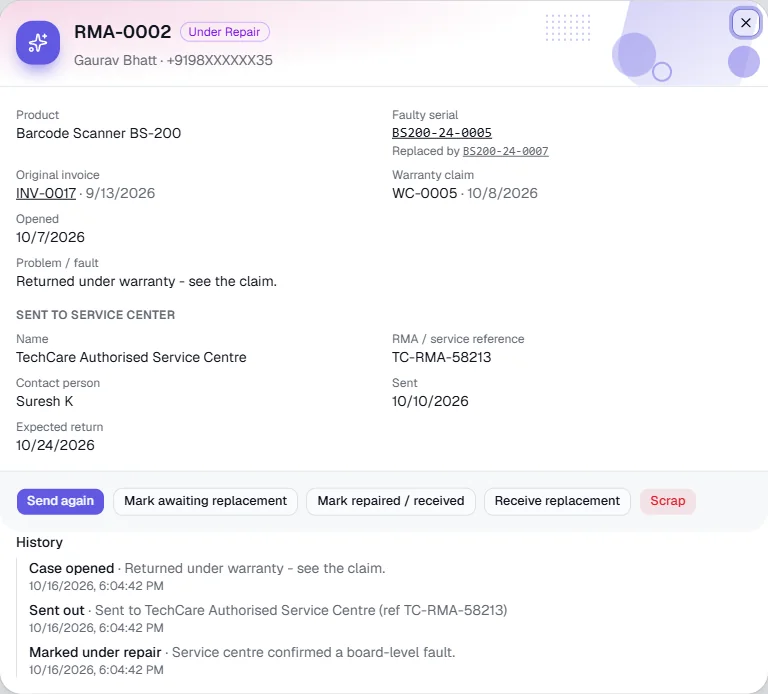
A case under repair at the service centre, with its reference and expected return date. - 6
Scrap or close
If the unit cannot be repaired or replaced, click Scrap and enter the date, the reason, who approved it and any scrap value. When everything is finished, click Close case. A closed case stays on the list as the record of what happened.
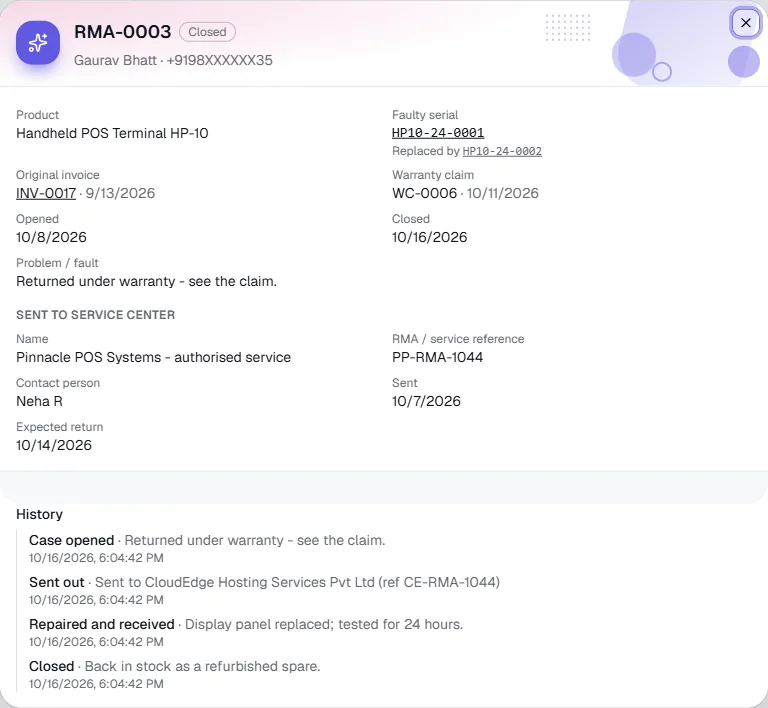
A closed case with its full history.
Key fields
- Returned / faulty serial number *
- The unit that came back. Only returned or faulty serials can be picked.
- Problem / fault description
- What is wrong with the unit.
- Vendor or service center
- Where the unit was sent. Pick a vendor on record or type a name.
- RMA / service reference
- The reference the vendor or service centre gave you.
- Sent date / Expected return
- When it left and when it should be back.
- Replacement serial number
- The serial of the unit you received in return, when the case ends in a replacement.
- Scrap reason, approved by, scrap value
- Required to scrap: why, who approved it, and any value recovered.
Tips
- Always add the vendor's RMA reference when you send a unit - it is the first thing they will ask for when you chase.
- Check the Expected return dates every week and chase cases that are overdue.
- Link a case to its warranty claim so you can see the customer's side and the vendor's side in one place.